VRO Getting Started Guide (8) - Plan Step · Part 2
Series Table of Contents:
- VRO Getting Started Guide (1) - Introduction
- VRO Getting Started Guide (2) - Installation and Deployment
- VRO Getting Started Guide (3) - Basic Components · Part 1
- VRO Getting Started Guide (4) - Basic Components · Part 2
- VRO Getting Started Guide (5) - First Steps to a Successful Disaster Recovery Plan
- VRO Getting Started Guide (6) - Data Lab
- VRO Getting Started Guide (7) - Plan Step · Part 1
- VRO Getting Started Guide (8) - Plan Step · Part 2
- VRO Getting Started Guide (9) - Document Template Analysis
- VRO Getting Started Guide (10) - Using VRO with K10 for Fully Automated Container Disaster Recovery
In the previous article, I introduced the basic configuration and usage of Plan Steps. Today, I’ll provide a detailed breakdown of custom scripts within Plan Steps. I’ll walk you through using custom scripts through a practical example.
Creation and Configuration
Configuring custom scripts requires logging into the VRO platform with an account belonging to the Administrators group. After entering the Administration console, you can find Plan Steps under Configuration. Here you can manage all Plan Steps. Besides creating custom Steps, you can also make personalized configurations to the built-in Steps here.
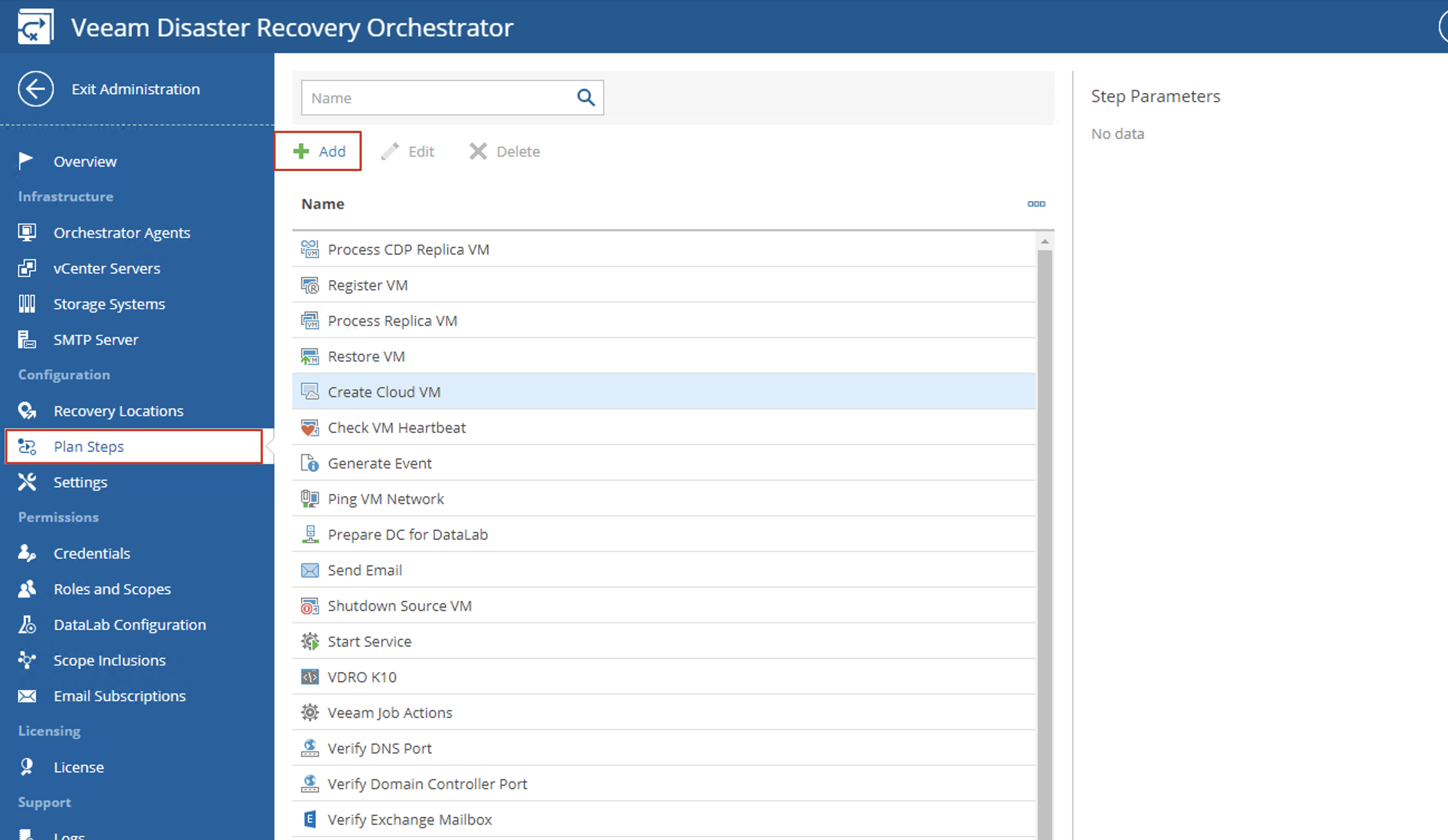
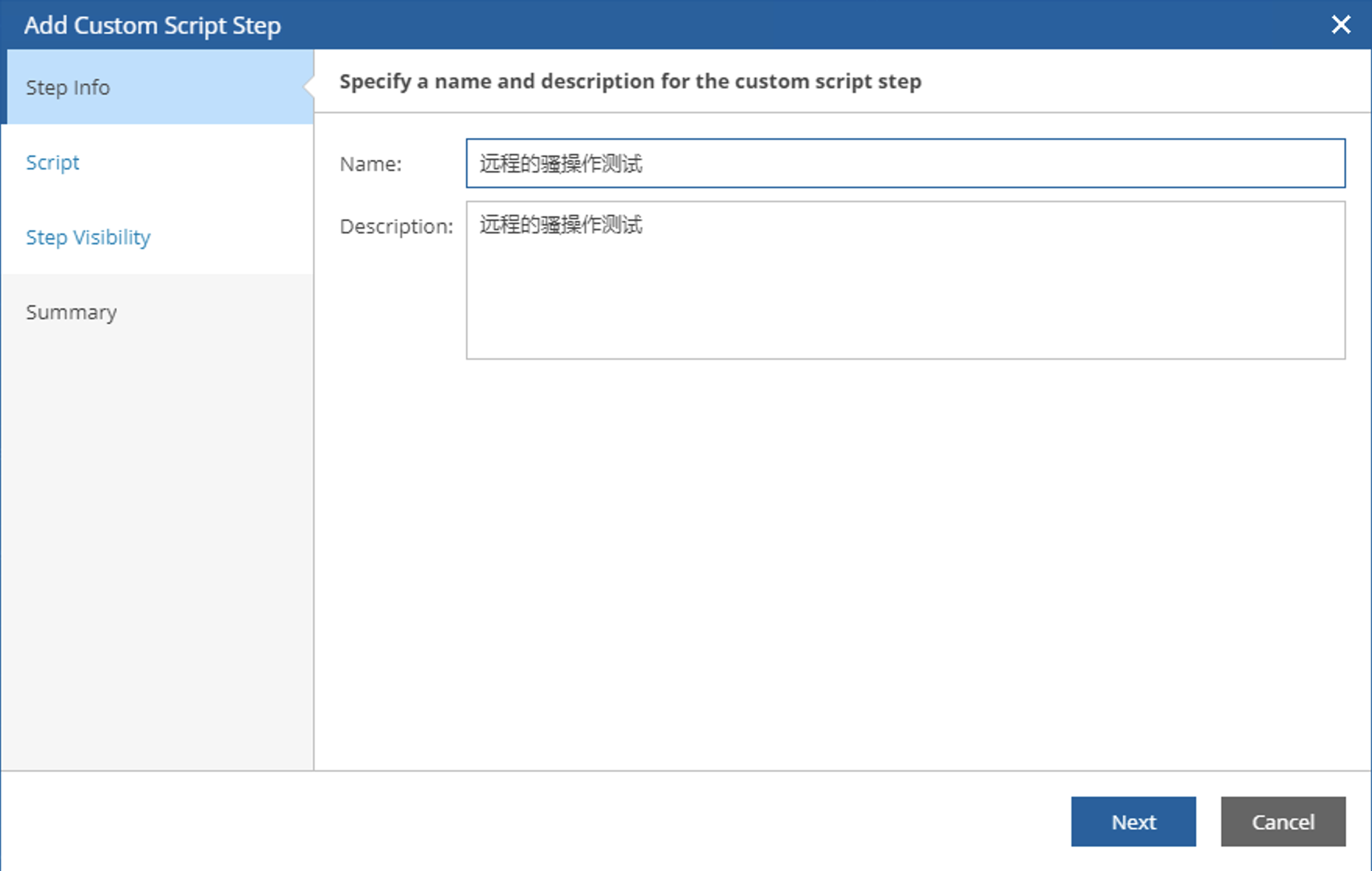
- Click the Add button to enter the creation wizard. The process is very simple - give it a catchy name, such as
Remote Advanced Operations Test, then click Next to proceed.
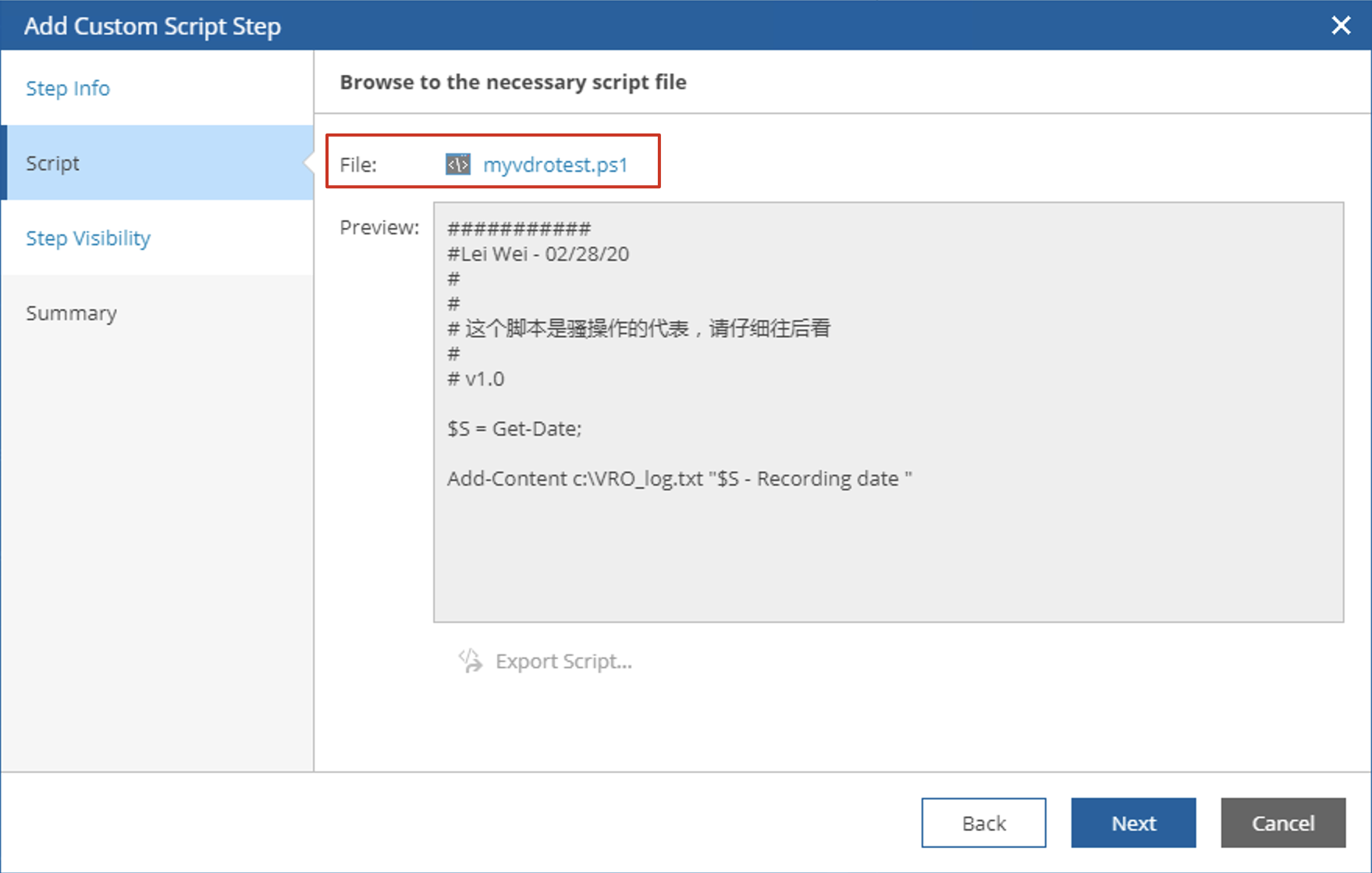
- In the Script step, find the File field and click Browse to select the prepared PowerShell script from the current client. The uploaded script will display detailed content in Preview. Click Next to proceed.
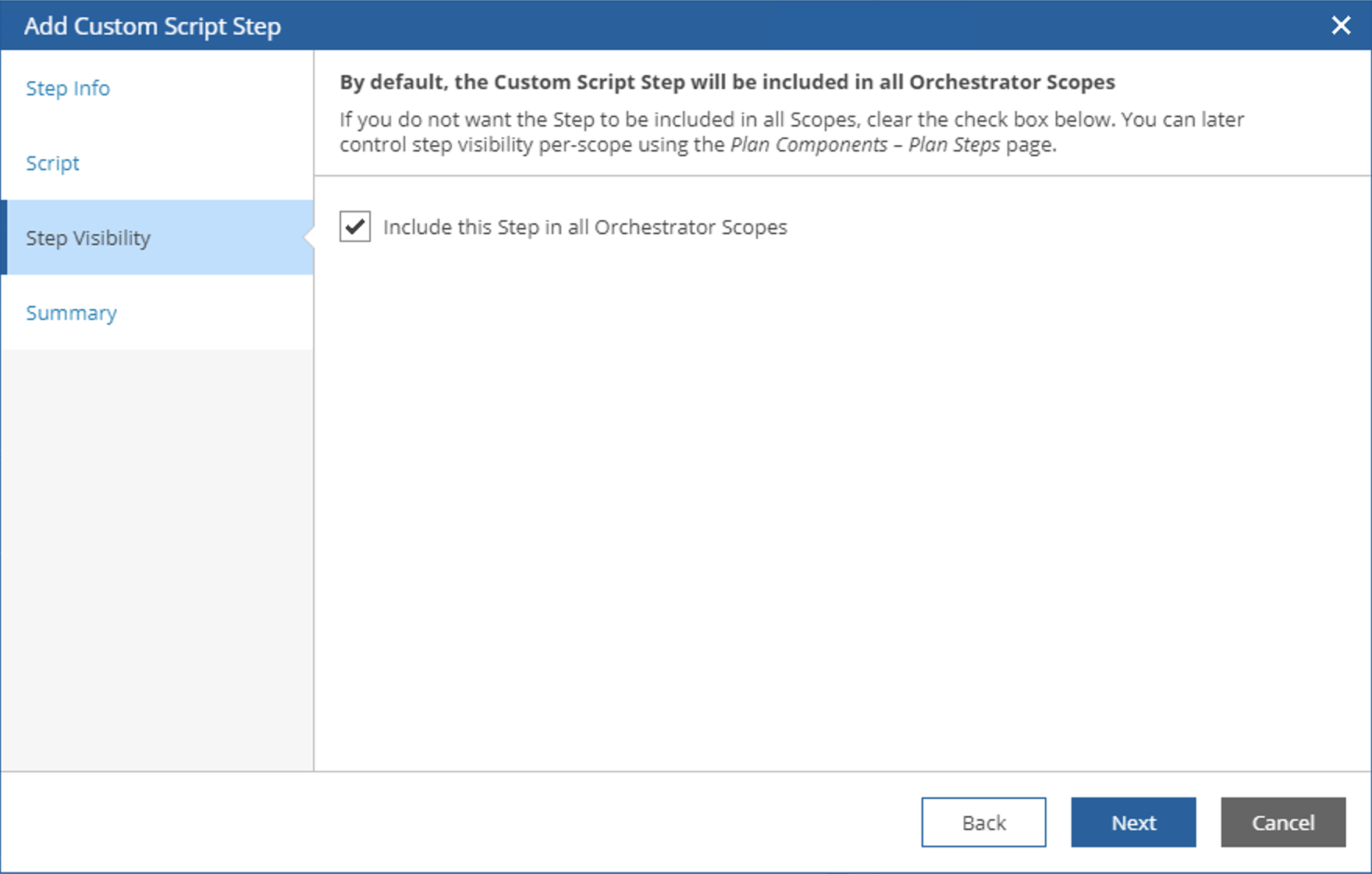
- In the Step Visibility step, if you don’t want all disaster recovery administrators to see this advanced script, you can uncheck the checkbox on this interface.
-
Finally, as usual, the Summary will provide an overview, and clicking Finish will complete the creation.
-
However, this is just the creation complete - don’t think you can immediately use it. Let me emphasize this particularly important point: custom scripts can have two different execution locations - one is execution on the disaster recovery machine, and the other is execution on VBR. This must be manually configured by clicking the Step name after creating the Plan Step, finding Edit to modify it. At this point, you’ll notice that in addition to the creation wizard steps, there’s an additional step called Step Parameters where you can make more detailed configurations, including modifying the default execution location.
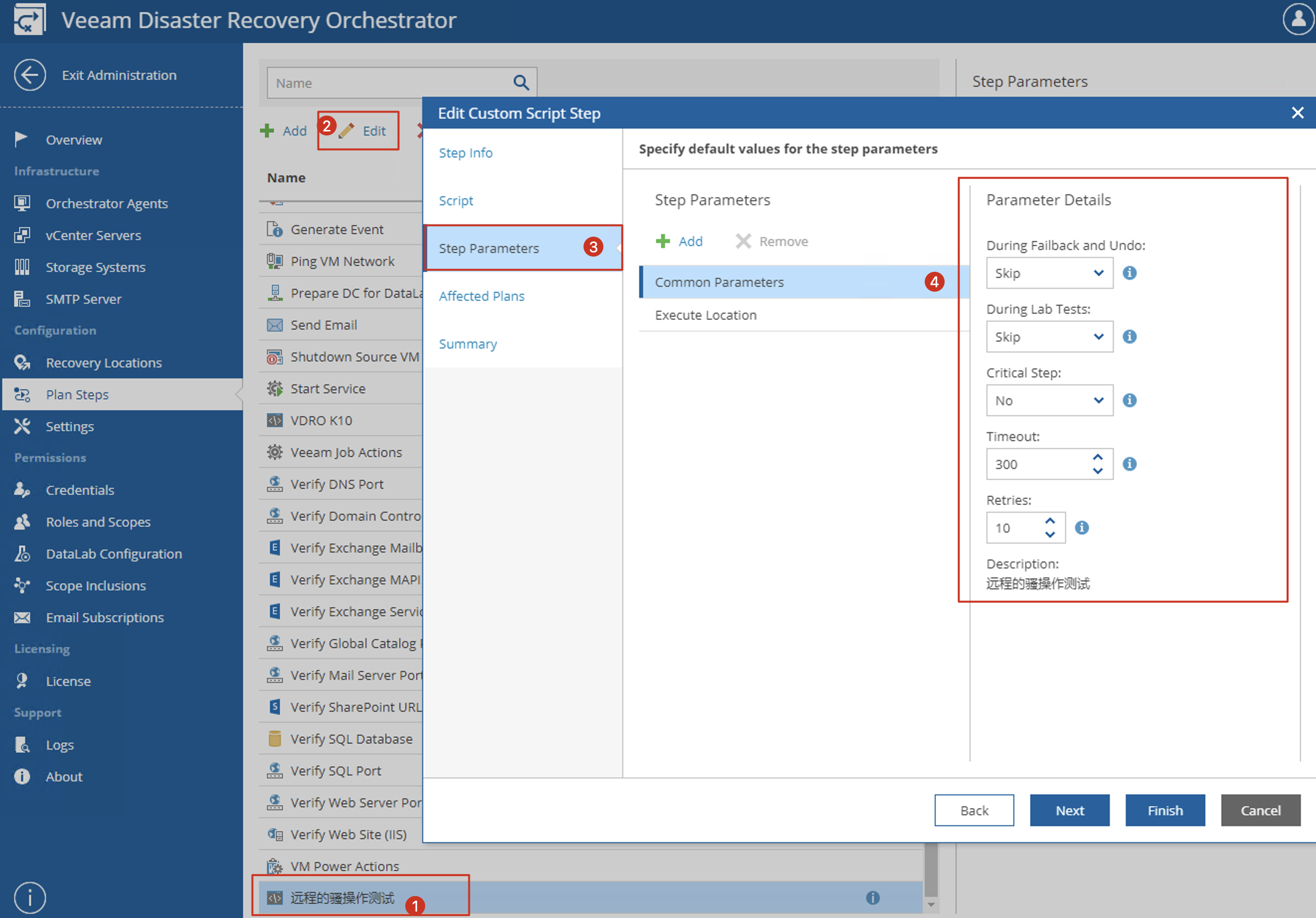
- The default value is execution on VBR. For example, the test I’m doing today needs to be adjusted to change it to In-Guest OS.

It’s important to note that the configuration of this Step is global, meaning if this Step is provided for all Scopes to use, this configuration content is shared by all Scopes and cannot be changed in scheduled tasks. Therefore, if necessary, administrators need to define these Plan Steps individually based on actual requirements in the Plan Steps management page.
Hello! My Script
Now, let’s configure a Script and run it. Let’s start with something simple, with the following content:
###########
#Lei Wei - 02/28/20
#
# This script represents advanced operations, please look carefully
#
# v1.0

$S = Get-Date;

Add-Content c:\VRO_log.txt "$S - Recording date "
If everything goes well, you’ll see the following information in VRO:

Let’s Make It More Complex
This script is really simple and almost impossible to fail. But if it’s more complex, can VRO capture these errors to make it easier for our administrators to know what problems occurred in the system? Please see the following code:
###########
#Lei Wei - 02/27/20
#
# This script represents advanced operations, please look carefully
#
# v1.1

try {
$S = Get-Date;
Add-Content c:\VRO_log.txt "$S - Recording date. "
Write-Host "Precise timing, advanced operation successful"
}
Catch {
Write-Error " Something went wrong, failed!"
Write-Error $_.Exception.Message
}
After switching to this PowerShell script, you can see the successful execution record in the VRO interface below. Besides recording success or failure, the information from the script in my settings is also passed into the VRO interface.

More Parameter Passing
The scripts used by VRO can be even more complex. For example, VRO can pass some parameters to the script. Let’s continue modifying the above script as follows:
###########
#Lei Wei - 02/27/20
#
# This script represents advanced operations, please look carefully
#
# v1.2

Param(
[Parameter(Mandatory=$true)]
[string]$planName,
[string]$text
)

try {
$S = Get-Date;
Add-Content c:\VRO_log.txt "$S - Recording date. "
Write-Host "Precise timing, advanced operation successful"
Write-Host "Precise timing, advanced operation successful, $planName, $text !"
}
Catch {
Write-Error " Something went wrong, failed!"
Write-Error $_.Exception.Message
}
In this script, we’ve configured two parameters: $planName and $text. If you want to correctly use parameters in VRO and pass relevant parameters to the script, you need to add additional parameters to this Plan Step. This can be done through the Add button on the right side of the Plan Step.
It’s important to note that the parameters we Add must have names that match the parameter names in the script to be passed correctly. As shown in the figure below, we set planName and text.
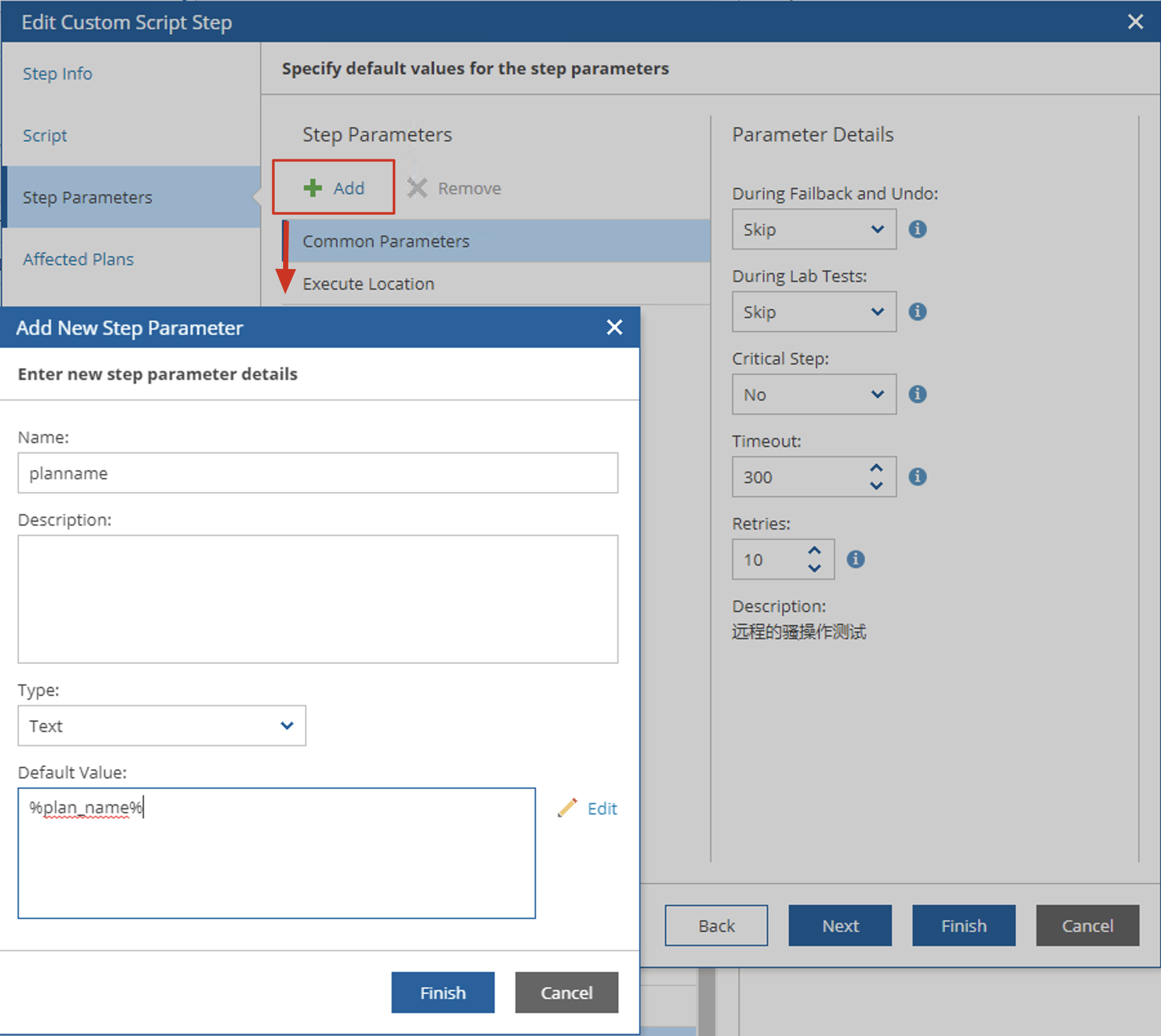
Here, the default value for planName is set to $plan_name$, which is one of the system built-in variables in VRO. In our parameter passing, we can use these variables directly. The specific list will pop up for us to select when clicking the Edit button.
For $text, we directly input the Default Value instead of using VRO built-in system variables, with the input content: “Complete parameter passing”.
Finally, let’s see what the execution result of this advanced script operation in the Orchestration Plan looks like, and what will appear in our Step Details and Report:

How does that feel? Isn’t VRO great? Hurry up and give it a try!