VRO Basic Tutorial (Part 7) - Plan Step · Part 1
Series Table of Contents:
- VRO Basic Tutorial (Part 1) - Introduction
- VRO Basic Tutorial (Part 2) - Installation and Deployment
- VRO Basic Tutorial (Part 3) - Basic Components · Part 1
- VRO Basic Tutorial (Part 4) - Basic Components · Part 2
- VRO Basic Tutorial (Part 5) - First Steps to a Successful DR Plan
- VRO Basic Tutorial (Part 6) - Data Lab
- VRO Basic Tutorial (Part 7) - Plan Step · Part 1
- VRO Basic Tutorial (Part 8) - Plan Step · Part 2
- VRO Basic Tutorial (Part 9) - Document Template Analysis
- VRO Basic Tutorial (Part 10) - Using VRO with K10 for Fully Automated Container DR
In previous posts, we’ve discussed in detail the creation process of Orchestration Plans. Beyond these basic creation steps within each Orchestration Plan, the most important aspect of this system is its automated workflow. This automation is implemented through PowerShell scripts. In VRO, these PowerShell automation scripts are encapsulated within Plan Steps, which are scheduled, executed, and parameter-passed by VRO’s Orchestration Plans.
Each Orchestration Plan, when created, includes several default Plan Steps that essentially cover the power-on and power-off operations involved in every disaster recovery scenario. Administrators can edit Orchestration Plans and add additional Steps as needed.
Detailed Management and Usage of Orchestration Plans
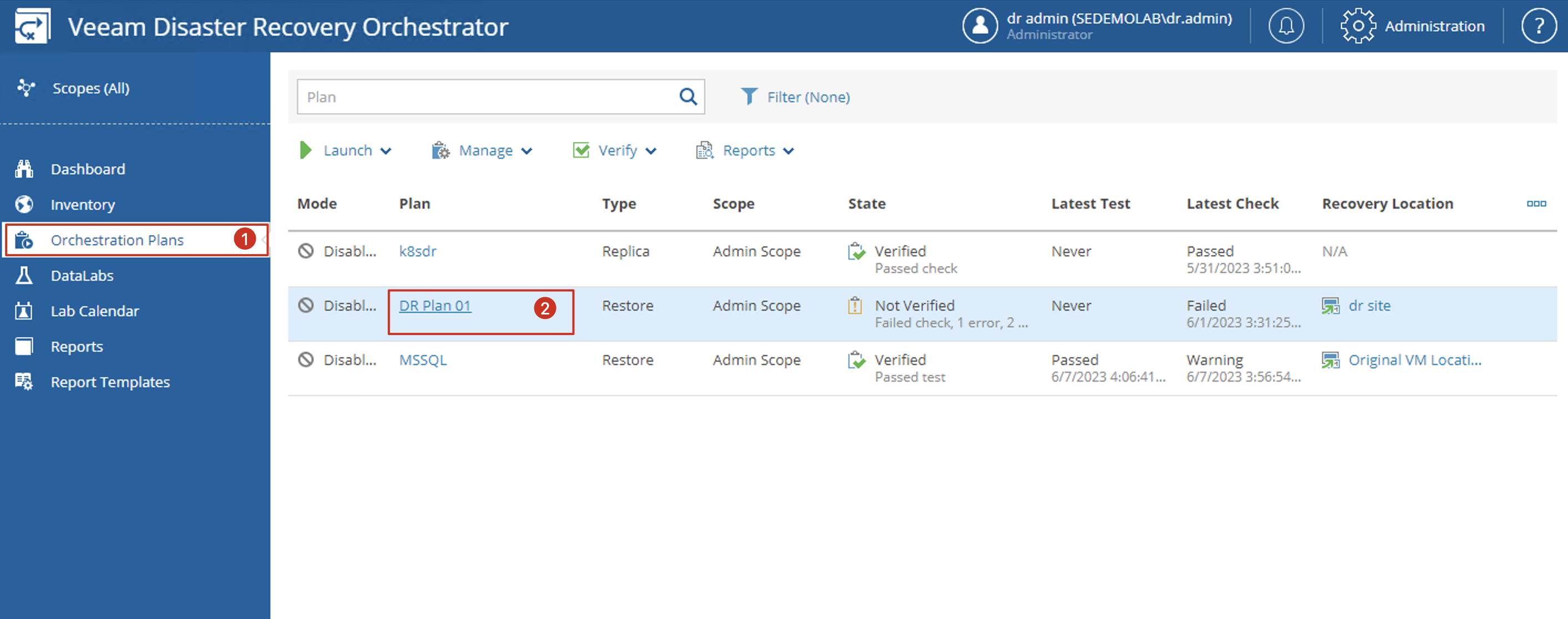
In the VRO main interface, find Orchestration Plans on the left side and click to enter the Orchestration Plans dashboard. Select a Plan you want to edit and click on the Plan name to enter that Plan.
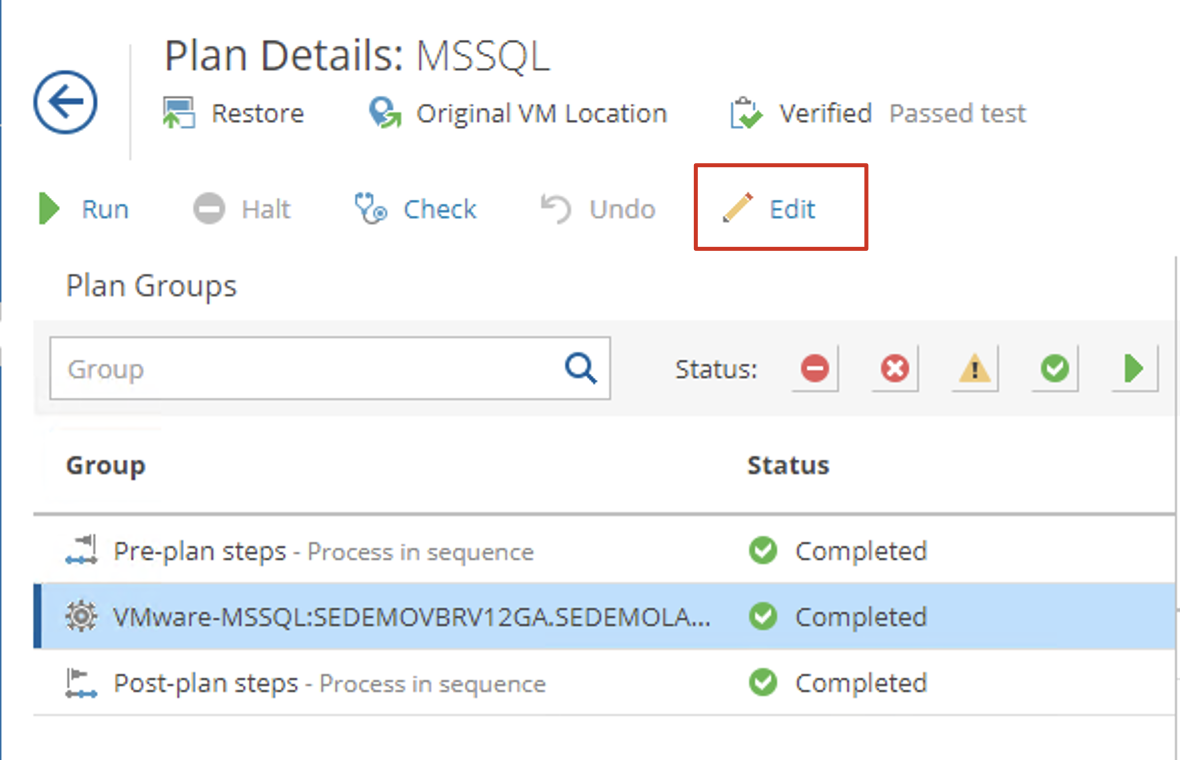
In Plan Details, you can see five buttons from left to right: Run, Halt, Check, Undo, and Edit. These include three classic buttons: Run is the execute button, Halt is the pause button, and Undo is the cancel button. Besides these three, Check is the button to verify the Plan’s ready status—if the ready status fails, this plan will most likely fail during execution. Edit is the button we’ll详细介绍 today, which is our main button for adding automation workflows. After clicking Edit, you can enter the Plan’s editing interface.
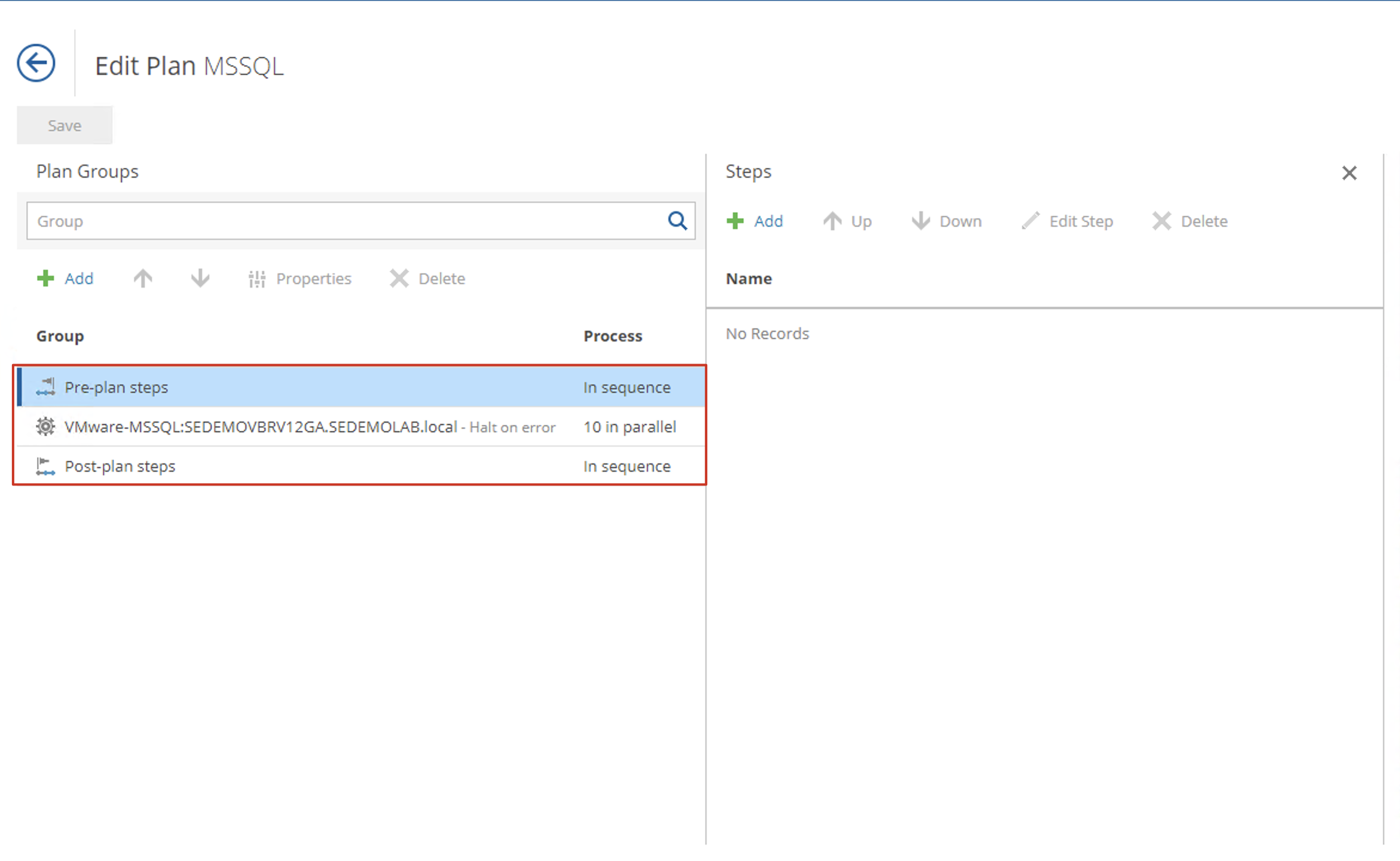
In the Plan Edit interface, the entire layout is arranged from left to right. The leftmost frame contains plan groupings. After clicking content in the left frame, the frames to the right will sequentially display the contained objects and available operations under that object.
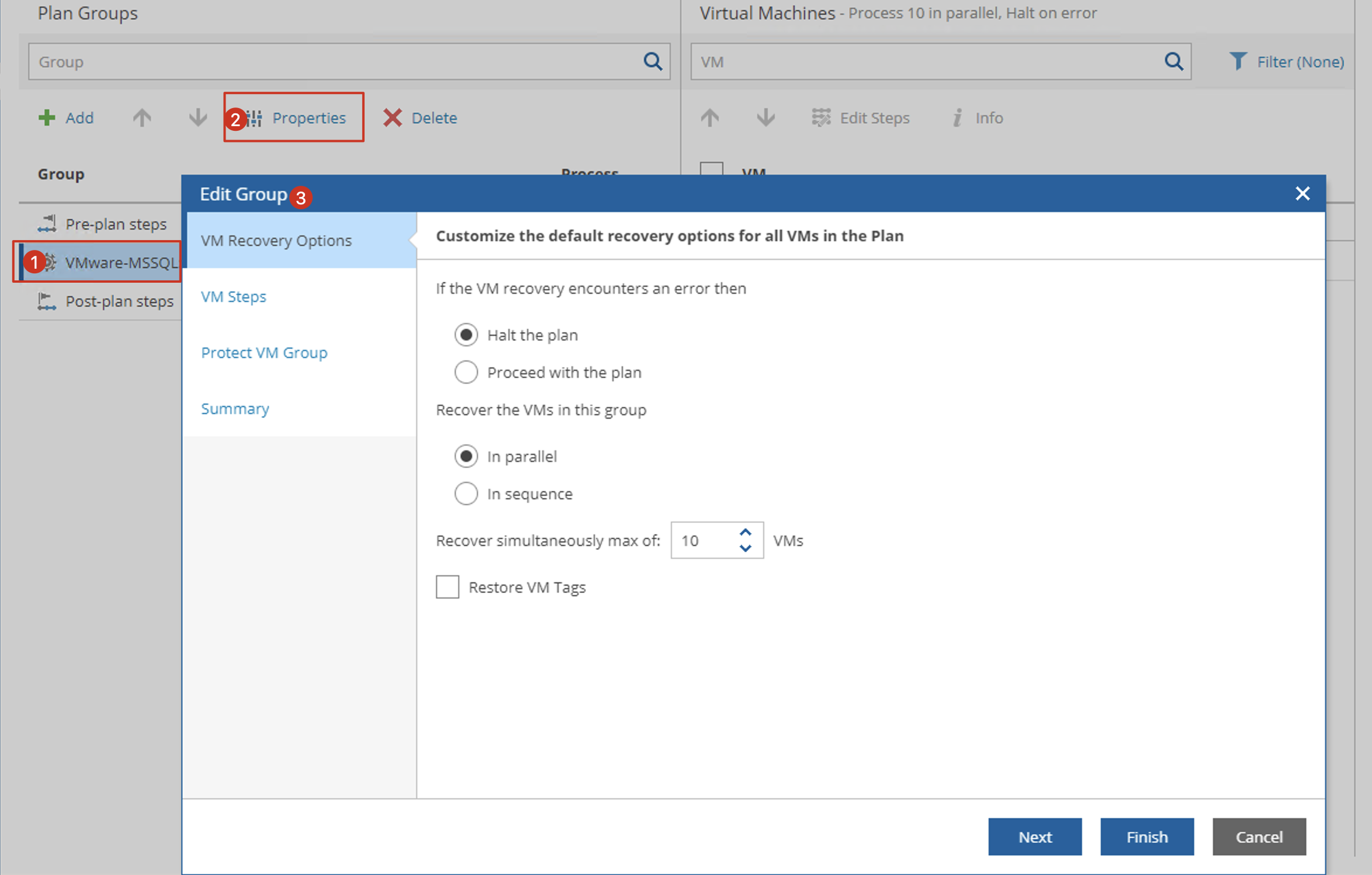
In the leftmost frame, there are two default groups: Pre-Plan Steps and Post-Plan Steps, along with user-defined groups. The user-defined groups located between the two default groups contain the most adjustable content. You can open the configuration wizard through Add or Properties to make some configurations. These configurations are basically the same as some content mentioned during the creation of Orchestration Plans. In other words, after creating a Plan, if you need to adjust some parameters from the creation process, you can come here to make those adjustments.
For the Pre-Plan Steps and Post-Plan Steps groups, these two Steps don’t contain any actual machines, so users cannot adjust any properties of these Plans. However, VRO allows us to add some Steps to these two Plan Steps groups, which enables us to execute some custom processes before or after VRO officially executes the Plan. After clicking Pre-Plan Step, the right frame will show specific Step options. By default, there are no entries inside, but you can add them using the Add button, as shown below.
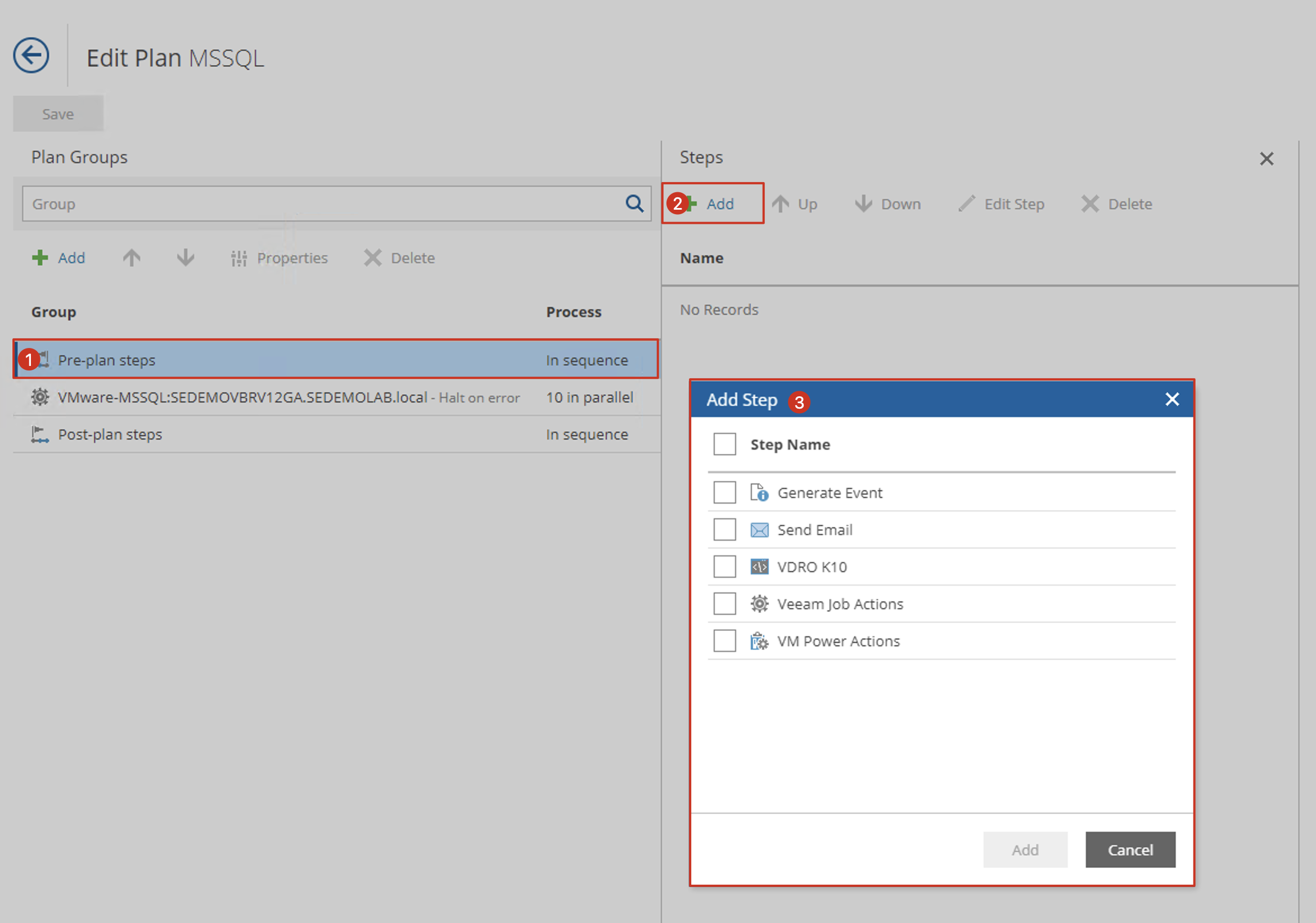
Here are the VRO system-built Steps that can be added:
- Generate Event - Generate a Windows event, recorded in the Windows event viewer.
- Send Email - Send email notifications.
- Veeam Job Actions - Manipulate backup or replication jobs on VBR, with 4 operations: Enable, Disable, Start, and Stop.
- VM Power Actions - Control VM power operations on vCenter, which is very useful for shutting down non-critical machines before DR site switchover to free up resources.
- Any other user-defined PowerShell scripts.
For user-defined groups, they contain the actual machines that need to perform restore or failover. When I select a specific machine, VRO will allow me to define the Steps that need to be added when this machine performs restore or failover. For already added Steps, you can also modify their execution order and define detailed parameters.
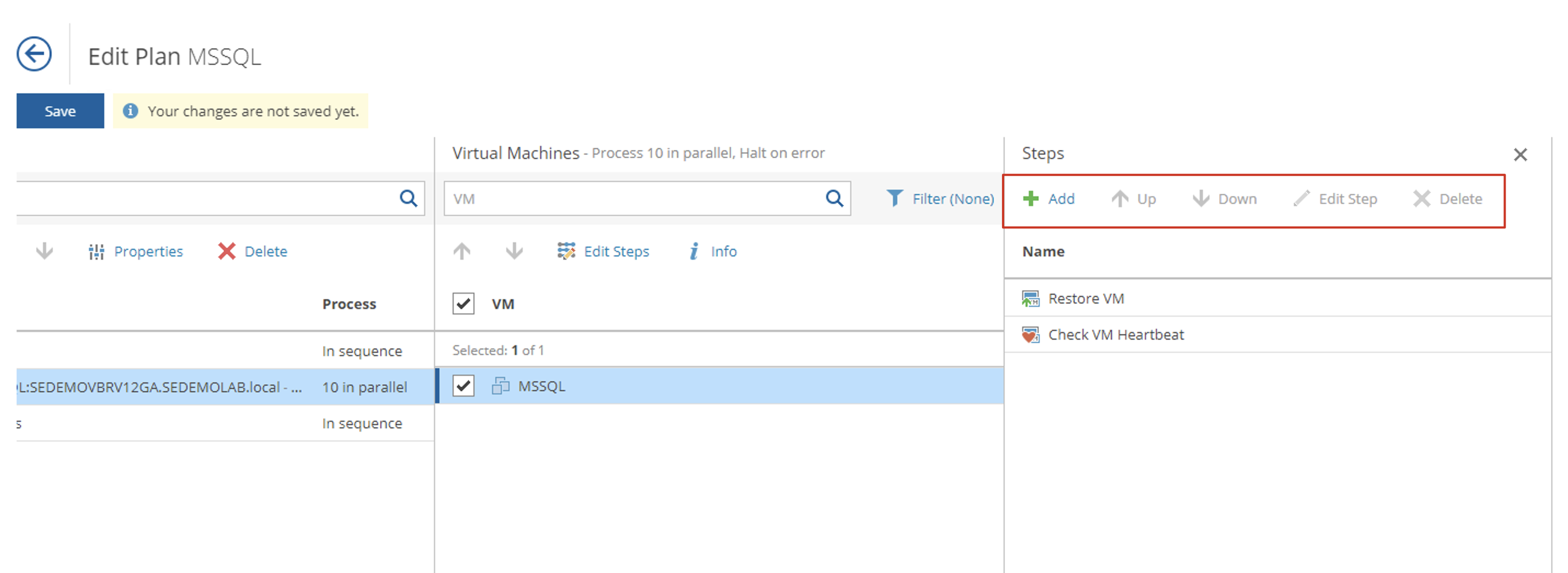
Here are the factory-built Steps available, which I’ve categorized simply:
- Application verification: 12 (AD, Exchange, SharePoint, SQL, and IIS)
- Virtual machine verification: 2 (heartbeat and ping)
- Event notification: 2 (Windows Event and email)
- Resource operations: 3 (VM power operations, Windows service startup, source VM shutdown)
Plan Step Common Parameters
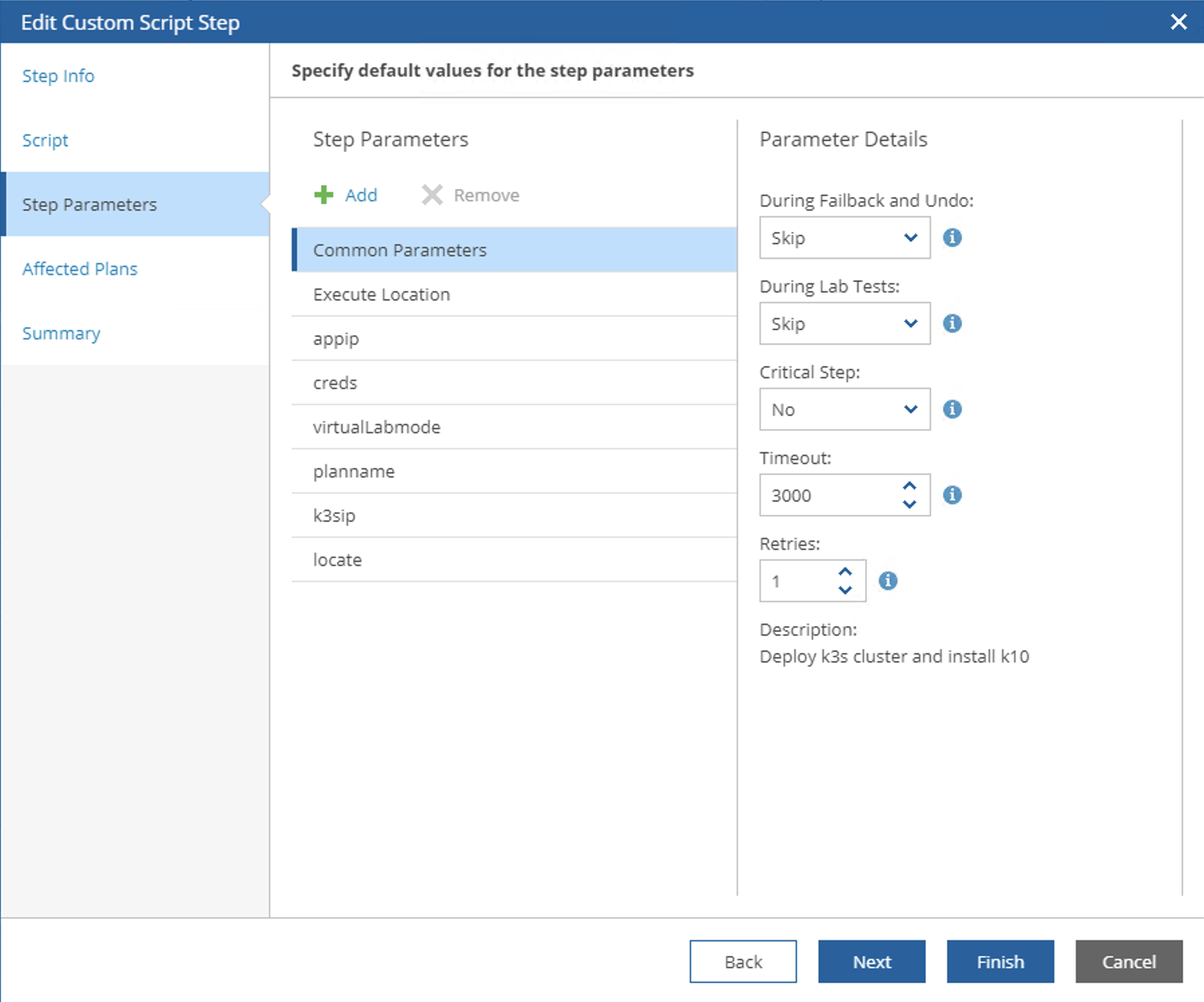
Each Plan Step includes a basic Common Parameter that controls the basic execution conditions of this Plan Step, containing the following:
- During Failback & Undo: Determines whether to execute the script during Failback and Undo Failover operations
- During Lab Test: Determines whether to use the script during Datalab testing
- Critical step: Defines whether this Step is important for the entire Plan—if yes, stop the plan immediately upon failure
- Timeout: Defines the execution timeout for the entire Step
- Retries: Defines the number of failure retries
These parameters can be adjusted individually for each step in every Orchestration Plan.
Custom Scripts
VRO also provides custom script functionality, allowing administrators to directly call and use PowerShell scripts on the VBR server or recovered systems to accomplish various advanced operations.
For example, consider an application architecture in a data center as follows:

A typical three-tier architecture with Oracle database on AIX servers, and middleware and application servers running on VMware vSphere. During initial DR system design, the Oracle database was replicated using OGG, achieving data-level synchronization.
For such an architecture, when using VBR, Veeam typically recommends users to also protect the virtualization platform to ensure that when the primary data center fails, both application systems and databases can switch to the DR site. After using Veeam’s solution, users typically discover that VBR not only excellently completes virtualization platform DR replication tasks, but its DR testing capabilities are also extremely powerful. The system genuinely restores systems and provides post-recovery testing access, completing the entire drill process with real operations, and it’s fully automated.
However, administrators quickly discover an awkward point: the application system doesn’t have database data support. Even if restored, it cannot work normally. Such testing still cannot ultimately be equivalent to actual DR scenarios.
VRO to the Rescue
With VRO’s help, this can be perfectly solved. The entire process would be:
- Start the application system’s Failover/Restore Plan. In the Step before the actual recovery process, add PowerShell scripts to communicate with the AIX at the DR site.
- After the script executes on AIX, a new LPAR is deployed.
- Another script attaches a virtual network card to the newly deployed LPAR and connects it to the isolated sandbox network we created in the virtualization environment. This isolated network cannot directly route to production, making it a relatively isolated environment.
- The third script starts the latest copy of the Oracle database running on this new LPAR.
- Once everything is prepared, start the application and middleware replicas on the virtualized DR platform. In this isolated environment, the running applications and middleware can access the AIX database.
- We’re not done yet. The systems are running—let them fly for a while. You can perform a series of tests, development, and other operations on them.
- After extensive testing, the systems are no longer needed, and the DR administrator is notified that they can be reclaimed. The DR administrator operates VRO to proceed to the next step.
- VMs on vSphere are Undo Failed Over to their pre-test state. This is very simple, almost identical to VBR.
- A new script is triggered, notifying AIX to delete this LPAR and its database, ensuring test data is not replicated back to production.
Isn’t this process excellent? Such a process can not only involve coordination with AIX but also integrate with various systems, whether HPUX or Oracle Exadata. Oh, and public cloud—let’s join this DR party together. With VRO, none of this is a problem.
Therefore, with custom scripts and scheduled task orchestration, VRO is incredibly powerful and can do almost anything that PowerShell can achieve. In the next post, I’ll详细介绍 in detail how to make the most of these custom scripts.