VRO v6 Getting Started Guide (Part 6) - Data Lab
Series Contents:
- VRO v6 Getting Started Guide (Part 1) - Introduction
- VRO v6 Getting Started Guide (Part 2) - Installation and Deployment
- VRO v6 Getting Started Guide (Part 3) - Basic Components · Part 1
- VRO v6 Getting Started Guide (Part 4) - Basic Components · Part 2
- VRO v6 Getting Started Guide (Part 5) - First Steps Toward Successful Disaster Recovery Planning
- VRO v6 Getting Started Guide (Part 6) - Data Lab
- VRO v6 Getting Started Guide (Part 7) - Plan Steps · Part 1
- VRO v6 Getting Started Guide (Part 8) - Plan Steps · Part 2
- VRO v6 Getting Started Guide (Part 9) - Document Template Analysis
- VRO v6 Getting Started Guide (Part 10) - Using VRO with K10 for Fully Automated Container Disaster Recovery
What would Veeam products be without a Data Lab? In VRO, the enhanced version of the Data Lab offers even more powerful functionality than its counterpart in VBR. Today, let’s dive into this enhanced data lab feature.
VRO’s Data Lab currently supports the following types of Plans:
- Replica Plan
- Restore Plan (vSphere and Agent)
- Storage Plan
In the Data Lab, all these Plan types initiate the complete recovery process. However, once this process starts, it has absolutely no impact on the production system. VRO correctly selects the Data Lab network and completes all specified recovery steps to conduct comprehensive disaster recovery testing.
Unlike the Virtual Lab in VBR, in VRO the Data Lab can be started independently. Once launched, the Data Lab essentially creates an isolated network environment for us. The basic network services for this isolated network are provided by the Data Lab’s Proxy, while the underlying dependency applications are provided by the Lab Group.
To start a Data Lab in VRO, simply open the VRO console, find Datalabs on the left side panel and select it. In the middle content display area, you’ll see the allocated Data Labs. Select one and click the Run button at the top to start this Data Lab.
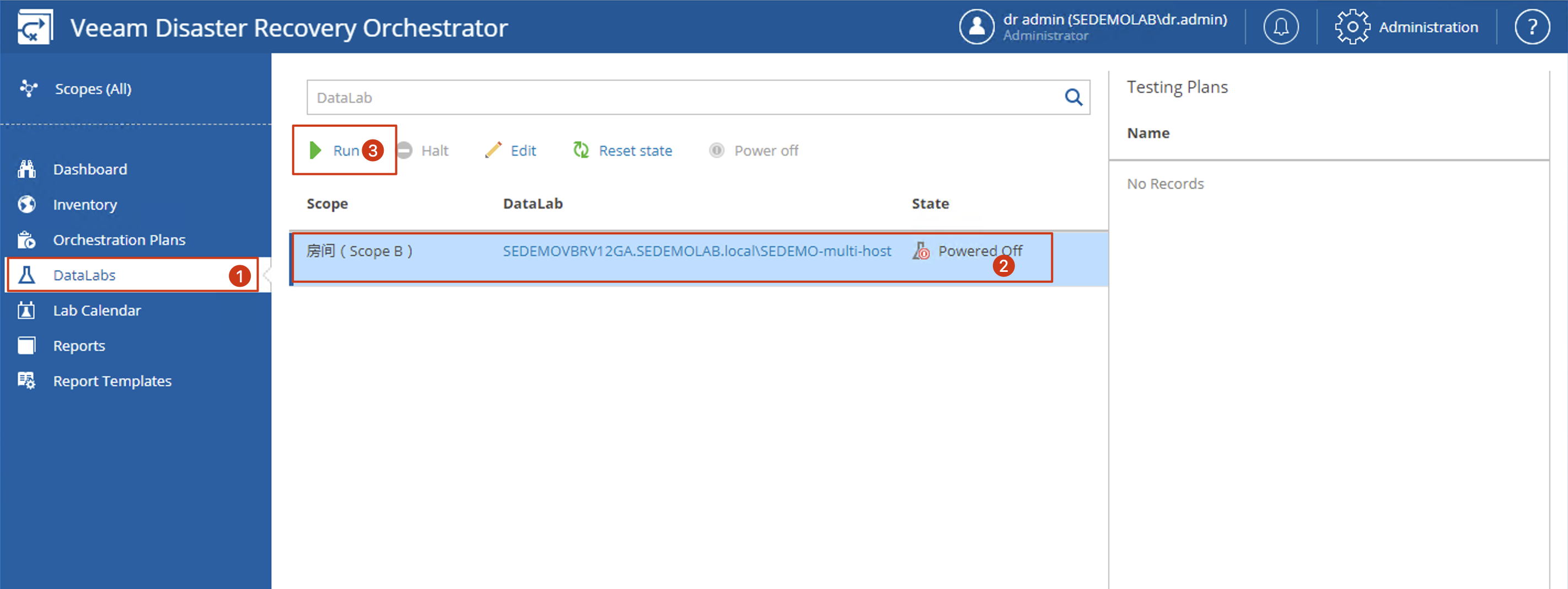
After the Data Lab starts, you can think of it as the Data Lab’s router being activated. At this point, any machines placed in this network can properly utilize the Data Lab network.
Datalab Testing
Under the Verify button of an Orchestration Plan, you can find the Run Datalab test button. Clicking this button launches a DataLab test wizard. By selecting appropriate options through this wizard, you can conduct a nearly realistic drill of the entire disaster recovery plan. The entire drill process will even 100% simulate the actual Plan execution, including all configured custom scripts, with the only difference being that it selects the Data Lab’s isolated network when allocating networks. Therefore, administrators can clearly understand the recovery status and required recovery time in the actual disaster recovery environment through such drill processes.
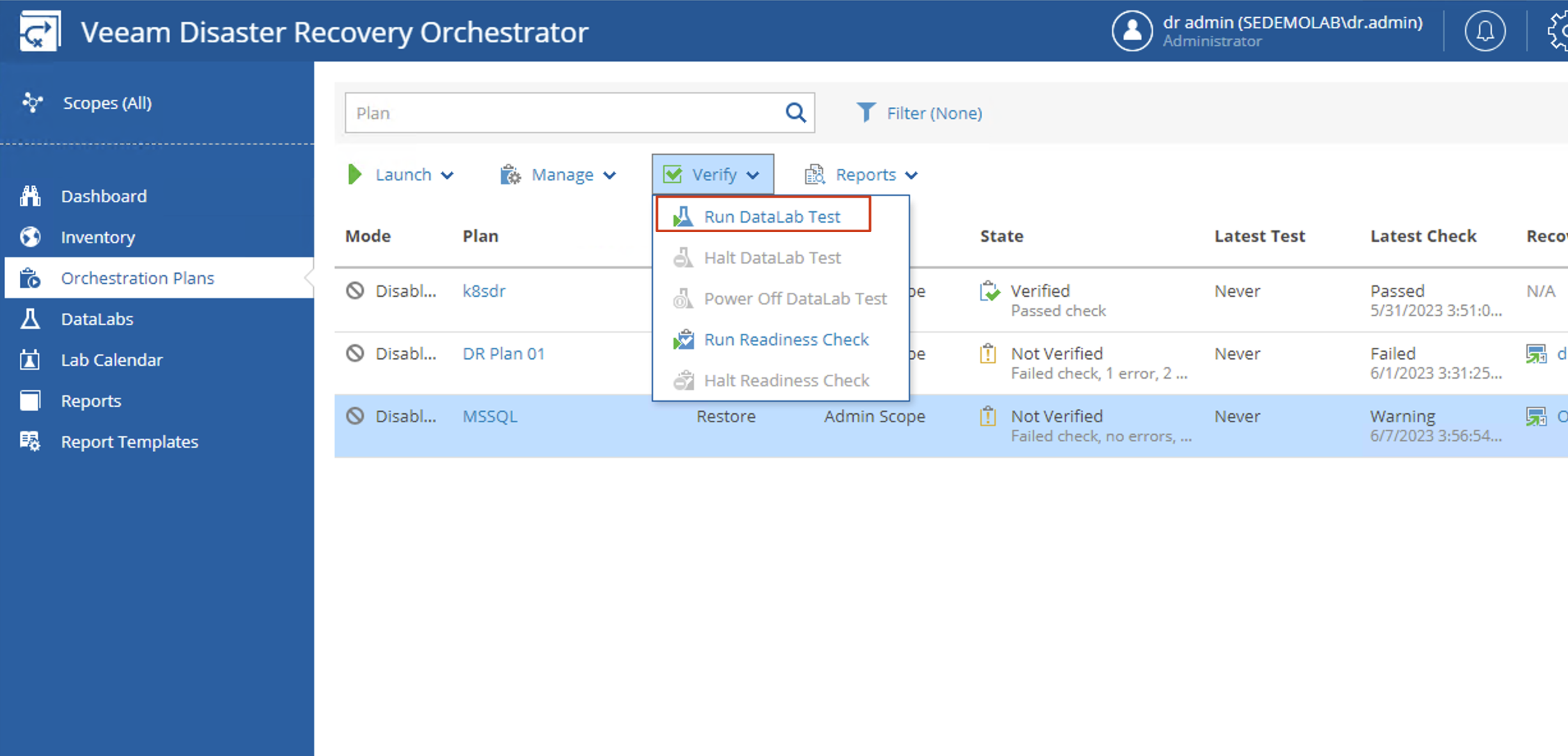
When executing Datalab tests, there are virtually no significant differences in steps between the three types of Plans. Today, I’ll use the Restore Plan as an example to illustrate the entire process.
-
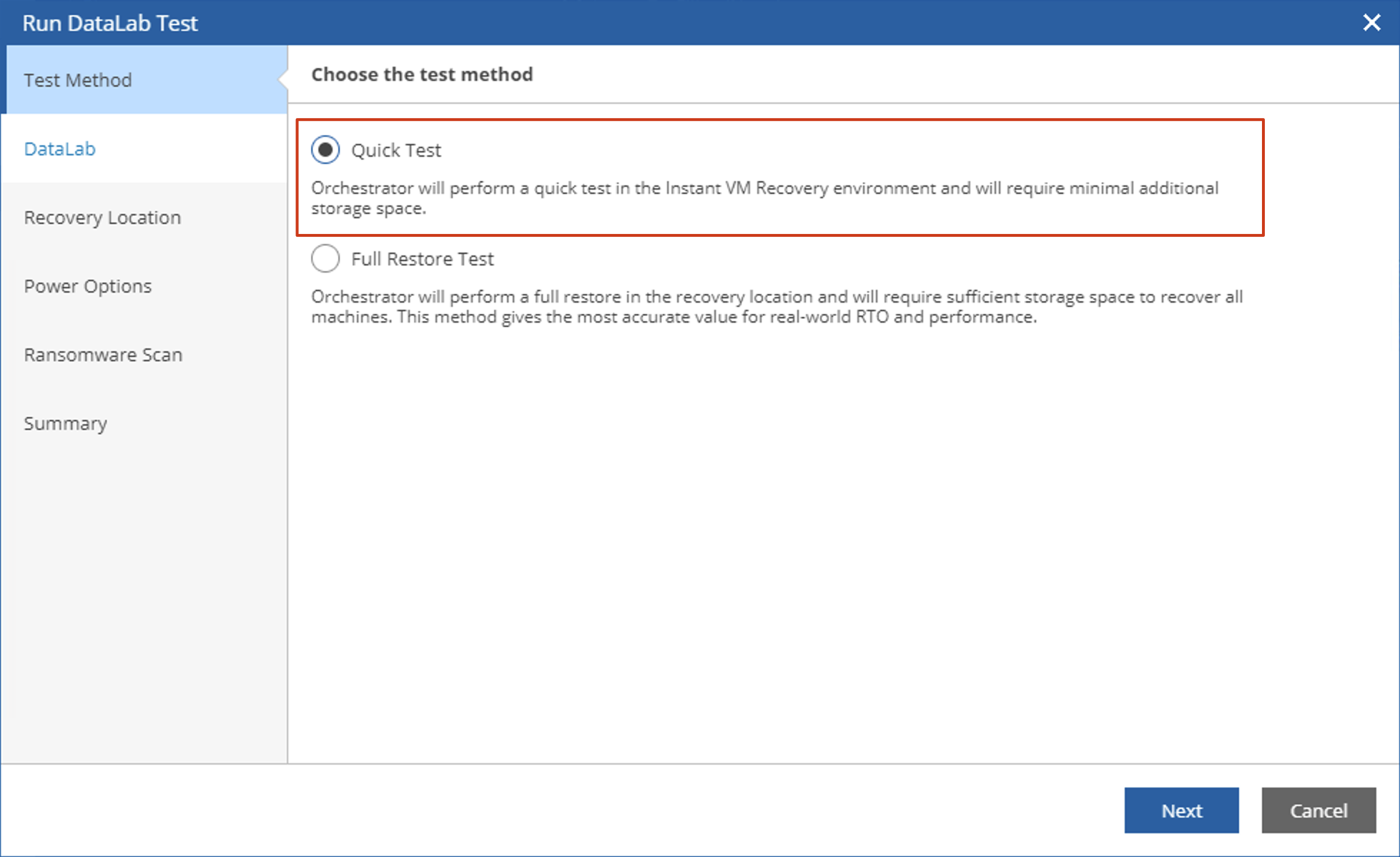
After opening the Datalab Test wizard, we first need to select the Test Method. The difference between Quick Test and Full Restore Test is the distinction between instant recovery and complete recovery. When conducting Datalab Tests, we generally choose Quick Test, while for long-term use of test environments, we can select Full Restore Test.

-
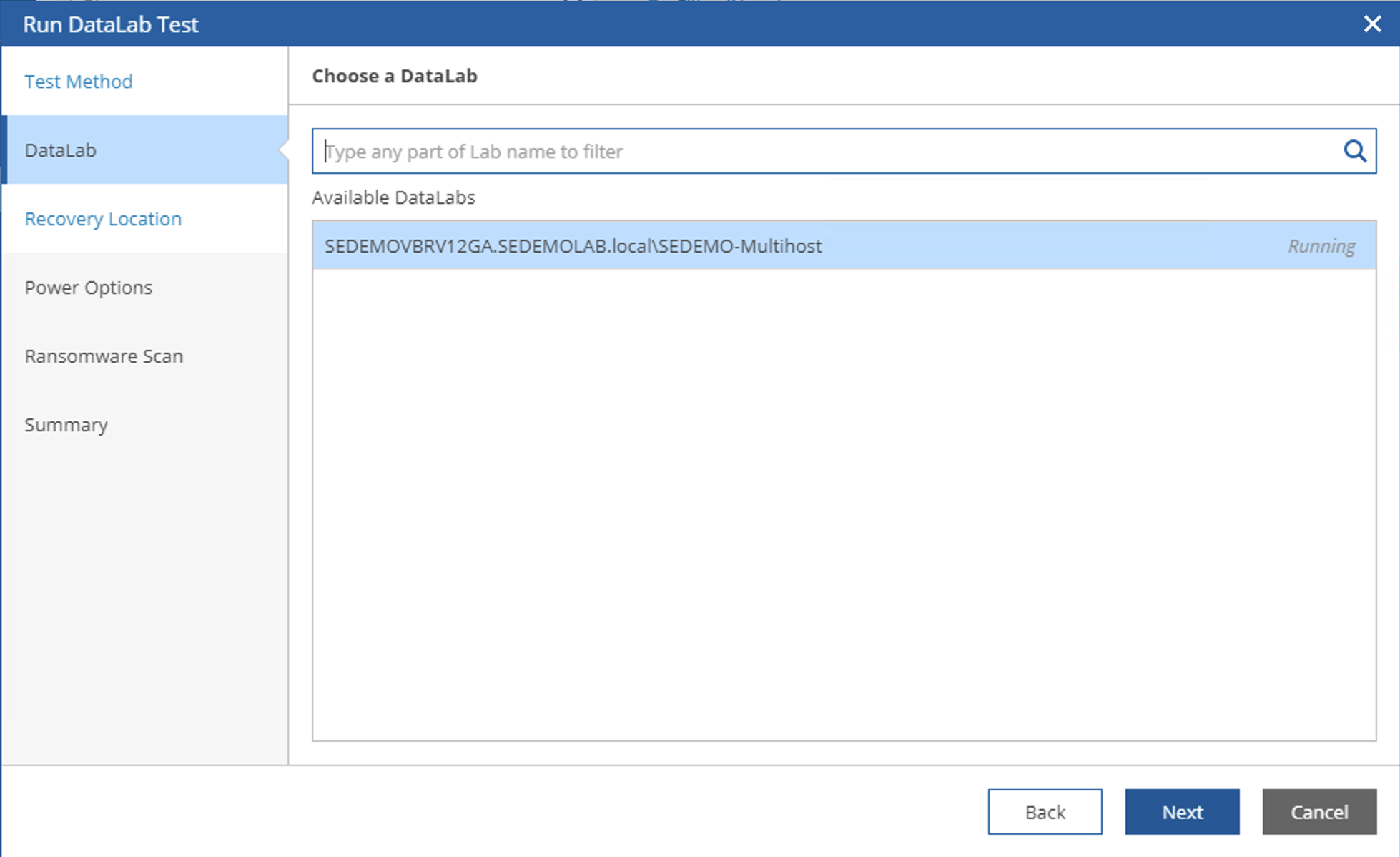
In the Datalab step, we see that after starting the Datalab earlier, the Datalab here is already in a running state. We can select it and then click Next.
-
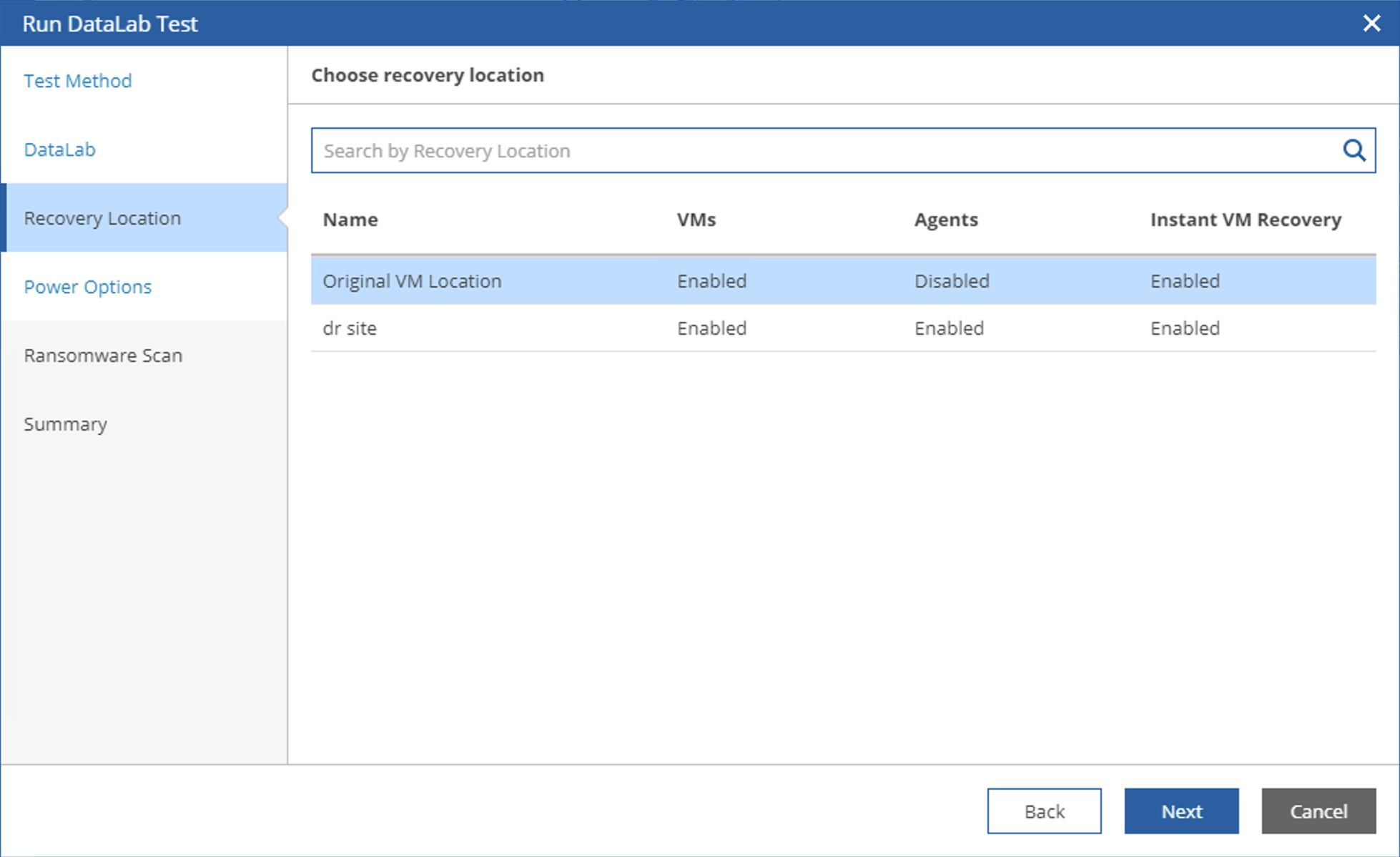
In the Recovery Location step, I choose to restore to the original location. Since this is a Datalab test, Datalab will automatically rename my test machines. Click Next.
-
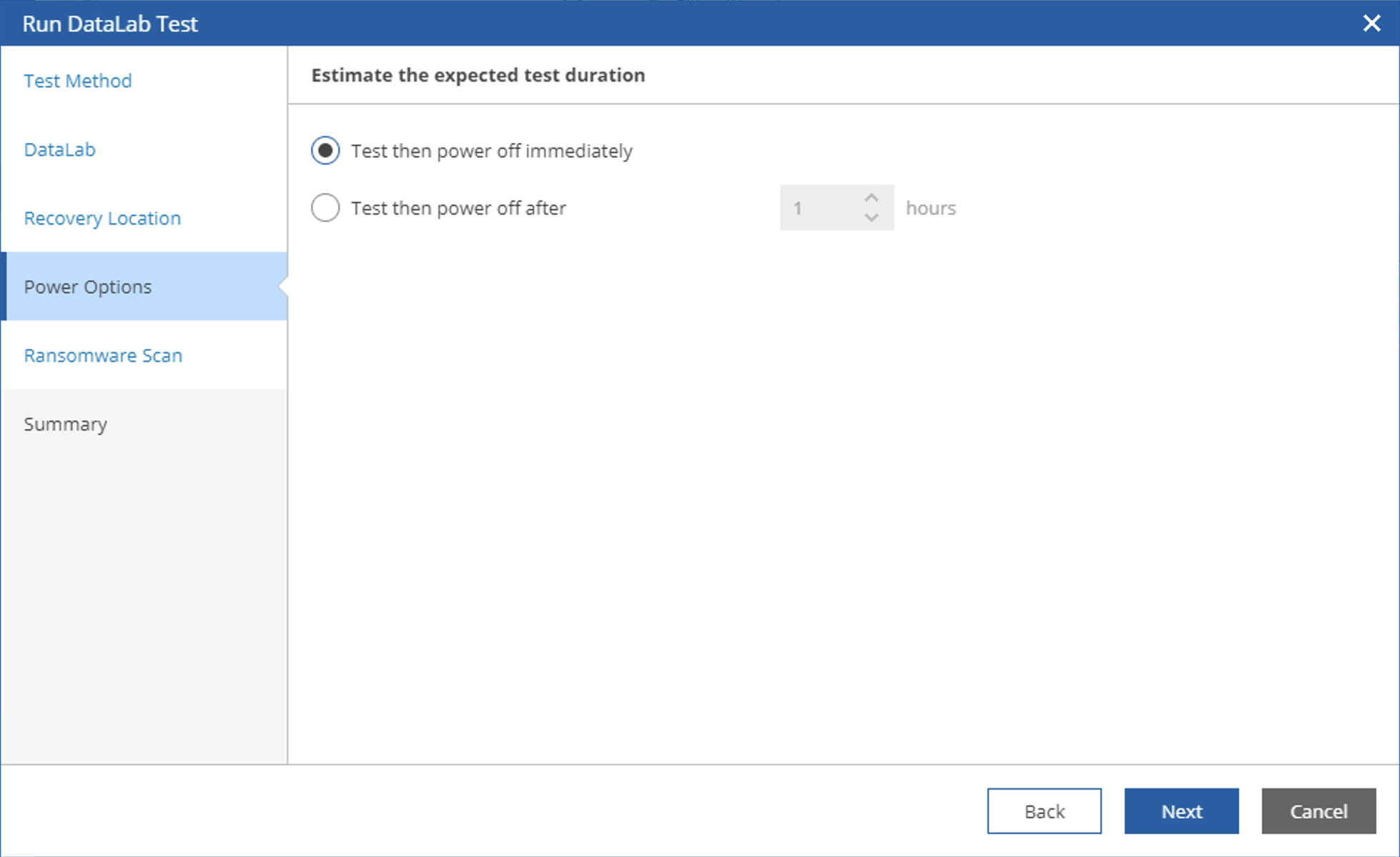
In the Power Options step, you can choose to shut down immediately after testing or continue running for some time after testing. Using this method, we can start the Data Lab for building various experimental environments.
-
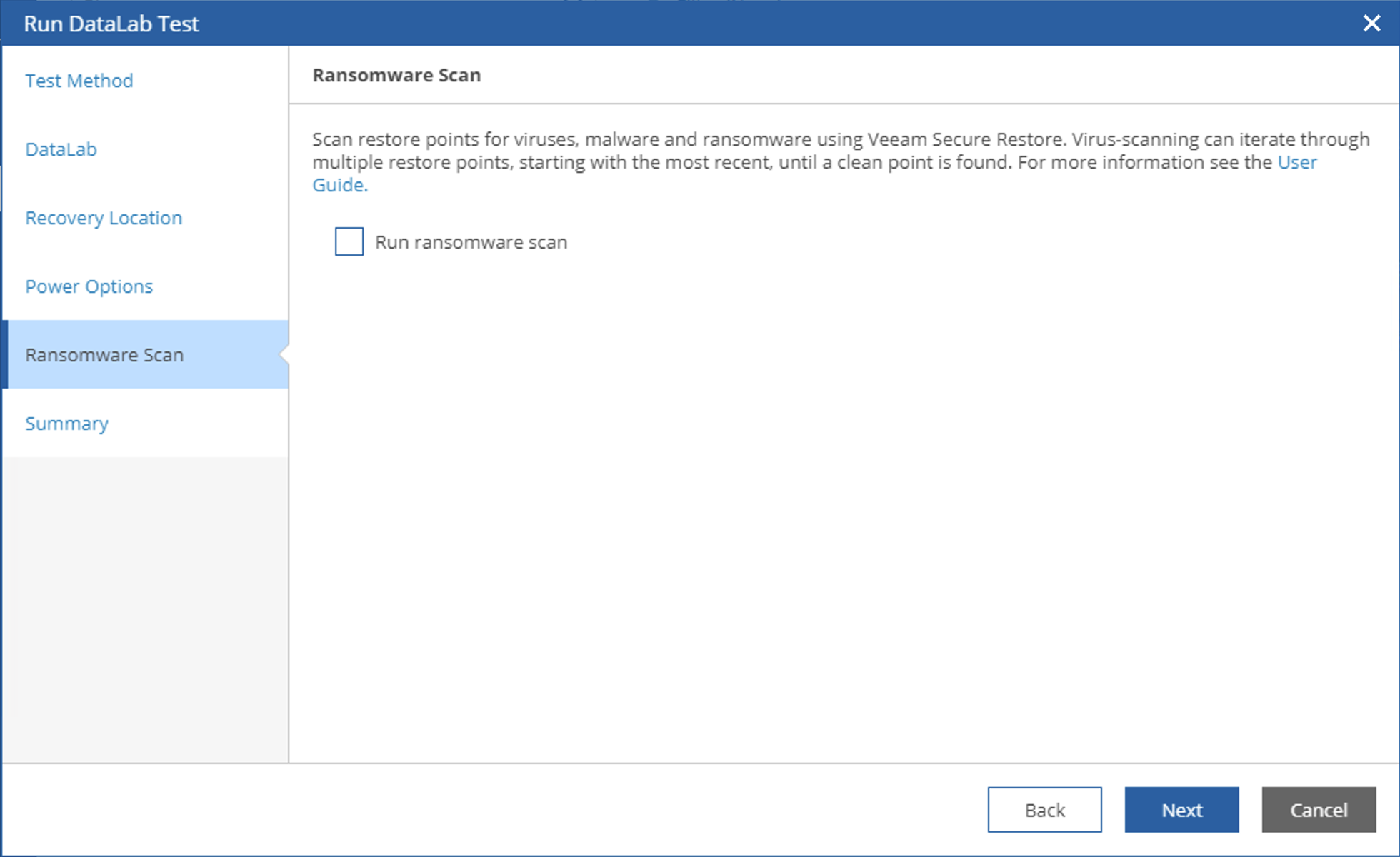
In the Ransomware Scan step, leveraging VBR’s Secure Restore capability, VRO can automatically find restore points that are not contaminated by ransomware among all restore points to achieve clean restoration.
-
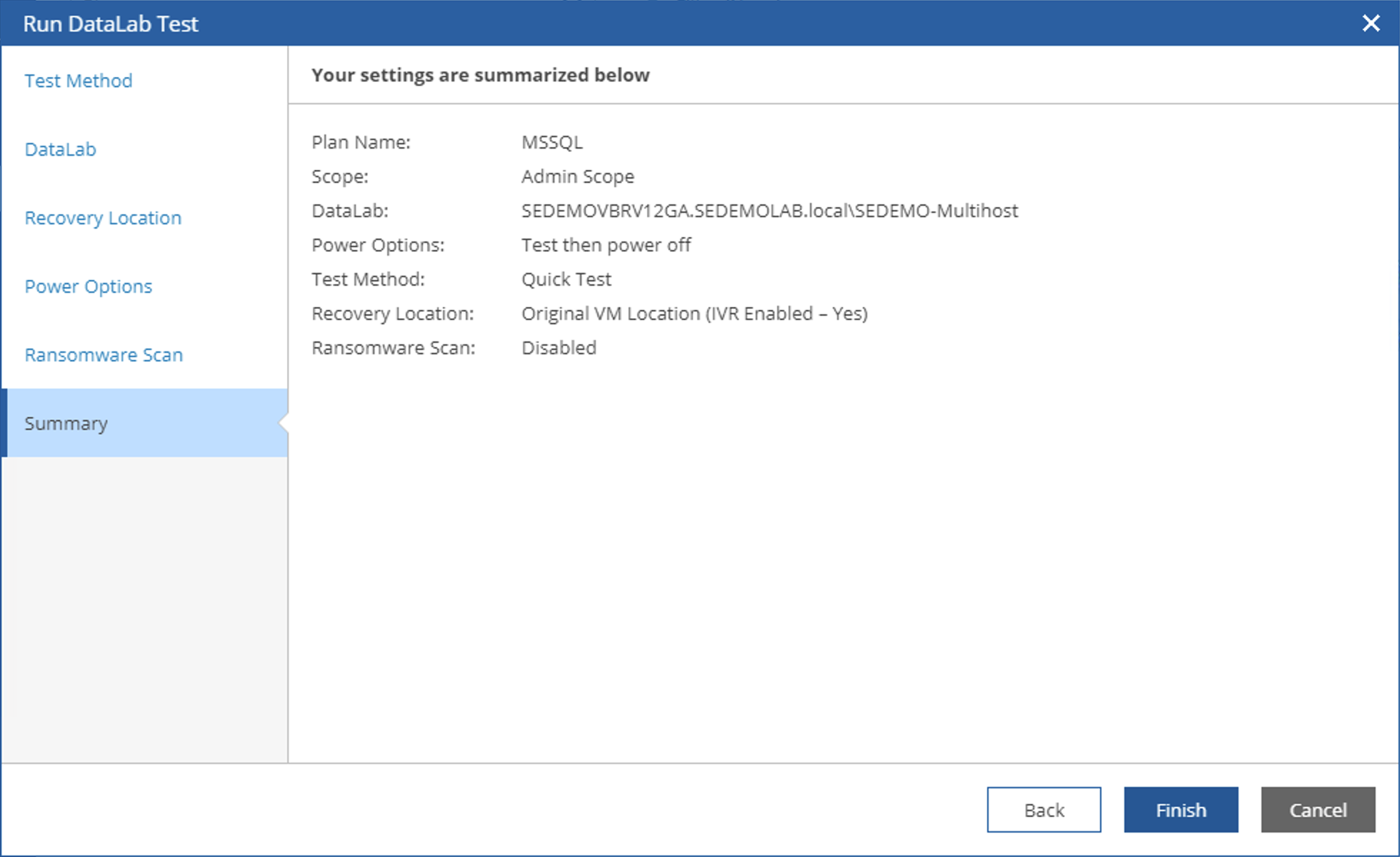
In the Summary, following the international convention, summarize the previous options and click Finish to start the Data Lab test.
-
After the Data Lab starts, clicking the Plan name allows you to enter the detailed verification steps of the Data Lab for viewing, as shown in the figure below.

Scheduled Testing
In addition to manual execution of Datalab tests, VRO can also automatically execute Datalab Tests according to scheduled tasks. In VRO’s dashboard, find the Lab Calendar section, where you can see the Create Schedule button, which is used to set up fully automated Datalab test scheduled tasks.
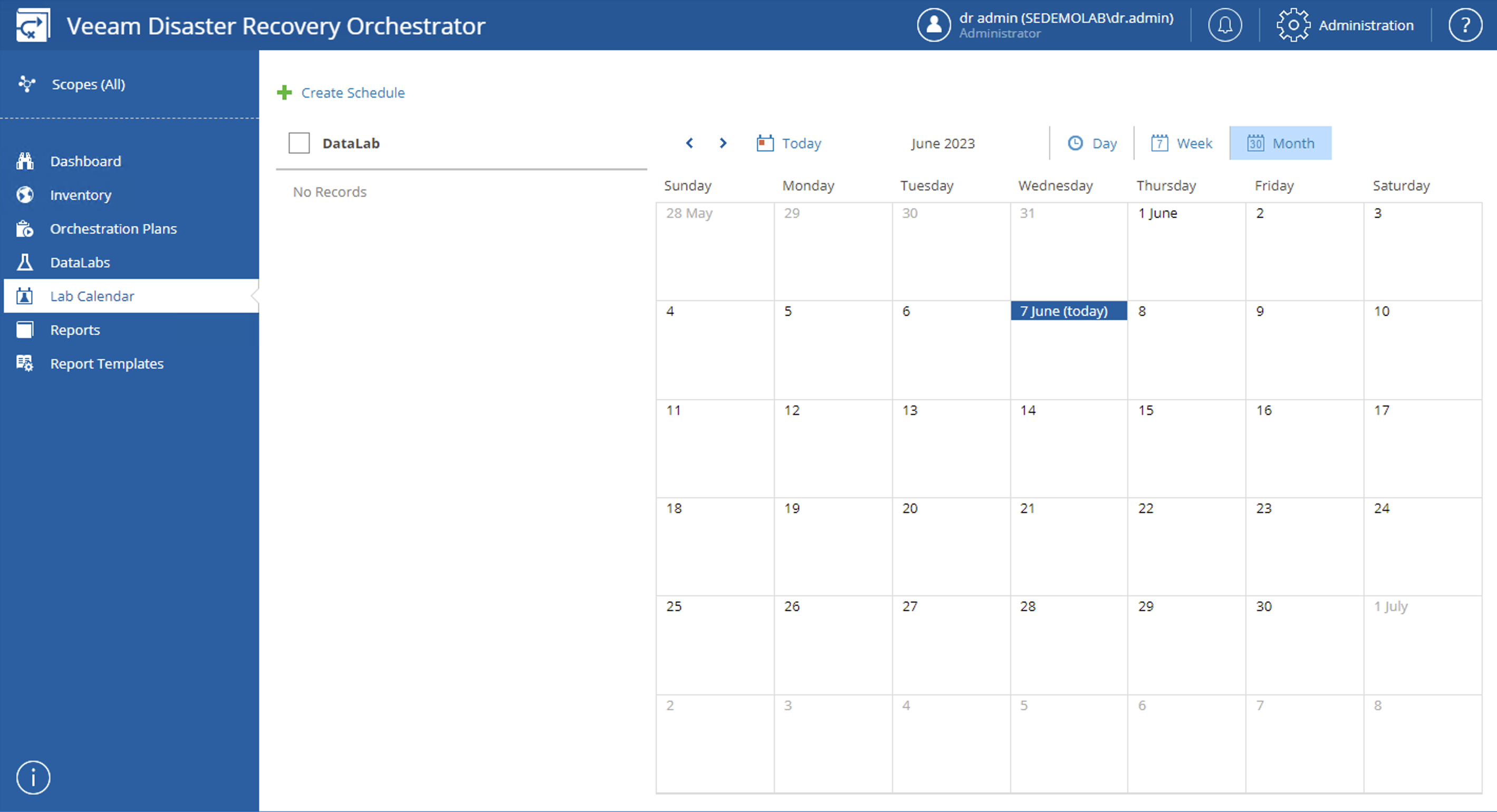
After clicking the Create Schedule button, the Create Test Schedule wizard will launch.
-
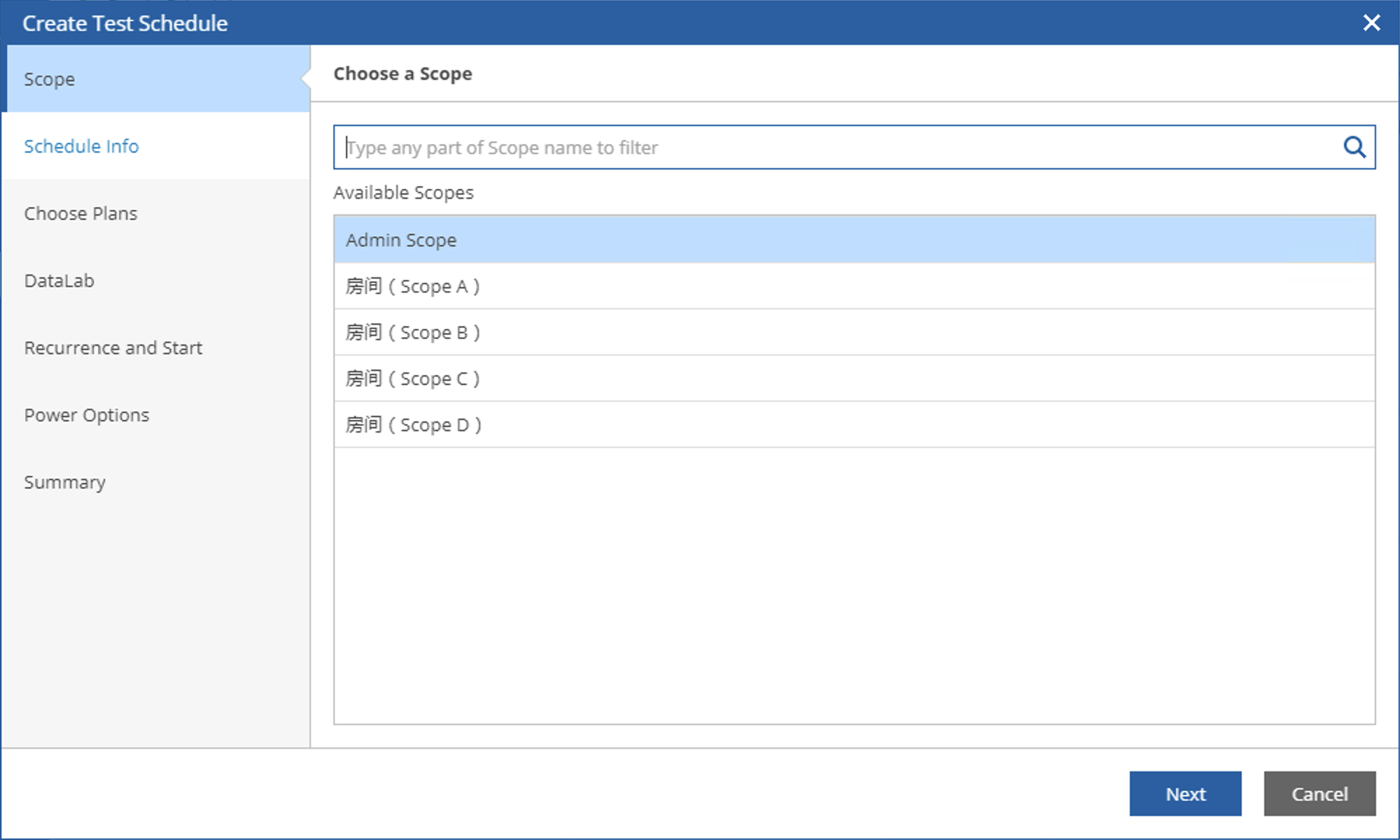
In the Scope step, first select the Scope, set permissions, and click Next.
-
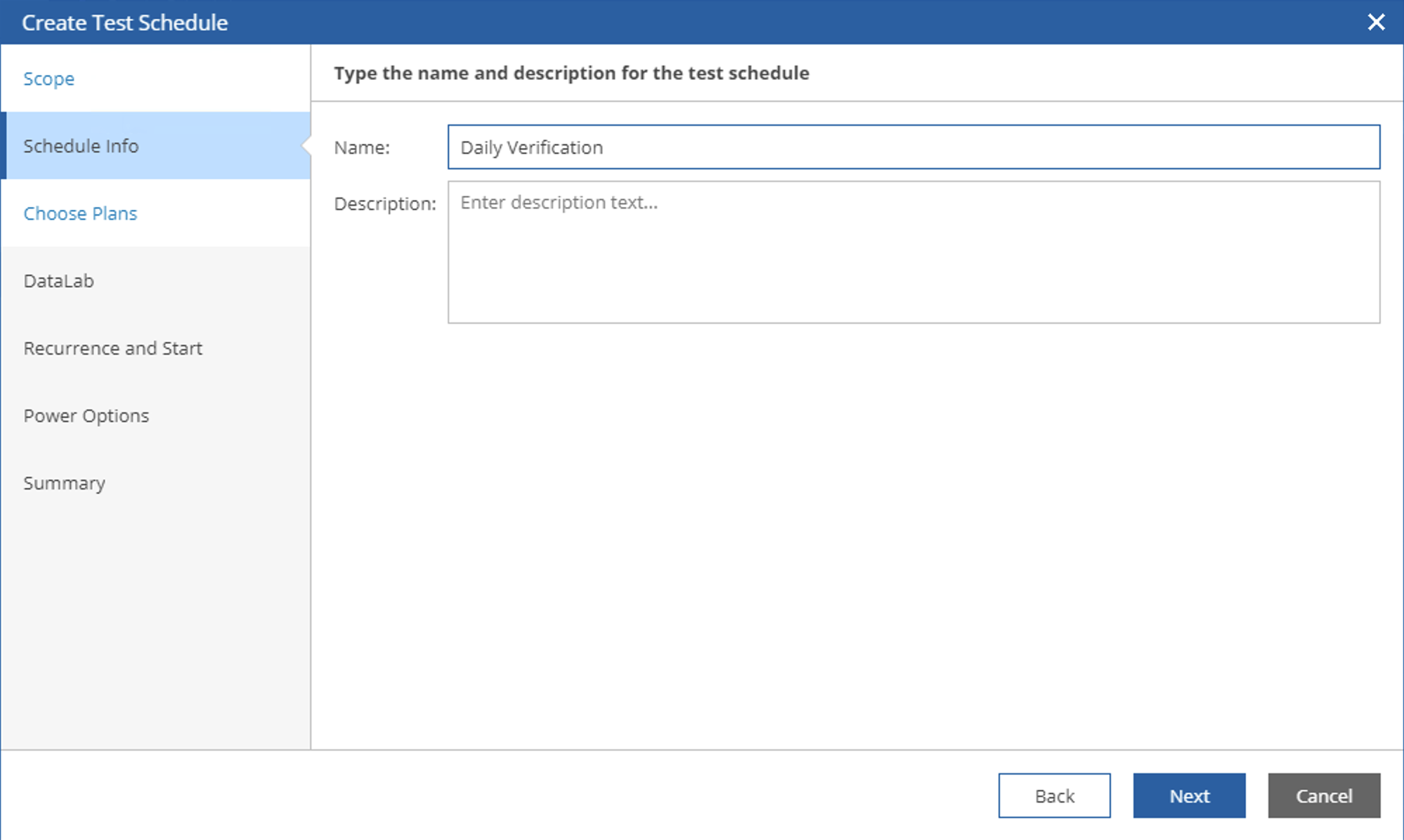
In the Schedule Info step, set the name and description of the scheduled task. For example, I set it to Daily Verification here. Click Next.
-
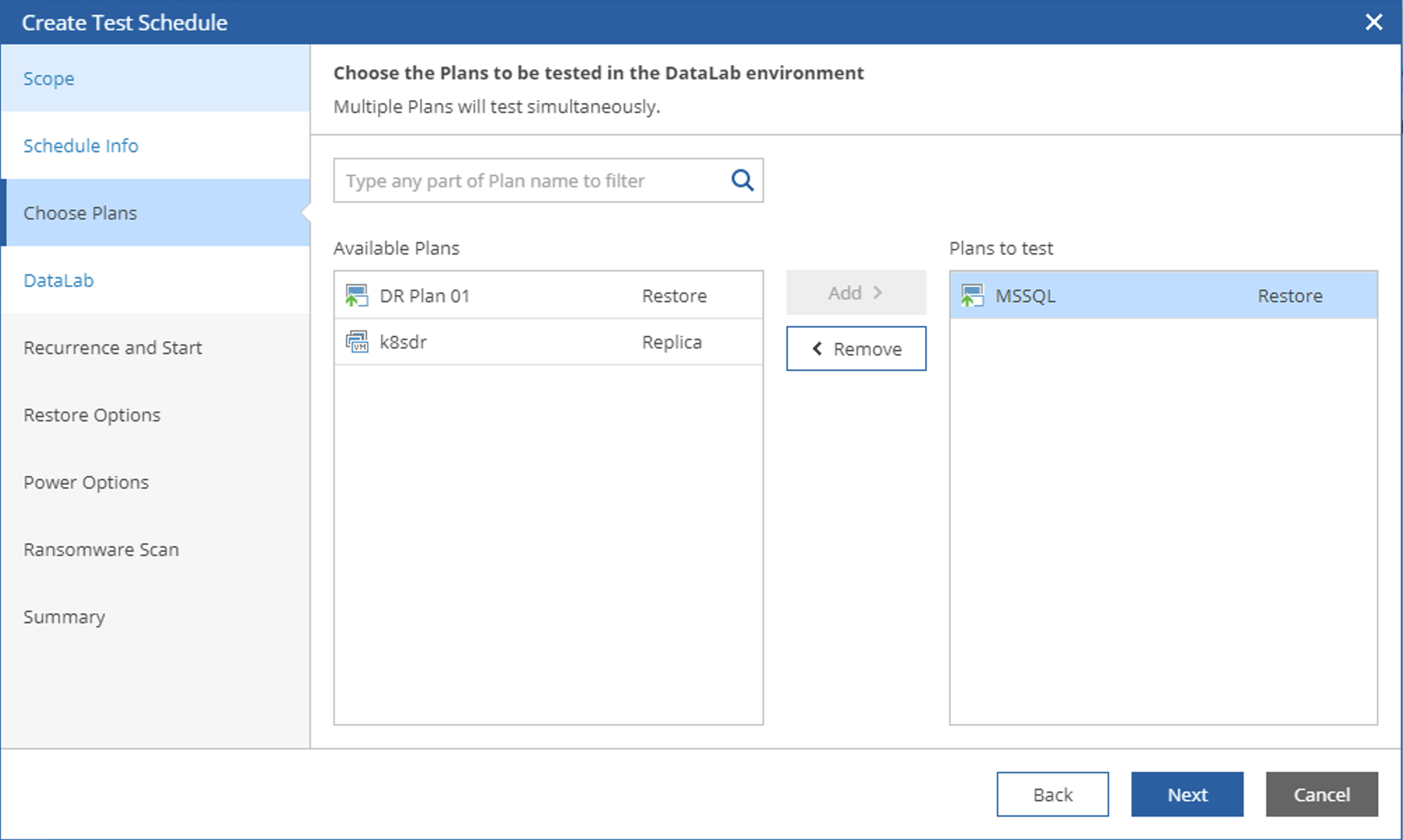
In the Choose Plans step, select the Plans that need verification, then click Add to add them. In this step, you can select multiple Plans, so that these Plans can all be tested according to the settings of this scheduled task.
-
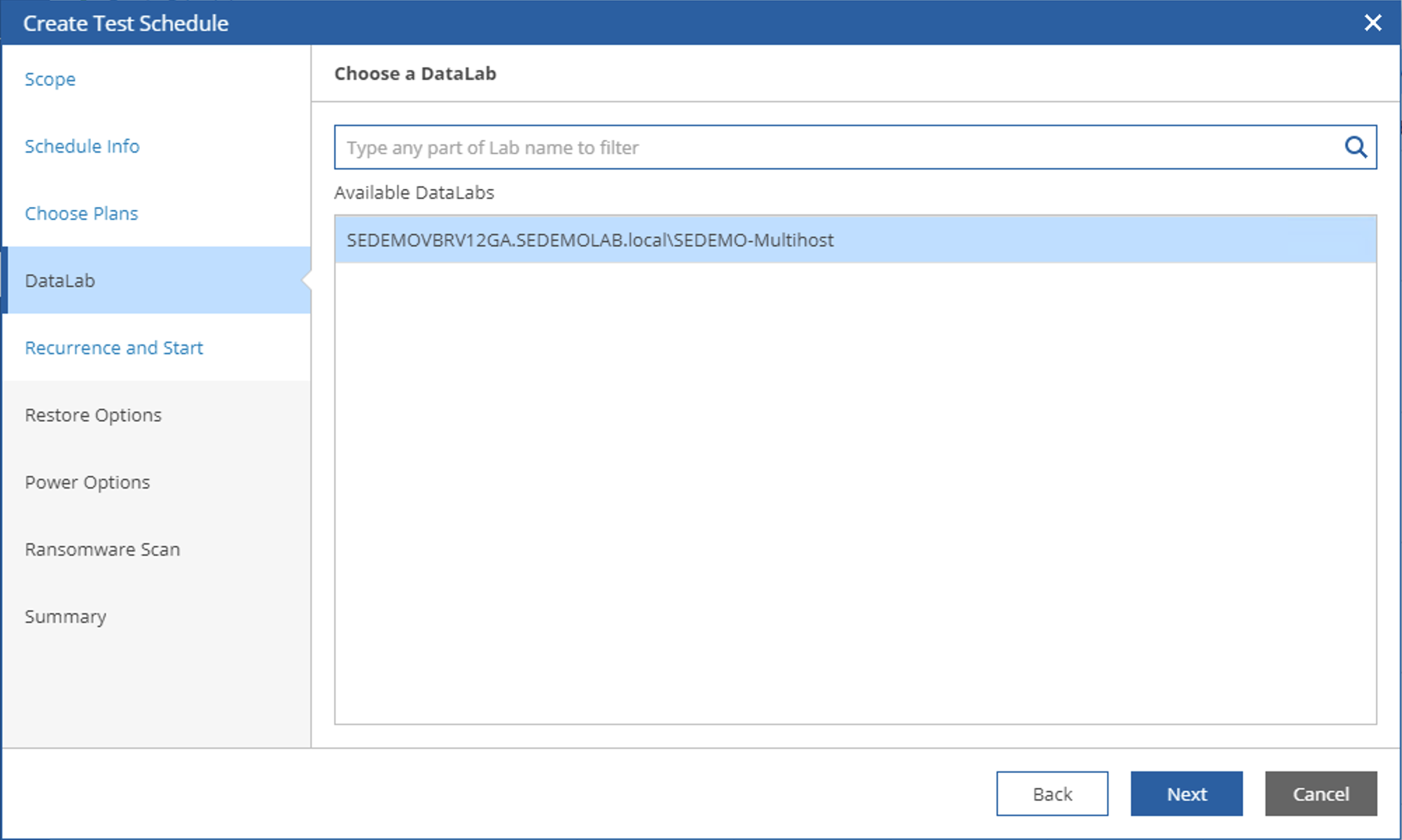
In the Datalab step, select a Datalab and click Next.
-
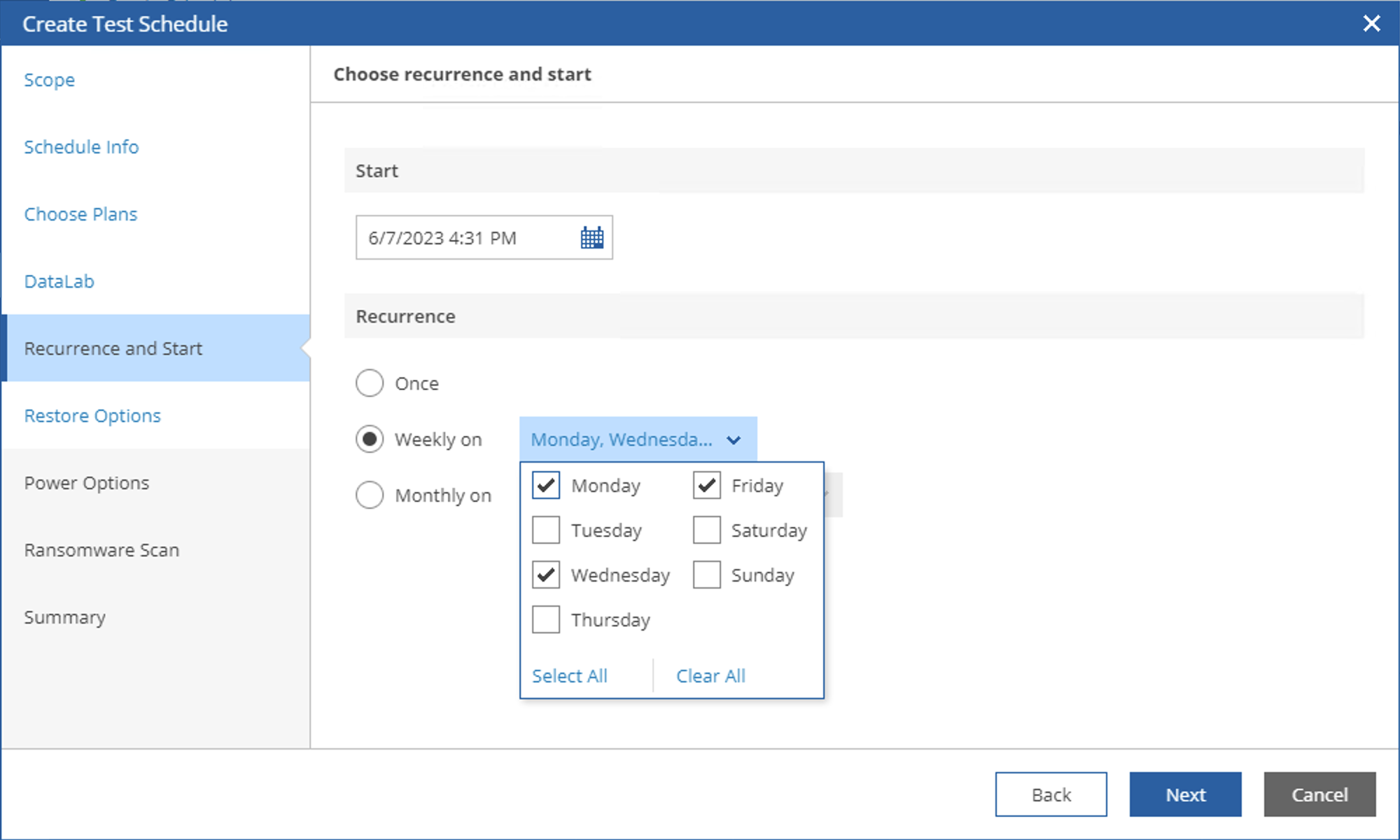
In the Recurrence and Start step, set the scheduled task. For example, I set it to run the test plan every Monday, Wednesday, and Friday here. Click Next.
-
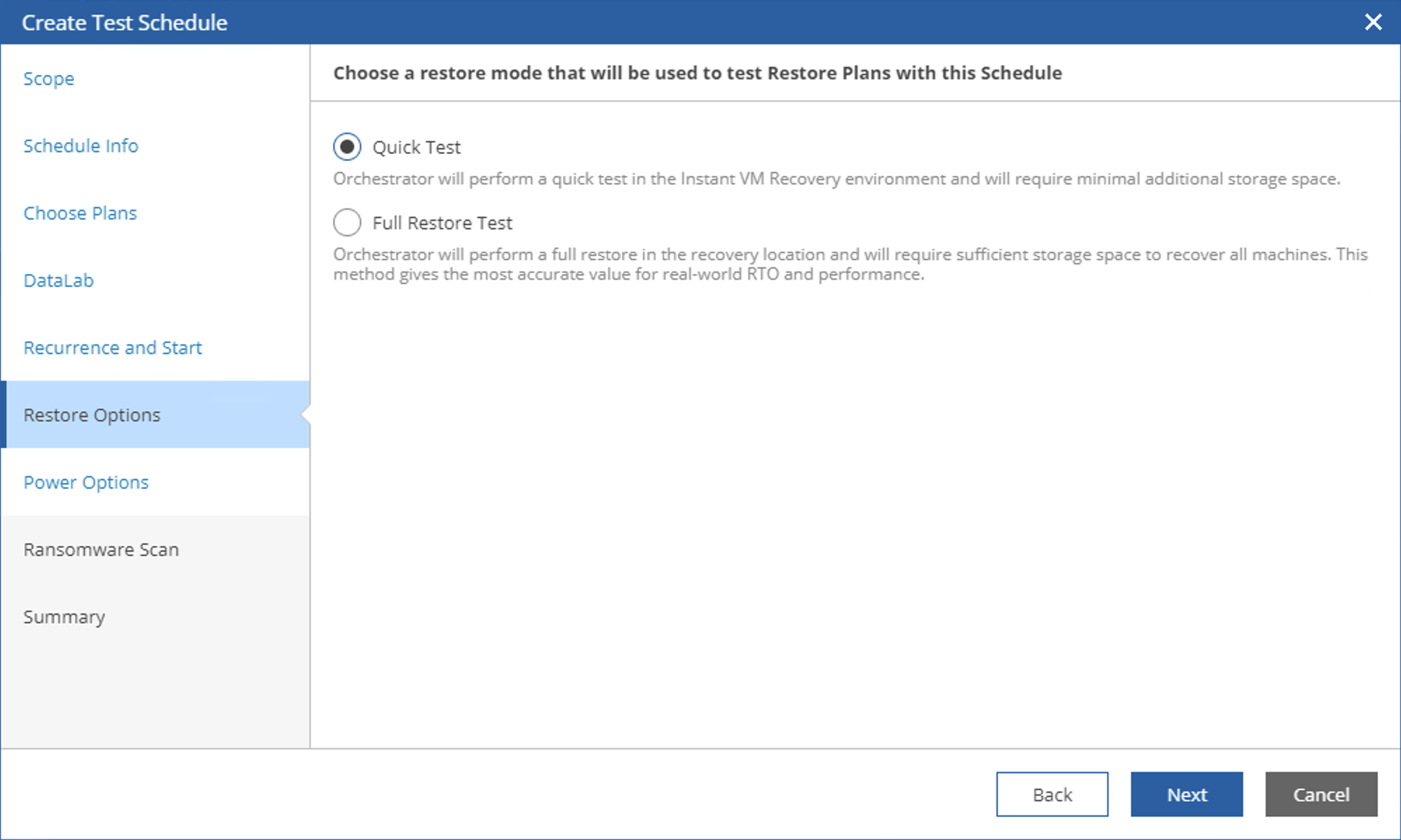
In the Restore Options step, select the recovery mode. It’s recommended to choose Quick Test for routine testing. Click Next.
-
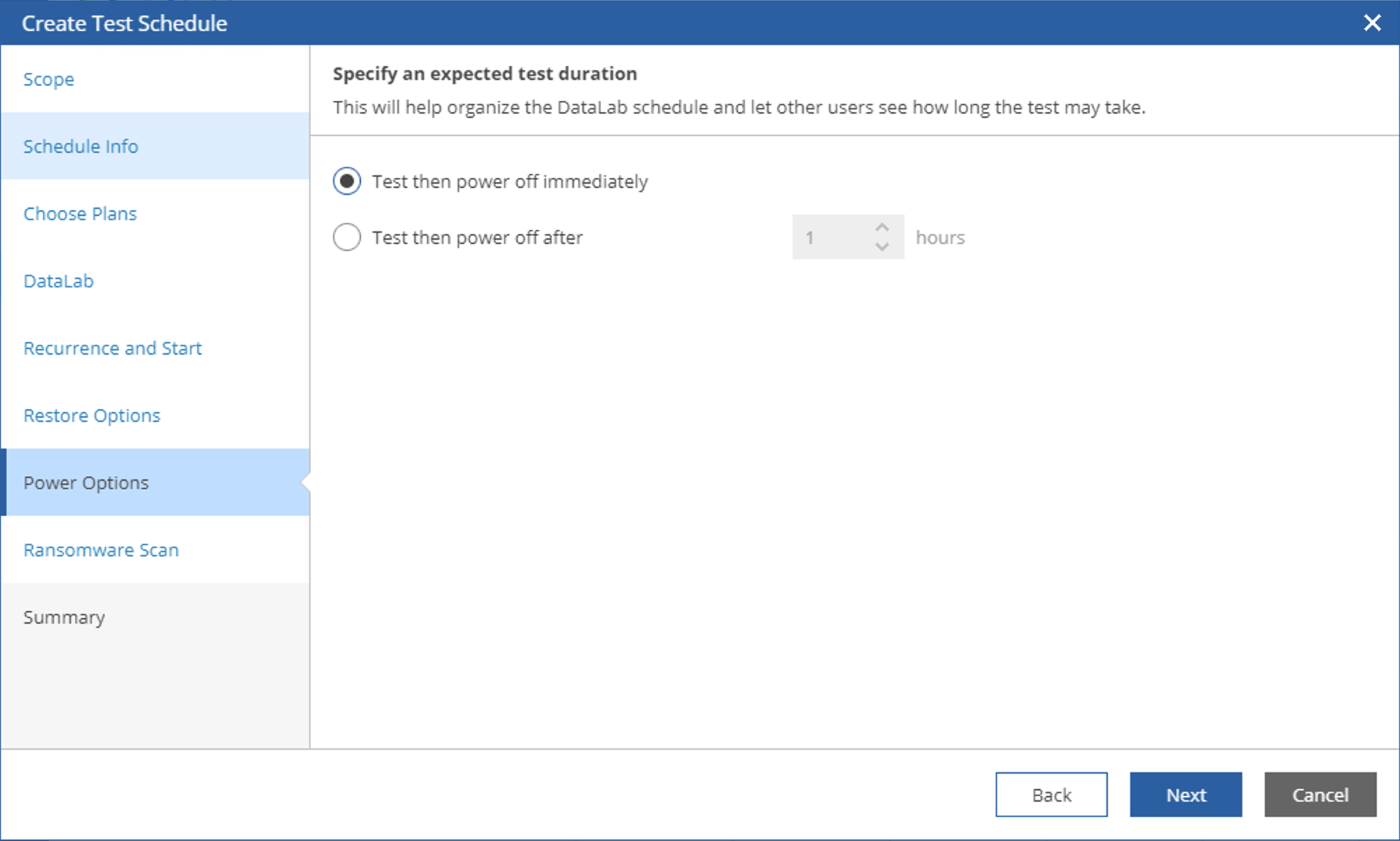
In the Power Options step, select the default option “Test then power off immediately” and click Next.
-
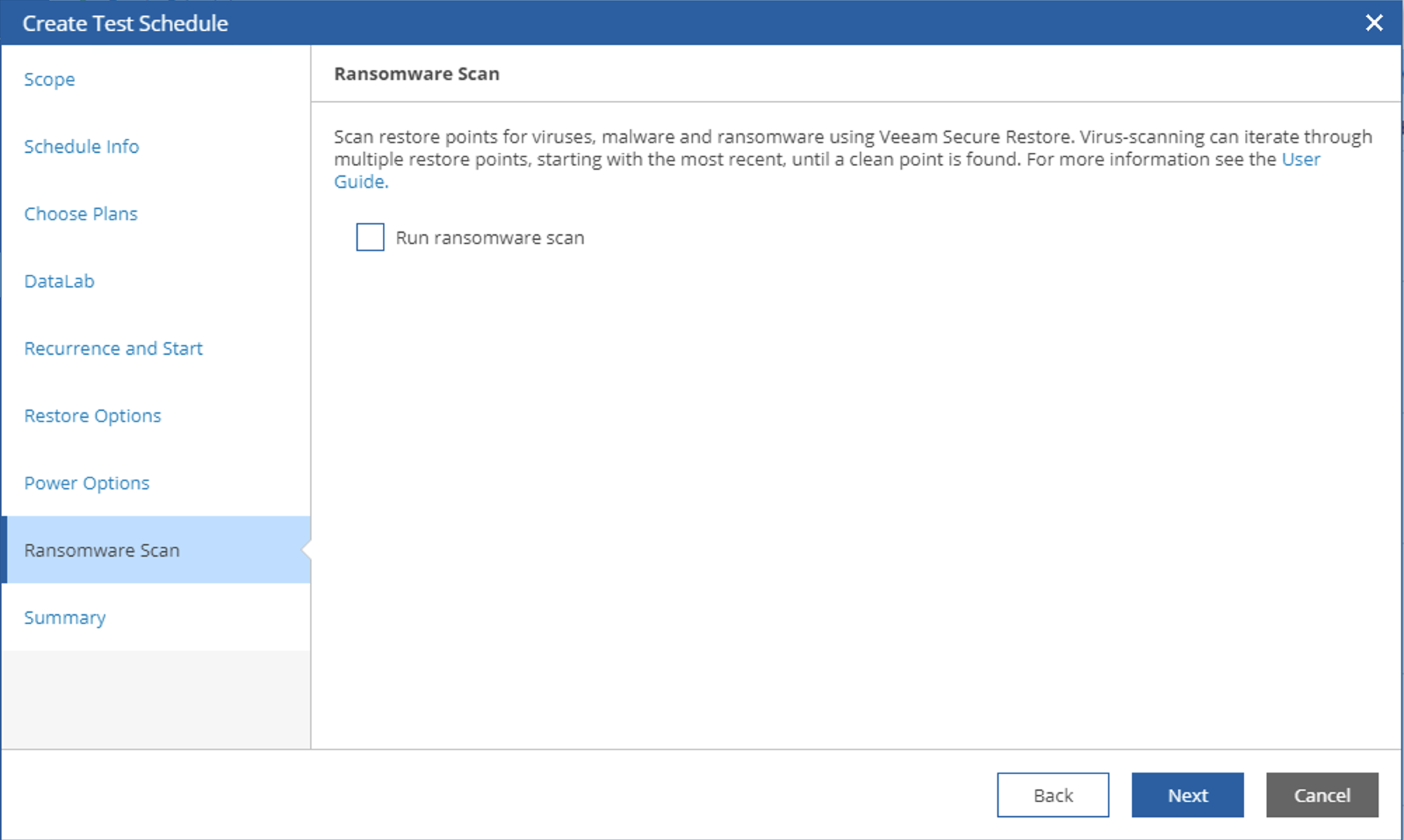
In the Ransomware Scan step, you can choose virus scanning. Here we keep the default unchecked and click Next.
-
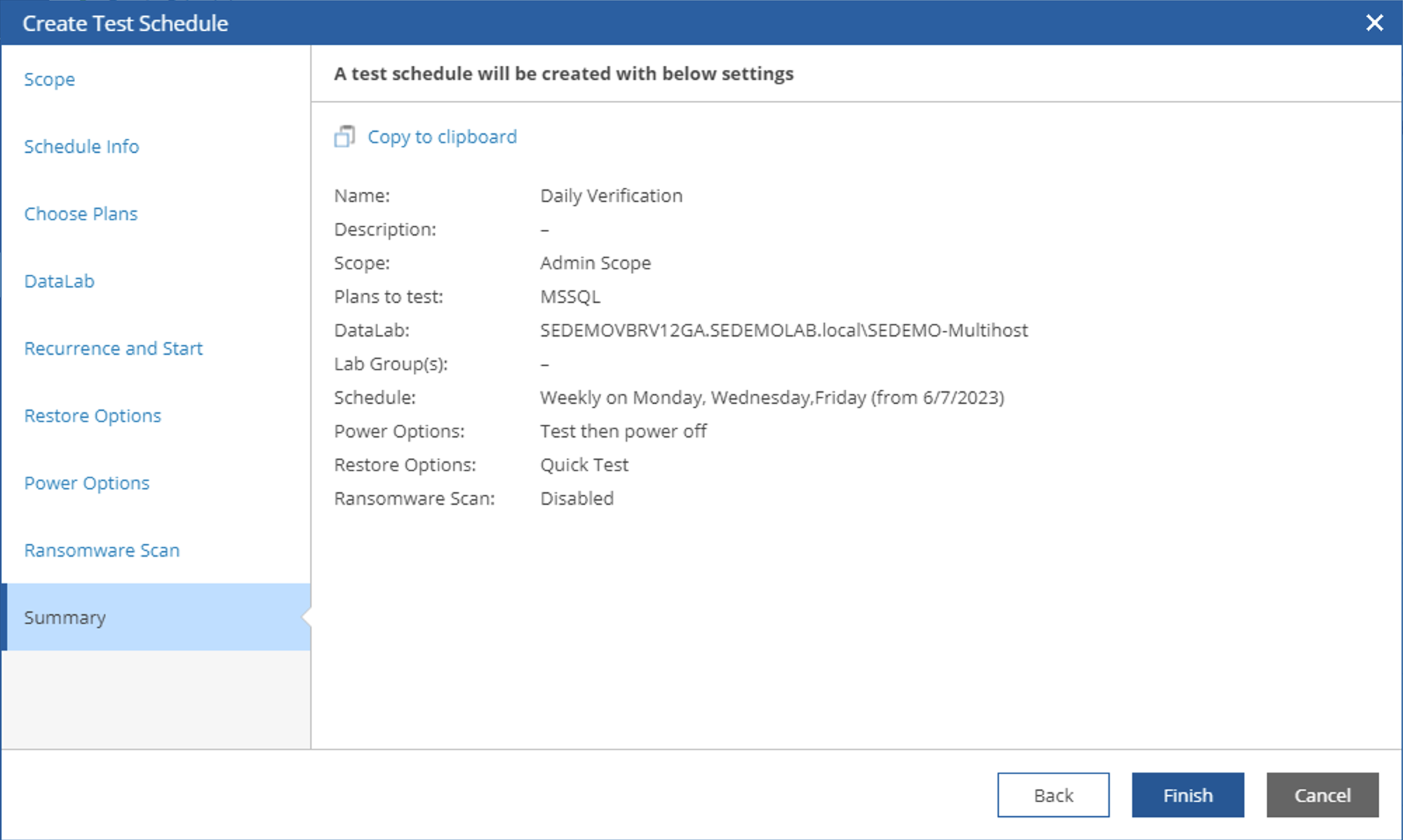
In the Summary step, you can view the above settings and copy this information using “copy to clipboard”. Click the Finish button to end the wizard and complete the setup.
-
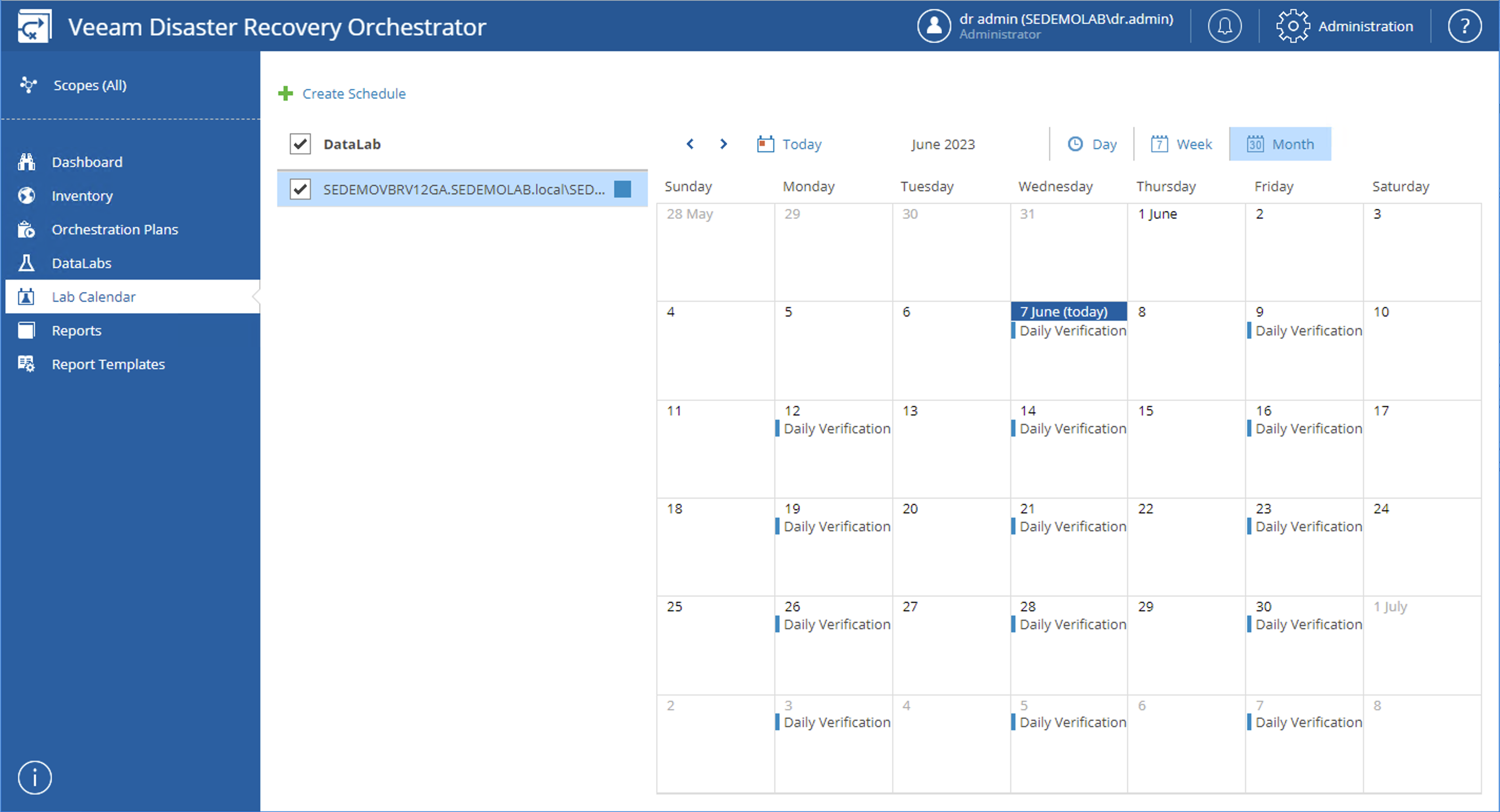
Returning to the VRO dashboard Lab Calendar interface, we can see that daily verification plans have appeared in the calendar.
-
If you click on one of the scheduled task names again, you can re-edit this scheduled task, and you can also delete and disable this scheduled task.

The above covers the specific setup and usage methods for the Data Lab in VRO.
For more content, welcome to follow my official account,