VRO Basic Guide (Part 6) - First Steps to Successful Disaster Recovery Planning
Series Table of Contents:
- VRO Basic Guide (Part 1) - Introduction
- VRO Basic Guide (Part 2) - Installation and Deployment
- VRO Basic Guide (Part 3) - Basic Components · Part 1
- VRO Basic Guide (Part 4) - Basic Components · Part 2
- VRO Basic Guide (Part 5) - First Steps to Successful Disaster Recovery Planning
- VRO Basic Guide (Part 6) - Data Laboratory
- VRO Basic Guide (Part 7) - Plan Step · Part 1
- VRO Basic Guide (Part 8) - Plan Step · Part 2
- VRO Basic Guide (Part 9) - Document Template Analysis
- VRO Basic Guide (Part 10) - Using VRO with K10 for Fully Automated Container Disaster Recovery
With the previous configurations completed, our VRO is ready for normal use. We can log into the VRO console using users with Administrator or Plan Authors roles. In the console, you can access VRO’s customized dashboard, which includes disaster recovery execution plans (Plan), disaster recovery status checks (Readiness Check), disaster recovery testing status (Datalab Testing), and disaster recovery SLA (RPO and RTO status).
In the main console, administrators can also view the infrastructure inventory. Based on the content defined by each role, they can view the machines (Groups) they manage and their own disaster recovery environments (Recovery Location) from the Inventory.
Next, I’ll introduce VRO’s most important capability and specific usage method - Orchestration Plan.
How to Create Orchestration Plans
As mentioned in our initial introduction, there are five main categories of Orchestration Plans. All automated operation processes will be incorporated into disaster recovery through these Plans. Here, I recommend that as a first step, try not to add overly complex automation scripts. Instead, use the system’s built-in Plan Steps with minimal processes to understand these Plans. Once you’re familiar with the system’s working mechanism, you can gradually add suitable custom scripts.
Operation Steps:
-
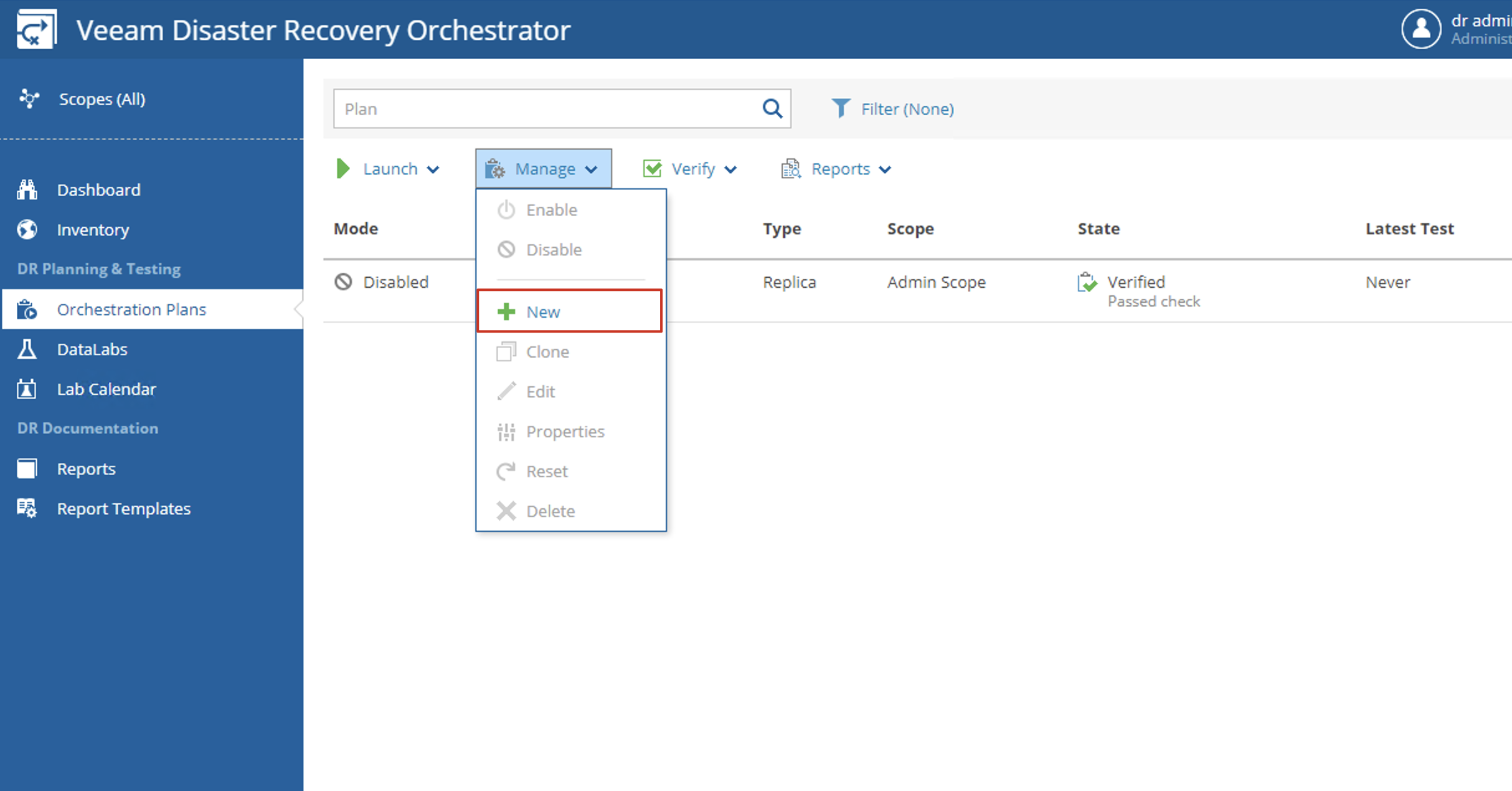
Create an Orchestration Plan. Enter Orchestration Plans on the left side. In the content display area on the right, you’ll see a row of 4 buttons at the top. In the dropdown menu where the Manage button is located, you can find the New button. This button will launch the Orchestration Plan creation wizard.

-
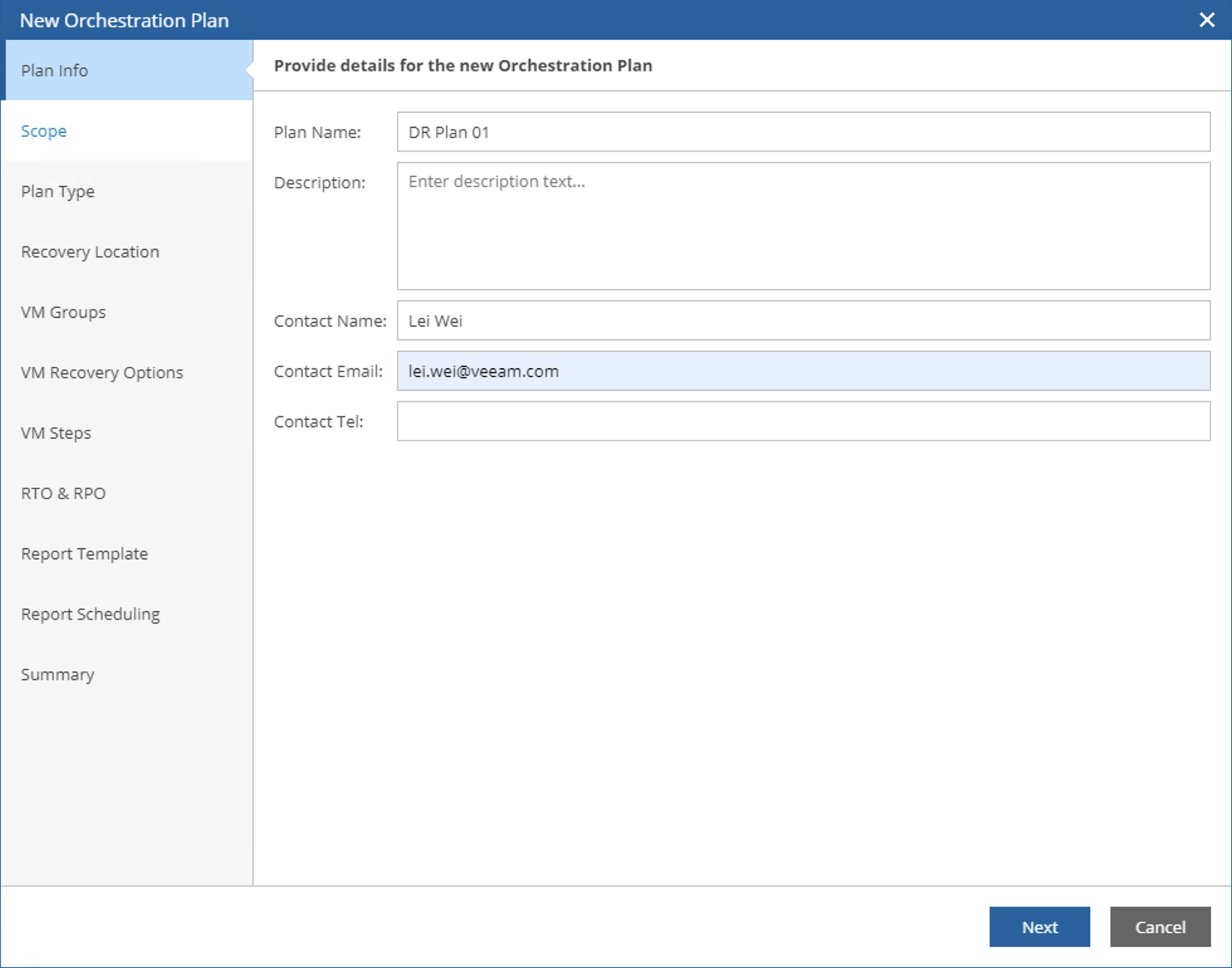
After opening the wizard, you first need to set the Plan Info. Generally, fill in this content according to the actual situation, as it will be used in the reports.
-
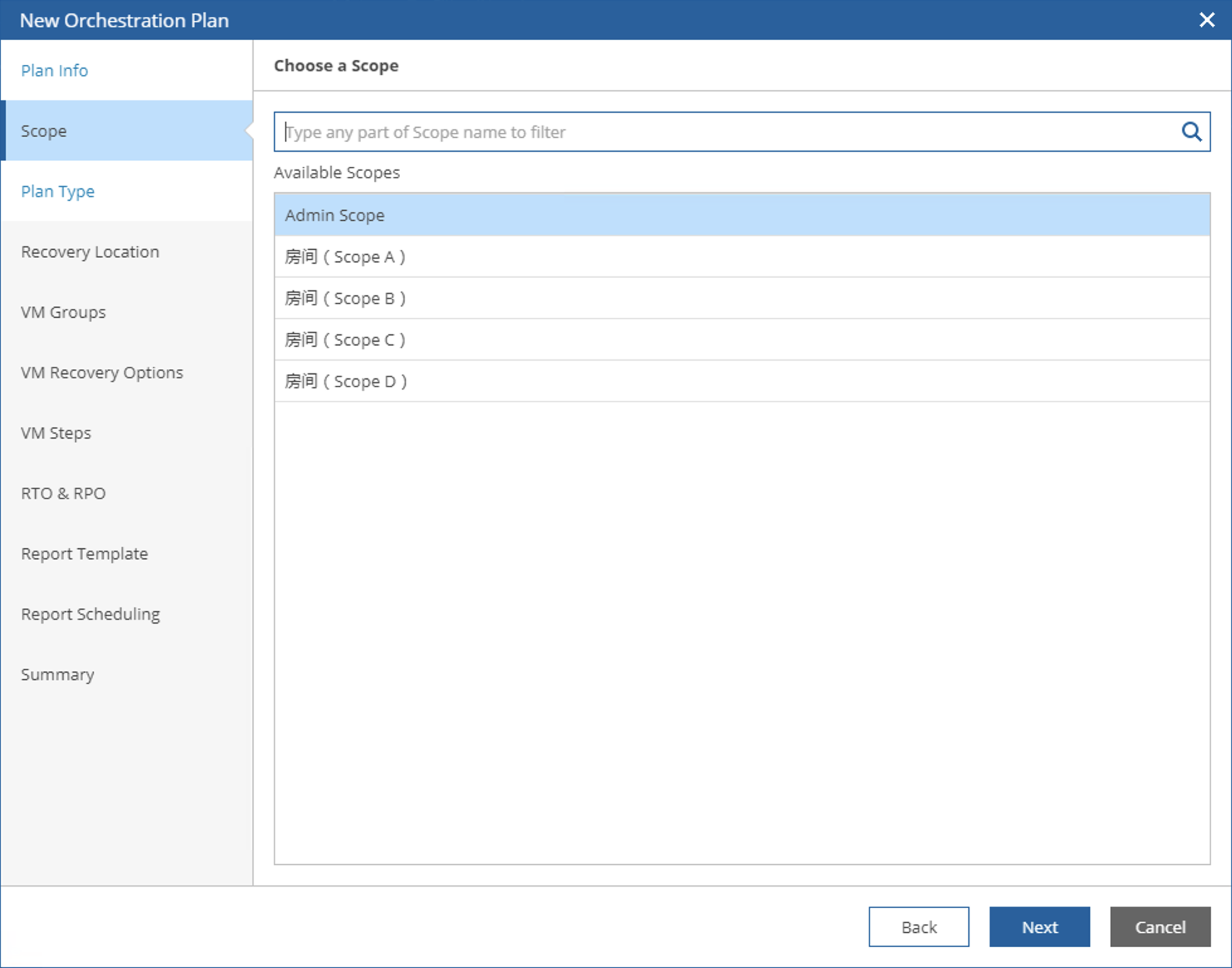
In the wizard’s Scope step, you need to select which Scope to use for creating this Orchestration Plan. As mentioned in the basic components, each Scope contains a series of disaster recovery elements, while the Orchestration Plan combines these elements to form an executable plan. The choice of Scope determines which users can access this Plan. In today’s example, we’ll select the Admin Scope.
-
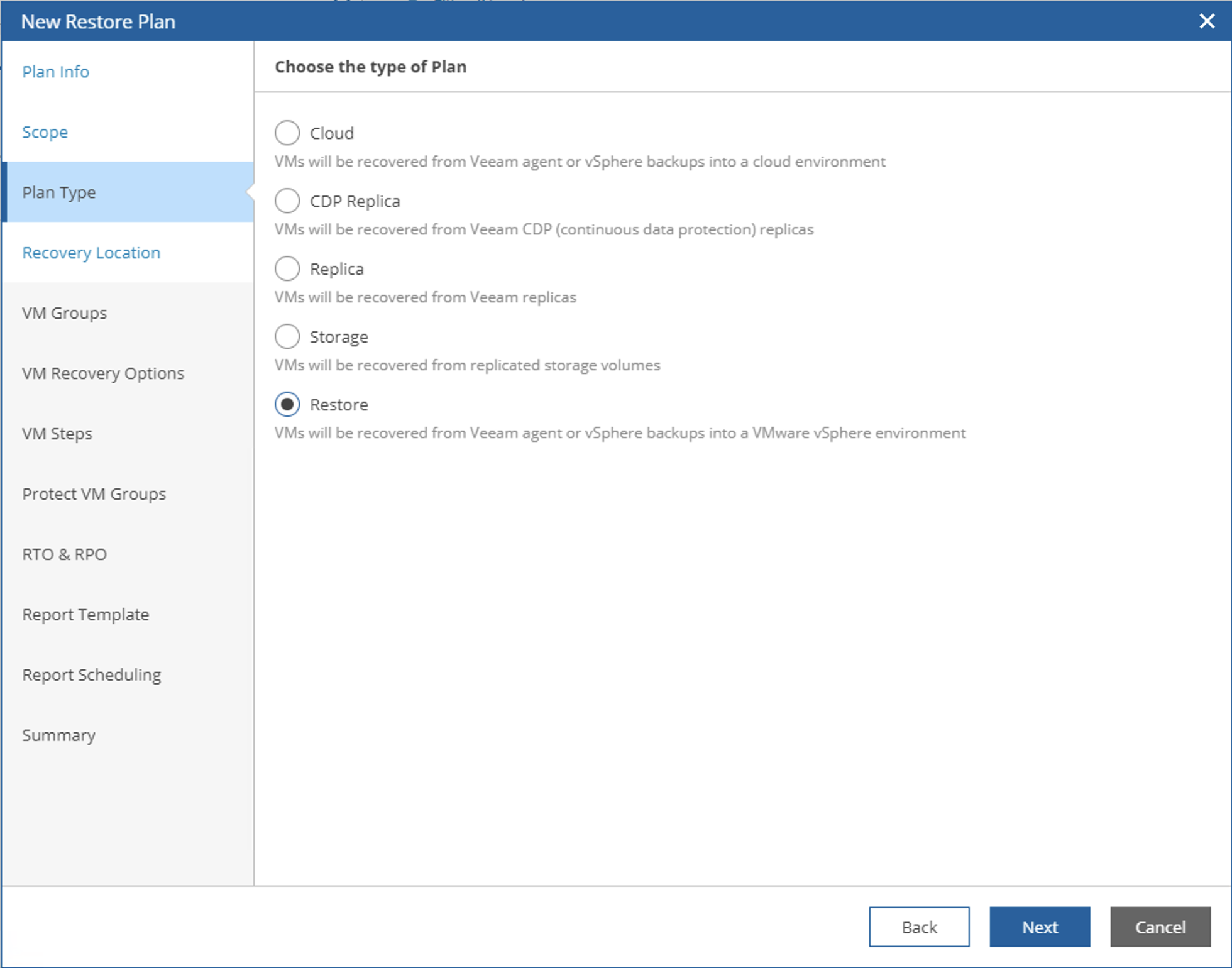
In the wizard’s Plan Type step, you can select one of the five main categories. In today’s example, we’ll select Restore to proceed to the next step. The remaining options will have slightly different wizards, which I’ll leave for you to explore on your own.
-
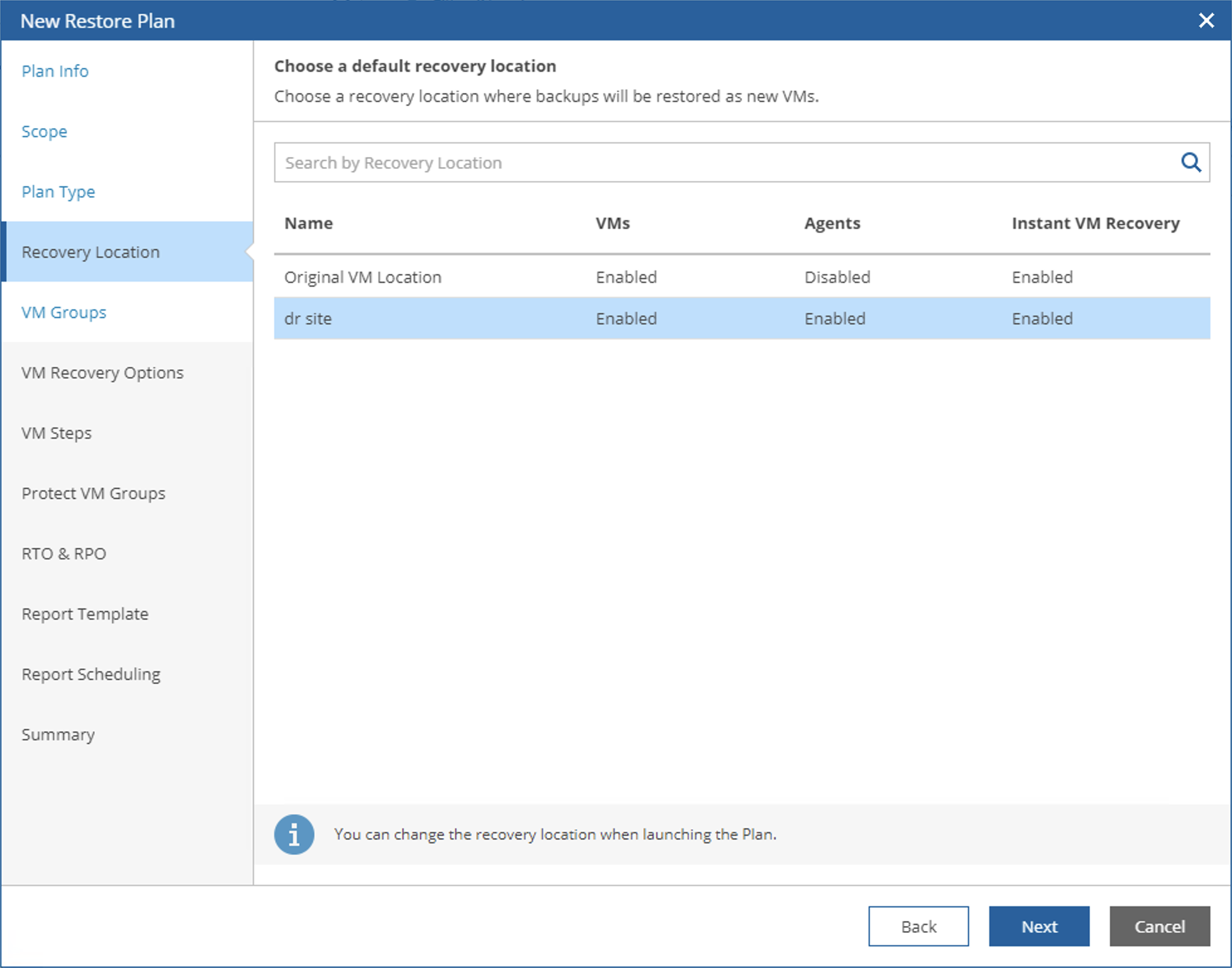
In the wizard’s Recovery Location step, select a DR Location. We will restore our backed-up machines to the ESXi at the DR site. For Recovery Location settings, you can refer to the previous content.
-
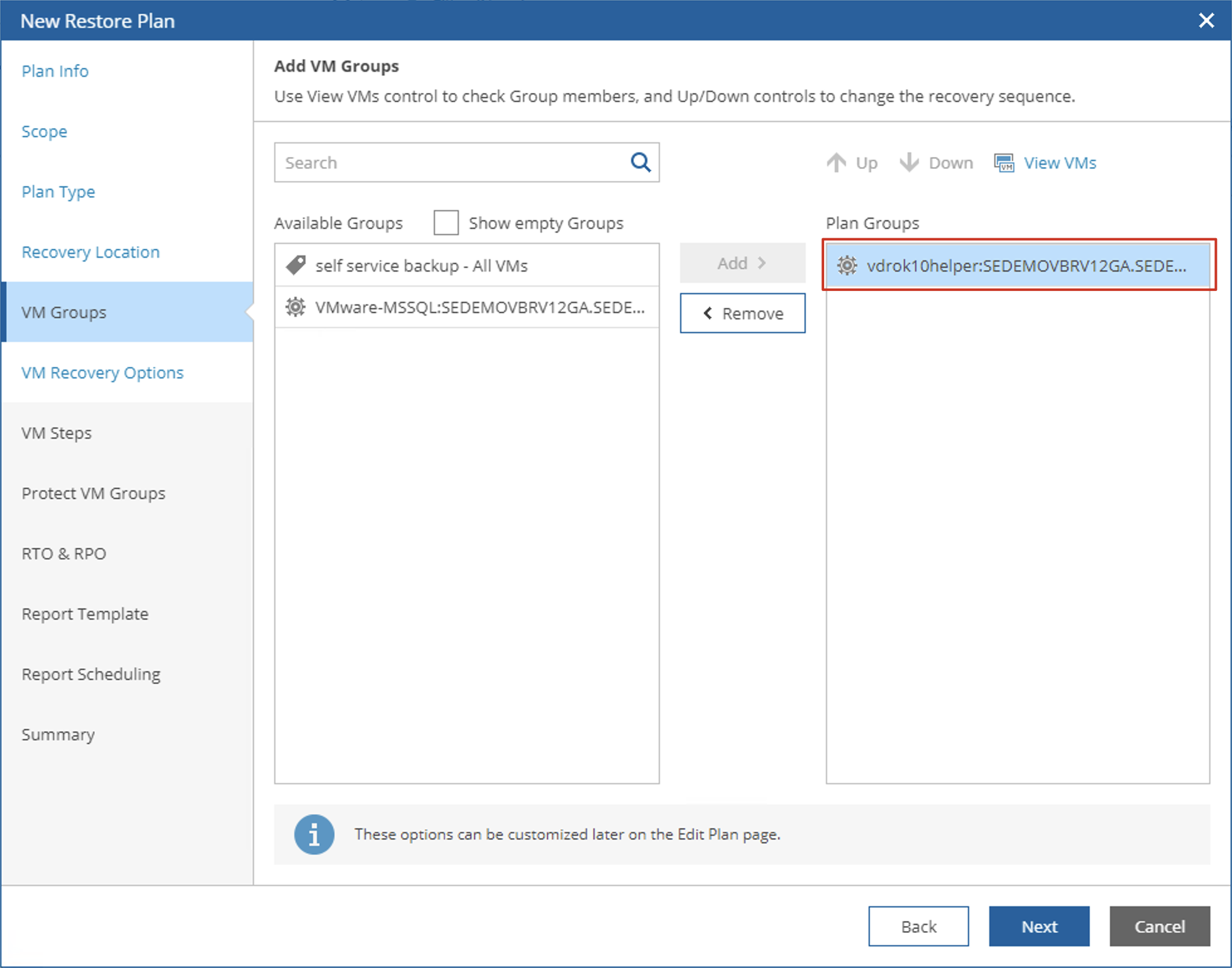
In the wizard’s VM Group step, all available VM Groups under the current Scope will be listed in Available Group. Use the Add button to add the required Groups to the Plan Groups pane on the right. You can also use View VMs to see the VMs contained in the currently selected VM Groups in detail.
-
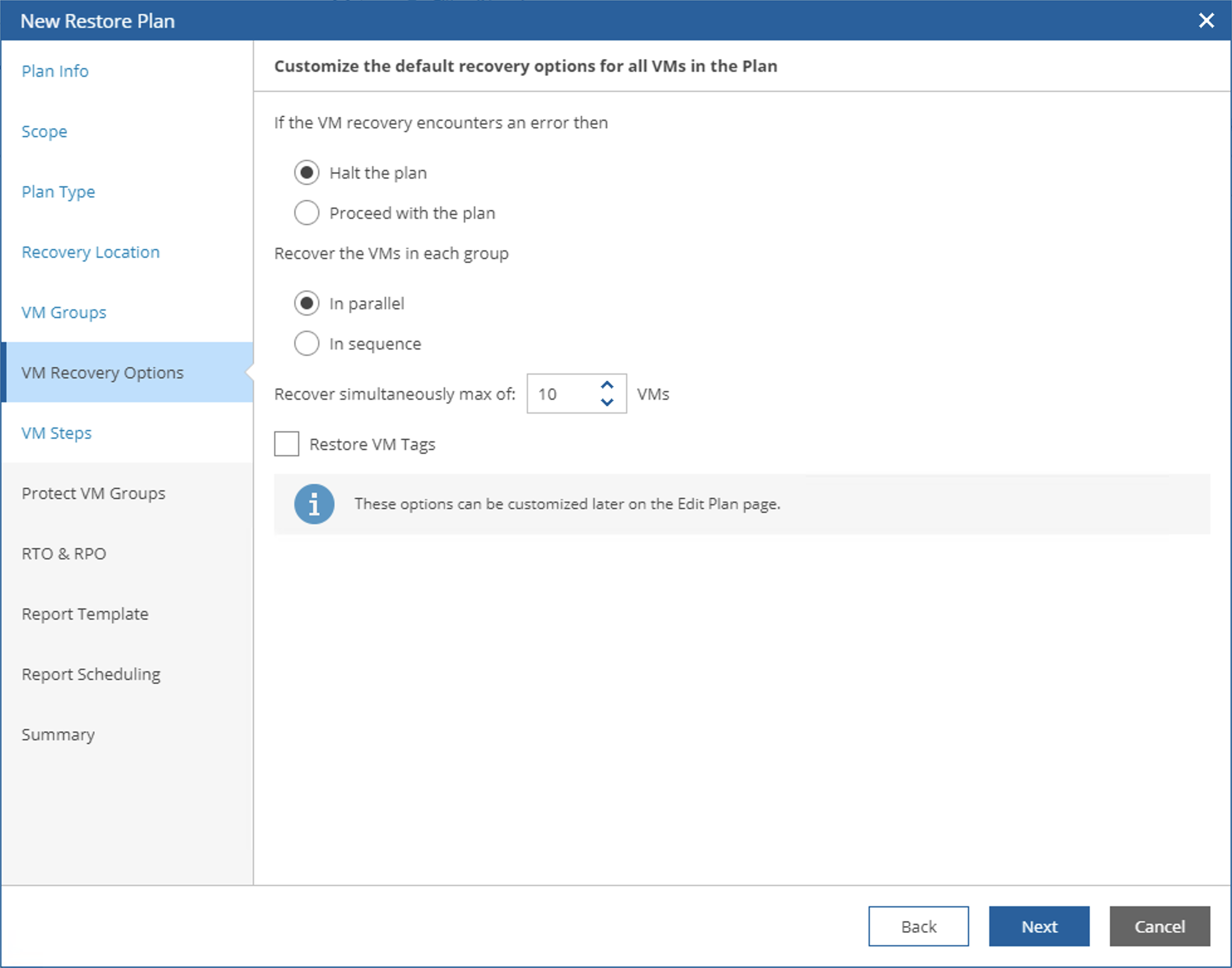
In the VM Recovery Options step, you need to set four items:
- If any VM recovery fails then: If there are multiple VMs in the Plan that need recovery, and one VM recovery fails, this option determines how the subsequent Plan will proceed. You can continue executing the plan to recover other VMs or stop the plan directly.
- Recover the VMs in each Group: Whether to recover in sequence or simultaneously. If you select In parallel, they will proceed simultaneously. If you select In Sequence, they will execute in order.
- Recover simultaneously max of VMs: Select an appropriate quantity. The default is 10. Generally, administrators should choose reasonably based on their computing resources. It’s best to perform some testing before deciding on the final number here.
- Restore VM Tags: There’s a ⚠️ under this checkbox. Generally, when restoring to a new location as a new VM, most people won’t select this option to restore Tags, to avoid confusion with production VMs.
-
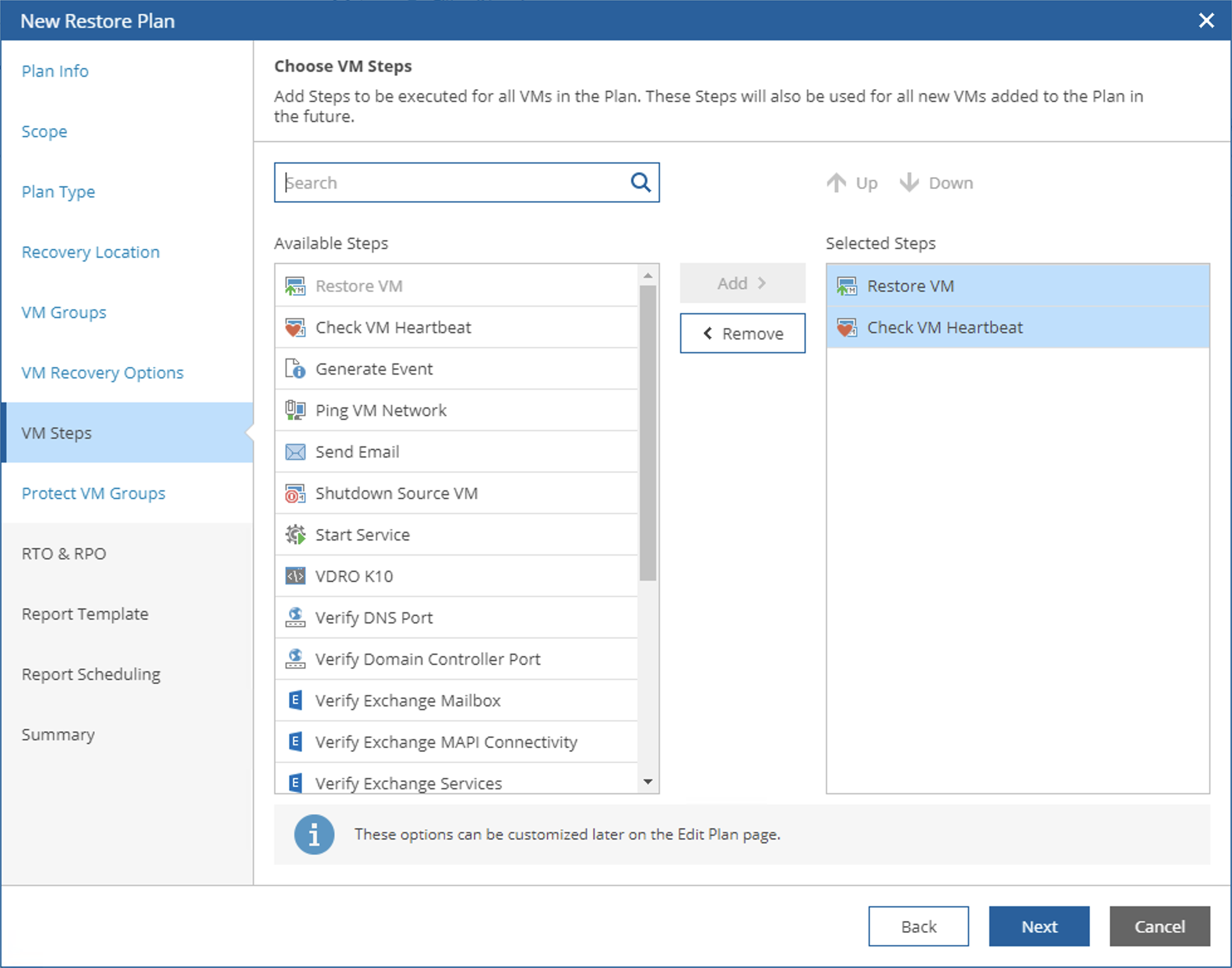
In the VM Steps step, you can select many Steps that can be used during the recovery process. By default, the system automatically selects Restore VM and Check VM Heartbeat. I recommend that administrators who are just getting familiar with VRO add various Steps one by one to test the functionality of each operation. After determining a needed Step, you can then design it into your final Plan. In this step, administrators can add various custom PowerShell scripts. With such extensions, administrators can flexibly control and manage various systems.
-
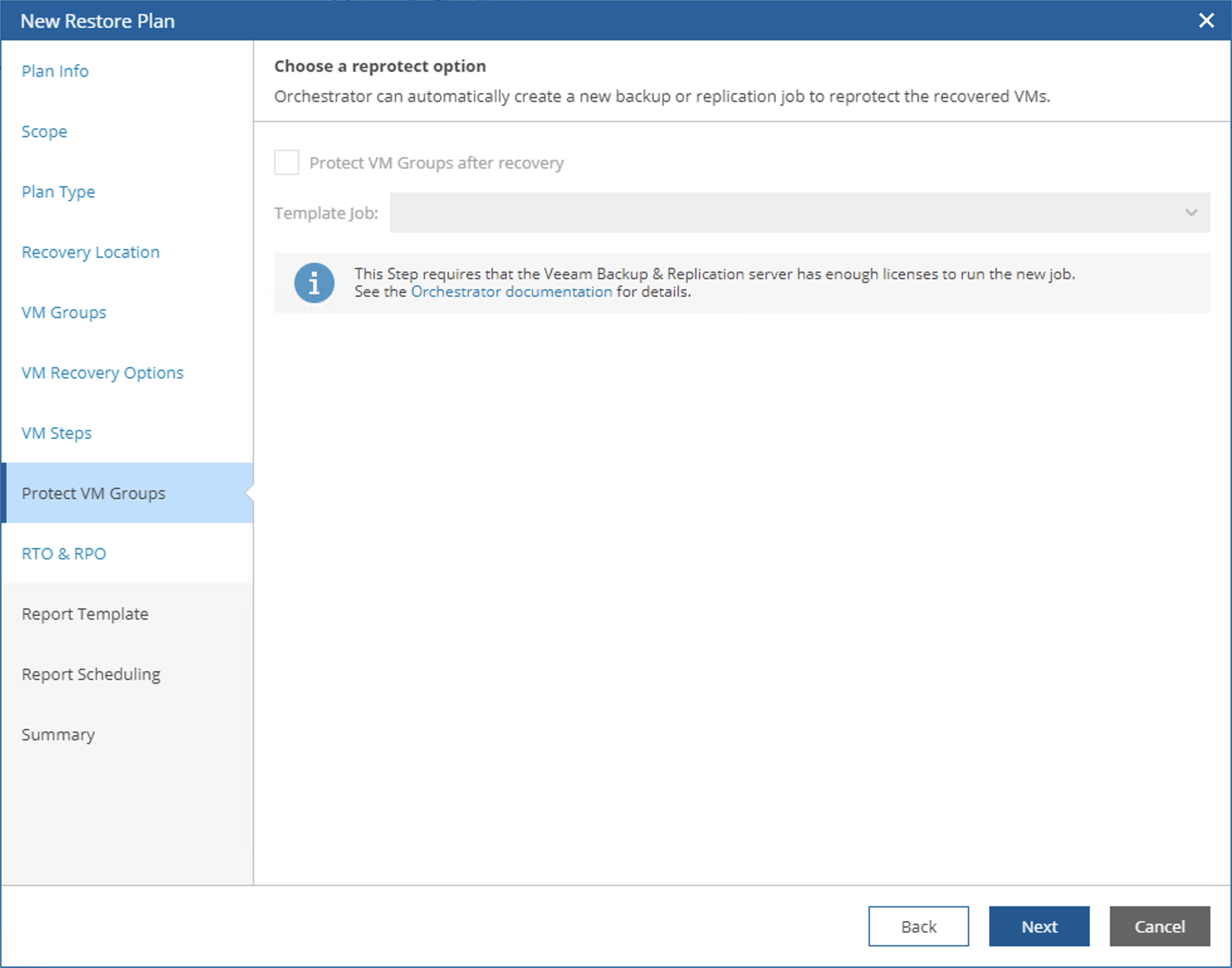
In the Protect VM Groups step, you can add automated protection settings for the recovered disaster recovery resources. This step is very important for fully automated disaster recovery systems, ensuring the next step of protection after disaster recovery. In today’s example, we’ll keep this option as default, make no selection, and proceed to the next step.
-
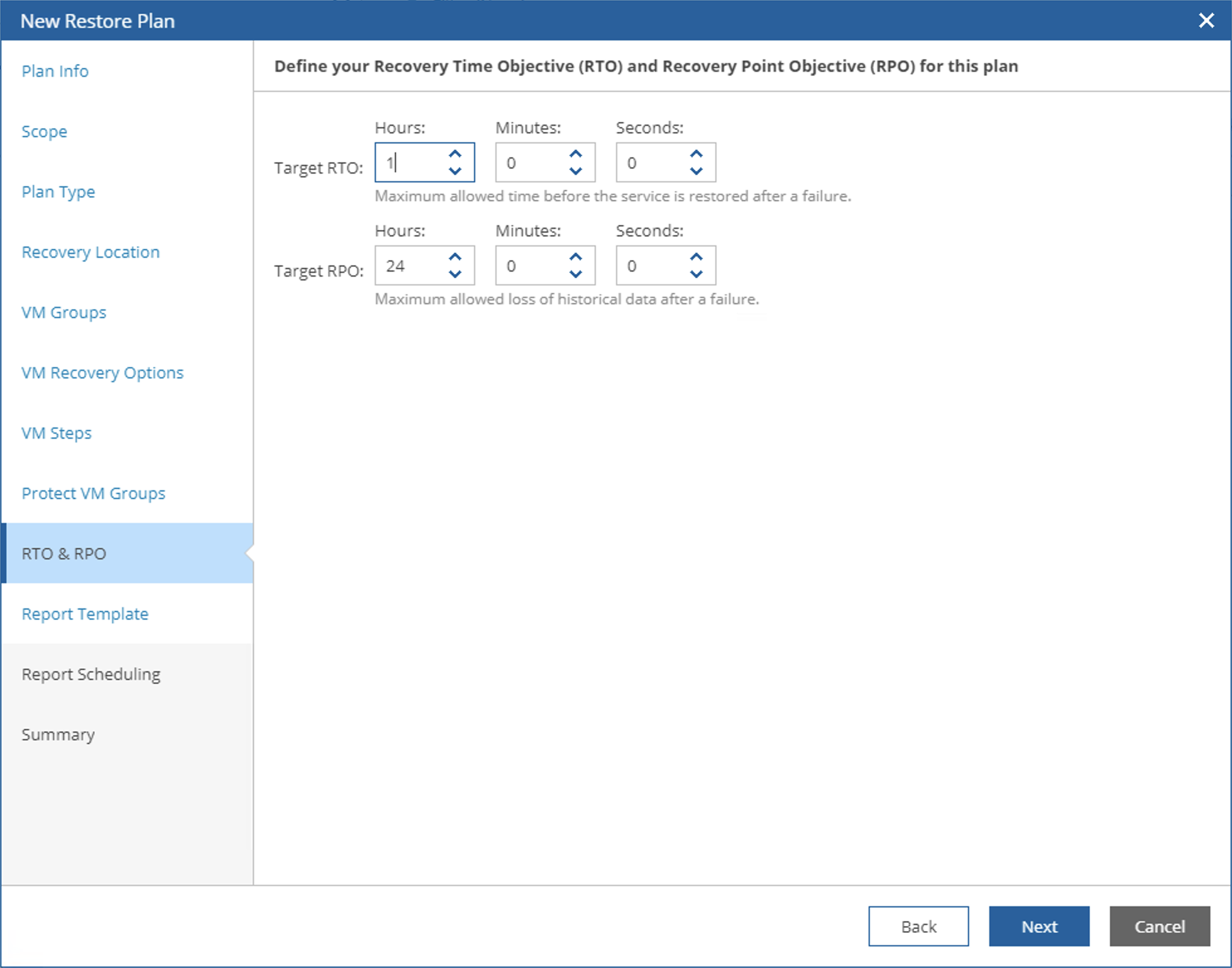
In the RPO and RTO step, administrators can set the expected SLA. The VRO system will automatically monitor the backup system and disaster recovery system to ensure the administrator’s expected RPO and RTO. When any situation doesn’t meet expectations, VRO will notify administrators through alerts for further processing. In this step, we’ll also keep the default values: 1 hour RTO and 24 hours RPO.
-
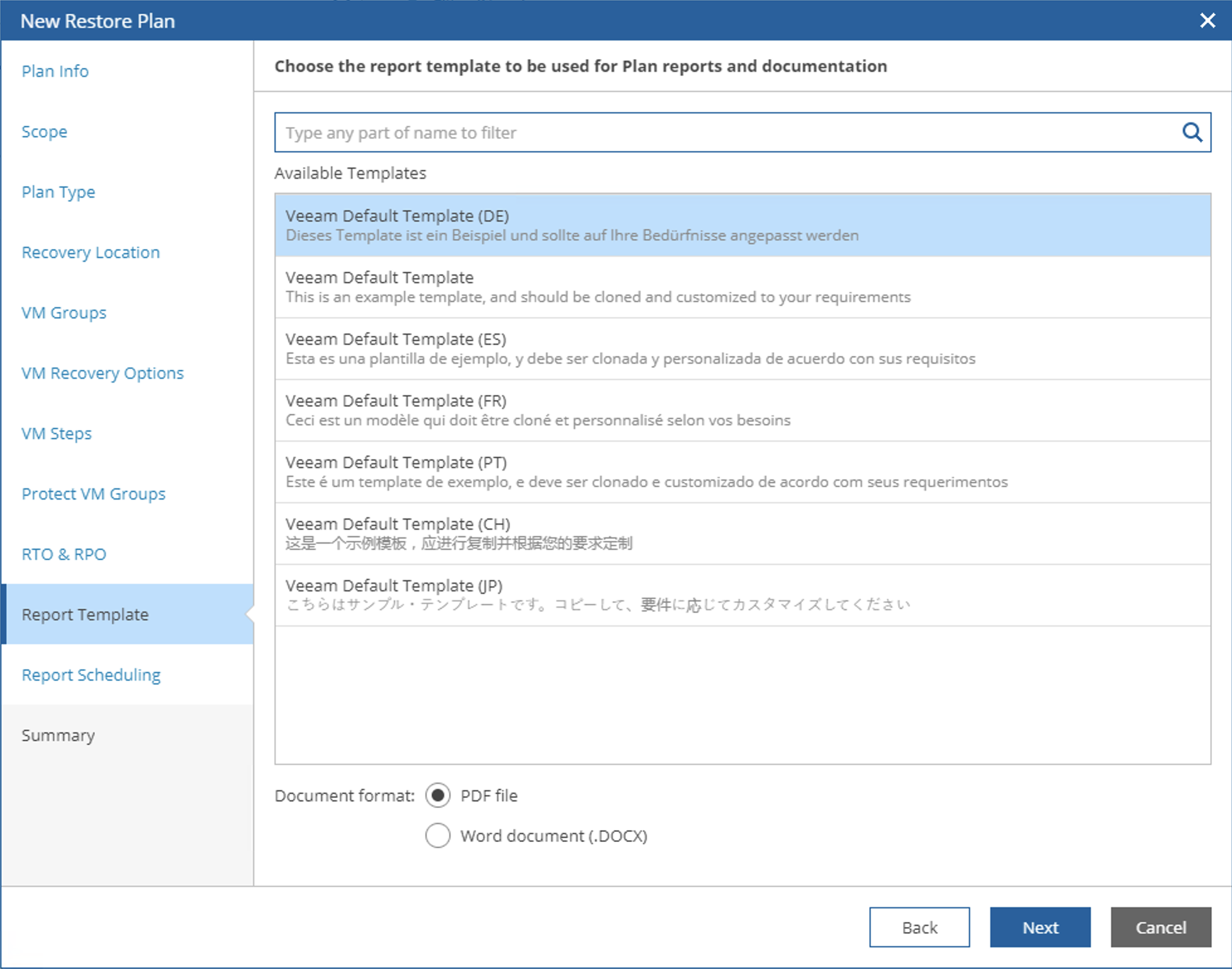
In the Report Template, administrators can set related Templates for the entire Plan’s dynamic documents. The system has built-in document Templates in multiple languages. Administrators can also customize this Template through Microsoft Word. We will explain in detail how to create and edit Templates in subsequent introductions. In this step, we’ll select the Chinese default template.
-
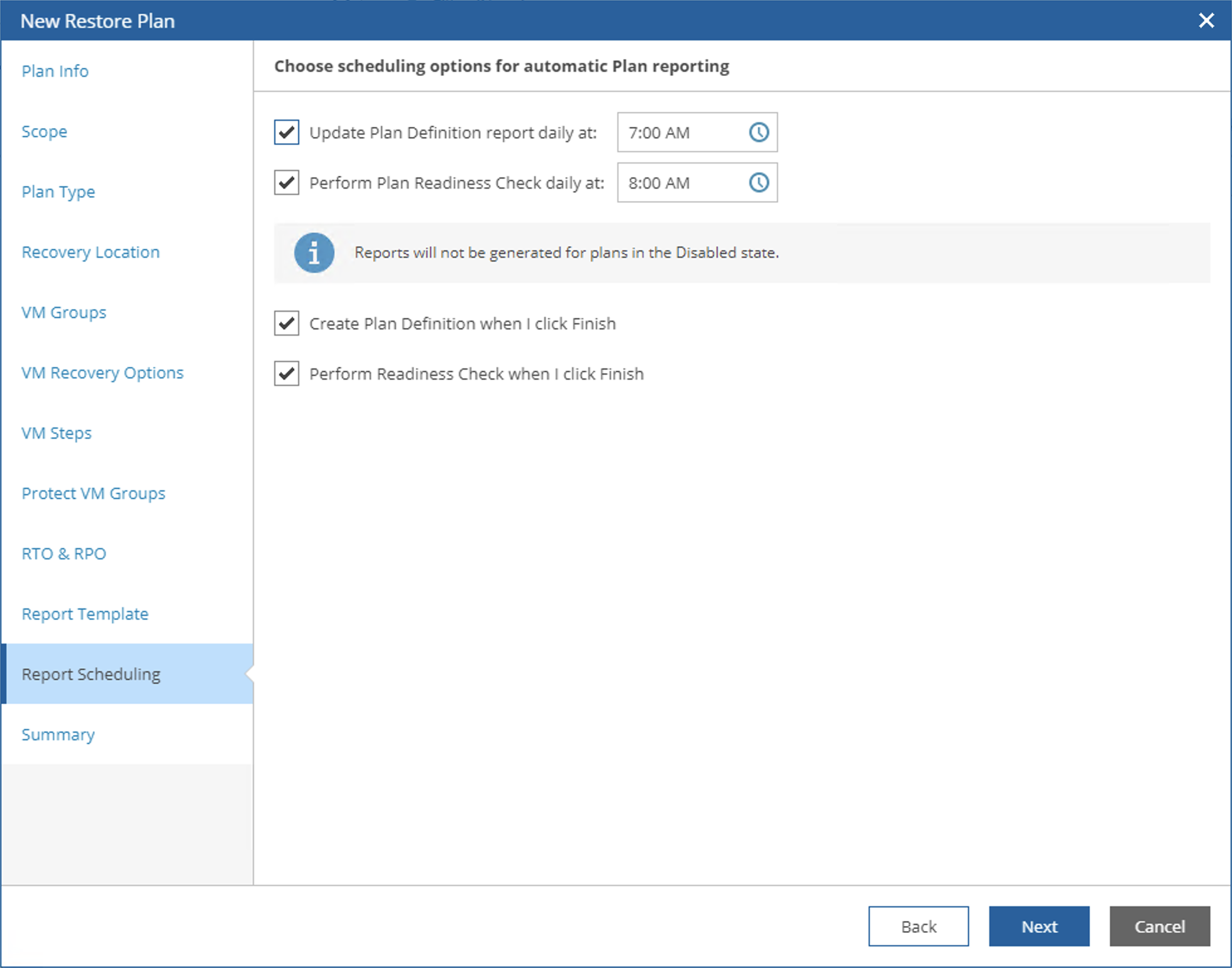
In the Report Scheduling step, you can set the creation time of Plan Reports. We won’t modify this and keep it as default.
-
These are all the setup steps. After viewing the detailed settings in the Summary, click Finish to complete the creation. After creation is complete, this Plan will appear in the Orchestration Plan page.
Managing Orchestration Plans
For created Plans, administrators can perform the following operations:
Launch: Run, Halt, Undo, and Schedule
Manage: Enable, Disable, New, Edit, Reset, Delete, and Properties
Verify: Datalab test and Readiness check
Report operations
Generally, newly created Orchestration Plans are in Disable state, meaning the icon in front is gray. You need to click Manage->Enable to activate it before it can work normally.
After performing recovery or failover operations, administrators need to use the Manage->Reset button to reset this Plan so it can continue working, or administrators can delete previously completed Plans and redefine new Plans.
This concludes today’s content - the basic creation method for Orchestration Plans. Today’s example only briefly introduced the Restore Plan method. The remaining four types of Plans are left for you to explore on your own.