VRO Basic Guide (Part 4) - Basic Components · Volume 2
Series Table of Contents:
- VRO Basic Guide (Part 1) - Introduction
- VRO Basic Guide (Part 2) - Installation and Deployment
- VRO Basic Guide (Part 3) - Basic Components · Volume 1
- VRO Basic Guide (Part 4) - Basic Components · Volume 2
- VRO Basic Guide (Part 5) - First Step to Successful Disaster Recovery Plan
- VRO Basic Guide (Part 6) - Data Labs
- VRO Basic Guide (Part 7) - Plan Step · Volume 1
- VRO Basic Guide (Part 8) - Plan Step · Volume 2
- VRO Basic Guide (Part 9) - Document Template Analysis
- VRO Basic Guide (Part 10) - Using VRO with K10 for Fully Automated Container Disaster Recovery
Resource Grouping - Compute Resource/Storage Resource/VM Group
Before diving into the operational permissions of Scope, I’d like to first explain the resource grouping methods. These special grouping approaches will be used in the operational permissions discussed later. This grouping method applies to VMs, Hosts, and Storage. The groupings used in VRO are read from the embedded Veeam ONE, which means the actual grouping is completed within Veeam ONE. Generally, the specific operations here can be divided into two main categories:
-
The first category involves grouping through Veeam ONE Business View’s native grouping methods.
-
The second category involves grouping ESXi, Clusters, or Datastores using vSphere Tags. Once grouping is complete, VRO can read this information.
Regardless of whether you use vSphere Tags, I recommend using Categorization in Veeam ONE Business View to complete resource grouping setup. Below, I’ll use Compute Resources grouping as an example to introduce this grouping method.
The operation steps are as follows:
-
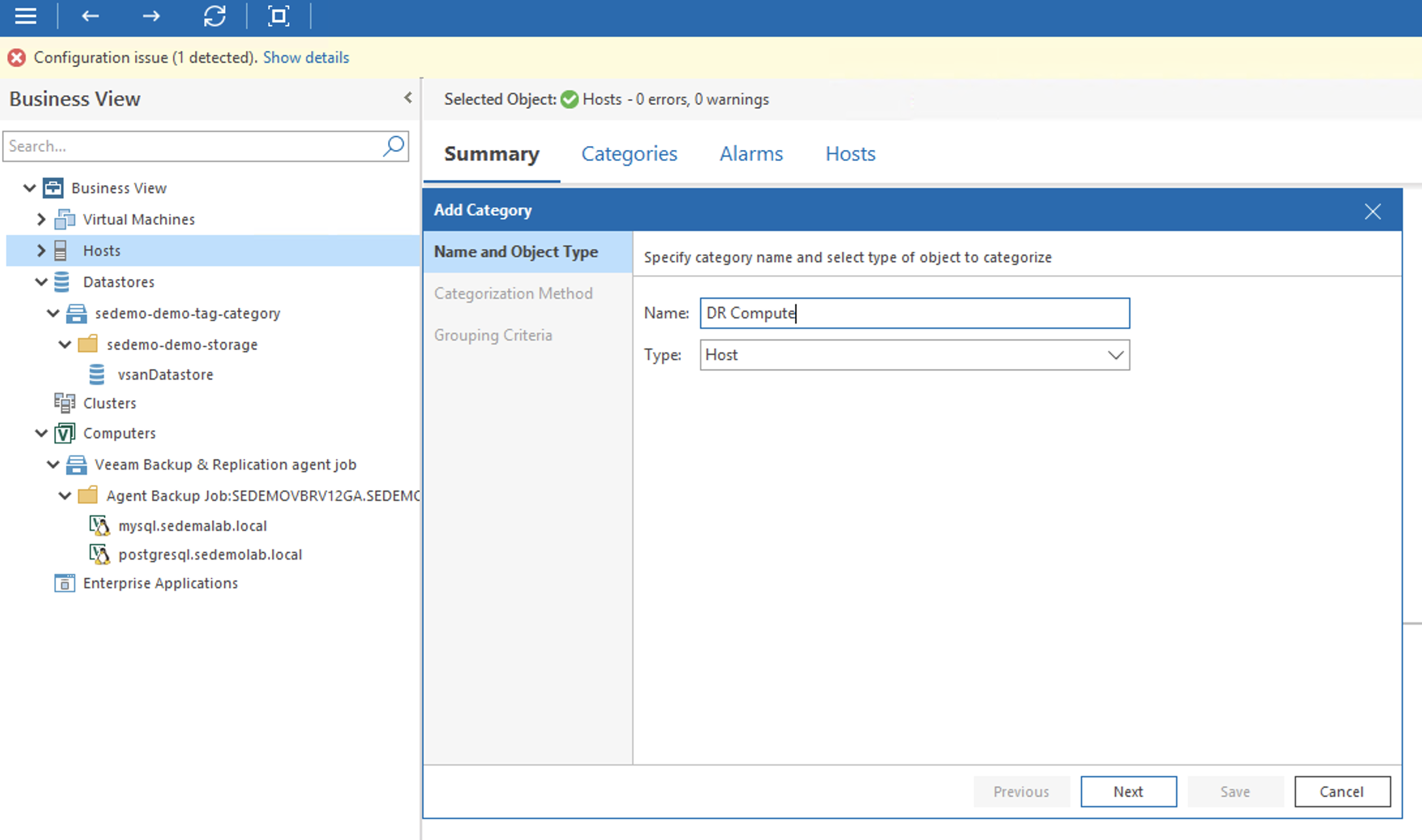
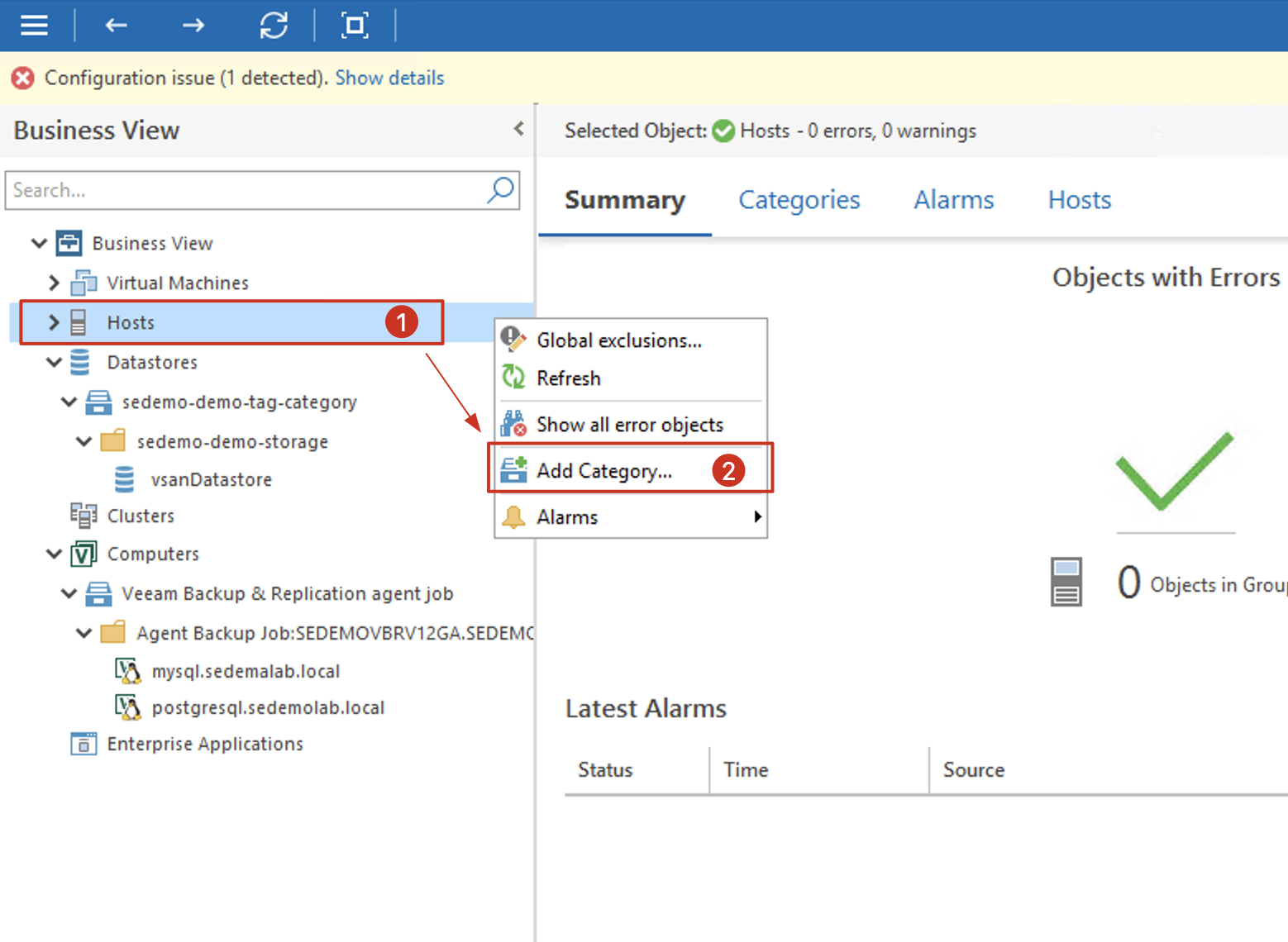
Open the VRO embedded Veeam ONE console through Veeam ONE Monitor Client, find the Hosts category in the Business View, right-click, and select the “Add Category…” menu from the context menu.
-
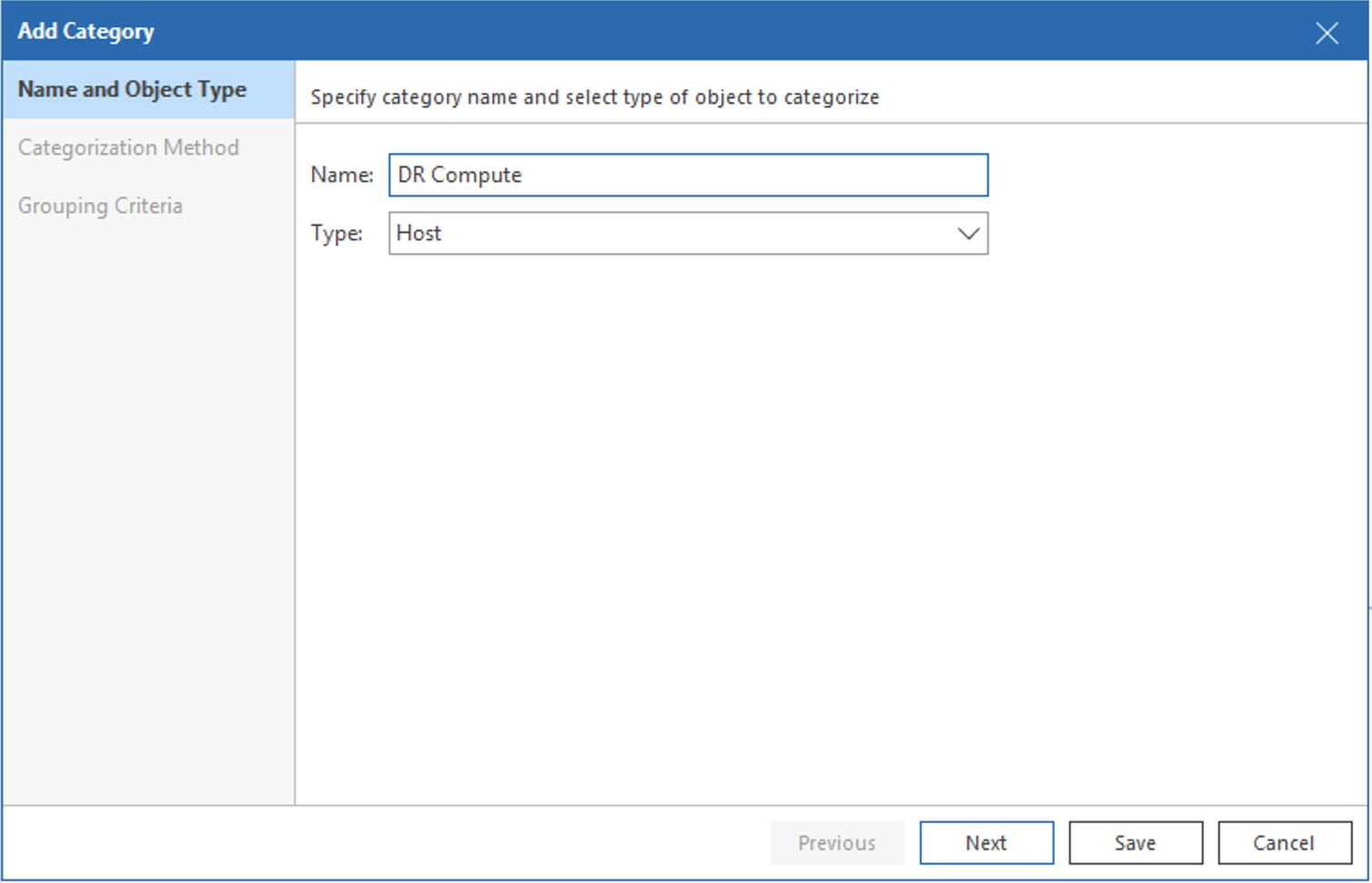
In the first step “Name and Object type” of the Add Category wizard, enter the category name. For example, I entered “DR Compute” here, keep Type as Host, and click Next.
-
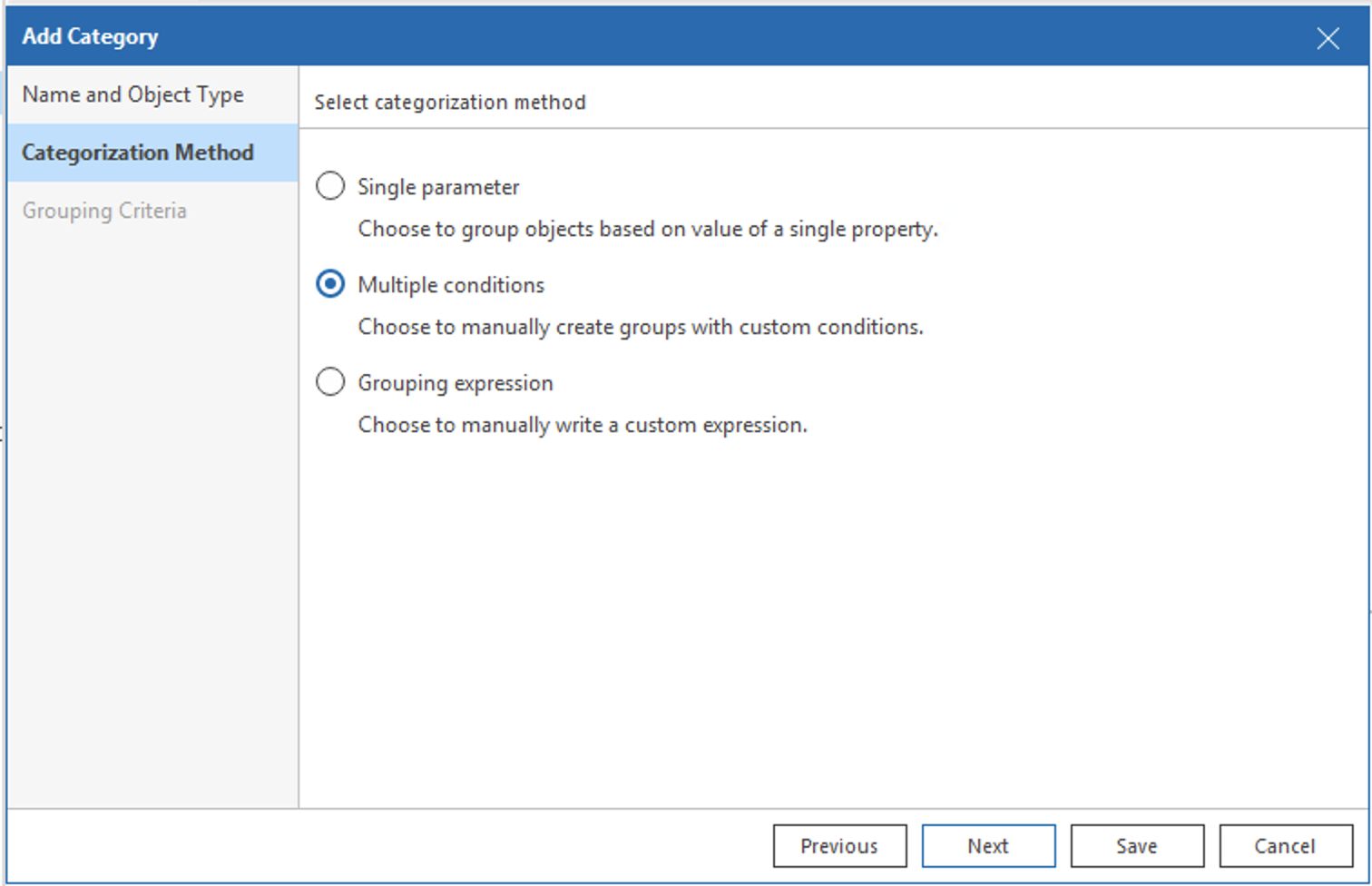
In the second step “Categorization Method” of the wizard, select the second option “Multiple conditions” and click Next. (Of course, you could also select other options here, but in this example today, I won’t go into detail about these classification methods).
-
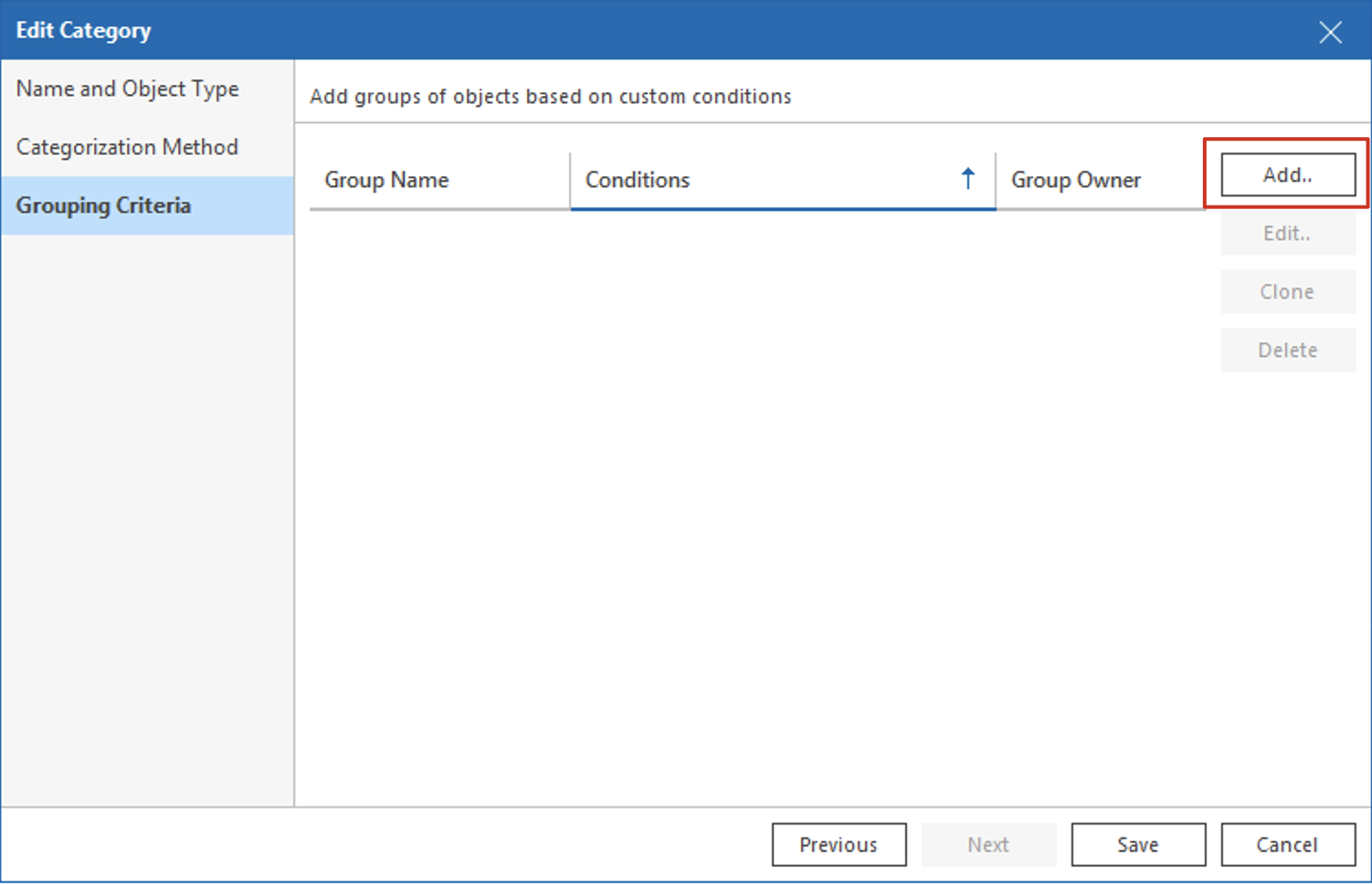
In the third step “Grouping Criteria” of the wizard, click “Add…” on the right to add new groupings. This step is very important as the groupings added here will appear in the Compute Resources of VRO’s Recovery Location setup wizard.
-
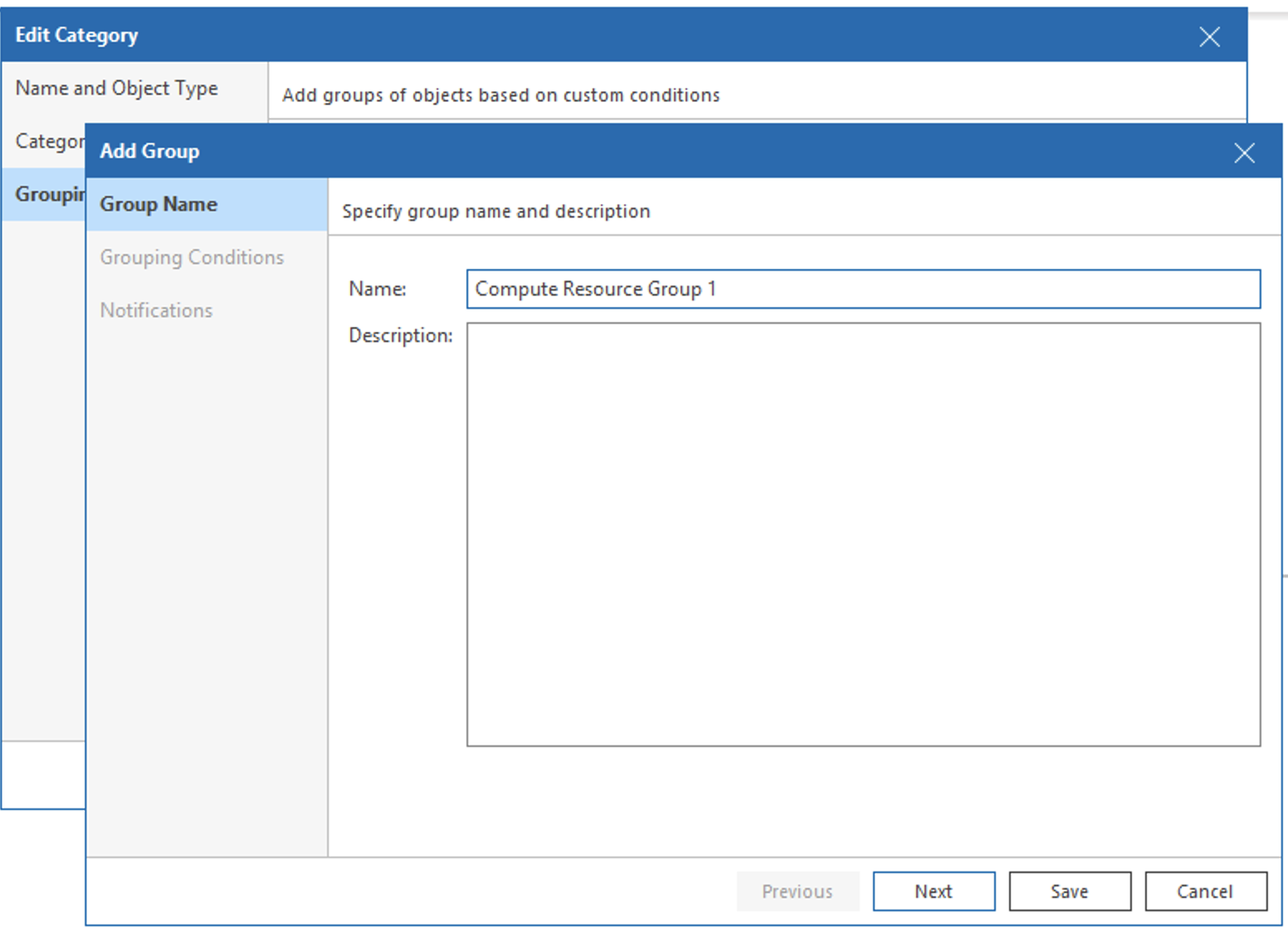
After clicking Add, a new wizard will appear to add groupings. First, give this grouping a name. For example, I set “Compute Resource Group 1” here, then click Next.
-
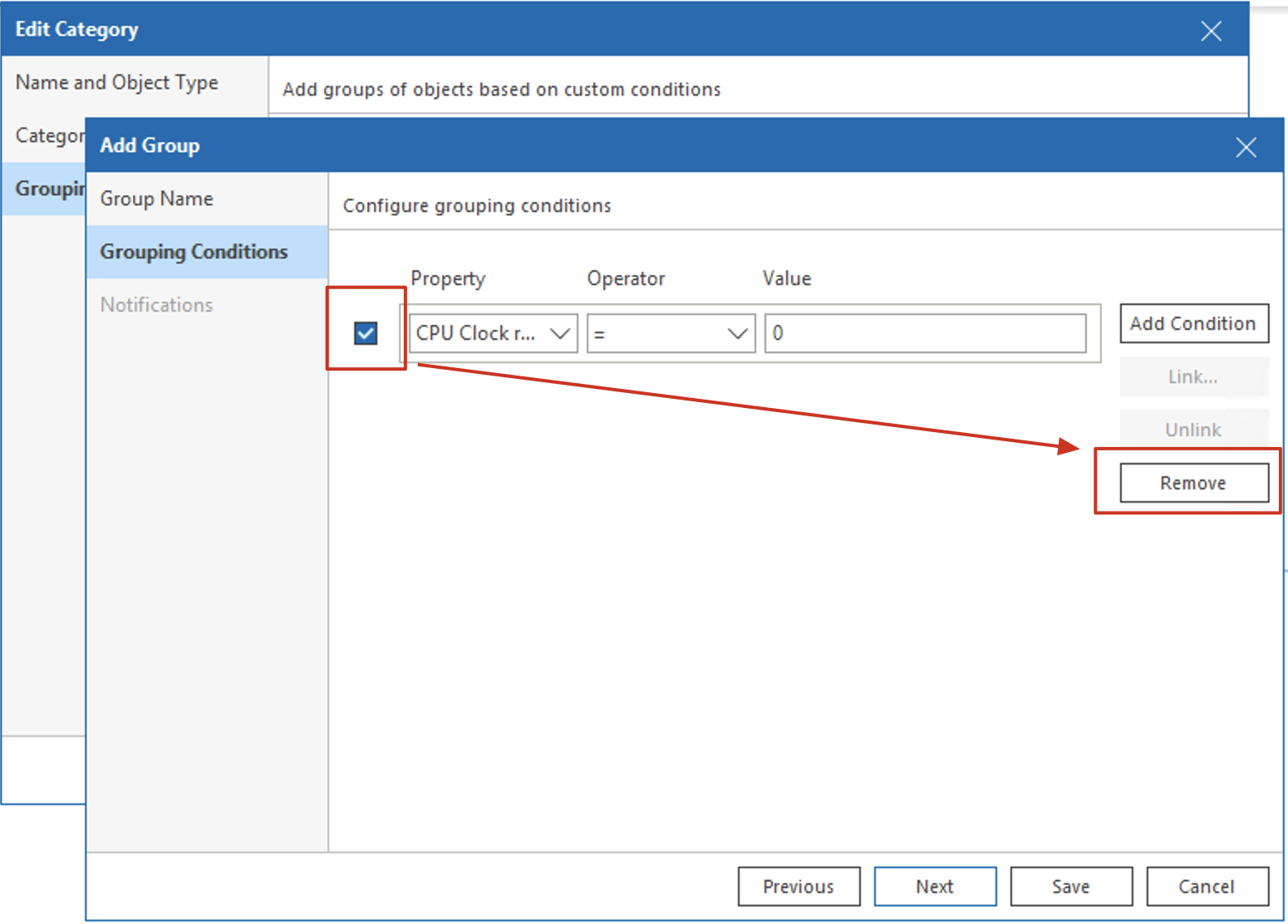
In the second step “Grouping Conditions” of the grouping wizard, a default Condition will appear. We need to select it and click the Remove button on the right. In today’s example, we’ll use manual selection for grouping. After deleting this Condition, click Next.
-
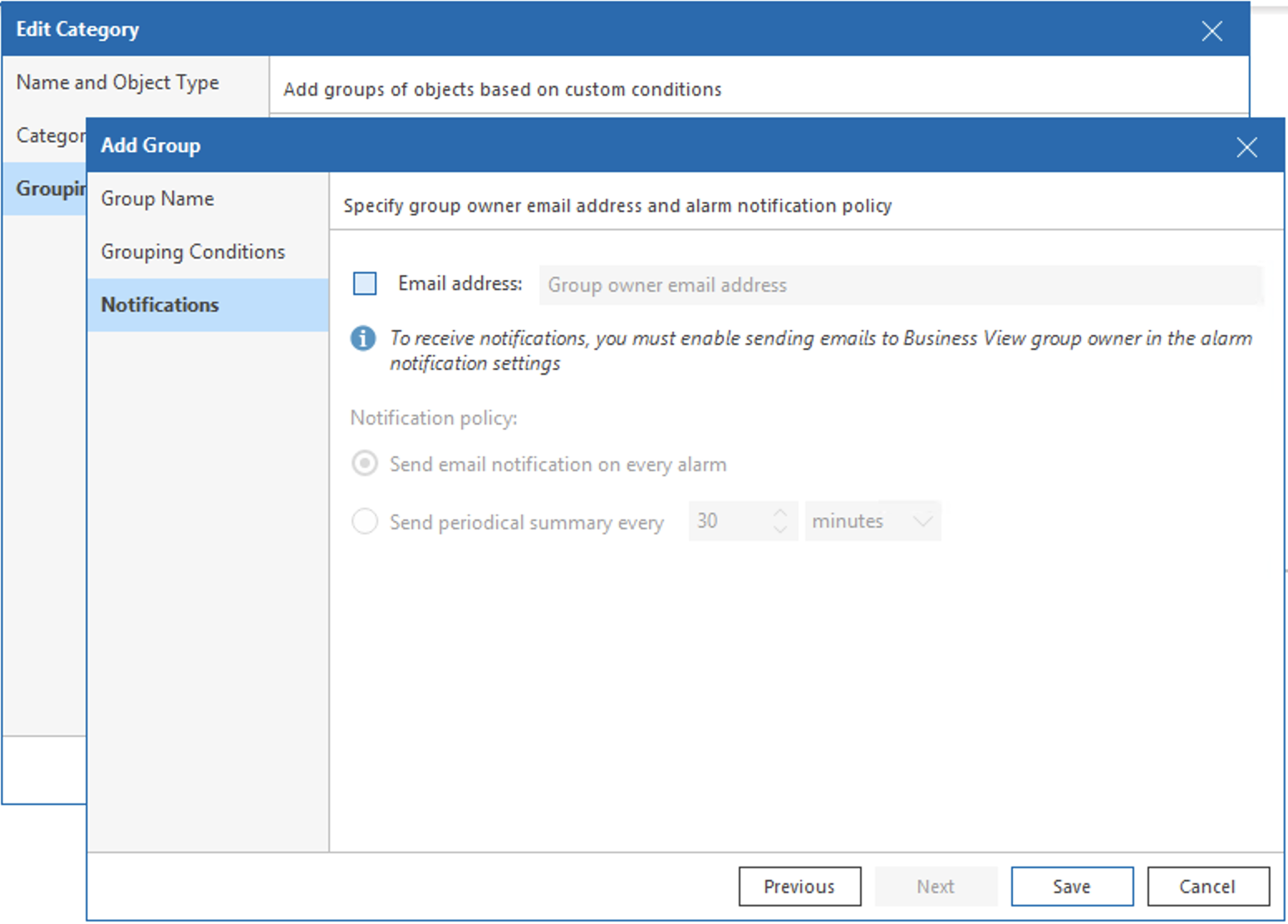
In the third step “Notification” of the grouping wizard, keep the default options without any changes. The Notification settings here are not used in VRO and don’t need to be configured. Click Save to complete.

-
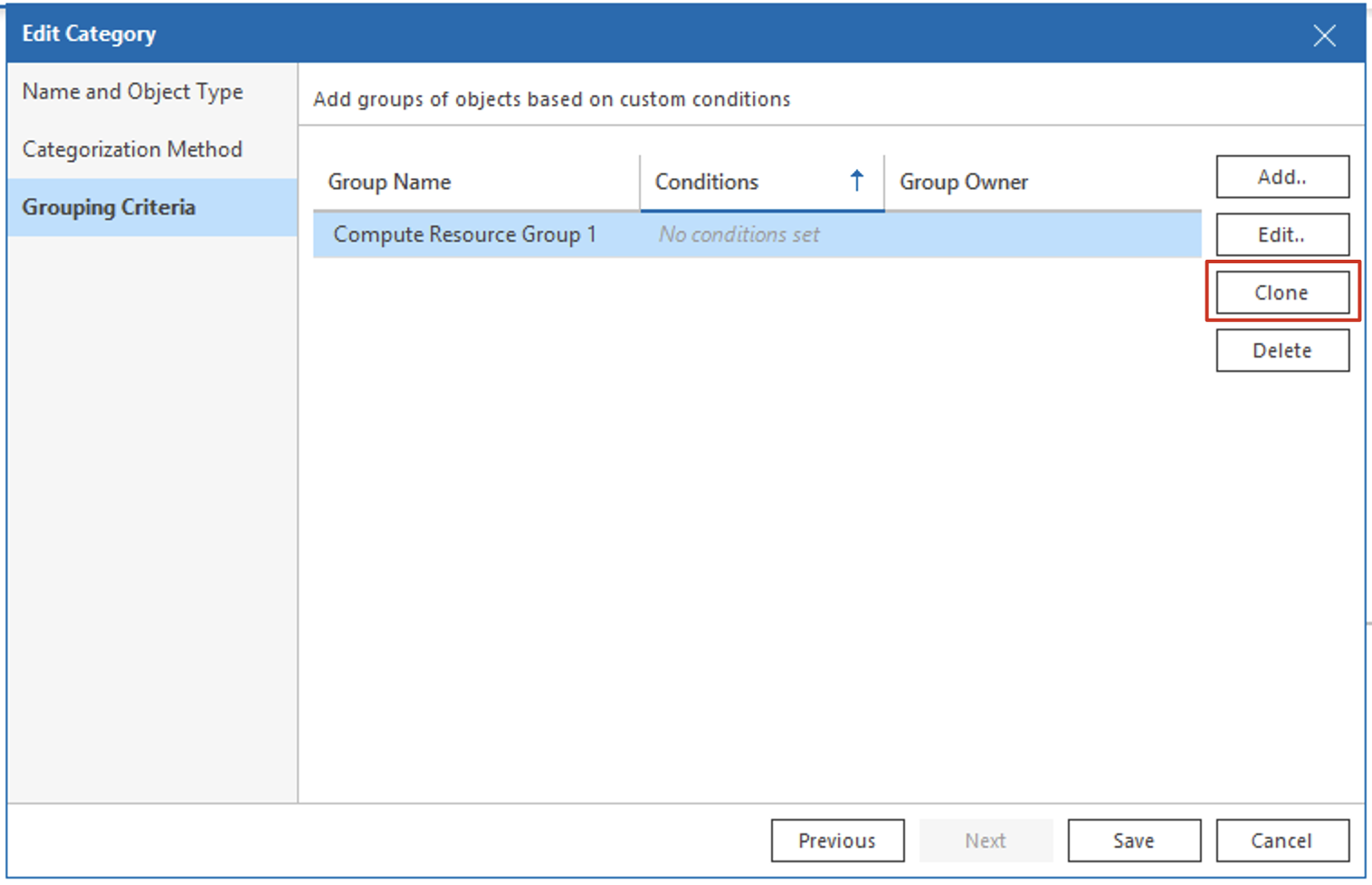
Back in the third step “Grouping Criteria” of the Add Category wizard, repeat steps 4-7 above to add multiple groupings, or use the Clone button to clone groupings and modify the name after cloning. Finally, click Save to save the category settings.
-
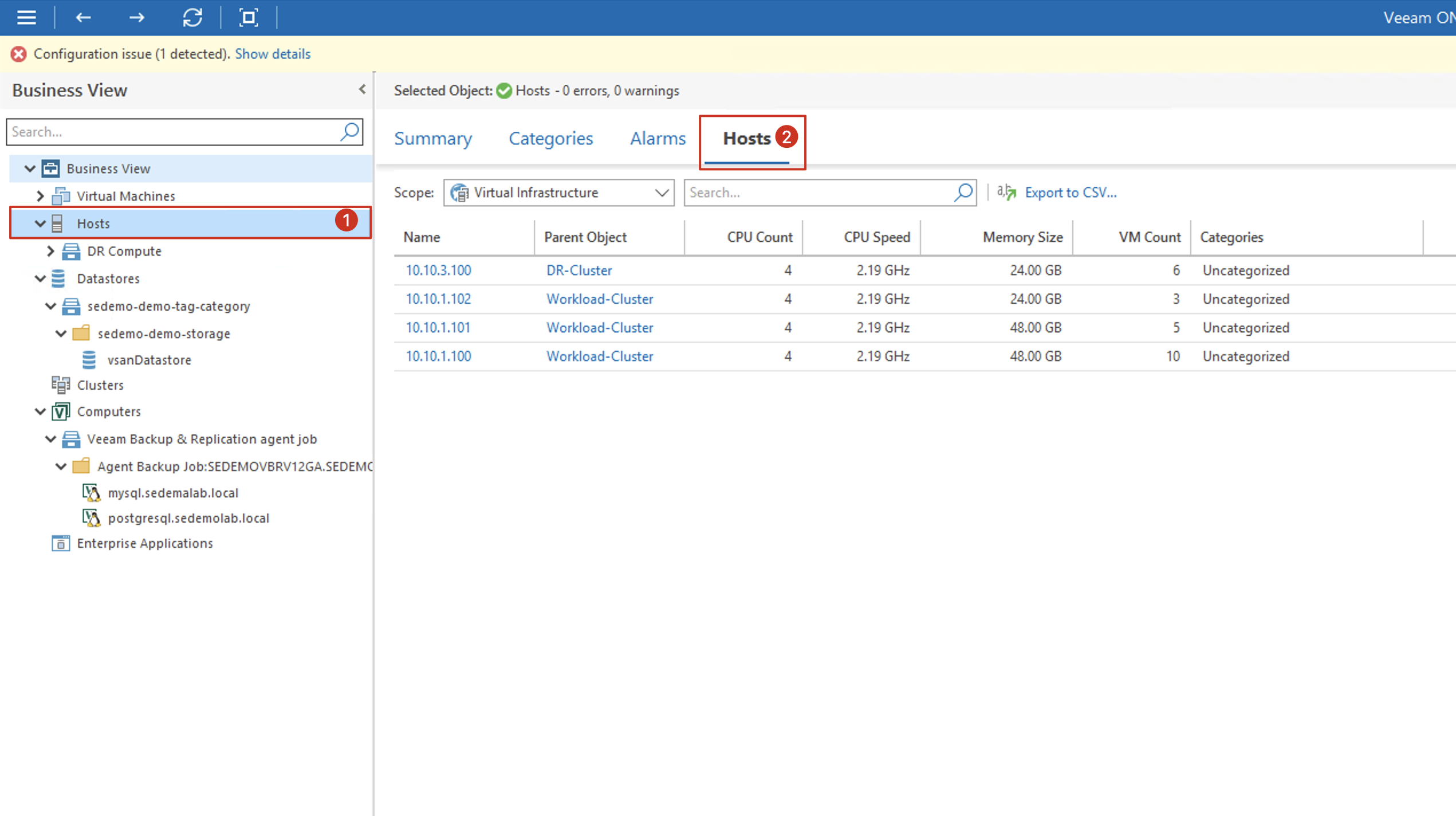
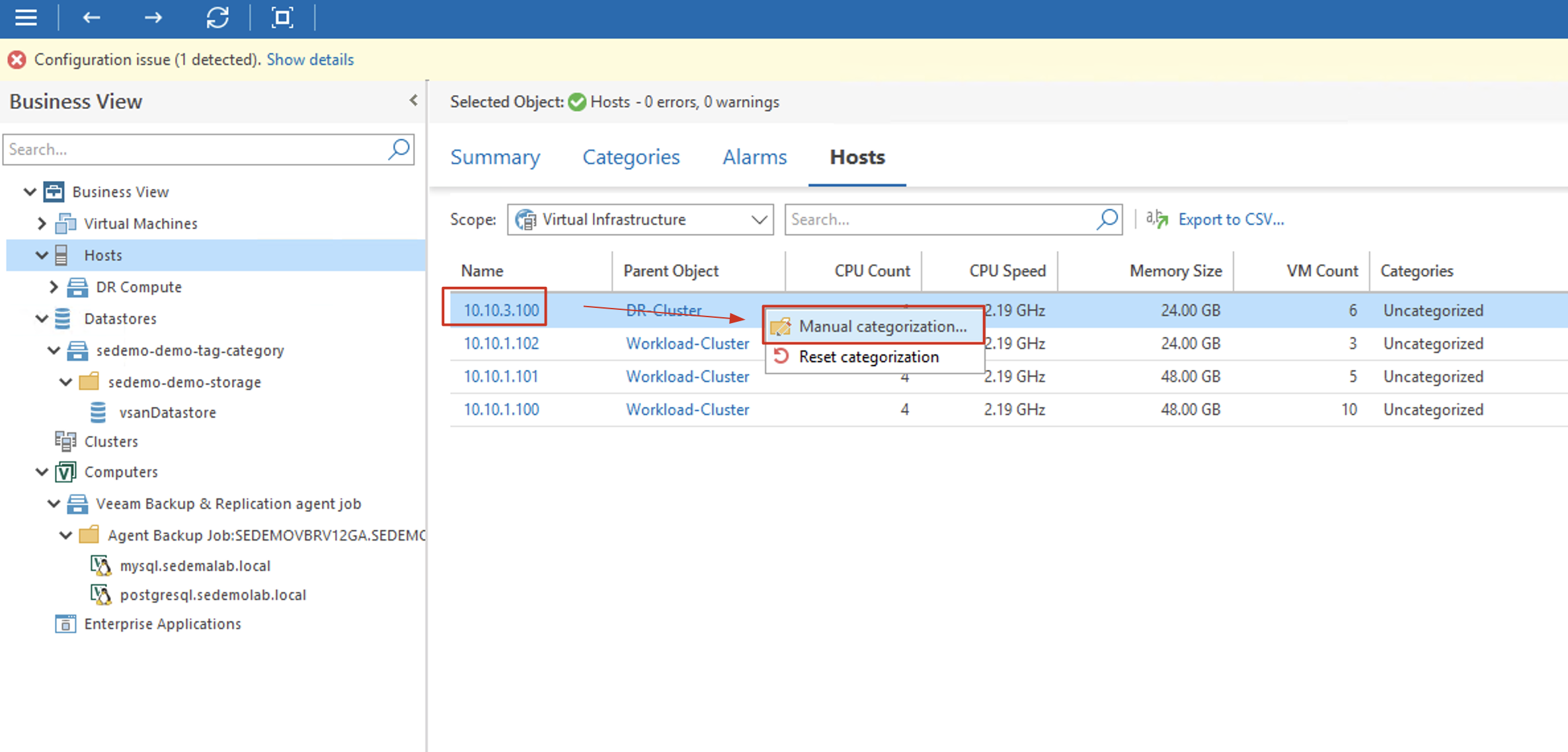
After completing the category settings, under Hosts in Business View, you’ll see the Category and Group just created. Since we’ll use manual method for categorization, there won’t be corresponding Hosts under the Group for now. Select Hosts in Business View, and in the content display area on the right, find and switch to the Hosts tab.
-
In the Hosts list, find the hosts you want to group, right-click the host, and select “Manual Categorization” from the context menu.
-
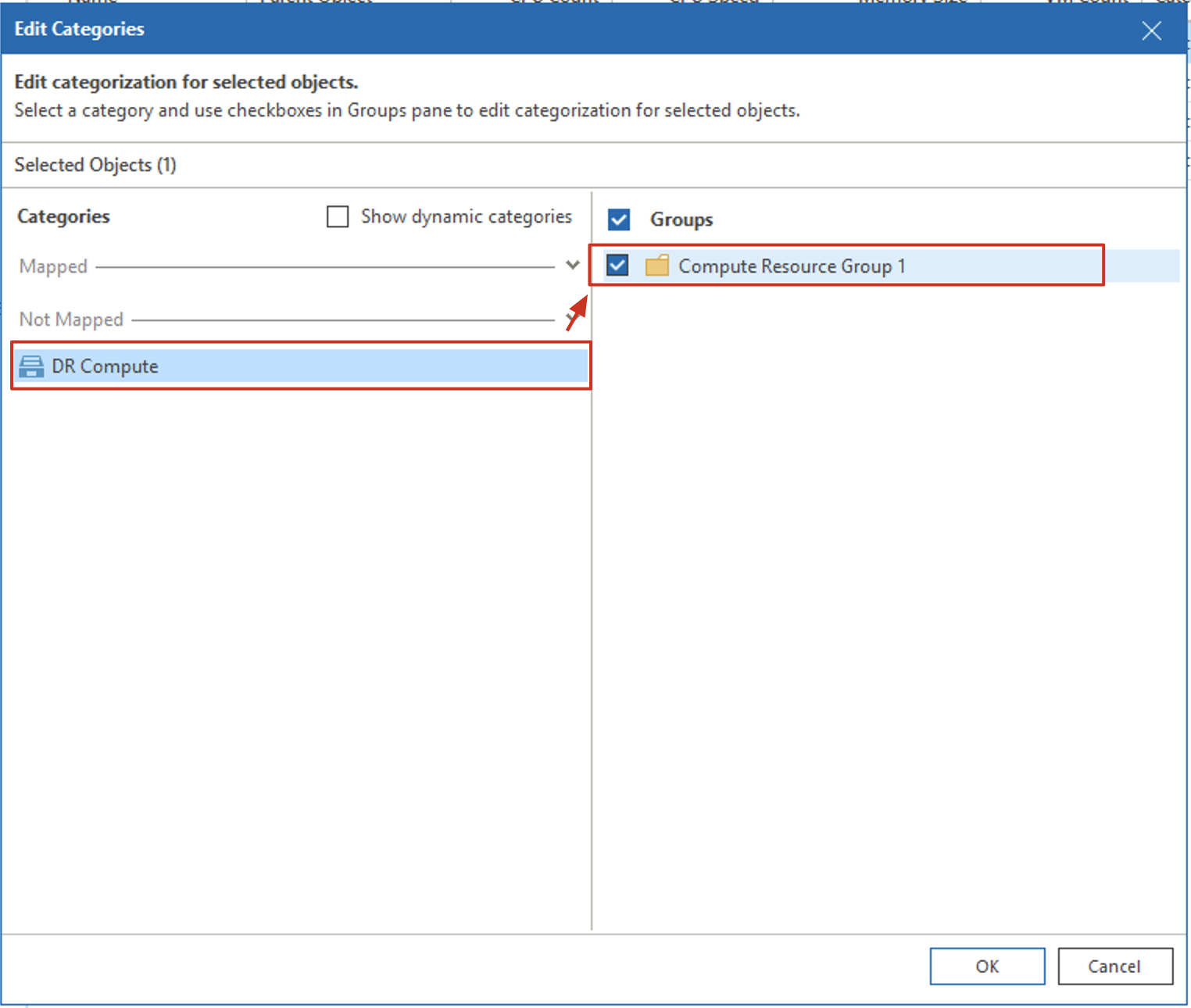
In the Edit Categorization dialog that appears, select “Not Mapped” category on the left, then select the Group name on the right, and click OK. This completes the grouping, which can now be used in VRO.
For VM Group and Storage Resources settings, you can also complete them using the above method.
Scope Inclusions
Next, let’s talk about Scope Inclusions, which are the specific operations available in VRO disaster recovery system permission management. In previous versions, this module was called “Plan Components,” but in v6 it was renamed to “Scope Inclusions.” The content is essentially the same.
The following components need to be configured for each Scope. The previous article introduced the specific configuration locations. Now let’s see what these objects are and how to configure them.
Groups
Groups define which machines can be managed under each Scope. However, unlike selecting machines in VBR, in Groups, virtual machines or physical machines are not presented in their original structure and name. VRO’s Groups automatically lists the following types of objects:
- Virtual machines or physical machines protected by Veeam backup jobs - these appear in the list as [Job Name - VBR Host Name].
- Virtual machines protected by Veeam Replication or CDP - these appear in the list as [Job Name - VBR Host Name].
- Virtual machines contained in vSphere Datastore - these appear in the list as [Datastore].
- Veeam agent protection groups - these appear in the list as [Protection Group Name - VBR Host Name].
- vCenter Server tags - these appear in the list as [Category Name - Tag Name].
In addition to automatic classification, administrators can also perform manual classification through Veeam ONE’s embedded Business View, making classification more flexible, even configuring complex regular expressions to achieve complex filtering and grouping.
In these classifications, Agent jobs and Agent protection groups will both contain corresponding Windows or Linux machines for Agents, resulting in duplicate machines appearing; while in the virtual machine section, backup jobs, Datastore, or vCenter tags will also have duplicate virtual machines. In practice, when setting up Orchestration Plans, different types of classifications can be mixed in one Plan, and duplicate machines won’t be counted twice. The Orchestration Plan can automatically extract appropriate Restore Points or Replicas from the Repository for restoration.
Although this object selection method is somewhat brain-intensive, it provides administrators with great grouping flexibility and numerous choices.
Recovery Locations
Recovery Locations are the physical computing resources that our Orchestration Plan will use during recovery. They include three core resources: Compute, Storage, and Network. In vSphere terms, they correspond as follows:
| VRO Recovery Locations Name | vSphere Resource |
|---|---|
| Compute | ESXi, Cluster |
| Storage | Datastore |
| Network | Port group names on virtual switches |
In VRO, we cannot directly select a specific ESXi or Datastore as our Recovery Location. We can only obtain them through the Business View engine in VRO’s embedded Veeam ONE. This is why I introduced the resource grouping method at the beginning of this article. We first need to use the resource grouping method from the beginning of this article to group Compute Resources and Storage Resources according to certain rules. Only after these grouping settings are completed can we create Recovery Locations. Recovery Locations settings require entering the Administration interface and finding the Configuration category on the right.
After entering the Recovery Location interface, you’ll see that VRO has already built-in a default Recovery Location named “Original VM Location.” This restores to the virtual machine’s original location. For this default Recovery Location, we can only edit it and cannot delete it. The editable content is also very limited.
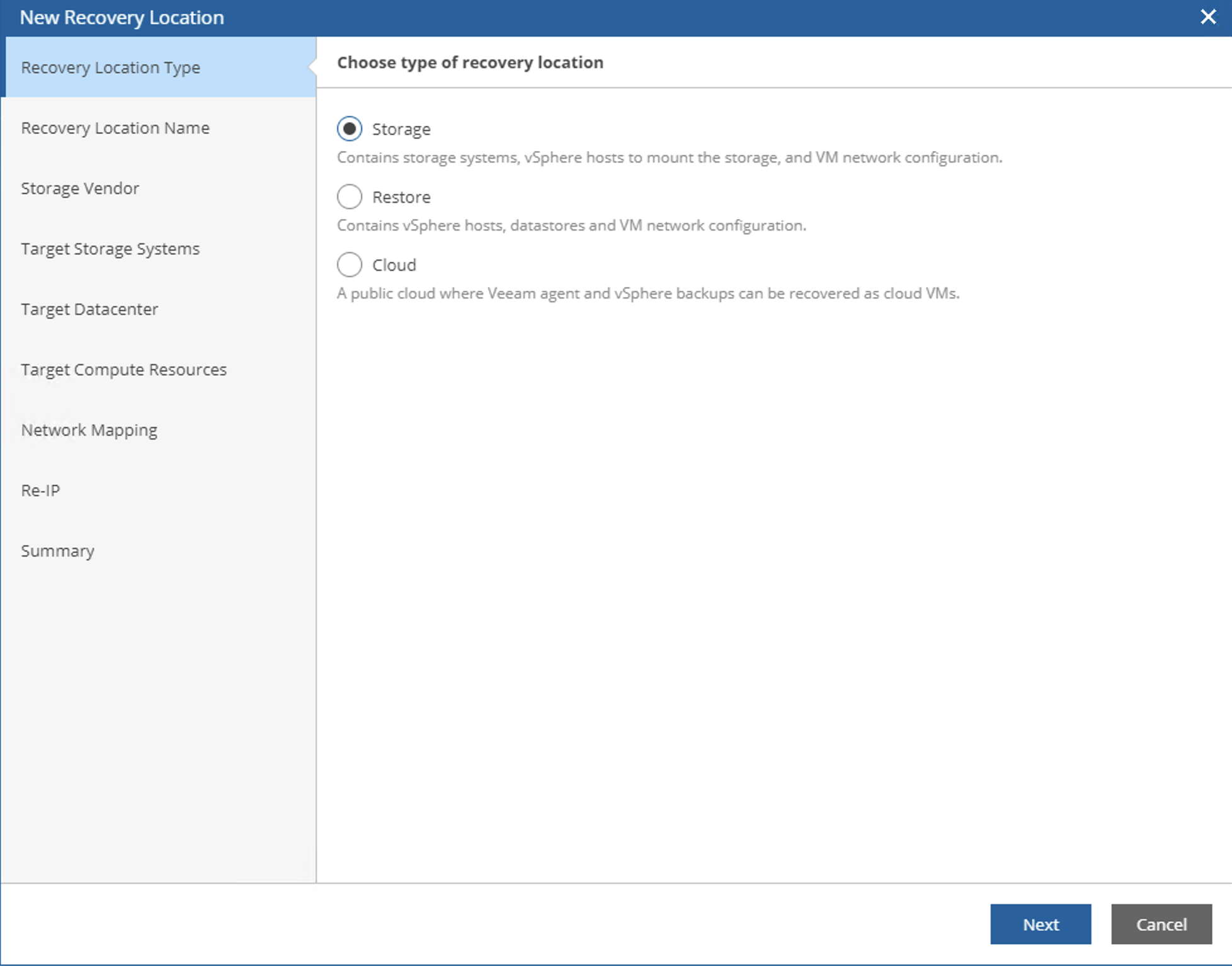
We can create new Recovery Locations for restoring to a new location. We can create multiple Recovery Locations here. Through the Add button, we can open the addition wizard:
-
There are three types of Recovery Locations here: Storage, Restore, and Cloud. In this example, we’ll choose the Restore scenario. Friends interested in Storage and Cloud scenarios can refer to the official documentation for details.
-
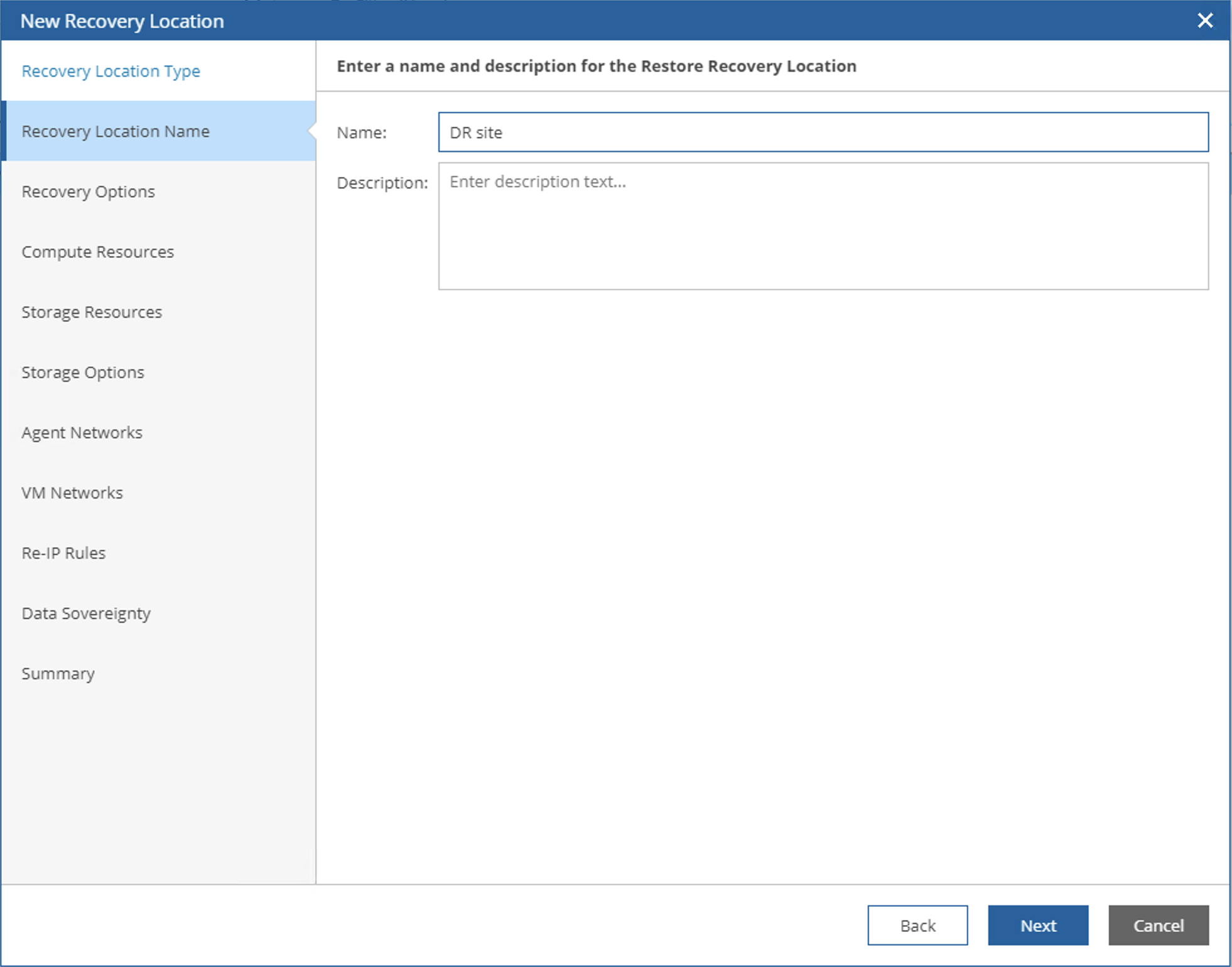
In the Recovery Location Name step, enter an appropriate name and click Next.
-
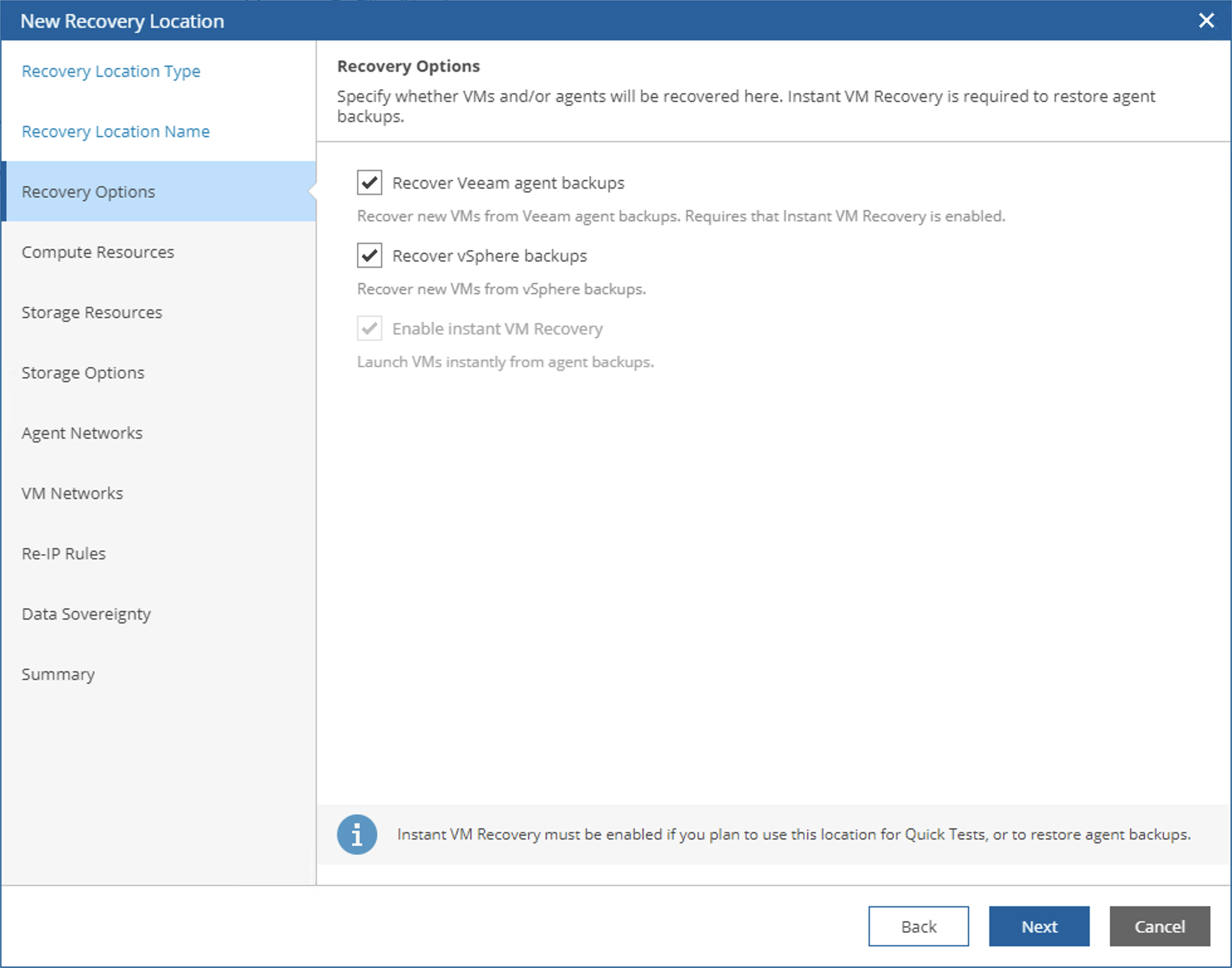
In the Recovery Option step, by default, recovery for both Agent and vSphere is enabled. Keep this unchanged and click Next.
-
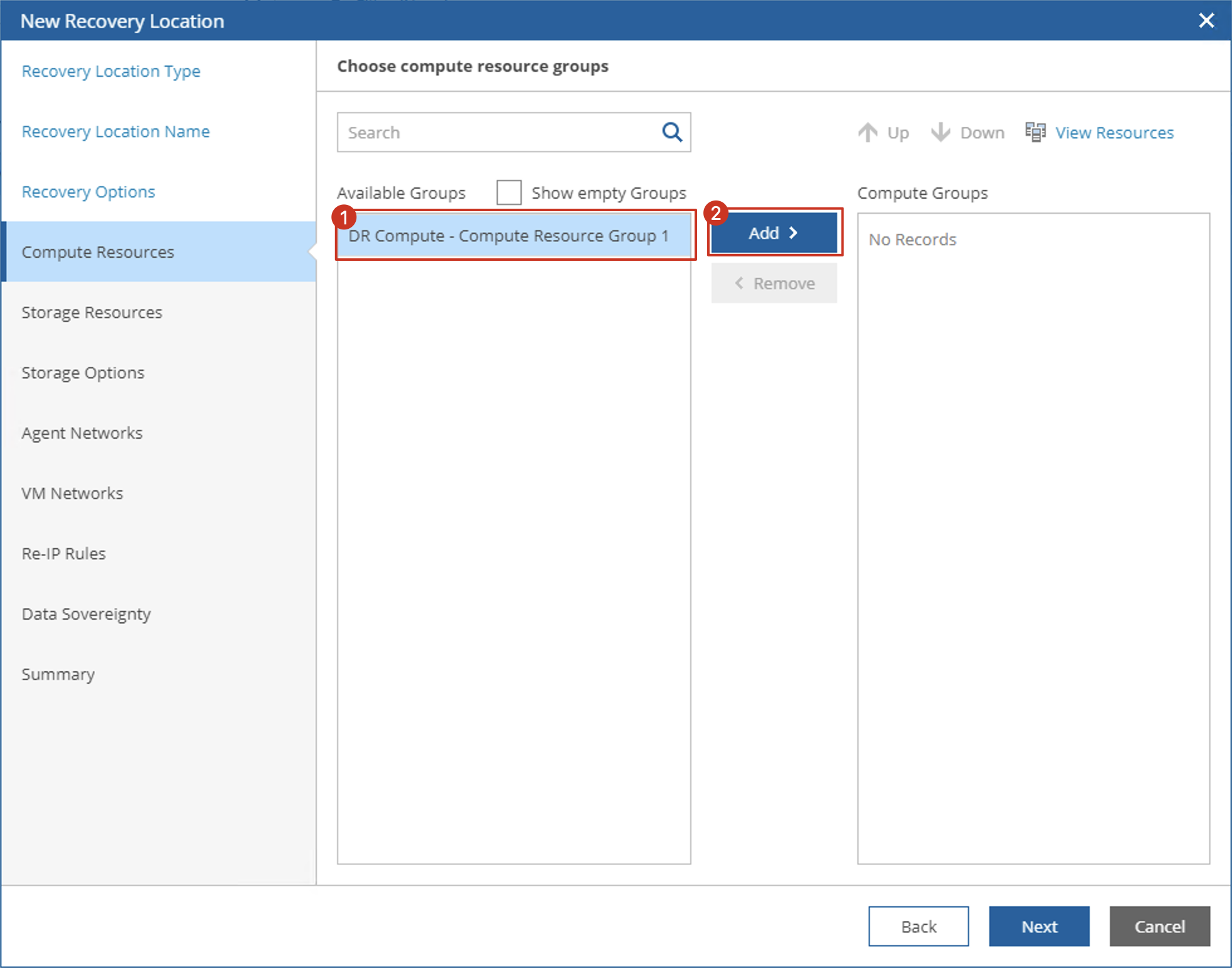
In the Compute Resources step, select the Compute Resource groups read from Veeam ONE and click Add. You can select multiple items here and use the View Resource button to view added clusters or hosts. Click Next after adding.
-
In the Storage Resources step, similarly, select appropriate Storage groups. Click Next after adding.
-
In the Storage Options step, you can set the usage limit for vSphere Storage to ensure vSphere storage isn’t exhausted. In this step, you can also set whether to use backup copy from the DR site as the restore data source. If recovering from the DR site, this option must be selected.
-
In the Agent Network step, you can select network mapping rules for Agent-recovered machines, mapping from source networks to appropriate port groups in vSphere. For example, I set all machines from 10.10.1.0/24 in the source network to correspond to the VLAN1 port group.
-
In the VM Network step, the settings are the same as the previous step, but apply to virtualized environments. The source selection is port groups on the source vCenter.
-
In the Re-IP step, you can set IP modification rules for Windows machines. In this example, I won’t add any here, and IP addresses won’t be modified after recovery.
-
In the Data Sovereignty step, you set the physical location for data recovery, implementing data recovery compliance through VBR’s Location functionality. This is also left unchecked here, keeping the default.
-
Finally, check if the settings are correct in the Summary, and you’ve completed the Recovery Location creation.
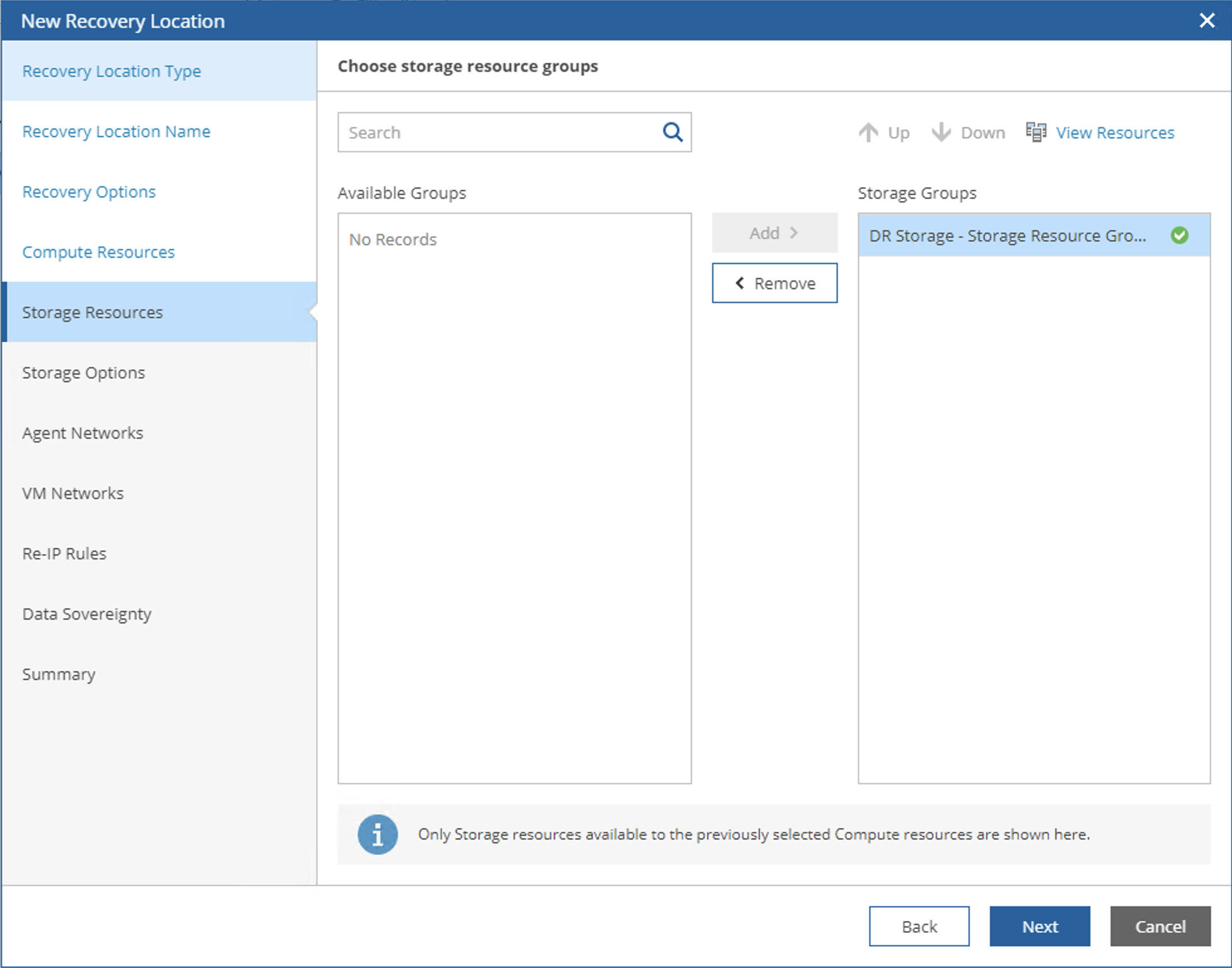
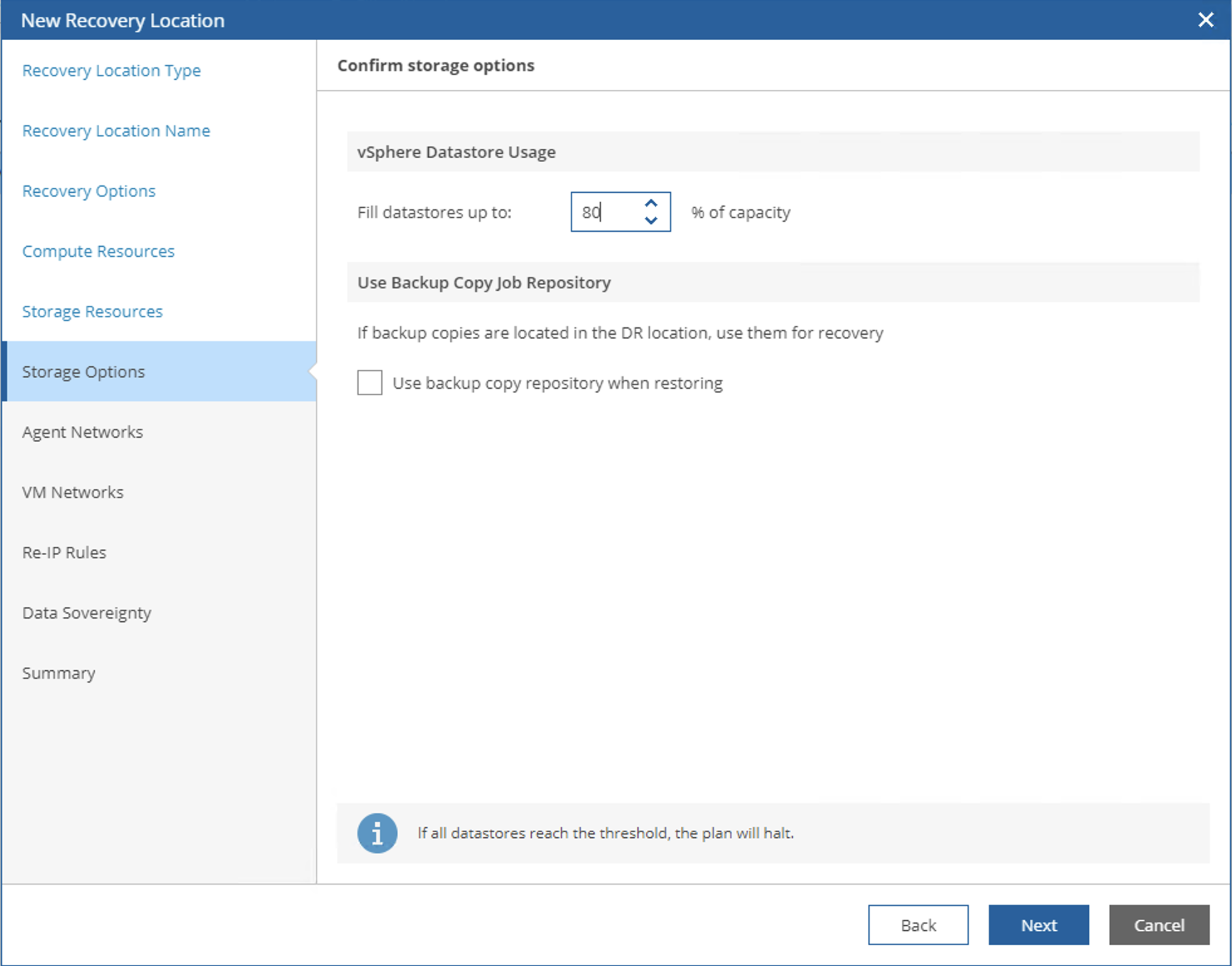
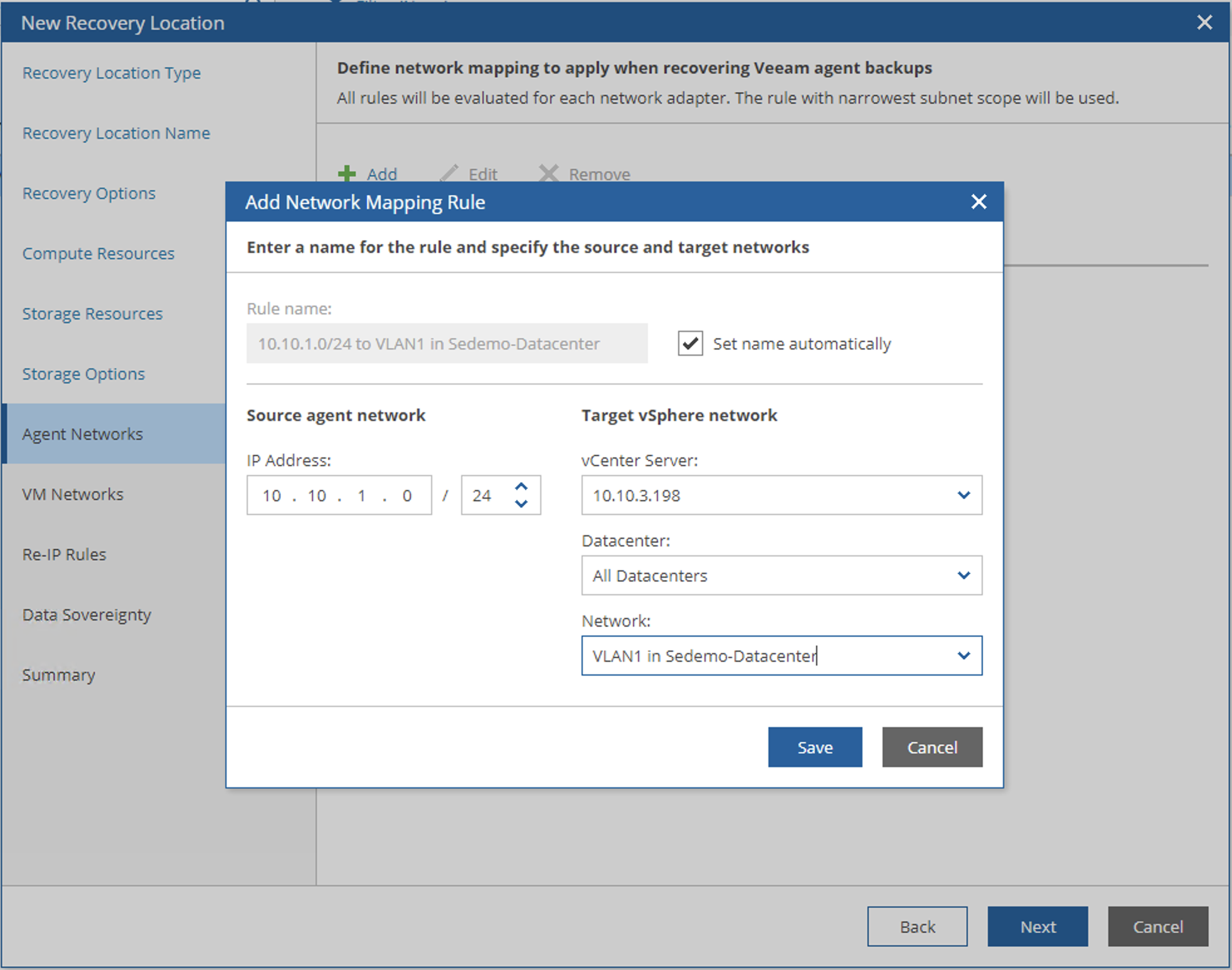
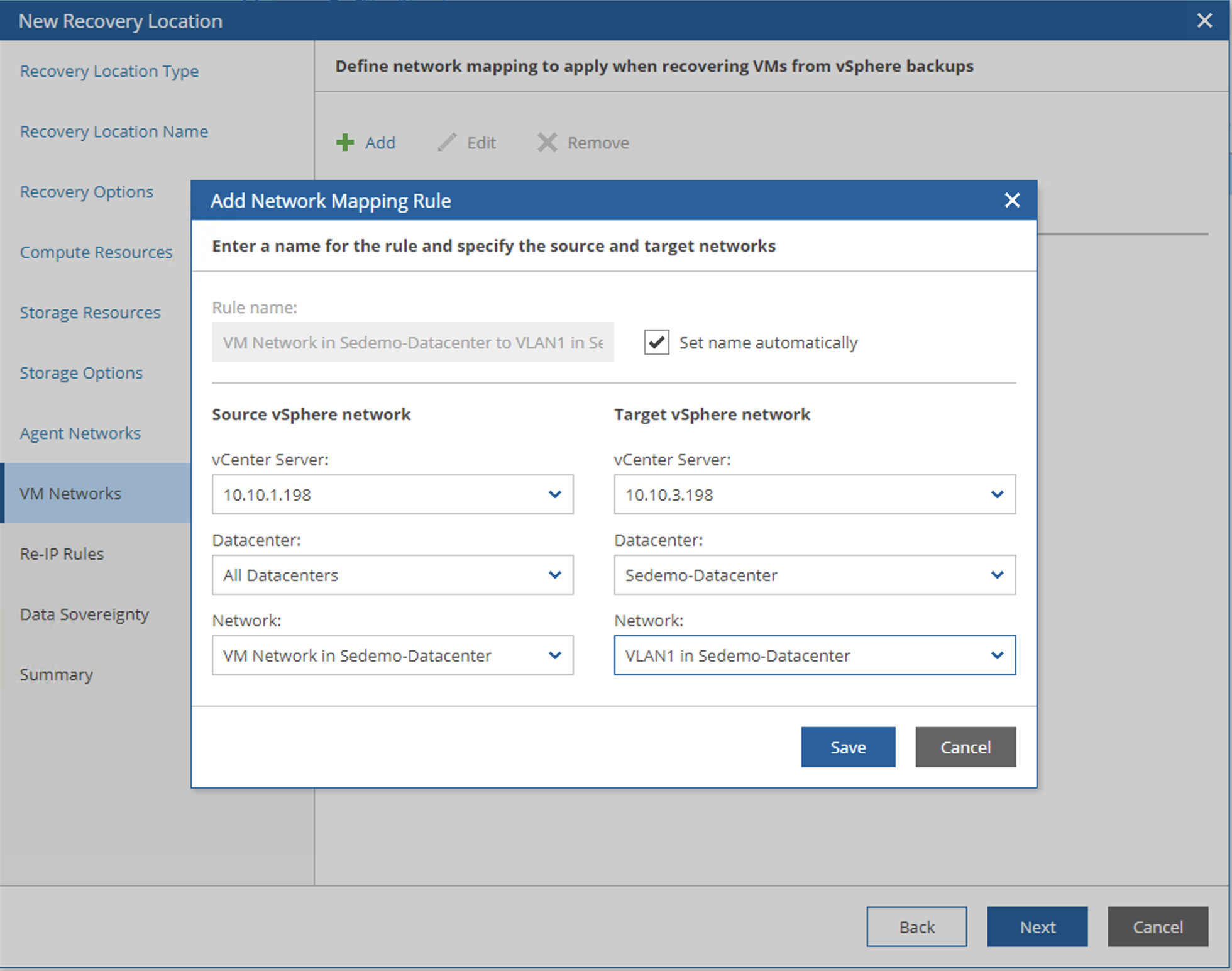
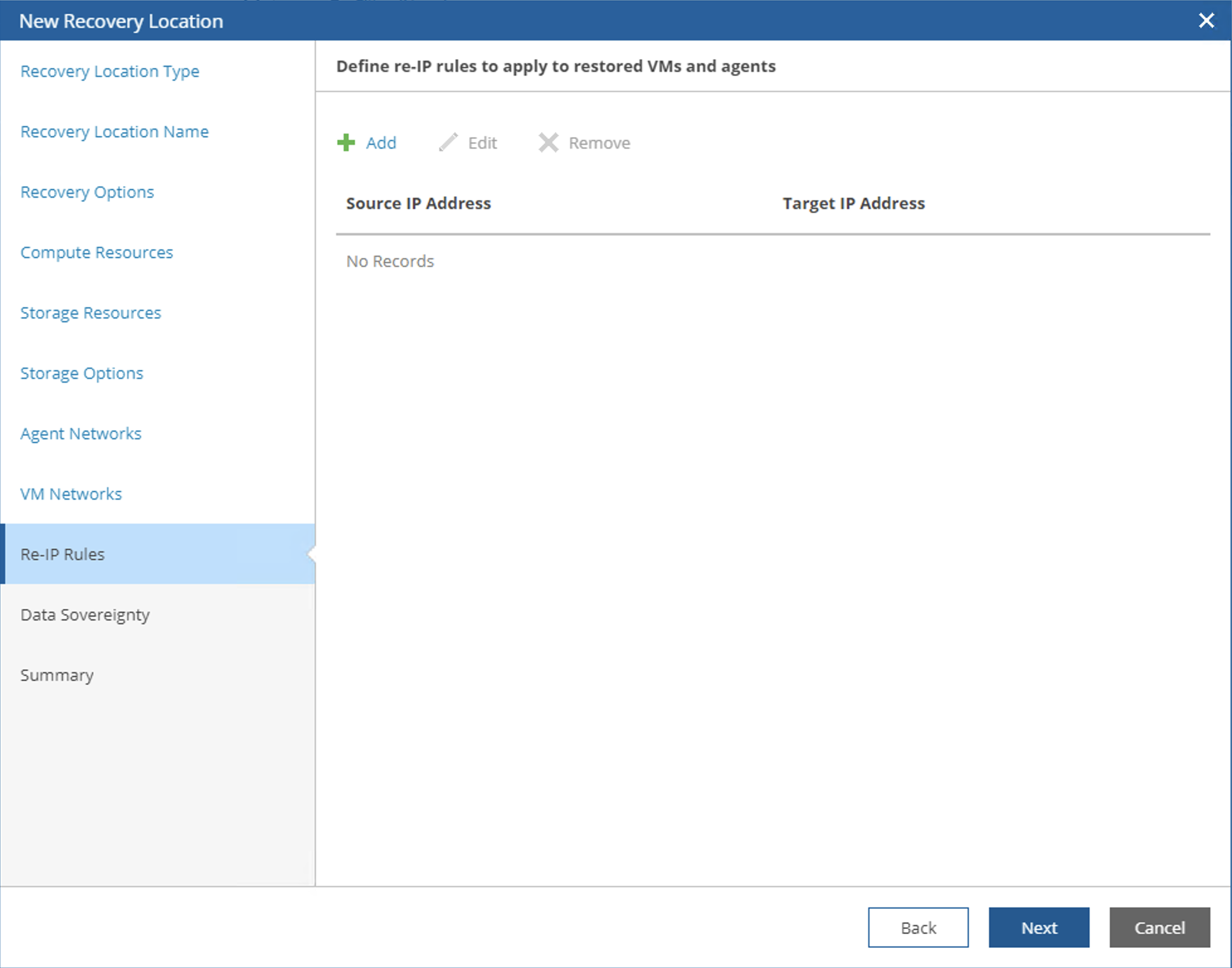
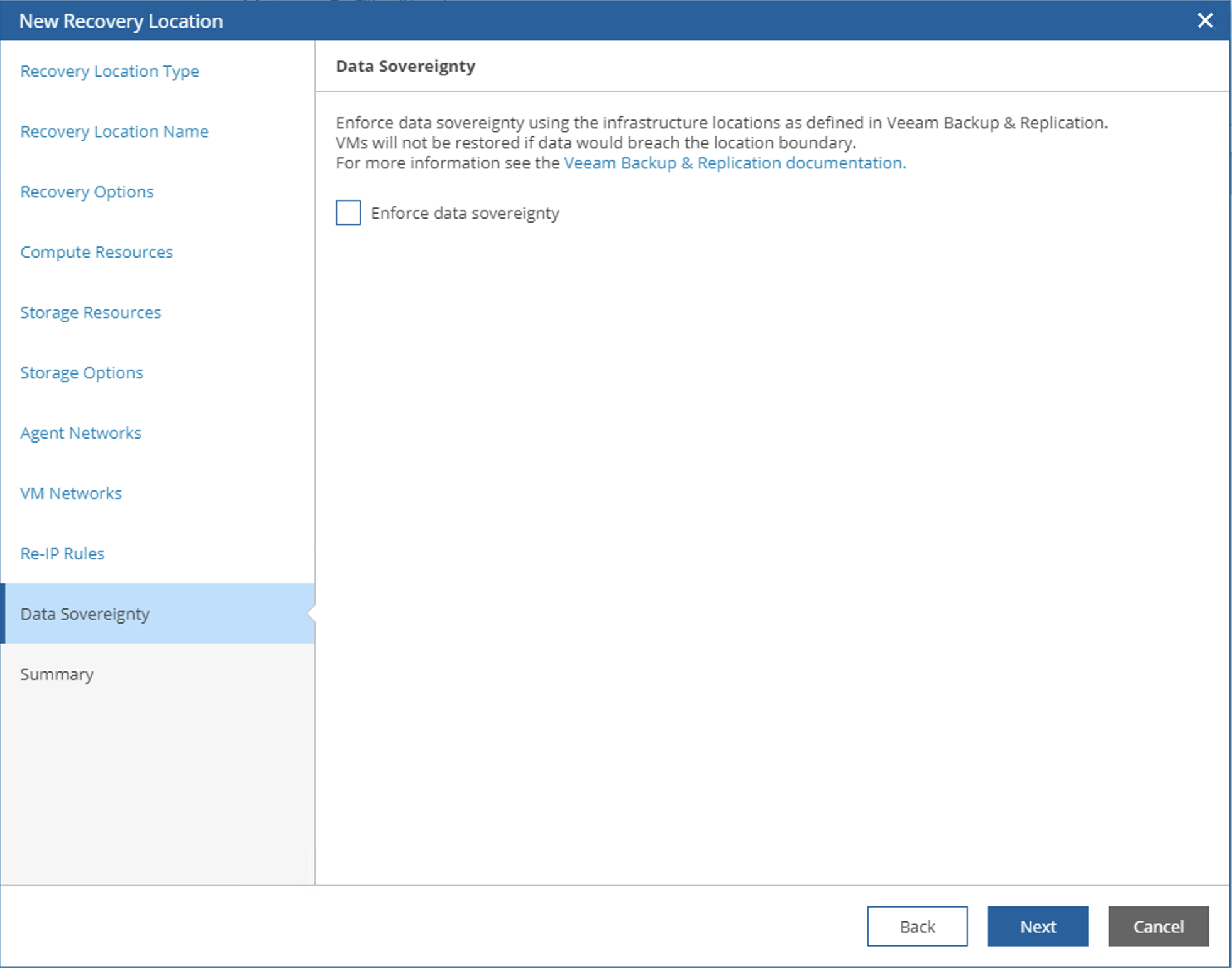
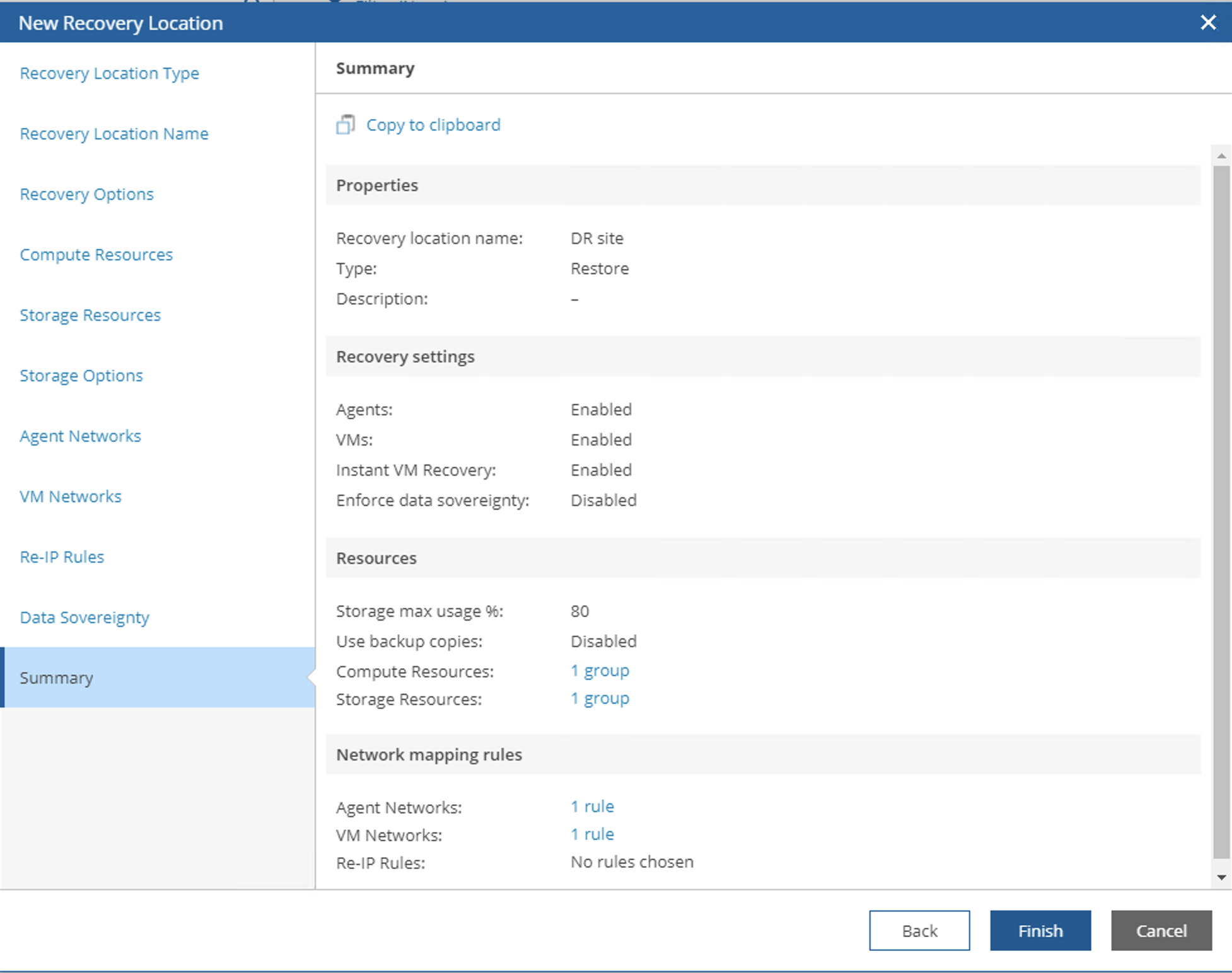
After creating Recovery Locations under Configuration, we need to select available Recovery Locations for a specific Scope in Scope Inclusions. Similar to Groups, switch to the Recovery Locations tab, check the needed Recovery Locations, and click Include.
Plan Steps
Plan Steps are all the operations we can use in Orchestration Plans. The Veeam system has built-in most steps needed for system recovery or verification. Of course, we can also add some new custom scripts. Adding new custom scripts requires entering Administration with an administrator account, finding Plan Steps under Configuration, and defining new Steps there. Regarding custom Steps, which involve more scripting content, I plan to introduce them in detail in later DR examples, so I won’t elaborate here.
After defining them, you still need to return to Scope Inclusions to select available Plan Steps for a specific Scope. Under the Plan Steps tab, check the needed Steps and click Include to ensure they are included.
Credentials
Credentials are the usernames and passwords we need for disaster recovery, used to execute some automated scripts within the operating system. Here, VRO will inherit all already set usernames and passwords from VBR. The slight difference is that for usernames and passwords, we can click Add here to add new ones. What we need to do in this tab is also very simple - just check the usernames and passwords to be used here and click Include. Currently, Credentials here are limited to Windows-type usernames and passwords, but these Simple-type usernames and passwords can sometimes be passed as parameters to Linux Server username and password verification. More secure key-pair login authentication is not yet supported in this password vault.
Template Jobs
After VRO completes disaster recovery failover and recovery, it can immediately provide data protection for newly recovered systems, ensuring the system is in a protected state at the earliest time. This functionality requires VRO to have a VBR backup job template as a reference. In each Scope, you can set the Template Job to be used. This Template Job is not set in VRO; it’s directly obtained from VBR. The retrieval rule is also simple - as long as the VBR Backup Job’s Description contains [VDRO Template], it can be correctly retrieved by VRO.
The above covers all the basic components of VRO. Thank you for reading and following along.