VRO Basics (Part 3) - Core Components · Part 1
Series Index:
- VRO Basics (Part 1) - Introduction
- VRO Basics (Part 2) - Installation & Deployment
- VRO Basics (Part 3) - Core Components · Part 1
- VRO Basics (Part 4) - Core Components · Part 2
- VRO Basics (Part 5) - The First Step of a Successful DR Plan
- VRO Basics (Part 6) - DataLabs
- VRO Basics (Part 7) - Plan Steps · Part 1
- VRO Basics (Part 8) - Plan Steps · Part 2
- VRO Basics (Part 9) - Document Template Deep Dive
- VRO Basics (Part 10) - Using VRO with K10 for Fully Automated Container DR
As a disaster recovery management system, access control is critically important. Therefore, I want to start by explaining VRO’s role-based permission management. In VRO, this permission management system isn’t called RBAC. Instead, VRO uses Scopes to control all user access permissions. Scopes determine which backup and DR resources users can access in VRO and what operations they can perform on those resources.
Scope Operation Permissions
Let’s first discuss Scope operation permissions. Similar to other systems’ RBAC permission classification settings, in VRO, these permission categories are called Scope Inclusions, which include the following five types:
- Groups
- Recovery Locations
- Plan Steps
- Credentials
- Template Jobs
For a Scope that has operational permissions on any resource within these five Scope Inclusions categories, that Scope can use this object. Each of these five major object types can belong to different Scopes simultaneously.
Additionally, there’s a very special object in Scopes – DataLab. Each DataLab corresponds one-to-one with a Scope, meaning every Scope has one or more independent DataLabs that belong exclusively to it.
Scope Inclusions will be covered in detail in VRO Basics (Part 4) - Core Components · Part 2.
Scope Creation and User Assignment
Each Scope can be assigned three different role types:
- Administrators - Can perform all operations
- Plan Authors - Can enable, disable, reset, create, edit, and test disaster recovery plans
- Plan Operators - Can only handle disaster recovery plans that are in an enabled state
VRO has a built-in Admin Scope. By default, the Administrator role in this Scope has the highest privileges and can perform all operations. Users can create new Scopes to limit different permissions for different users and allow them to perform different operations.
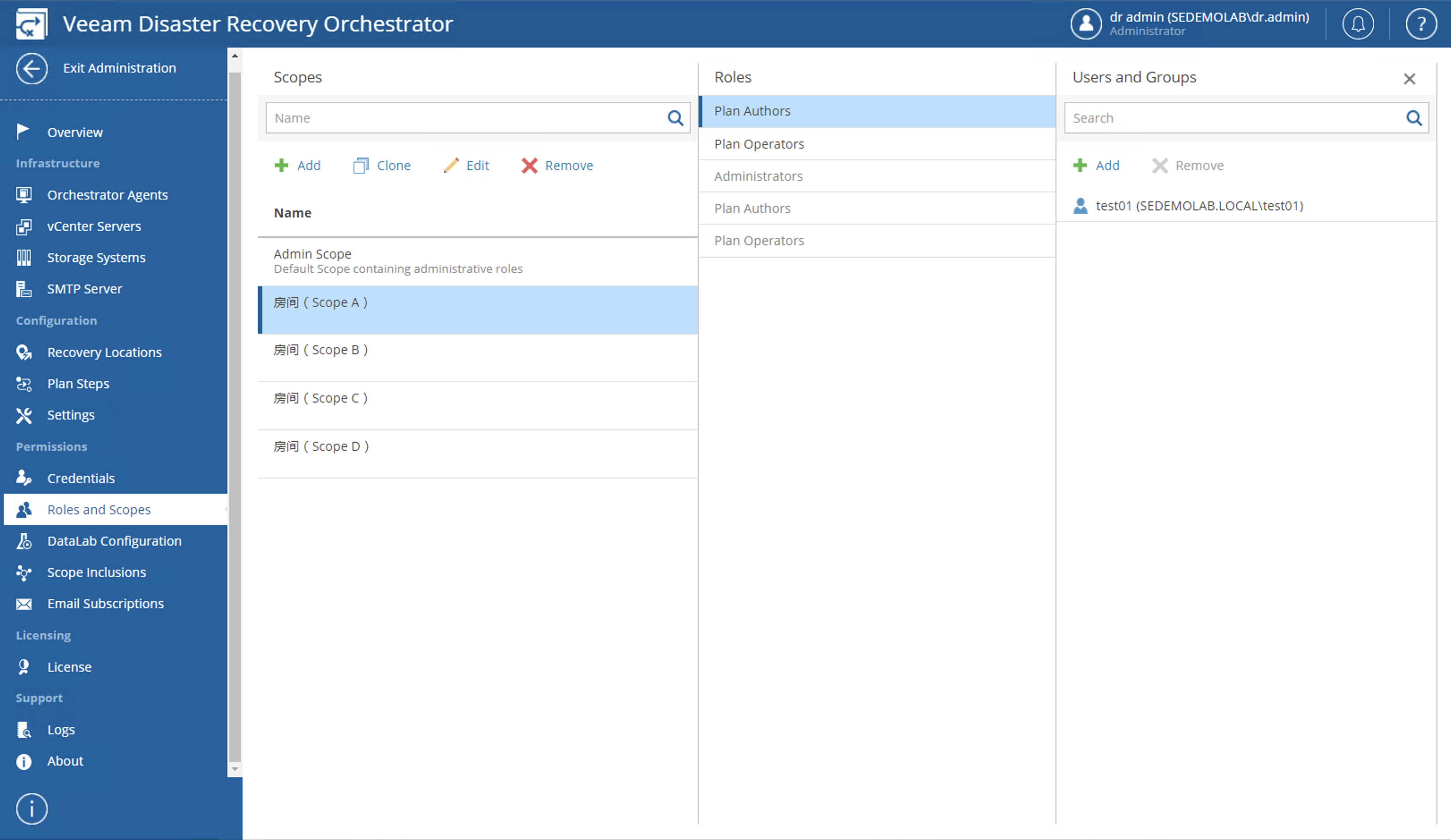
For user-created Scopes, you can modify the name and delete them. The roles for these Scopes are limited to Plan Authors and Plan Operators. Taking Plan Authors as an example, in each Scope’s Plan Authors role, we can add different users to that Scope. As shown in the figure below:

In VRO, this Scope concept can be difficult to understand, but don’t worry – let me use an analogy to explain it:
You can think of Scopes as rooms, where each room has a lock with multiple keys. We distribute these keys to different users, so these users can enter Room (Scope A) with key A, Room (Scope B) with key B, and Room (Scope C) with key C. This forms VRO’s special permission management system:
Current rooms (Scopes): A, B, C, D

User 1: Has keys for rooms A and B.

User 2: Has keys for rooms B, C, and D.

User 3: Has key for room D.
Converting this to VRO’s Scope management:
Room (Scope A): User 1

Room (Scope B): User 1, User 2

Room (Scope C): User 2

Room (Scope D): User 2, User 3
The method of distributing keys is by setting Users and Scopes in VRO. In VRO, after logging in with a User who has the Administrator Role, you can go to the Administration interface, find Permissions -> Users and Scope to set the above management permissions, as shown below:
After completing these settings, when we log back into the VRO system with test01, we can see the current user’s Scopes displayed on the Dashboard as shown below:
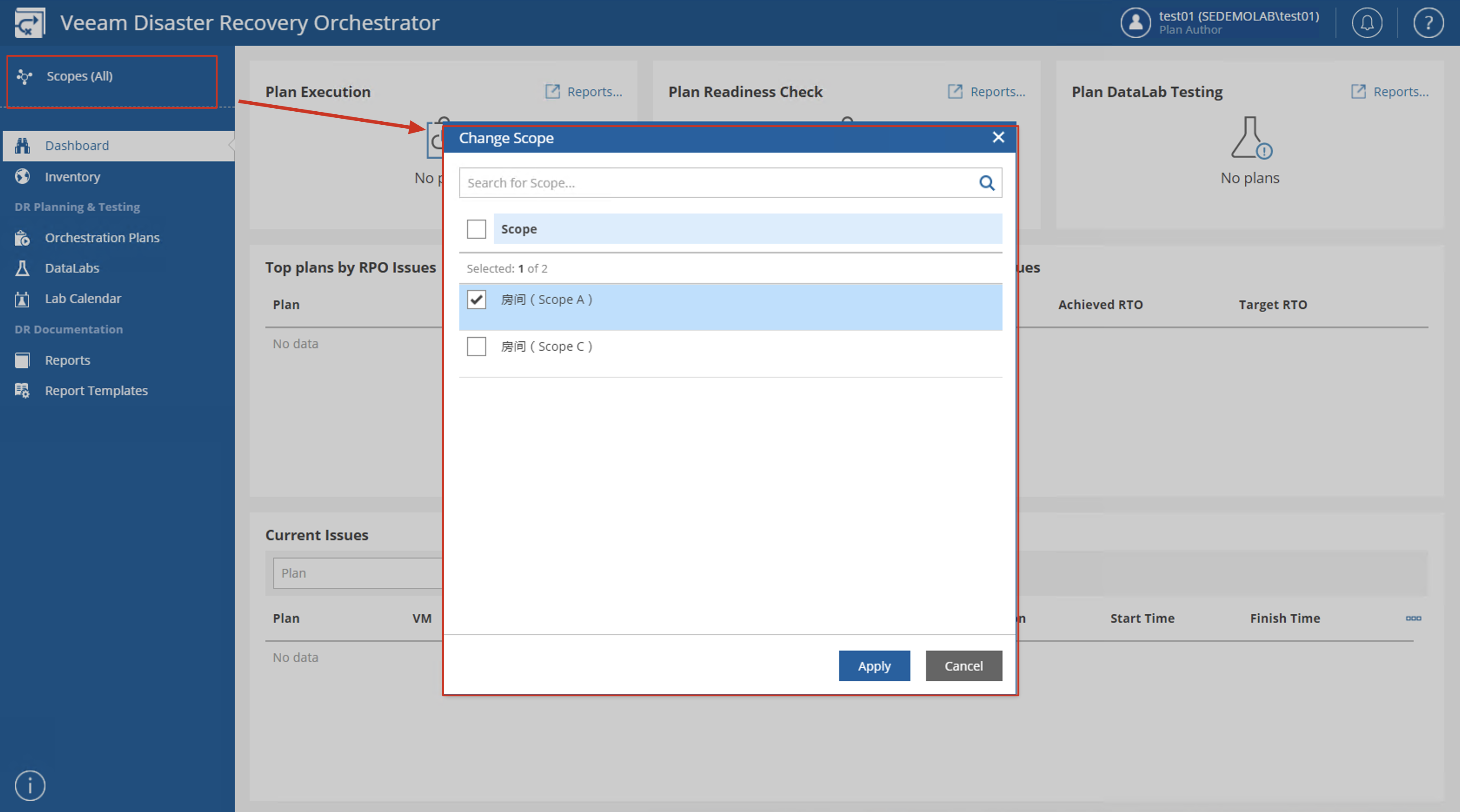
Similarly, when the test02 user logs into the system, they will see rooms B, C, and D, while test03 will only see room D after logging in.
Configuring Scope Inclusions
Go to the Administration interface, under Permissions, you can find Scope Inclusions. On this interface, you can set different available components for each Scope. As shown in the figure below, you can select a Scope in the red box area to switch and configure.
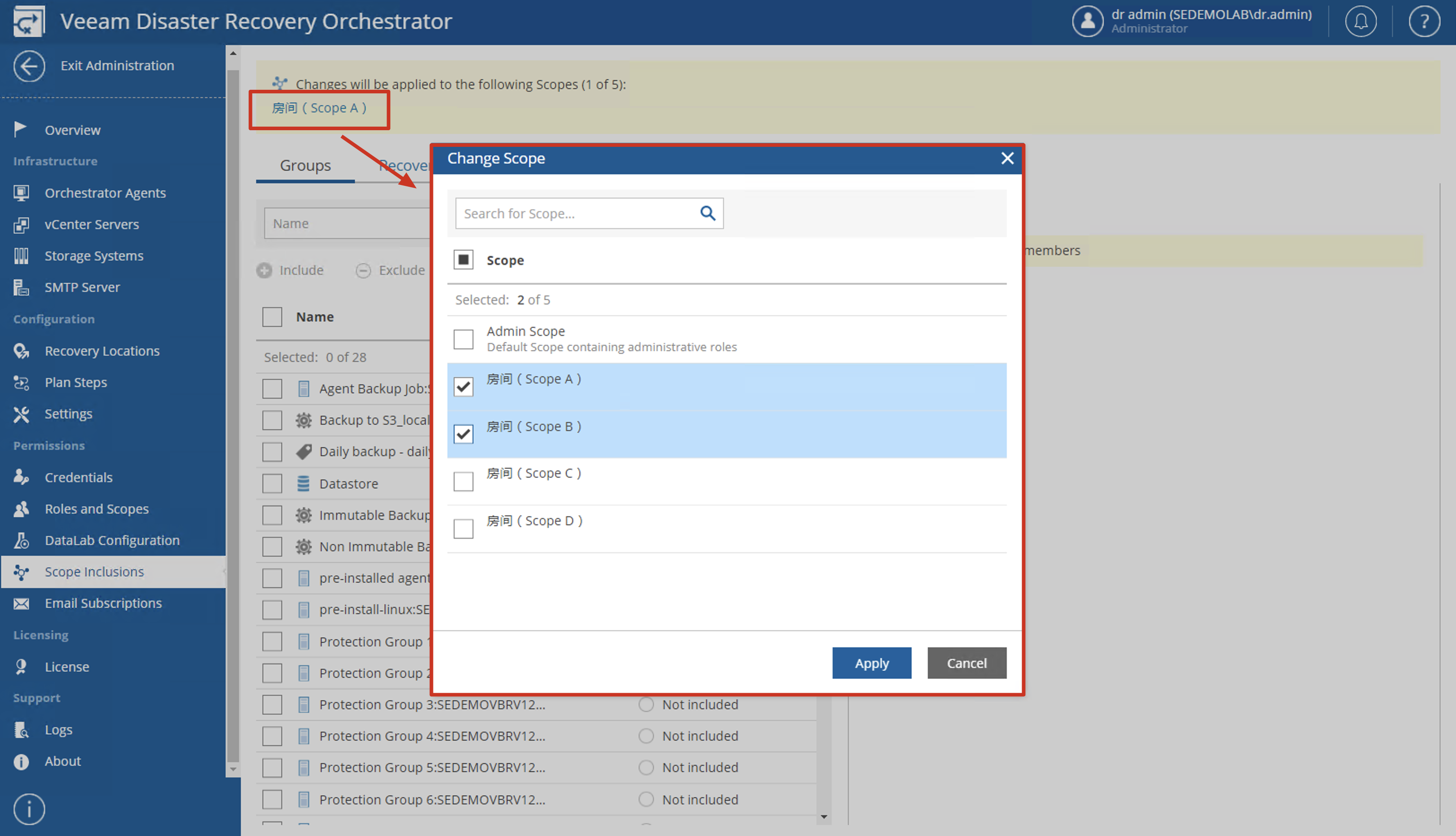
You’ll notice this is a checkbox, meaning you can select multiple Scopes simultaneously for related settings. However, for more accurate configuration of related content, I still recommend checking and configuring each Scope individually.
DataLabs
VRO’s DataLab is essentially the Virtual Lab from VBR. As long as Virtual Lab is configured in VBR, VRO can directly recognize it. After detecting these Virtual Labs, VRO needs to perform an allocation action, assigning these Virtual Labs to different Scopes according to actual usage needs. It’s important to note that each Virtual Lab can only be assigned to one specific Scope.
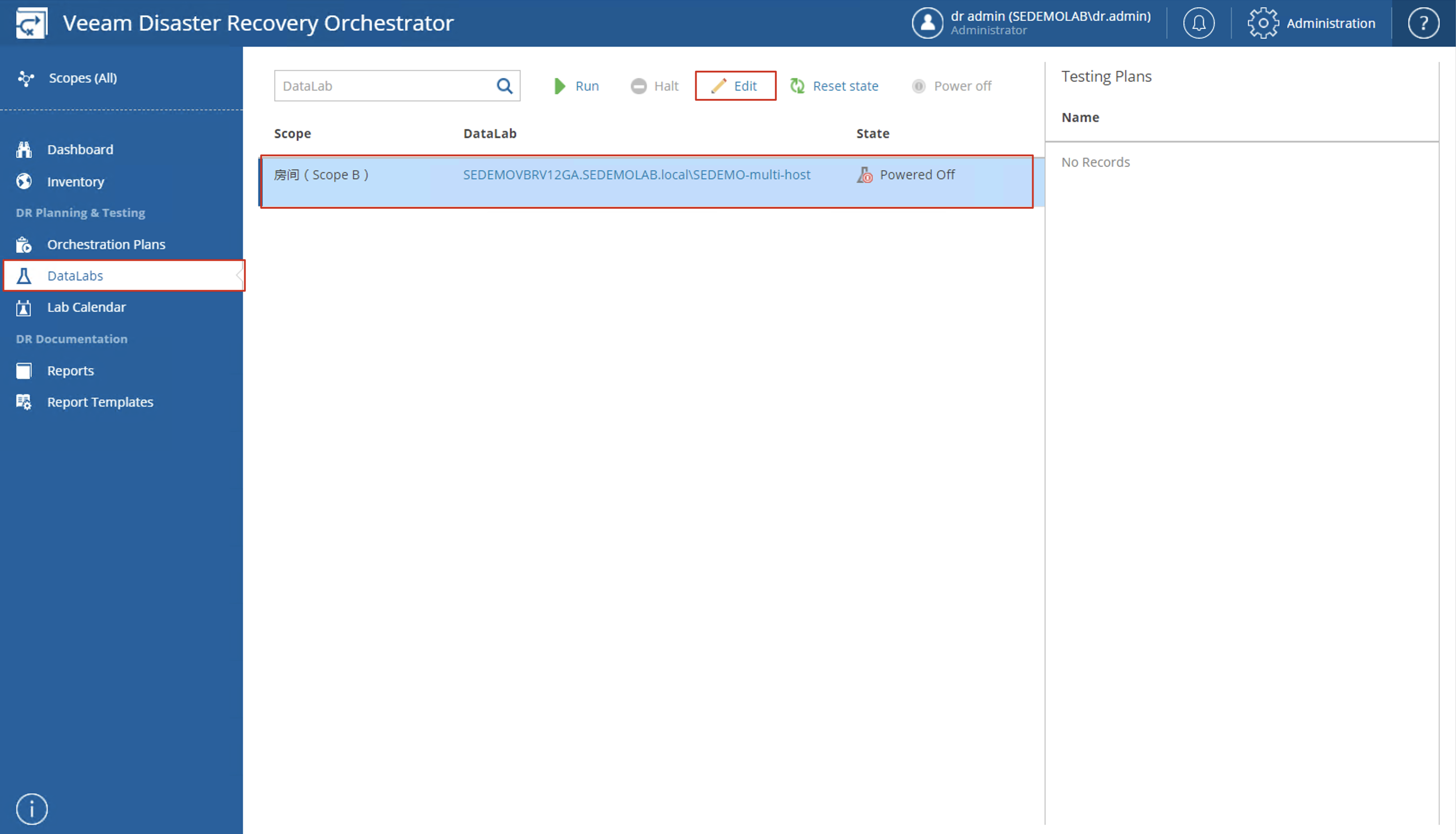
To assign DataLab, you can use an Administrator account to enter the Administration interface, find Datalab Configuration under Permissions. On this page, check the Virtual Lab name scanned by VRO in the middle column, then click the Edit button.
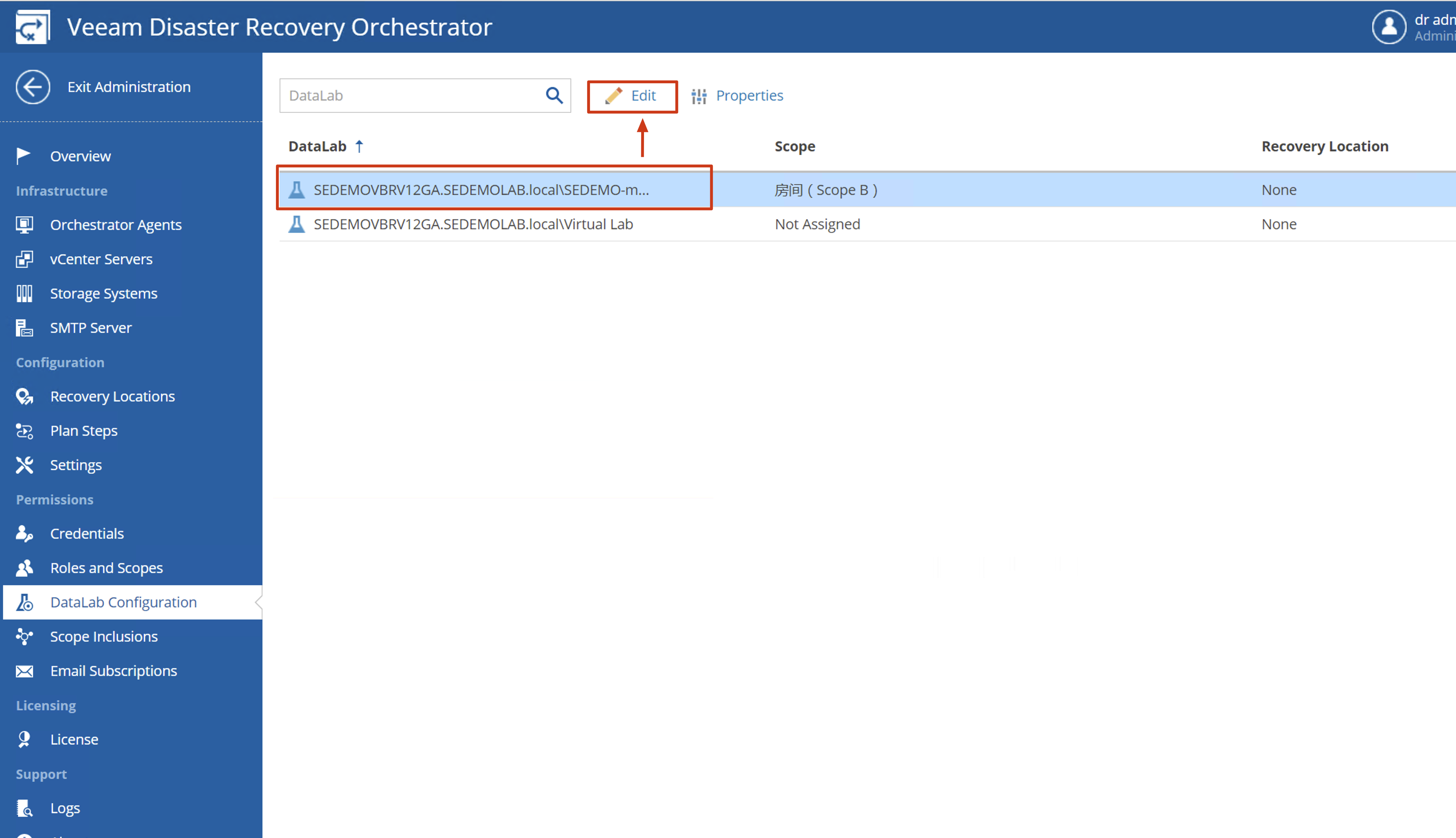
After clicking the Edit button, the Edit DataLab Configuration dialog will open. Here, simply select which Scope to assign it to. As shown below:
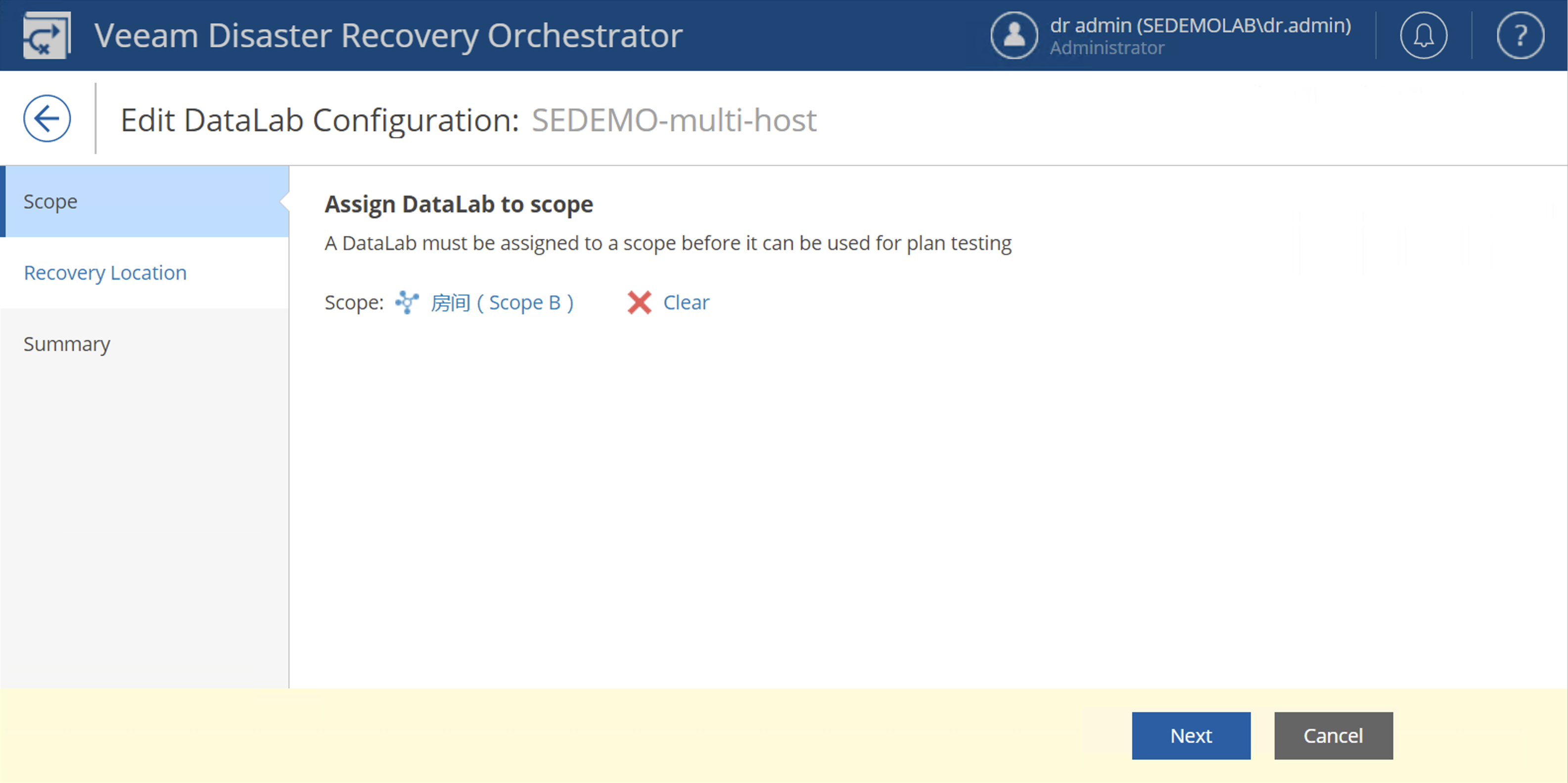
If you need to adjust or reassign DataLab, you can check the Virtual Lab name, then click the Edit button again to return to the previous wizard interface, and use the Clear button to cancel the association.
Lab Groups
I believe those familiar with DataLabs will be curious – we know that VBR’s DataLabs functionality includes three core components: Virtual Lab, Application Group, and SureBackup Job. So in VRO, we’ve made DataLab correspond one-to-one with VBR’s Virtual Lab, but where did the remaining Application Group and SureBackup Job go?
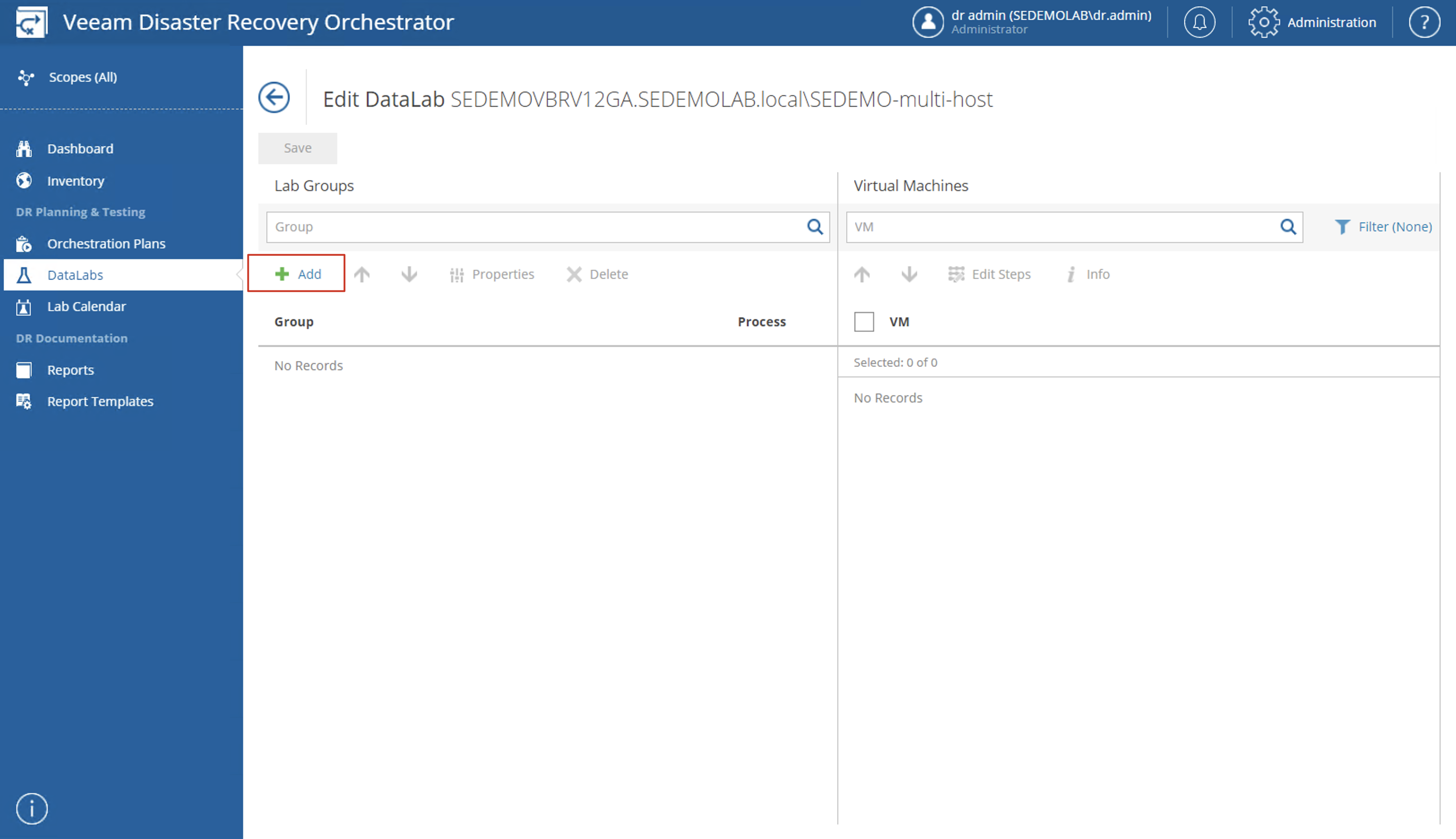
In VRO, there’s also a component that corresponds one-to-one with VBR’s Application Group – that’s Lab Groups. There’s no Lab Groups setting in the Administration console. Lab Groups need to be configured by each user logging into their own VRO console with their respective account and entering the DataLabs main page to make settings. Unlike Virtual Lab, Lab Groups are not inherited from VBR’s Application Groups. In VRO, Lab Groups are created from scratch and need to be created using objects within VRO.
Generally, Lab Groups can remain empty, which is completely consistent with what we mentioned in the Application Group explanation. Unless there are business dependencies that require relying on a certain system to run, in that case, we need to put this system that other systems depend on into the Lab Group.
As for SureBackup Job, it’s no longer needed in VRO. This Job is automatically integrated into the Orchestration Plan, so I won’t elaborate here – it will be covered in detail in later chapters.
That concludes the main content of this chapter. Thank you for your attention.