VRO Basics (Part 2) – Install & Deploy
Series Index:
- VRO Basics (Part 1) – Introduction
- VRO Basics (Part 2) – Install & Deploy
- VRO Basics (Part 3) – Core Components · Part 1
- VRO Basics (Part 4) – Core Components · Part 2
- VRO Basics (Part 5) – First Steps to Successful DR Planning
- VRO Basics (Part 6) – Data Labs
- VRO Basics (Part 7) – Plan Steps · Part 1
- VRO Basics (Part 8) – Plan Steps · Part 2
- VRO Basics (Part 9) – Document Template Analysis
- VRO Basics (Part 10) – Using VRO with K10 for Complete Container DR
This post covers obtaining, installing, and initializing Veeam Recovery Orchestrator v6.
VRO Installation Package Download
You can download the VRO trial directly from the Veeam website. The installation package I’m using in today’s article is from the Veeam Data Platform — Premium bundle. Direct link here.
This installation package is a complete VRO suite that includes the VRO main program, embedded VBR, and embedded Veeam ONE. Note that although this package contains embedded VBR and embedded Veeam ONE, these two applications cannot be extracted and installed separately. These embedded applications are necessary components for VRO to function and work together with VRO.
These embedded VBR and Veeam ONE applications are no different from normal software. After installing VRO, you can access and use them remotely through the standard VBR or Veeam ONE console access methods. Currently, the VBR included in this package is version 12, and Veeam ONE is also version 12.
Installation Prerequisites
Three very important points:
- Do not install VRO on a server that already has VBR or Veeam ONE installed.
- Do not install VRO on a domain controller.
- Do not install VRO on a server that already has PostgreSQL installed.
Generally, I recommend preparing a fresh Windows server for installing the VRO package.
After installation, you can add your existing VBR servers to the VRO environment to be managed by VRO, or you can use the VRO-embedded VBR for regular backup and copy tasks.
For more detailed installation prerequisites, please refer to the official prerequisites documentation.
Installation Method
The installation package is an ISO file. After mounting the ISO, it will run automatically, and you can find the VRO installation button:

The entire installation process is very simple, just like installing other Veeam products. Follow the wizard and click “Next” to complete the basic installation.
Note that during the installation process, you’ll be prompted for a username and password. This username and password will be used by the services and databases of VRO, VBR, and Veeam ONE. Therefore, this account requires minimum permissions as a local Windows administrator on the VRO server (membership in the local Administrators group is sufficient).
Although this account is not related to the DR administrator account used for subsequent disaster recovery operations, you’ll need it during the first step of initial configuration to log into the VRO UI interface.
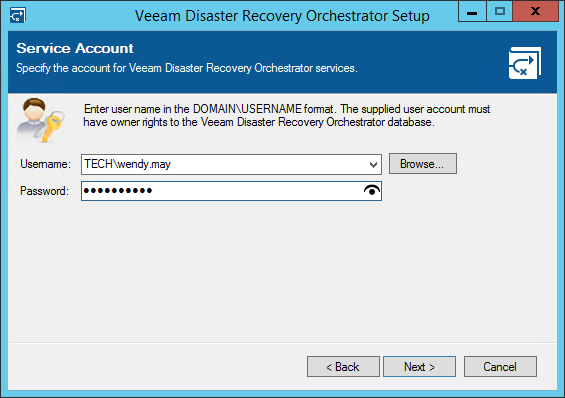
Depending on different hardware capabilities, the entire installation process will take approximately 20-30 minutes. After installation is complete, VRO can be used on this server. Since VRO is accessed entirely through a browser, I generally recommend accessing the VRO console from other desktop computers using Chrome or Edge browsers.
Initial Configuration
-
After installation is complete, please do not open the embedded VBR and Veeam ONE consoles first. Instead, open a browser and access the VRO console to start the initial configuration. The system can only work normally after the initial configuration is complete. To access the initial configuration interface, visit:
https://<VRO IP>:9898/ At this point, the browser will prompt for credentials. Please use the credentials used during the installation shown above for initial login. Note that these credentials are only used once during the initial configuration. After the initial configuration is complete, you will use the VRO DR administrator credentials set in step 3 of the initial configuration.
 -
After logging in with the account, the system enters the initialization wizard. The Welcome page describes some tasks of this basic configuration wizard. Click Next to proceed to the next step of server configuration.
-
In the server configuration step, there are two important items to configure. One is to select DR administrators - open the addition wizard by clicking the “Choose users and groups” button in the image. On the right, configure which domain the users belong to (Domain), select whether the Account Type is User or Group, and finally select appropriate accounts from the Account list and click Add to complete the user configuration. The accounts configured here will be used for VRO access after this initial configuration. In Server Details, you can configure some basic information for the VRO server. This information will be used in reports.
-
In the infrastructure configuration step, you can add credentials for connecting to infrastructure systems (Add Credentials), deploy Orchestrator Agent (actually this step is adding VBR), connect to vCenter, and connect to storage systems. The vCenter and storage system configurations added in this step will be automatically synchronized to the embedded VBR and Veeam ONE, so no additional configuration is needed in the embedded VBR and Veeam ONE components. Of course, these steps are all optional. We can complete the initial settings in this wizard, or we can adjust and configure them later from VRO’s Configuration.
-
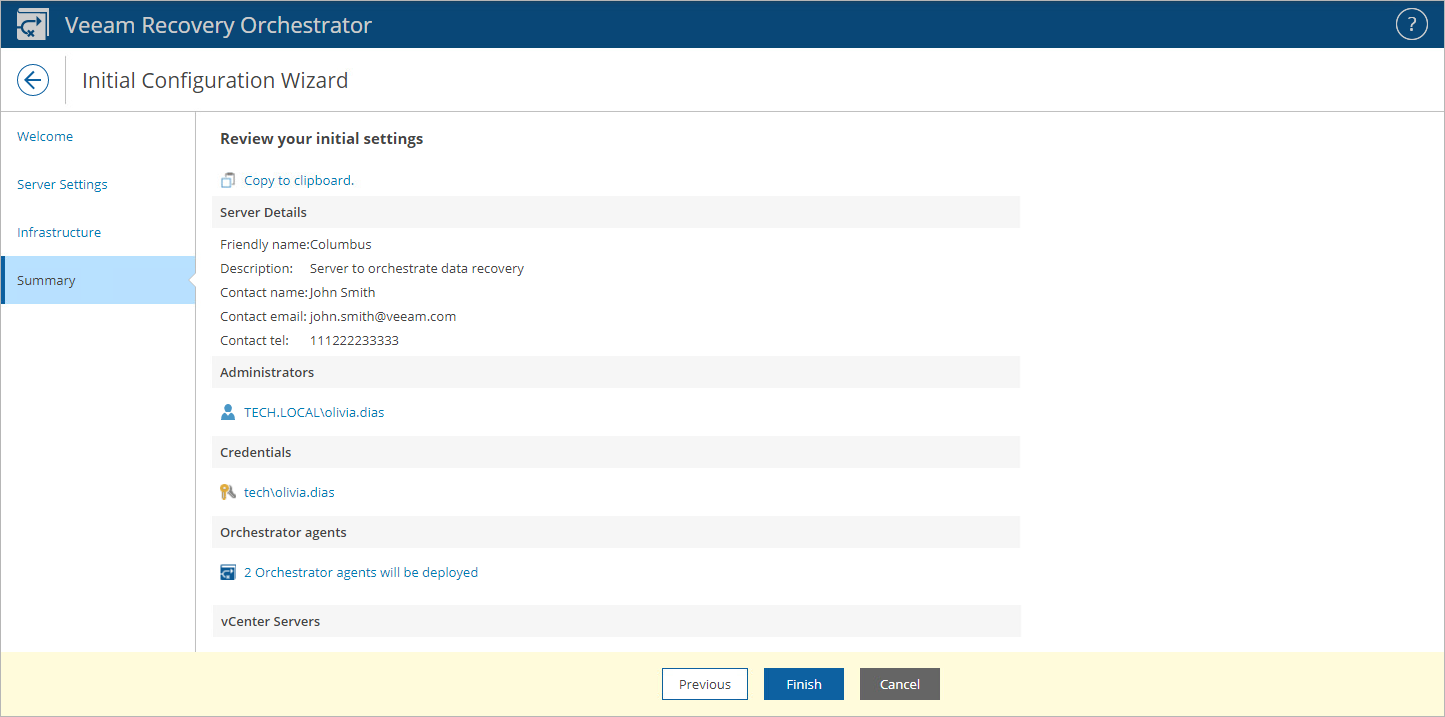
After configuring the above steps, click Finish to complete all initial configuration. After clicking Finish, the page will refresh and return to the original VRO UI login interface. You can log in to the official VRO UI interface using the account and password set in step 2 above.
 At this point, the browser will prompt for credentials. Please use the credentials used during the installation shown above for initial login. Note that these credentials are only used once during the initial configuration. After the initial configuration is complete, you will use the VRO DR administrator credentials set in step 3 of the initial configuration.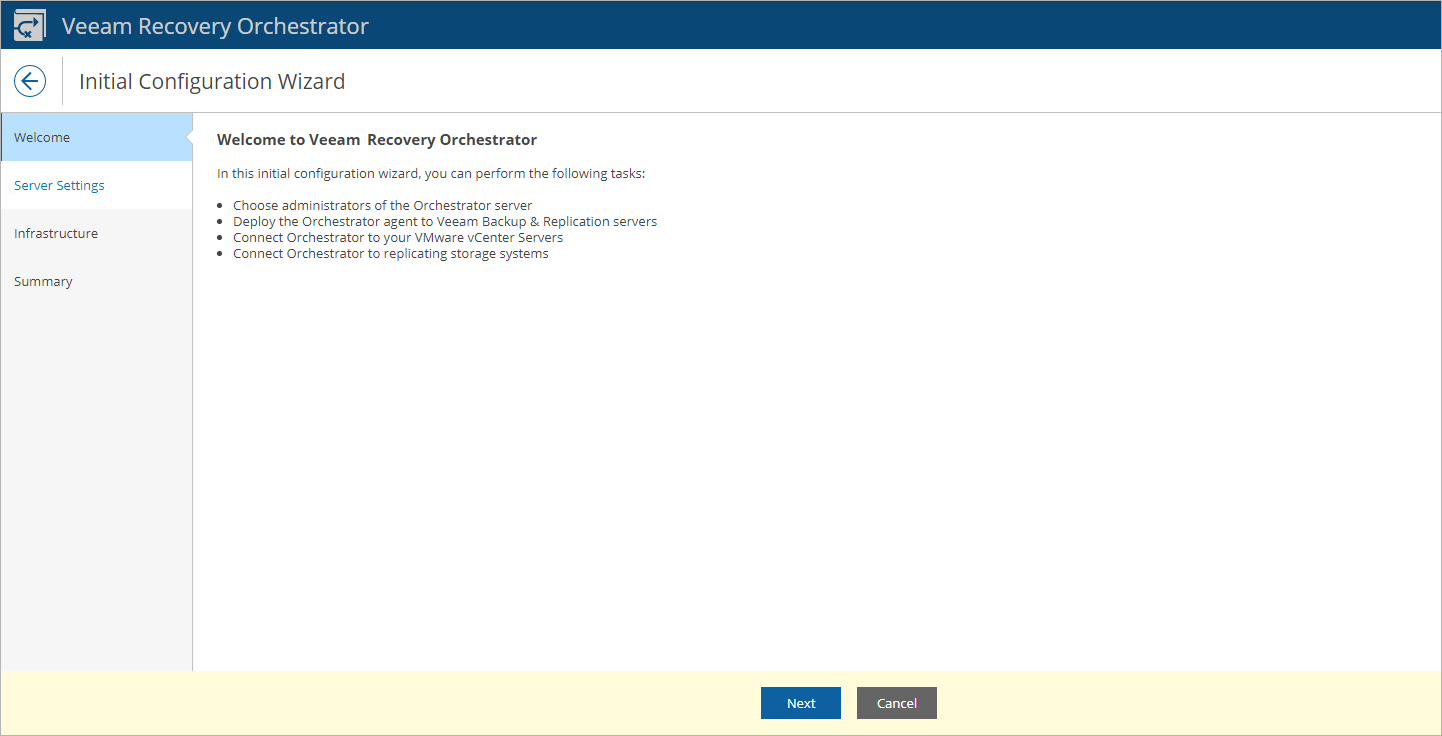


Welcome to VRO! Now you can officially start using VRO. In the next article, I will detail the various components of VRO.