/images/avatar.png

Cloud.Virt.AI.Sec

Cloud · Virt · AI · Sec

Welcome to Cloud.Virt.AI.Sec

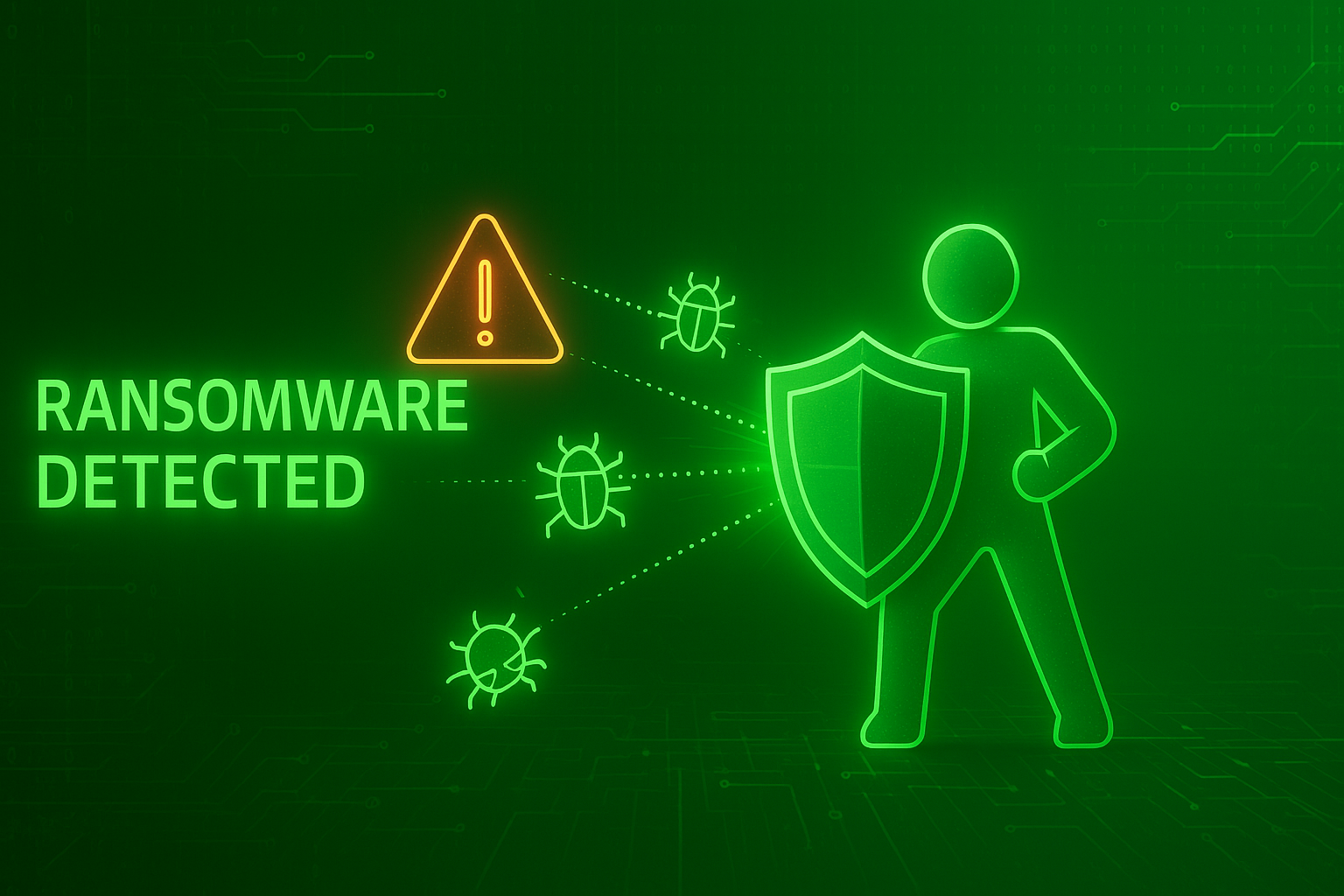
V13 Malware Detection Comprehensive Upgrade: Practical Evolution from Passive Protection to Active Response

In version v13, malware detection capabilities have achieved a significant leap forward. Compared to the real-time detection capabilities already available in the v12 era, v13 has brought qualitative improvements in threat response mechanisms, platform coverage, and intelligence levels. In my previous articles, I’ve detailed the ransomware attack detection principles and configuration methods for v12. Today, building on that foundation, let’s explore the key upgrades that v13 brings.

v12 Detection Capabilities Review: The Separation of Detection and Response

In the v12 era, Veeam’s malware detection primarily relied on two mechanisms:

Making VBR Login More Secure: A Complete Guide to v13 SAML + Azure EntraID Integration

In version v13, the most significant new features focus on enhanced security capabilities. Starting with this article, I’ll provide a detailed walkthrough of the new security features introduced in v13 through practical applications.

Today, let’s start with authentication. In enterprise-level backup architectures, the security of management console accounts and access governance is critically important. Veeam Backup & Replication (VBR) now supports SAML-based Single Sign-On (SSO) in v13, which means you can centralize authentication to your organization’s existing Identity Provider (IdP) — such as Azure EntraID. Through SAML integration, you can unify the management of VBR login with your company’s account lifecycle, group policies, MFA, and auditing: operations become clearer, permission revocation is more timely, and you achieve higher compliance. This article uses Azure EntraID as an example to demonstrate this integration in detail. For other similar solutions like Authing in China or international options like Okta and Auth0, you can follow the Azure methods to try them out.

In-Depth Analysis: Veeam V13 Release Strategy and Deployment Options

Recently, Veeam’s Chief Product Officer Anton Gostev published an FAQ on the R&D forums that clearly explains V13’s release schedule, deployment options, licensing, and migration strategy. For customers and partner engineers, this isn’t just “news” – it’s a practical guide that will influence decisions about “whether to upgrade immediately and how to plan migration paths.” This article uses that post as a starting point, combining it with official release information to analyze its actual impact on users of different scales, and provides actionable recommendations.

Let Veeam Handle the Complexity: A Hands-On Guide to Infrastructure Appliance

In Veeam v13, not only did they make the backup server into a pre-hardened Software Appliance, but they also introduced the Veeam Infrastructure Appliance specifically designed to host role services. If the Software Appliance is the “command center,” then the Infrastructure Appliance is more like a pre-configured, ready-to-use “execution unit”: it provides a unified, controlled, and compliant operating environment for roles like Proxy, Mount Server, and Hardened Repository.

1. Why Choose Infrastructure Appliance

The reasons for choosing Infrastructure Appliance can be summarized in three points: fast, simple, secure. Veeam’s JeOS (Just enough OS) image built on Rocky 9 packages the operating system and runtime dependencies into a controlled, minimal distribution unit. When you deploy an Infrastructure Appliance, you’re essentially getting a Linux server optimized for backup roles according to best practices that’s ready to use out of the box.

Making Veeam Updates Both Secure and Fast: A Complete Guide to Building Local Update Repository Servers

In the previous articles of this series, we’ve installed and run the Veeam Software Appliance, experiencing its “secure by default” management approach. Now, let’s tackle a question many people genuinely care about: How to enable Veeam Software Appliance to automatically receive updates in an offline environment, just like it would online. The official documentation mentions specifying a local mirror repository, but it doesn’t provide detailed instructions on how to build, sync, or configure certificates. Based on my lab testing, I’ll walk you through the complete process step by step.

Everything You Need to Know: Veeam Software Appliance's New Management Methods

In the first two parts of this series, we walked through the deployment of Veeam Software Appliance—from downloading the ISO and creating bootable media to automated installation, followed by initial TUI setup and basic management. Many of you have successfully gotten this “backup powerhouse” up and running.

But once the system is actually running, new questions arise:

  • What new features does Veeam Software Appliance actually offer?
  • How does this Linux-based Appliance differ from the previous Windows version?
  • Should I use the WebUI or TUI console?
  • How do I handle user management?
  • What about upgrades and updates?

In this installment, we’ll tackle these most pressing questions, guiding you through Veeam Software Appliance’s new features and Appliance-specific management methods, while walking you through the use cases for both host console UIs. This will ensure you can use and manage your Appliance confidently after installation.