Zero-Cost Physical Air Gap: How Veeam Outperforms Million-Dollar Sheltered Harbor Solutions

Zero-Cost Physical Air Gap: How Veeam Outperforms Million-Dollar Sheltered Harbor Solutions
First, I must thank my colleague Zhang Yuan. The design concept for this solution actually originated from his idea of automatically controlling network firewalls through Palo Alto devices, which he shared internally several years ago. This article simply reproduces his excellent design using zero-cost OpenWRT.
Remember that 2019 article about ransomware attacks?
At that time, I emphasized the importance of data isolation. Ransomware is becoming increasingly intelligent—they no longer just encrypt production data, but also destroy backup servers, delete backup catalogs, and even attack dedicated storage devices.
Many administrators have encountered this kind of conversation:
“Boss, we’ve been hit, all data is locked!”
“Did you have backups?”
“We did, but the backup server was also infected, the catalog is gone, even the most secure storage can’t be restored…”
In such situations, even if you spent millions on “safe harbor” devices, if they’re still connected to the network, they theoretically can still be attacked. Regardless of whether the attack succeeds, the chances of being targeted by hackers are still significant.
Why We Need True Air Gap
The Evolutionary Threat of Ransomware
When I first wrote about ransomware in 2017, they were relatively simple, only encrypting production data. But now the situation is completely different.
Modern ransomware has multiple attack capabilities:
- Destroy backup servers
- Delete backup catalog databases
- Disable backup software services
- Even attack dedicated backup storage devices
This means that even if you have backups, if your backup servers and storage devices are still online, there’s a risk of being attacked.
Limitations of Traditional Solutions
Many vendors’ “isolation” solutions are essentially logical isolation, relying on complex software rules and configurations. But software always has vulnerabilities, configurations can have errors, and network connections themselves are attack surfaces.
True Air Gap should be: After backup completion, data completely disappears from the network layer.
Physically still exists, logically disappears. Even the VBR server itself cannot find the backup storage. This is true physical isolation.
Today, I’ll show you how Veeam can achieve such true physical isolation by combining modern technologies.
Veeam Air Gap Key Technologies
Core Logic of Network Control: Time-Based Access Control
The core idea of implementing Air Gap is actually quite simple: Time-based network access control
- During backup: Network accessible
- After backup: Network inaccessible
- During recovery: Re-accessible
This doesn’t require any advanced technology, just two components:
- A network device that supports API (this article uses zero-cost OpenWRT router as an example)
- An automation script (this article uses PowerShell, but shell scripts would also work)
Key Design: Precise Control of Script Execution Timing
This is the most critical technical point of the entire solution, with design principles as follows:
- Opening timing: Must be initiated outside of cross-wall data transfer jobs (independent job)
- Because the network must be opened before data transmission begins.
- Data transfer jobs immediately follow the wall-opening policy, utilizing Veeam job scheduling’s “After this Job” feature.
- Cannot rely on the transfer job itself, because the job checks storage availability before starting, and if it finds it unavailable, the job fails.
- Closing timing: Can be closed within the data transfer job (post-processing script)
- Because the closing operation is cleanup work after data transfer completion.
- There are no subsequent factors affecting task success or failure, so it can be safely closed within the task.
Firewall (OpenWRT) + Control Script (PowerShell) Technical Architecture
Architecture Description:
In my experiment, there are two subnets: production subnet 10.10.1.0/24 and isolation subnet 10.10.2.0/24. Under normal circumstances, these two subnets are not routable, with routing between them controlled in OpenWRT.

The OpenWRT router controls access between the two network segments:
- By default, segments 10.10.1.0/24 and 10.10.2.0/24 are completely disconnected
- Scripts control routing rules between the two networks
- Automated control is achieved through Luci RPC API
Prerequisites
-
For OpenWRT, I chose version 24.10. There are many methods to install soft routers on vSphere, so I won’t detail them here. The only thing worth mentioning is that to execute remote commands, you need to install the luci-mod-rpc component for OpenWRT, with the installation command:
opkg install luci-mod-rpc -
Two scripts: one
open_the_door.ps1to add routing tables, and anotherclose_the_door.ps1to remove routing tables. My experiment scripts have been uploaded to my Github repository. If you want to try them out, you can reference my methods and get the scripts for testing. -
Repository address: https://github.com/Coku2015/Veeam_Scripts/tree/main/Vee_blog_airgap
Two Business Scenario Implementations
Scenario 1: Isolation Zone as Primary Backup Storage, Backup Data Directly Enters Isolated State
This method is suitable for users with extreme security requirements, where data is directly backed up to the isolation zone. It requires two Veeam jobs to cooperate, one of which is a fake pseudo-job. There are actually many options for this operation—you can use VMware virtual machine backups or physical machine backup jobs. The core idea is to use a dynamic object container as the backup object to trick the backup job, causing it to have no actual backup objects to process. This way, the backup job becomes a simple script execution engine. We use this engine to activate the routing table addition script, opening network access. The real backup job then uses “After this Job” to follow this pseudo-job, achieving seamless wall opening for data transfer.
Configuration Steps:
With routing enabled, configure Veeam’s Hardened Repository, then use the close_the_door.ps1 script to remove the routing table.
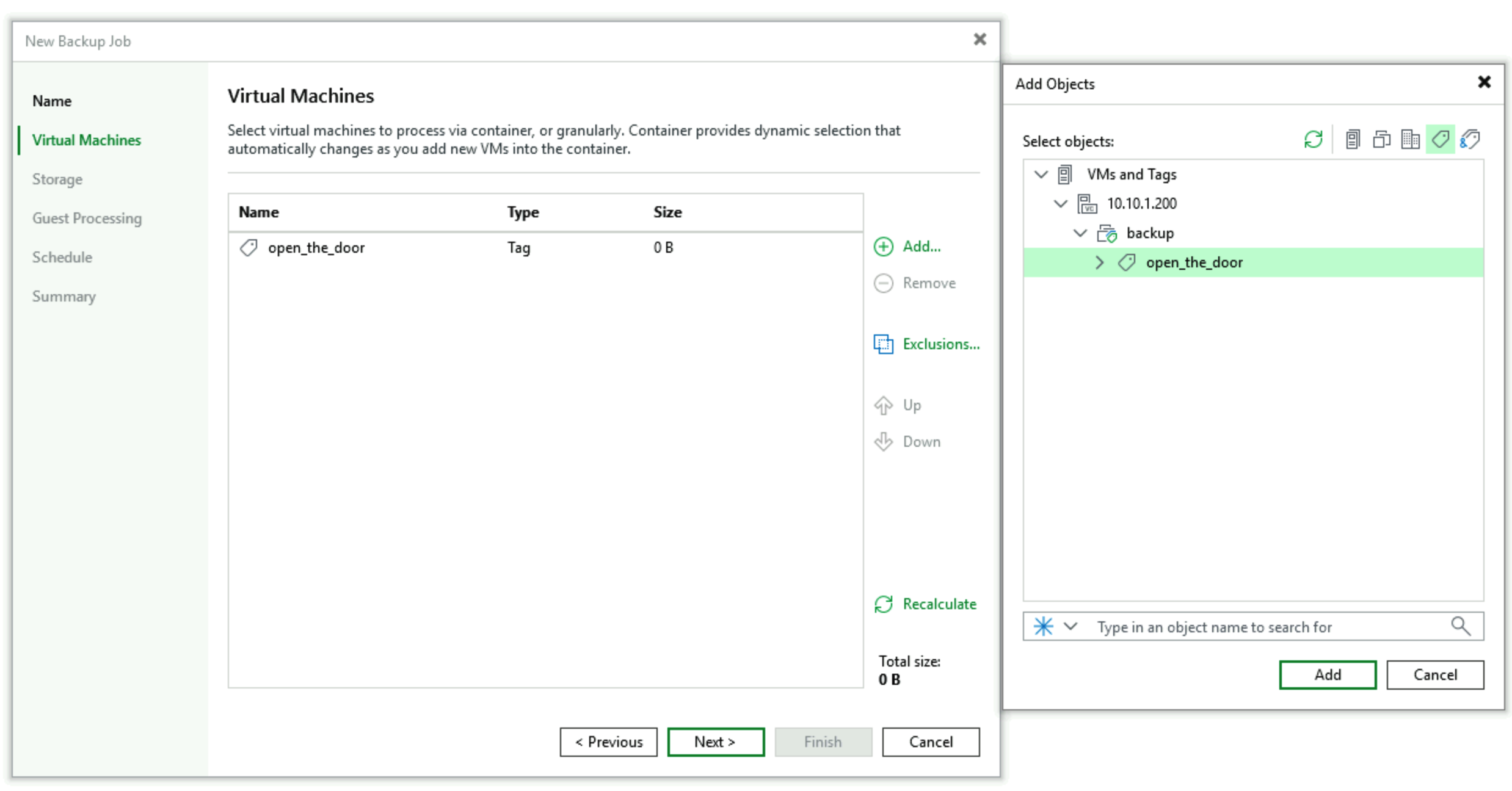
- Create a script-dedicated backup job, in this example created using vSphere empty Tag group method. In the object selection interface, select a Tag named “open_the_door” that contains no objects. After object selection, it looks like this:
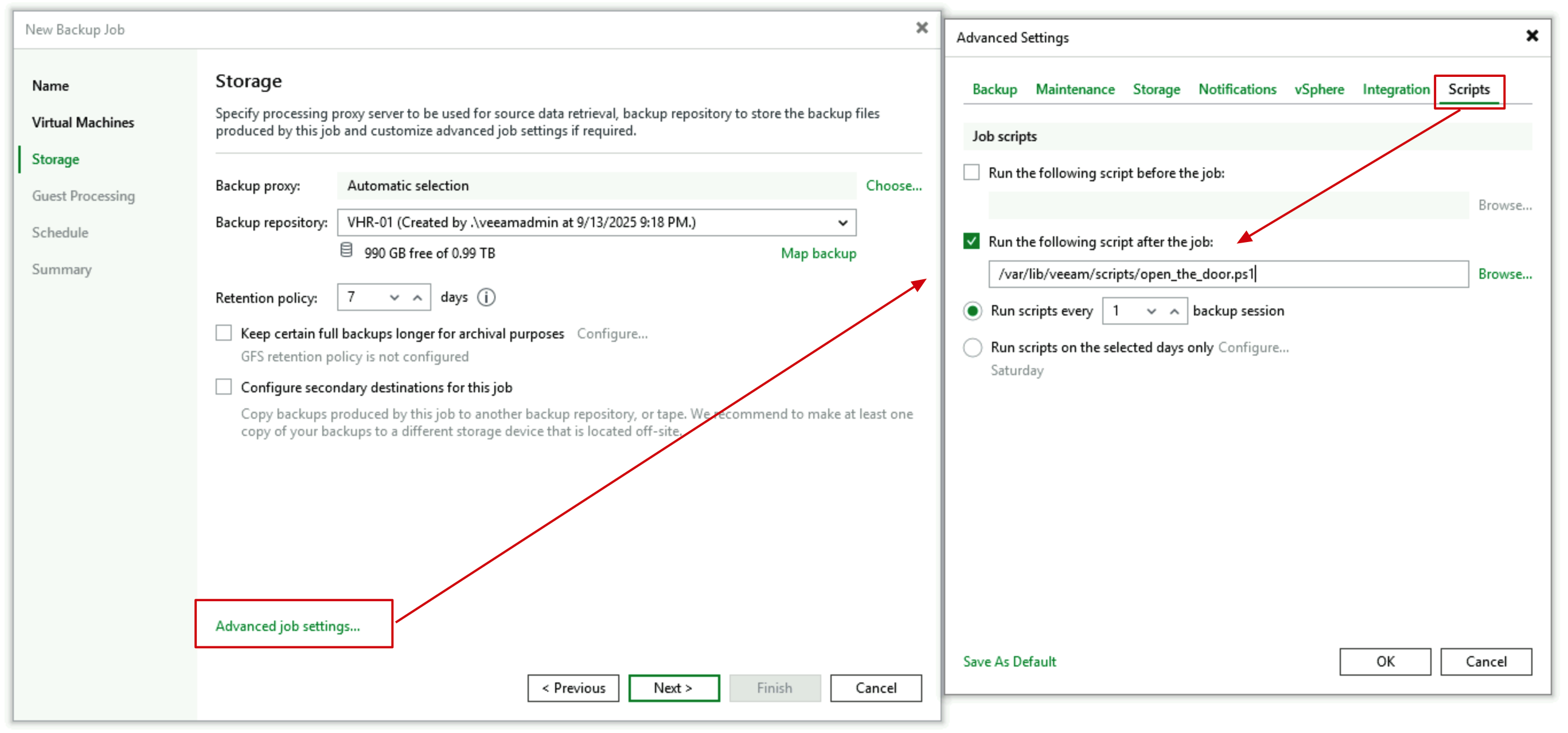
- In the Advanced tab of Storage configuration, we need to configure the Job’s Pre or Post script, selecting the
open_the_door.ps1script. Here, either configuration would work, with minimal difference.
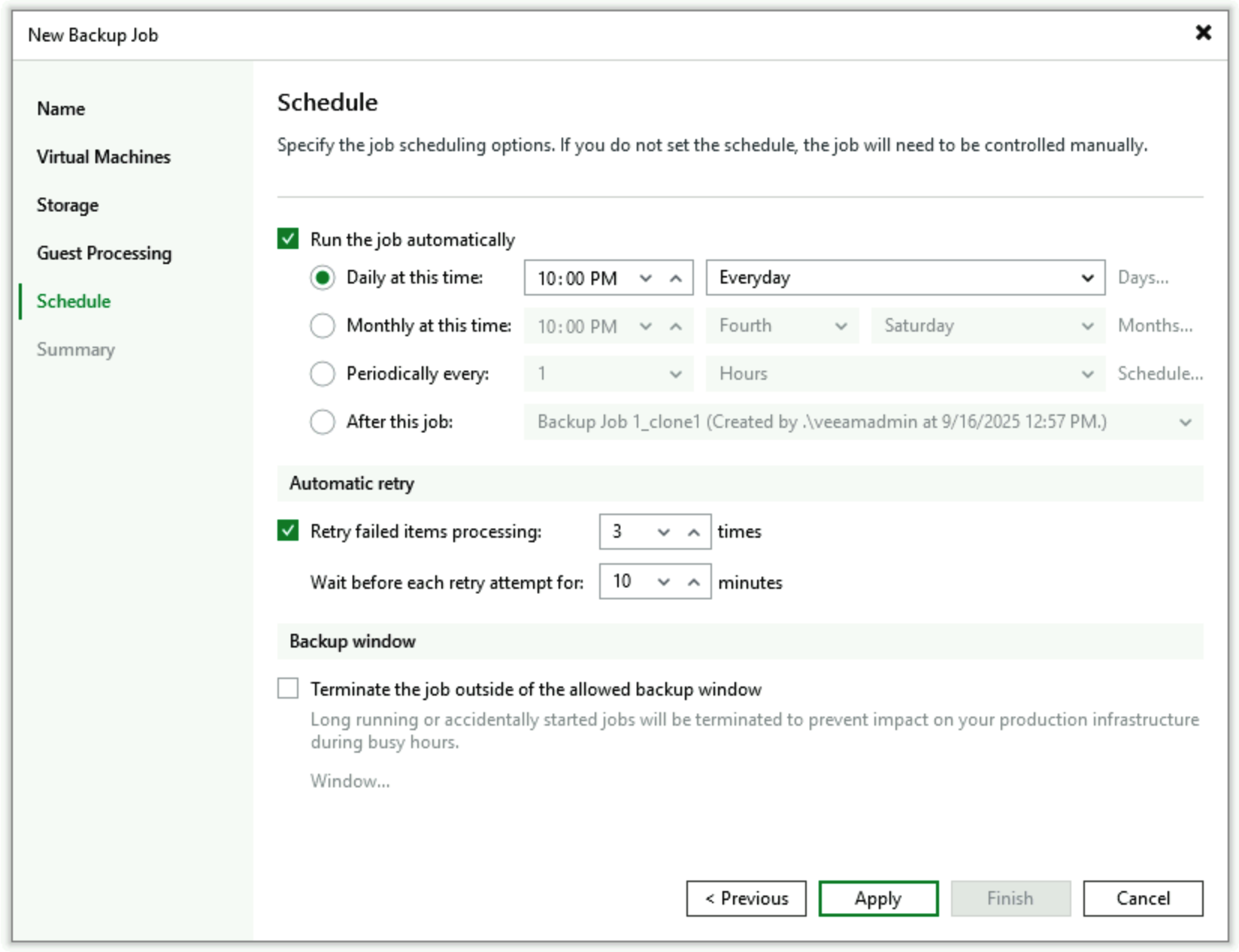
- Set the schedule task—this is our starting point for wall opening and backup, for example, starting at 10 PM every night.
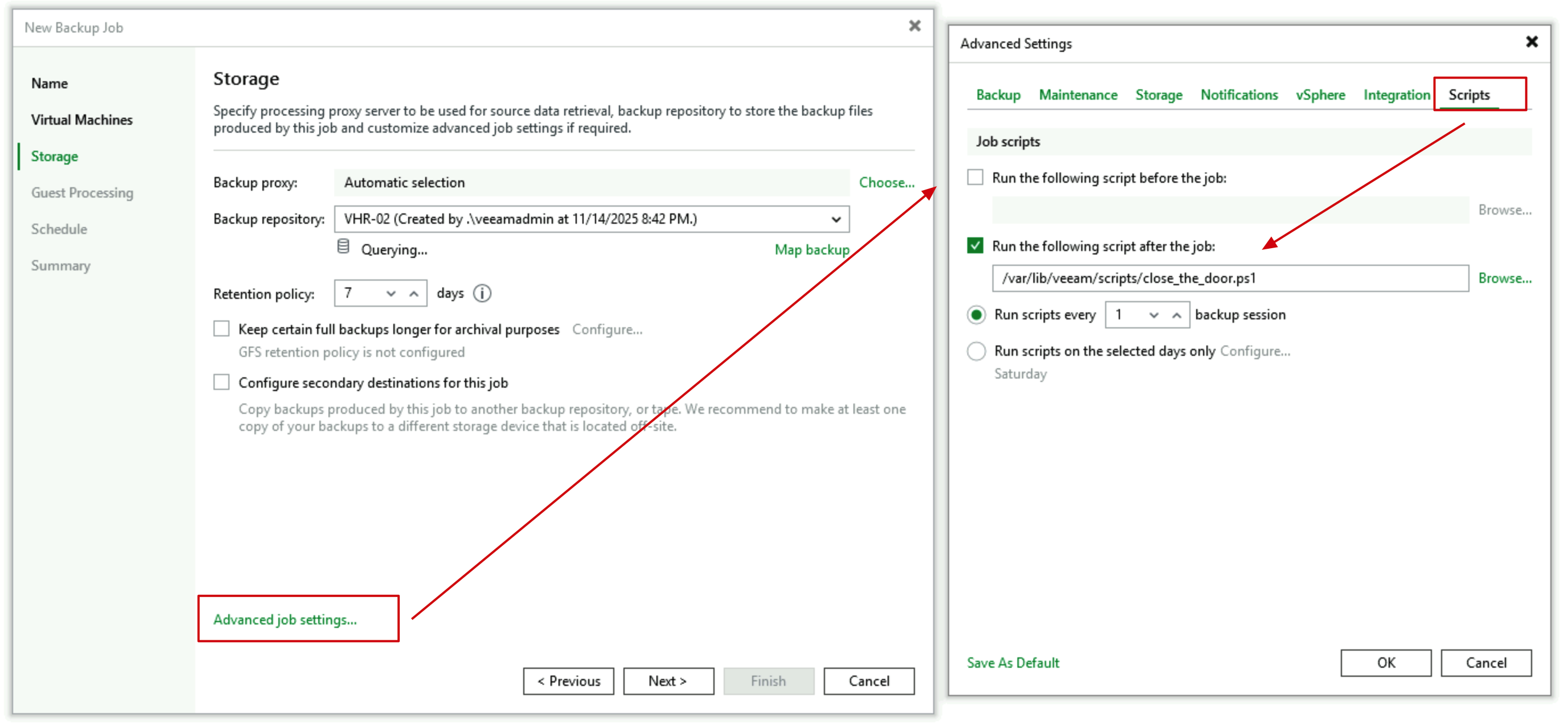
- Create a second job—the actual job that executes real backup tasks. In this job’s Storage configuration, still in the Advanced tab, configure Post Script, selecting the
close_the_door.ps1script. Here it must be configured as Post Script to close the firewall.
- Set the schedule for this job, specifying “After this Job” and selecting the “Open_the_door_job”, indicating it starts immediately following the wall-opening job.
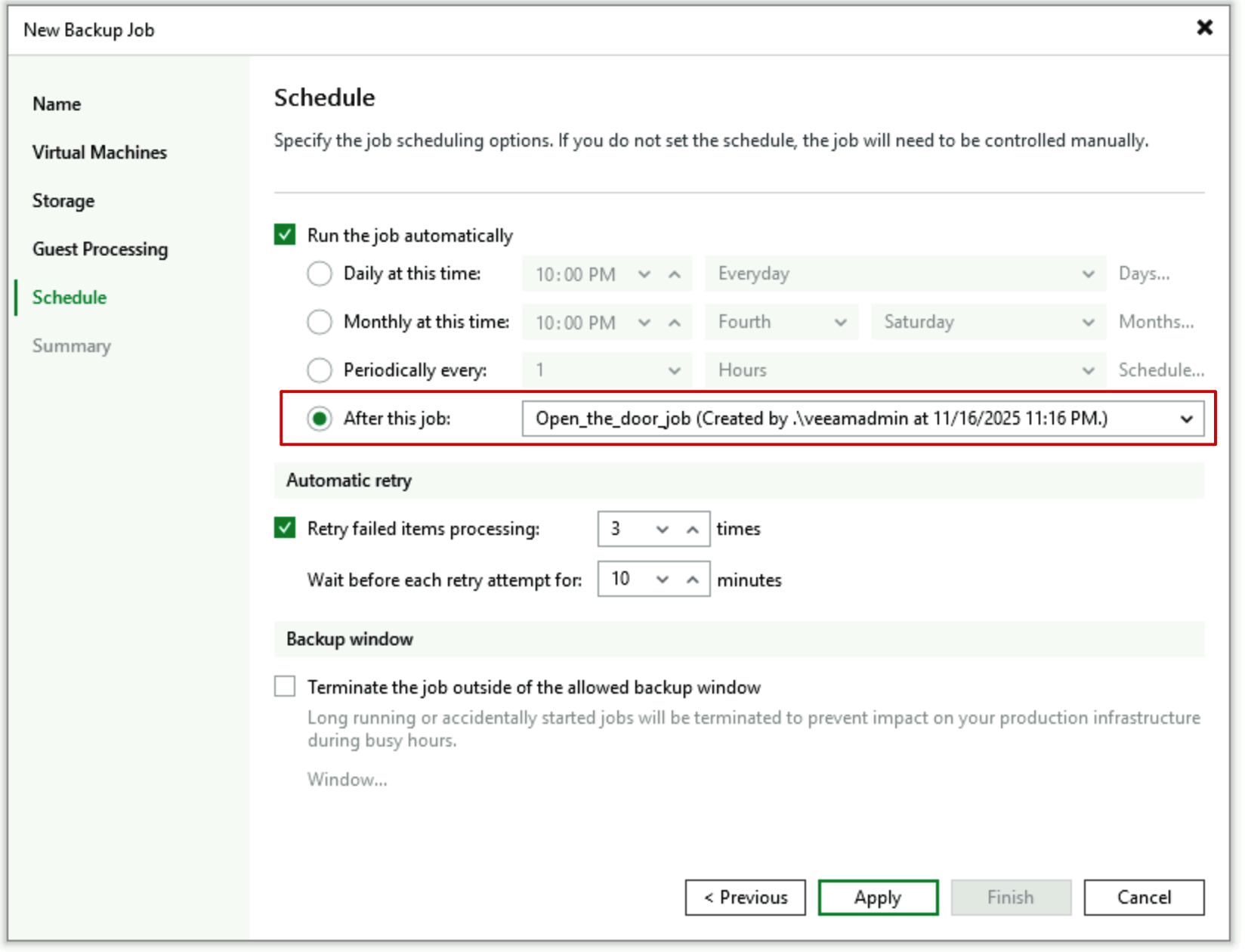
Through this configuration, we achieve fully automated operation of opening the wall before data backup begins and immediately closing it after backup completion, requiring no manual intervention in daily use.
Scenario 2: Backup Copy Isolation Solution Where Second Backup Data Enters Isolation Zone
This method is suitable for customers with high security requirements who don’t want to lose recovery verification capabilities and restore convenience. It copies data from primary storage to secondary isolated storage through Backup Copy jobs. For users, this method doesn’t require additional tasks for assistance—only need to open the firewall when the main backup task ends, then let the Backup Copy job immediately follow the Backup job execution, also using “After Job” mode, and the Backup Copy job executes the firewall closing operation after completion.
Configuration Steps:
-
Create the main backup job, and in the Advanced tab of Storage configuration, configure Post Script, selecting the
open_the_door.ps1script. Here I recommend configuring Post Script to minimize wall opening time, avoiding the isolation zone entering open state prematurely during the main backup task’s long data transmission process. This configuration is exactly the same as Scenario 1’s second step. -
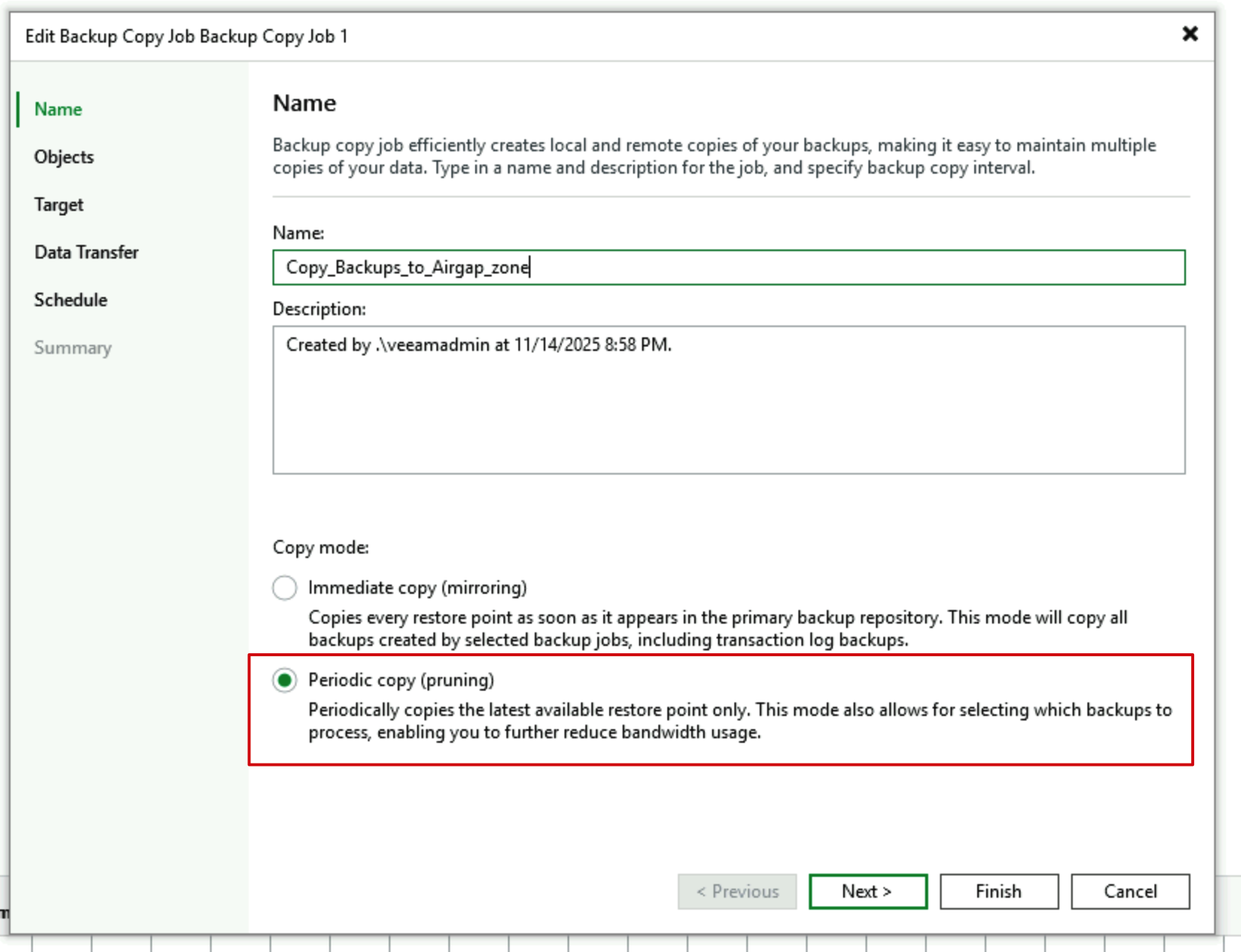
Create a Backup Copy job. For Copy mode, you must select Periodic mode here, as only this mode allows us to set “After this Job” in the Schedule.
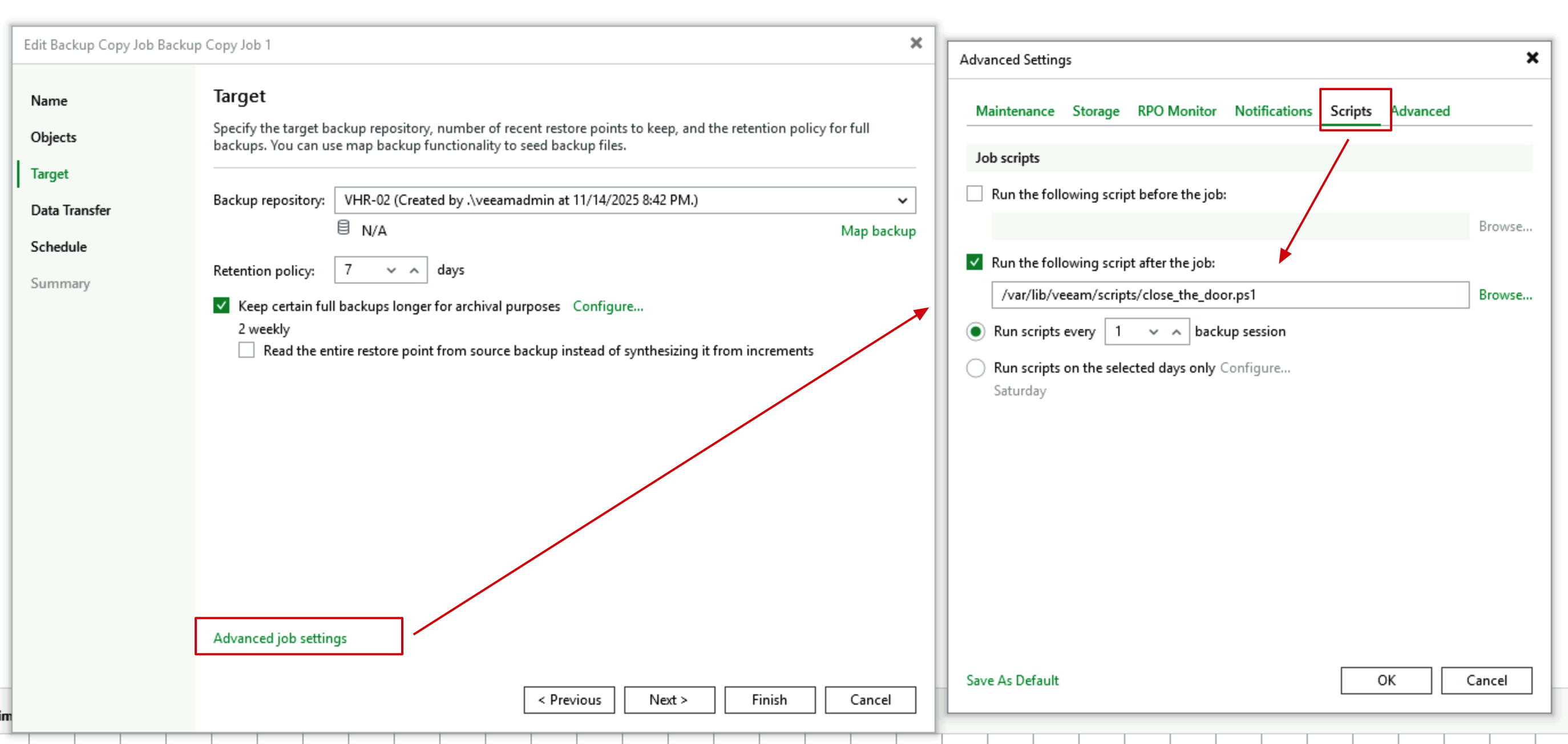
- In the Advanced tab of Target configuration, still configure Post Script, selecting the
close_the_door.ps1script. Here it must be configured as Post Script to close the firewall.
- Set the schedule for this job, specifying “After First backup job”. This job doesn’t start at a specific time, but rather starts after the wall is opened.
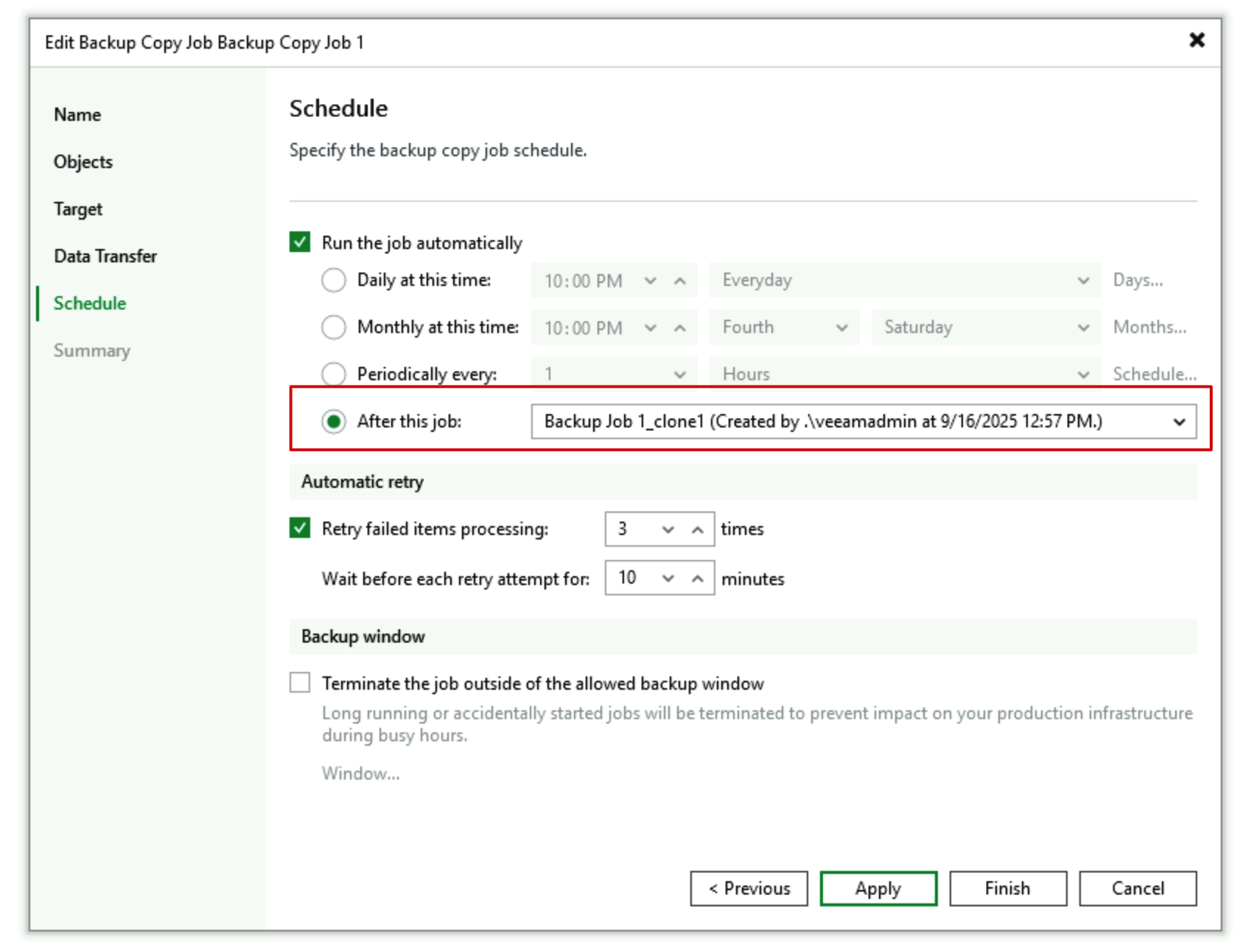
Through this configuration, we achieve fully automated operation of opening the wall before data copying begins and immediately closing it after data copying completion, requiring no manual intervention in daily use.
Backup Copy must use Periodic mode, not Mirroring mode.
Verification and Summary
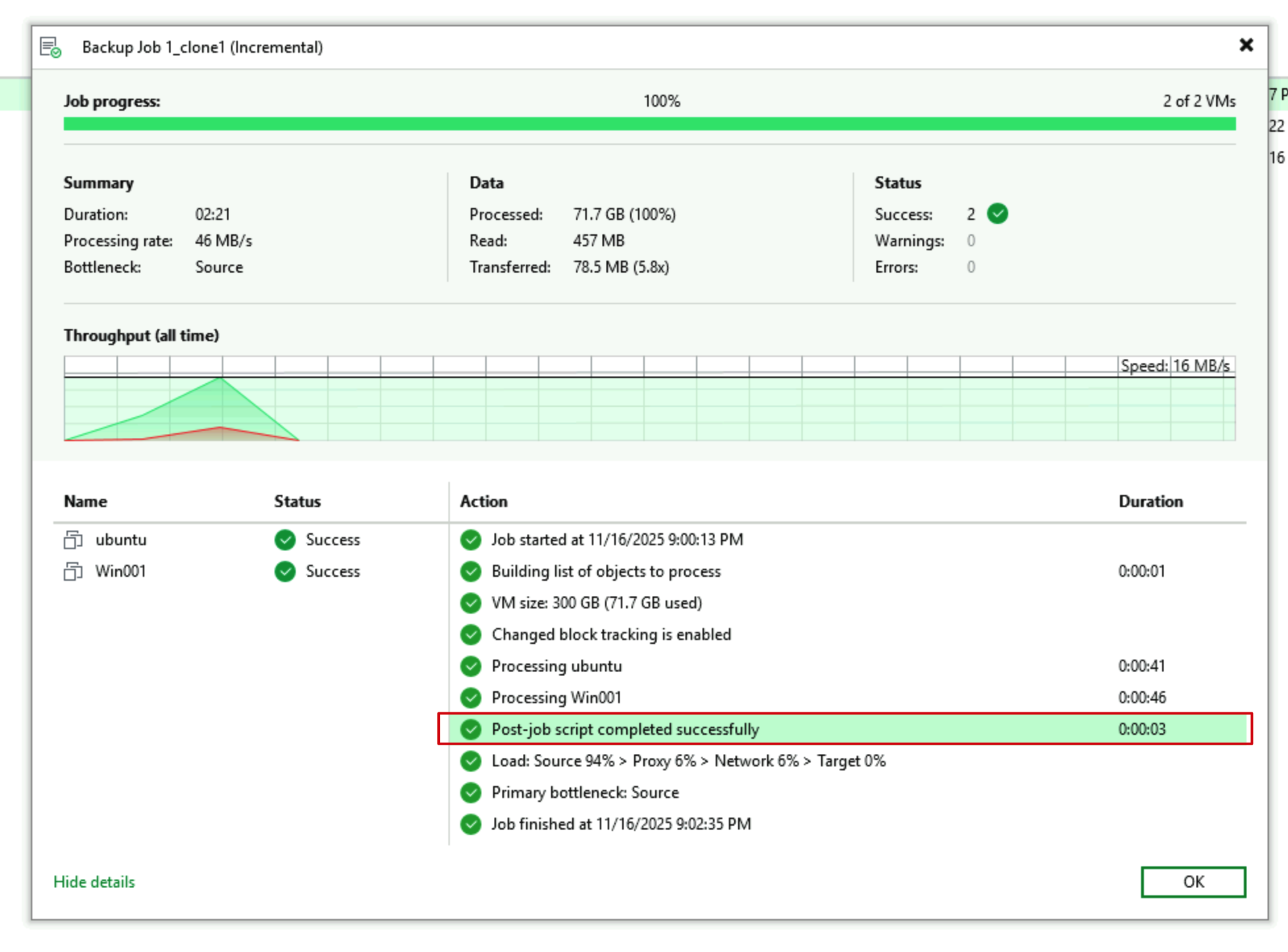
When the jobs run, you’ll see that all jobs execute successfully, and there will be related Post Script execution success prompts in the jobs. Let’s look at the actual data situation.
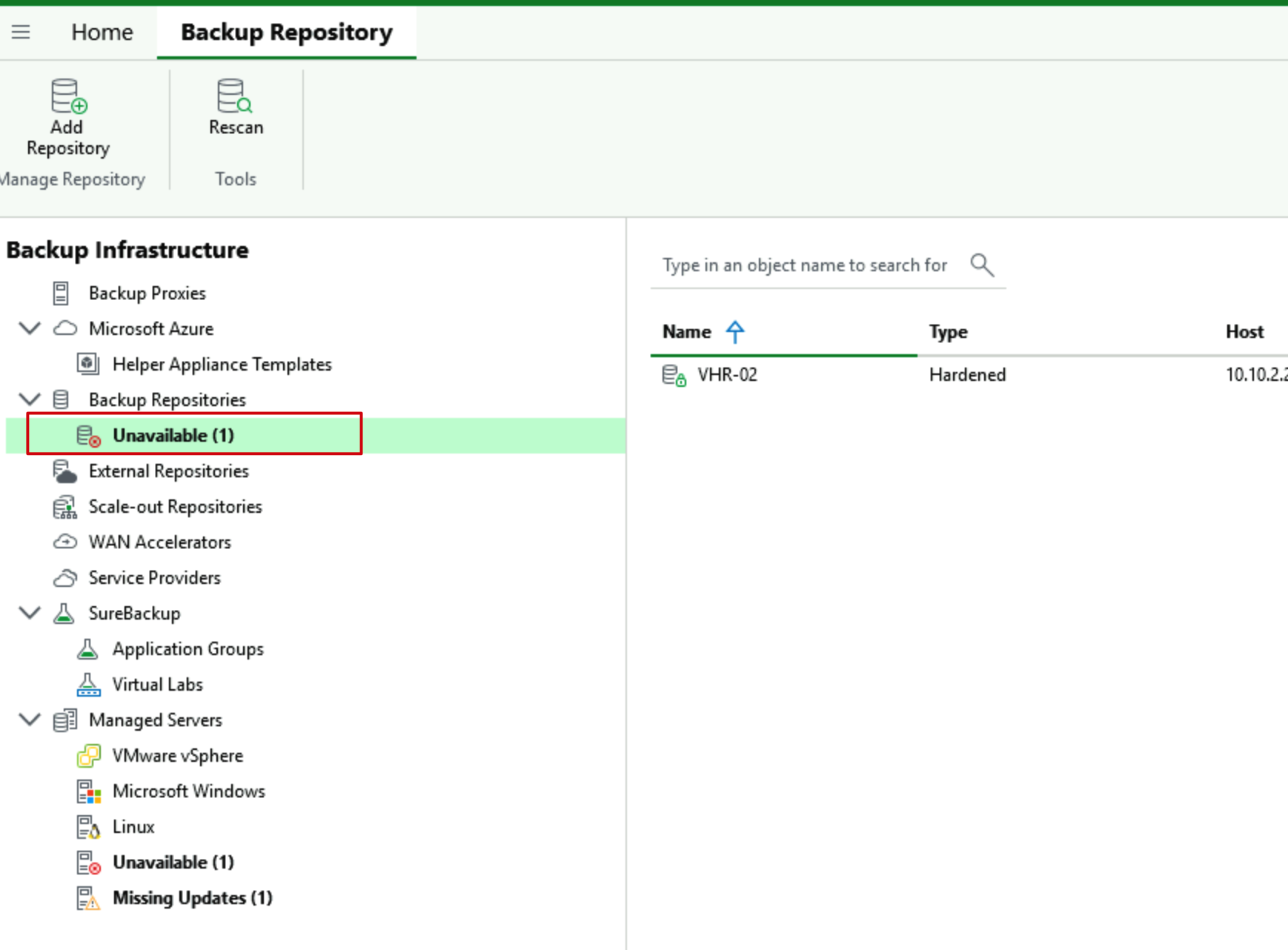
After backup completion, when we go to the Backup Infrastructure section of the backup server, we’ll typically see our Backup Repository in an Unavailable state. This is the expected state, indicating that this repository is inaccessible.
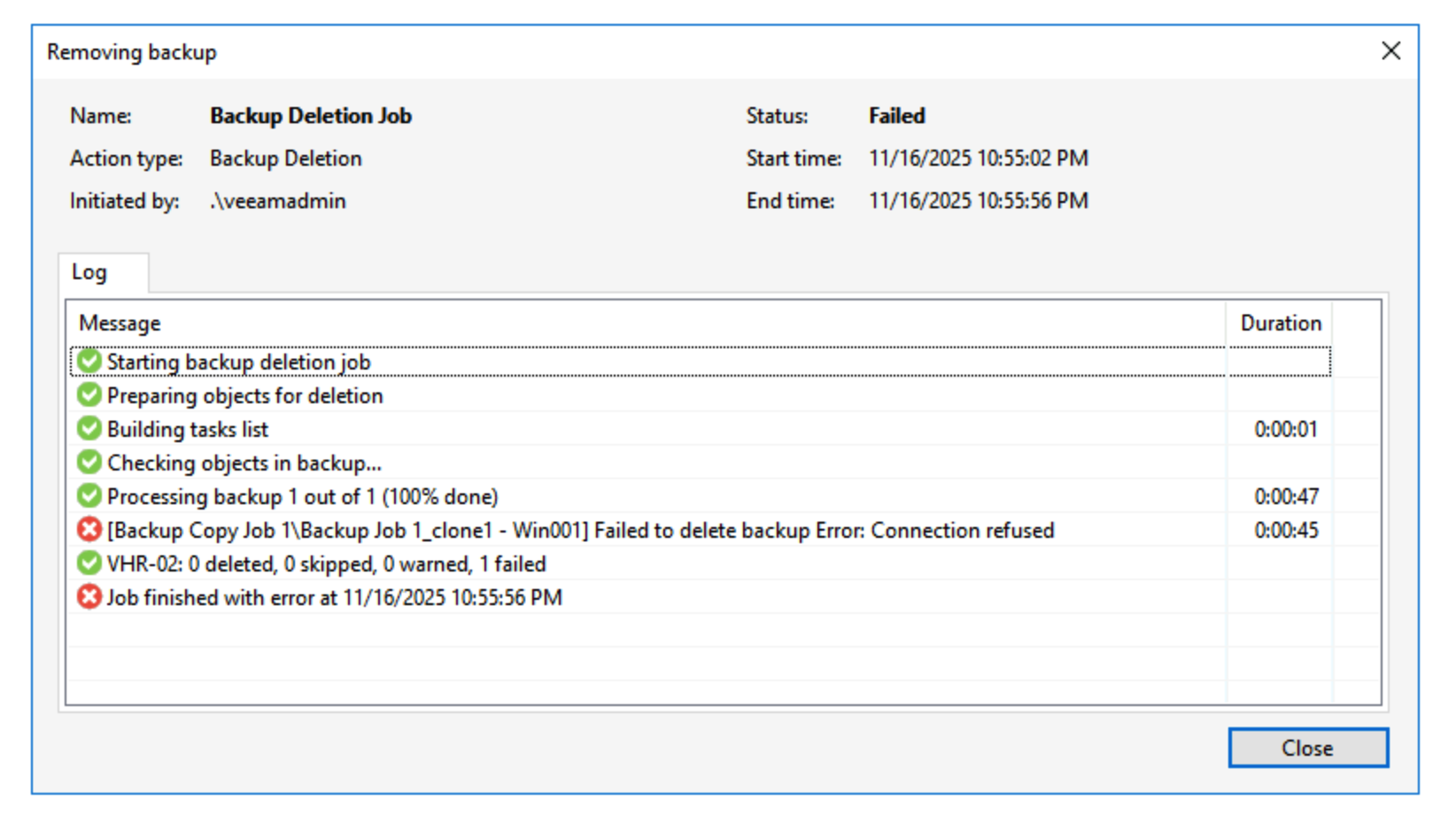
When we find data in Backups and select the delete operation, the system will prompt that the data is inaccessible. It’s worth noting here that this differs from our online state with Immutable repository—it doesn’t prompt that data cannot be deleted before xx time, but rather directly shows that data is inaccessible, connection is refused, and operations cannot be performed.
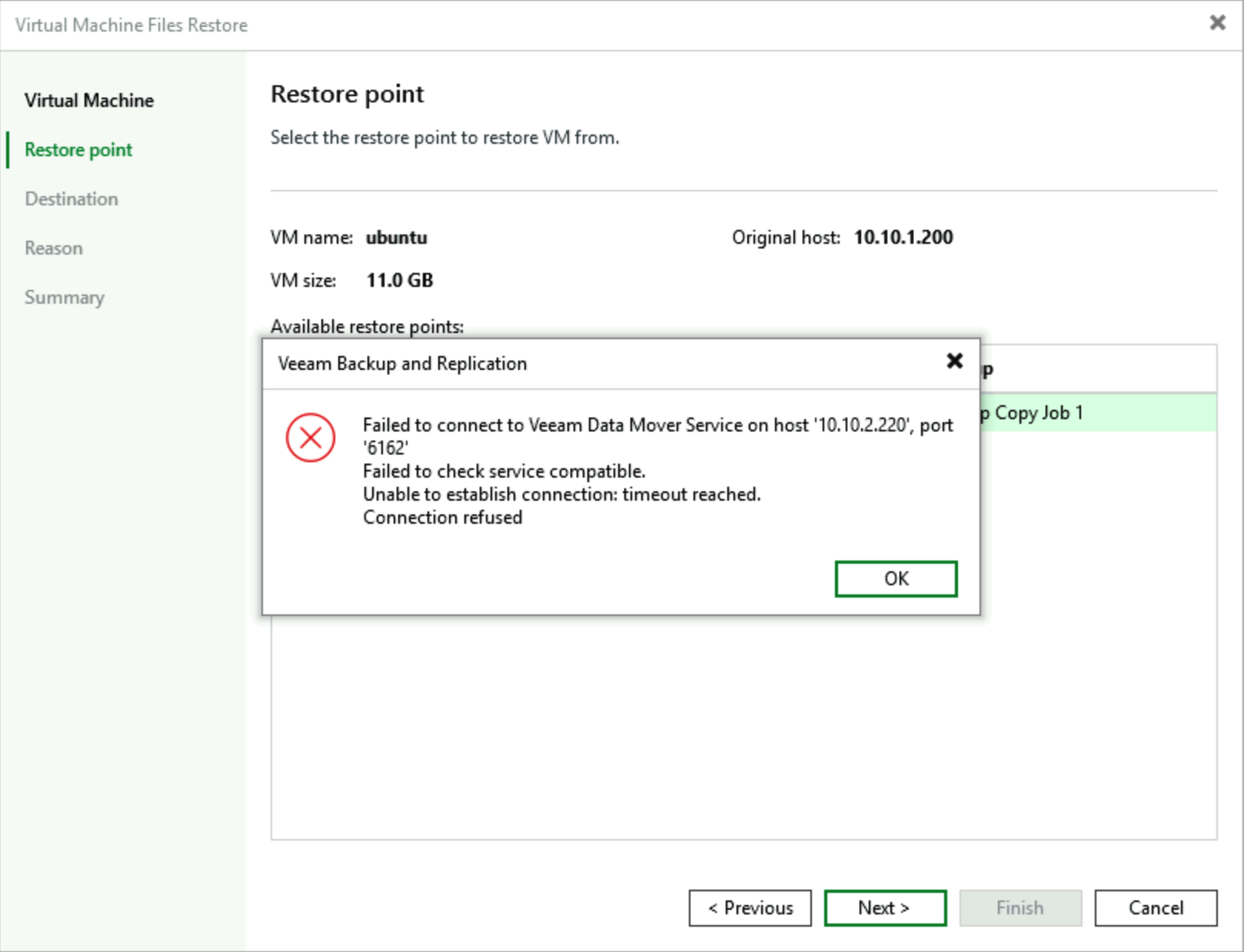
When selecting restore operations, the Restore point interface directly displays that restore point access is denied.
Of course, this solution still has a tiny imperfection: in the Host Discovery events that occur every 4 hours, there will inevitably be one scan of this repository that will show an error. If Veeam R&D could set this type of Repository to be excluded from Host Discovery, it would be even more elegant!
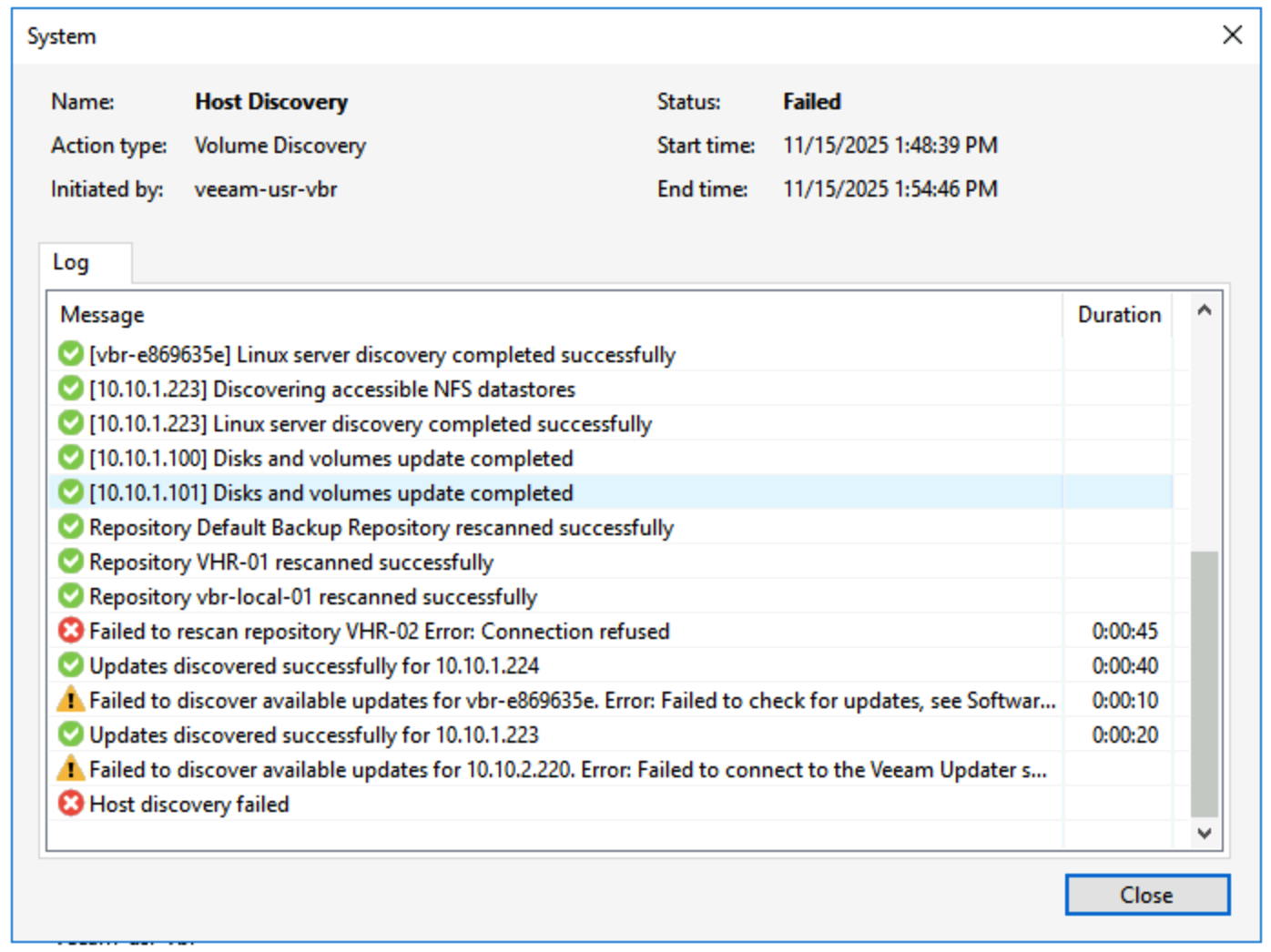
As shown above, with this configuration, don’t you feel that security has been further enhanced?