AI Reshapes Data Protection (Part 1): Claude Code + GLM-4.6 in Practice, Building AI CLI Tools from Scratch
AI Reshapes Data Protection (Part 1): Claude Code + GLM-4.6 in Practice, Building AI CLI Tools from Scratch
Vibe coding has been incredibly popular lately, with Claude Code and Codex competing fiercely. I’m grateful for these excellent AI tools that bring entirely new capabilities and perspectives to our data protection and security industry. Starting with this series, I want to share how these AI tools can provide different capabilities for our data protection workflows, giving you an up-close look at the changes AI is bringing to our industry.
What is Claude Code?
The renowned Claude Code needs no introduction. You can check out https://code.claude.com/docs/en/overview if you’re interested, and there are plenty of introductions across various online platforms. These cover not just AI programming, but also some creative uses like personal assistants, blog writing, travel companions, and more. The possibilities are limited only by your imagination.
This article will guide you through using Claude Code from scratch. My goal isn’t to teach you vibe coding for AI programming, but rather to use Claude Code as a tool to spark new insights and possibilities.
Preparing the Basic Environment
First, let’s look at environment setup. Claude Code is a pure CLI tool, which is quite different from the web-based AI tools we typically use, such as ChatGPT, Copilot, or Doubao. Therefore, it’s best to pair it with a suitable editor so you can observe the files it creates and modifies while working. For the basic environment setup, I’ll start by installing a capable AI editor. I recommend using the Cursor editor, though you can choose any editor you’re comfortable with.
Installing Cursor Editor
I’m starting with Cursor for a simple reason: it has excellent AI integration, and its interface is nearly identical to VS Code, so there’s no learning curve.
The editor supports Windows, Linux, and macOS, making download and installation straightforward.
- Visit Cursor.com to download the appropriate version for your platform
- Run the installer and proceed through the setup with Next
- You’ll need to log in on first launch - you can register a new account to get started
Environment Dependencies: Git and Node.js
Before installing Claude Code, you need to configure Git and Node.js environments. This is particularly important for Windows users, who need to manually download Git from the Git website and Node.js from the Node.js website. For Linux and macOS users, the process is more user-friendly, and installing git and node.js is less troublesome, so I won’t elaborate further here. Once both prerequisite tools are installed successfully, you can verify them with the following commands:
$ git -v
$ node -v
$ npm -v
After confirming everything is installed, you might need to restart your Terminal.
Installing and Configuring Claude Code
Installing Claude Code Software
Once the environment is ready, installing Claude Code is quite simple. Open any Terminal:
npm install -g @anthropic-ai/claude-codeVerify the installation:
claude --versionWhen you run it for the first time, you’ll need to log into your Anthropic account. If you’re using this in mainland China, you might encounter some connectivity issues. However, that’s not a problem - today’s tutorial will show you how to switch Claude Code’s underlying model. We’ll use Claude Code’s CLI software but replace its backend model with a more cost-effective, top-tier domestic coding model: Zhipu AI’s GLM-4.6.
Registering for GLM-4.6
Zhipu AI released its new flagship coding model - GLM-4.6 - during China’s National Day holiday. According to reviews from major media outlets and users both domestically and internationally, its coding capabilities are very close to Claude Code’s official offering, but at just 1/7 of the price. New users also receive a free token experience pack. You can scan the QR code to register and directly receive a 20 million token experience pack.

Additionally, by activating the Coding Plan through the QR code above, you get an extra 10% discount, making it incredibly affordable at just 18 RMB per month. In terms of token usage, from my personal experience, I’ve rarely hit the 5-hour limit. I recommend starting with the GLM Coding Lite 20 RMB first-month subscription. After the first month ends, if you want to continue, you can cancel the auto-renewal and choose the 3-month 60 RMB plan for continued savings, or the annual 240 RMB plan. This way, you’re essentially using the service at the 18 RMB monthly tier, which is significantly cheaper than Claude Code’s original $20/month model but with more generous usage.

After registering, you can find your API Key in the top right corner of the homepage on the website. We’ll need this API key in a moment to configure Claude Code and essentially give Claude Code a new “brain.”
Configuring GLM 4.6 for Claude Code
The configuration process is quite simple, and the GLM 4.6 official documentation clearly explains the specific setup method. You can find the details at:
https://docs.bigmodel.cn/cn/coding-plan/tool/claude
The documentation even provides automated configuration scripts for those who prefer not to modify settings manually.
Creating and Configuring the Project Folder
Now let’s start using Claude Code. We typically perform our coding operations in a specific working directory, so we need to open Cursor and specify our working directory. In Cursor, open a project folder and activate the Terminal within Cursor. In the Terminal, type claude to enter Claude Code’s main interface, as shown below:
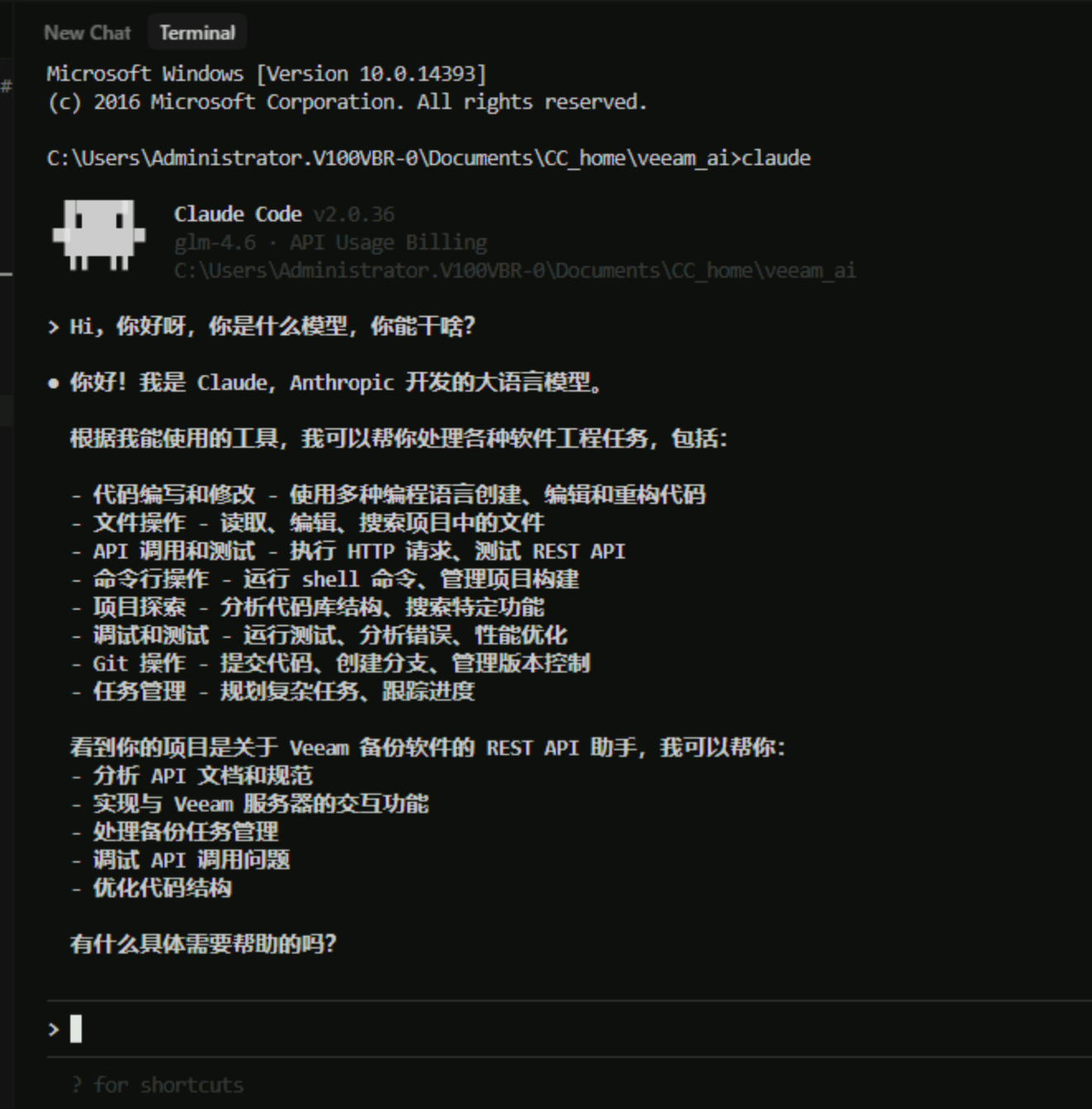
As you can see from the gray text in the image, our Claude Code model has already been switched to the glm-4.6 version.
Next Steps
Besides GLM-4.6, there are other excellent models available in China, like Kimi K2, but they can’t compare to GLM-4.6 in terms of cost-effectiveness. Feel free to explore these on your own if you’re interested.
With the basic environment setup complete, we can now interact directly with AI through the CLI interface. Because it has permissions to operate files and run local programs, Claude Code can do almost anything on your computer and query any information you want it to. This opens up countless possibilities. In the next installment, I’ll use a VBR project to show you how Claude Code can help execute various commands.