Making VBR Login More Secure: A Complete Guide to v13 SAML + Azure EntraID Integration

In version v13, the most significant new features focus on enhanced security capabilities. Starting with this article, I’ll provide a detailed walkthrough of the new security features introduced in v13 through practical applications.
Today, let’s start with authentication. In enterprise-level backup architectures, the security of management console accounts and access governance is critically important. Veeam Backup & Replication (VBR) now supports SAML-based Single Sign-On (SSO) in v13, which means you can centralize authentication to your organization’s existing Identity Provider (IdP) — such as Azure EntraID. Through SAML integration, you can unify the management of VBR login with your company’s account lifecycle, group policies, MFA, and auditing: operations become clearer, permission revocation is more timely, and you achieve higher compliance. This article uses Azure EntraID as an example to demonstrate this integration in detail. For other similar solutions like Authing in China or international options like Okta and Auth0, you can follow the Azure methods to try them out.
Configuration Prerequisites
To configure and use SAML integration, the prerequisites are quite straightforward — simply install VBR using the latest Veeam Software Appliance. Of course, since we’re using network services, there are some necessary conditions for configuring SSO:
- The VBR server must be able to access Azure EntraID-related endpoints.
- Time synchronization — VBR must have NTP server correctly configured with no time deviation. SAML is timestamp-based, and authentication will fail if there’s a time mismatch.
- Azure EntraID administrator account with permissions to create enterprise applications and assign users.
- VBR administrator permissions — this is fundamental for configuring VBR accounts and identity integration.
- The Windows system where the VBR Console is installed must be able to correctly resolve the VBR hostname or FQDN, otherwise the URLs in the SP/IdP Metadata won’t match.
Configuration Method
The following configuration is divided into Azure and VBR sections and has a specific order, so it’s recommended to proceed sequentially.
Generate SP Information in VBR and Export Metadata
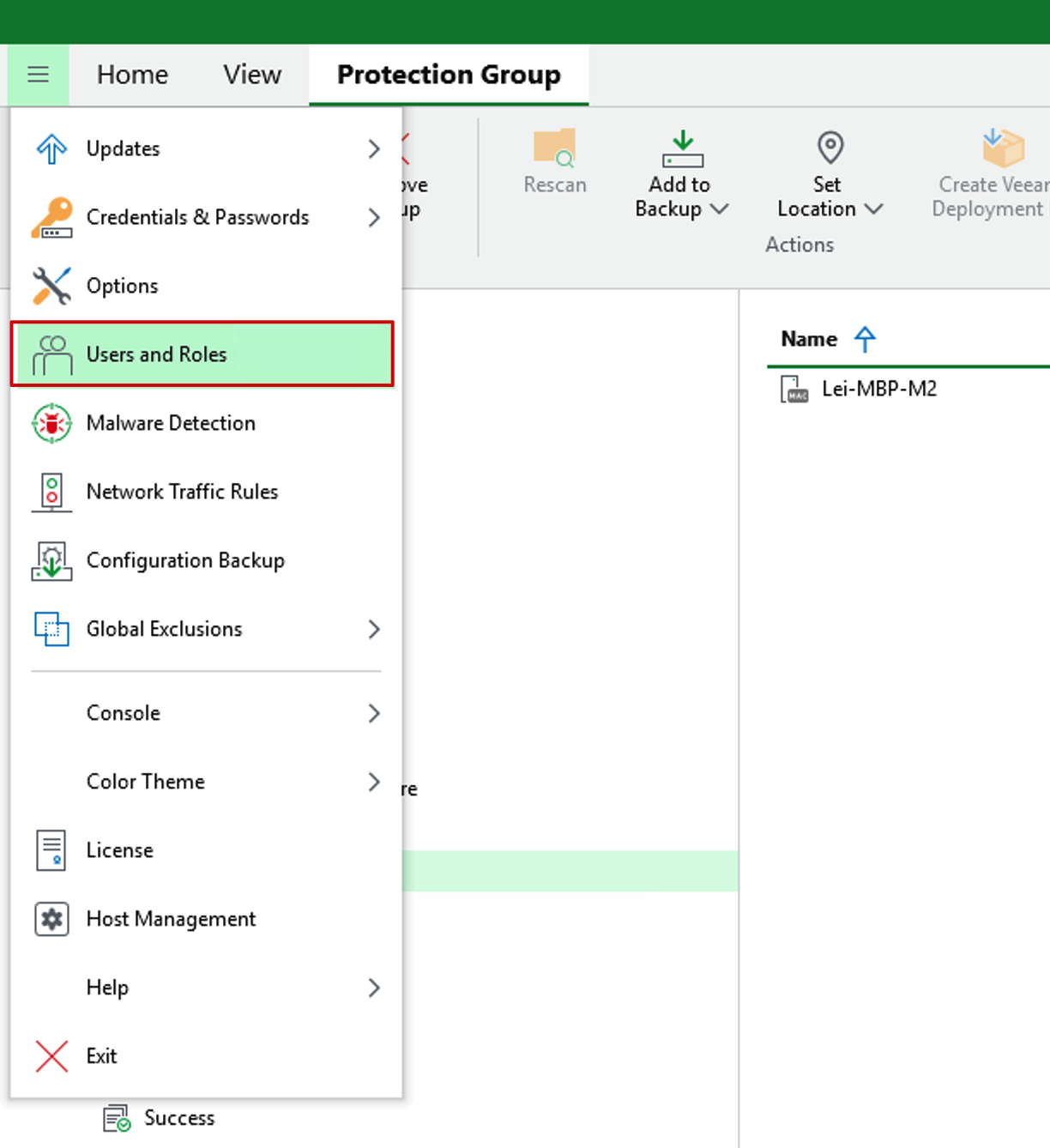
- First, log in to the VBR console using the veeamadmin account. In VBR, click the hamburger icon (three horizontal lines) in the top-left corner and select
Users and Rolesfrom the dropdown menu.
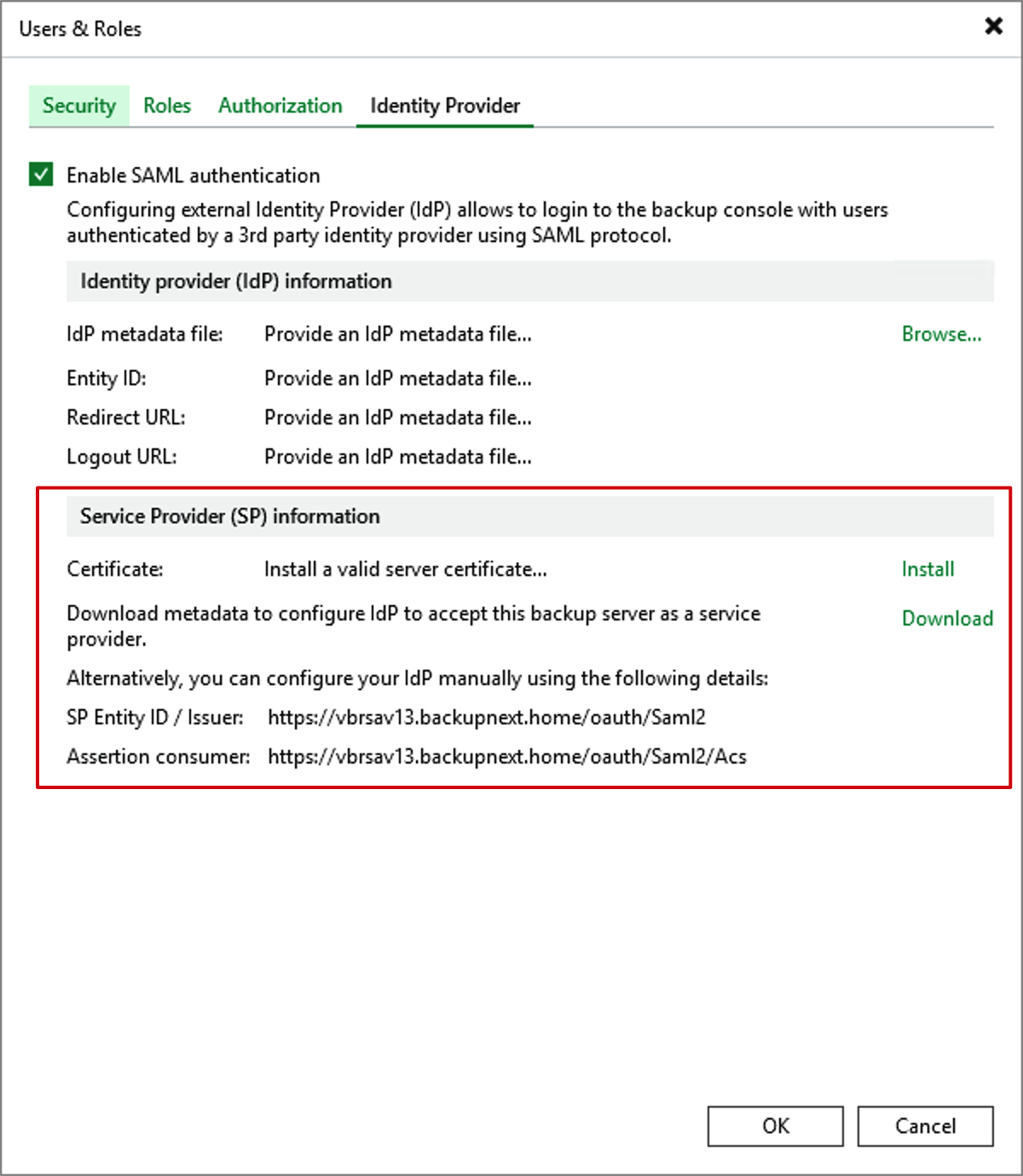
- Switch to the newly added Identity Provider interface in v13. By default,
Enable SAML Authenticationis unchecked. Check it to enable, and you’ll see the Service Provider (SP) Information section below. In identity authentication, VBR now acts as the application’s Service Provider (SP), so we need to install a certificate for VBR first. Click Install.
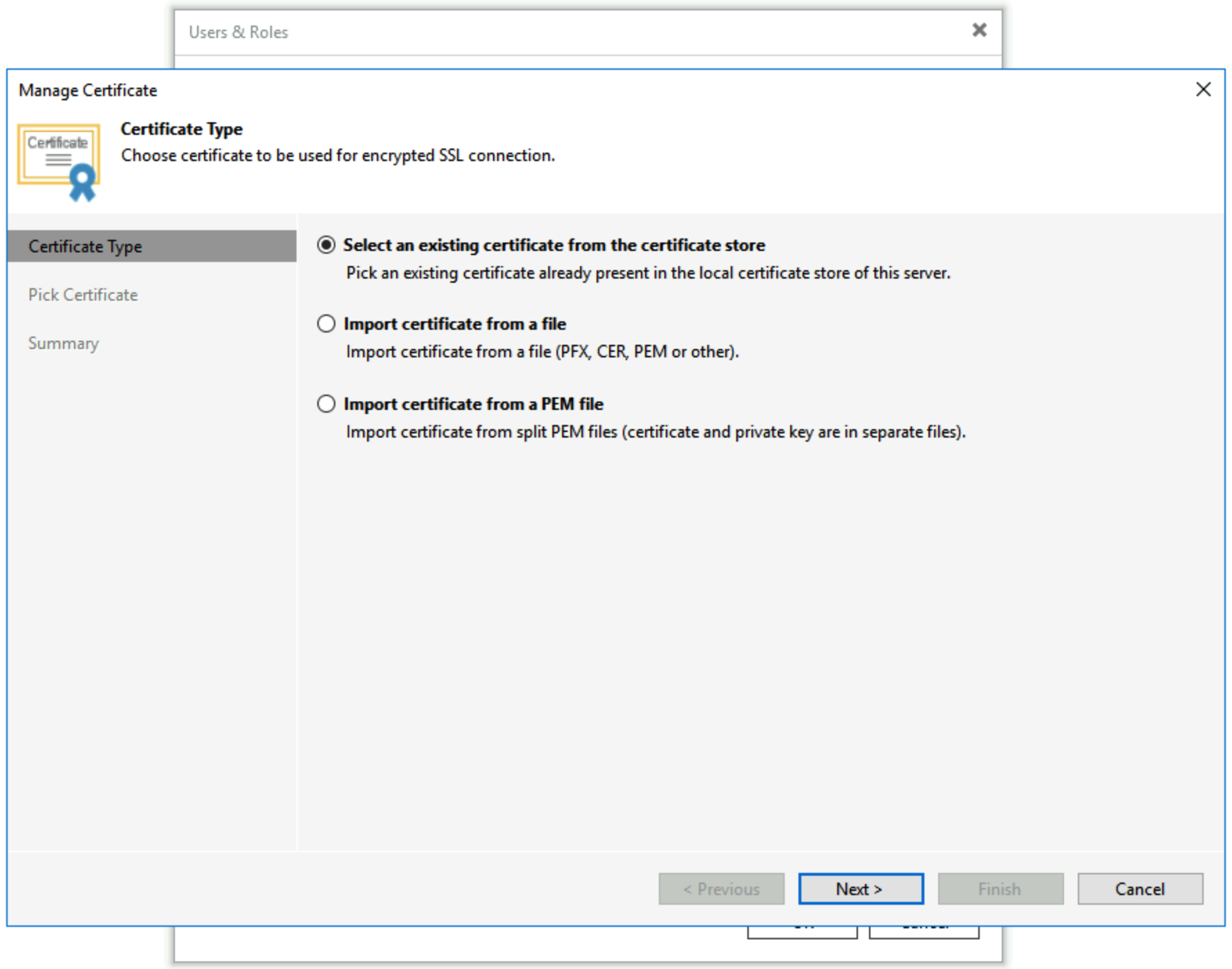
- You can select one from the local certificate store. Choose
Select an existing certificate from the certificate storeand click Next.
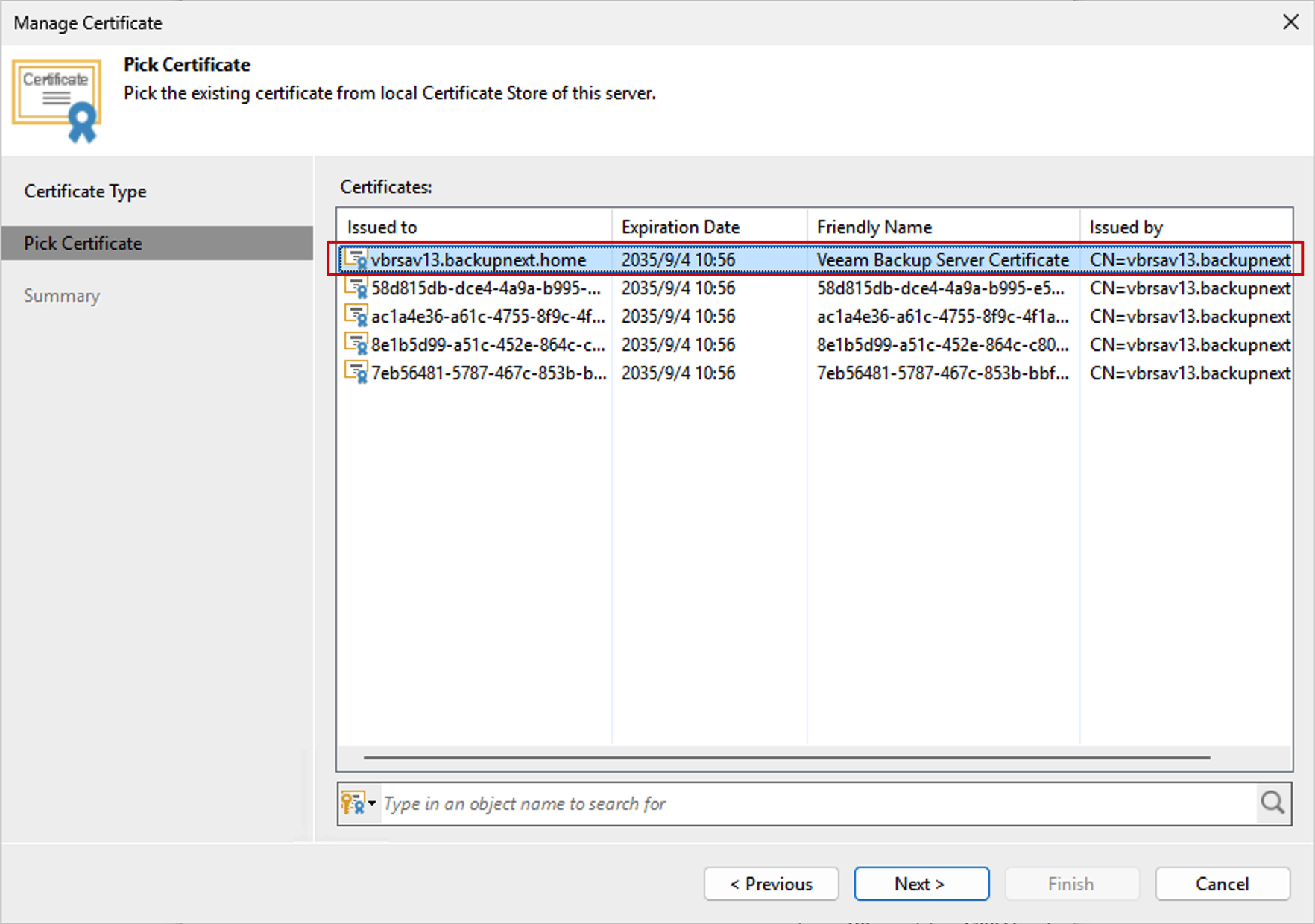
- In the certificate store, find the certificate with Friendly Name
Veeam Backup Server Certificateand click Finish to complete.
- At this point, you’ll see that Certificate information has appeared in the SP Information section, showing
CN=<backup server FQDN>. For the next steps, we need to click the Download button below Install to download the XML file from the SP side and save it properly. This file will be used when configuring Azure later.
Upload SP Metadata in Azure EntraID and Assign Users
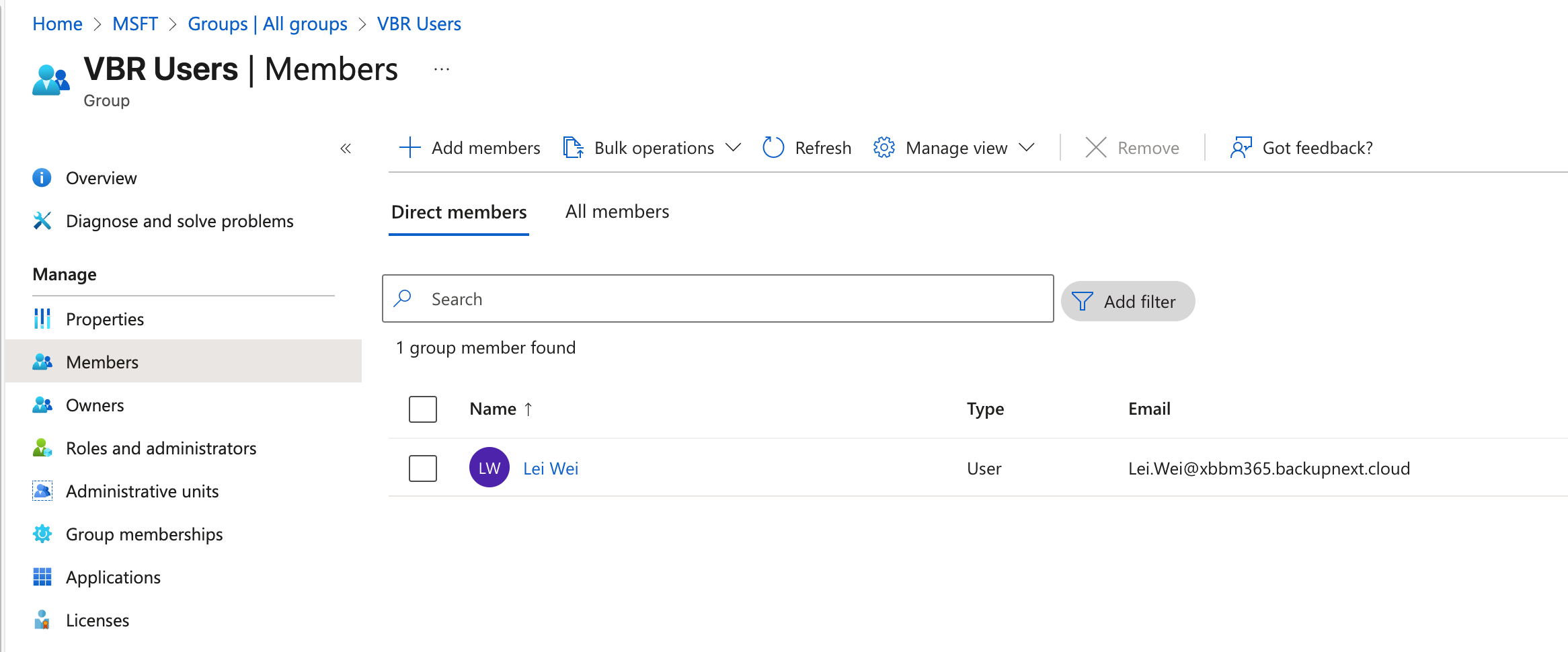
- First, create a security group for VBR, named VBR Users. Add a user to this group — for example, I added my own account.
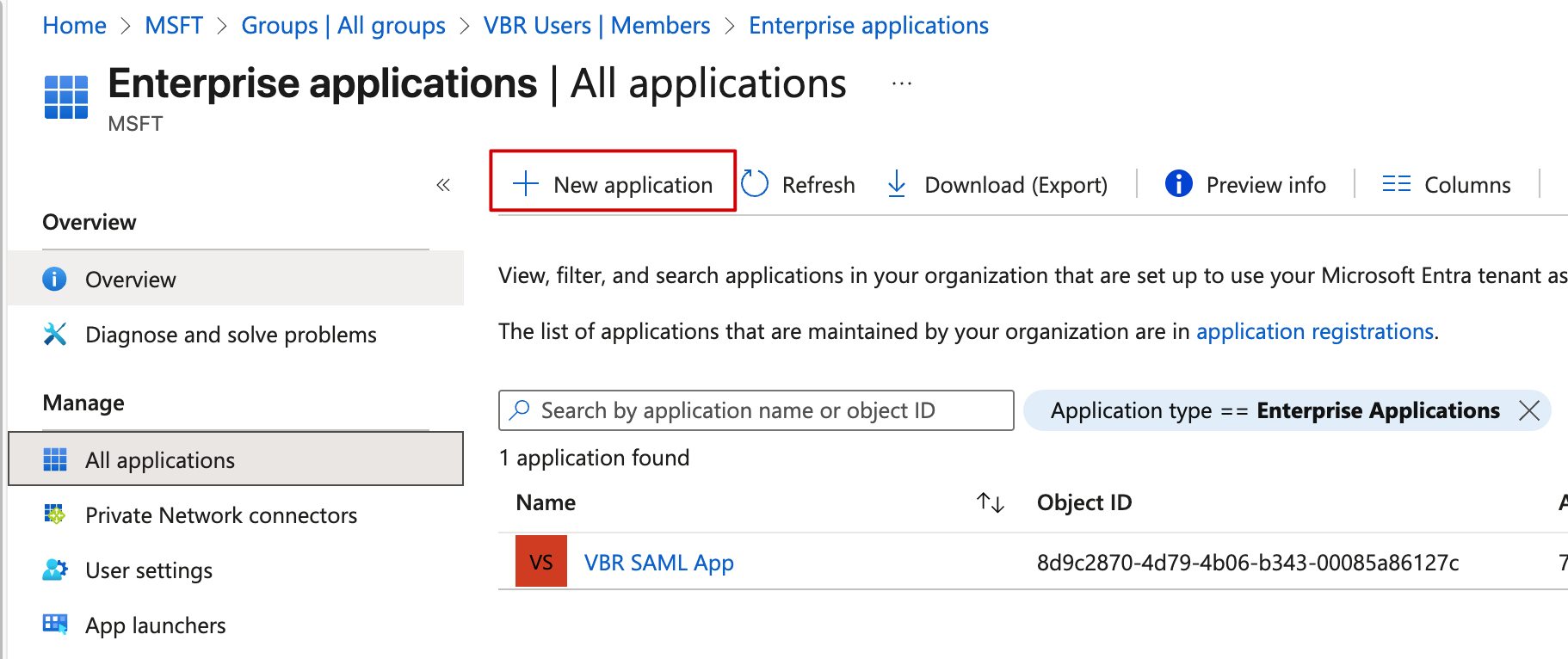
- In EntraID, find Enterprise apps. We need to create a new Application for VBR identity authentication. Click
New Applicationto create one.
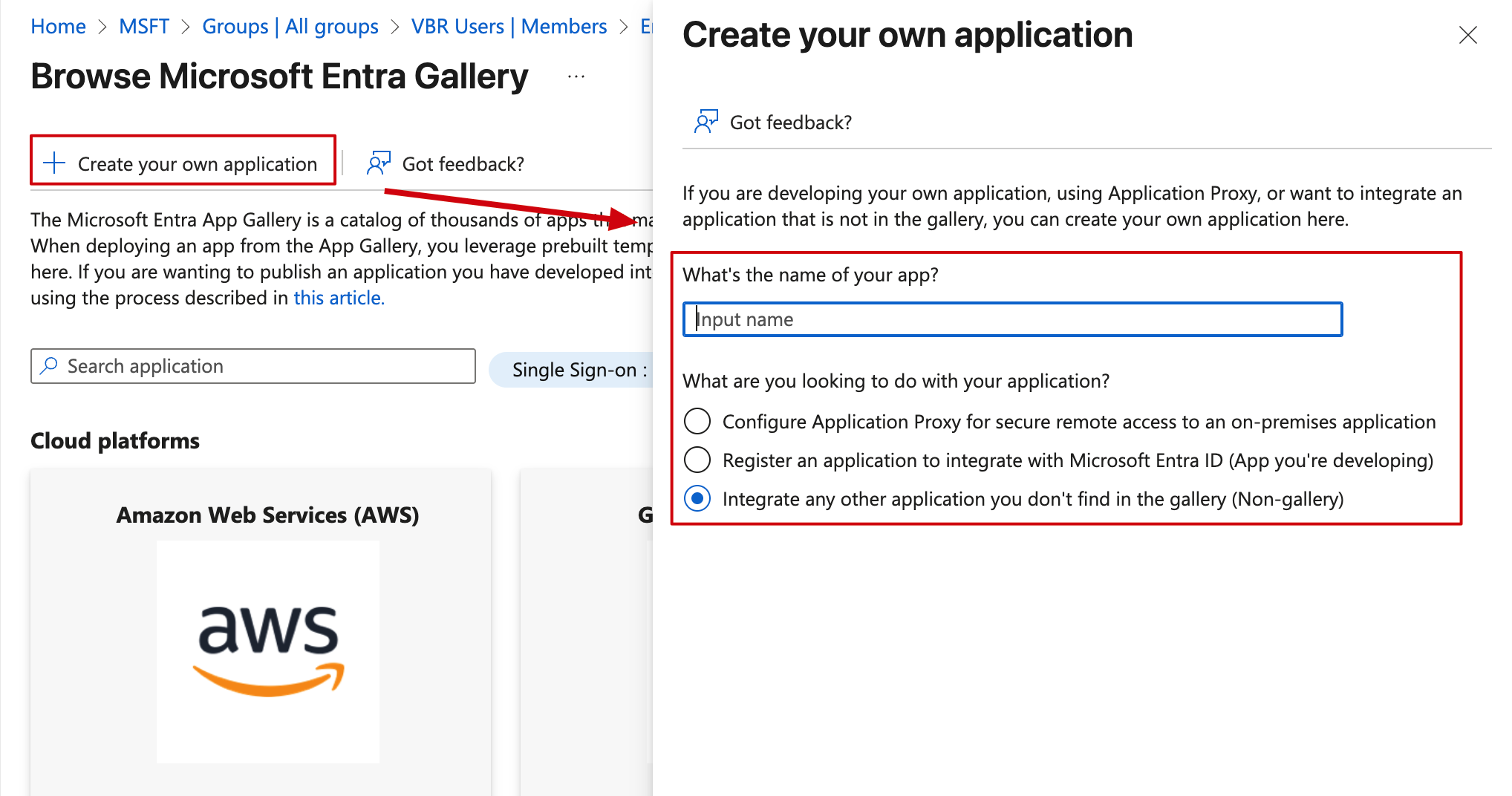
- When creating, don’t select from the catalog. Click
Create your own applicationand in the popup dialog on the right, enter the app name, then selectIntegrate any other application you don't find in the gallery (Non-gallery). For example, I named mine vbrsso.
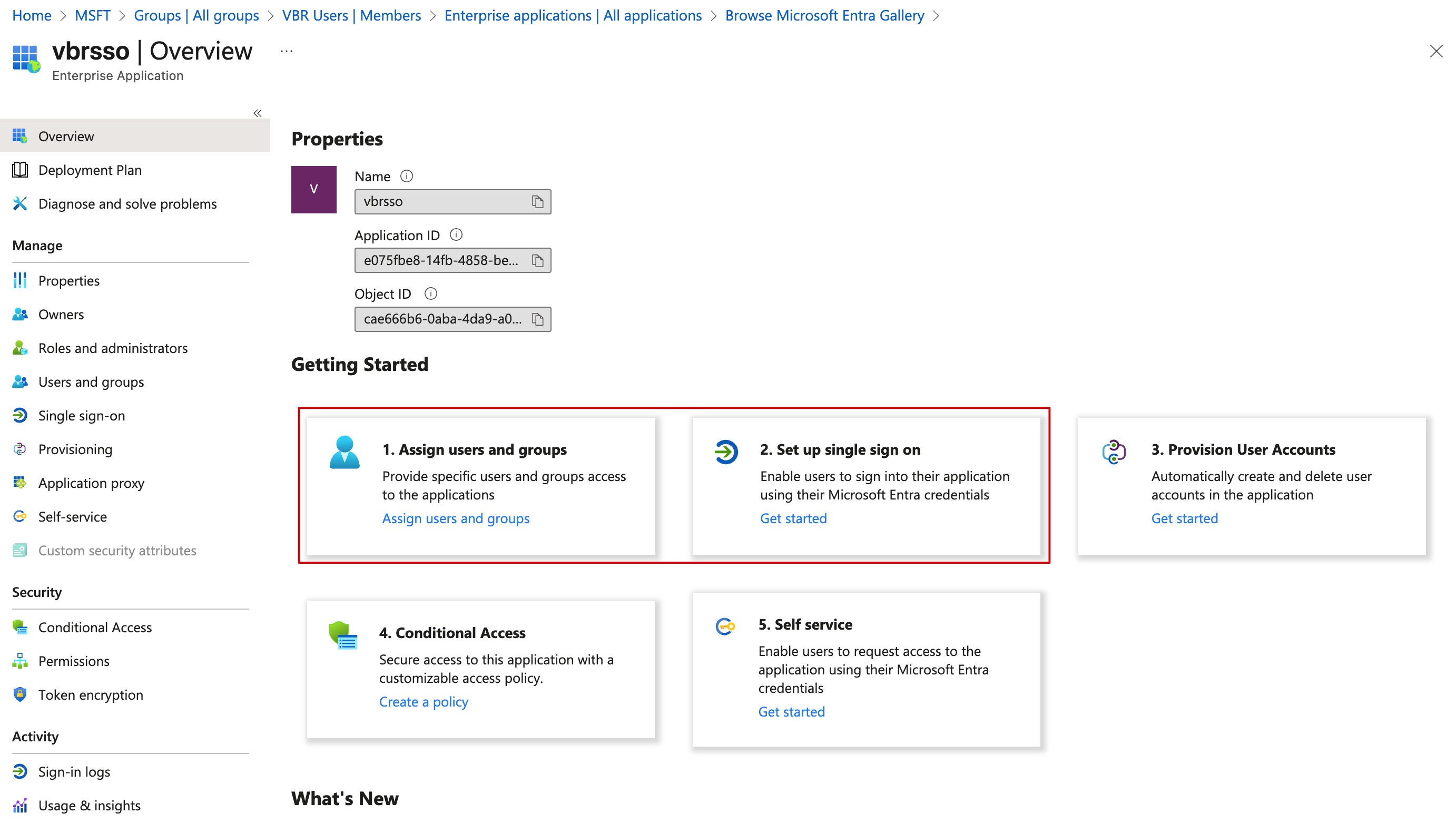
- After this Application is created, it will automatically switch to the Application Overview interface. The Getting Started interface clearly lists the next steps. You can configure them one by one according to steps 1, 2, 3, 4, 5 as needed. For VBR, we only need to configure two:
Assign users and groupsandSet up single sign on.
- After assigning the Group created in step 1, VBR Users, to this application, click the second step,
Set up single sign on, which will take you to the single sign-on configuration interface. Here, we choose the SAML option to integrate with VBR.
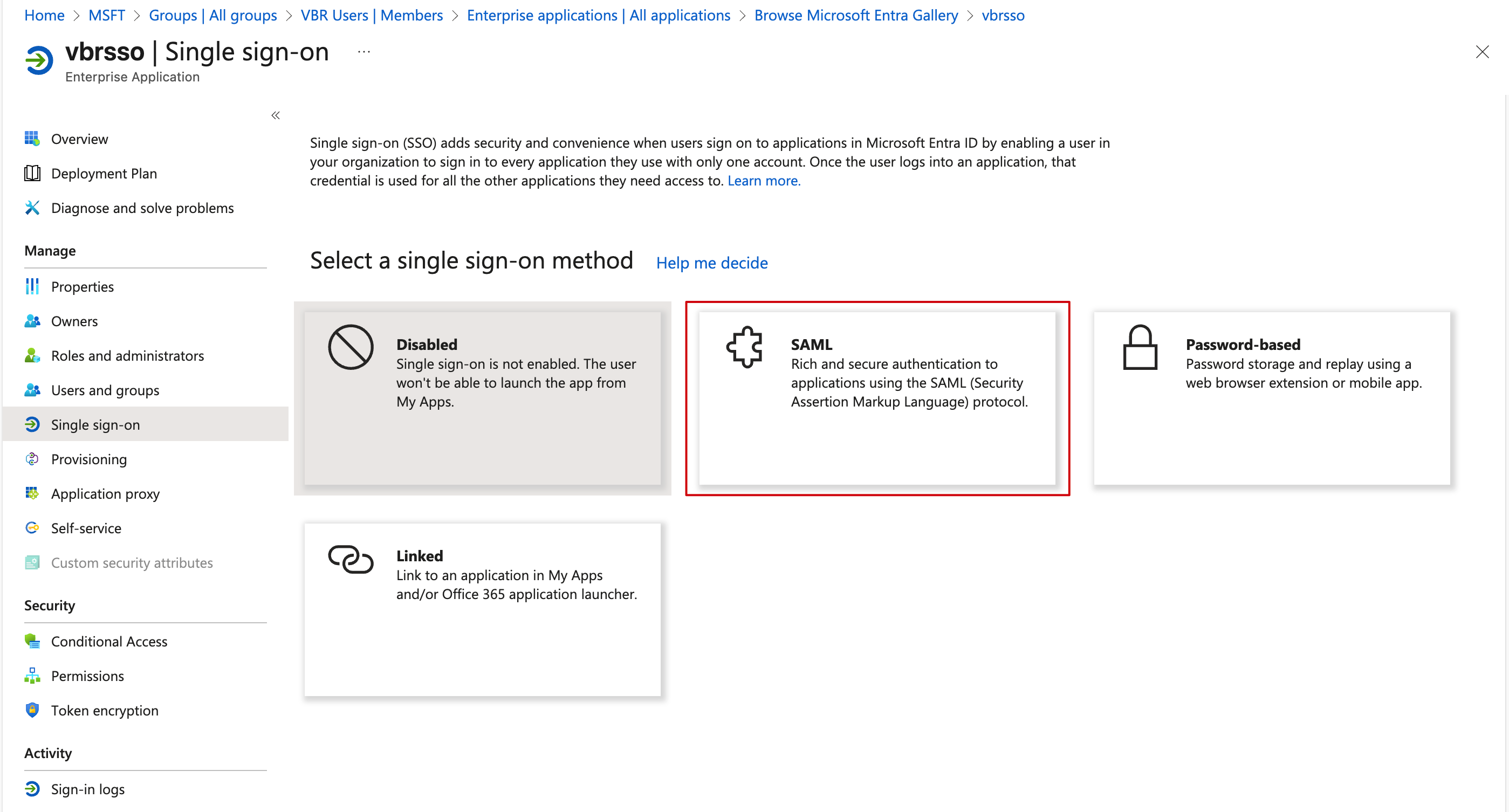
- After entering the SAML configuration interface, you’ll see clearly listed steps 1-2-3-4, but we don’t need to edit the content here one by one. Simply find
Upload metadata fileat the top, click it, upload the XML file we just exported from VBR, and save to complete the single sign-on configuration. After uploading, you can see that the URLs in Basic SAML Configuration have been correctly updated to my VBR’s FQDN.
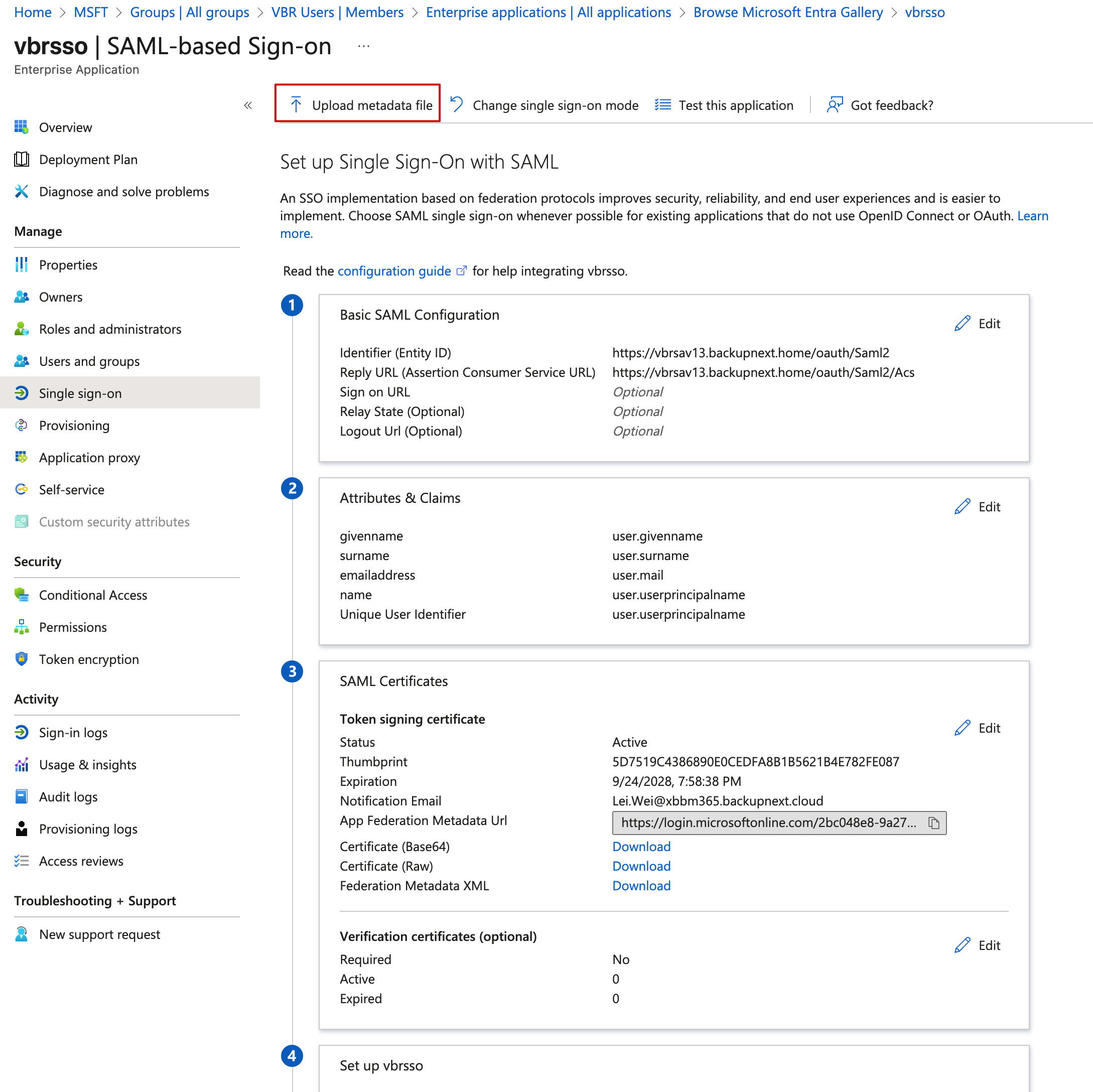
- Next, find the SAML Certificates box in step 3 of the image above, and on the last line next to Federation Metadata XML, click the Download button to download another automatically-generated XML file from Azure EntraID.
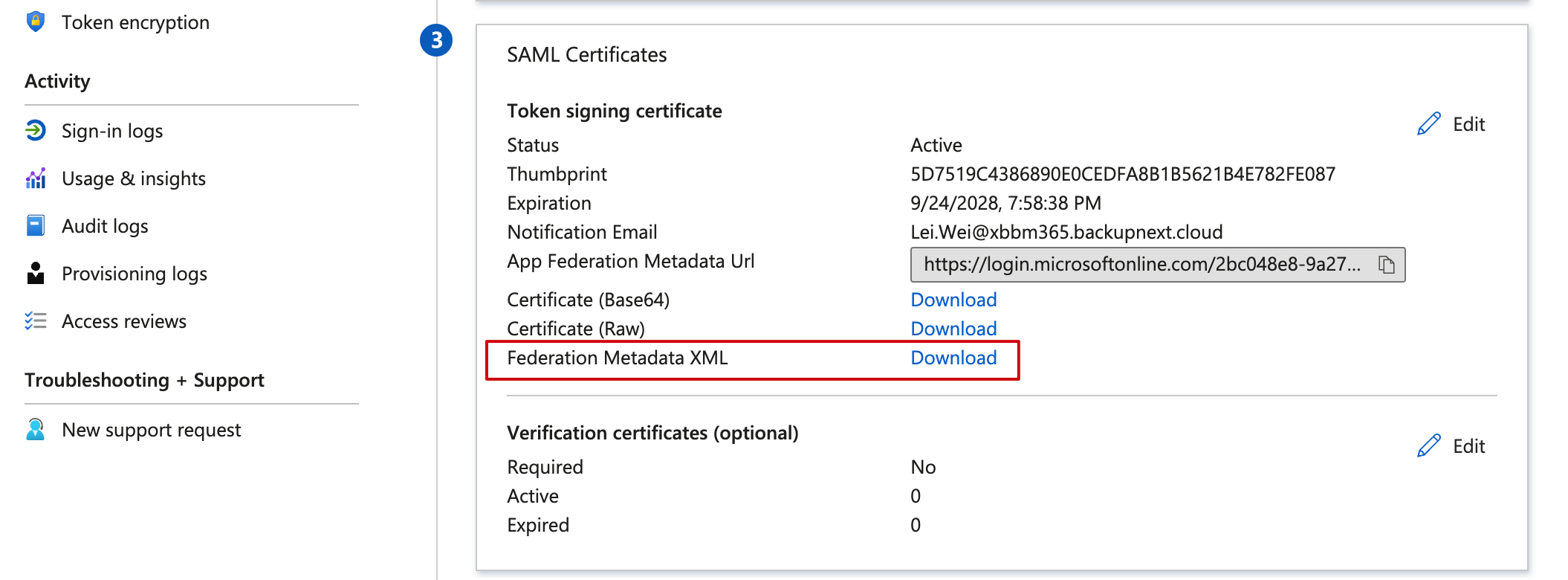
At this point, all Azure configurations are complete.
Return to VBR to Update IdP Information Configuration
- Go back to the Identity Provider interface under Users & Roles in VBR. Find the Identity Provider (IdP) Information settings. This is the identity provider information for single sign-on, where Azure EntraID acts as the identity provider. Click Browse next to it and upload the XML file just downloaded from Azure. After uploading, you’ll see that all IdP information below has been correctly updated to Microsoft’s URLs.
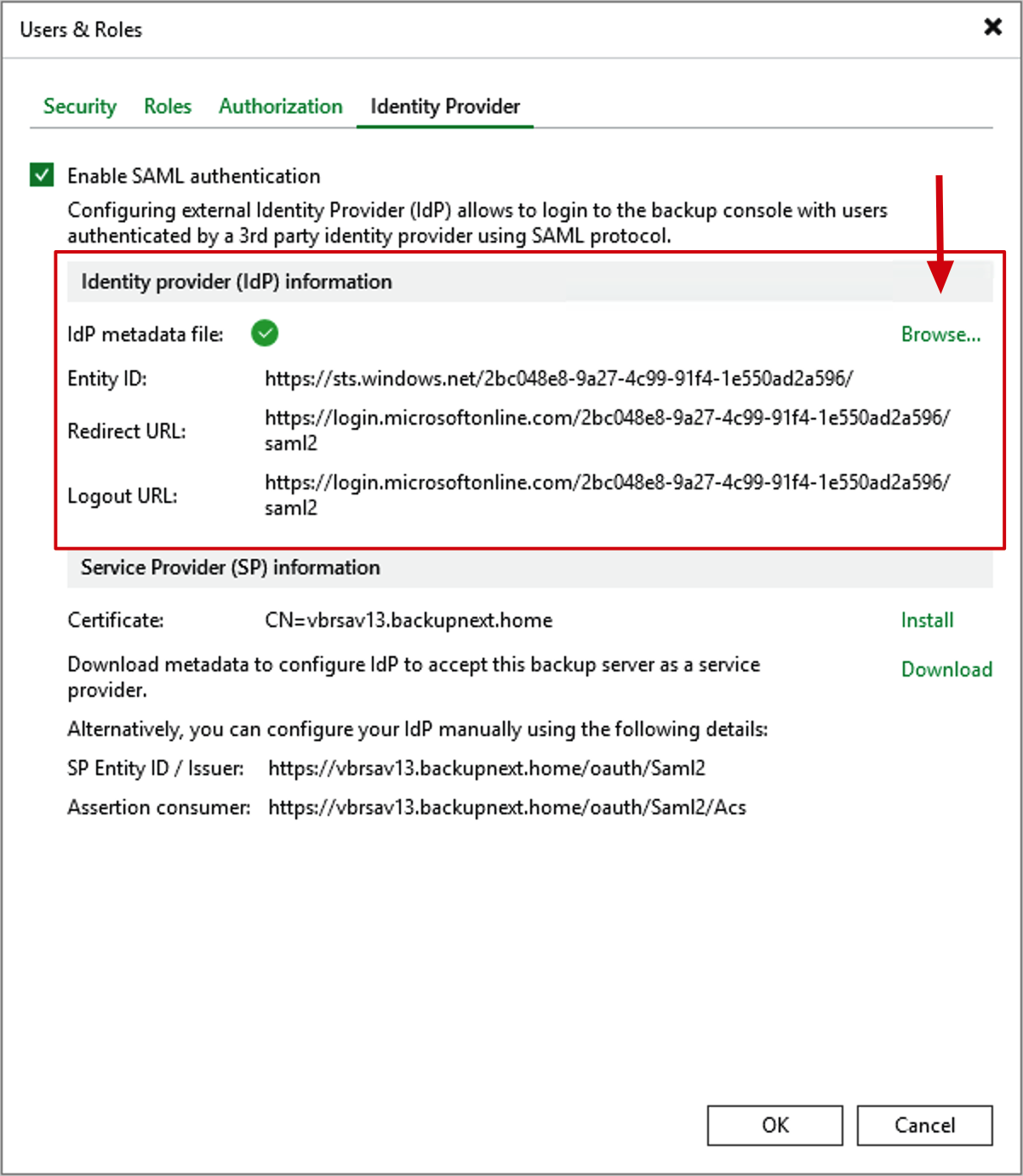
- After clicking OK to complete the settings, we can reopen
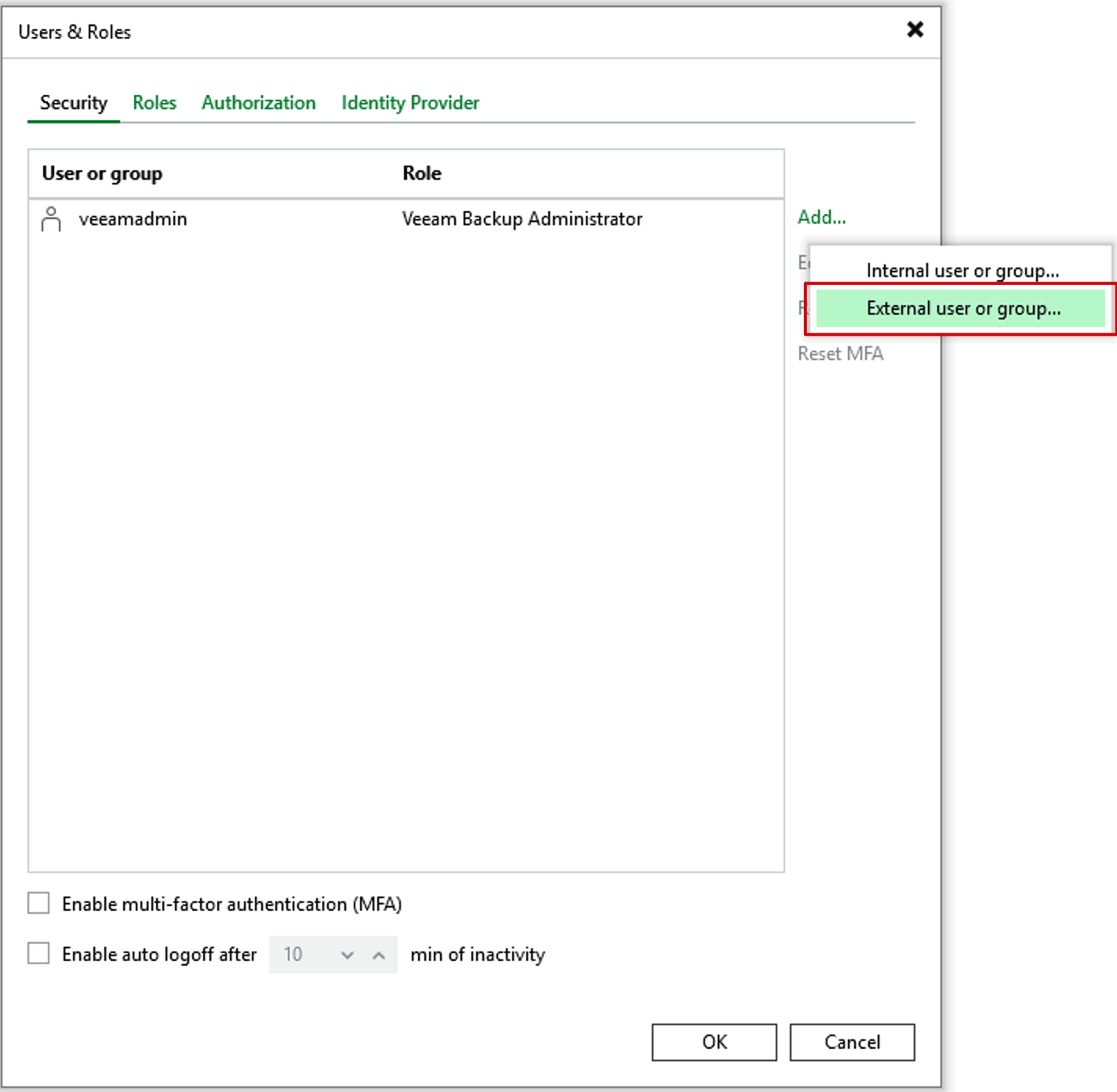
Users and Rolesto add users. After clickingAdd..., you’ll see theExternal user or groupoption. Select it.
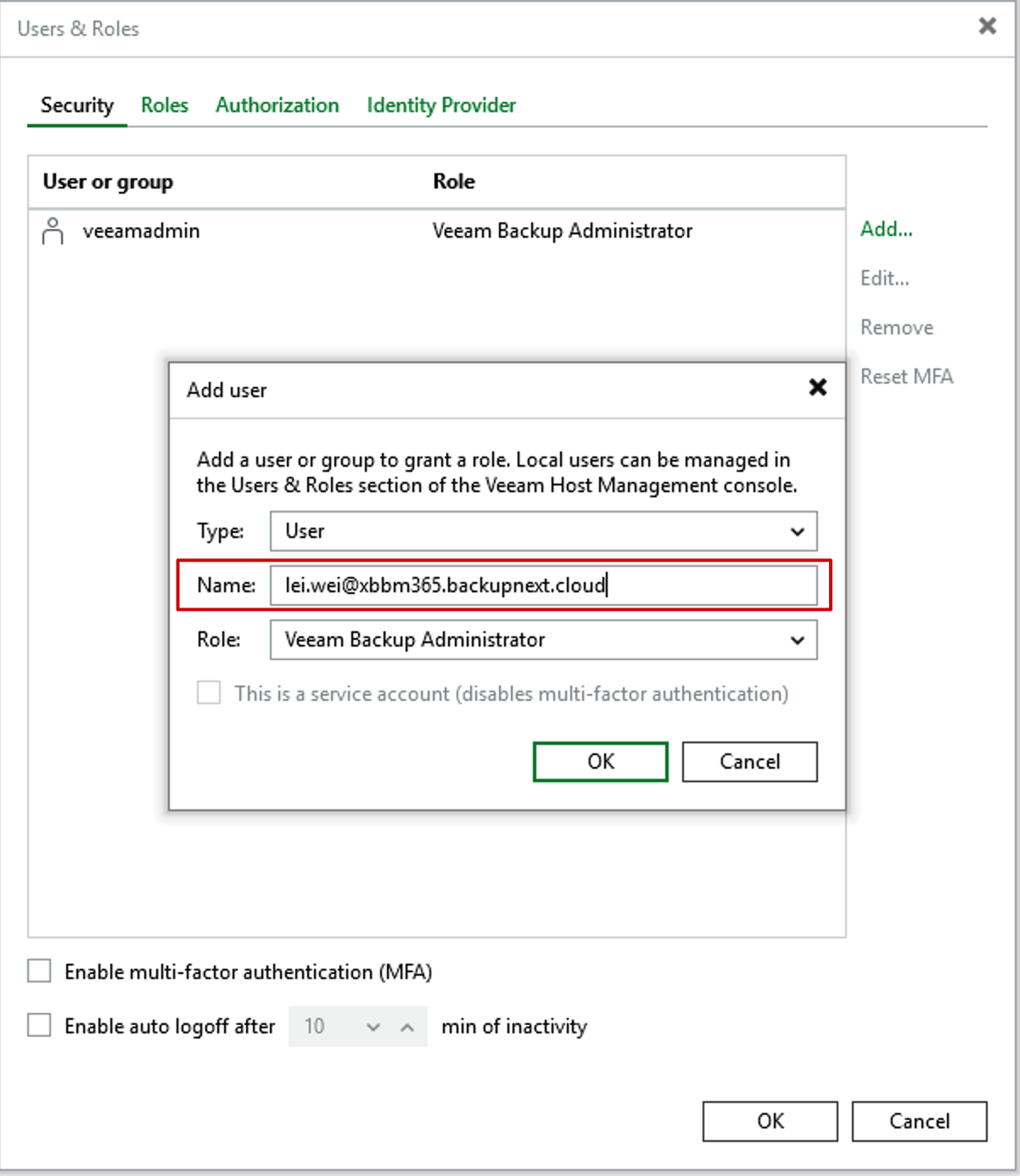
- In the Add User dialog that pops up, enter the complete Azure EntraID email address. For example, mine is
lei.wei@xbbm365.backupnext.cloud.
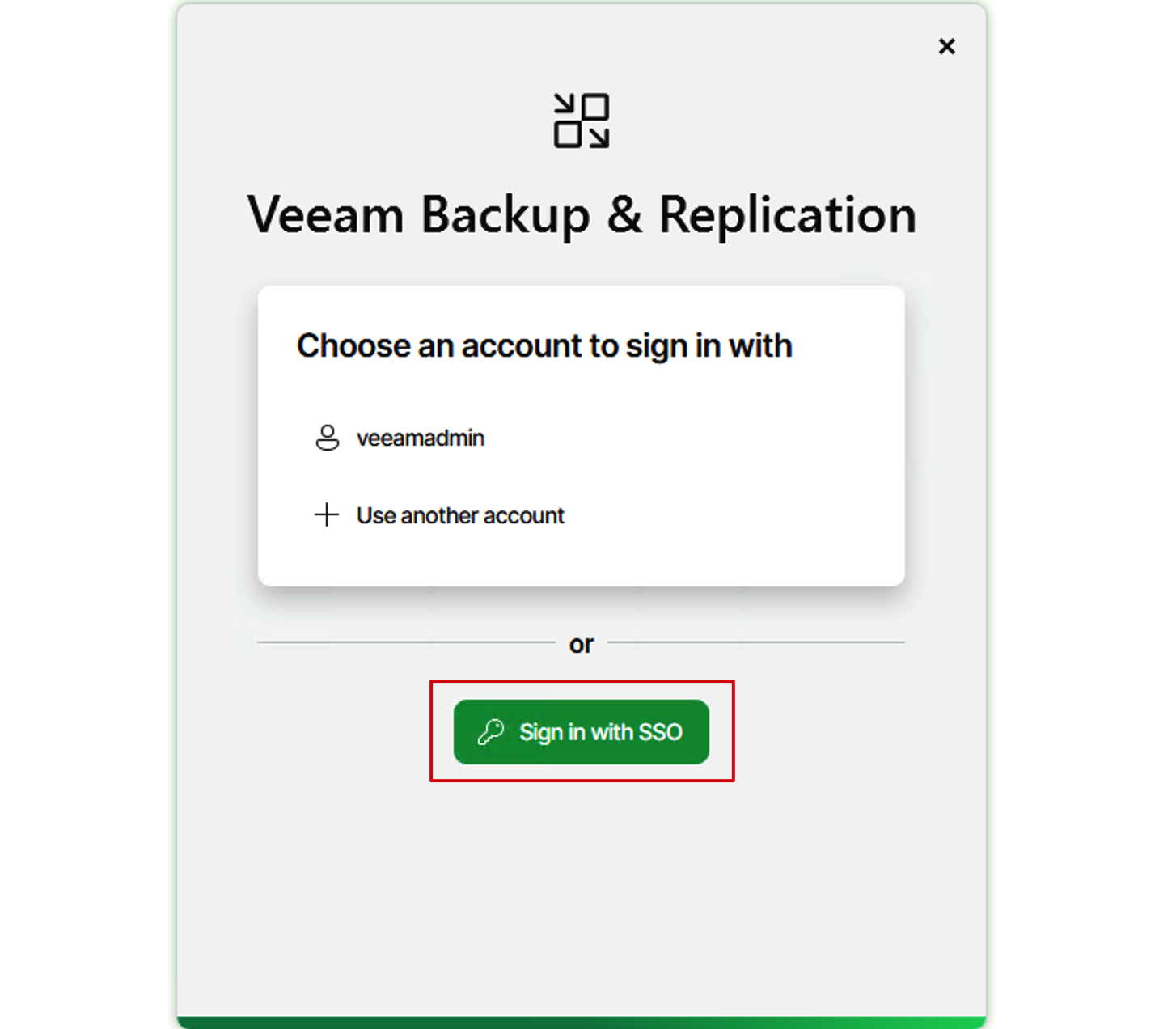
- Now, the entire configuration is complete. Let’s test the login. Open the VBR client, and you’ll see that the
Sign in with SSOoption has appeared on the client. Click this directly.
- After clicking, the login window will automatically pop up with the standard Microsoft login interface. After entering the password, Microsoft’s MFA approval for login will also pop up.
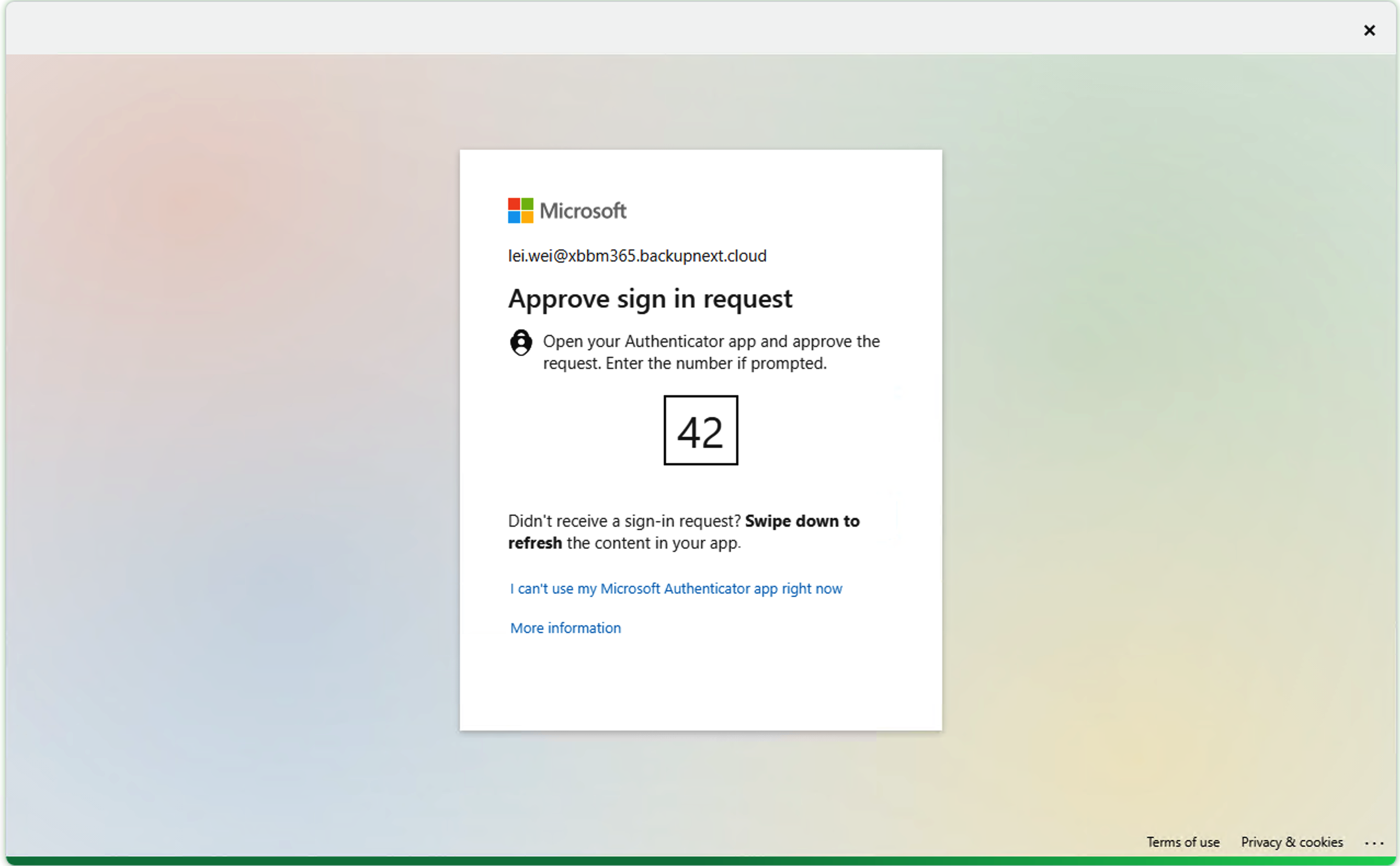
- After approval from the phone Authenticator, the VBR Console can successfully jump to login.
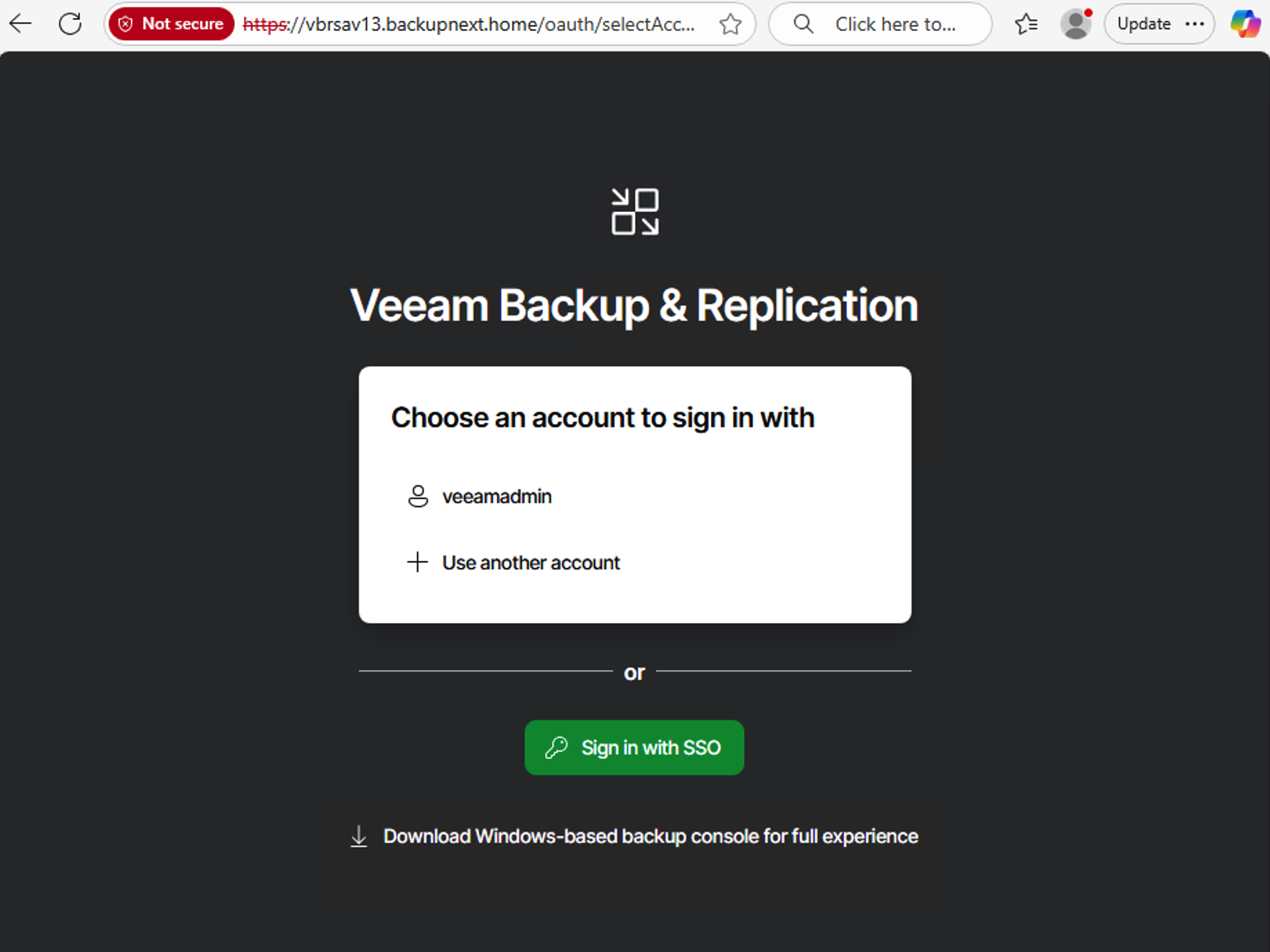
- Let’s try the web interface as well. In the WebUI, we can also see the new “Sign in With SSO” option.
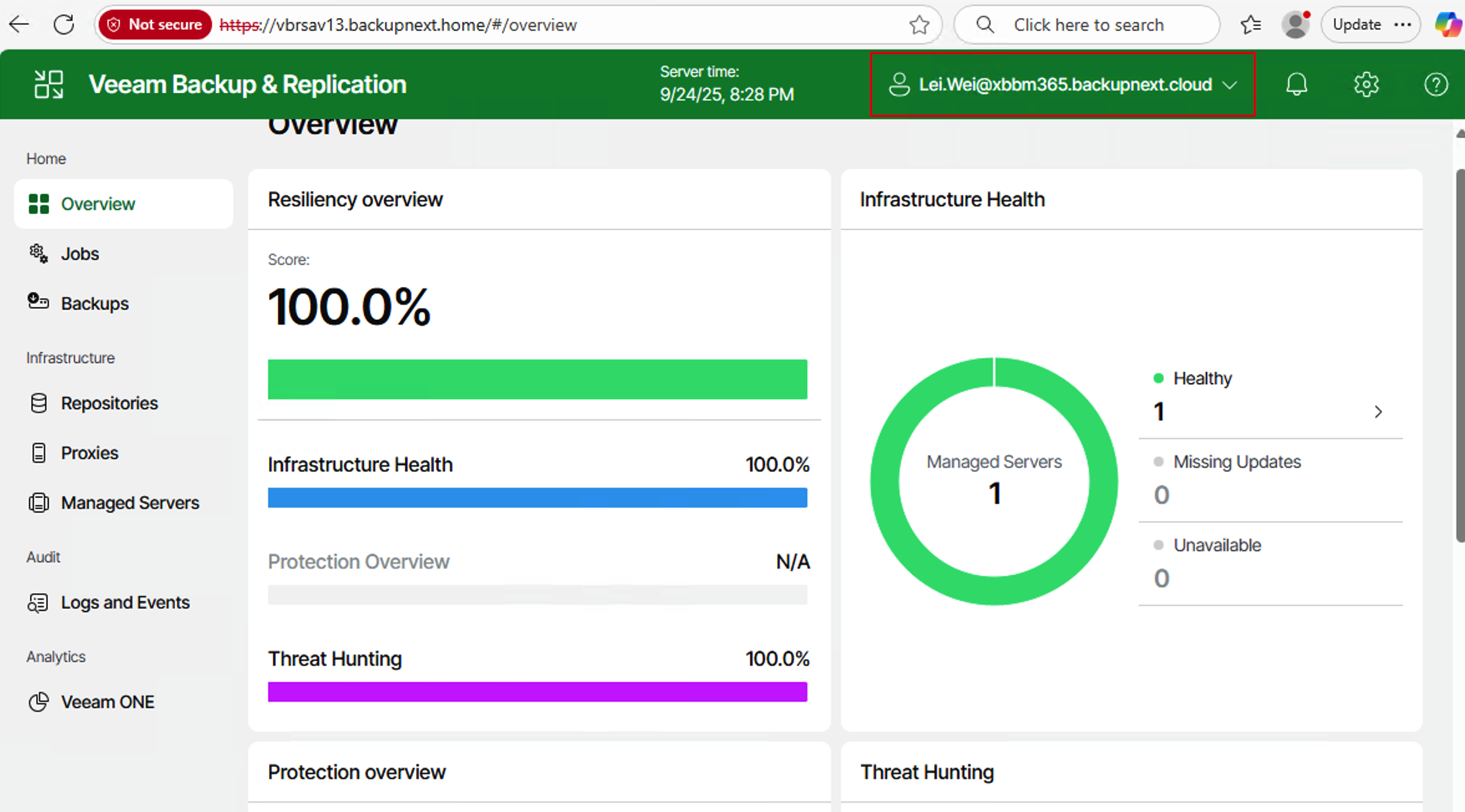
- Similarly, after approving the login, we can access the Veeam-permissioned Web UI. In the top-right corner of the Web UI, we can also see that the accessing user’s account and email are correctly displayed.
View Login Audit Information in Azure
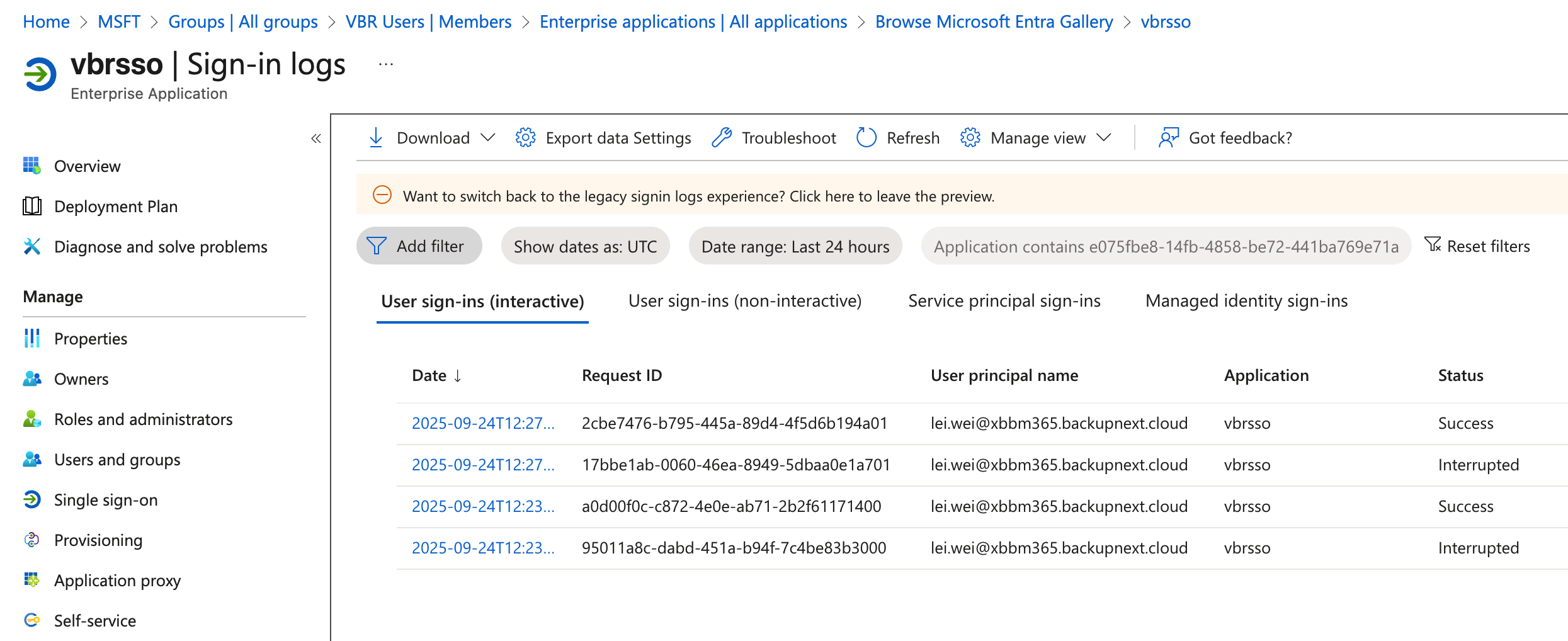
In the Azure EntraID management audit interface, you can clearly see the login information from VBR.
Configuration Summary
Following the method above, the integration between VBR and Azure EntraID can be easily configured. It’s worth noting that users configured this way are only users of the backup system. They cannot log in to the Appliance’s Veeam Management Console like the veeamadmin and veeamso accounts. This SSO account cannot manage the Appliance.
From a security perspective, this configuration effectively separates the permissions of the backup system. The backup system’s identity authentication is completely separated from the backup infrastructure accounts, which better complies with the usage standards of large enterprises and organizations.