Let Veeam Handle the Complexity: A Hands-On Guide to Infrastructure Appliance
In Veeam v13, not only did they make the backup server into a pre-hardened Software Appliance, but they also introduced the Veeam Infrastructure Appliance specifically designed to host role services. If the Software Appliance is the “command center,” then the Infrastructure Appliance is more like a pre-configured, ready-to-use “execution unit”: it provides a unified, controlled, and compliant operating environment for roles like Proxy, Mount Server, and Hardened Repository.
1. Why Choose Infrastructure Appliance
The reasons for choosing Infrastructure Appliance can be summarized in three points: fast, simple, secure. Veeam’s JeOS (Just enough OS) image built on Rocky 9 packages the operating system and runtime dependencies into a controlled, minimal distribution unit. When you deploy an Infrastructure Appliance, you’re essentially getting a Linux server optimized for backup roles according to best practices that’s ready to use out of the box.
From a practical perspective, the benefits are straightforward: deployment is no longer burdened by the complexity of traditional operating system installation and patch management; role support covers common components like Proxy, Mount Server, Gateway Server, and Hardened Repository; and in terms of security and compliance, the Appliance comes pre-loaded with DISA STIG and FIPS policies, enables UEFI Secure Boot by default, and replaces open SSH logins with certificate authentication, significantly reducing the attack surface. For distributed or multi-site deployments, Infrastructure Appliance can quickly scale execution node capabilities while minimizing maintenance complexity.
2. Deployment and Configuration: A One-Step Experience
Before deploying Veeam Infrastructure Appliance, you need to confirm that the target resources meet the basic minimum requirements. The recommended minimum configuration is as follows:
- Quad-core x86-64 CPU or vCPU
- 8 GB RAM
- At least two 120 GiB disks, with system disk recommended as SSD/NVMe (system disk must be the smallest disk)
- 1 Gbps or higher network bandwidth
If deploying in vSphere, set the VM OS type to RHEL 9 (or compatible options) to match the Rocky Linux 9 kernel/drivers.
Installation
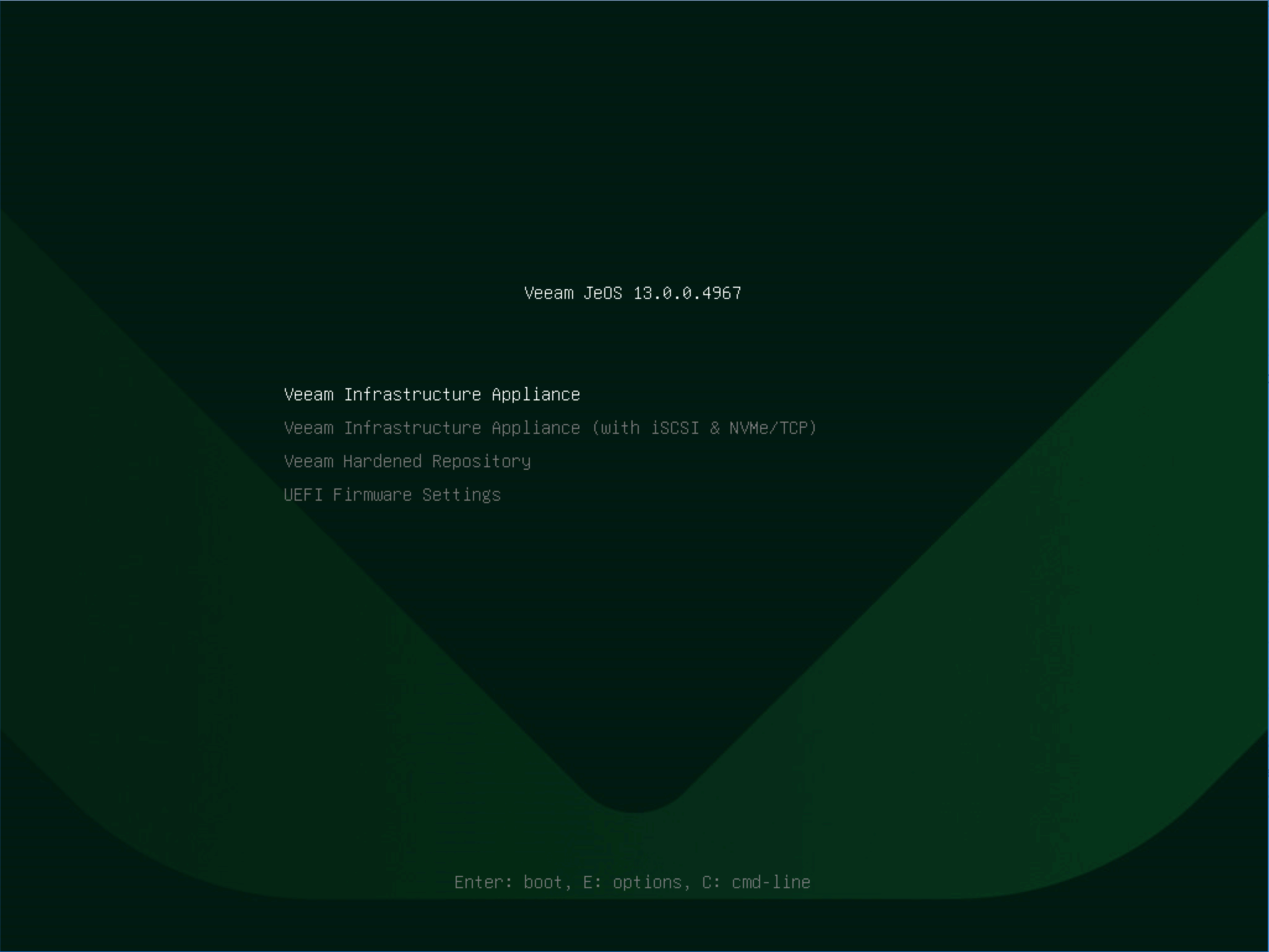
The actual deployment process isn’t complicated: download the official ISO, mount it to the target host or VM and boot from it. The installation menu will list multiple installation options for Infrastructure Appliance (including support for iSCSI & NVMe/TCP and Hardened Repository roles).
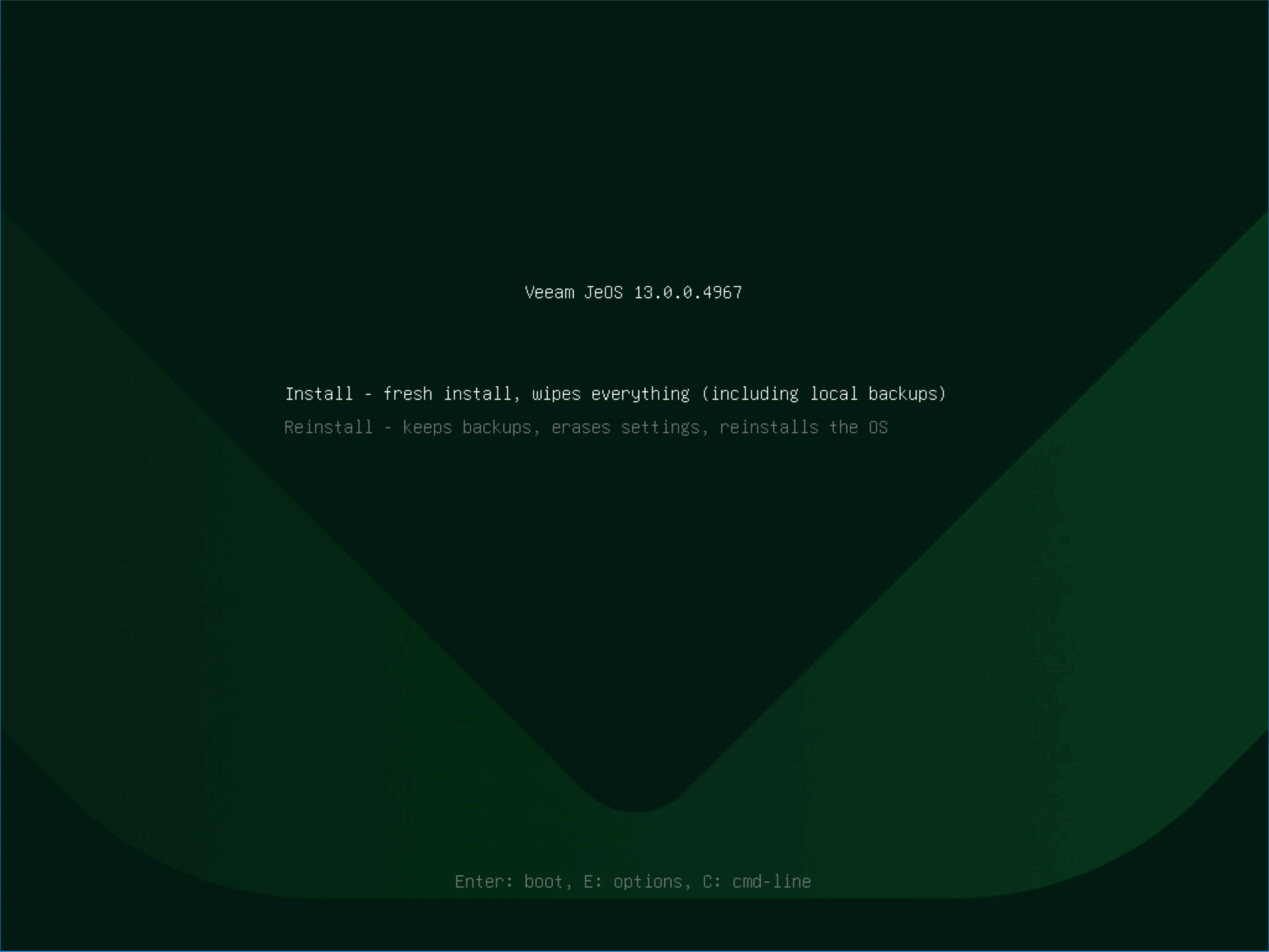
Next, select Install (or Reinstall in recovery scenarios), wait for the automated steps to complete and restart, then the system will enter the initialization wizard.
The entire process is almost identical to Veeam Software Appliance - you can refer to previous posts for details. After initialization configuration is complete, you can directly use the Host Management WebUI or TUI for subsequent management: including network and hostname settings, time synchronization (NTP/NTS), certificate and access control configuration, etc. For users without Linux experience, this “wizard-style” experience significantly lowers the barrier to entry - even without Linux knowledge, you can easily complete all necessary operations through the Host Management WebUI and TUI.
Adding a Regular Managed Linux Role Server in VBR
After completing the installation via Veeam Infrastructure Appliance ISO, you need to add it to VBR. Under Backup Infrastructure, find Managed Servers and locate the Linux Server add wizard, then select Add New. In the wizard’s Access step, unlike before, directly select Connect using certificate-based authentication (recommended). This option doesn’t require opening SSH ports or entering usernames and passwords - instead, it connects directly through Veeam’s proprietary protocol and certificates.
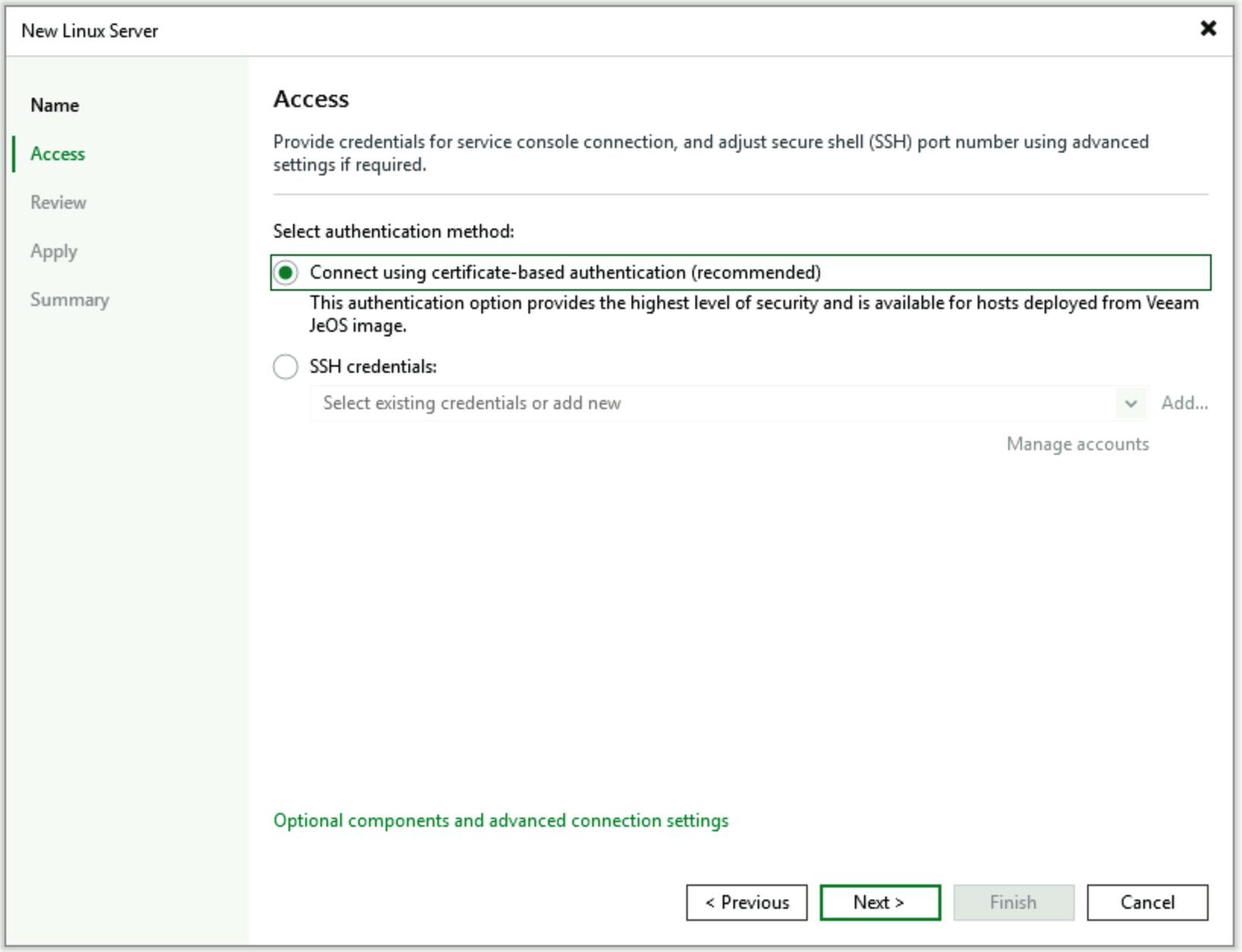
Other steps remain unchanged and are completely consistent with previous version configurations.
Configuring Hardened Repository in VBR
For Hardened Repository, the process of adding a Linux role server is completely identical, but in the Server directory presentation section, Veeam has handled the Linux system paths - only showing the path where Hardened Repository can uniquely store data to customers:
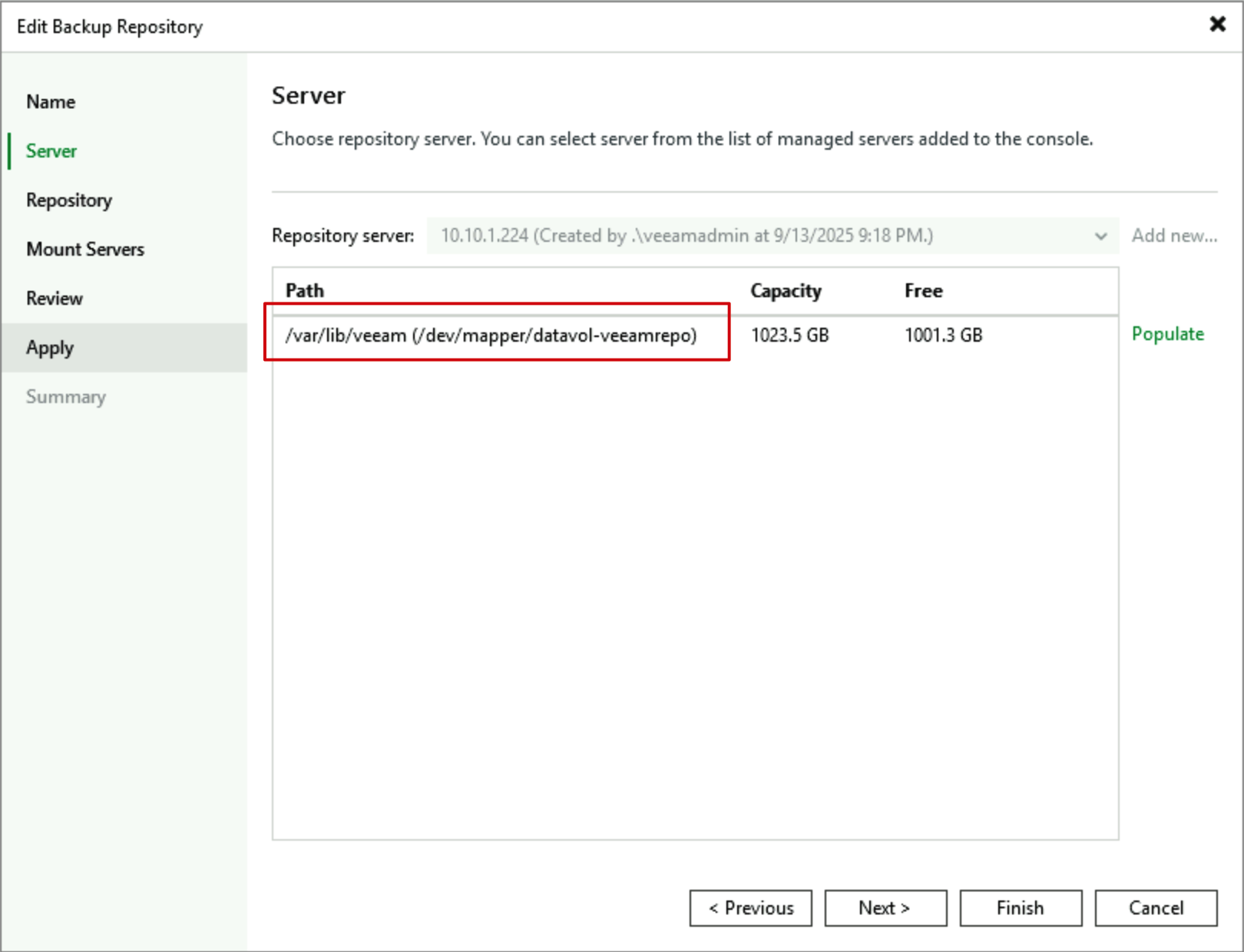
In folder settings, only backup-only folders are listed, of course the New Folder option is still retained - users can create new folders when setting up folders and select new folders.
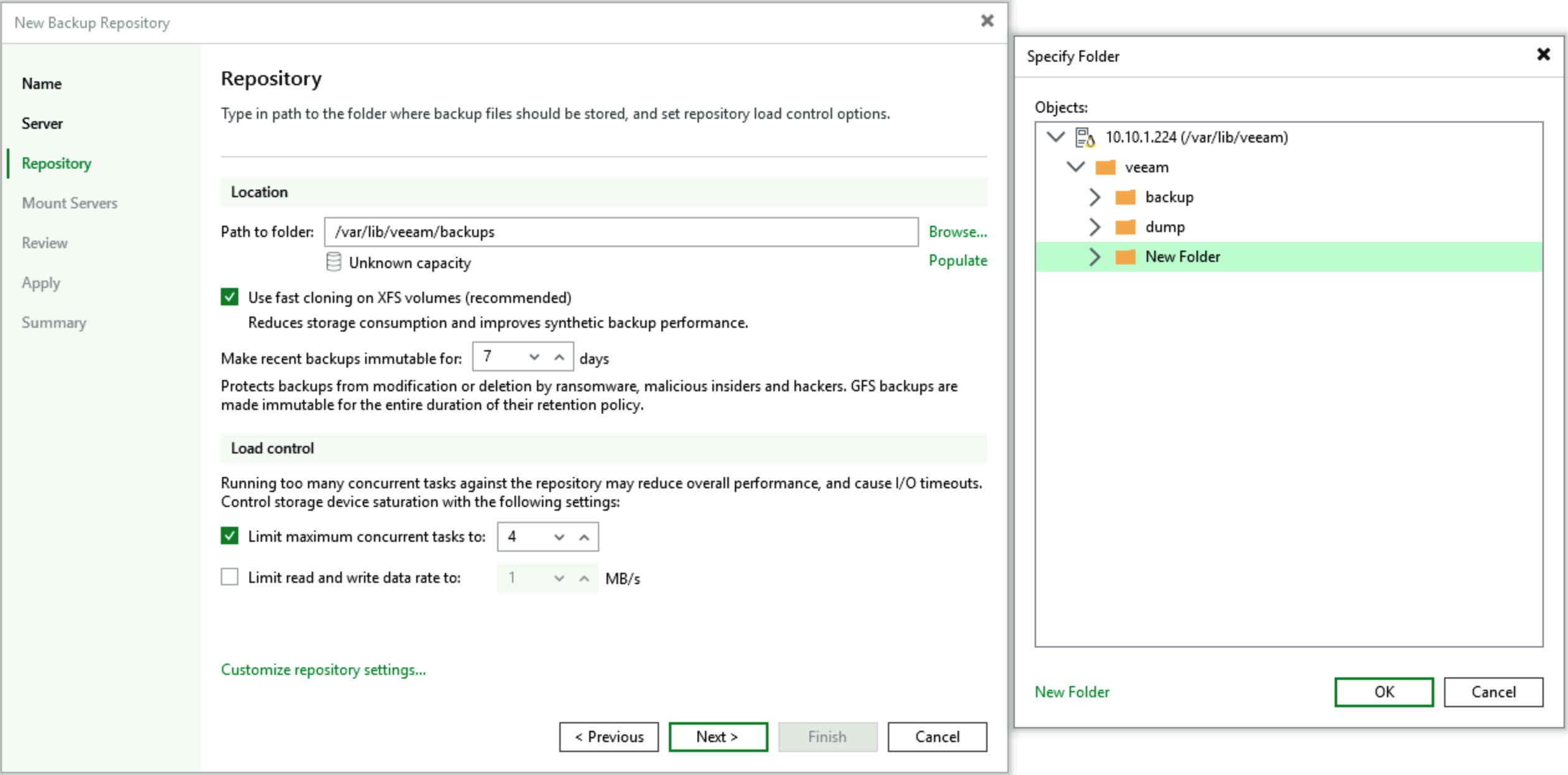
Other settings remain consistent with previous versions of Hardened Repository.
3. Best Practices and Security Design Principles in Practice
Best Practices
Treating the Appliance as a “black box” doesn’t mean just throwing it in the data center and forgetting about it. To keep it running stably, you actually just need to follow these guidelines:
Role and Resource Matching: Before deployment, confirm the roles this node will undertake (Proxy, Mount Server, Hardened Repository, etc.) and allocate resources accordingly. For example, Proxy’s computing requirements increase with concurrent tasks - it’s recommended to start with at least 2 cores CPU, adding 1 core for every 2 additional concurrent tasks; memory starts from 2 GB, and for I/O-sensitive Repositories, prioritize enterprise-grade SSD/NVMe and hardware RAID. Of course, SATA disks as backup storage are the king of cost-effectiveness and are also highly recommended.
Hardware and Firmware Compatibility: Infrastructure Appliance requires enabling UEFI Secure Boot; for Hardened Repository, hardware RAID controllers are recommended, and avoid unsupported virtualization or software RAID solutions. Confirming firmware/BIOS compatibility with NVMe controllers in advance can avoid subsequent issues with system disk recognition or performance anomalies.
Network and Time: It’s recommended to use a static IP for Appliances and configure at least three or more trusted NTP/NTS sources to ensure stable time synchronization. Time drift can cause abnormalities in MFA, certificate verification, or scheduled tasks.
Centralized Management and Pairing: After initial configuration is complete, immediately pair the Appliance with Veeam Backup & Replication (VBR) management through the Backup Console, incorporating it into unified policy, logging, and patch management systems. This ensures policy consistency and facilitates subsequent auditing. Additionally, after configuration is complete, you can disable Host Management WebUI access to further reduce the system’s attack surface.
Maintain JeOS Original Design: JeOS is designed as a minimal system with “only necessary components installed,” with built-in DISA STIG, FIPS, and automatic update mechanisms. Arbitrarily modifying underlying system settings (such as casually enabling additional services, manually changing kernel parameters, or using package managers for arbitrary upgrades) brings risks: it may prevent the system from properly receiving official updates, lose compliance, or even affect VBR’s recognition and support for the node. Therefore, unless officially instructed or sufficiently verified, it’s recommended to make all configuration changes only through interfaces provided by Host Management or VBR. Currently, the Veeam official website has updated KB4772 to clearly explain this issue.
Security Features
The security and update design of Infrastructure Appliance is one of its core features. The system enables multiple security controls by default, such as UEFI Secure Boot, DISA STIG and FIPS policies. Host Management provides centralized control over certificates, access requests, infrastructure locking, and approval processes. The Security Officer approval mechanism can be used for sensitive operations like enabling SSH, authorizing temporary root access, resetting user passwords, and approving pairing requests, thereby implementing built-in “four-eyes” audit processes.
Regarding updates, Appliance uses the Veeam Updater component for centralized patch management. Administrators can set update policies in each Appliance’s Host Management or centrally manage updates for all Appliances through the Veeam Backup & Replication backup console. The system performs digital signature verification on update packages to ensure trusted sources and avoid tampering. All update operations and logs can be viewed and exported in the console for compliance auditing.
Additionally, Appliance provides a set of emergency maintenance functions: you can use the Recovery LiveCD ISO for emergency system repair and maintenance.
4. Conclusion: Let Veeam Handle the Complexity, Leave Security to You
The value of Veeam Infrastructure Appliance isn’t just in “saving effort” but in encapsulating repetitive, risky infrastructure work into controlled, auditable processes, allowing operations teams to focus on architecture and strategy rather than daily system patching and compatibility debugging. Using Software Appliance as the central hub and Infrastructure Appliance as replicable execution units, you can quickly scale, manage uniformly, and maintain compliance and security in multi-site, distributed scenarios.
If you’re just starting to plan and test the new version, it’s recommended to practice the complete installation and pairing process several times in a test environment: clarify the role of each Appliance, adjust resource ratios, verify time and network configurations, and then solidify these steps into standard operating procedures. This way, you can enjoy the “plug-and-play” benefits of Appliance while minimizing long-term operational complexity and risks.