Everything You Need to Know: Veeam Software Appliance's New Management Methods
In the first two parts of this series, we walked through the deployment of Veeam Software Appliance—from downloading the ISO and creating bootable media to automated installation, followed by initial TUI setup and basic management. Many of you have successfully gotten this “backup powerhouse” up and running.
But once the system is actually running, new questions arise:
- What new features does Veeam Software Appliance actually offer?
- How does this Linux-based Appliance differ from the previous Windows version?
- Should I use the WebUI or TUI console?
- How do I handle user management?
- What about upgrades and updates?
In this installment, we’ll tackle these most pressing questions, guiding you through Veeam Software Appliance’s new features and Appliance-specific management methods, while walking you through the use cases for both host console UIs. This will ensure you can use and manage your Appliance confidently after installation.
Out-of-the-Box Security by Default
When it comes to Veeam Software Appliance, the most immediate benefit is: no more worrying about security hardening and patch maintenance. We’re accustomed to installing Veeam on Windows, then handling patches, permissions, and firewall configurations ourselves. With Appliance, you get a pre-hardened Linux platform that’s secure right out of the box. The system kernel, permission model, and service states are all configured according to best practices, making it “Secure-by-Default” from the moment of installation.
More importantly, this built-in security and simplified management extends beyond system administration to user access control and automated upgrades and updates. In other words, you don’t need to be a Linux security expert to leverage these “hard-core” security features on Veeam Software Appliance.
Appliance-Specific Management Approach
Many people who install Veeam Software Appliance instinctively think about managing it like a traditional Linux server—wondering if they can SSH in to modify configurations or run yum update manually. Actually, there’s no need to do this—and it’s not recommended.
Appliance has deeply encapsulated and hardened the underlying Linux system. The system kernel, software packages, and service dependencies are all packaged according to Veeam’s best practices. You don’t need to—and shouldn’t—manually modify these underlying components. Instead, you should use its built-in management tools and interfaces:
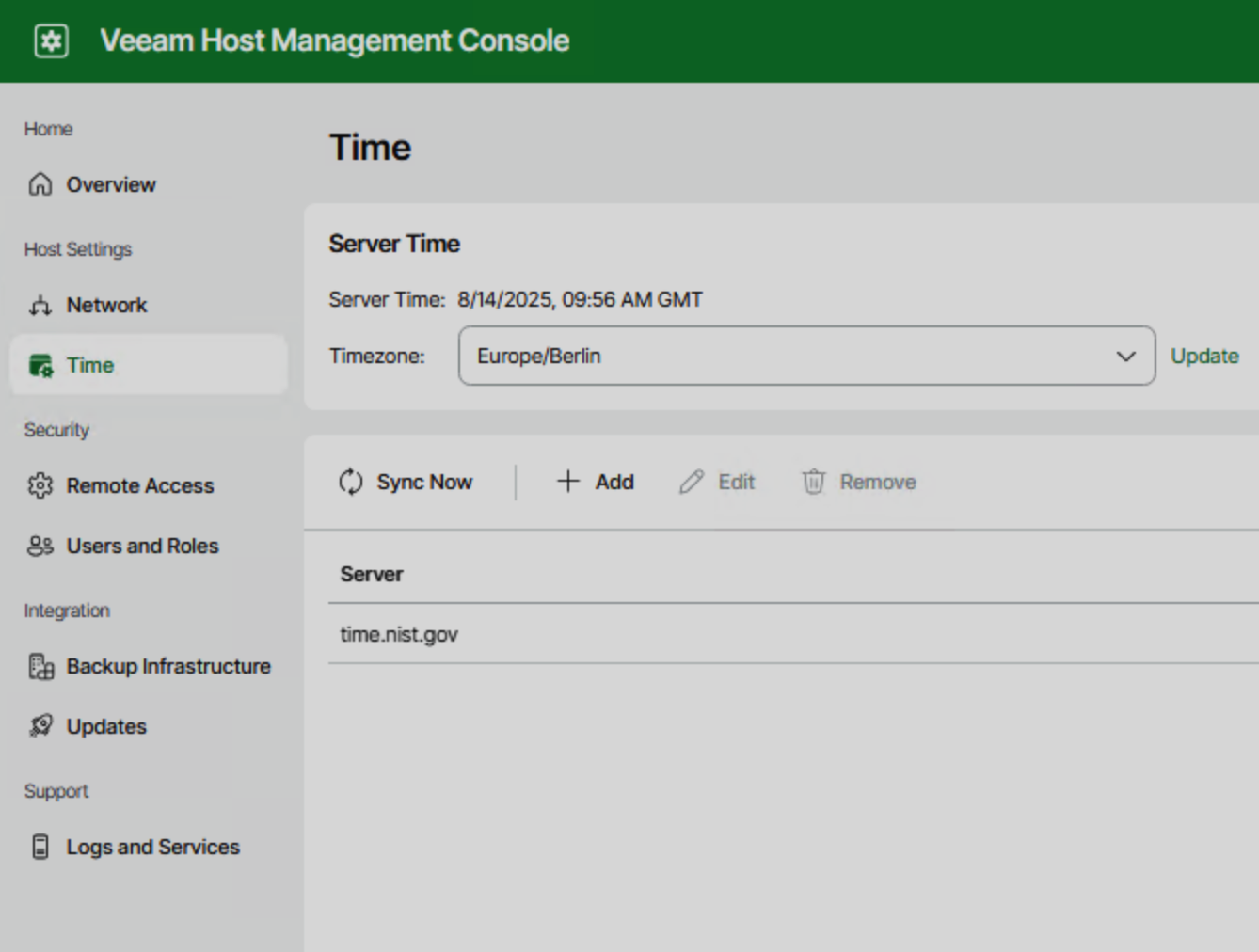
- For basic settings like network configuration, hostname, timezone, and service start/stop, use the Host Management Web UI or TUI directly, avoiding manual editing of system files;
- If you need to adjust Veeam-related configuration files, such as modifying the
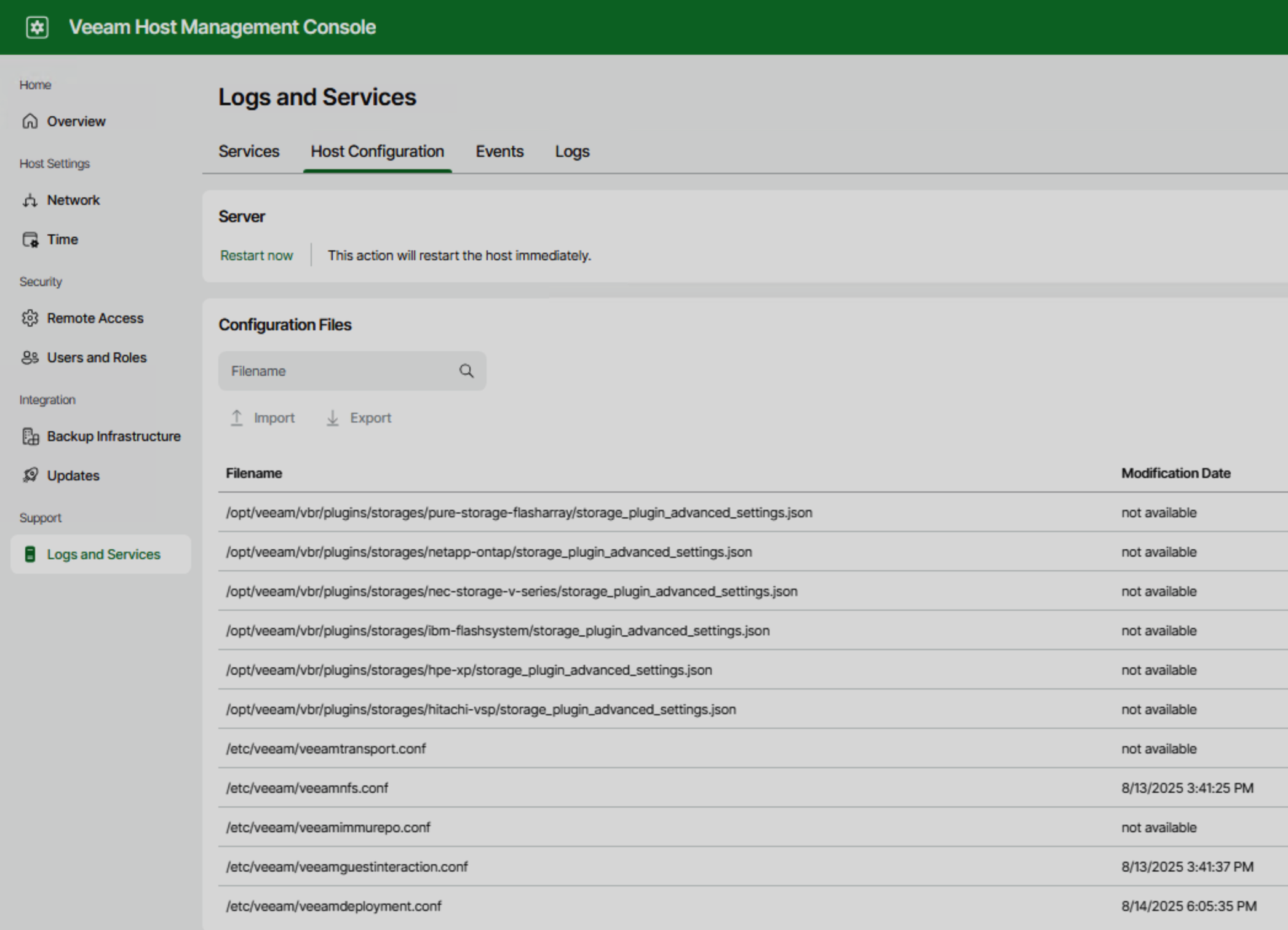
/etc/hostsfile, you can use the Import/Export Configuration feature: export the configuration from Logs and Services → Host Configuration, modify it, and then import it back so the system can properly recognize and apply the changes;
- For upgrades or patches, use Appliance’s built-in update mechanism—don’t manually update with package managers like yum.
This approach ensures system stability and security while maintaining “official support” posture when adjustments are needed—a win-win situation.
Host Management: WebUI vs TUI Feature Comparison
Appliance has a unique management approach where both UIs need to be used alternately. Here’s a comprehensive feature comparison:
| Feature Category | Operation | WebUI Support | TUI Support |
|---|---|---|---|
| Network Configuration | Modify hostname | ✅ | ✅ |
| Management domain settings | ✅ | ❌ | |
| Configure network interfaces | ✅ | ✅ | |
| Configure HTTP/HTTPS proxy | ❌ | ✅ | |
| Time Settings | Modify timezone, configure NTP time servers | ✅ | ✅ |
| Remote Access | Disable WebUI | ✅ | ✅ |
| Enable WebUI | ❌ | ✅ | |
| Enable/Disable SSH | ✅ | ✅ | |
| Open root shell | ❌ | ✅ | |
| Users & Permissions | Add users, edit users, reset user passwords | ✅ | ❌ |
| Modify Host Admin password | ✅ | ✅ | |
| Unlock users, enable/disable MFA, reset MFA | ✅ | ❌ | |
| Reset Security Officer password recovery token | ✅ | ❌ | |
| Backup Infrastructure | Enable remote data collection, enable/disable infrastructure locking, enable managed server pairing | ✅ | ❌ |
| Update Management | Configure update policies, check updates, install updates, view update history | ✅ | ❌ |
| System Maintenance | Start/stop/restart Veeam services | ✅ | ❌ |
| Restart Veeam Appliance | ✅ | ✅ | |
| View/export event logs, import/export configuration files, download log packages | ✅ | ❌ | |
| View certificate fingerprints | ✅ | ✅ | |
| Generate new WebUI certificate | ❌ | ✅ | |
| Security Control | Approve authorization requests, manage configuration backup passwords | ✅ | ❌ |
Redesigned User Management System
In traditional Veeam Backup & Replication (hereafter VBR), user permission management primarily relied on Windows local or domain accounts, with role assignments handled through the VBR console. In Veeam Software Appliance, the user system has been completely redesigned, introducing an independent user role model at the Host Management layer to achieve more granular security isolation and operational control.
1. Host Management User Role System Overview
The Host Management console (WebUI) in Veeam Software Appliance includes four built-in user roles, each corresponding to different management responsibilities:
| Role Name | Description | Use Cases |
|---|---|---|
| Host Administrator (veeamadmin) | Has complete host management permissions, can access both WebUI and TUI, perform network configuration, user management, update maintenance, etc. | Suitable for system administrators responsible for Appliance operations |
| Security Officer (veeamso) | Focuses on security controls, can only access WebUI, responsible for approving sensitive operations, managing password recovery tokens, configuration backup passwords, etc. | Suitable for security audit and compliance management personnel |
| User | Limited permissions, cannot access Host Management console, only used to identify regular user identities | Suitable for users who need to log in but have no host management permissions |
| Service Account | Used for system services or automated tasks, limited permissions, MFA not supported | Suitable for scripts, API calls, or integrated service accounts |
⚠️ Default accounts
veeamadminandveeamsocannot be deleted. It’s recommended to immediately change passwords and enable MFA after deployment.
2. User Creation and Role Assignment Process
User creation must be completed through the WebUI with the following process:
- Log in to Veeam Host Management WebUI.
- Navigate to main menu
Users and Roles. - Click
Add, fill in username, password, and description. - Select role (each user can only be assigned one role).
- Enable or skip MFA configuration based on role type.
- Review information and click
Finishto complete creation.
Passwords must meet complexity requirements: at least 15 characters, including uppercase and lowercase letters, numbers, special characters, with no more than 3 consecutive characters of the same type.
3. Role Usage Recommendations and Scenario Matching
To ensure system security and clear responsibilities, it’s recommended to assign user roles according to the following scenarios:
- Host Administrator: For daily operations personnel, responsible for host configuration, updates, user management, etc.
- Security Officer: For security audit personnel, responsible for approving sensitive operations, managing configuration backup passwords, etc.
- User: For regular users who need to log in but have no management permissions, such as viewing logs or receiving notifications.
- Service Account: For automated scripts, API calls, etc., it’s recommended to disable MFA and limit permissions.
📌 Note: The separation of duties between Host Administrator and Security Officer is core to Veeam Software Appliance’s security architecture. It’s recommended to enable a “four-eyes approval” mechanism to ensure sensitive operations require dual confirmation.
4. User Management Operation Capabilities
| Operation | Host Administrator | Security Officer |
|---|---|---|
| Add/edit/delete users | ✅ | ❌ |
| Reset passwords | ✅ | ✅ (requires approval) |
| Unlock users | ✅ | ❌ |
| Enable/disable MFA | ✅ | ❌ |
| Approve sensitive operations (e.g., SSH, root shell) | ❌ | ✅ |
| Manage configuration backup passwords | ❌ | ✅ |
5. MFA and Security Officer Mechanism
- MFA Support: Based on TOTP, compatible with mainstream authenticators (e.g., Microsoft Authenticator).
- Security Officer Login Process:
- First login requires setting a strong password and enabling MFA.
- System generates recovery tokens for future sensitive operation approvals.
- These tokens must be properly stored; loss will make recovery impossible.
6. Differences from VBR RBAC
The Host Management user system in Veeam Software Appliance is only used for host-level management and is completely independent from the RBAC system in the VBR console (such as Backup Operator, Restore Operator, etc.).
- Host Management users only manage the Appliance itself and don’t involve backup task permissions.
- RBAC in the VBR console will be detailed in future articles and is suitable for permissions control over backup tasks, recovery operations, etc.
By properly configuring the Host Management user system, Veeam Software Appliance achieves separation of operations and security responsibilities, building a more secure and auditable management architecture. It’s recommended to clarify role assignments early in deployment to avoid permission abuse or security risks.
Upgrades and Updates
In traditional Veeam Backup & Replication deployments, upgrades often meant administrators needed to manually download patches, verify compatibility, schedule maintenance windows, and even handle operating system-level updates. This approach is both cumbersome and prone to security risks due to human error or missed patches. In Veeam Software Appliance, the upgrade mechanism has been completely restructured, becoming an important part of its “inherently secure” architecture.
The built-in Veeam Updater service in Veeam Software Appliance automatically fetches the latest update information from Veeam’s official repository (repository.veeam.com) daily and writes it to the configuration database. Update content includes not only operating system and security patches (mandatory installation, cannot be skipped or cancelled, ensuring system compliance), but also Veeam B&R components (supporting major versions, minor versions, and private fix patches, which can be installed automatically or manually according to policy). The entire process communicates through REST API with Veeam Identity Service for authorization, ensuring the integrity and security of update operations.
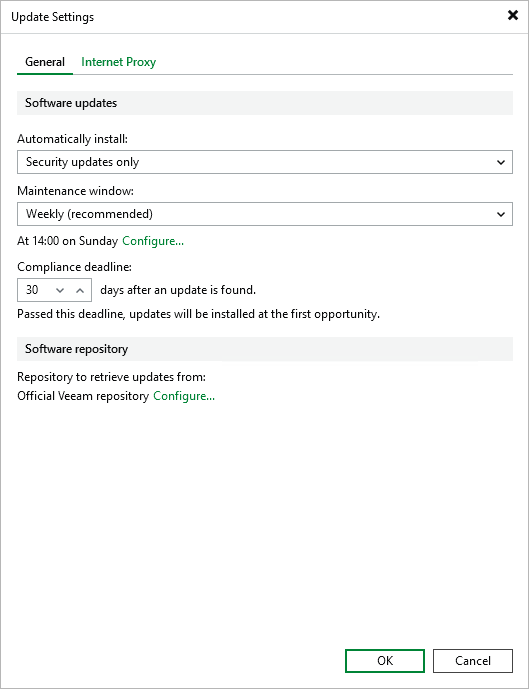
Administrators can flexibly configure update policies through the WebUI or Veeam console, such as:
- Only automatically install security updates or extend to minor version updates
- Set maintenance windows by week or month
- Set maximum delay for mandatory updates (default 30 days, extendable to 90 days)
- Configure HTTP/HTTPS proxies to access external repositories.
Even when choosing manual installation, updates will be forcibly installed after the compliance deadline, even if backup jobs are currently running.
For environments without internet access, Veeam Software Appliance also supports configuring local offline mirror repositories as update sources. Simply provide the local repository address and its server certificate to get the same automatic update experience as online repositories.
Compared to traditional Veeam software manual updates, Veeam Software Appliance shows significant differences in operating system and component updates, security assurance, update source configuration, and logging and auditing: system patches are automatically pushed and forcibly installed, Veeam components can be automatically detected and installed according to policy, offline mirror repositories are supported, and all update logs are centrally managed and exportable for auditing.
Before performing updates, it’s still recommended that administrators first export configuration files to backup current settings; update history and detailed logs can be viewed through the WebUI (path https://<hostname>/updater/updates); if you receive a Private Hotfix from Veeam Support, it can also be uploaded and installed through the WebUI.
This entirely new update mechanism not only transforms patch management from cumbersome manual operations into controllable, auditable, and automated processes but also sets new benchmarks in security and compliance, providing higher reliability and operational efficiency for modern backup infrastructure.
Summary
Veeam Software Appliance hides much of the complexity “behind the interface”—this is both an advantage and a responsibility. Only by properly planning management, permissions, and update rhythms can you enjoy the convenience of “out-of-the-box” while ensuring long-term security and compliance. In the next article, I’ll share the offline mirror repository setup that many of you are interested in, walking you through building a local repository and keeping it synchronized. Don’t miss it if you’re interested.