Easy Installation Guide: Step-by-Step Veeam Software Appliance Deployment
In our previous article, we introduced Veeam’s latest product releases, particularly the brand-new Veeam Software Appliance. Many of you might have grasped the concept but are still unsure about how to actually use, install, and configure it after downloading. Don’t worry - starting from this article, we’ll dive into hands-on implementation, guiding you step by step through the deployment and usage of Veeam Software Appliance.
Veeam officially provides two deployment methods for this Appliance: ISO image and OVA template. To avoid overwhelming you with too many options, this article will focus specifically on the ISO image method. Unlike our usual practice of “mounting an ISO file” within an operating system, this ISO is a complete system boot disk. You need to use it to boot your server or virtual machine, just like installing a new operating system on a fresh computer.
Preparation: Obtaining the ISO Image
In our previous article, we provided download links, so we won’t repeat them here. However, before we begin hands-on work, I must emphatically remind everyone of one crucial step: No matter where you download the Veeam Software Appliance ISO from, always verify the MD5/SHA-1 checksum of your downloaded ISO file!
Why is this so important?
In today’s network environment, downloading large files isn’t always “clean.” For example:
-
Some public Wi-Fi networks or malware-infected computers might hijack browser download requests, redirecting you to seemingly identical “download addresses”;
-
Attackers might also perform “man-in-the-middle” substitutions, replacing the original official package with malicious versions containing backdoors;
-
Even official websites, if briefly compromised or affected by DNS poisoning, could result in you receiving non-original files.
In these scenarios, users cannot visually detect any differences - the interface, filename, and size might all appear identical. The only reliable method is to compare against the MD5 or SHA-1 checksums provided on Veeam’s official website - like comparing “fingerprints,” only matching fingerprints confirm authenticity.
Verification Methods for Different Systems
Whether you’re using Windows, Linux, or macOS, we now have very convenient verification methods. Here are the commands you can copy and paste directly into your command line for quick verification.
💻 Windows
Execute in PowerShell (official filename: VeeamSoftwareAppliance_13.0.0.4967_20250822.iso):
# Verify MD5
if ((Get-FileHash .\VeeamSoftwareAppliance_13.0.0.4967_20250822.iso -Algorithm MD5).Hash.ToLower() -eq "30bb0eef0dca6544c36a2728642d35c9") {
    Write-Host "✅ MD5 checksum matches"
} else {
    Write-Host "❌ MD5 checksum mismatch, please re-download"
}

# Verify SHA-1
if ((Get-FileHash .\VeeamSoftwareAppliance_13.0.0.4967_20250822.iso -Algorithm SHA1).Hash.ToLower() -eq "1aa8624419c71adcf5425d87c8cf53f90fafd1f6") {
    Write-Host "✅ SHA-1 checksum matches"
} else {
    Write-Host "❌ SHA-1 checksum mismatch, please re-download"
}
🍏 macOS
# Verify MD5
if [ "$(md5 -q VeeamSoftwareAppliance_13.0.0.4967_20250822.iso)" = "30bb0eef0dca6544c36a2728642d35c9" ]; then
  echo "✅ MD5 checksum matches"
else
  echo "❌ MD5 checksum mismatch, please re-download"
fi

# Verify SHA-1
if [ "$(shasum -a 1 VeeamSoftwareAppliance_13.0.0.4967_20250822.iso | awk '{print tolower($1)}')" = "1aa8624419c71adcf5425d87c8cf53f90fafd1f6" ]; then
  echo "✅ SHA-1 checksum matches"
else
  echo "❌ SHA-1 checksum mismatch, please re-download"
fi
💻 Linux
# Verify MD5
if [ "$(md5sum VeeamSoftwareAppliance_13.0.0.4967_20250822.iso | awk '{print tolower($1)}')" = "30bb0eef0dca6544c36a2728642d35c9" ]; then
  echo "✅ MD5 checksum matches"
else
  echo "❌ MD5 checksum mismatch, please re-download"
fi

# Verify SHA-1
if [ "$(sha1sum VeeamSoftwareAppliance_13.0.0.4967_20250822.iso | awk '{print tolower($1)}')" = "1aa8624419c71adcf5425d87c8cf53f90fafd1f6" ]; then
  echo "✅ SHA-1 checksum matches"
else
  echo "❌ SHA-1 checksum mismatch, please re-download"
fi
The checksum is the “official fingerprint” - only a complete match ensures you have the genuine official file, which is the only way to avoid malicious programs embedded in downloaded software from the internet.
Understanding ISO Usage
As mentioned at the beginning of this article, this ISO differs from traditional Veeam software installation packages. It’s not just a software ISO, but rather an integrated image containing both the operating system and Veeam software. In other words, this ISO itself can boot a server or virtual machine like a brand-new operating system installation disk, enabling complete system deployment.
Since most people rarely need to perform “fresh OS installations” these days, many readers might be unsure how to approach this type of ISO. Generally, there are three typical usage scenarios:
- CD/DVD Burning (traditional method, simple process, won’t elaborate here)
- Virtual Machine ISO Mounting (directly loading the ISO in virtualization platforms, very straightforward)
- Creating Bootable USB Drive (flashing the ISO to a USB drive, then booting the server from USB for installation)
The first two methods are relatively easy to operate, so we won’t detail them here. We’ll focus on the third method - creating a bootable USB drive using Rufus.
Rufus is a lightweight, portable, and powerful tool for creating bootable USB drives. Notably, it includes built-in MD5 and SHA-1 verification functionality, which perfectly complements the verification methods mentioned in our previous section, helping you quickly verify the integrity of your downloaded ISO file. Let’s look at the download, installation, and usage steps for Rufus.
Using Rufus is very simple:
- Visit the official Rufus website: https://rufus.ie/
- On the page, select the latest version portable edition and download it locally.
- After downloading, simply double-click to run it directly - no installation required. It features a full Chinese interface, making it very user-friendly.
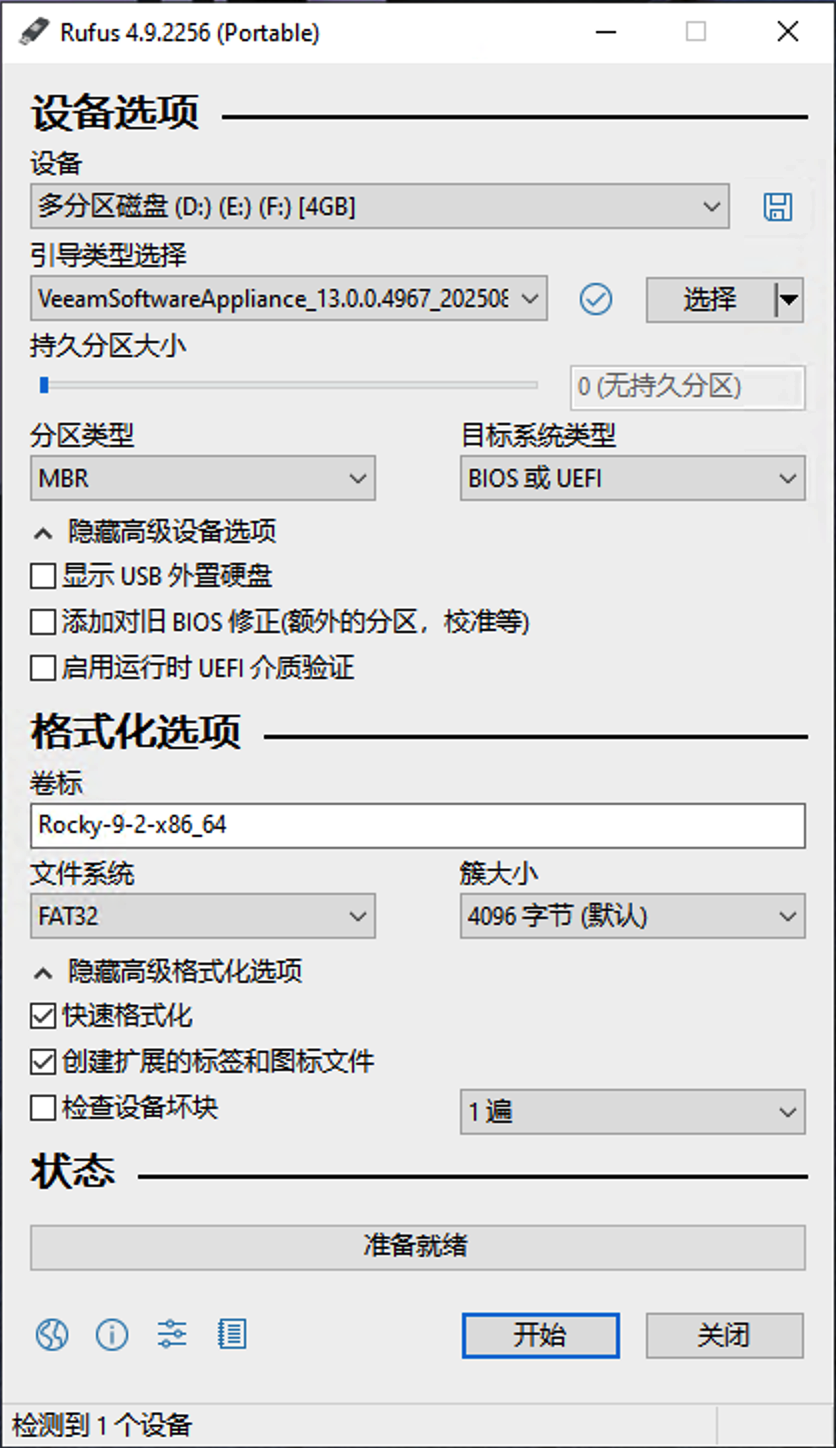
Installation and Initial Configuration
Boot Installation
When we use the USB drive we just created to boot the server or virtual machine, the screen doesn’t show a traditional OS installation interface, but rather the dedicated Veeam Software Appliance installation menu. This ISO has packaged the operating system and Veeam software together, providing an “all-in-one” installation experience upon boot.
The main menu clearly lists two main components:
- Veeam Backup & Replication
- Veeam Backup Enterprise Manager
- UEFI Firmware Settings
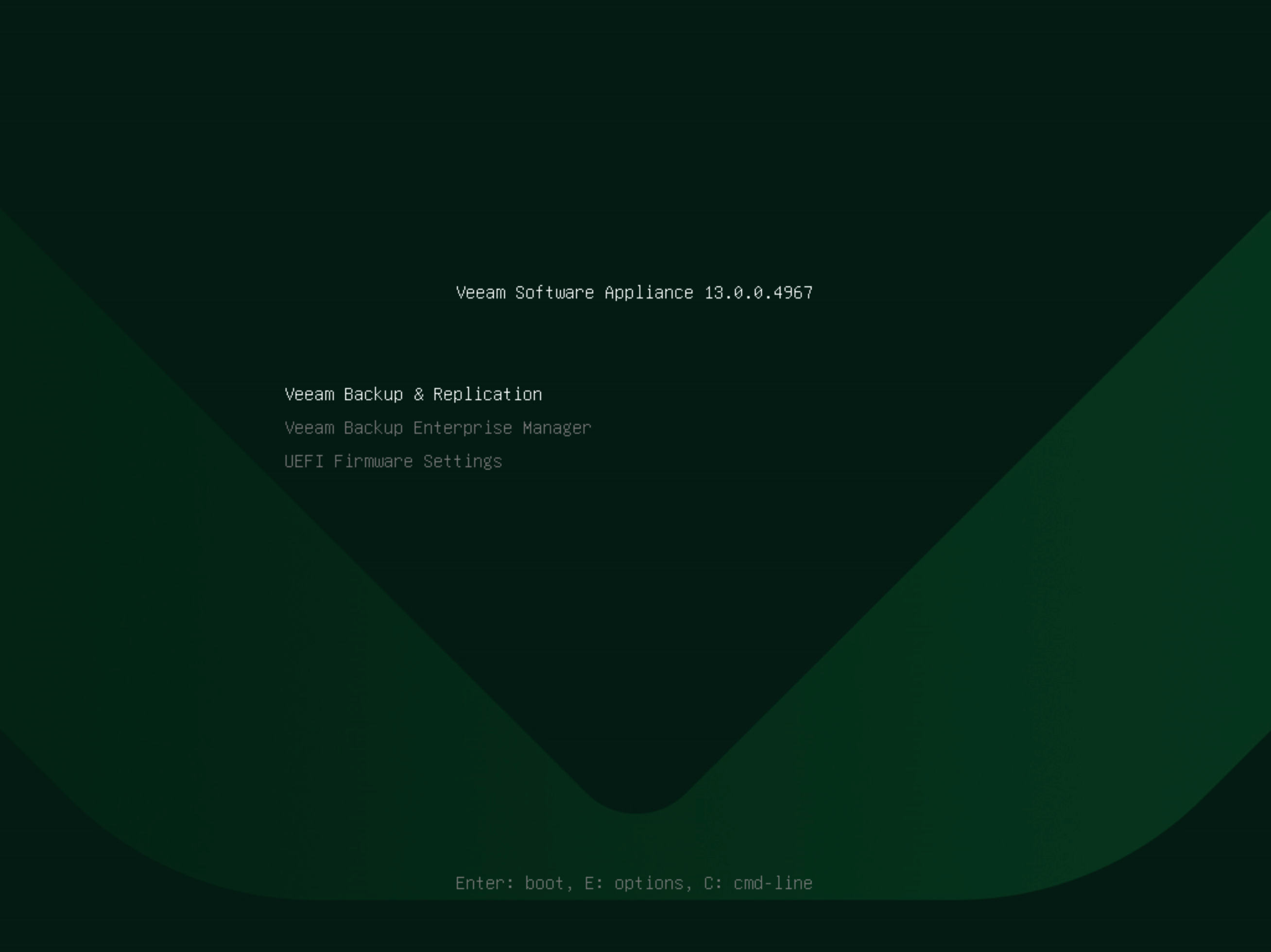
For convenience, a UEFI settings option is also included, allowing you to adjust boot parameters without exiting the installation program.
In the VBR or Enterprise Manager submenu, you’ll see two operations:
- Install – Fresh installation, deleting all data (recommended for new environments)
- Reinstall – Reinstallation while preserving data
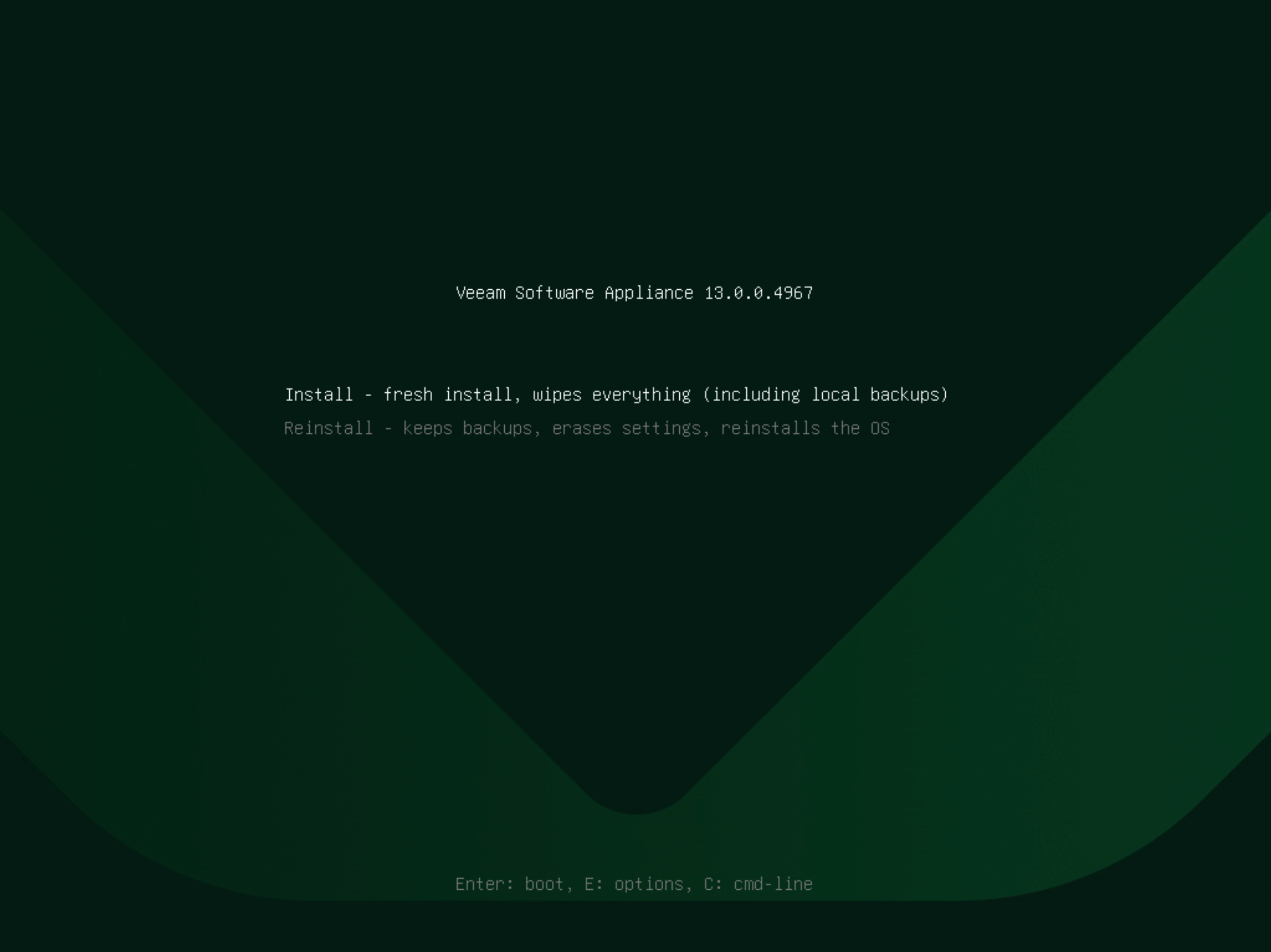
If you choose Install, the system will immediately prompt: “About to clear all data on disks mounted on the current server”. Once you click Yes to confirm, you’ll enter the fully automated installation process.
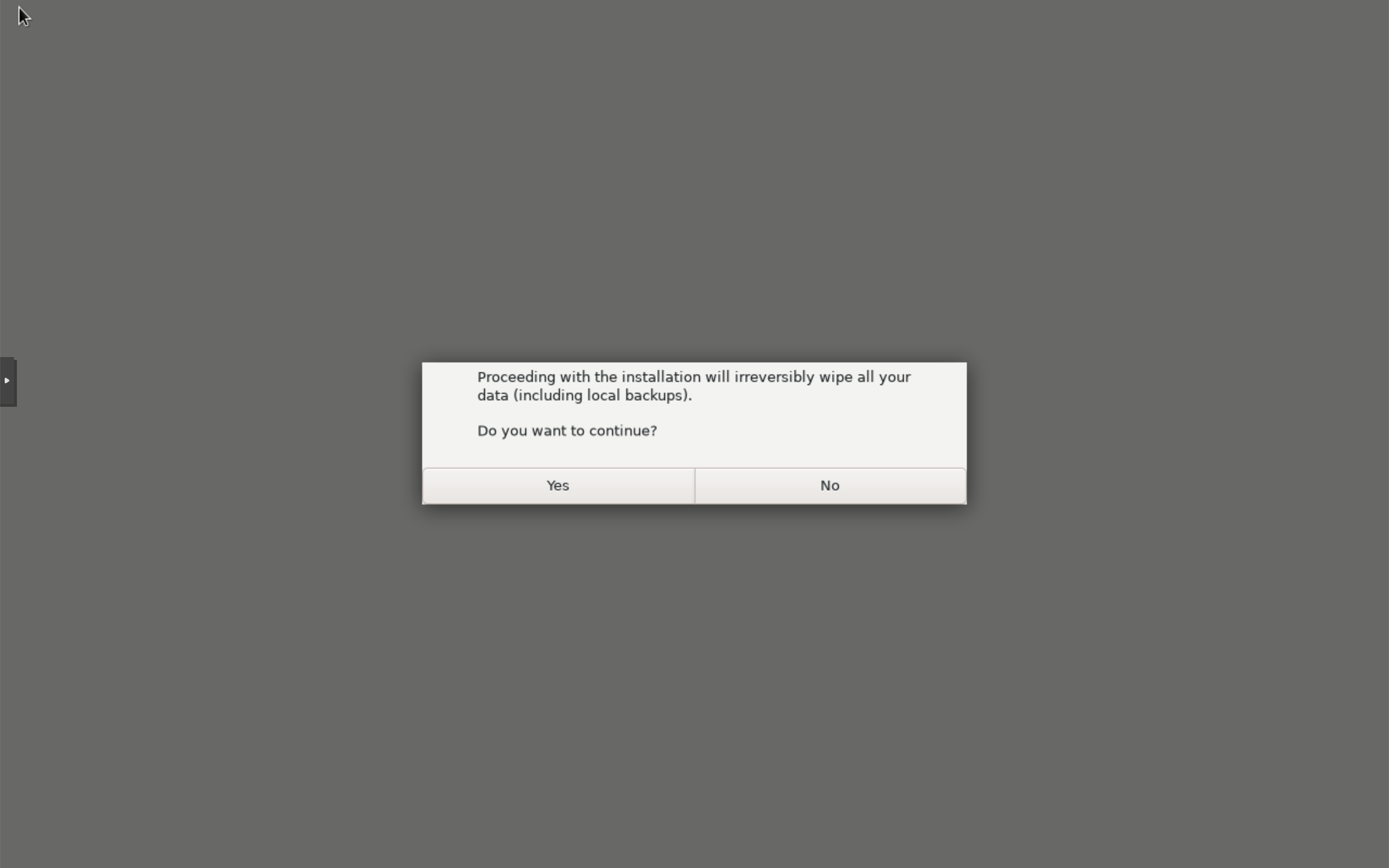
No complicated partitioning, no numerous options - the entire process requires minimal intervention, as simple as performing a Ghost restore on a computer.
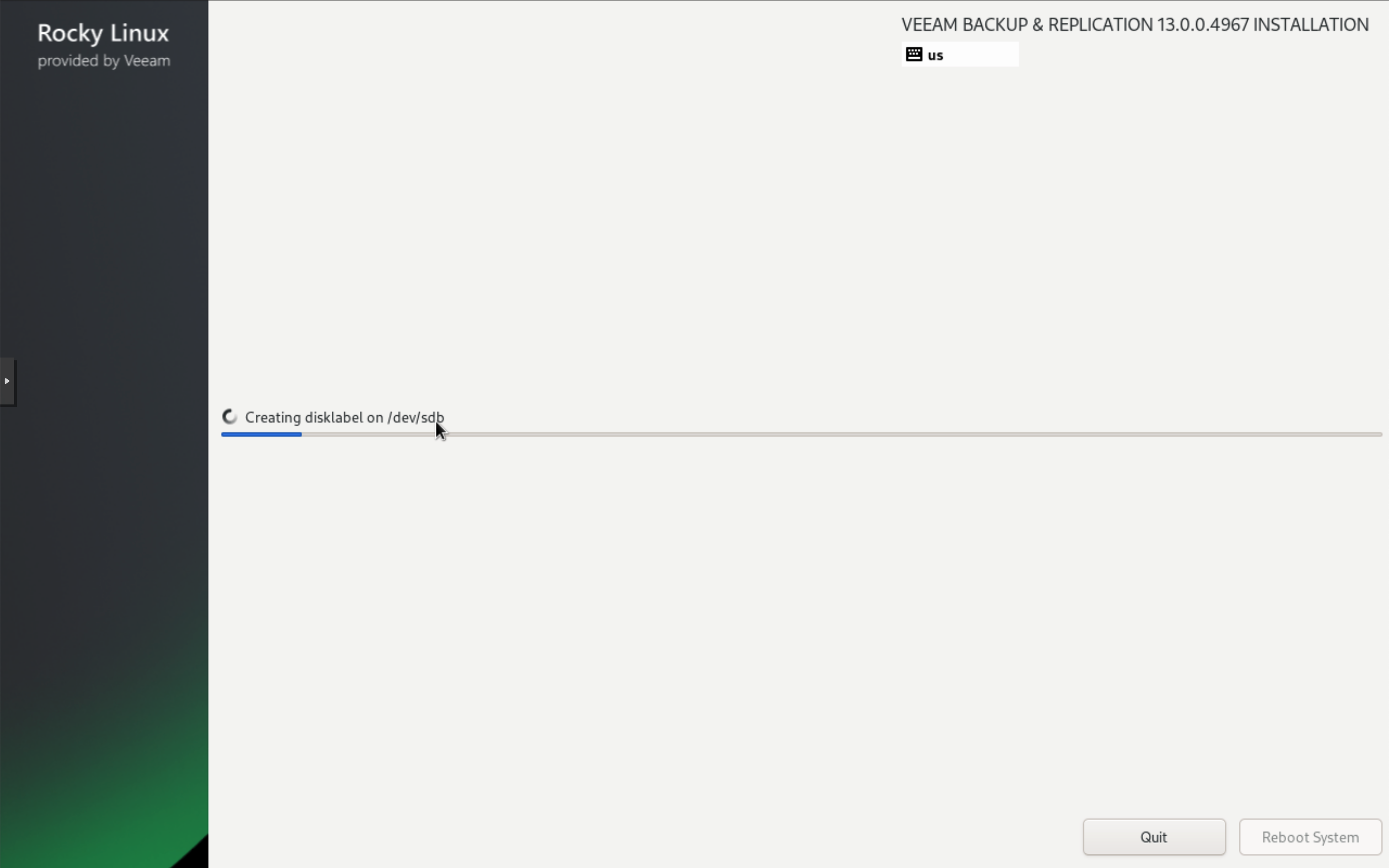
After installation completes, the Reboot System button in the bottom right will highlight. Click it or wait a few seconds for the system to automatically restart, then you can enter VBR.
Once the Appliance installation is complete, it includes two standard device management consoles by default: one is a cool pure text interface (TUI), and the other is a browser-accessible Web interface (WebUI).
Initial Configuration
After restarting into the system, you’ll directly enter the TUI, where you need to perform some initial configuration before the backup server can be used normally.
In the first step of the initial configuration wizard, you’ll encounter the Veeam EULA and some third-party license confirmation screens. Simply use the keyboard arrow keys or Tab key to navigate and select Accept to proceed.
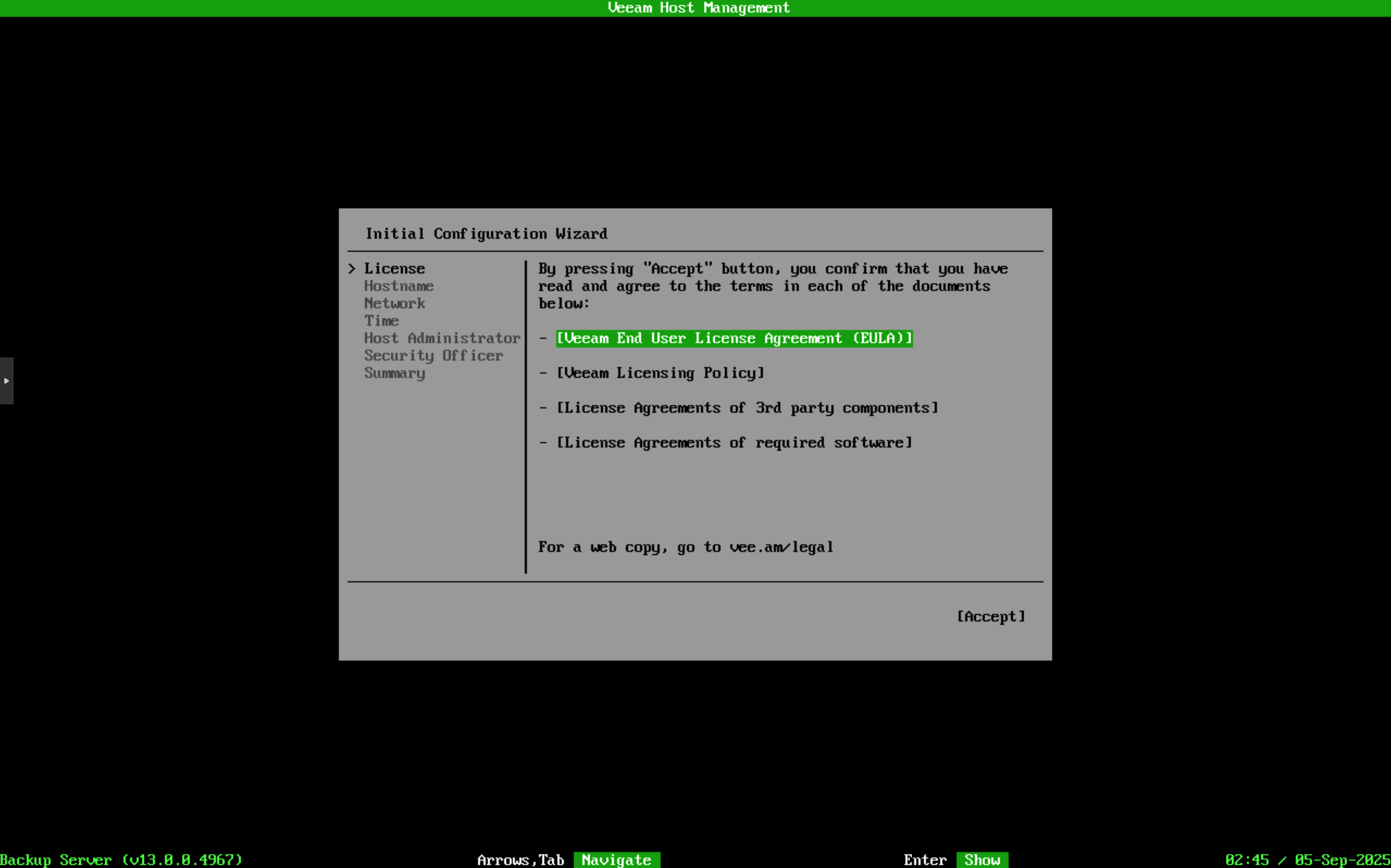
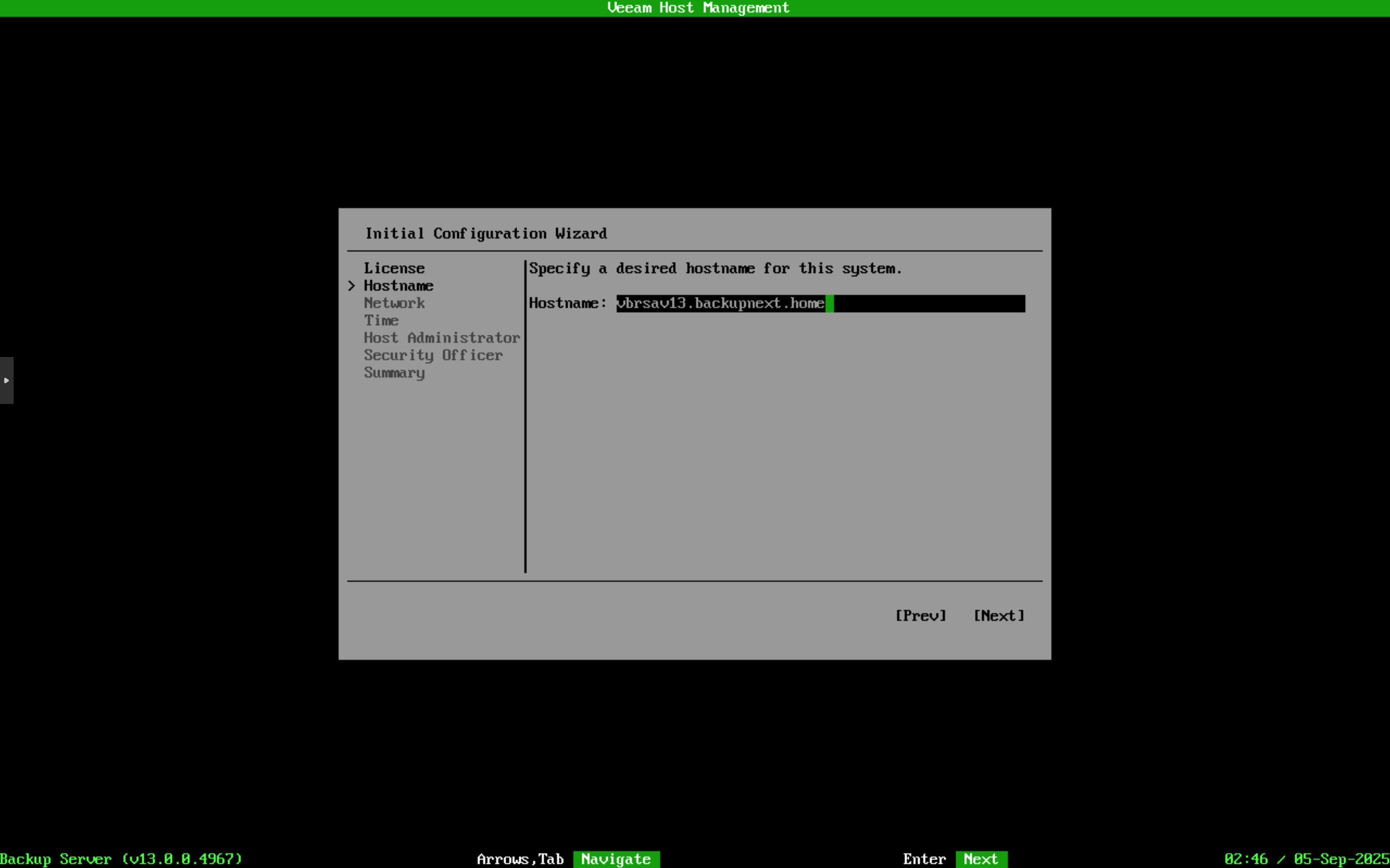
The second step is configuring the hostname. As in my case, I configured a complete FQDN and ensured proper DNS resolution on my DNS server.
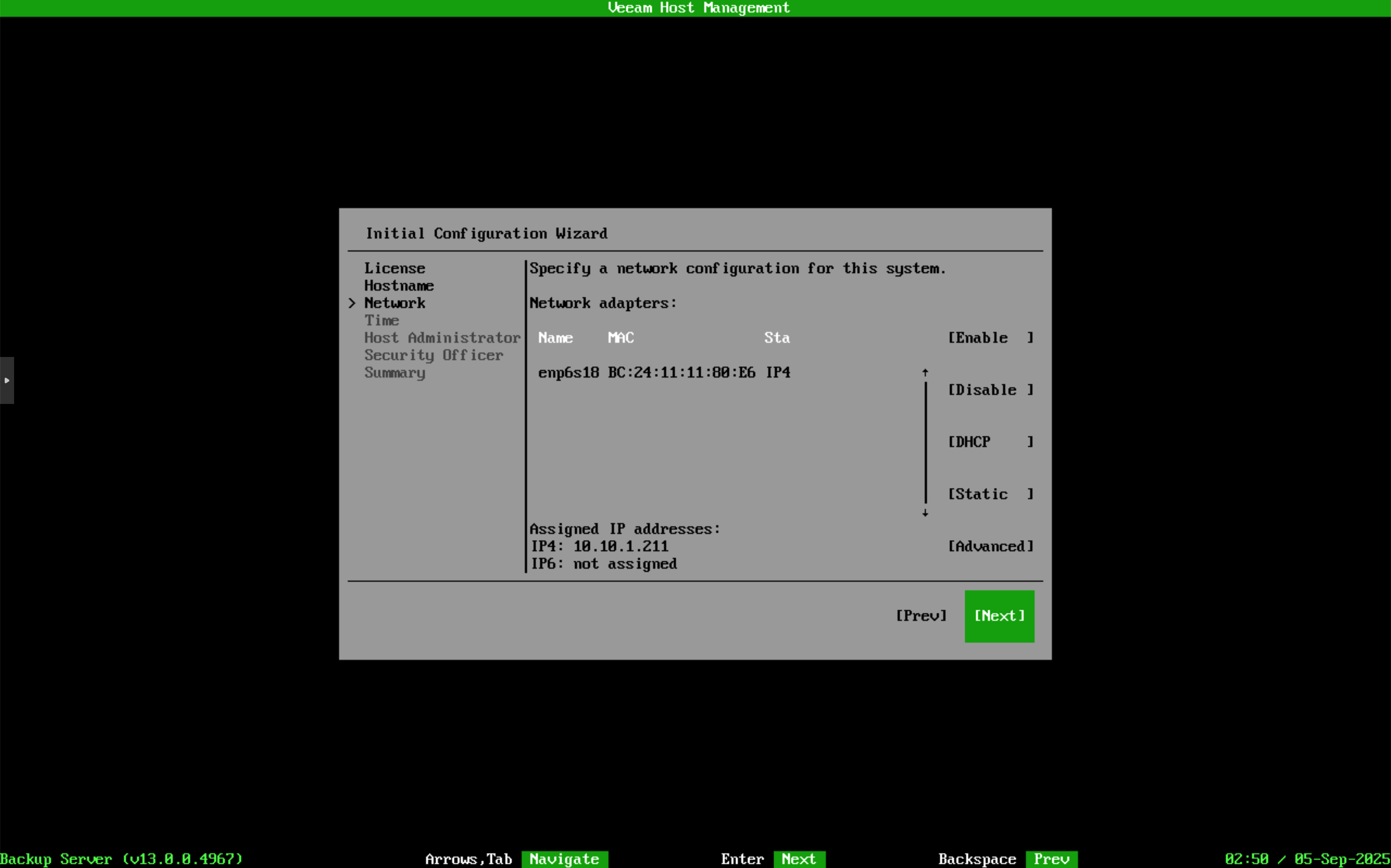
Next is network configuration. In my environment, IPv6 wasn’t required, so I only configured IPv4 addresses.
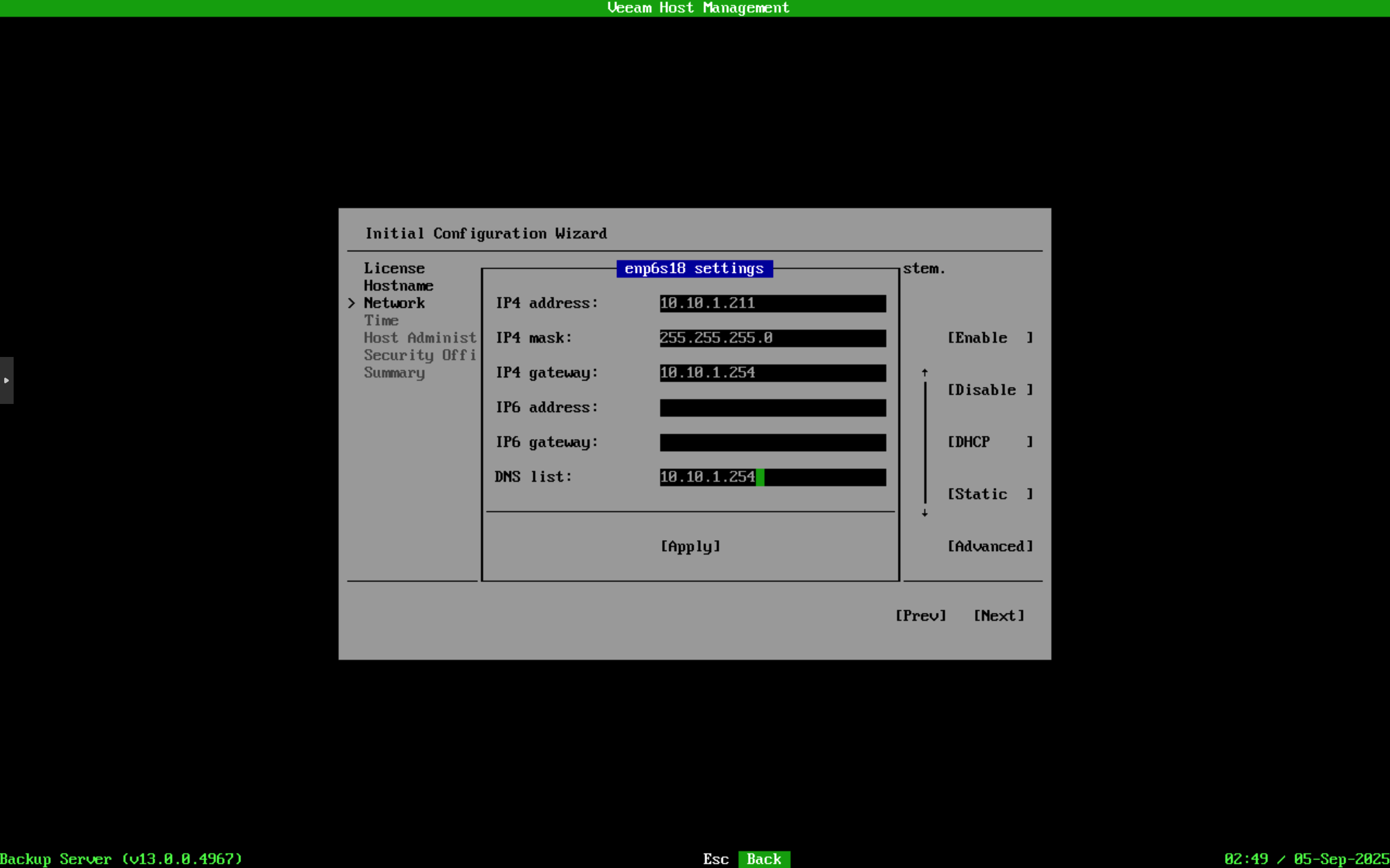
After configuration, click Next to proceed.
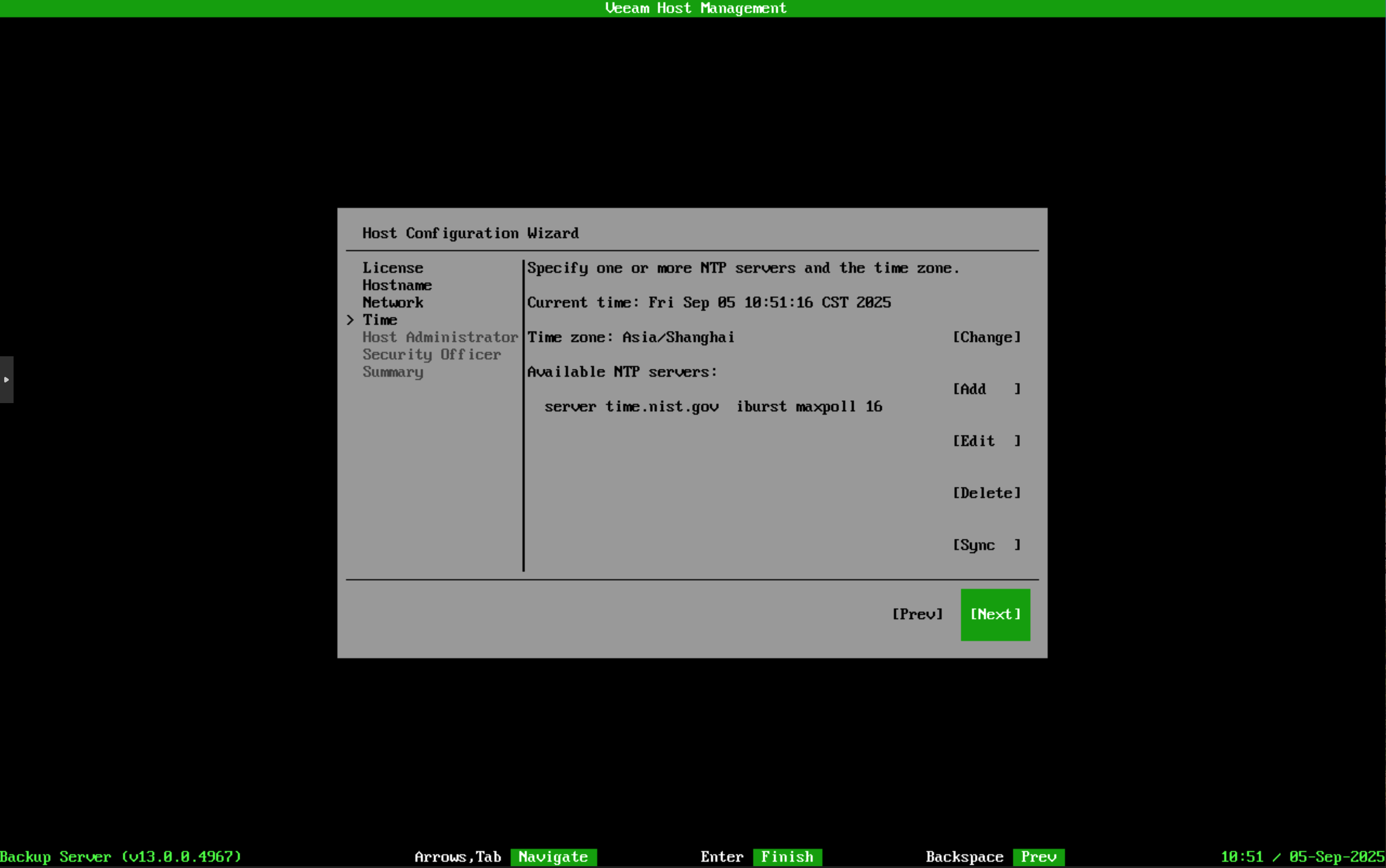
Following that is timezone and time configuration, which is crucial for backup systems. Time synchronization is not only used for multi-factor authentication during login but also for various daily backup operations, including data immutability.
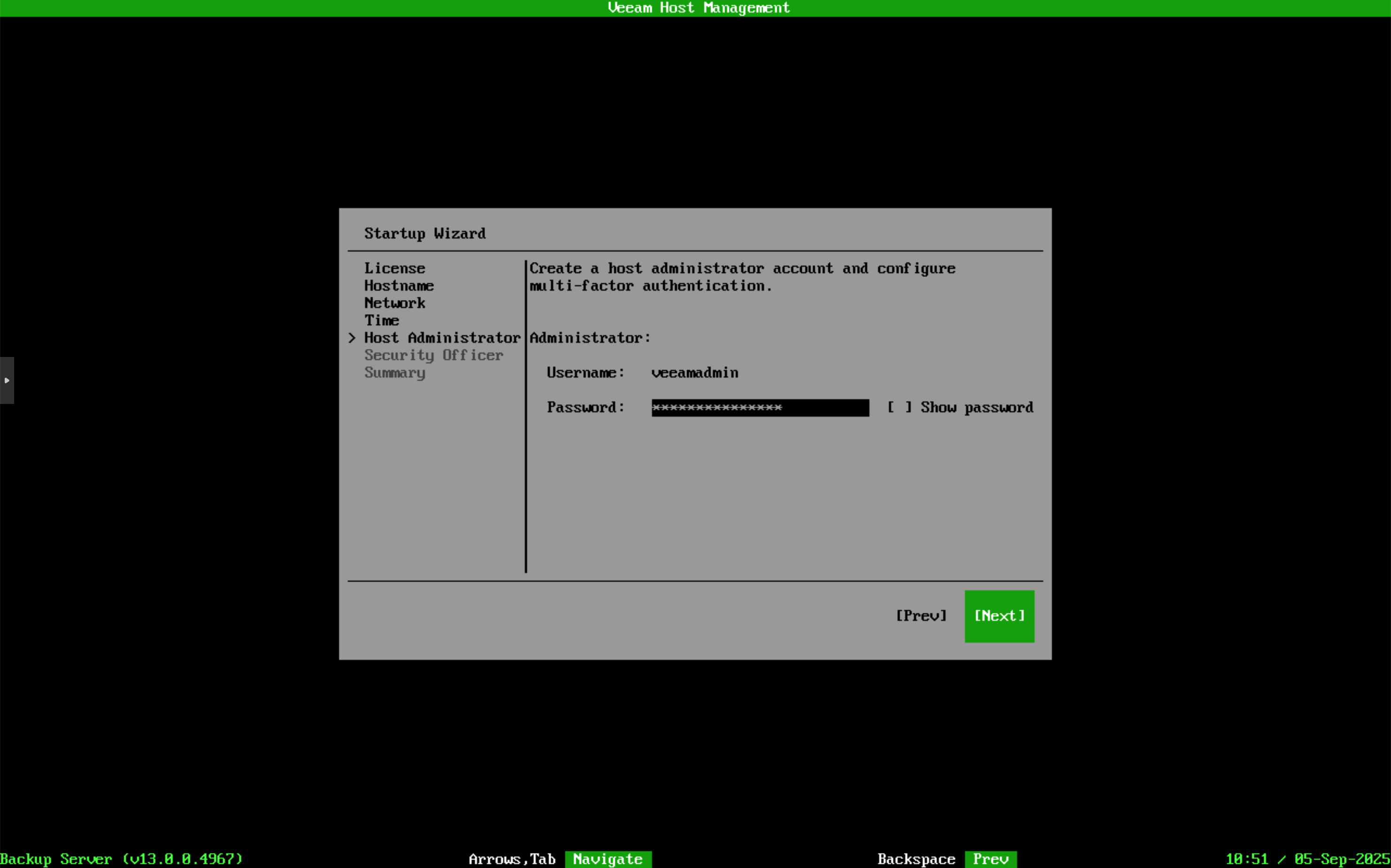
Then comes setting the first administrator password. The default administrator username is veeamadmin, and the password has very strict complexity requirements. For lab environment convenience, I typically set it to:
123Q123q123!123
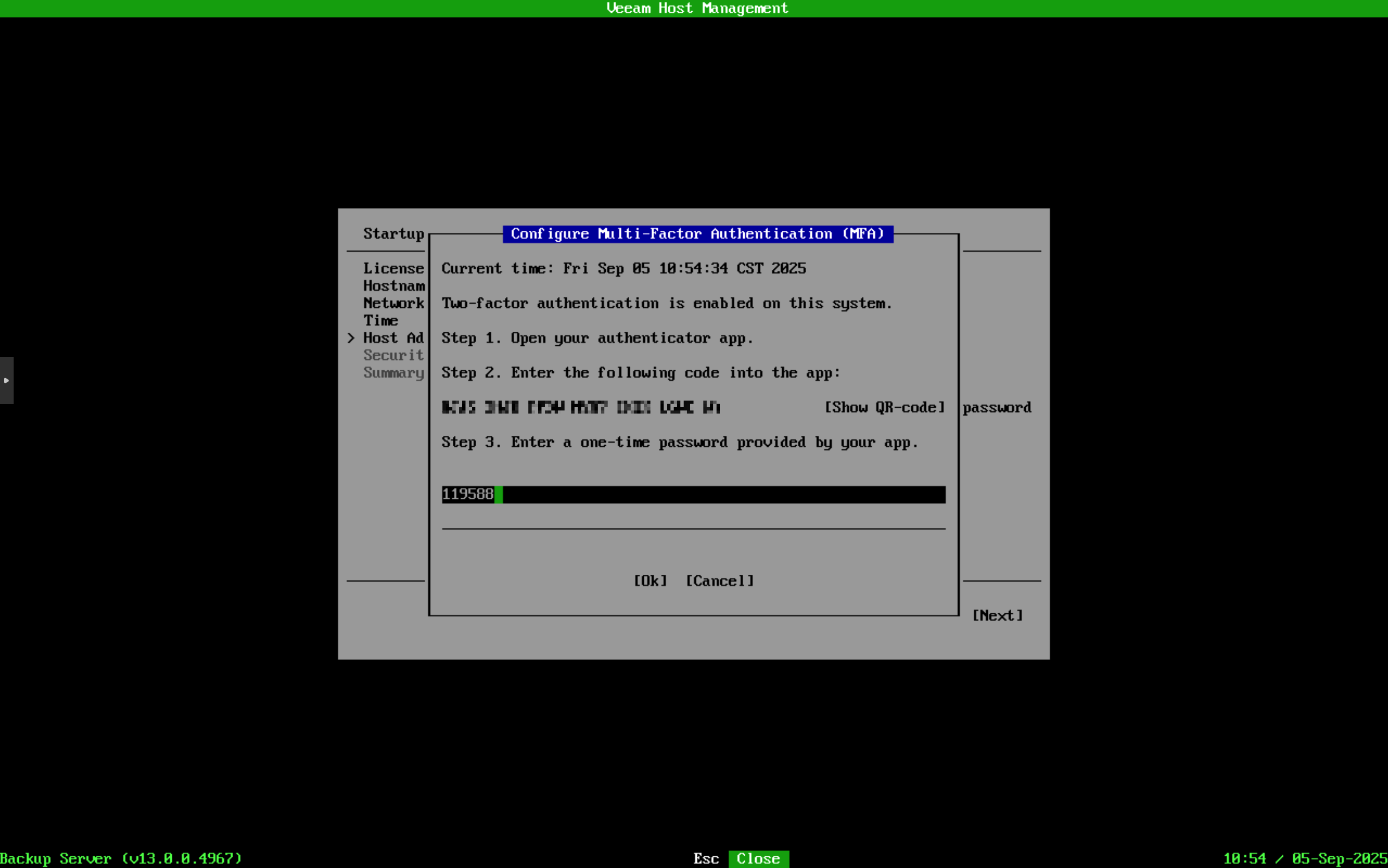
Next, you’ll be prompted to bind a multi-factor authentication device. You can choose any suitable MFA app on your phone to scan the QR code for binding. I generally prefer Microsoft Authenticator, which supports data backup and is more reliable than some domestic apps.
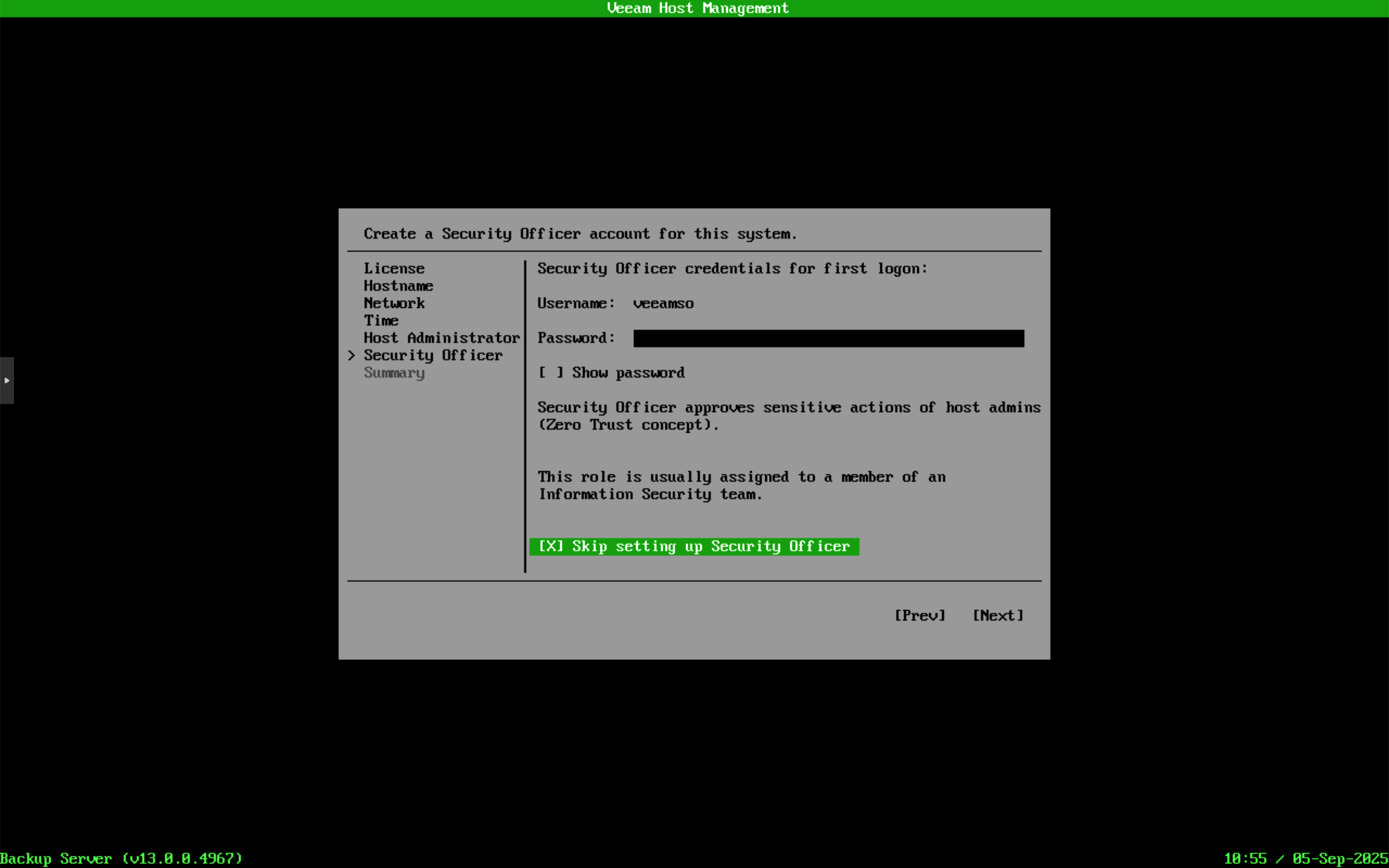
The next step is the Security Officer option, which is recommended for complex production environments. For my lab, I simply checked “Skip setting.”
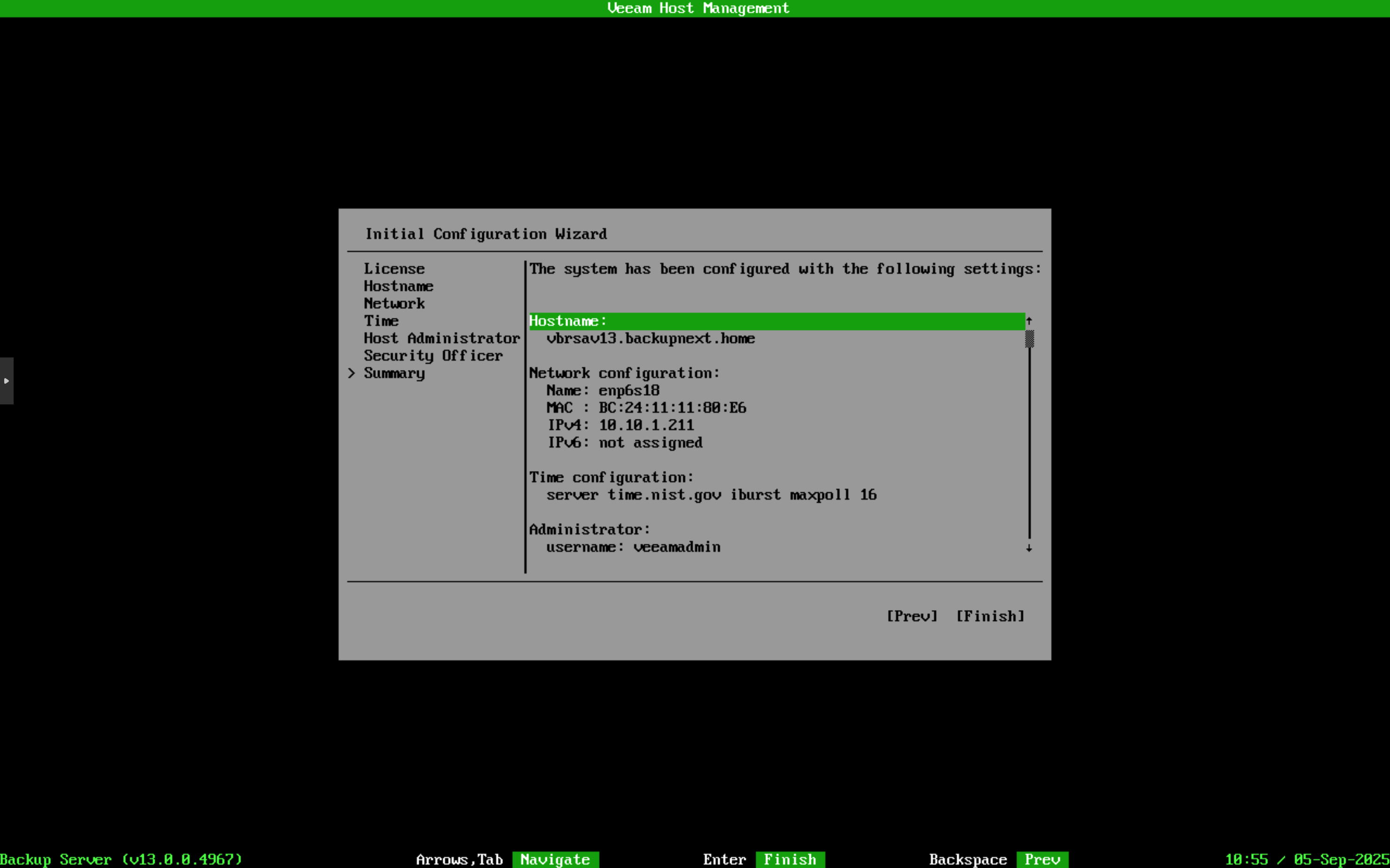
Finally, you’ll reach the Summary screen. After some configuration checks, click Finish to complete the initial configuration.
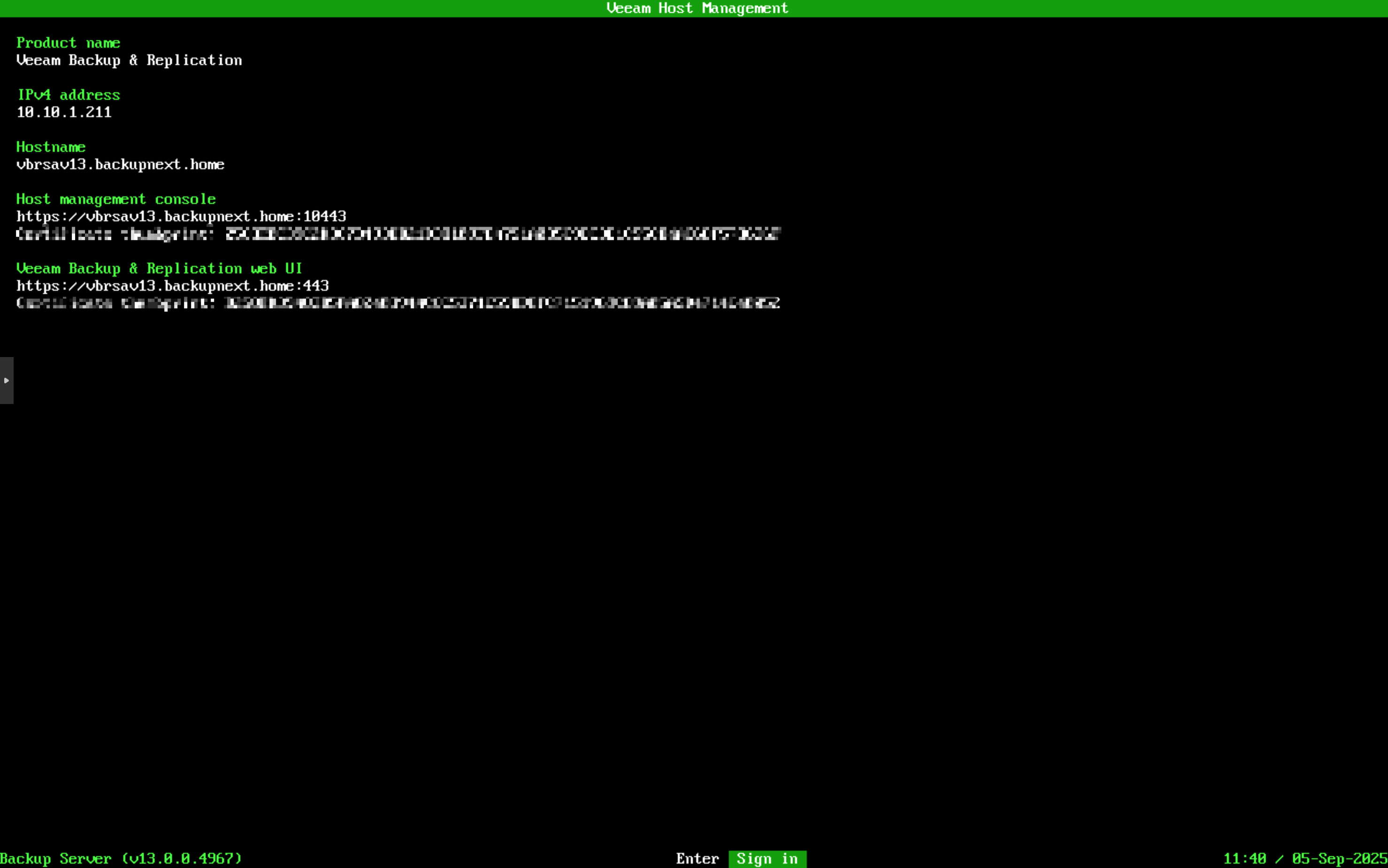
After configuration completion, you’ll enter the main standby interface.
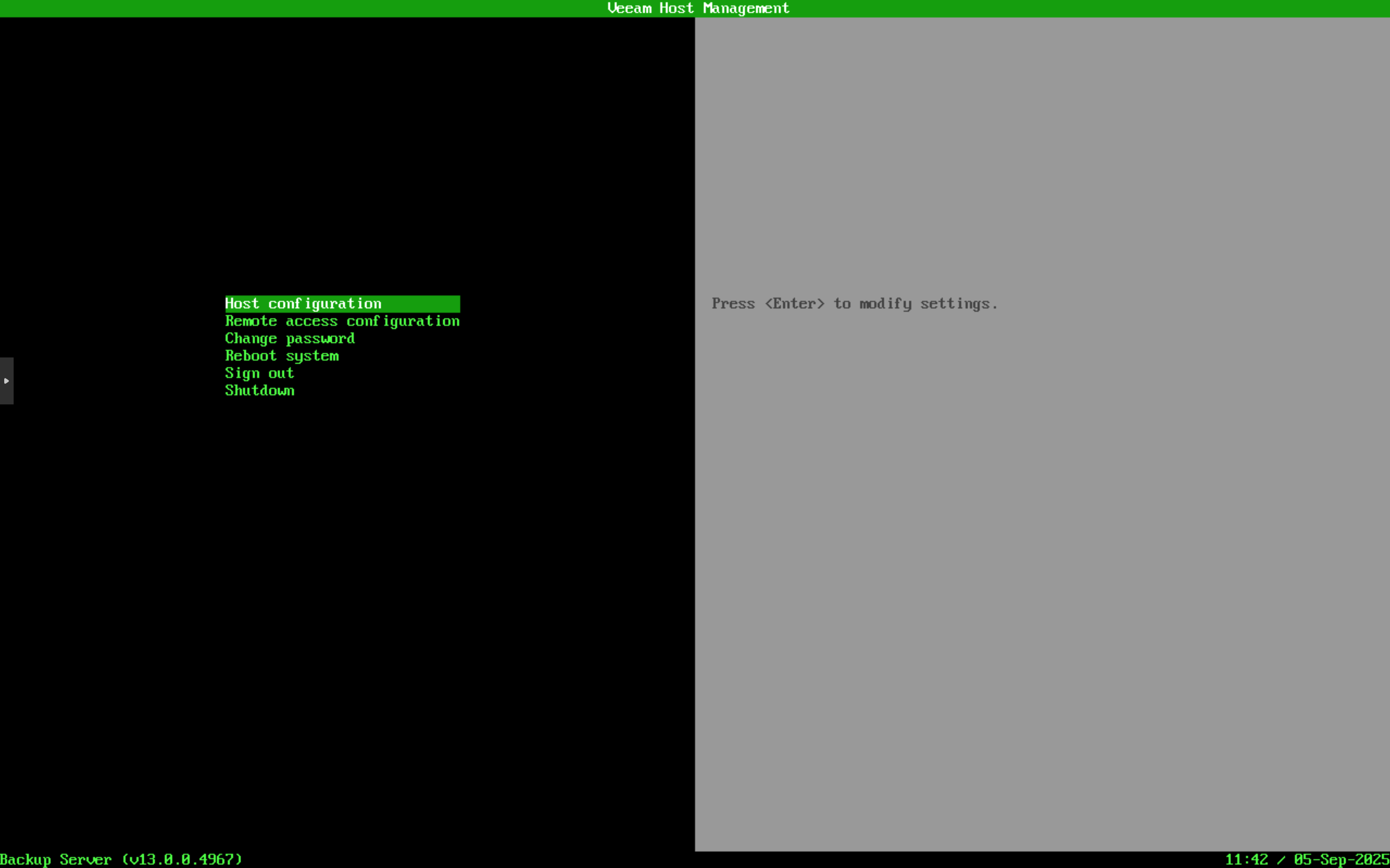
From here, you can access advanced TUI configuration through the main interface prompts for host configuration maintenance and adjustments, including host configuration, remote access configuration, password changes, system restart, and other regular maintenance functions.
Using WebUI for Advanced Configuration
The TUI displays two addresses: one for the Host Management console and another for the Veeam Backup & Replication web UI. For advanced management and configuration of the Appliance, you can access the Host Management console. You’ll be prompted to enter your password and MFA verification code when accessing it.
With this, Veeam Backup & Replication installation is complete. As for Veeam Backup Enterprise Manager, the installation process is similar, so we won’t detail it here - leaving that for your own exploration.
Summary & Next Steps
In this article, I walked you through the entire Veeam Software Appliance ISO usage process:
Downloading the image from the official website and verifying integrity → Creating a bootable USB drive with Rufus → Booting the server for automatic installation → Completing basic initialization and management through the TUI interface.
You’ll find that the entire process requires minimal complex operations. As long as you prepare the media and follow the steps with a few clicks, anyone can complete the installation successfully.
In our next article, we’ll officially explore the V13 version product interface, diving deep into its features and new capabilities to see just how powerful this new version really is.