Setting Up Multi-Factor Authentication for Kasten with Azure EntraID
In the world of Kubernetes backup and recovery, security isn’t just a feature—it’s a foundation. Kasten K10 provides comprehensive security management capabilities, and one of its most powerful features is flexible user access management through OIDC (OpenID Connect) protocol integration. This means you can leverage your existing enterprise identity infrastructure rather than managing separate credentials.
Today, I want to walk you through integrating Kasten with Azure EntraID to enable multi-factor authentication (MFA) for the Kasten console. This isn’t just about adding another security layer; it’s about providing a seamless, enterprise-grade authentication experience that your Azure AD users are already familiar with.
The setup process breaks down into two main parts: configuring Azure EntraID on one side, and then updating Kasten K10 to use it. Let’s dive in.
Azure Configuration
Step 1: Create Kasten User Group
First things first in Azure EntraID—we need to set up a security group that will contain all the users who should have access to the Kasten web console. This is where we’ll manage who can and can’t access your backup infrastructure.
In the Azure EntraID console, navigate to Groups and click “New group” to get started. You’ll want to select “Security” as the group type (this is important for the OIDC integration), give it a descriptive name—I’m using “Kasten Users” for simplicity—and keep the other settings at their defaults:
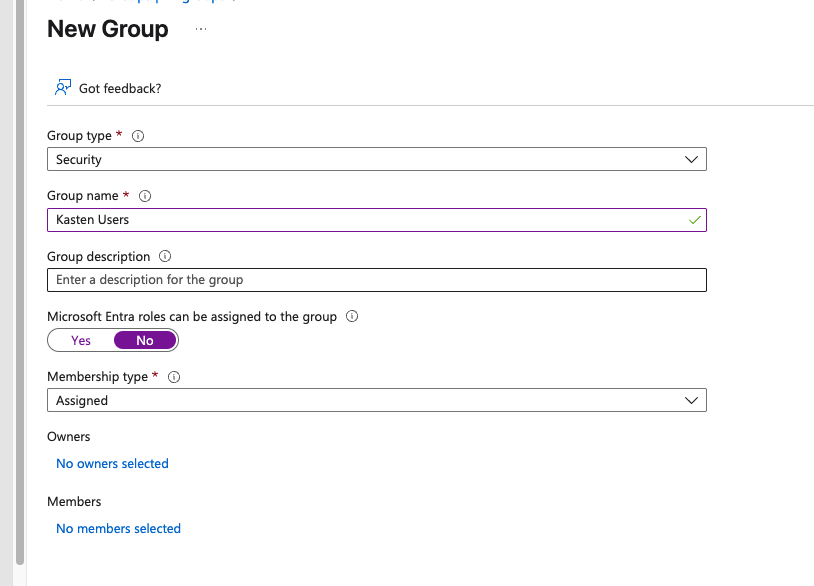
Once you click Create, head back to the All groups list where you should see your newly created group waiting for you.
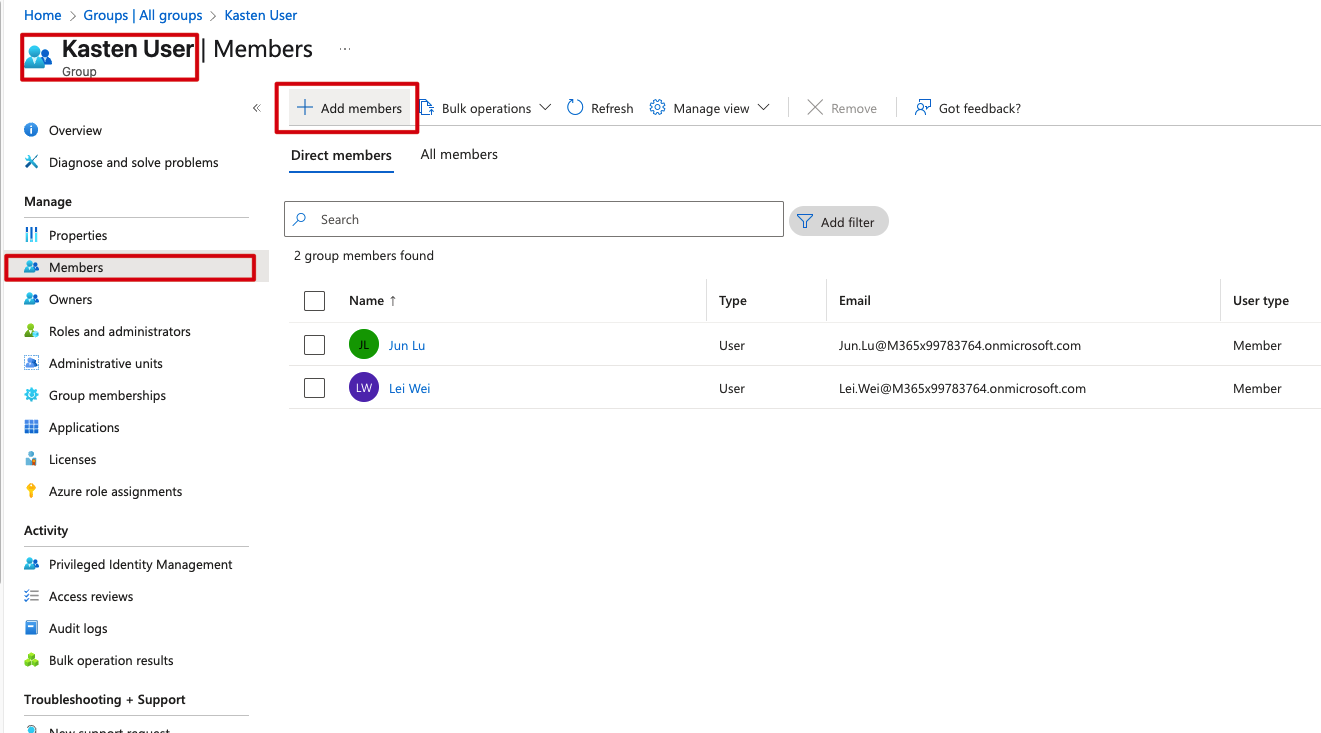
Now it’s time to populate it with actual users. Click into your group, find the Members section, and use the “Add members” button to grant access. In my case, I’ve already added Lei Wei to the group:
Step 2: App Registration
Now for the core piece: we need to create an application registration in Azure EntraID that will act as the bridge between Kasten and your identity provider. This is essentially the OAuth/OIDC client that Kasten will use to authenticate users.
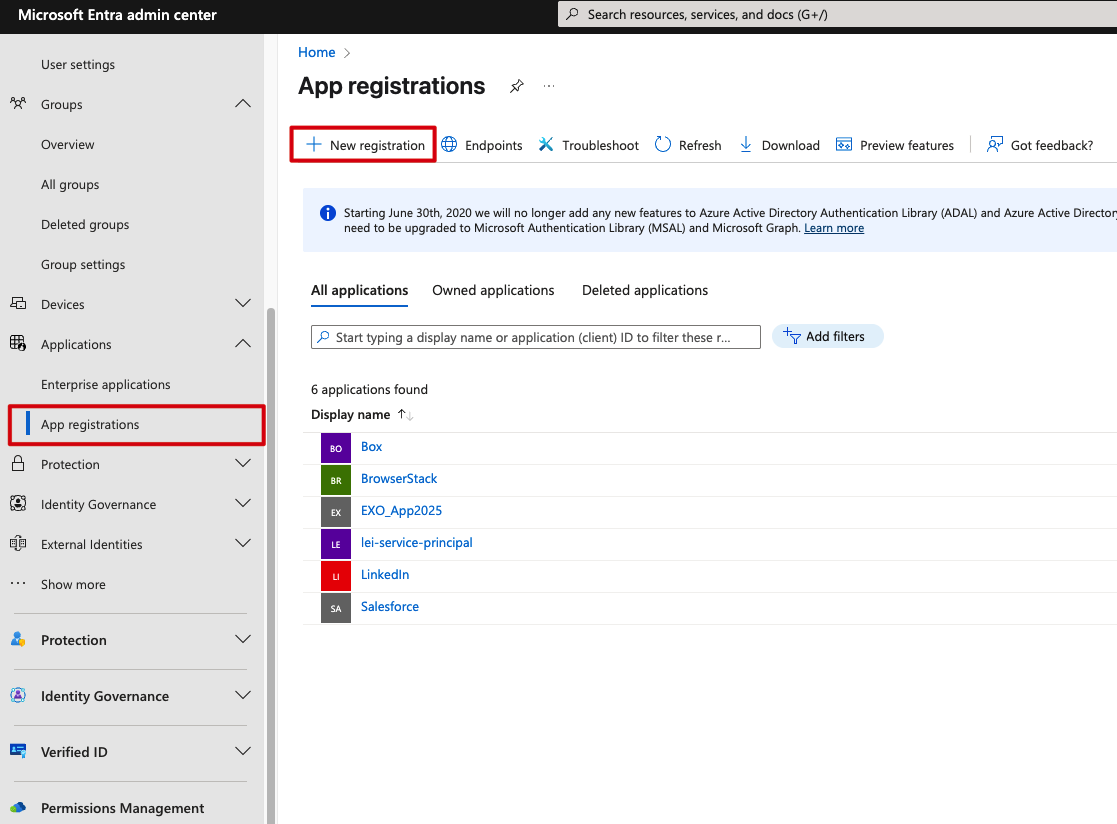
Head over to App registrations in Azure EntraID and click “New registration” to kick things off:
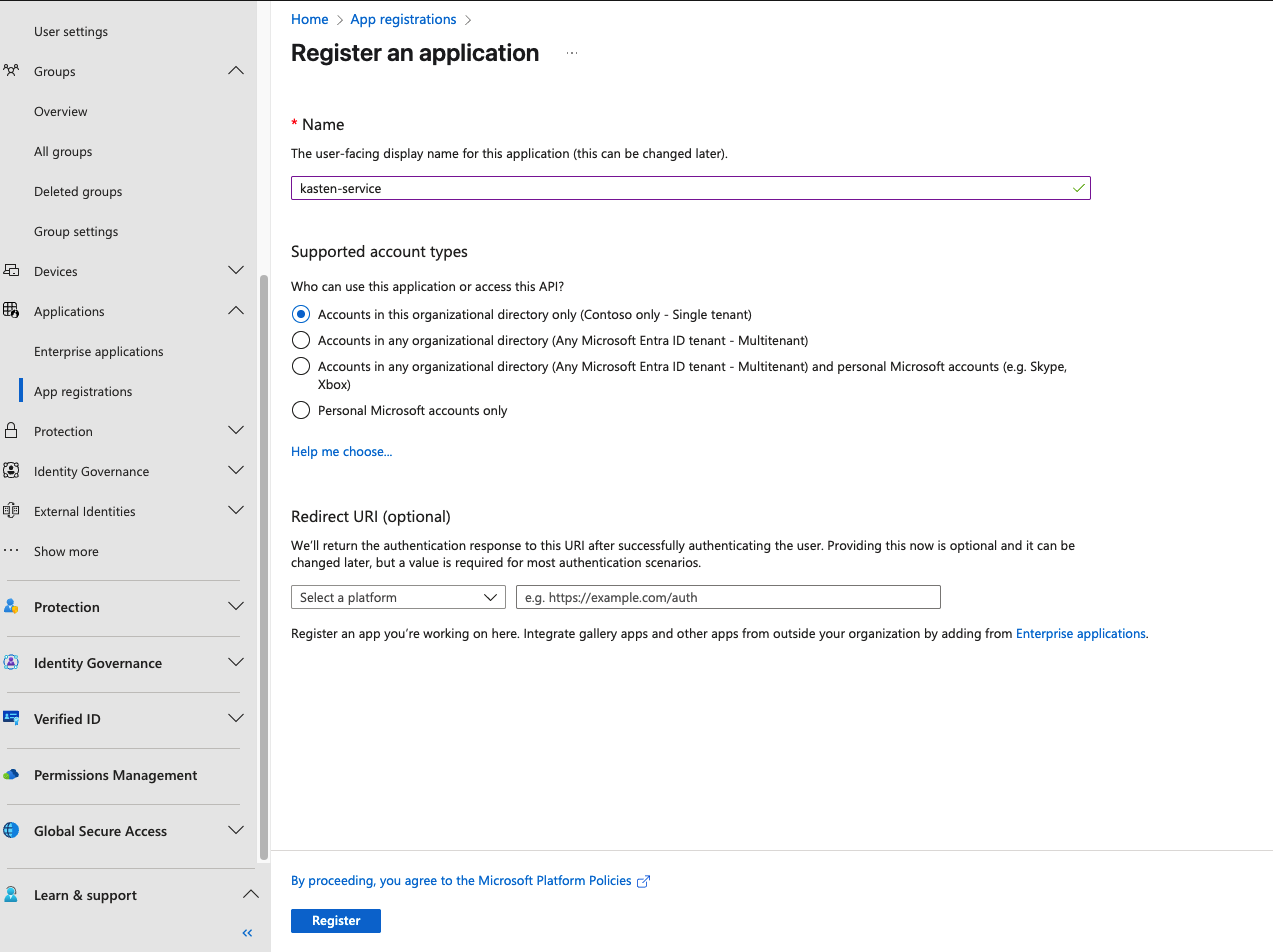
In the registration wizard, give your application a meaningful name—I’m going with “kasten-service” to keep things clear—and stick with the default options for now:
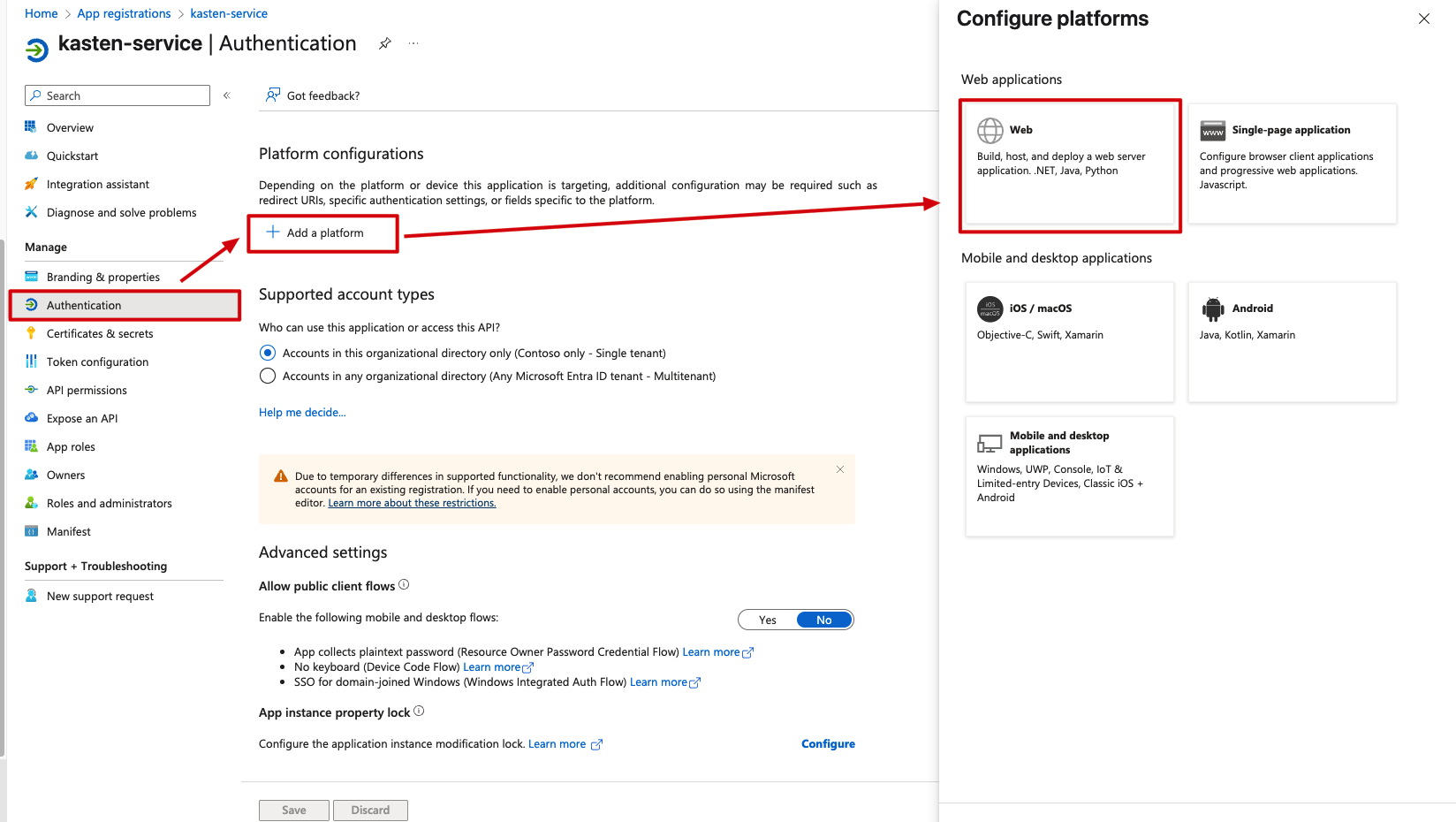
Once the registration completes, you’ll land on the application’s properties page. This is where the real configuration begins. Under the Manage section, find Authentication—this is where we’ll tell Azure how Kasten will be connecting.
Click “Add a platform” and select Web from the options:
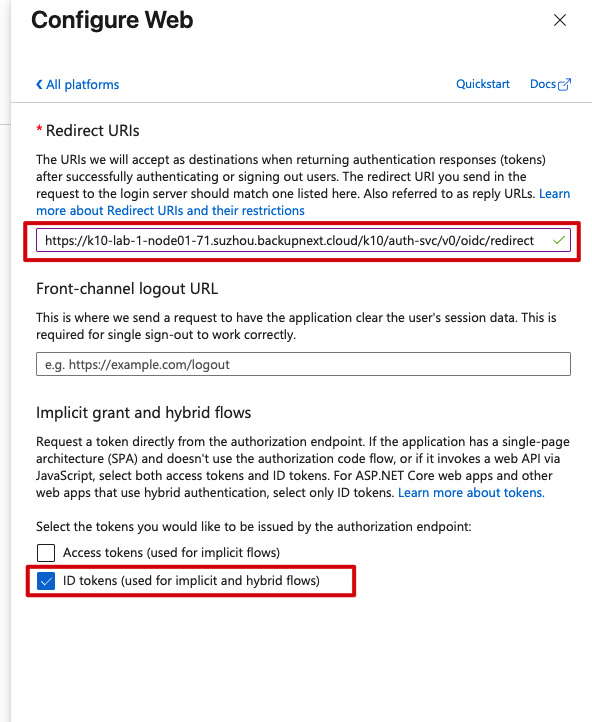
Now comes the critical part: configuring the redirect URI. This tells Azure where to send users after they’ve authenticated. You’ll need your Kasten web UI address for this. In my environment, the Kasten UI is at: https://k10-lab-1-node01-71.suzhou.backupnext.cloud/k10
The complete redirect URI needs the OIDC callback path appended, so the full URL becomes: https://k10-lab-1-node01-71.suzhou.backupnext.cloud/k10/auth-svc/v0/oidc/redirect
Don’t forget to check the “ID tokens” option—this is essential for the OpenID Connect flow:
Save those changes and we’re moving on.
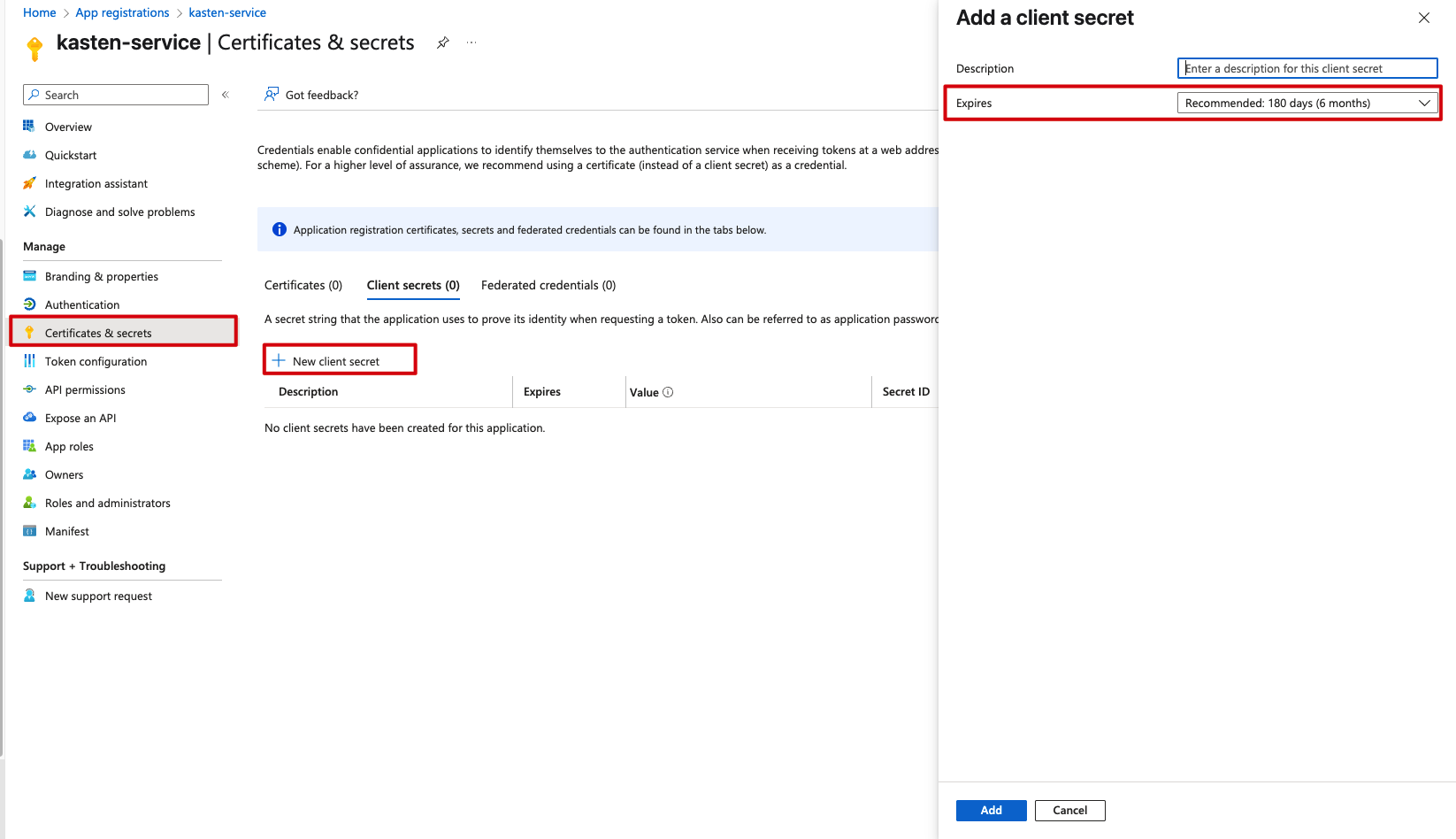
Next up: creating a client secret. Navigate to Certificates & secrets under Manage, create a new client secret, and—this is important—copy it immediately and save it somewhere secure. You won’t see it again, and do keep an eye on the expiration date:
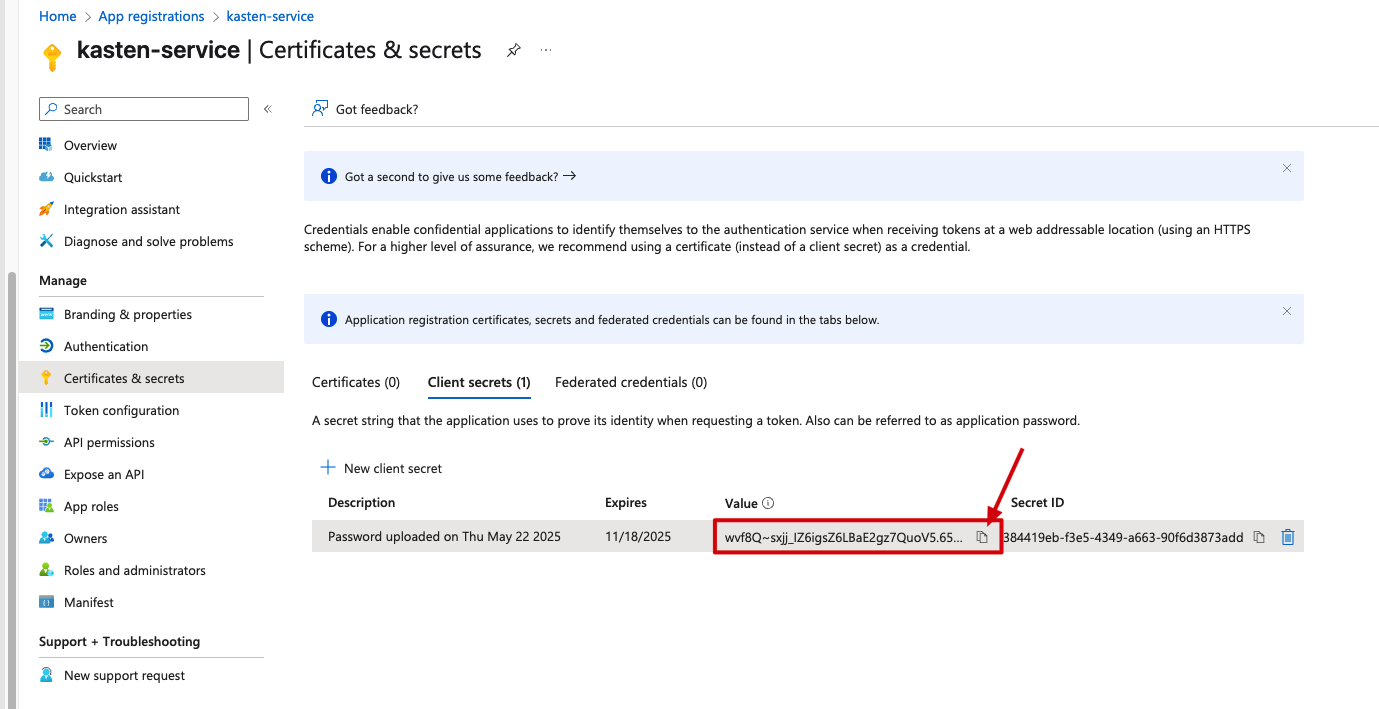
Once created, use that copy button to grab the secret value before navigating away:
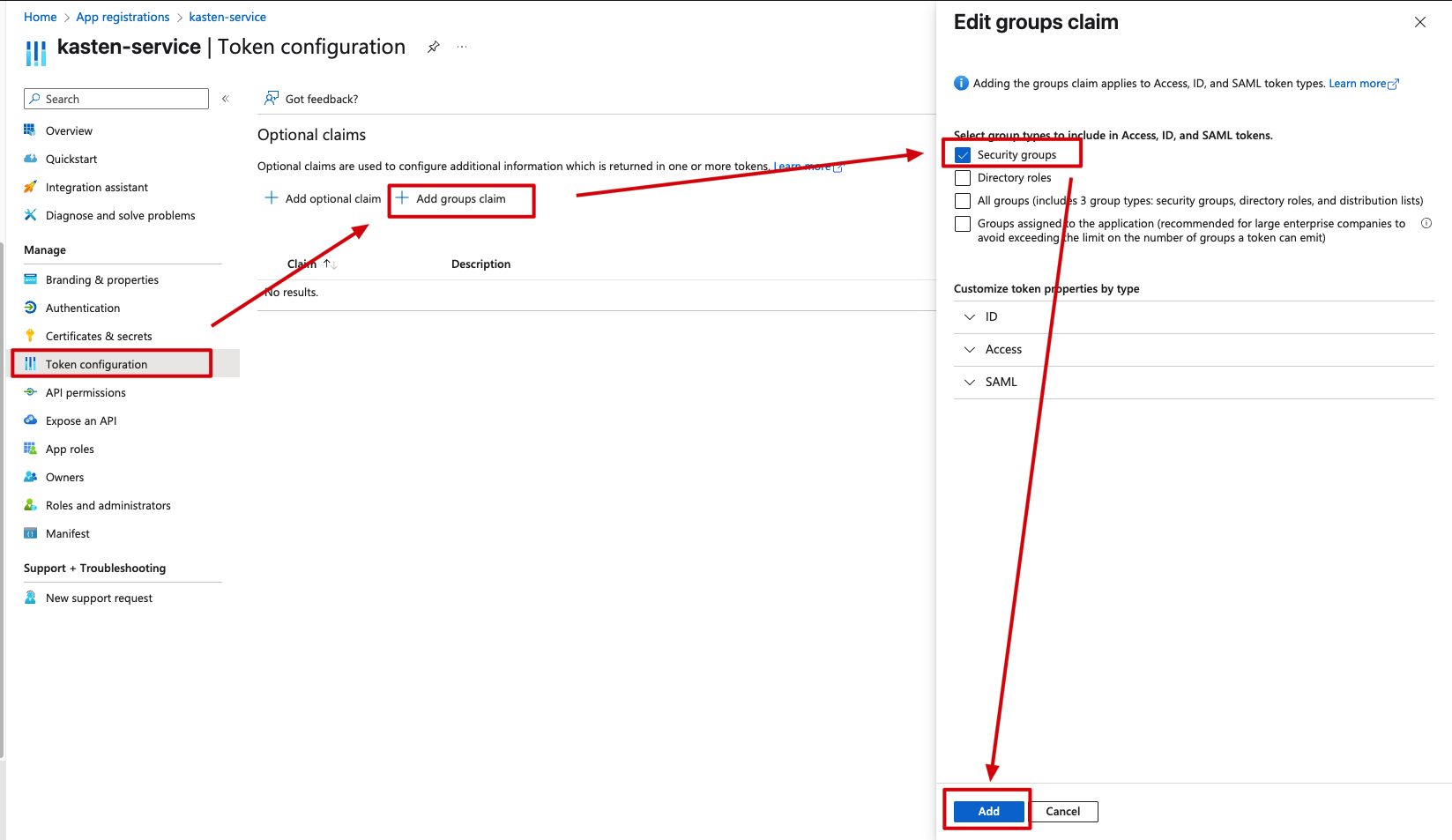
Last but not least, we need to configure group claims so Azure includes security group information in the authentication tokens. Under Token configuration, click “Add group claim”, select Security groups, and add it:
Step 3: Collect Configuration Information for Kasten
Alright, the Azure side is set up—now we need to gather the pieces of information that Kasten will need to talk to Azure. Let’s walk through the Helm values configuration we’ll be using:
auth:
  oidcAuth:
    clientID: 3cae7658-5192-4122-b31a-1efcb9355a6f
    clientSecret: xxxxxxxxxxxxxxxxxxxxxxx
    enabled: true
    groupClaim: groups
    groupPrefix: kasten_azure_
    prompt: select_account
    providerURL: https://login.microsoftonline.com/6d2374b4-aceb-42ac-966a-716a93f07db0/v2.0
    redirectURL: https://k10-lab-1-node01-71.suzhou.backupnext.cloud
    scopes: openid email
    usernameClaim: sub
    usernamePrefix: kasten_azure_
The key pieces we need to extract from our Azure setup are:
- clientID: This identifies our Kasten application to Azure
- clientSecret: The secret key we just created (you did save it, right?)
- providerURL: The Azure AD endpoint for authentication
You can find the clientID and endpoints on your app registration’s Overview page. Click on “Endpoints” to see all the available URLs:
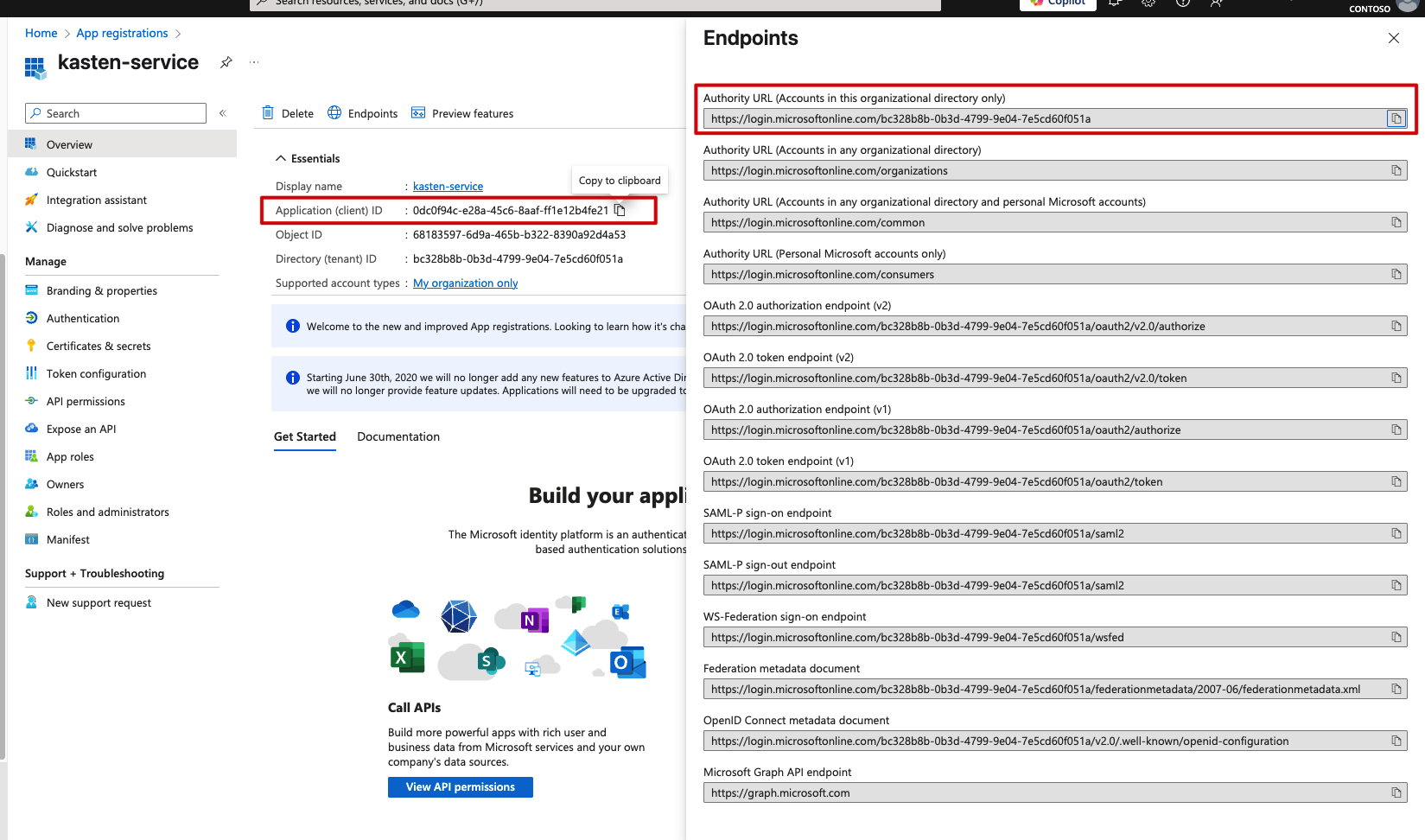
Pro tip: For the providerURL, you’ll need to take the OpenID Connect configuration URL and ensure it includes the /v2.0 path. The clientSecret is exactly what we saved earlier from the Certificates & secrets section.
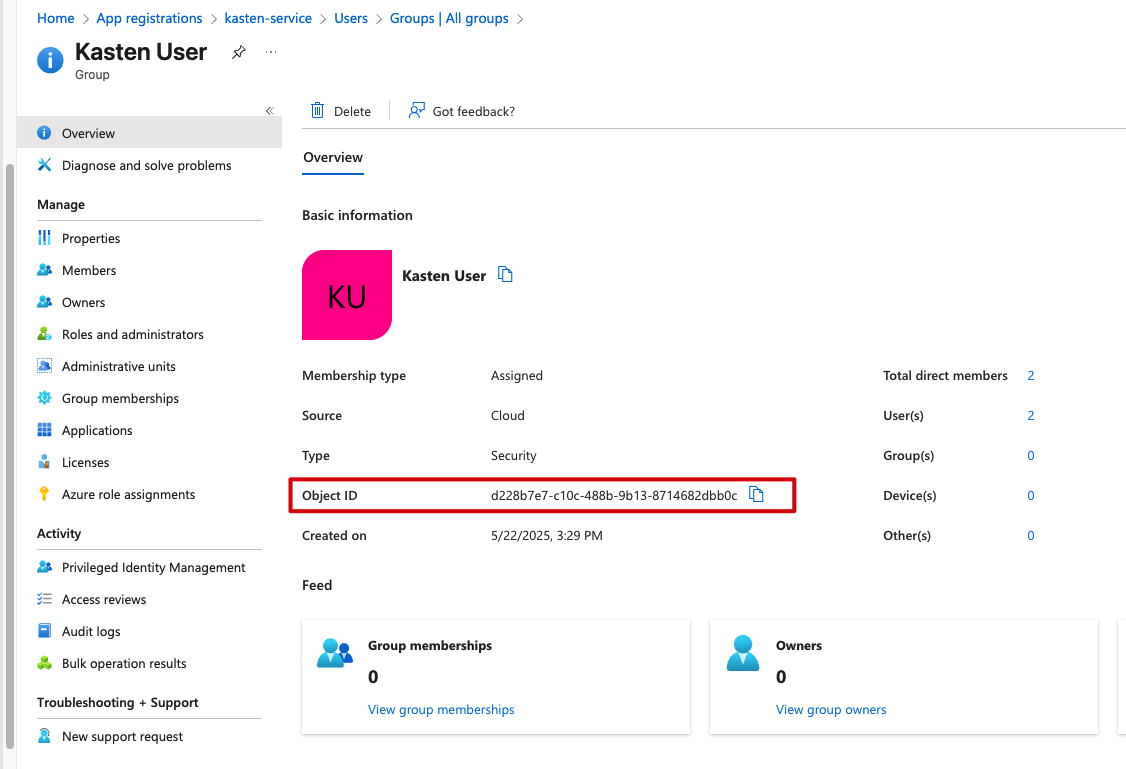
We also need one more crucial piece: the Object ID of our security group. This will be used when we set up permissions in Kubernetes. Navigate back to your “Kasten Users” group and grab the Object ID from the Overview page:
Kasten Configuration
Now let’s switch gears to the Kasten side. First, we’ll want to export our current Helm configuration so we don’t lose any existing settings:
helm get values k10 -n kasten-io > k10_values.yamlNow edit the k10_values.yaml file and add the OIDC authentication section with the information we gathered from Azure:
auth:
  oidcAuth:
    clientID: 3cae7658-5192-4122-b31a-1efcb9355a6f
    clientSecret: xxxxxxxxxxxxxxxxxxxxxxx
    enabled: true
    groupClaim: groups
    groupPrefix: kasten_azure_
    prompt: select_account
    providerURL: https://login.microsoftonline.com/6d2374b4-aceb-42ac-966a-716a93f07db0/v2.0
    redirectURL: https://k10-lab-1-node01-71.suzhou.backupnext.cloud
    scopes: openid email
    usernameClaim: sub
    usernamePrefix: kasten_azure_
With the configuration updated, let’s apply the changes to our Kasten deployment:
helm upgrade k10 kasten/k10 -n kasten-io -f k10_values.yamlGive it a few minutes for the Kasten pods to restart with the new configuration. Once they’re back up, try accessing the Kasten web interface again—you should now be redirected to Azure EntraID for authentication instead of seeing the local login screen.
Here’s where things get interesting: after you authenticate with Azure EntraID, you’ll land in the Kasten UI but notice you don’t have any permissions. This is expected behavior—we need to explicitly grant Kasten permissions to our Azure users.
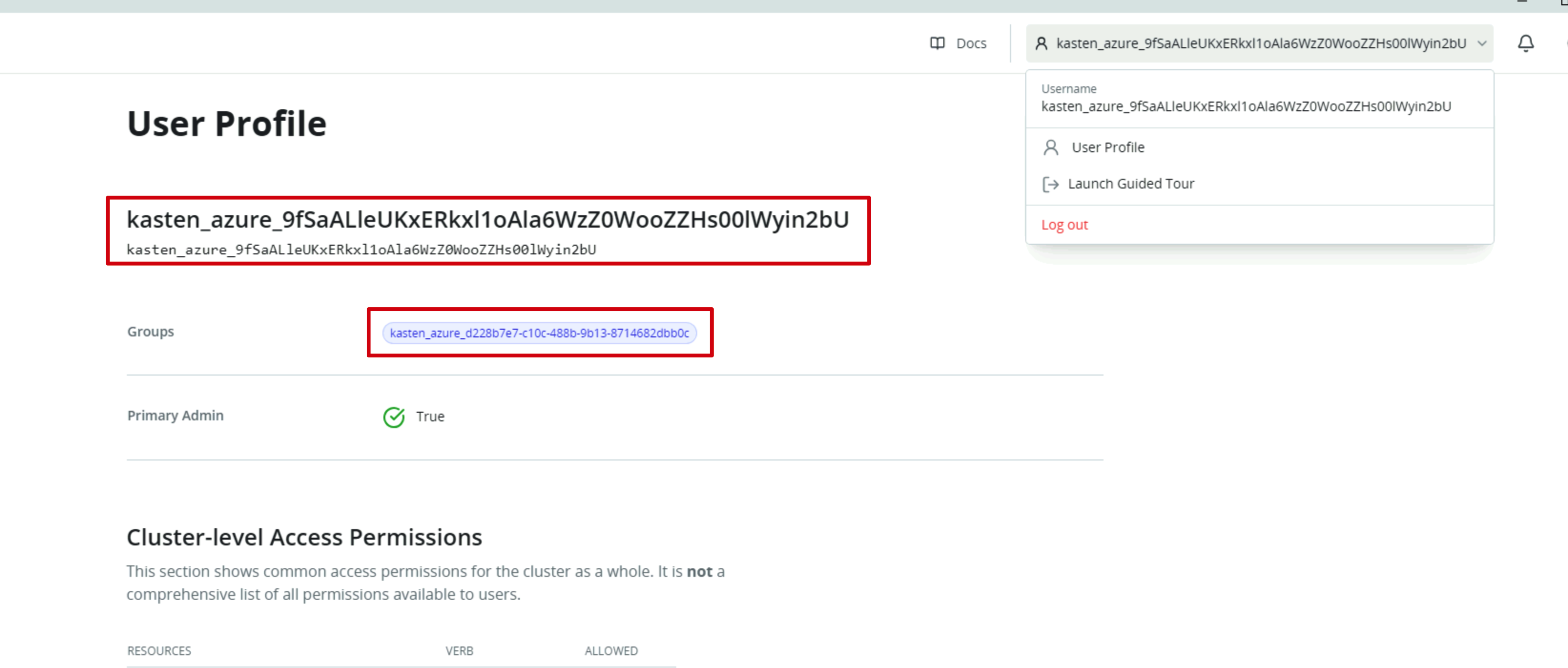
The key here is that Kasten needs to map Azure AD groups to Kubernetes RBAC roles. We’ll use the security group’s Object ID we captured earlier, combined with the groupPrefix from our configuration. In my setup, the groupPrefix is kasten_azure_ and my security group ID is d228b7e7-c10c-488b-9b13-8714682dbb0c, so the full group name becomes kasten_azure_d228b7e7-c10c-488b-9b13-8714682dbb0c.
Let’s create the necessary role bindings:
# Create clusterrolebinding for cluster-wide admin access
kubectl create clusterrolebinding k10-admin \
  --clusterrole=k10-admin \
  --group=kasten_azure_d228b7e7-c10c-488b-9b13-8714682dbb0c

# Create rolebinding for namespace-specific admin access
kubectl create rolebinding k10-admin \
  --role=k10-ns-admin \
  --group=kasten_azure_d228b7e7-c10c-488b-9b13-8714682dbb0c \
  --namespace=kasten-io
Once those role bindings are in place, refresh your browser and you should have full access to the Kasten console. Congratulations—you’ve successfully integrated Azure EntraID with Kasten!
Using Azure EntraID Authentication
Let’s see this in action. When you navigate to your Kasten web console, you’ll no longer see the familiar login screen. Instead, you’ll be immediately redirected to the Azure EntraID authentication interface:
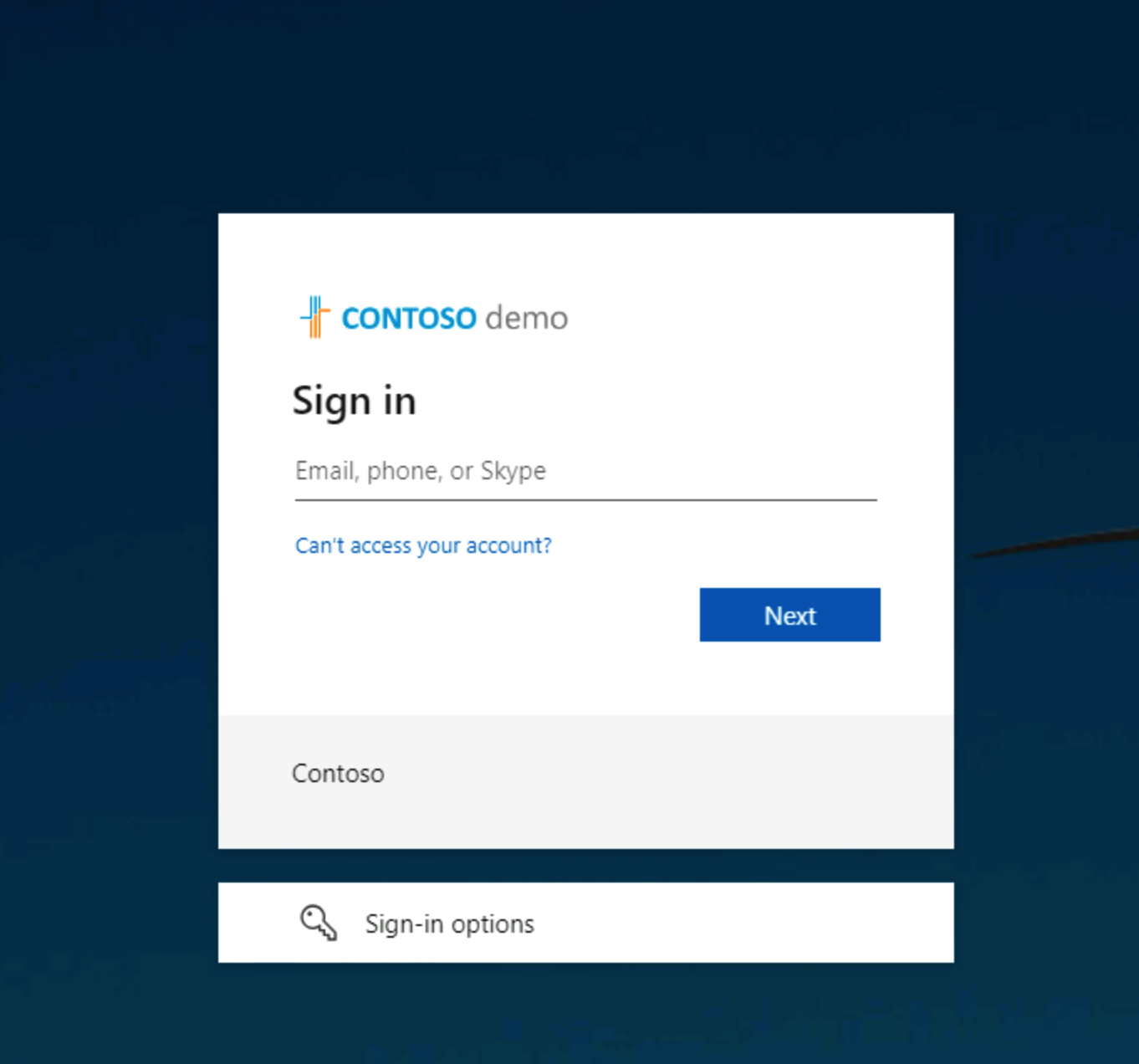
Enter your Azure AD credentials, and you’ll be prompted for multi-factor authentication through your authenticator app (or whatever MFA method you have configured):
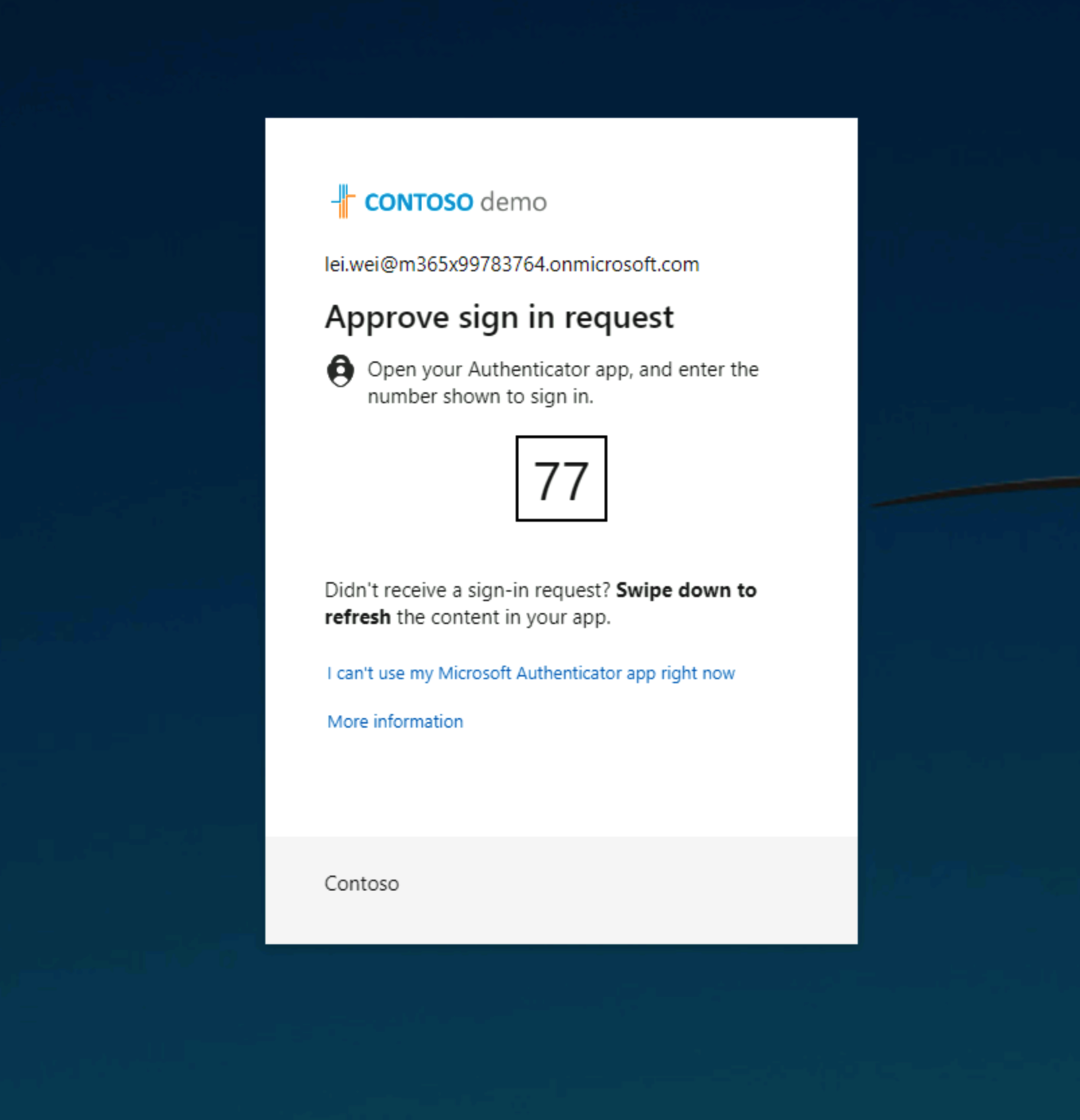
Once you complete the MFA challenge, you’ll be logged into the Kasten console. If you look in the top-right corner, you’ll see your current user information—notice the kasten_azure_ prefix followed by your Azure AD user ID. This is how Kasten identifies authenticated users from Azure:
Why This Matters
Integrating Kasten with Azure EntraID isn’t just about adding another authentication method—it’s about bringing enterprise-grade identity management to your Kubernetes backup infrastructure. Here’s what you’re getting:
-
Centralized Identity Management: No more separate Kasten user accounts to manage. Your Azure AD becomes the single source of truth for who can access your backup system.
-
Multi-Factor Authentication: Every login is protected by whatever MFA policies you have in Azure AD, dramatically reducing the risk of credential theft.
-
Audit Trail: All authentication attempts are logged in Azure AD, giving you comprehensive visibility into who’s accessing your backup infrastructure and when.
-
Seamless User Experience: Your users get the same authentication experience they’re used to across all your Azure-integrated applications.
-
Lifecycle Management: When users leave your organization, their access to Kasten is automatically revoked when their Azure AD account is disabled.
Wrapping Up
Setting up Azure EntraID integration with Kasten might seem like a few steps, but the payoff in terms of security and operational efficiency is substantial. You’re essentially elevating your backup infrastructure from having its own isolated authentication system to being part of your enterprise identity fabric.
The configuration we walked through today gives you a solid foundation for secure access management, but you can extend this further by creating different security groups for different access levels (read-only, backup operators, full administrators, etc.) and mapping them to appropriate Kubernetes RBAC roles.
Remember to keep an eye on those client secrets—they do expire, and you’ll need to update your Kasten configuration when they do. Also, consider setting up monitoring or alerts for authentication failures to stay ahead of any potential access issues.
That’s it for today. Happy (and secure) backing up!