VDP Security Series Part 2 - Managing Windows Accounts Using gMSA Technology
Series Overview
Data protection isn’t just about backup—it’s about the last line of defense for enterprise security. Veeam integrates security into every detail of its products through a zero-trust design philosophy. From the start of backup to the final step of recovery, Veeam continuously refines every feature to meet modern security requirements. This series brings together new security tips introduced in VDP v12 and later versions—simple to implement yet powerful enough to safeguard your data security.
- Part 1: Account-less Linux Backup Agent Management with SSH Service
- Part 2: Managing Windows Accounts Using gMSA Technology
- Part 3: Four-Eyes Authentication: Dual-Control Backup System Management
- Part 4: Enabling Multi-Factor Authentication (MFA): Enhanced Backup System Account Protection
- Part 5: Reducing Network Ports Involved in Backup Operations
- Part 6: Managing Logs with Syslog Integration to SIEM Systems
In our previous article, we detailed how to manage backup agents through account-less and SSH services in Linux systems. However, Windows systems present different challenges, especially in various operational scenarios within the Veeam backup platform where local administrator accounts are frequently required. For instance, when executing virtual machine Guest Processing, Indexing tasks, managing Windows agents, or performing various recovery operations, Veeam typically stores these accounts in the local database, which introduces potential security risks. Attackers could potentially compromise high-privilege accounts by cracking the Veeam local database. Additionally, it creates management complexity, requiring periodic synchronization of account passwords stored in the backup system to ensure security and compliance.
Today, we’ll introduce a completely new approach to account management—Group Managed Service Accounts built into Windows systems. Veeam leverages this technology to avoid storing Windows system account passwords during Guest Processing and Indexing, further reducing the risk of credential leakage.
This technology is called Group Managed Service Account (gMSA). Although gMSA was introduced in Windows 2012 and later versions (making it over a decade old), it’s relatively uncommon in practice, which means tutorials and documentation about it are scarce.
I hope this article helps you better understand and apply this technology!
Technical Background
gMSA is a technology in Windows systems for managing and storing service account passwords that enhances security while simplifying management. It has these key characteristics:
- Dynamic Password Management: gMSA passwords are managed by Active Directory and automatically updated regularly. No one can access or needs to use this account’s password.
- Reduced Password Risk: With gMSA, administrators don’t need to remember service passwords. The system automatically retrieves required passwords from AD for operation, and dynamic automatic updates further enhance its security.
- Simplified Usage: After implementing gMSA, there’s no need for regular manual updates and configuration of account passwords on the backup system, reducing complexity.
Through dynamic management and automatic password updates, gMSA technology greatly simplifies the management and maintenance of service accounts while ensuring service stability and security. It’s particularly suitable for backup systems with high security requirements that need to run long-term.
Applicable Environment
- Must have a Windows 2012 or later Active Directory environment. All virtual machines using this technology must run Windows 2012 or later.
- Cannot be used with Linux operating systems, even if Linux systems are joined to an AD domain that meets the requirements.
- Must use Guest Interaction Proxy for application-aware processing. VIX mode doesn’t work here.
- All involved systems must be able to access AD resources normally and obtain necessary accounts and permissions from AD.
Environment Preparation and Configuration Steps
- To use this technology, you first need to prepare your AD environment. As mentioned earlier, operations must be performed in Windows 2012 or later. After accessing the AD management console, check if a key condition is met: the default
Managed Service AccountsOU must exist normally. This OU is built-in and exists in AD by default. As shown below:
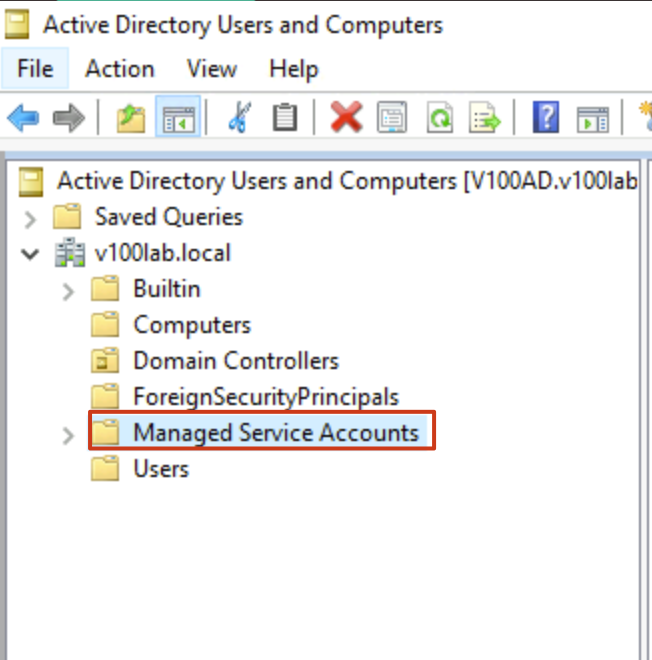
If this OU doesn’t exist or was accidentally deleted, you won’t be able to use gMSA technology. You may need to contact Microsoft technical support to restore this default OU—manually creating an OU with the same name is ineffective.
- After confirming this OU exists normally, you need to configure the domain controller. Most of the following configurations will be completed through PowerShell commands. Therefore, you first need to ensure the AD PowerShell management module is correctly installed on AD. This can be verified through Windows Features and Roles. The specific location is shown below:
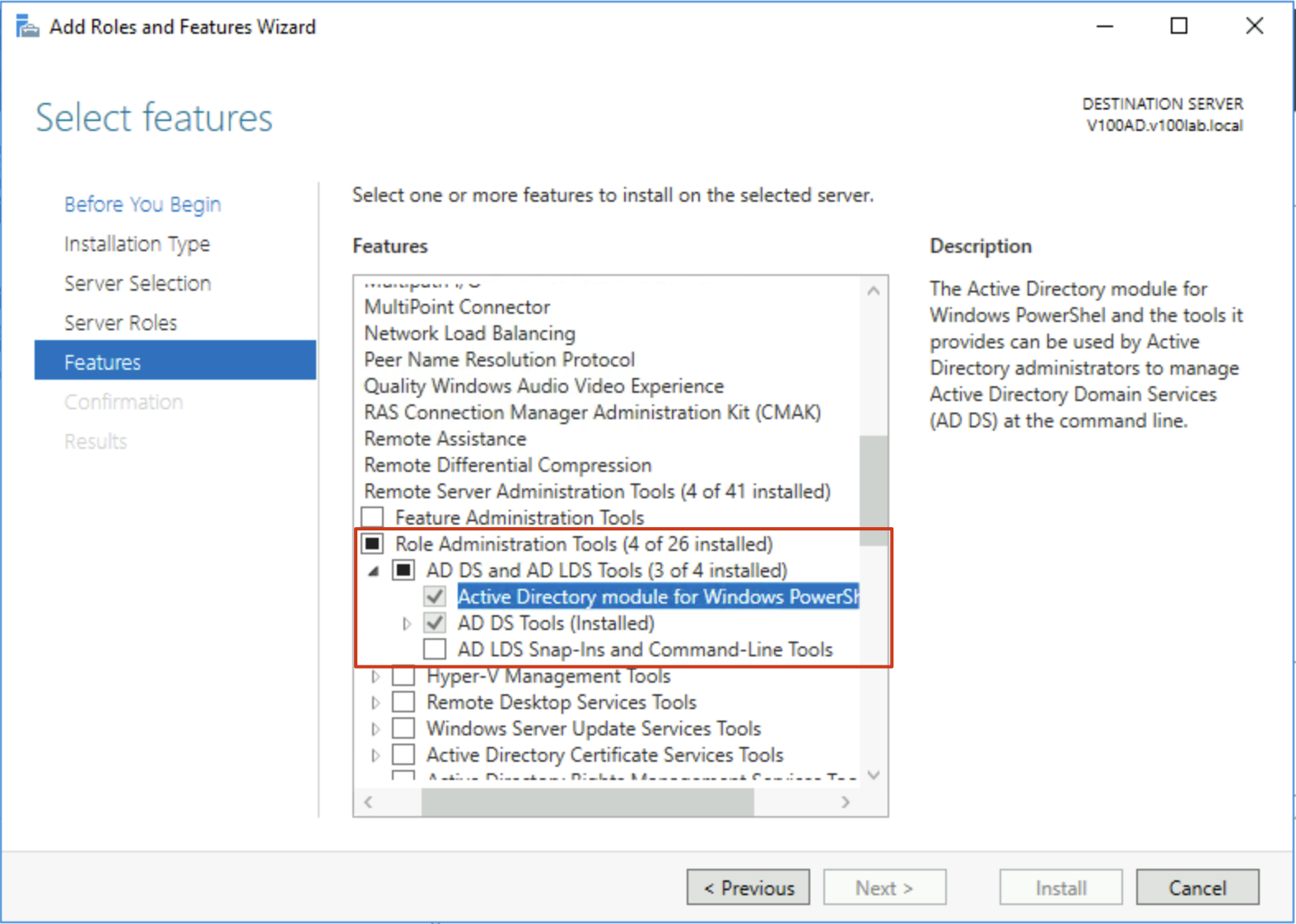
- Open PowerShell and first create a root key for automatic gMSA password management using the following command:
Add-KdsRootKey -EffectiveImmediatelyNote that although this command specifies immediate effectiveness, based on my experience and online comments, it actually takes effect the next day. So if you’re following my steps, you might want to stop here and continue tomorrow.
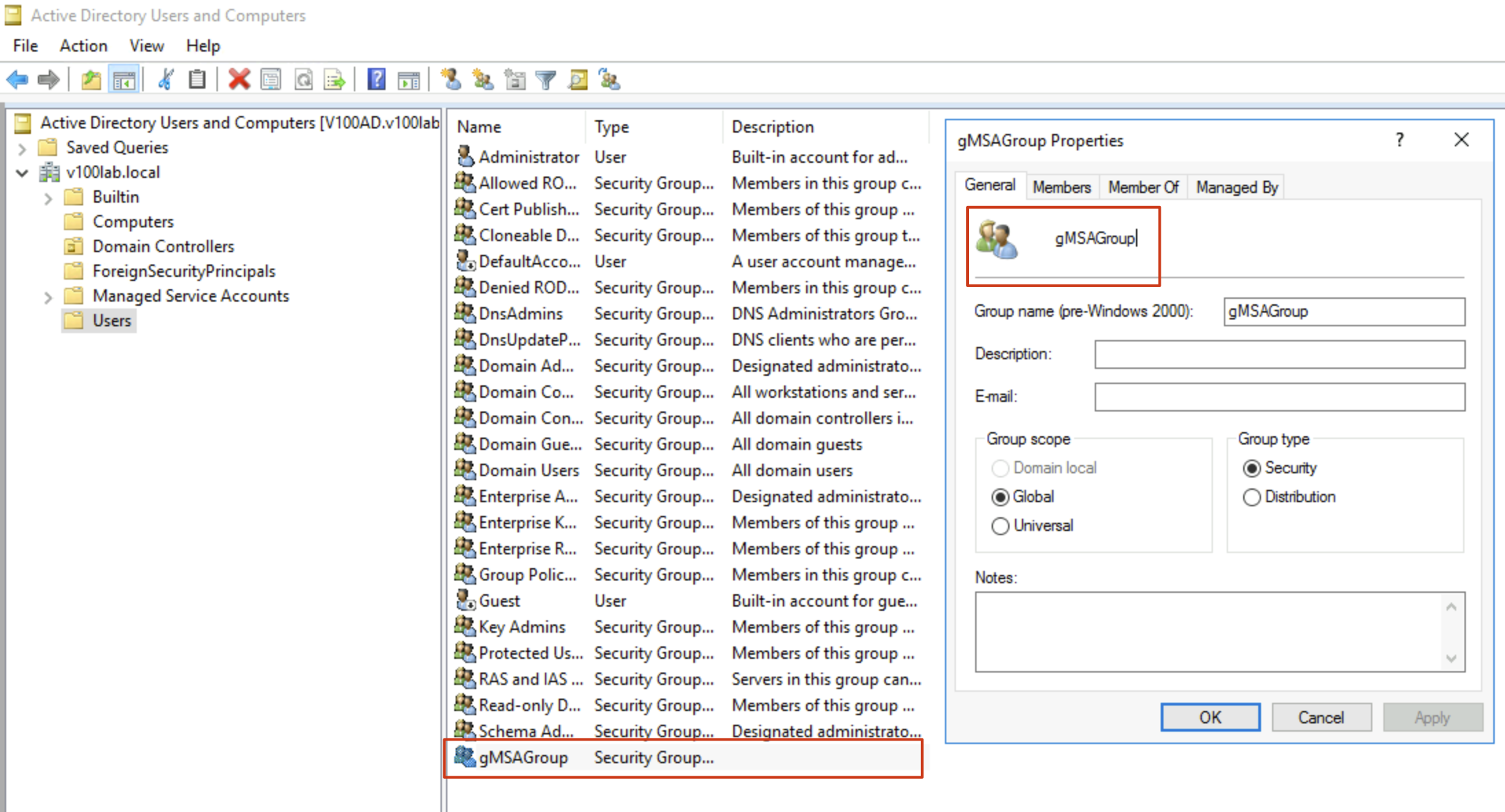
- Create a security group in AD. In the following operations, we’ll add all relevant servers to this security group. Only servers in this group will be authorized to use gMSA accounts. Computers not in this security group will have no access to gMSA accounts. This step is very important.
It doesn’t matter which OU you create this security group in. In my experiment, I created it under the Users OU, as shown:
- Add all servers involved in VBR to this Security Group’s Members. In my experiment, I’ll use two servers: one is the backup target V100SQL that needs to use the gMSA account, and the other is Win001, which serves as the Guest Interaction Proxy. As shown in the image, I’ve already added them to Members:
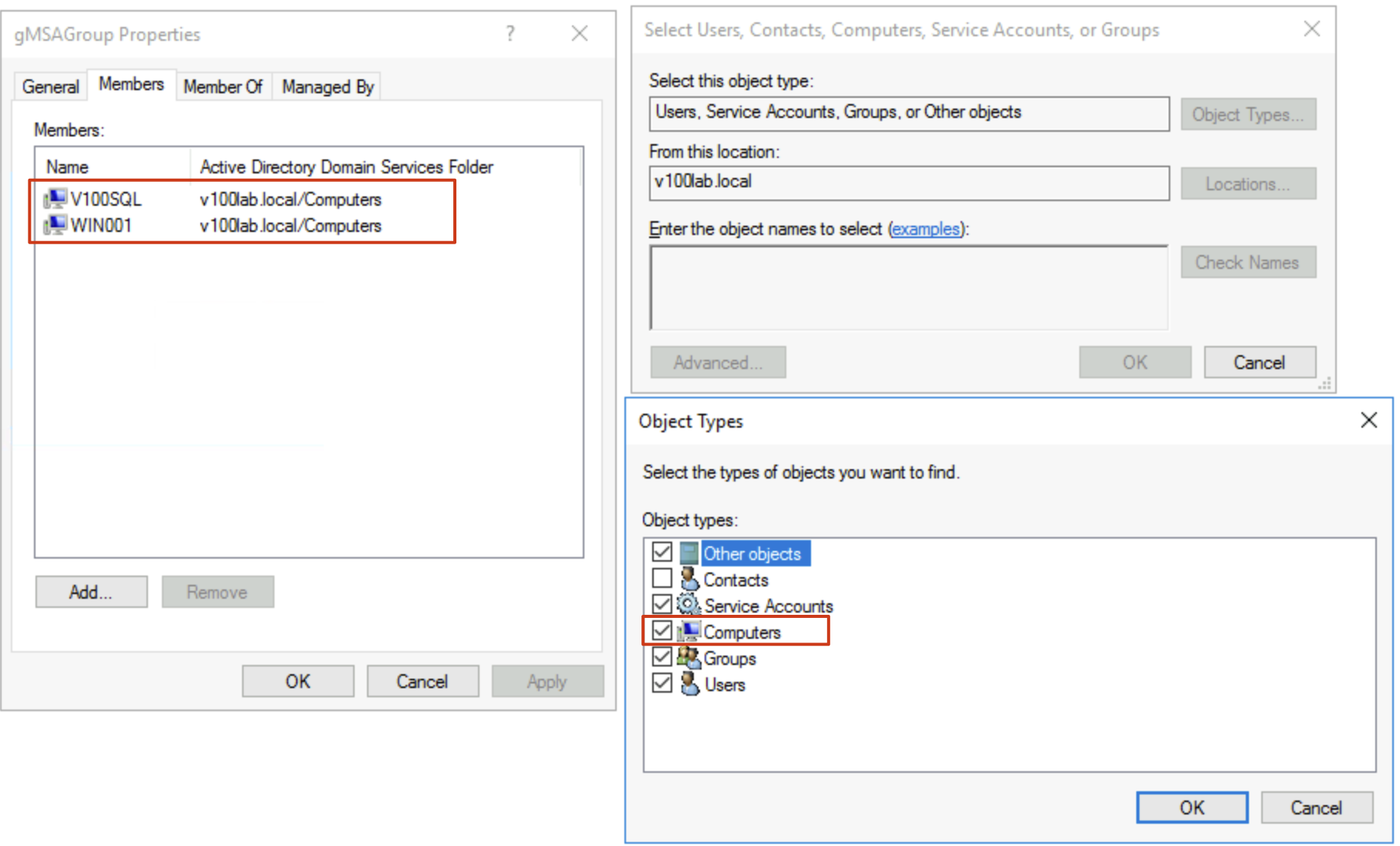
Note that when adding Members, Computer Names won’t appear in search results by default. You must include Computers in the object types when selecting objects to search for and add them.
- Create the gMSA account. After completing the preparations above, you can create the gMSA account using the following command:
$gMSAName = 'gmsa01'
$gMSAGroupName = 'gMSAGroup'
$gMSADNSHostName = 'gmsa01.v100lab.local'
New-ADServiceAccount -Name $gMSAName -DNSHostName $gMSADNSHostName -PrincipalsAllowedToRetrieveManagedPassword $gMSAGroupName -Enabled $True
After creation, the gMSA account will appear under the Managed Service Accounts OU:
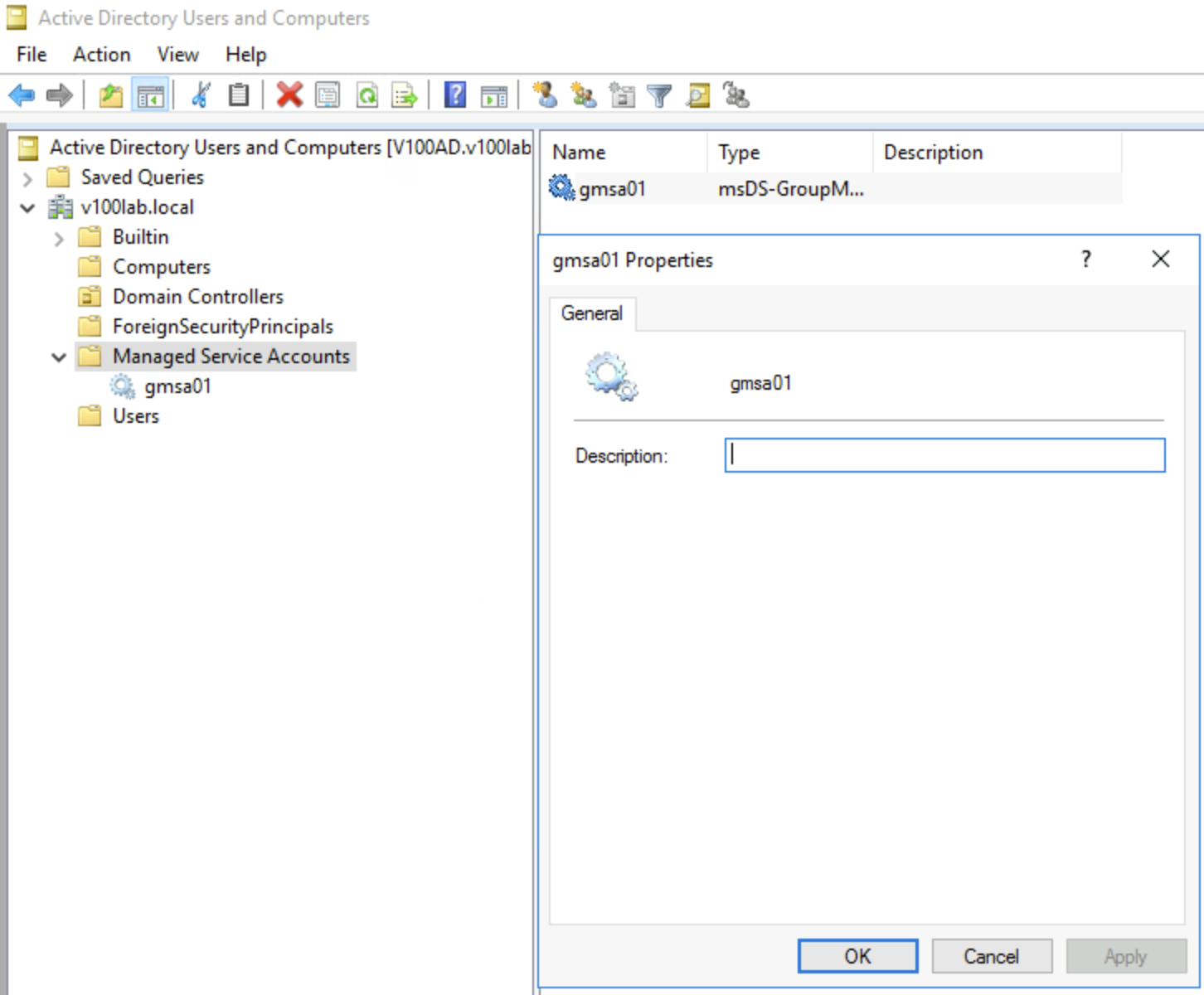
- With this, the AD configuration is basically complete. The next operations need to be performed on each Windows system that will use the gMSA account. Before configuration, we need to refresh the newly created AD object information and synchronize it. This can generally be done by executing the following command:
C:\WINDOWS\system32\klist.exe -lh 0 -li 0x3e7 purgeAlternatively, you can simply restart the corresponding systems. In my experiment, to ensure normal configuration, I restarted all my VMs after completing step 6.
- Next, let’s configure the Guest Interaction Proxy. This configuration is relatively simple—we just need to allow it to obtain and use the account. Since our Guest Interaction Proxy will initiate some backup operations through this account, it needs to obtain account usage rights. According to step 5’s configuration, we’ve already obtained the usage rights normally. Here, we just need to perform a simple verification. If the verification passes, no further configuration is needed:
PS C:\Users\Administrator.V100LAB> Test-ADServiceAccount gmsa01$
True
With this Test command, just ensure the output is True. If this output is not True, it means the account wasn’t configured successfully, and you need to go back and check steps 1-7 to see where the configuration went wrong.
- Then, move to the target server to configure relevant permissions. The first thing to do is install the gMSA account on the target server using the following commands:
#Test account
Test-ADServiceAccount gmsa01$
#Install account
Install-ADServiceAccount "gmsa01$"
If everything is normal, you’ll find that the account has been installed.
- Configure gMSA local permissions. Like other accounts used for VBR backup, we need to add the gMSA account to the operating system’s local administrators group. Additionally, for machines with SQL, we need to add the gMSA account to the SQL Server’s sysadmin group as well.
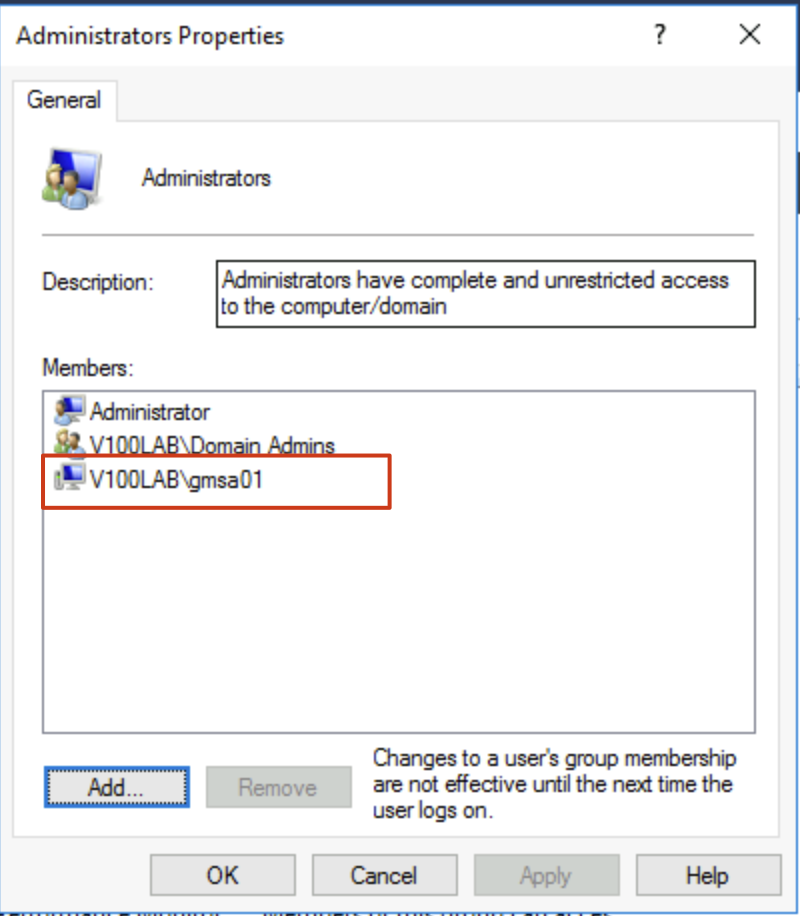
When adding SQL permissions, pay special attention to checking the Service Accounts option when searching for accounts, otherwise you won’t find the gMSA account.
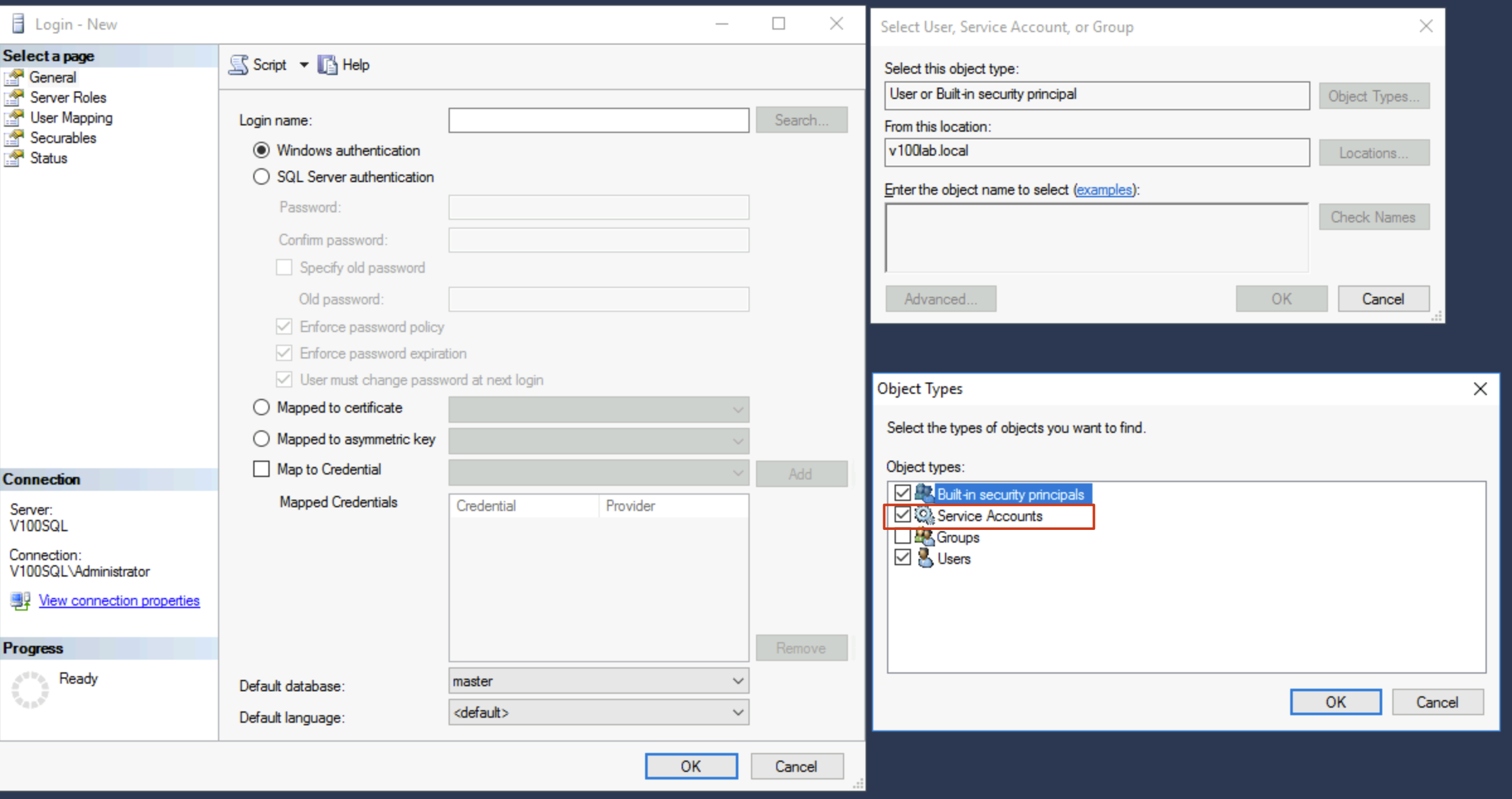
After completing the above additions, the gMSA account configuration is complete. Now you can return to VBR to configure and test the gMSA account.
- In VBR’s backup job, enable the application-aware option. In the Add Credentials on the right, you’ll find
Managed Service Account.... After clicking, a dialog box appears that only requires entering a username. This way, we only need the account without a password to use it for application-aware processing, achieving passwordless configuration of application-aware processing in VBR.
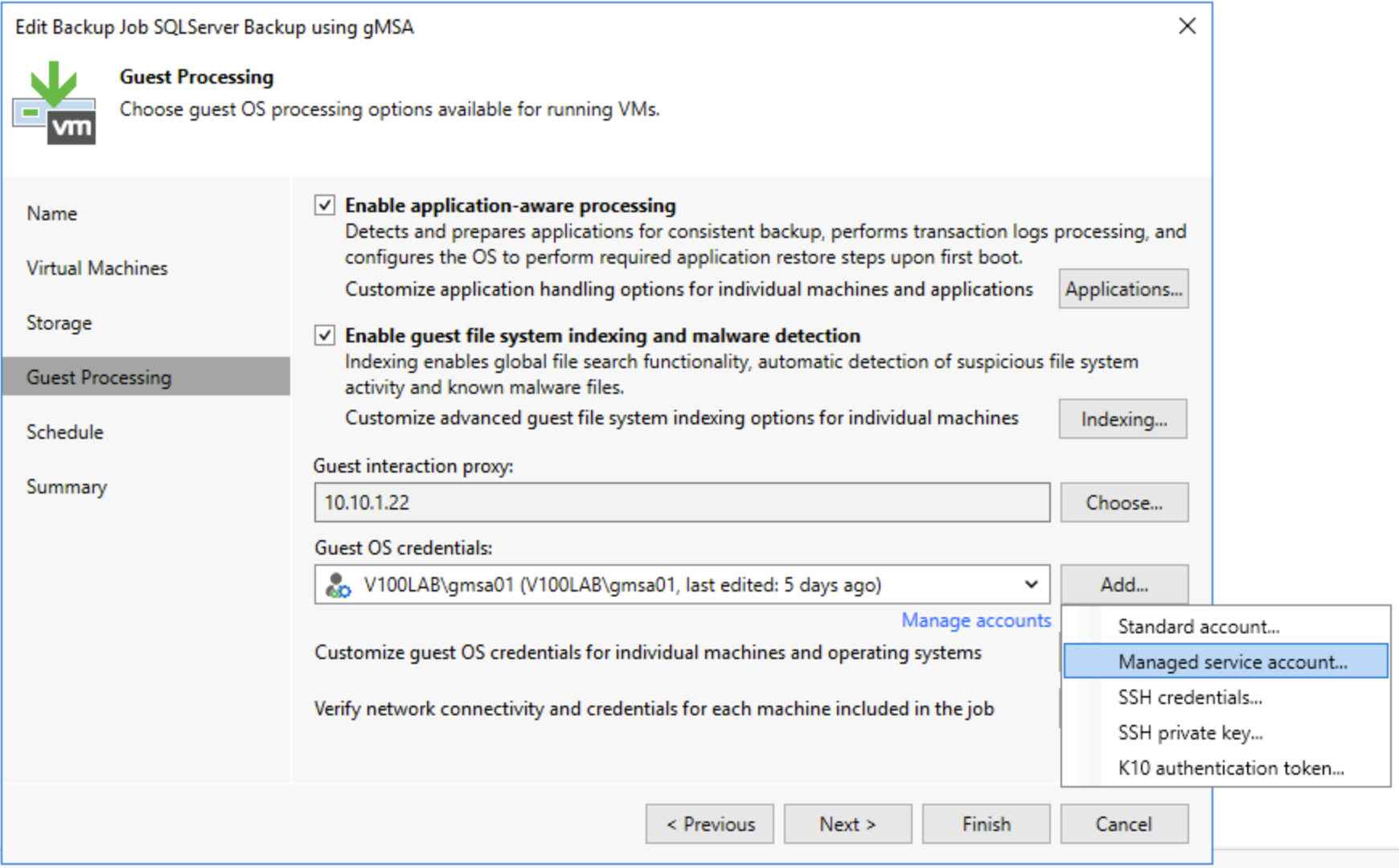
- Click Test Now to test this gMSA and see if it works properly.
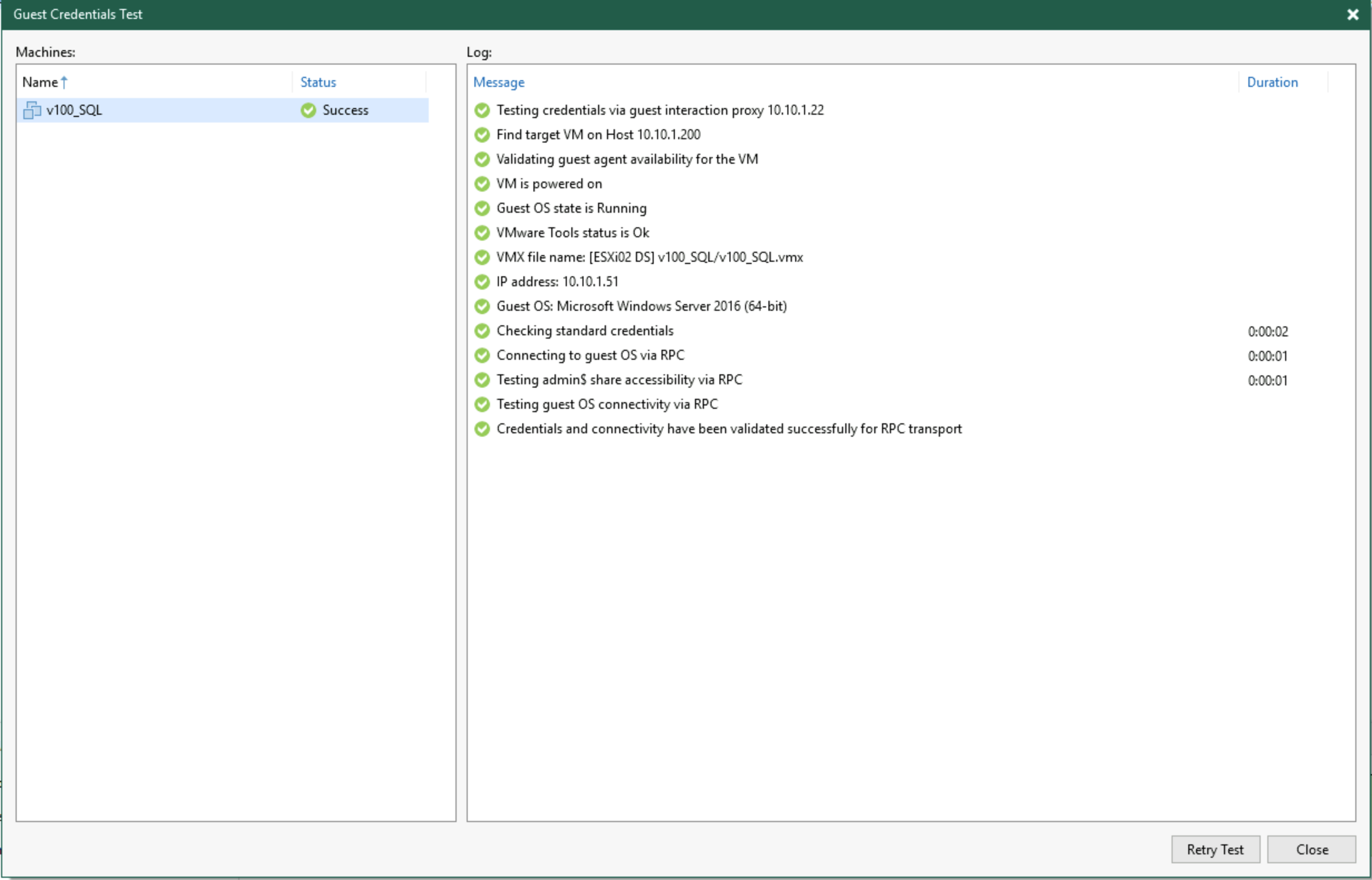
As you can see, when using gMSA, the Test doesn’t test the VIX working method—it only verifies through RPC.
Summary
The above is the method for configuring passwordless backup accounts in Windows. The example uses SQL Server as the backup object. For other applications, you also need to configure corresponding permissions; otherwise, application-aware processing will fail.