VDP Security Series (Part 1) - Account-Free Management and SSH Service Control for Linux Backup Agents
Series Overview
Data protection isn’t just about backups—it’s about the last line of defense for enterprise security. Veeam integrates security into every detail of its products through a zero-trust design philosophy. From the beginning of backup to the final step of recovery, Veeam continuously refines every feature to meet modern security requirements. This series brings together new security tips and tricks introduced since VDP v12—simple yet powerful features that safeguard your data security.
- Part 1: Account-Free Management and SSH Service Control for Linux Backup Agents
- Part 2: Using gMSA Technology to Manage Windows Accounts
- Part 3: Four-Eyes Authentication: Dual Control for Backup System Operations
- Part 4: Enabling Multi-Factor Authentication (MFA): Strengthening Backup System Account Protection
- Part 5: Reducing Network Ports Involved in Backup Operations
- Part 6: Using Syslog to Forward Logs to SIEM Systems
In any system, gaining account privileges is the starting point for hacker attacks, and backup systems are no exception. Account storage and management carry certain security risks. Therefore, when designing and configuring systems, reducing unnecessary account storage and automatic memory retention is an important security measure. In backup solutions, Veeam Agent for Linux introduces account-free management functionality, which significantly enhances system security. With this approach, users don’t need to store account information in the system, effectively reducing potential security vulnerabilities and data leakage risks. This account-free management mechanism not only elevates the security protection level of backups but also simplifies the administrator’s management workflow. For special systems, it can also avoid using SSH management protocols, making the overall system more secure and reliable.
Additionally, for environments where bastion hosts manage root passwords, this deployment method can adapt to constantly changing account passwords, avoiding the need to modify stored passwords in the backup system.
How It Works
Before deploying Veeam Agent for Linux, administrators first pre-install Veeam’s deployment service package and temporary certificates on the Linux machine. With this service package in place, when VBR initiates Agent push/management operations, VBR will detect this component on the Linux system. After establishing a connection with this component, it checks the necessary certificates. If it’s a temporary certificate, VBR will issue an official certificate to replace the current temporary one. After this, VBR will use this valid certificate to communicate with the Linux machine and manage/install related Agent components. This process completely eliminates the need to enter Linux machine administrator usernames and passwords on the backup server.
Step-by-Step Guide
Now, let me walk you through how to use this feature step by step.
- First, you need to export the pre-installation software package and temporary certificates from VBR. Export requires the following PowerShell command:
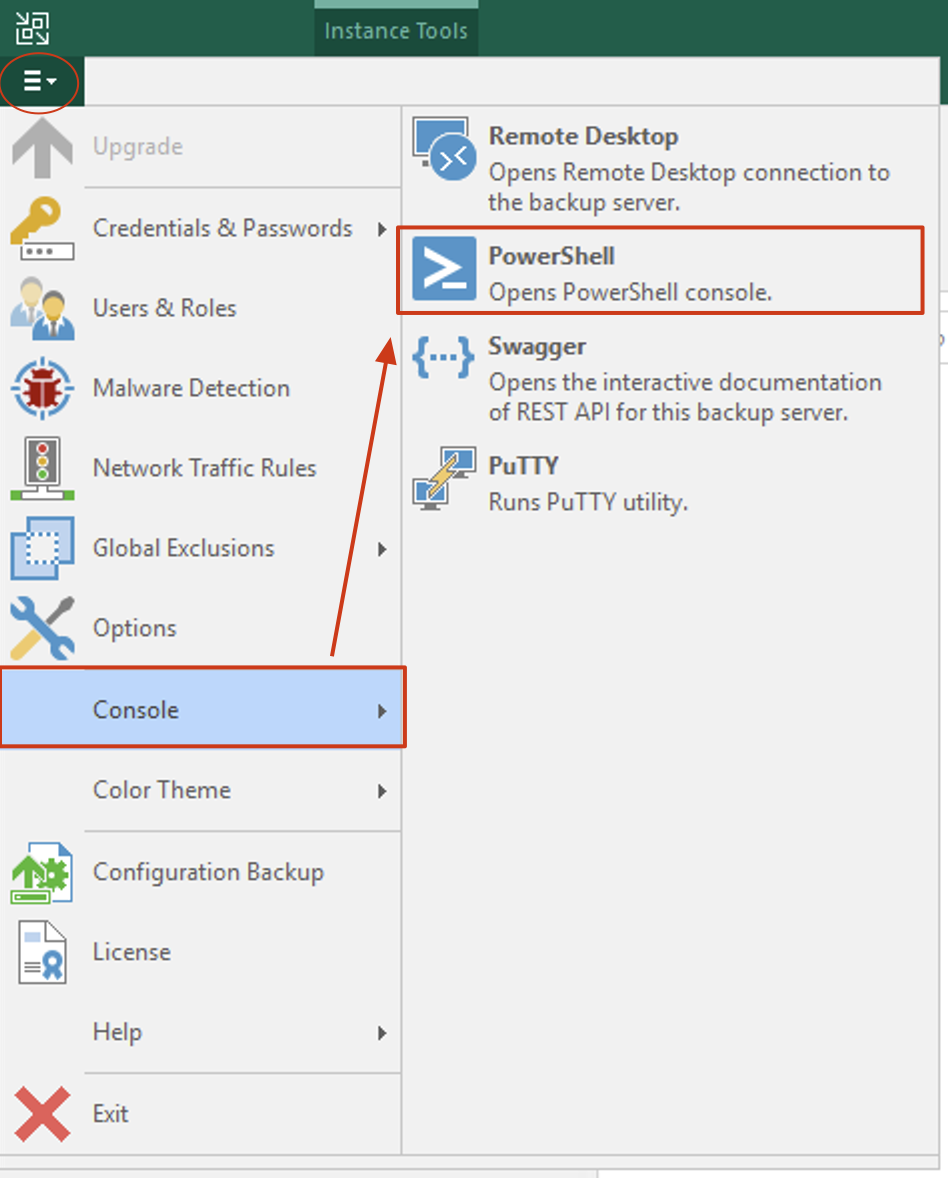
Generate-VBRBackupServerDeployerKit -ExportPath "C:\Users\Administrator\Documents"Open the hamburger menu icon (three horizontal lines) in the upper left corner of the VBR server, find PowerShell under the Console menu, and enter the above command to get this Deployer Kit.
Navigate to the exported directory, and you’ll see the following files:
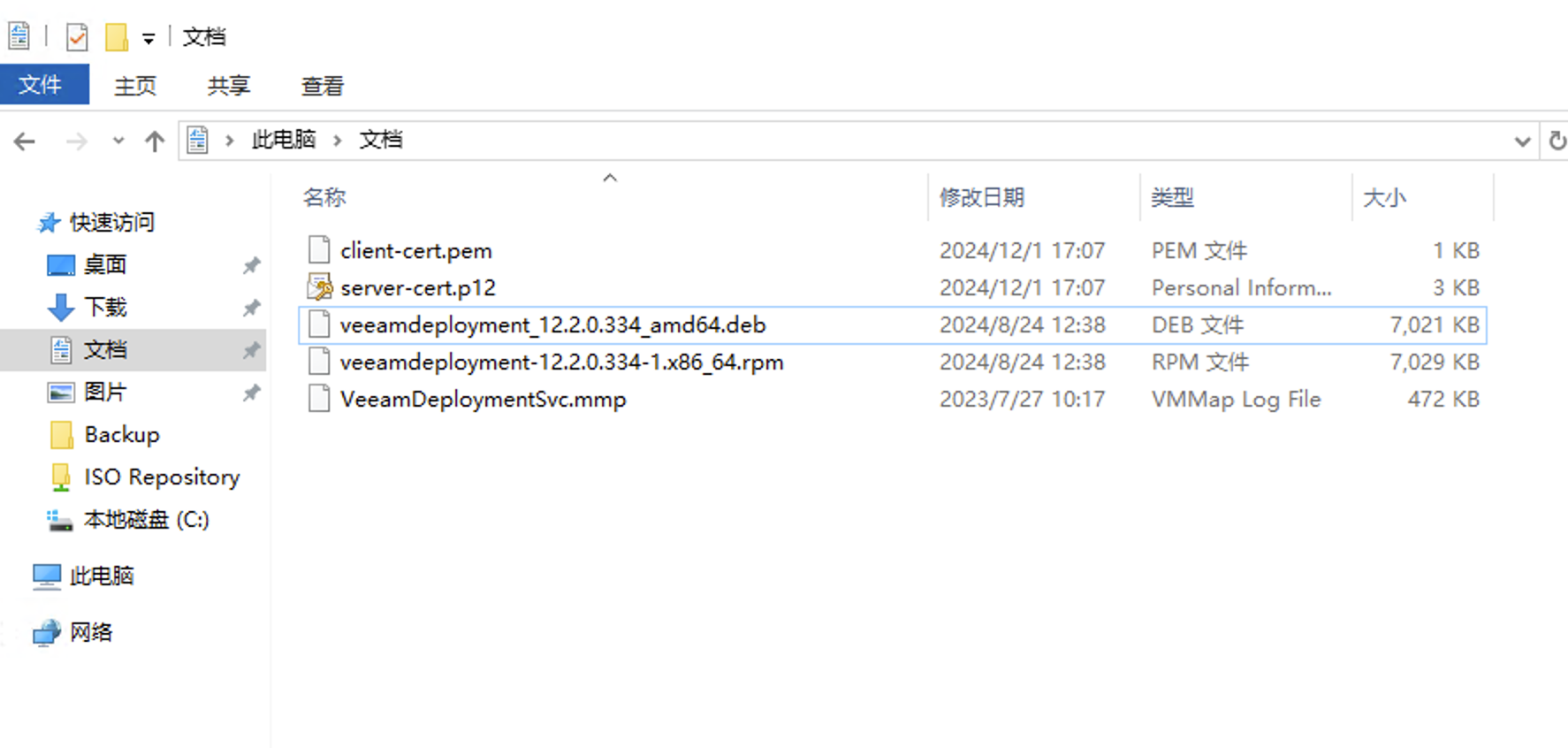
Among these, the rpm package is for Red Hat-based systems, while deb is for Debian-based systems. Depending on the system, you need to copy client-cert.pem, server-cert.p12, and either an rpm or deb package to the target Linux machine.
- Run the command to install the rpm package:
yum install veeamdeployment-12.2.0.334-1.x86_64.rpm- Next, run the commands to install the certificates:
/opt/veeam/deployment/veeamdeploymentsvc --install-server-certificate server-cert.p12
/opt/veeam/deployment/veeamdeploymentsvc --install-certificate client-cert.pem
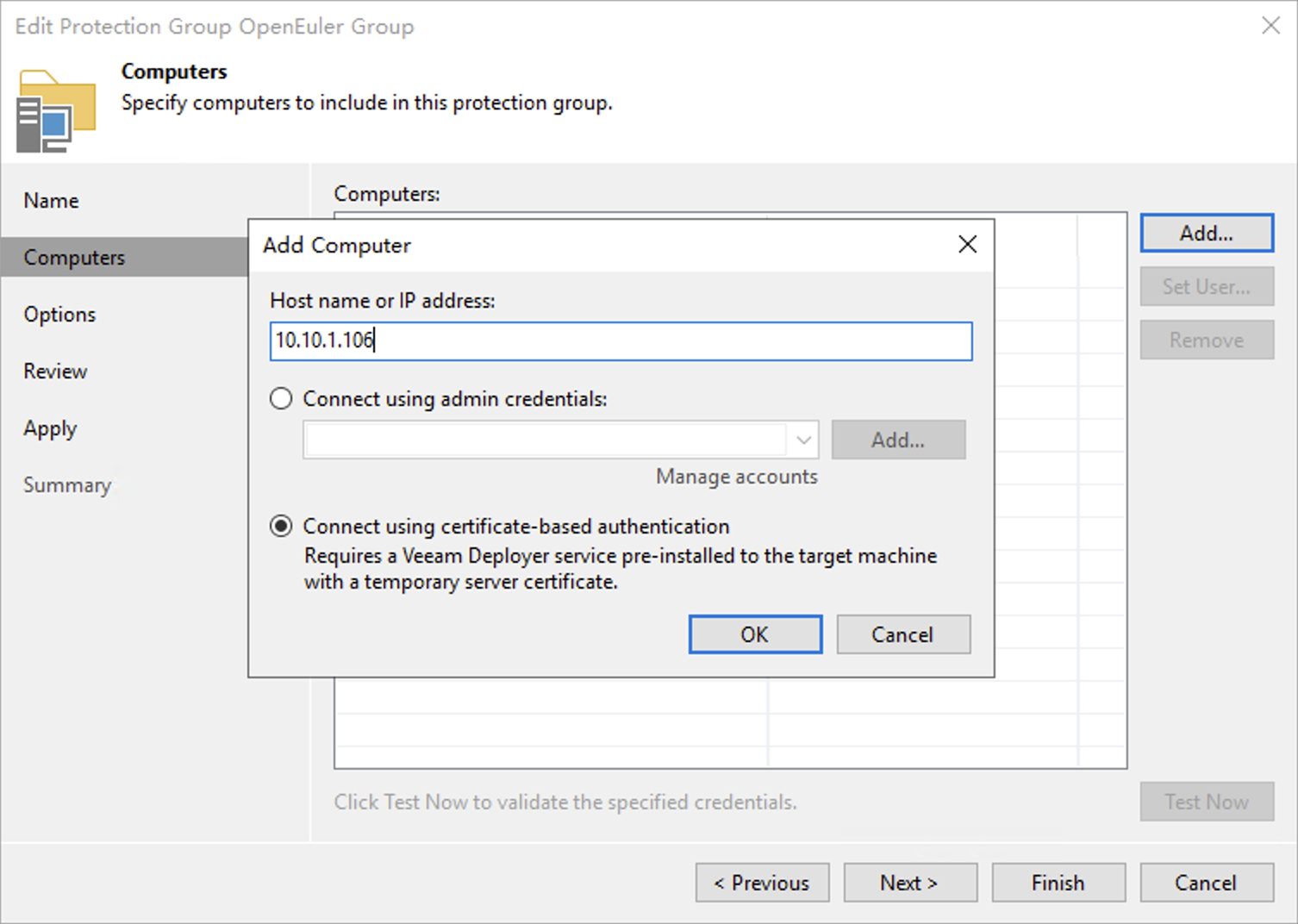
/opt/veeam/deployment/veeamdeploymentsvc --restart- Return to the VBR console and create a protection group. In the protection group creation wizard, when adding Linux hosts, select
Connect using certificate-based authentication. After adding, you can use theTest Nowbutton to test connectivity. At this point, when usingcertificate-based authenticationmode, VBR will no longer require any SSH services to deploy Veeam Agent for Linux.
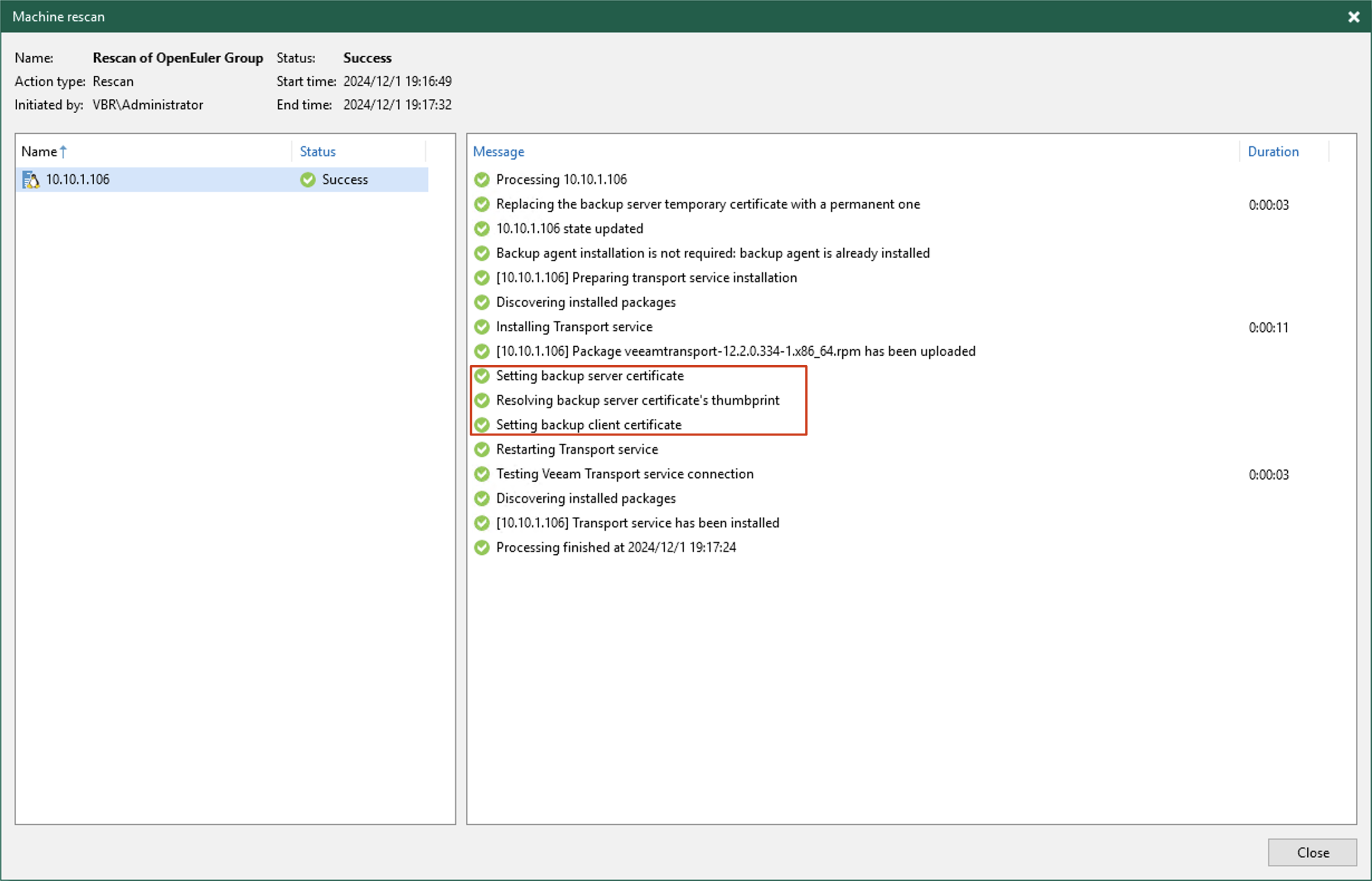
- Once everything is working properly, you can complete the Protection Group creation in the normal way and push the Agent. During the push process, VBR will update the temporary certificate on the target server, replacing it with an official communication certificate and installing the Transport service.
That covers the security tips for Linux Agent management. I hope this helps with your IT system’s security. In the next installment, I’ll show you how to use password-free management methods for Windows systems.