Backing Up Various Custom Linux Distributions with Veeam Agent for Linux NOSNAP
The highly flexible nature of Linux as an open-source system allows everyone to use it in their own unique way. This flexibility often creates compatibility challenges for backup software that depends deeply on the operating system. Even minor changes can cause backup failures, which is why backup software typically maintains a compatibility list—systems not on this list usually won’t work properly.
These issues are common throughout the open-source world. While there’s no single solution to solve everything at once, addressing the majority of cases would be a significant improvement, wouldn’t it?
In Veeam Agent for Linux, there’s a special working mode that I call the “universal mode.” It doesn’t require loading the Veeamsnap driver or compiling drivers using dkms modules, making it compatible with most environments and enabling data backups in non-standard environments.
As we know, Veeam’s official list of supported Linux operating systems is limited. Popular Chinese distributions like EulerOS, Loongnix, UOS, and Kylin typically can’t be installed using the standard Veeam Linux Agent configuration steps. This is where manually installing Veeam Linux Agent in no-snap mode can solve the problem, allowing these systems to back up to Veeam repositories.
Additionally, with a few additional conditions, you can even achieve entire machine backup and Bare Metal Recovery (BMR).
This article uses OpenEuler as an example to walk through the entire process and highlight important considerations.
Where to Find This Agent?
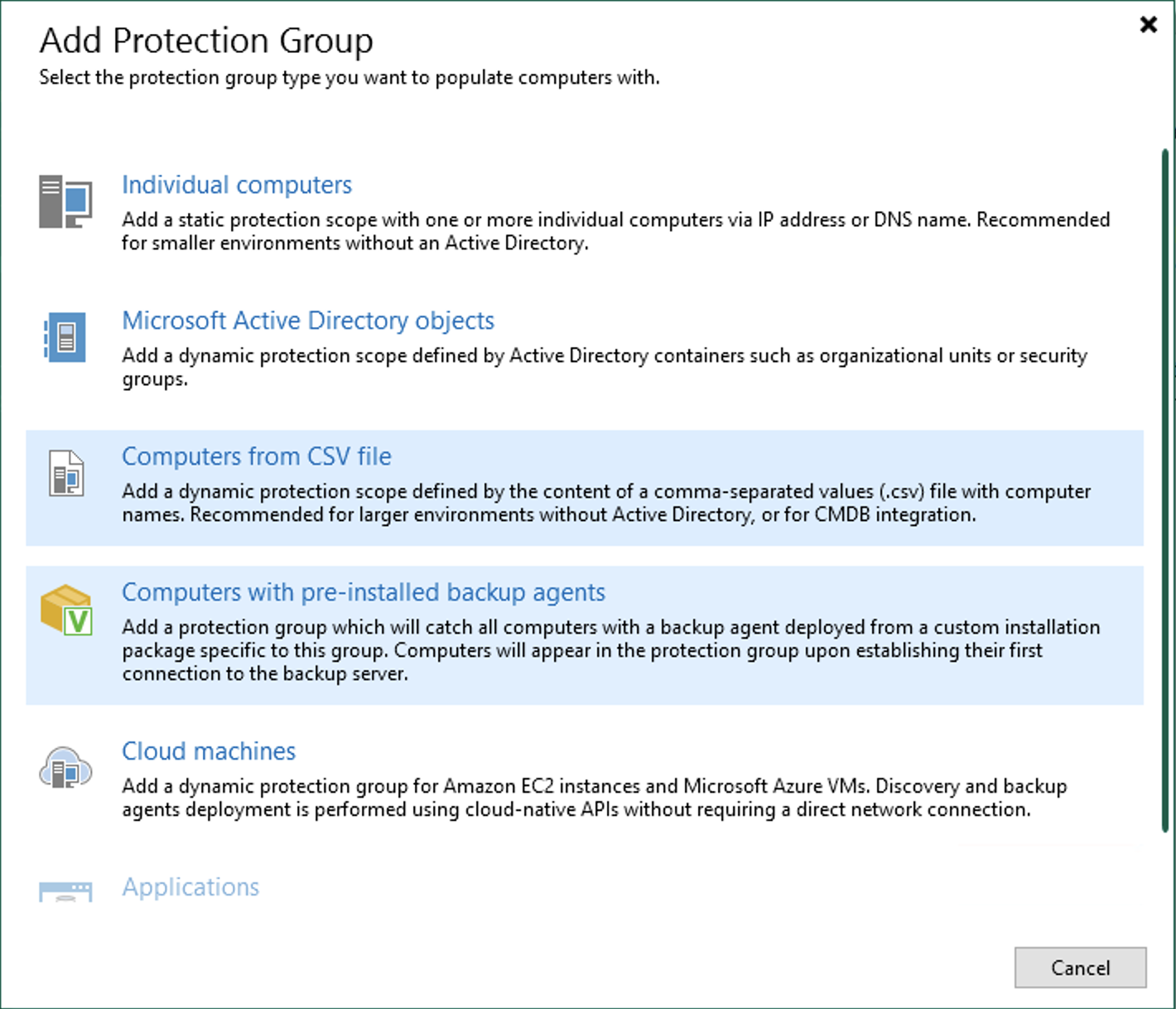
Like other Veeam Agents for Linux, we have two ways to obtain this agent installation package. One method is through the VBR console, where we simply need to create a Protection Group of type Computers with pre-installed backup agents.
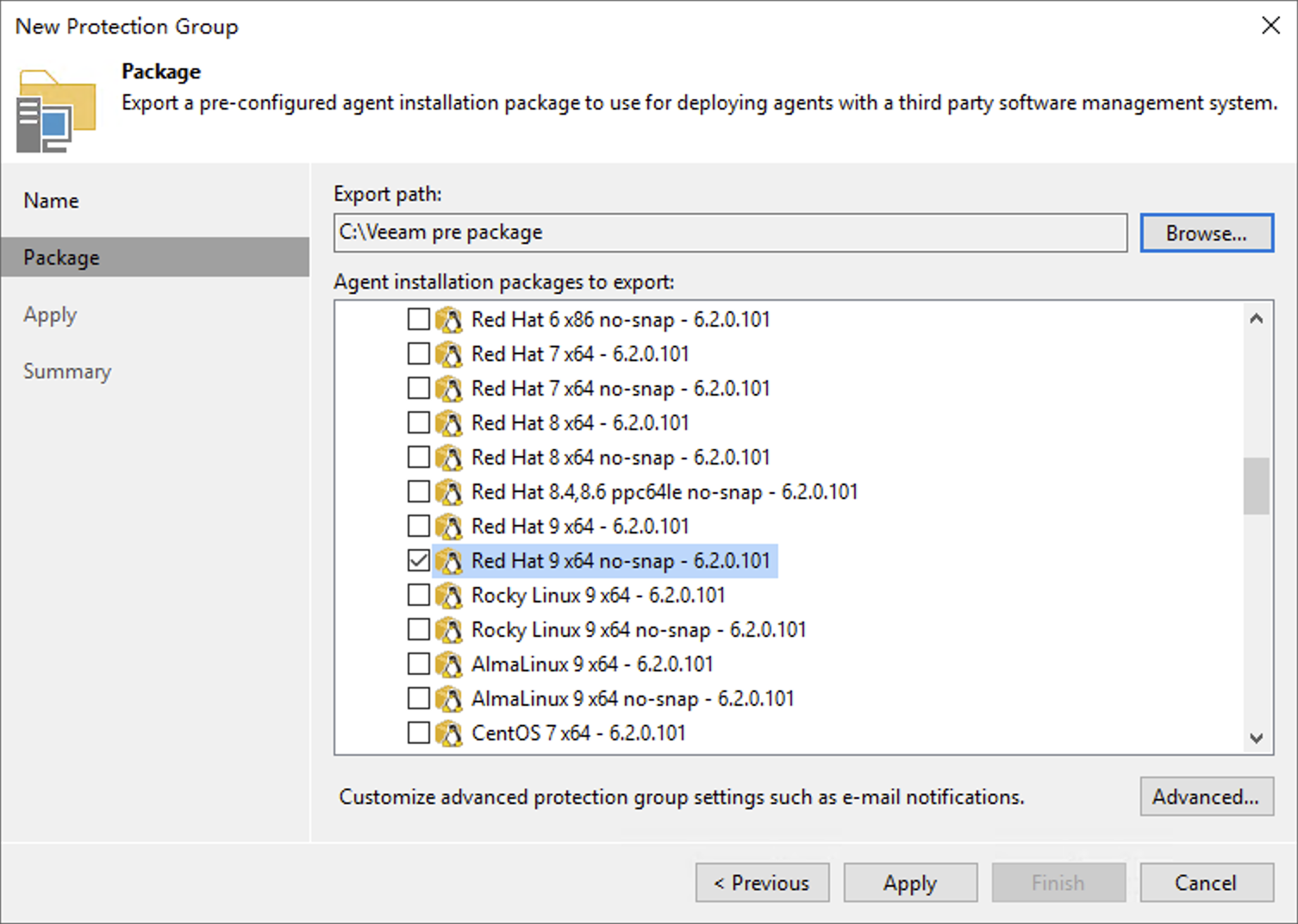
In the creation wizard, you’ll find various Linux versions of Nosnap agents. For our experiment with the Red Hat-based Euler system, we’ll select Red Hat 9 x64 no-snap - 6.2.0.101.
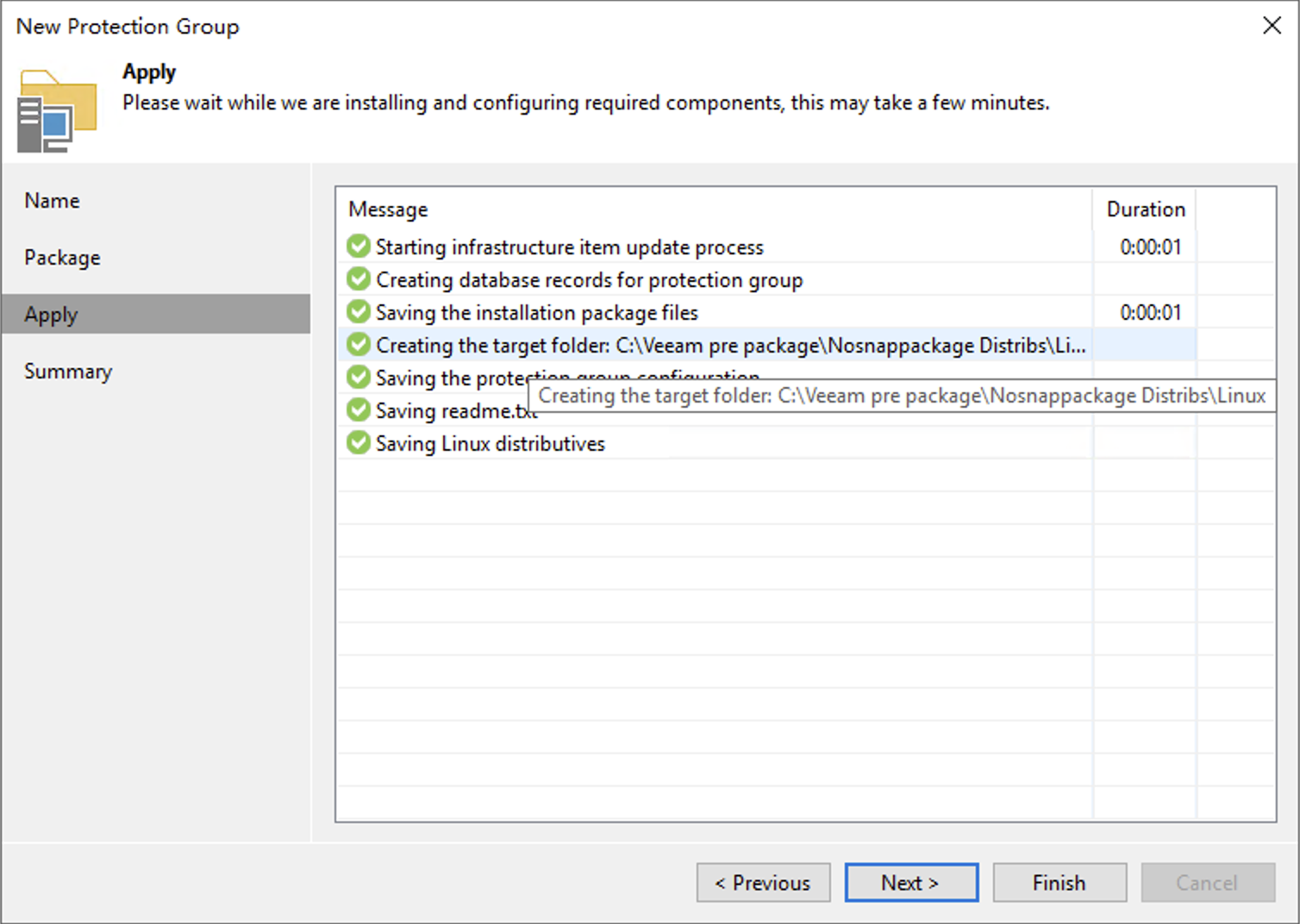
After setting up the Export path, click Apply to generate the no-snap installation package. You’ll find the corresponding rpm package in the Export path.
Alternatively, you can download the nosnap package directly from Veeam’s official software repository.
The URL is: https://repository.veeam.com/backup/linux/agent/rpm/el/9/x86_64/
For the latest version, you’ll need to download two files: veeam-nosnap-6.2.0.101-1.el9.x86_64.rpm and veeam-libs-6.2.0.101-1.x86_64.rpm.
Installation and Configuration
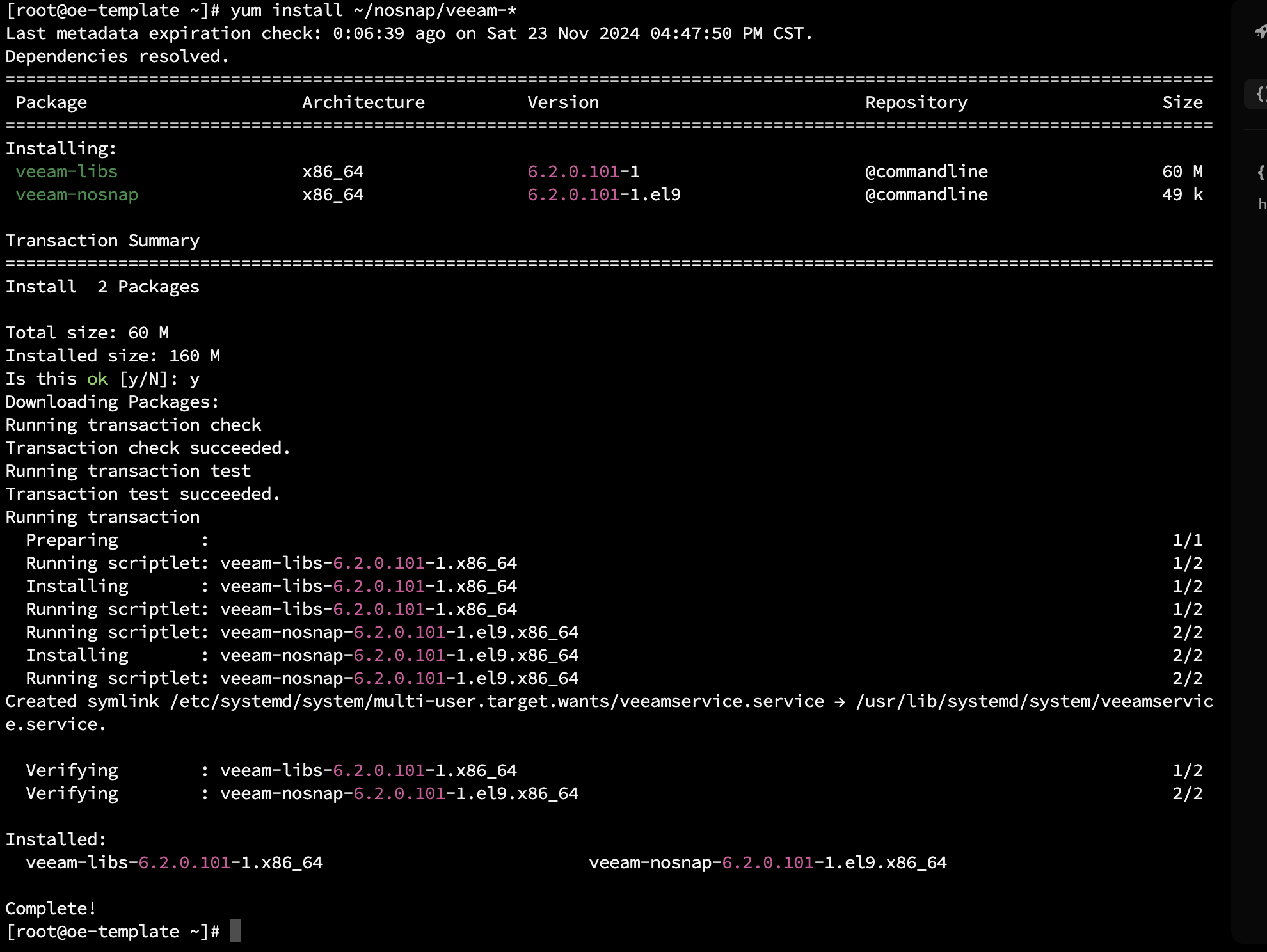
Installing this package is straightforward—simply run the command yum install ~/nosnap/veeam*. Yum will automatically resolve the required dependencies. Generally, there are no additional dependencies needed, and the installation completes within seconds.
After installation, return to the VBR console and either find a suitable Protection Group or create a new one, then add this machine to it. This allows VBR to manage the OpenEuler system.
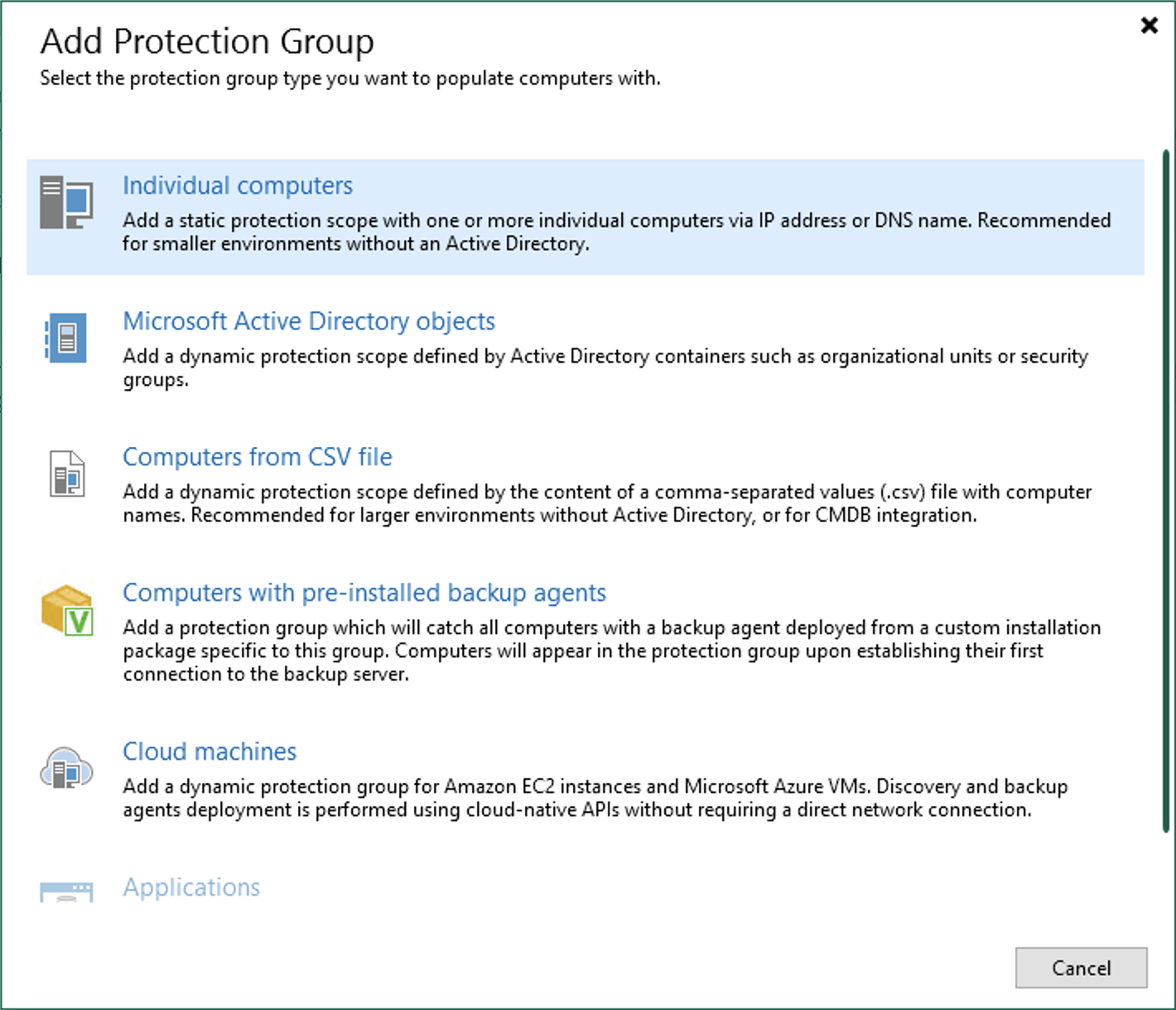
Give the new Protection Group a name:
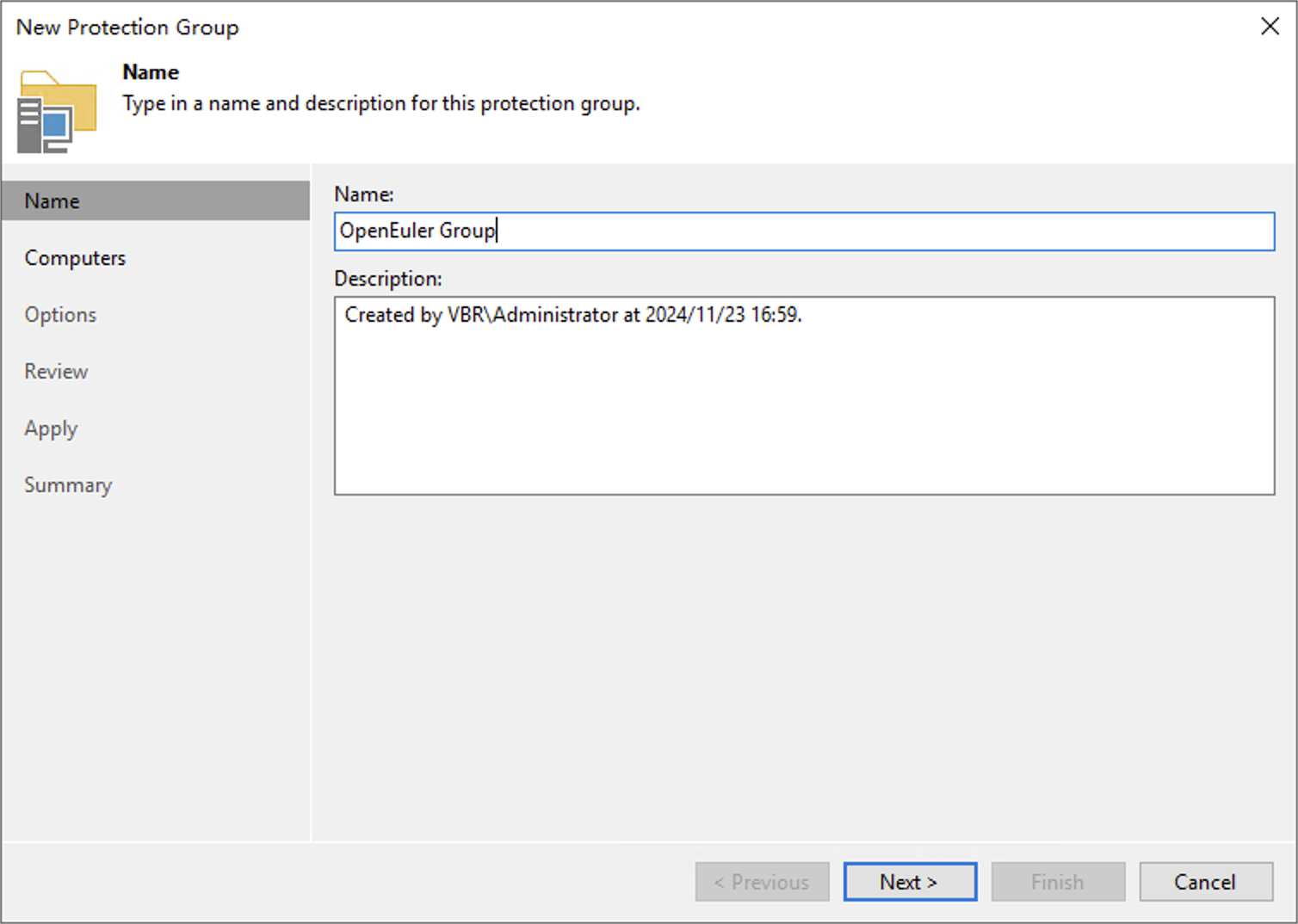
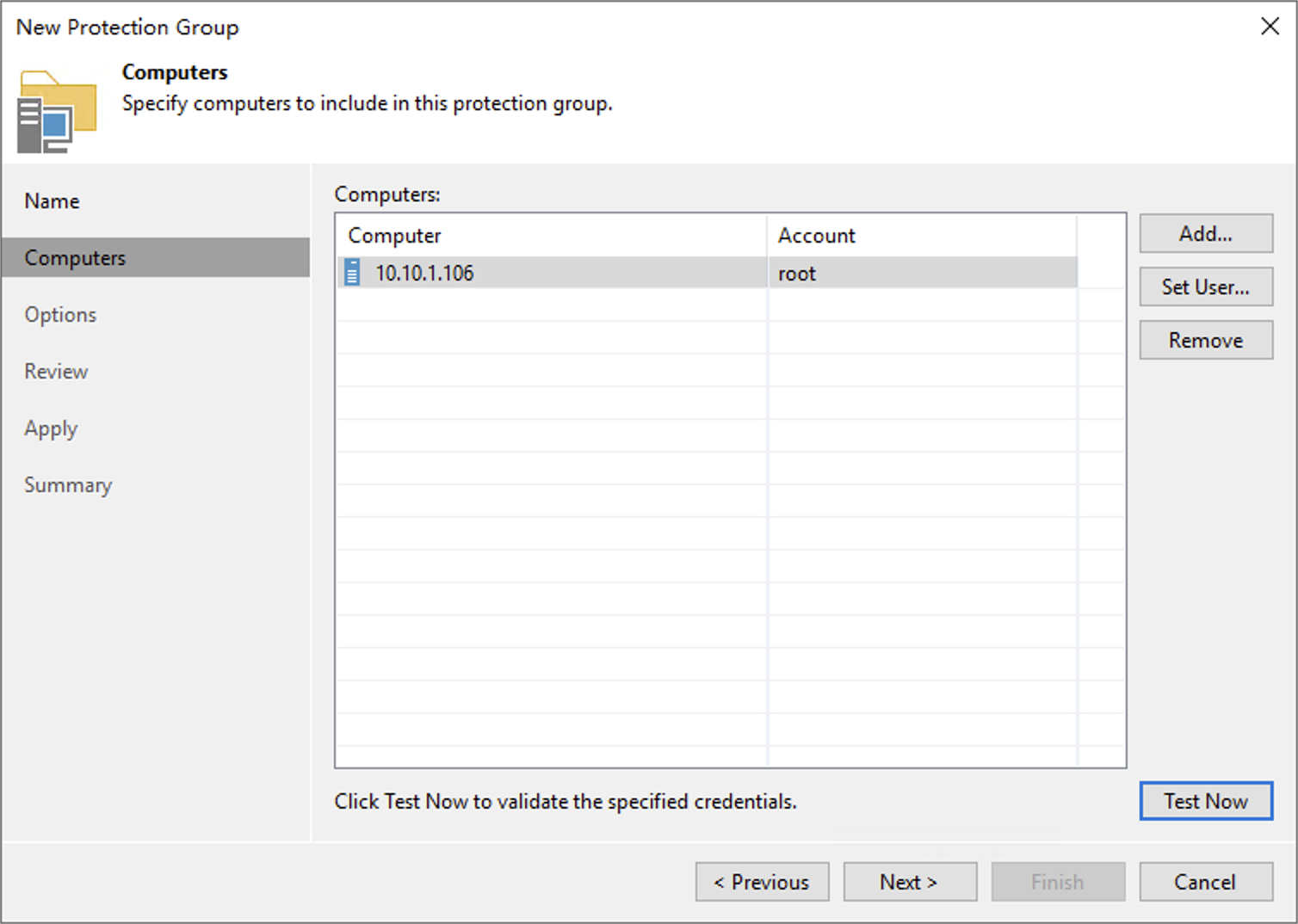
Add the target computer using its IP address:
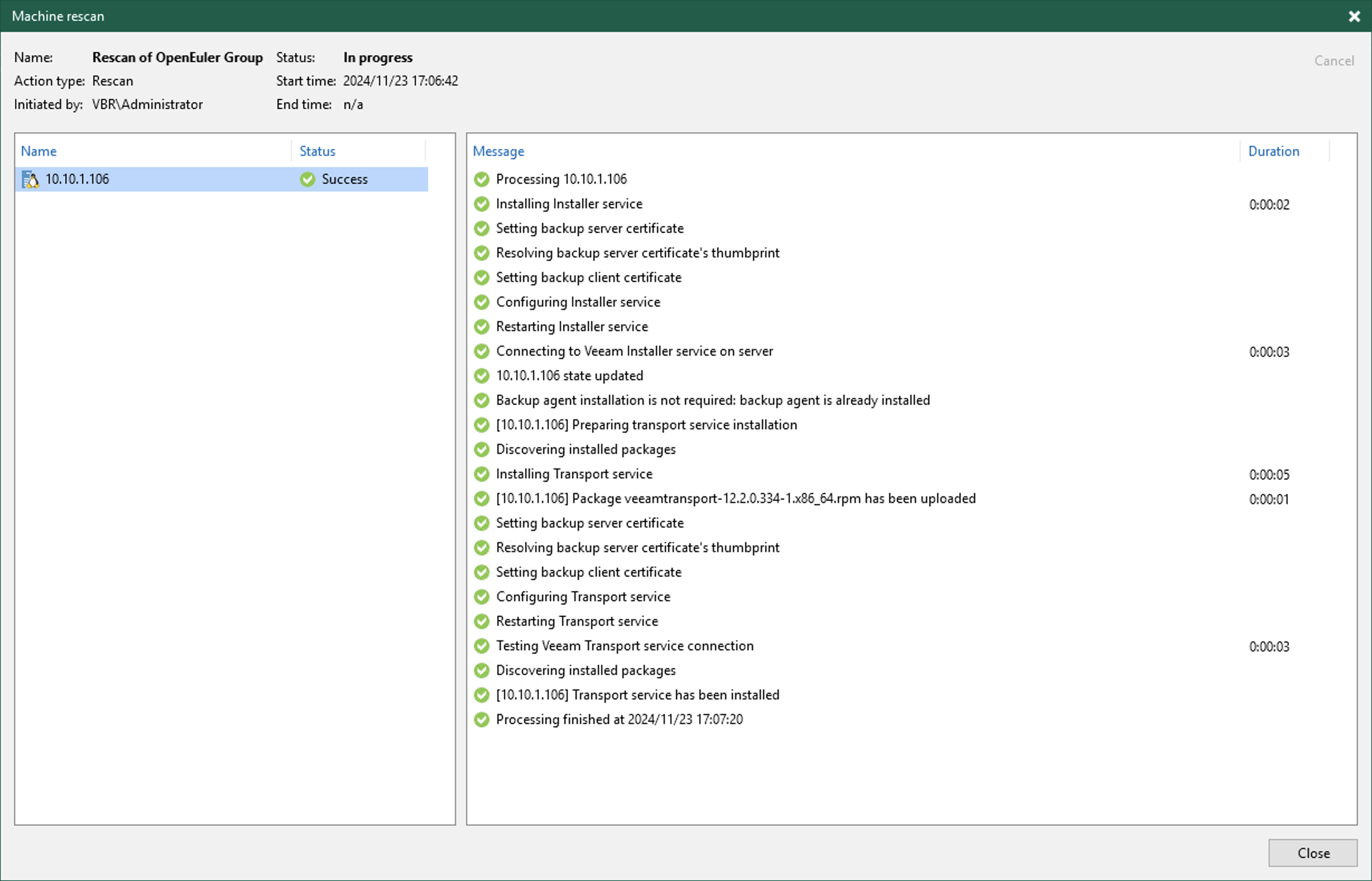
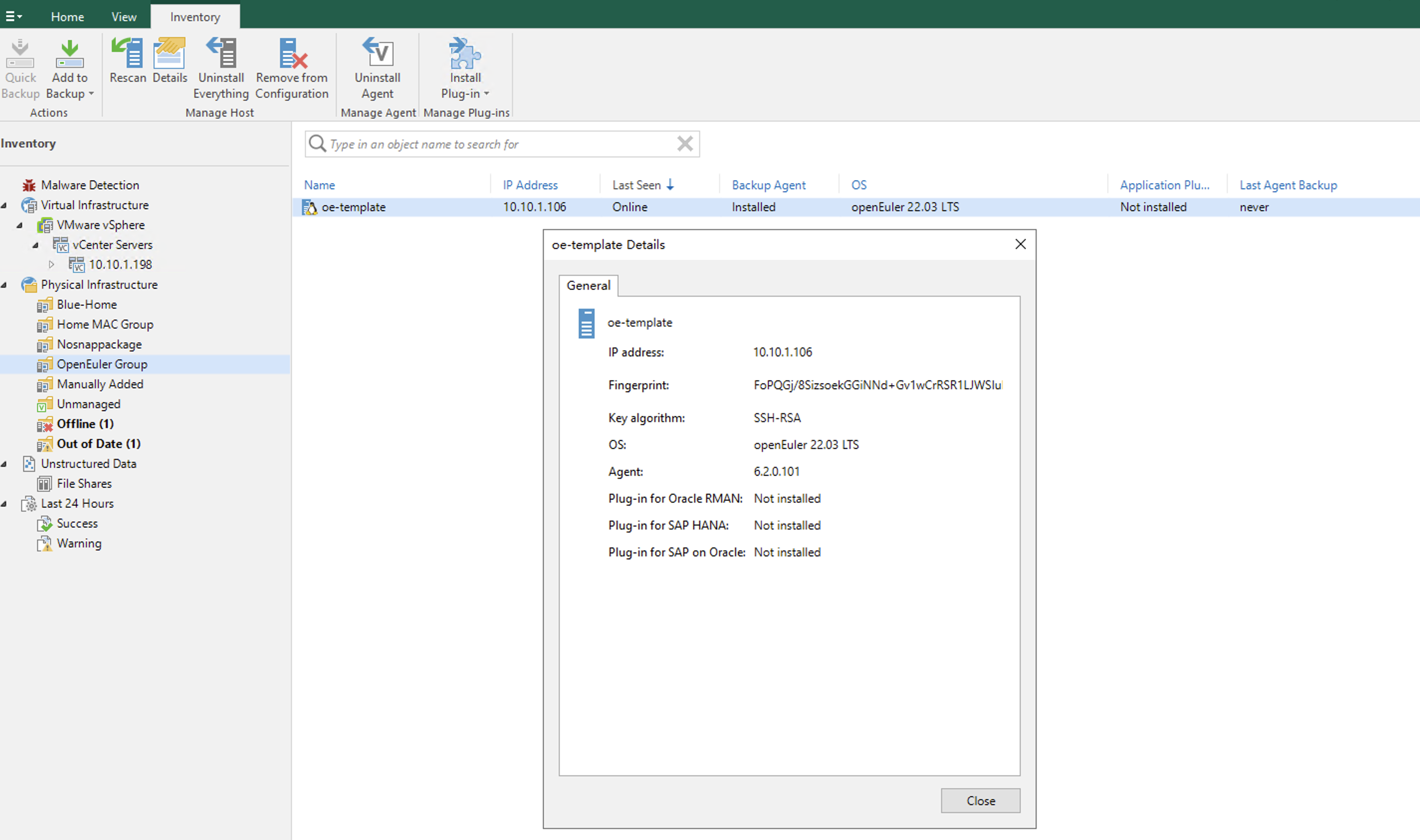
After adding and completing the wizard, VBR will detect the pre-installed Agent on the target server. Once it finds the agent, it won’t check for compatibility or installation requirements, instead using the existing installation directly.
At this point, the VBR console correctly displays the current operating system as OpenEuler.
Backup Modes
The no-snap Linux agent isn’t completely without snapshots. This agent actually has two working modes. One truly doesn’t take snapshots, which means some open files—like those being edited during backup—might be skipped. The other mode doesn’t use Veeamsnap but instead uses LVM volume snapshots as a substitute. This mode works almost identically to Veeamsnap, with the main difference being the snapshot technology used. All prerequisites for LVM snapshots must be met for this mode to work properly.
LVM Snapshot Prerequisites
Simply put, you need sufficient Free PE space. You can check this space using the vgdisplay command, as shown below.
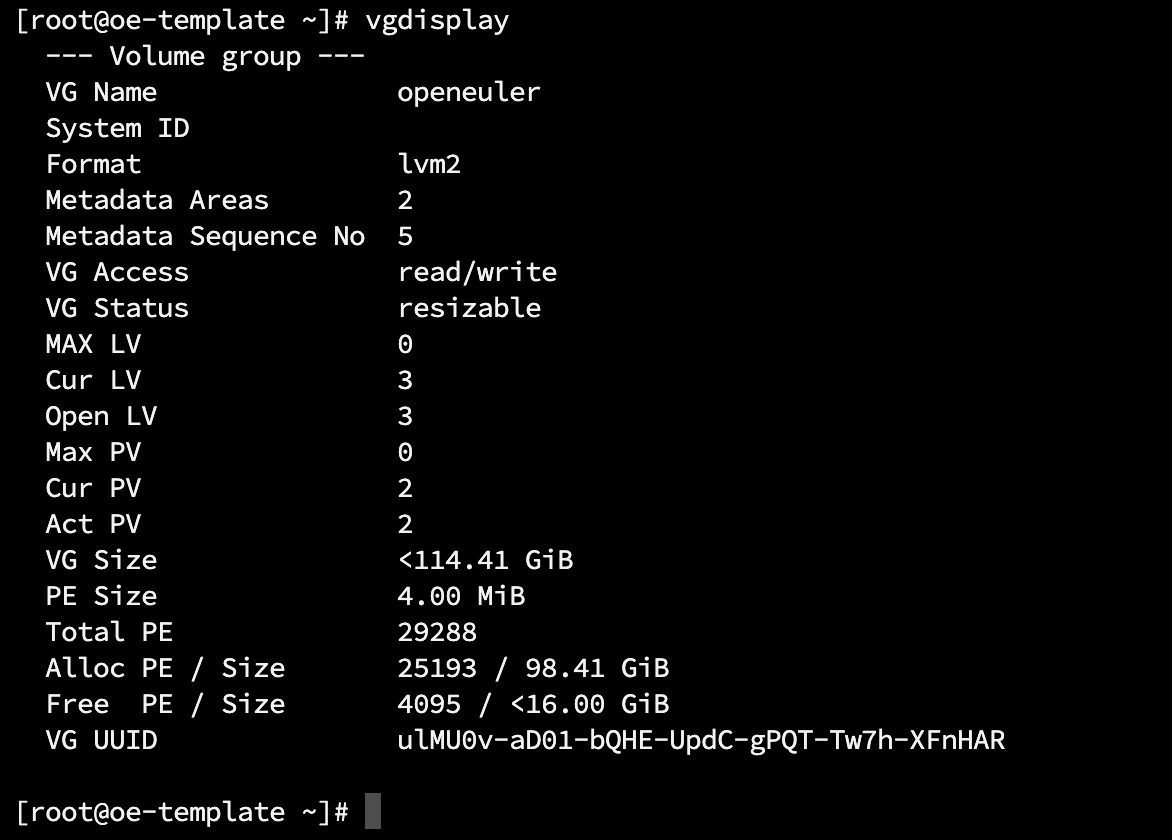
LVM volume snapshots store changed data in this area, so when planning LVM partition layout, you need to allocate space for this region—at least 10-20% of total disk capacity.
Backup and Recovery
Backup and recovery are straightforward. Veeam Agent automatically detects the underlying configuration and uses LVM volume snapshot capabilities for data backup. For recovery options, all standard recovery methods are available for these backup archives, including BMR recovery.
When using LVM volume snapshots for backup, you can choose either Entire Machine or Volume level backup mode in the backup job settings.
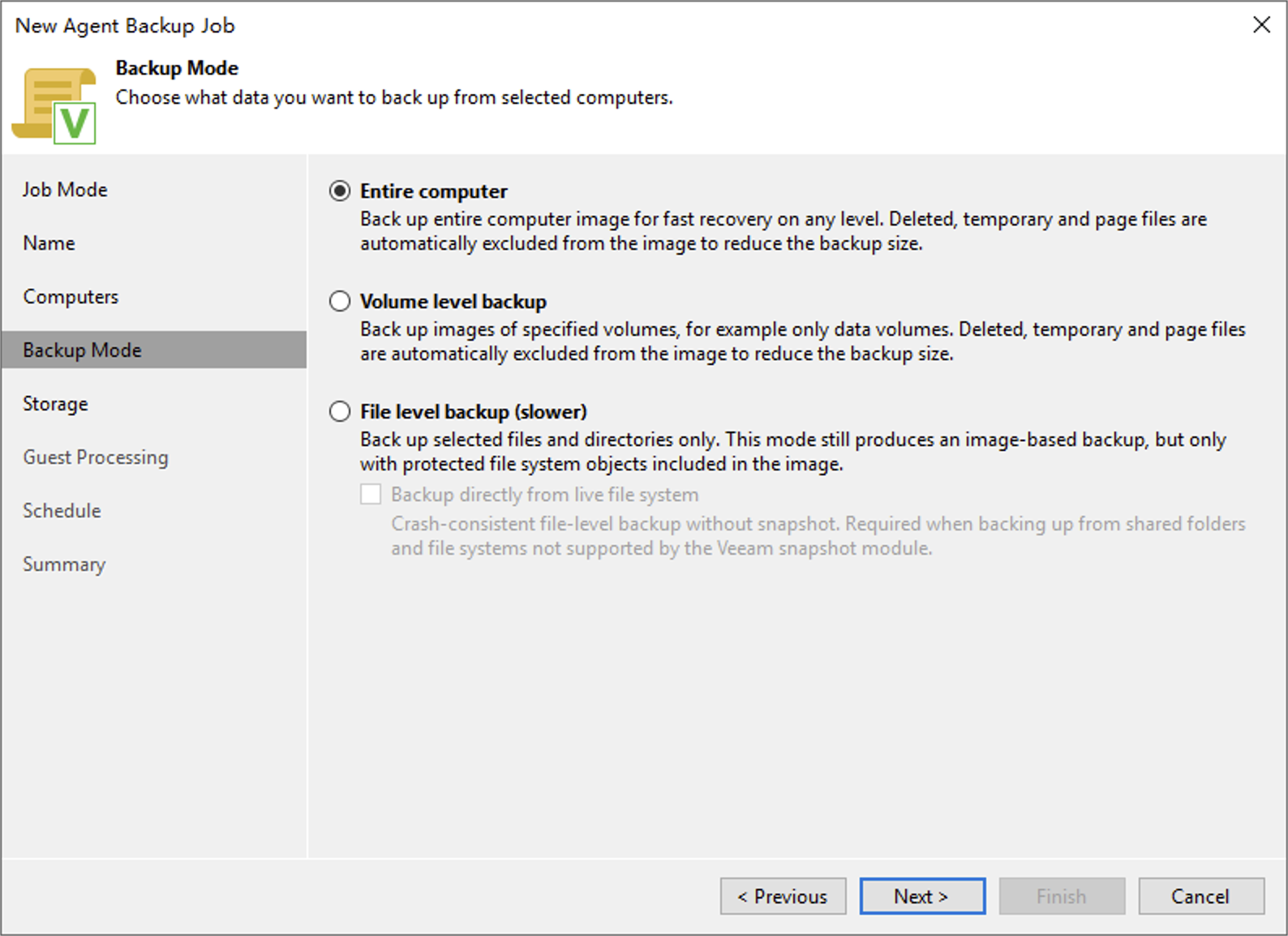
This allows the backup job to properly utilize snapshots during execution.
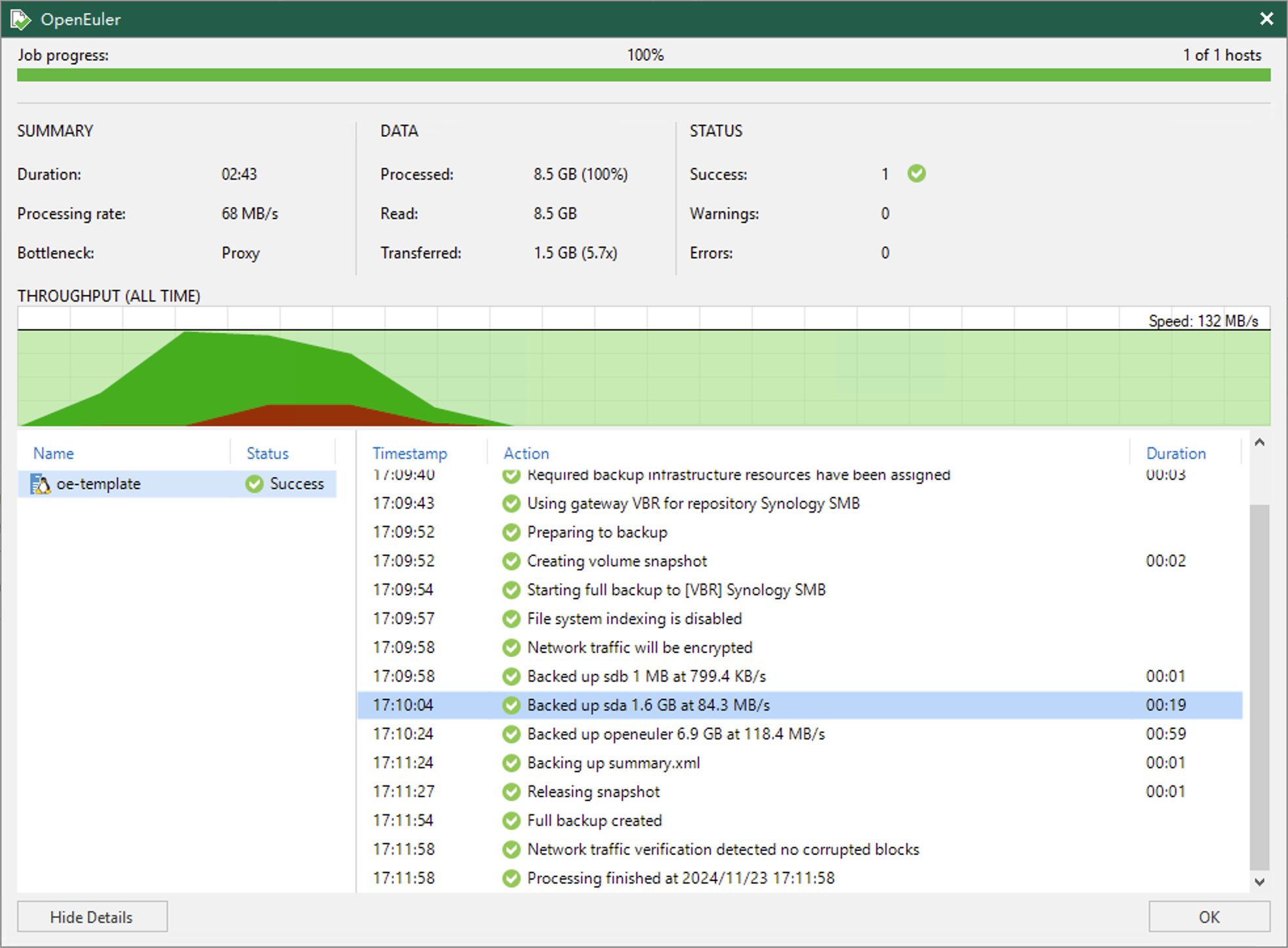
After backup completion, all standard recovery options are available, including BMR, FLR, application item recovery, cross-platform migration, and more.
For bare metal BMR recovery, you’ll need to download the appropriate Recovery Media from Veeam’s official software repository to boot the bare metal server. The download URL is:
BMR Recovery Process
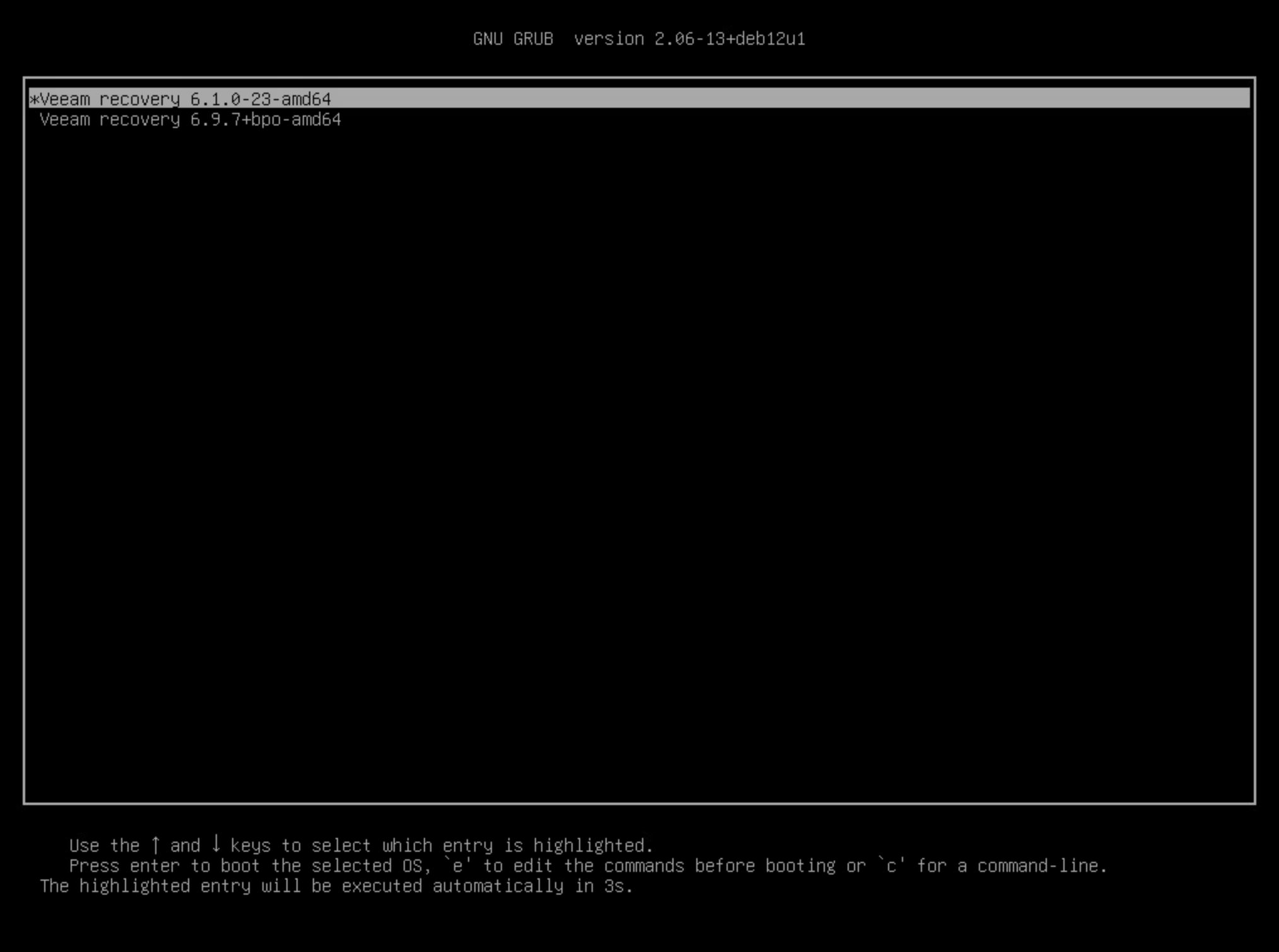
After booting the server with this downloaded ISO, the target server will automatically enter Veeam’s boot interface. On this screen, select the first option Veeam recovery 6.1.0-23-amd64.
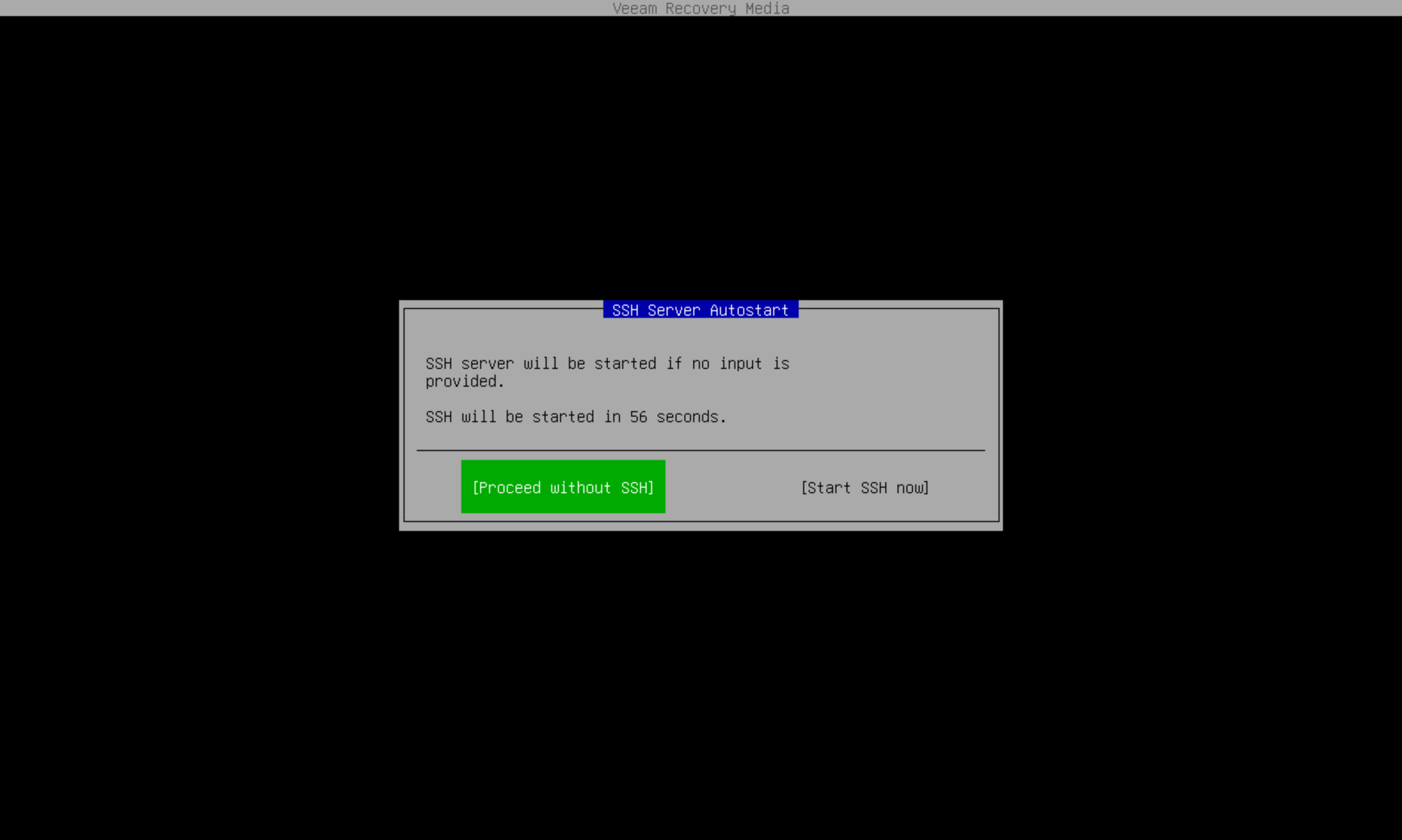
After selection, the system will prompt for SSH connection. If console access is inconvenient, you can choose “Start SSH now” to enable remote SSH control for recovery through the Veeam Recovery Media.
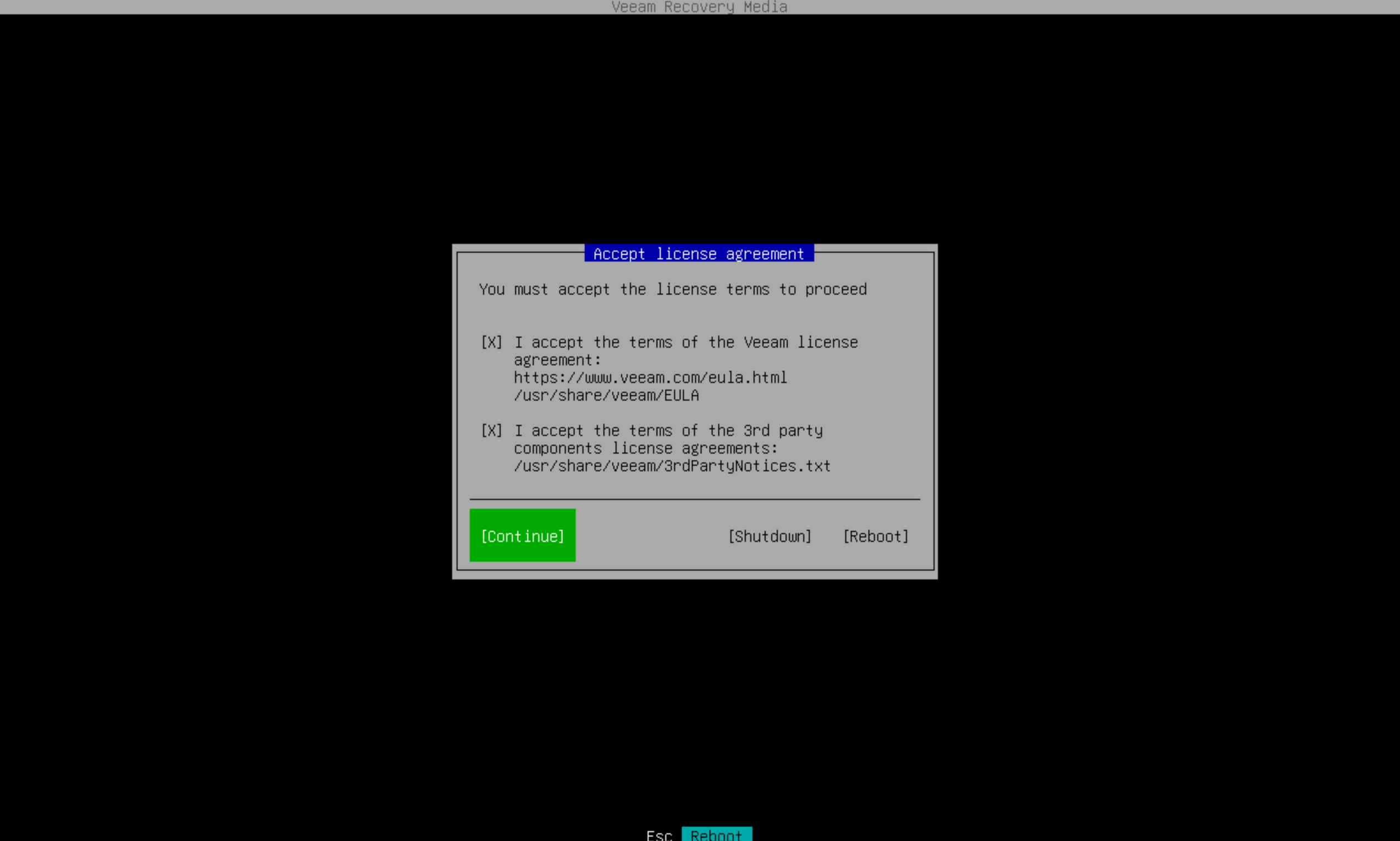
Next, as usual before use, you’ll need to accept the license agreement. Select both options with X and choose Continue to proceed.
The system will then enter the Veeam Recovery Media main recovery menu, which includes volume recovery, file recovery, network configuration, return to shell, and restart/shutdown options.
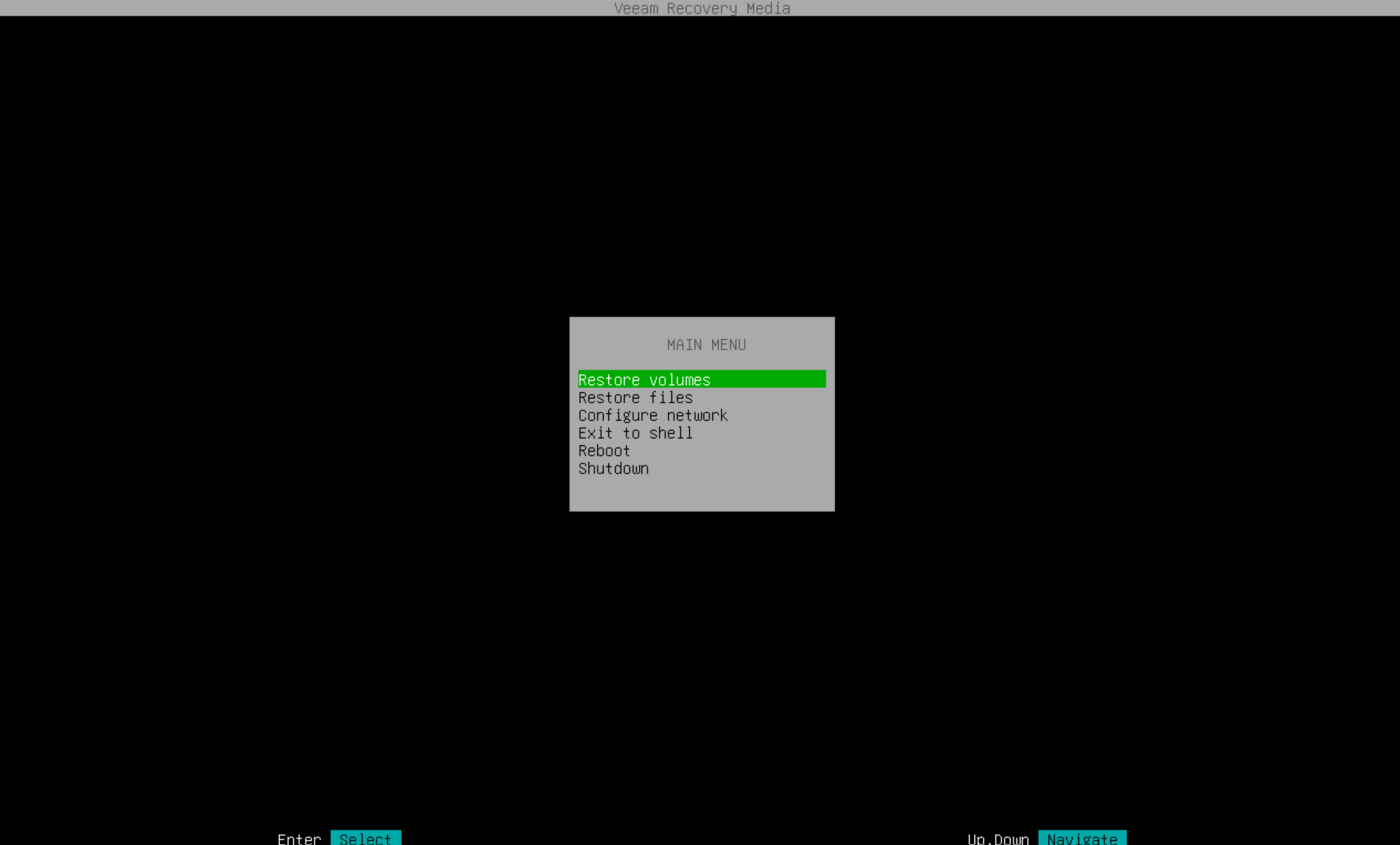
Before use, let’s configure the network so we can connect to the VBR server via network interface to read backup archives. Network configuration is straightforward—just set up a standard IPv4 address and configure DNS servers as needed.
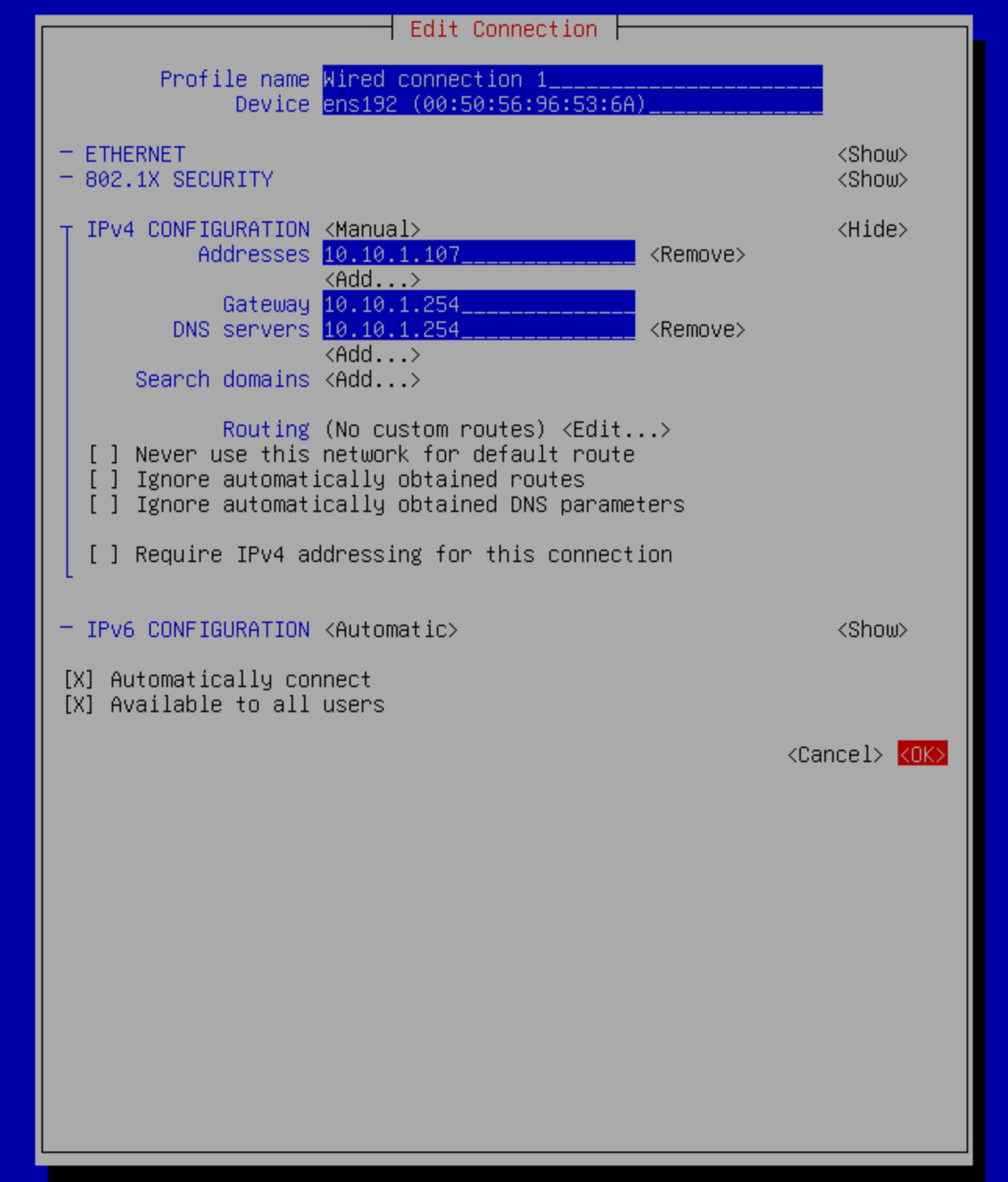
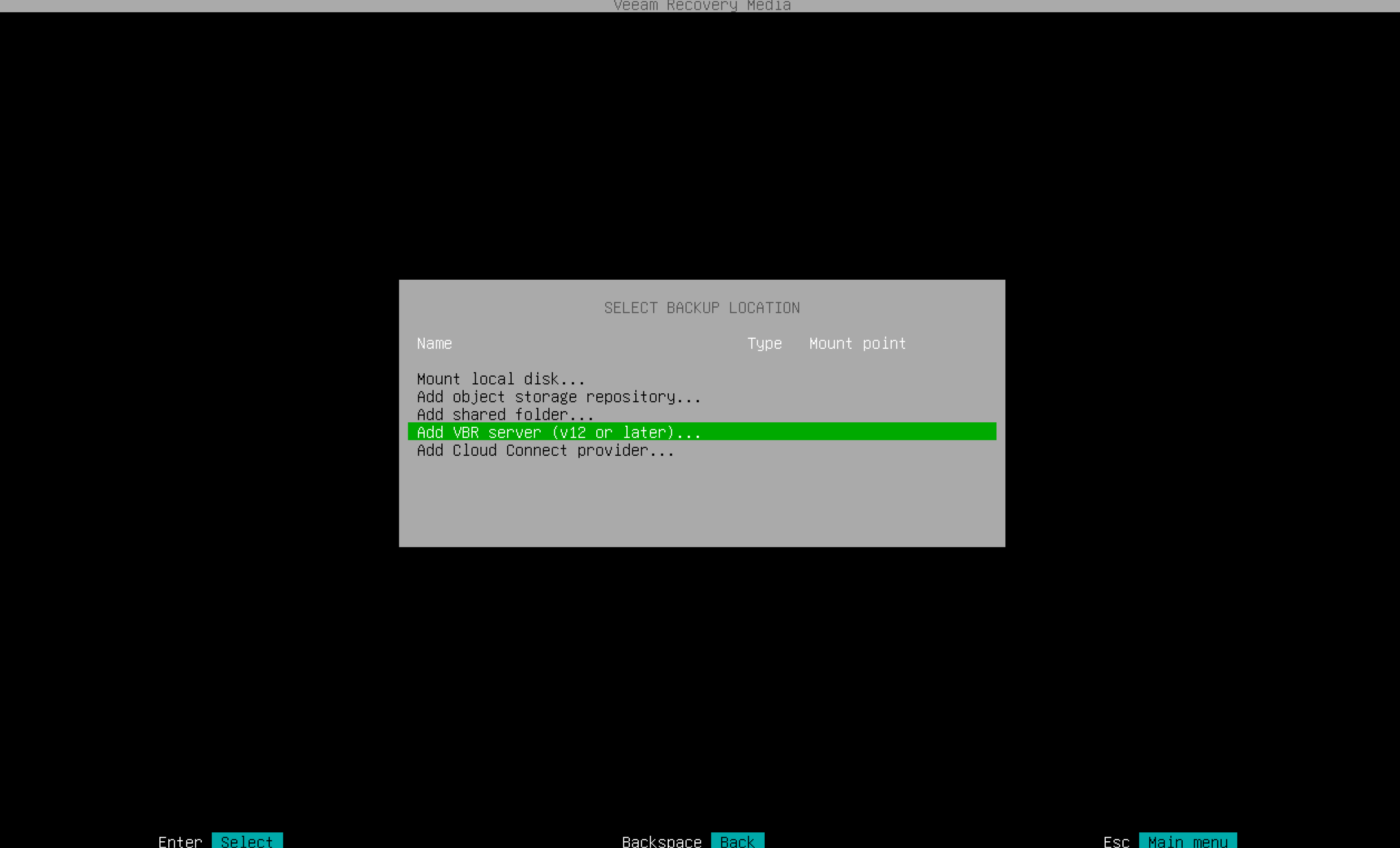
After configuring the IP address, clicking “Restore Volume” will bring up the backup location selection window. Here we select the VBR backup server.
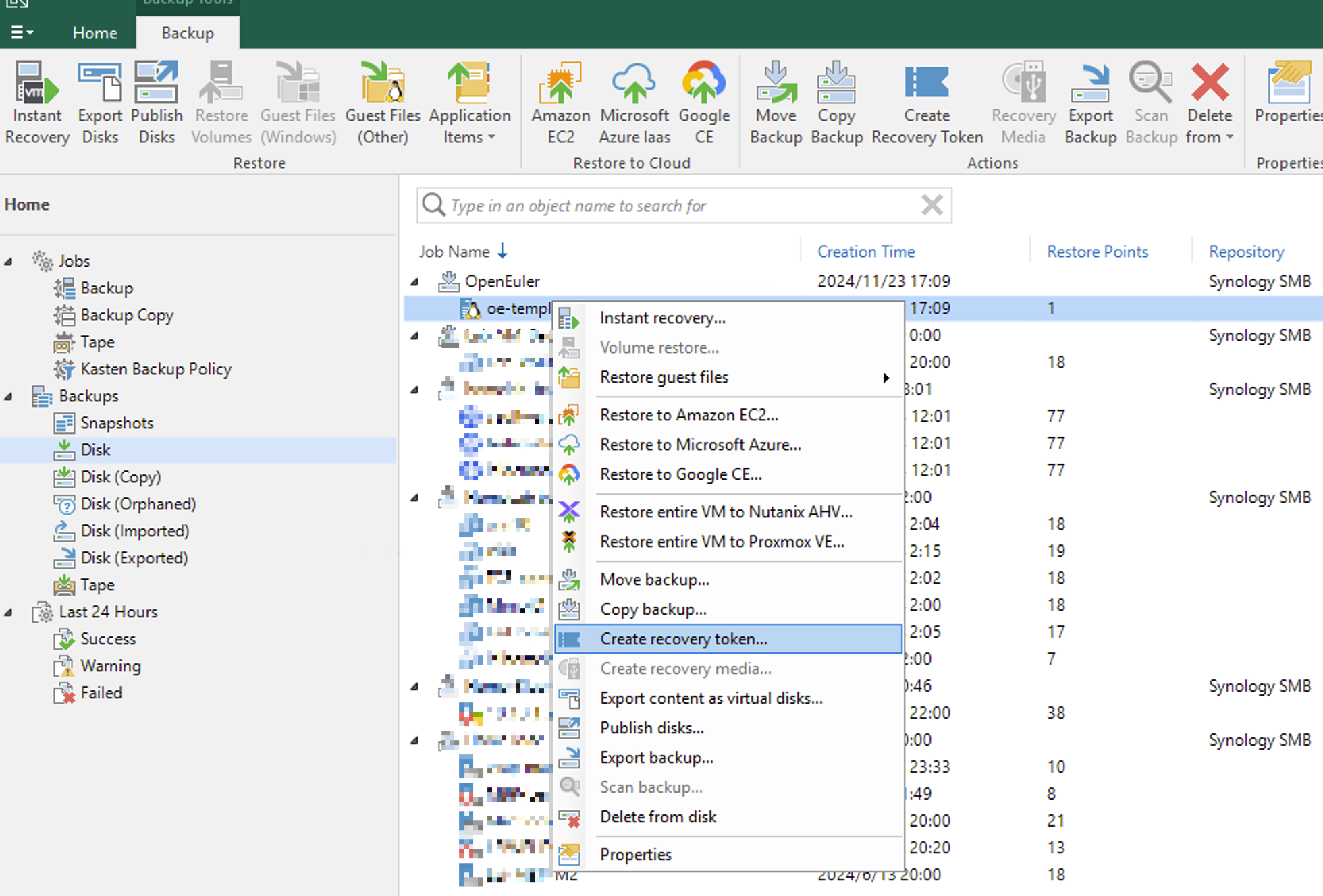
Note that for more secure recovery, you need to create a Token for the relevant backup archive on the backup server. After creating the token, save it carefully—it defaults to being valid for 24 hours.
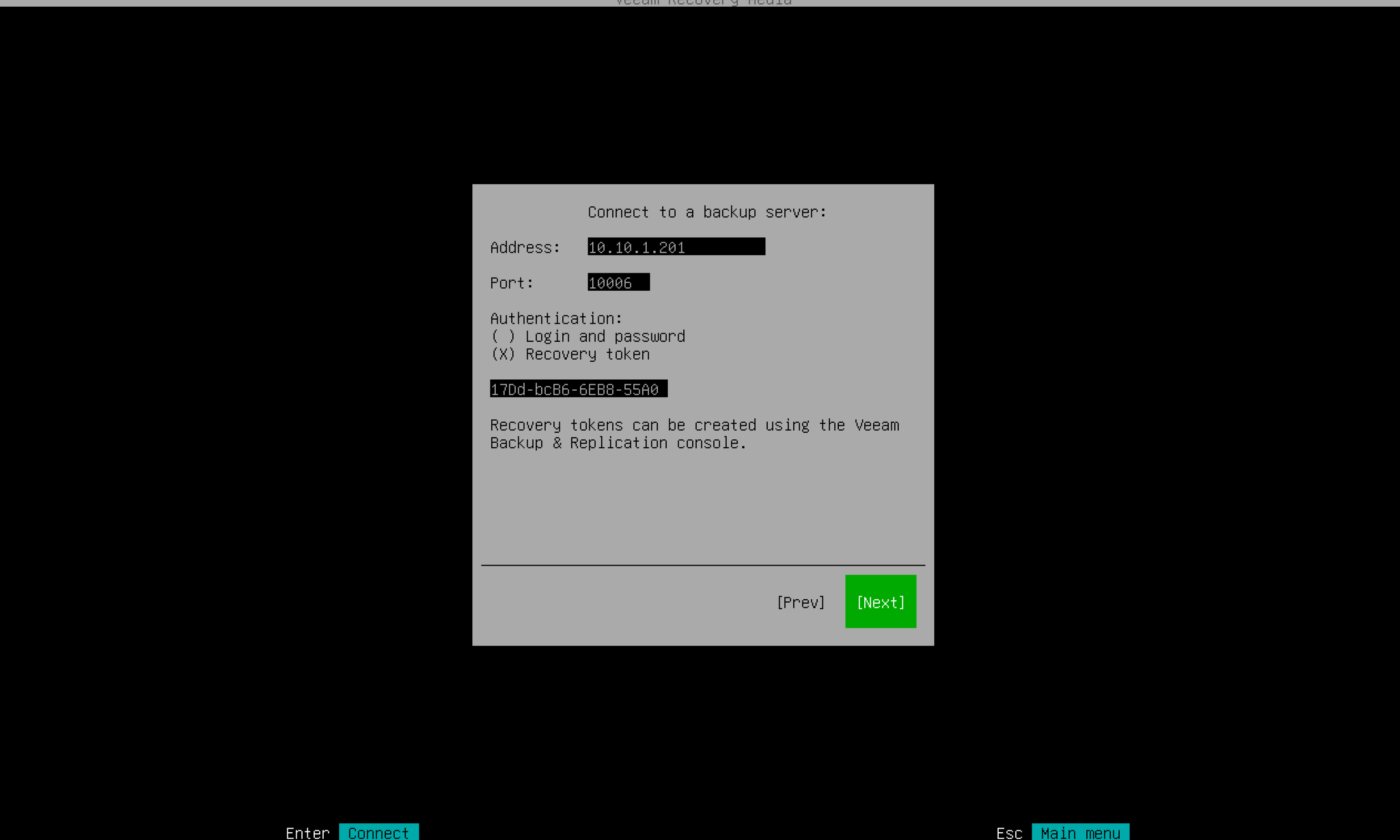
On the backup server connection screen, enter the IP address and port, select “Recovery Token,” input the newly generated token, and click Next to connect.
If there are issues with self-signed certificate trust, you might see a warning like I did. This isn’t a major issue—simply select Accept.
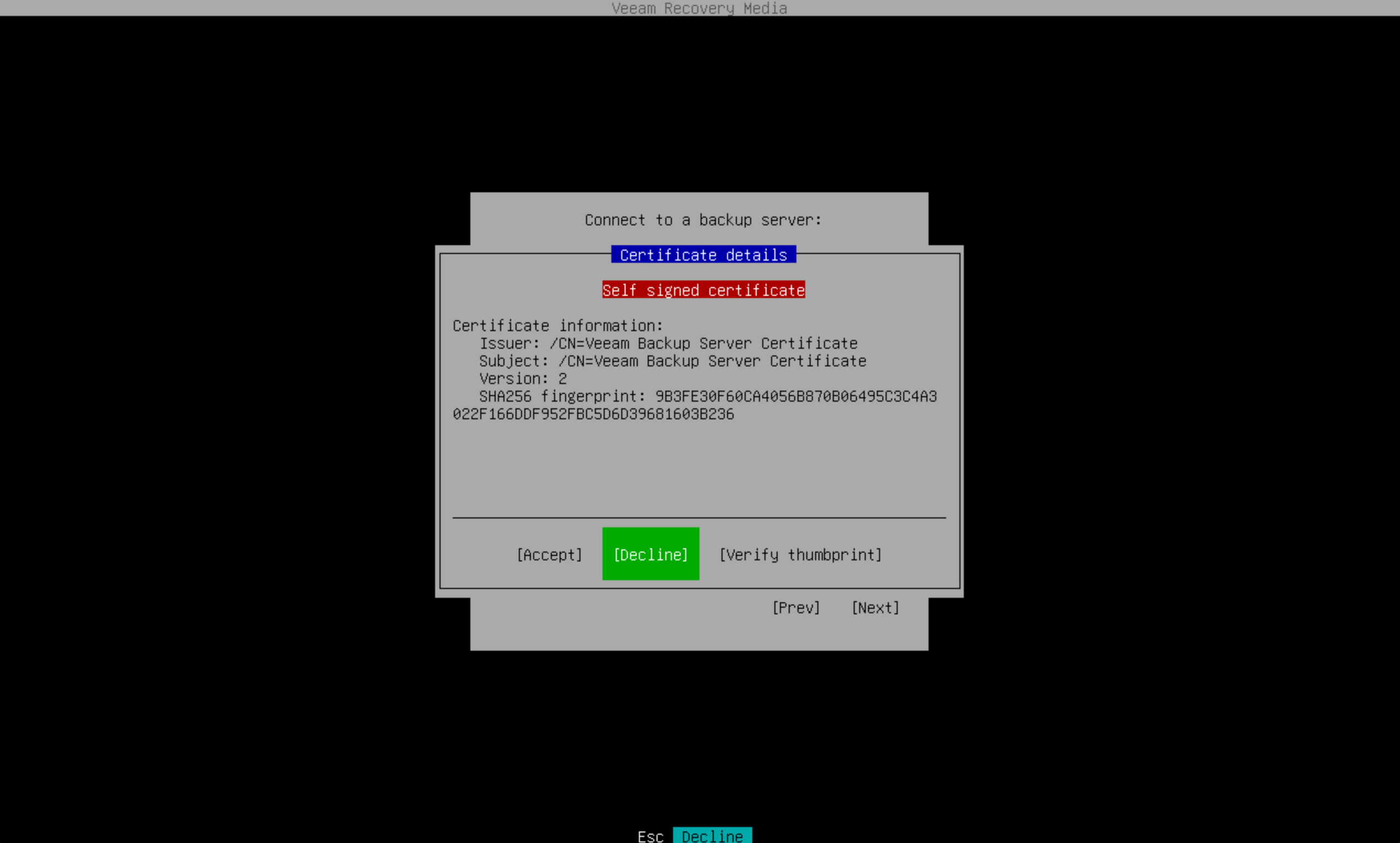
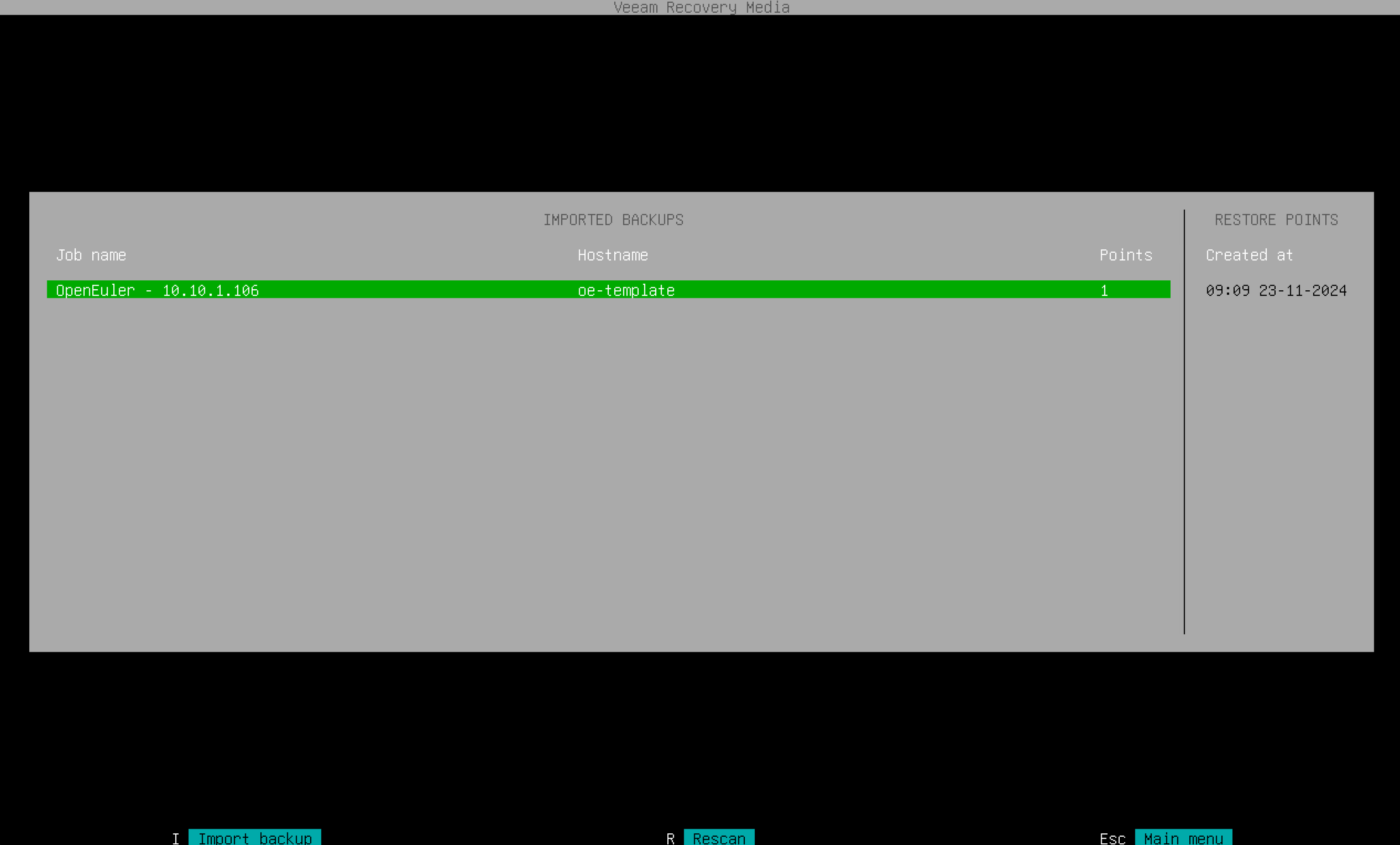
At this point, your restore points will appear. Select the restore point to proceed.
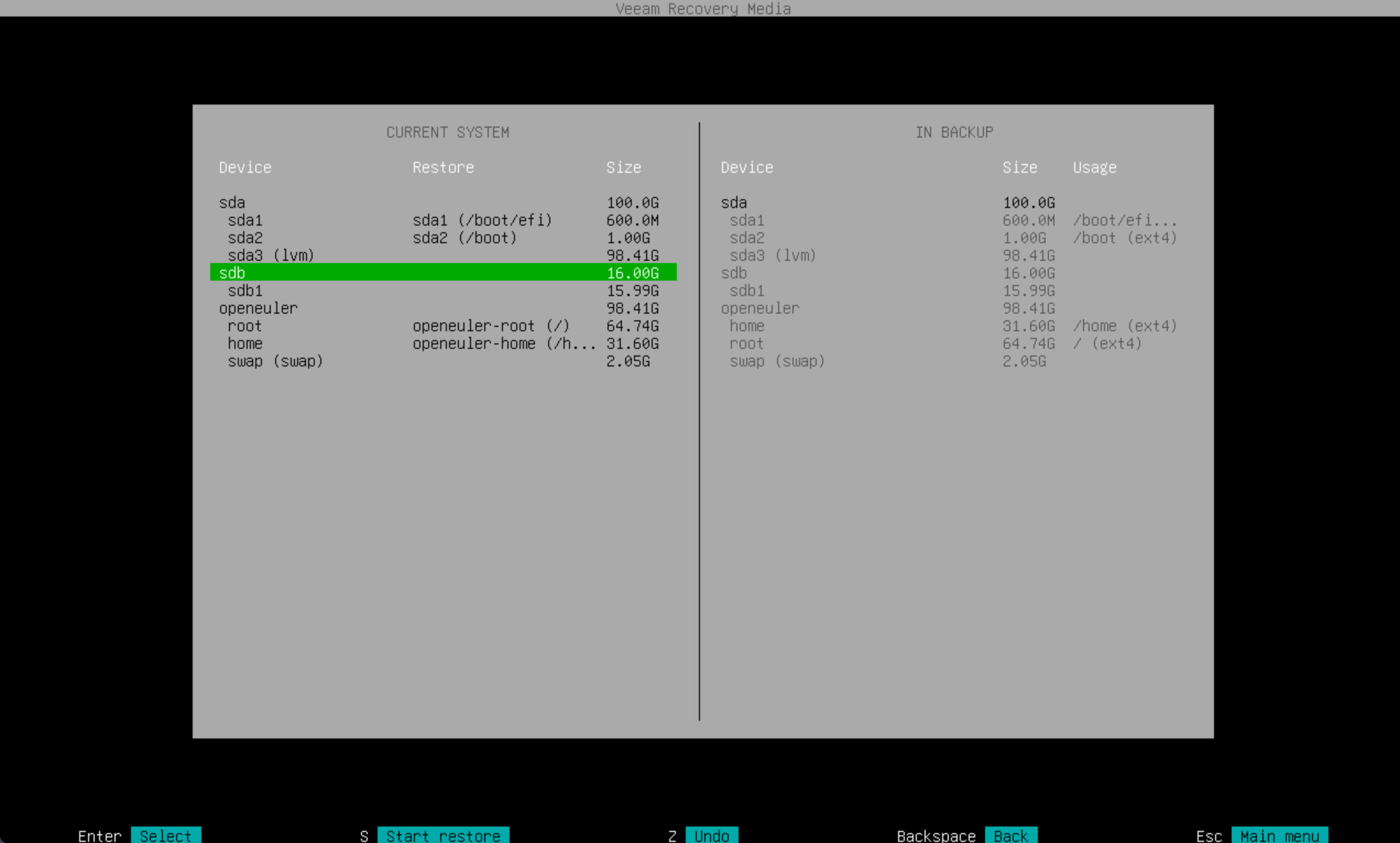
The system will automatically read current partitions. If partition sizes are the same, you can automatically select the relevant devices on the right for mapping. After mapping is complete, press S to begin automatic recovery.
Other recovery methods include instant VM recovery, file-level recovery, and export to VHD and VMDK formats.
Important Considerations
When using the no-snap method for data backup and recovery, Veeam’s official system support list remains important. While operating systems not on the official support list may work properly, Veeam’s official support team won’t provide售后 support for these systems. Any technical issues will need to be resolved by our skilled Linux system administrators.