[Community Preview] Managed Hardened Repository ISO by Veeam (Part 2)
In my previous post, I introduced Veeam’s Managed Hardened Repository community preview. Today, I’ll walk you through the complete installation and configuration process step by step.
For this deployment, I used a VMware virtual machine for convenience. If you have dedicated hardware available, you can deploy on physical servers instead. Should you encounter any issues during deployment, please reach out with your feedback - it helps improve the community preview.
Virtual Machine Configuration
Here’s the setup for this installation:
- vSphere VM Guest OS type: Red Hat Enterprise Linux 9
- vCPUs: 2
- RAM: 8GB
- 2 virtual disks: one 150GB, one 200GB
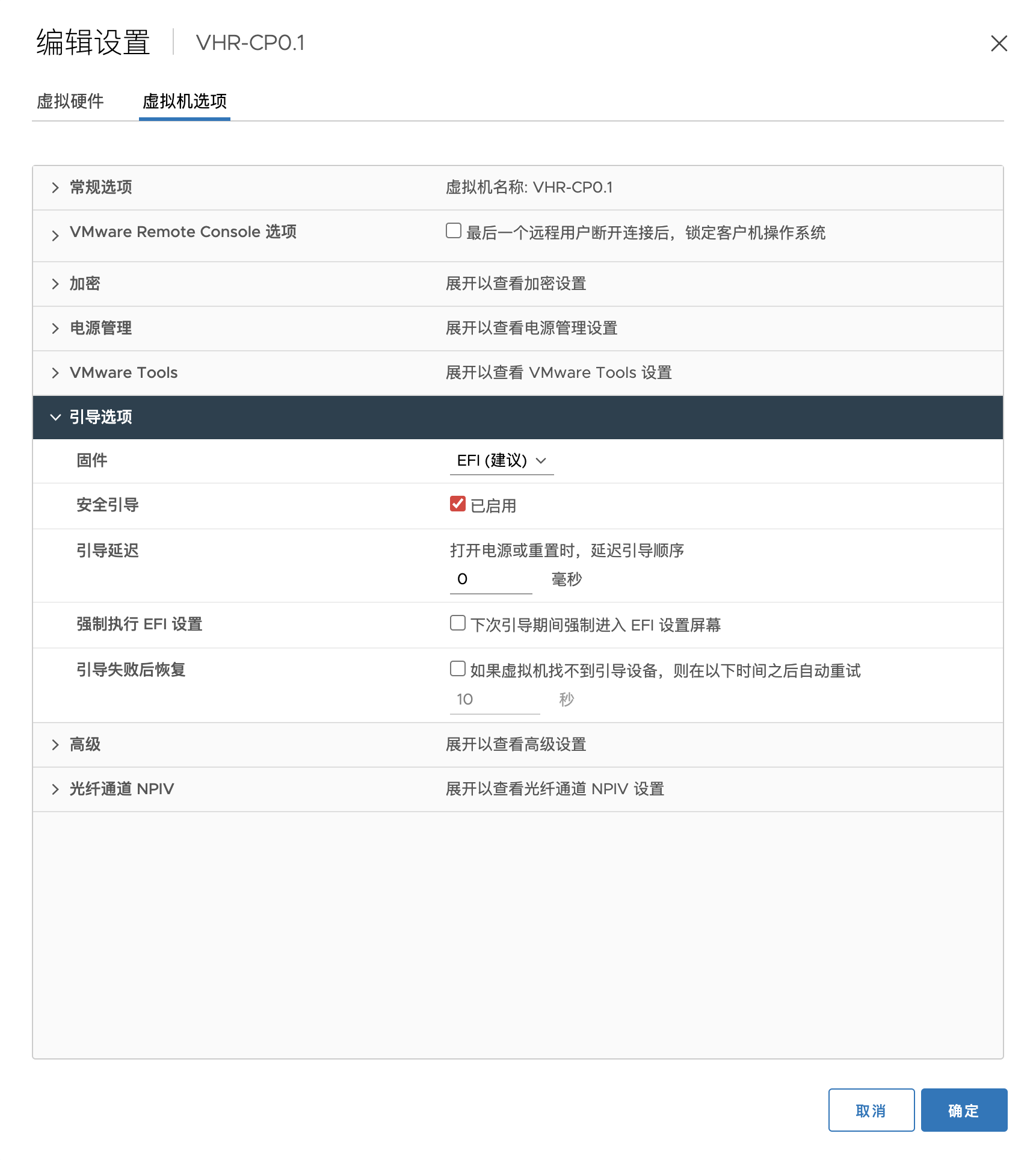
It’s important to note that whether you’re installing this system on a virtual machine or physical hardware, you must enable Secure Boot in UEFI. This is a mandatory requirement and one of the important security hardening measures.
In the VMware VM configuration page, you can confirm this setting as shown in the image below. By default, this option is enabled for Red Hat 9.
System Installation
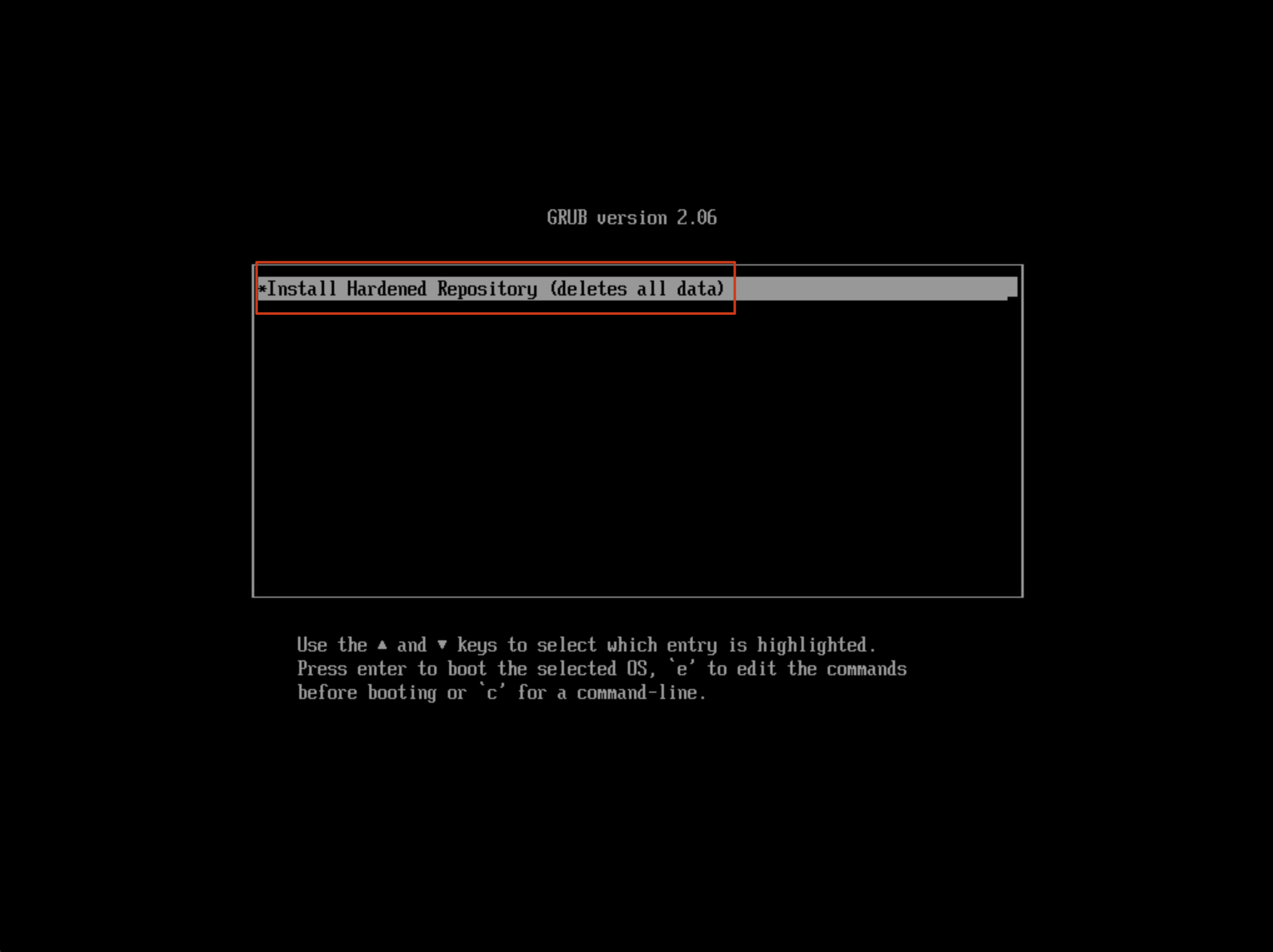
After booting from the optical drive, you’ll enter the “Install Hardened Repository” installation interface. Note that if the installation interface differs from the image below and shows a Rocky Linux 9 installation screen, there may be an issue with the Secure Boot configuration from the previous step.
Next, the ISO will proceed with a simple boot process and then enter the graphical installation interface.
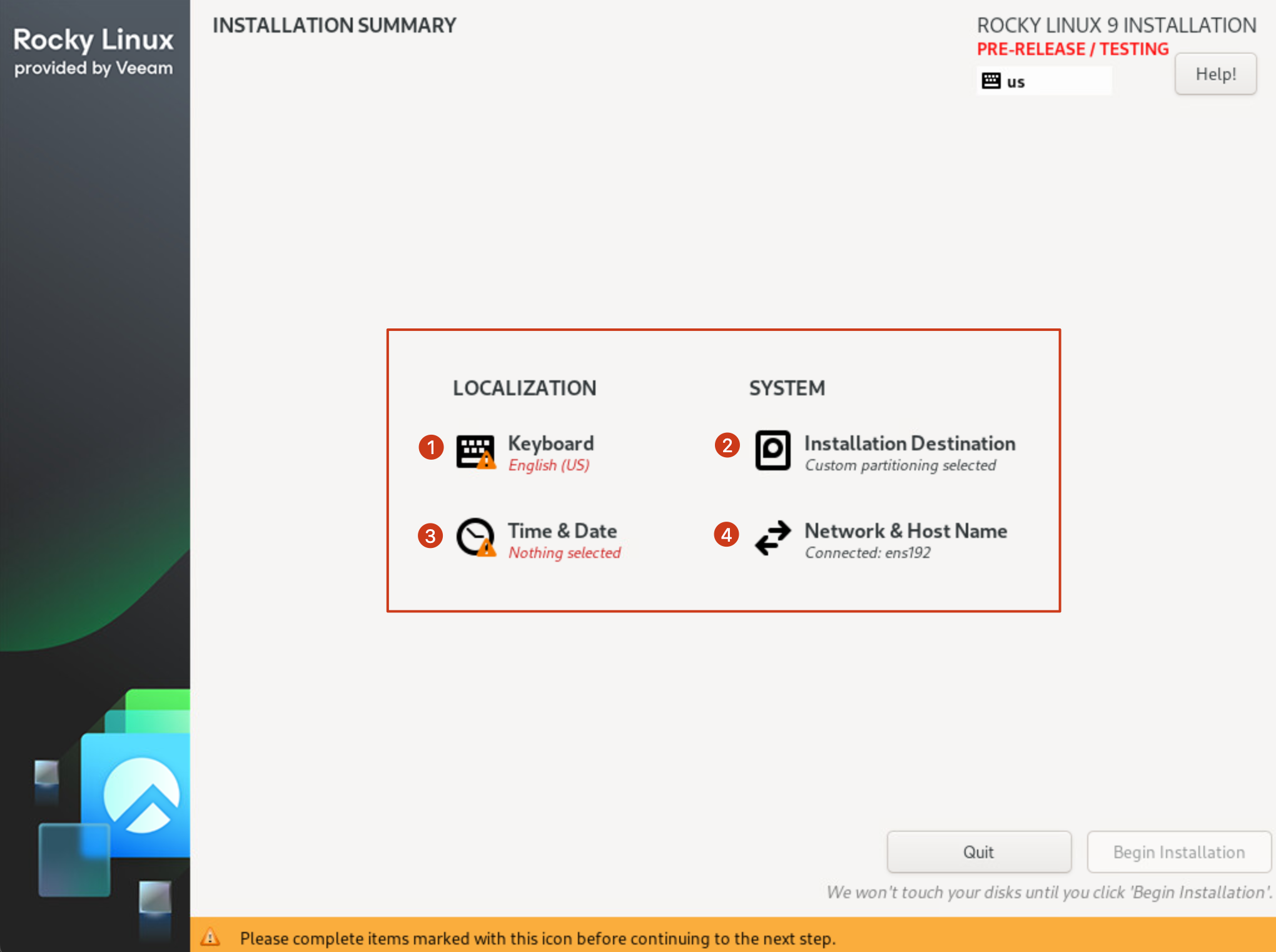
The installation interface is very straightforward. You can see the system name in the upper left corner indicating “Rocky Linux provided by Veeam,” while there’s a red “Pre-release/Testing” notice in the upper right corner, advising against production environment use.
This interface looks very similar to most Red Hat-based Linux installation interfaces, just more streamlined. On this screen, you need to configure four settings:
- Keyboard
- Installation Destination
- Time & Date
- Network & Host Name
These settings are generally quite simple and self-explanatory.
Keyboard
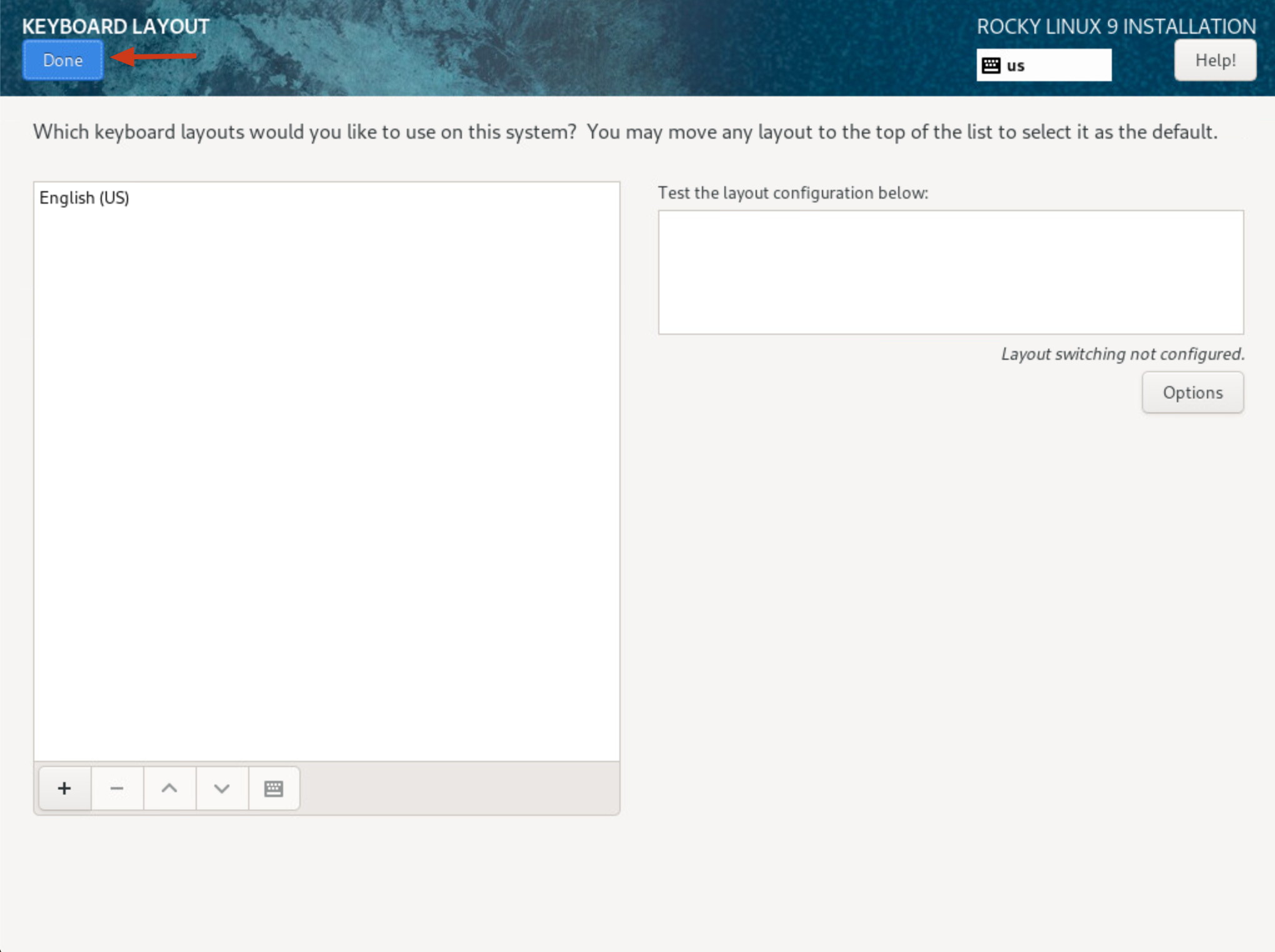
For keyboard settings, simply click to confirm. Most users will use the US keyboard layout.
Installation Destination
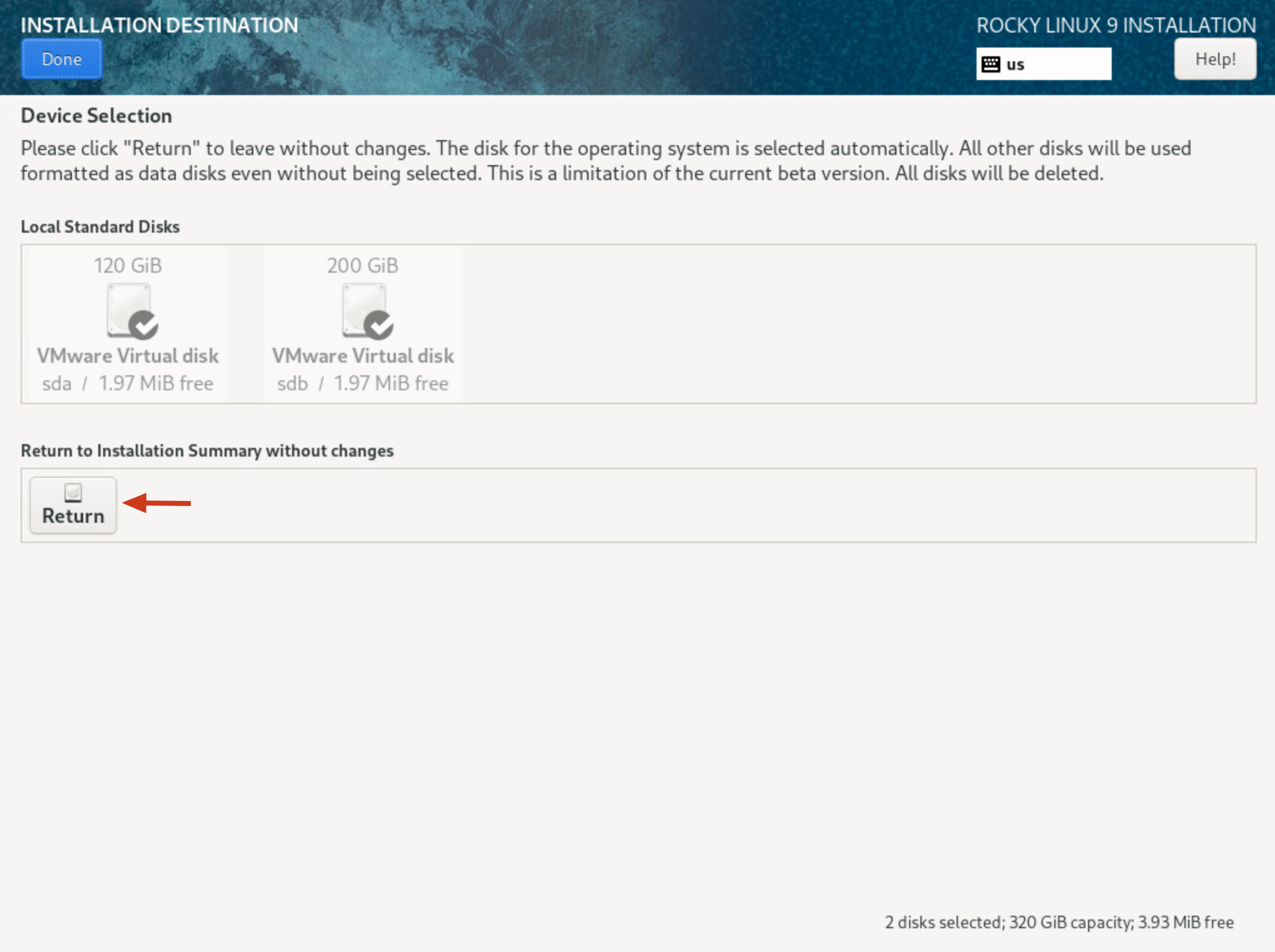
In this section, you can click to confirm the settings. The installation program will typically automatically detect existing disks, using the smaller one for system installation and the larger space for the VBR Hardened Repository storage. Click Return to go back to the previous page.
Time & Date
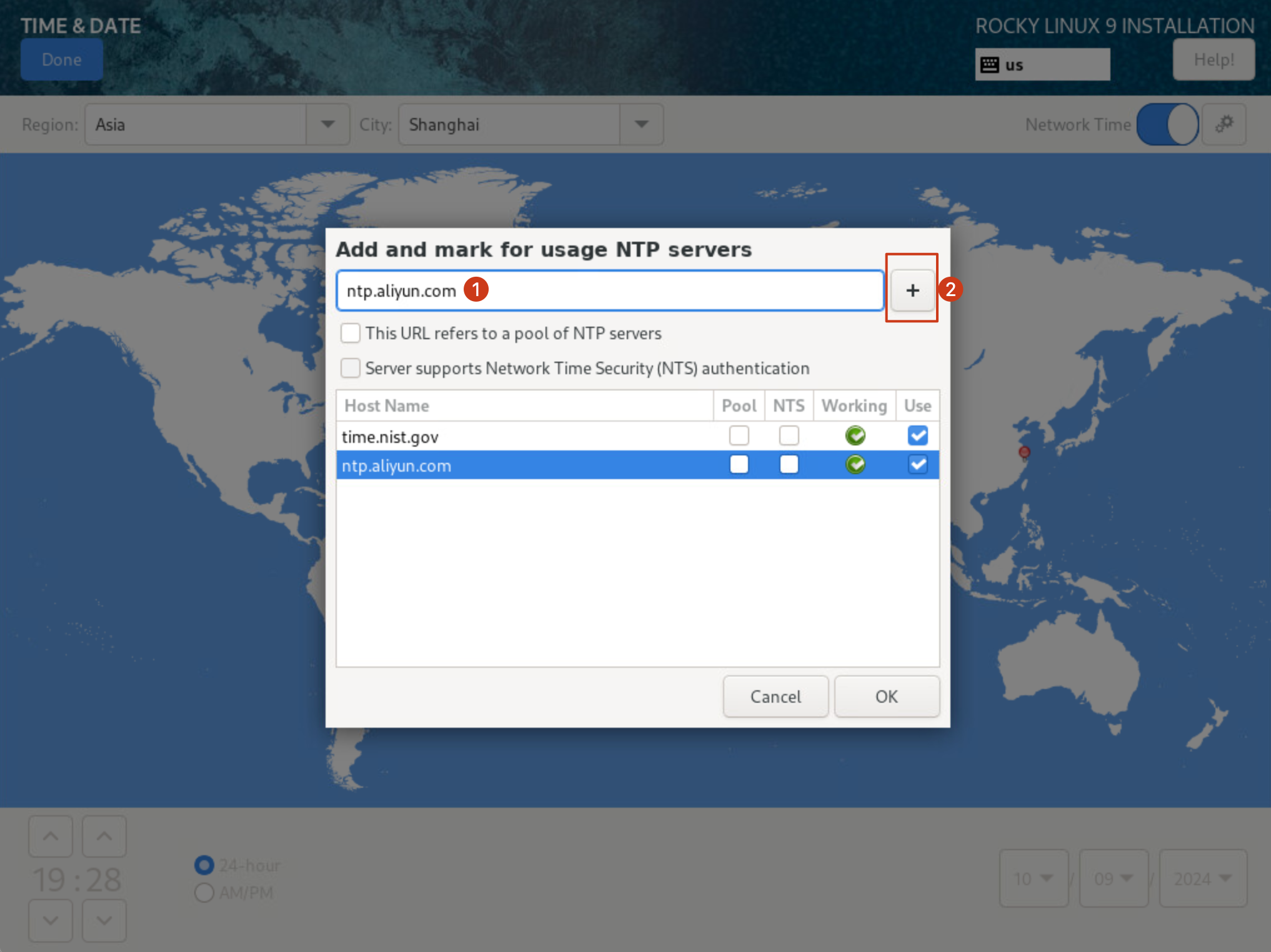
Here you need to set the time zone and NTP Server. I set the time zone to Asia/Shanghai and added ntp.aliyun.com as the time server.
Network
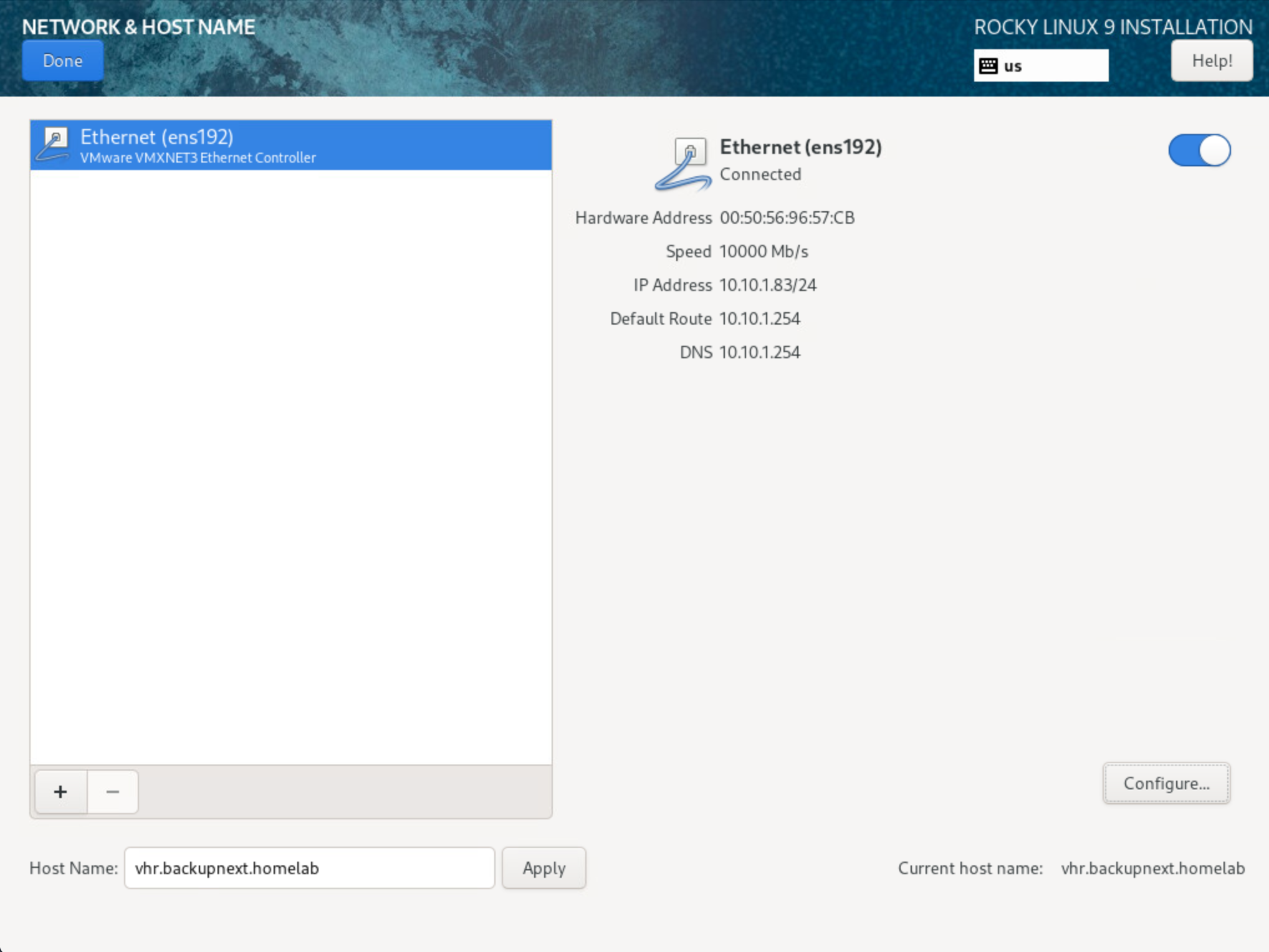
In the network settings, network cards will be automatically detected, and you can configure IP addresses and hostnames. If you have multiple network cards, you can configure network bonding here.
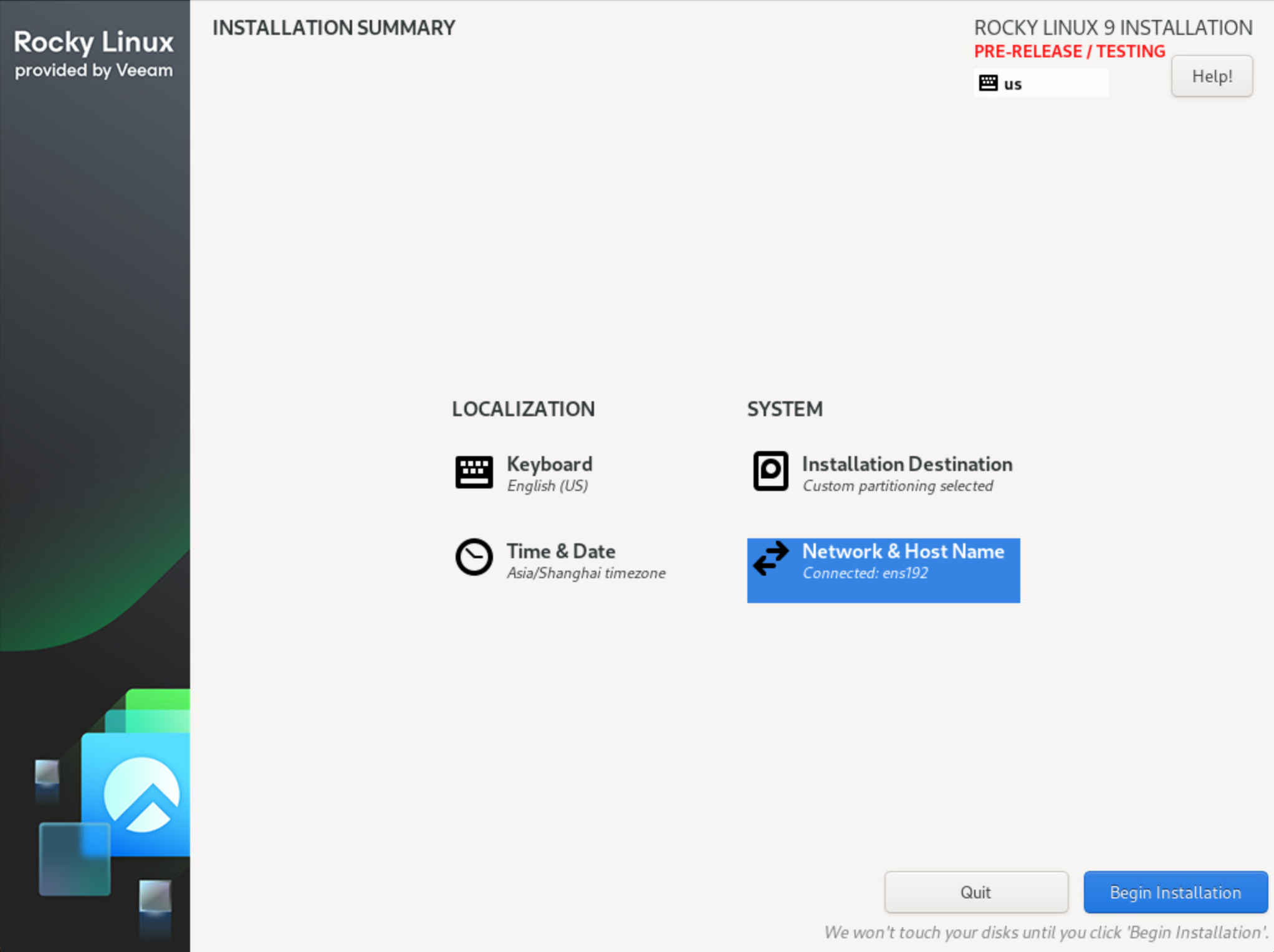
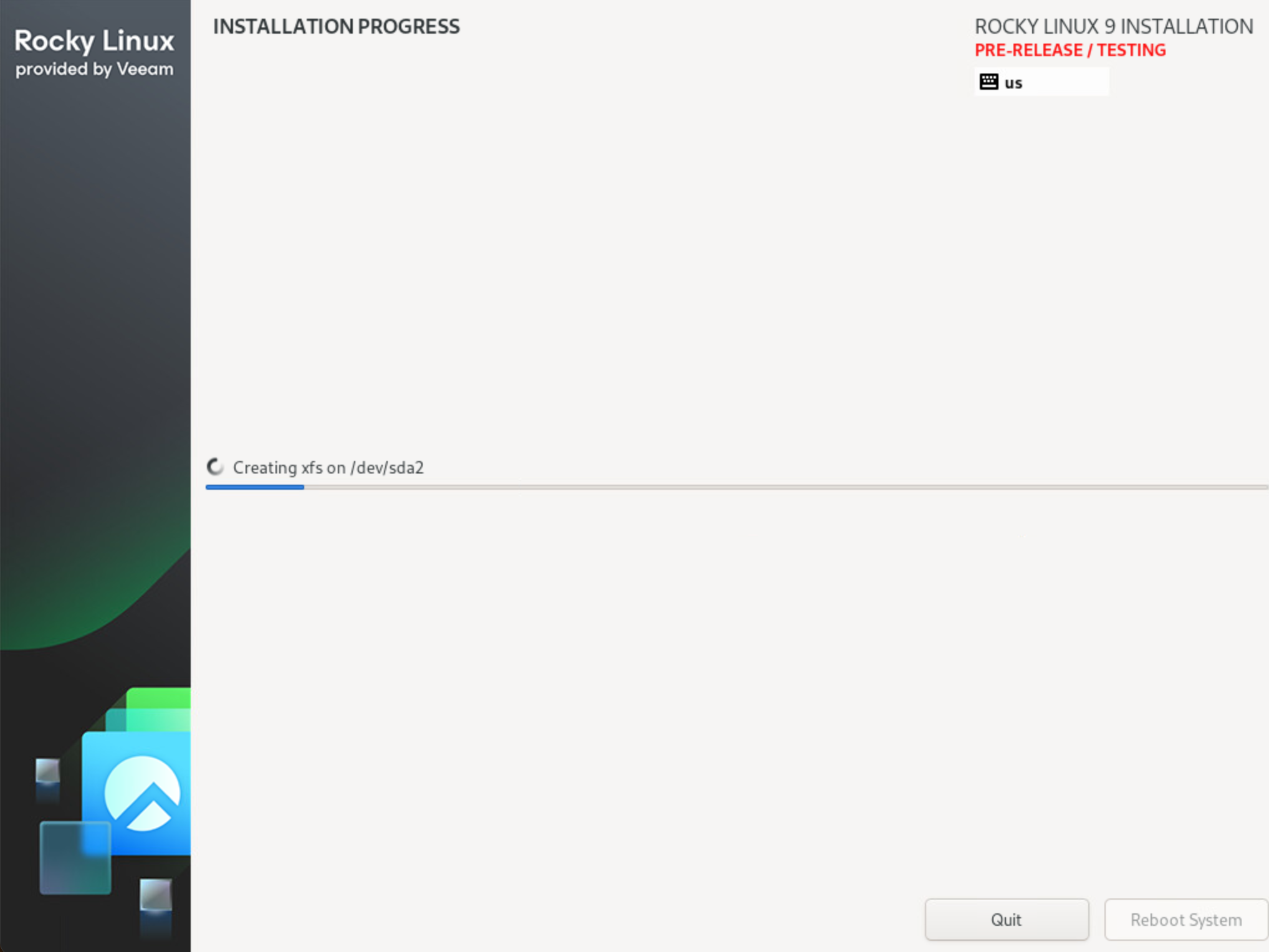
After these settings are configured, the “Begin Installation” button will turn blue and become active. Clicking it will start the fully automated installation process.
The installation is very fast, taking just a few minutes. Once the system is installed, you can click “Reboot System” to enter the post-installation Hardened Repository system.
Configuring Hardened Repository
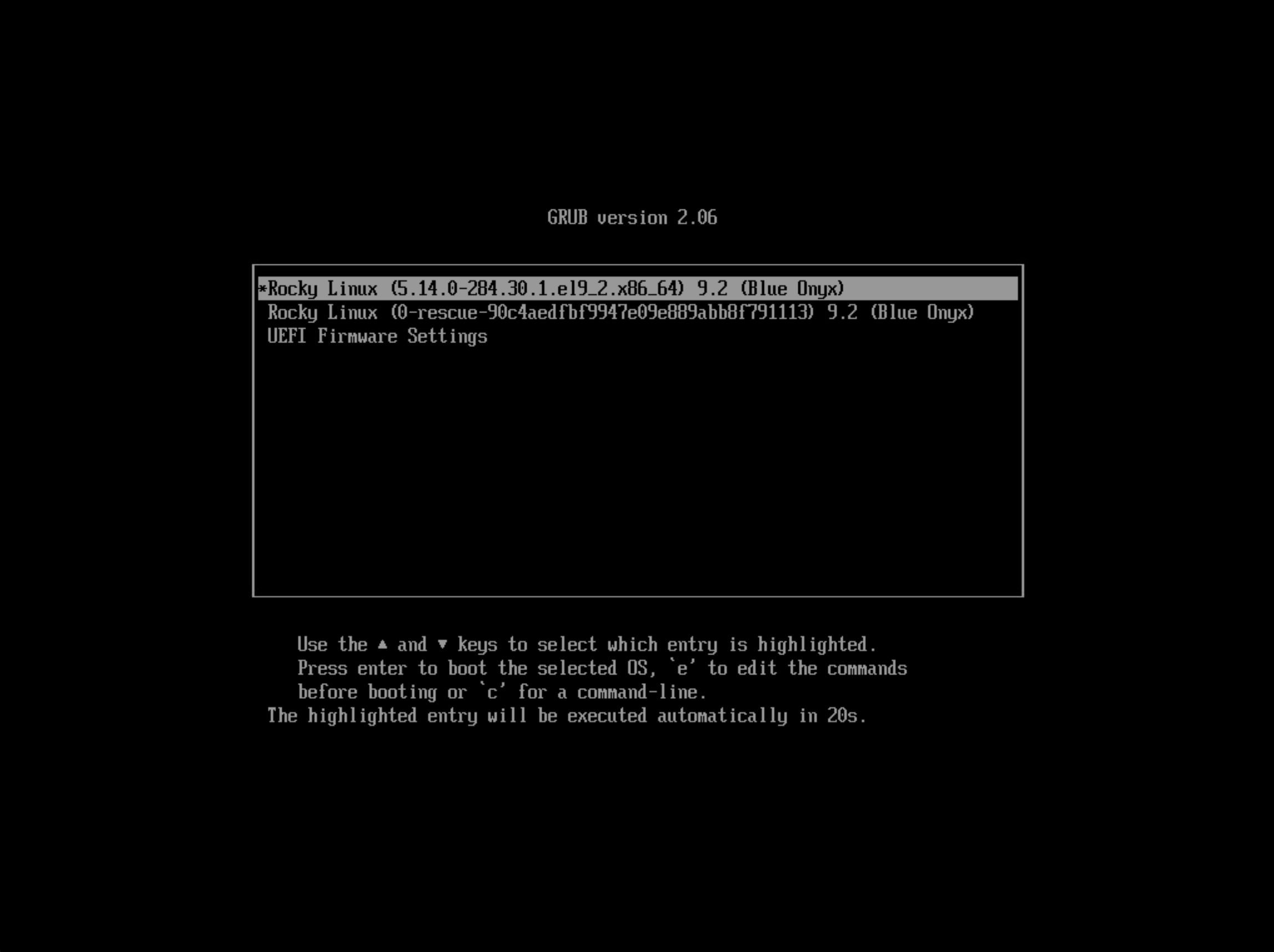
After the system reboots, you’ll see the Rocky Linux boot screen, indicating that the system has been successfully installed. Select the first option to enter the Hardened Repository system.
Once in the system, you’ll see a very simple command-line welcome interface as shown below. It will indicate that this is a Veeam Hardened Repository system, display its IP address (10.10.1.83 in this case), and provide a login prompt.
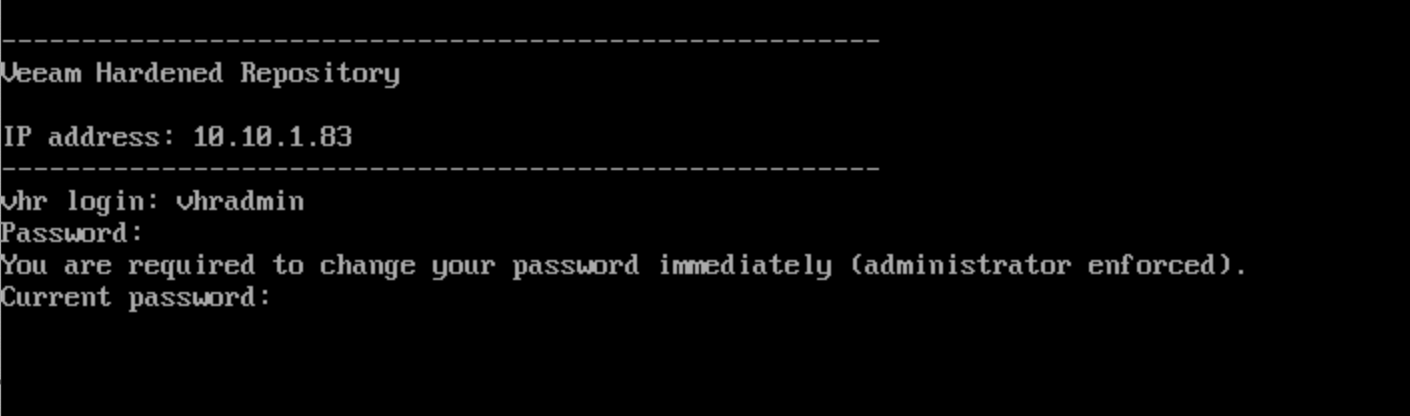
Enter “vhradmin” to log in. The default password is “vhradmin,” but note that on the first login, you’ll be prompted to change the password. This password change has strict complexity and time requirements. Please prepare a password that meets the following complexity requirements before logging in:
- At least one digit
- At least one lowercase letter
- At least one special character
- 15 or more characters
- No more than 3 consecutive characters from the same category (e.g., no 4 consecutive lowercase letters or 4 consecutive digits)
- Password can only be changed once per day
Once you complete the password change, you’ll enter the initial configuration interface. The first step is to accept the License Agreement.
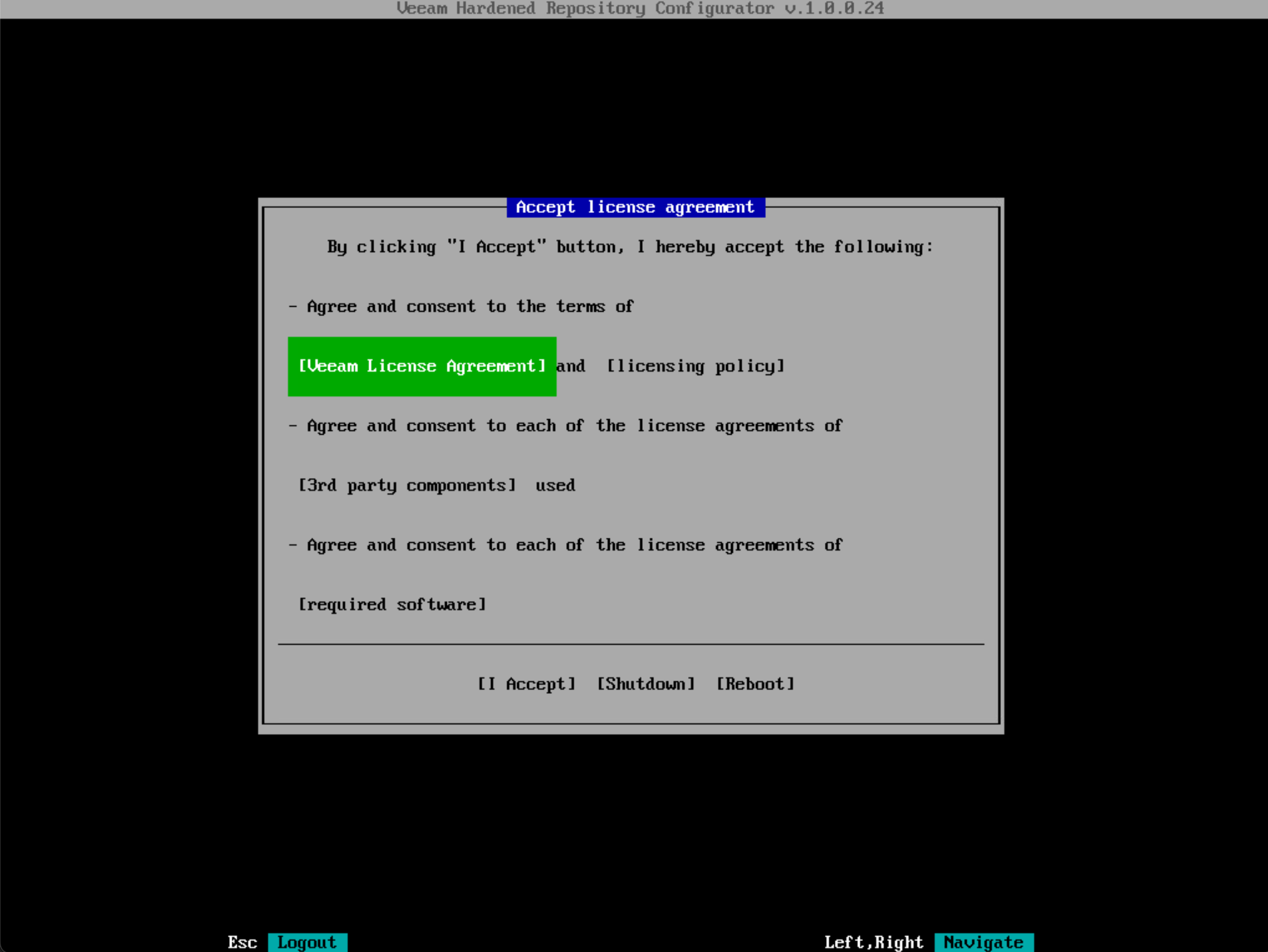
After clicking “I Accept,” you’ll enter the Configurator’s main menu.
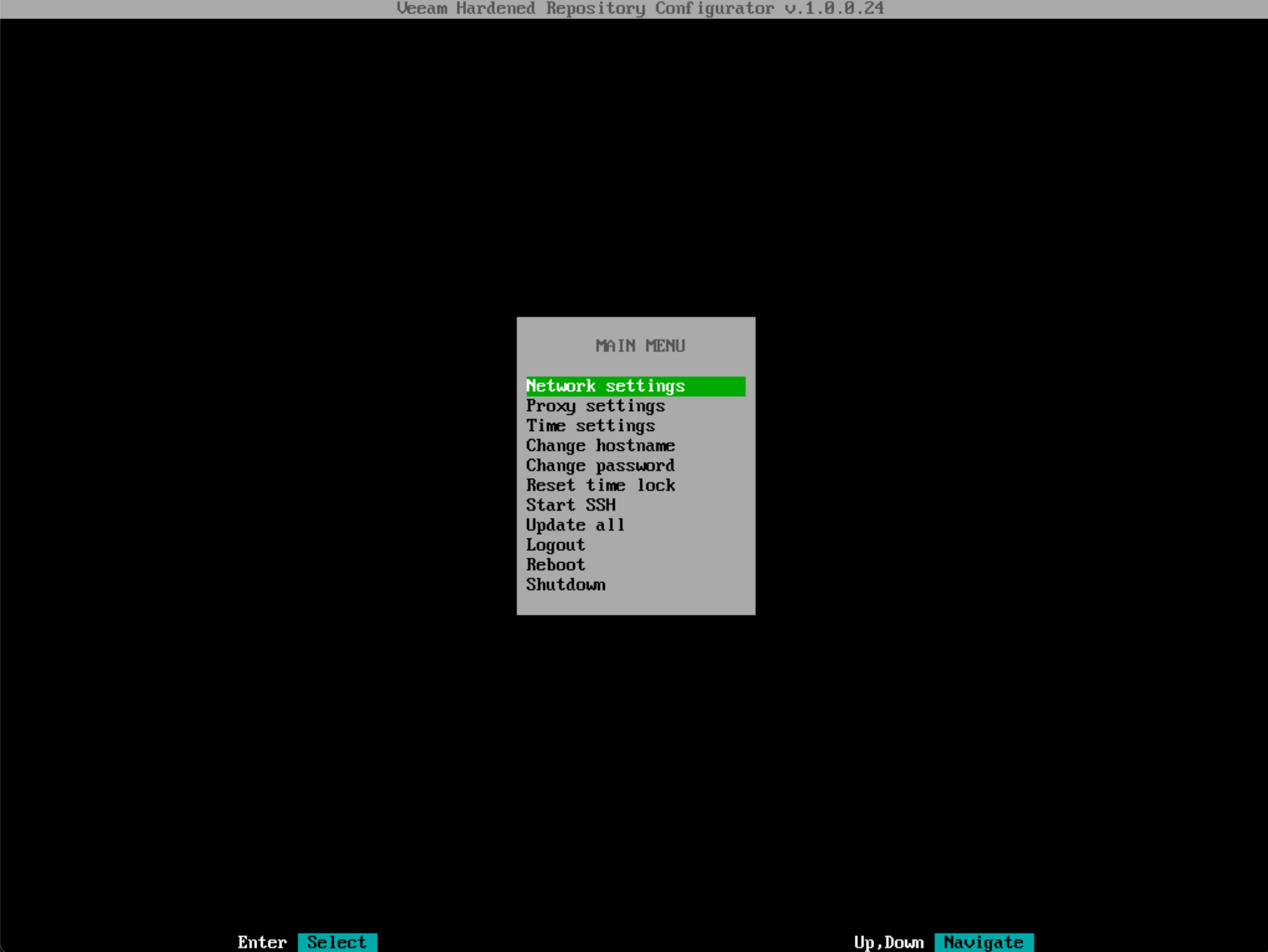
This Configurator has some basic configurations. Network settings, Time Settings, and Change hostname were already configured during the installation phase, but they can be adjusted in this menu as well.
In addition to these, there are several other configuration functions:
- Proxy Settings
- Change Password
- Reset time lock
- Start SSH
- Logout
- Reboot
- Shutdown
Most of these configurations are straightforward from their names. Two deserve special attention:
Proxy Settings helps administrators configure systems without direct internet access to reach repository.veeam.com through a proxy for online updates.
Reset time lock unlocks the system time when the Hardened Repository has been shut down for an extended period and significant time changes have occurred.
Start SSH
The most critical function is Start SSH. You must enable this for the initial configuration and registration in VBR - without it, VBR cannot complete the setup. After the initial configuration is complete, remember to return here and stop SSH.
After clicking “Start SSH,” the screen will display all the information needed for configuration in VBR, including username, password, hostname, IP address, system fingerprint, etc.
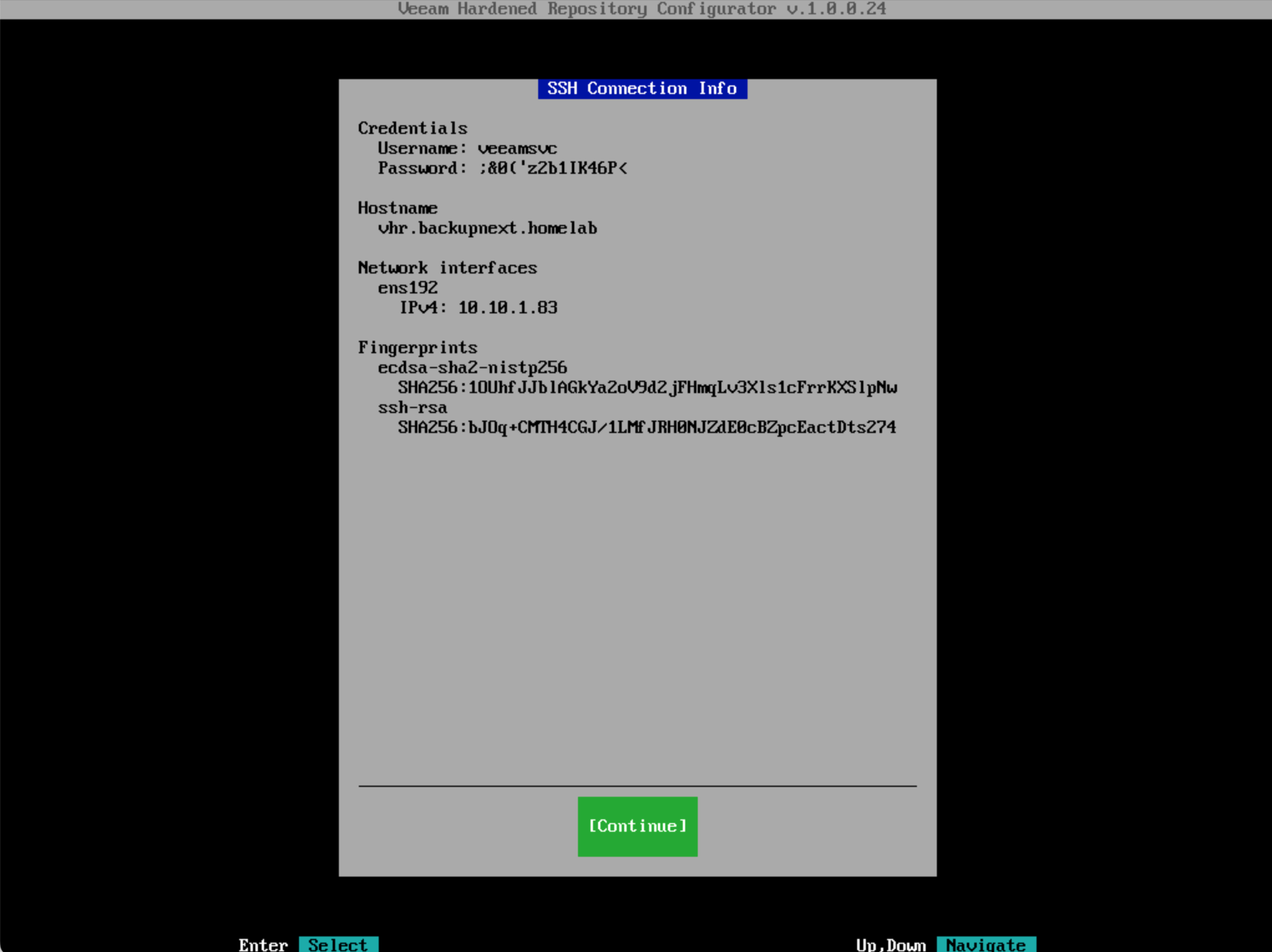
At this point, you need to return to VBR for configuration. Keep this screen displayed and do not click the “Continue” button until the configuration is complete.
In VBR, add and select the Hardened Repository type, then proceed to add the Linux host. Enter the username and password here, but do not check Use "su" if "sudo" fails.
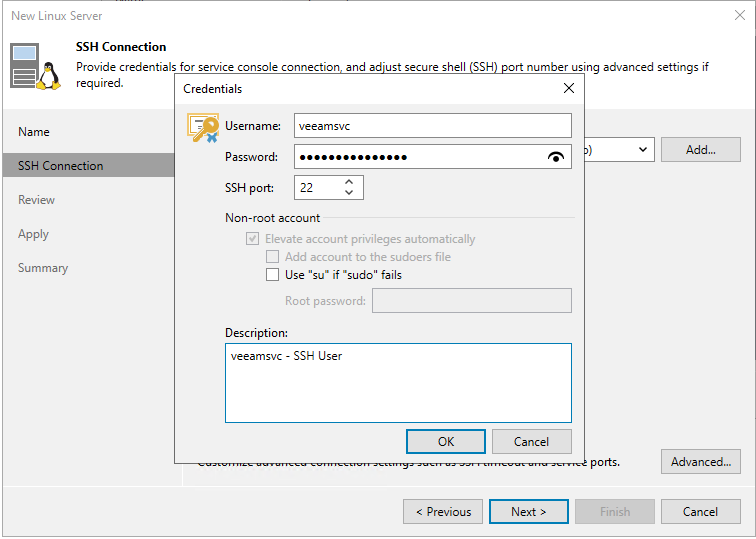
From here, you can simply click “Next” through the screens to complete the addition of this Linux host. After adding the host, you’ll return to the Repository addition wizard. In the Repository wizard, you need to select the mounted space directory as shown below:
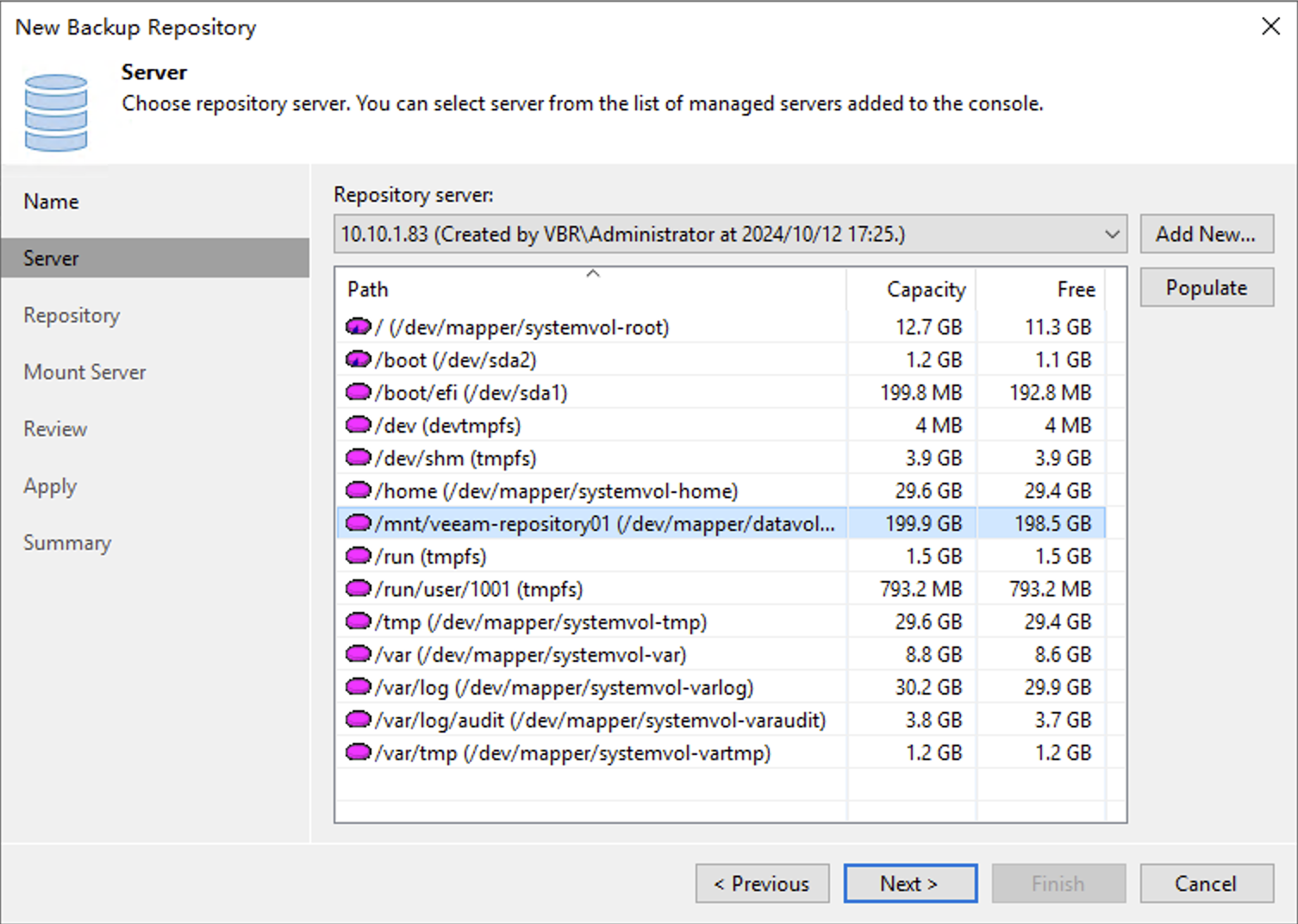
The directory path is /mnt/veeam-repository01. The file system under this path has been correctly formatted as XFS and supports the fast clone feature. After configuration is complete, you can see the configuration result in the Repository list.
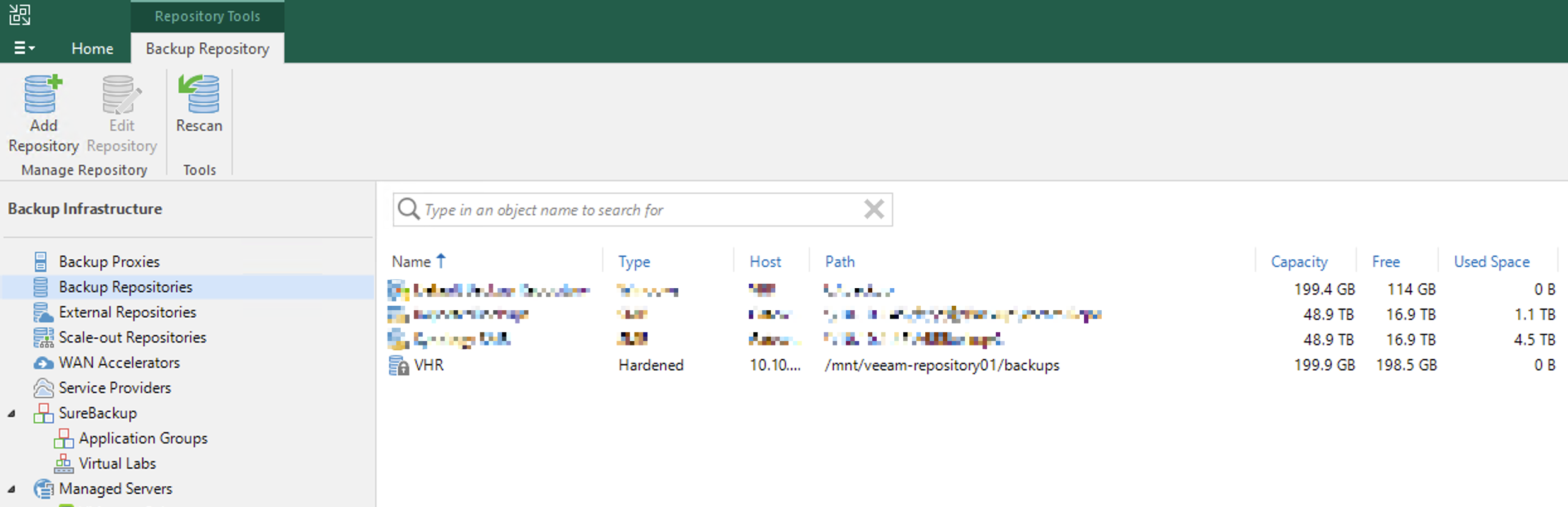
Return to the Hardened Repository Linux console. If the timeout period has expired, you’ll need to log back in and stop SSH.
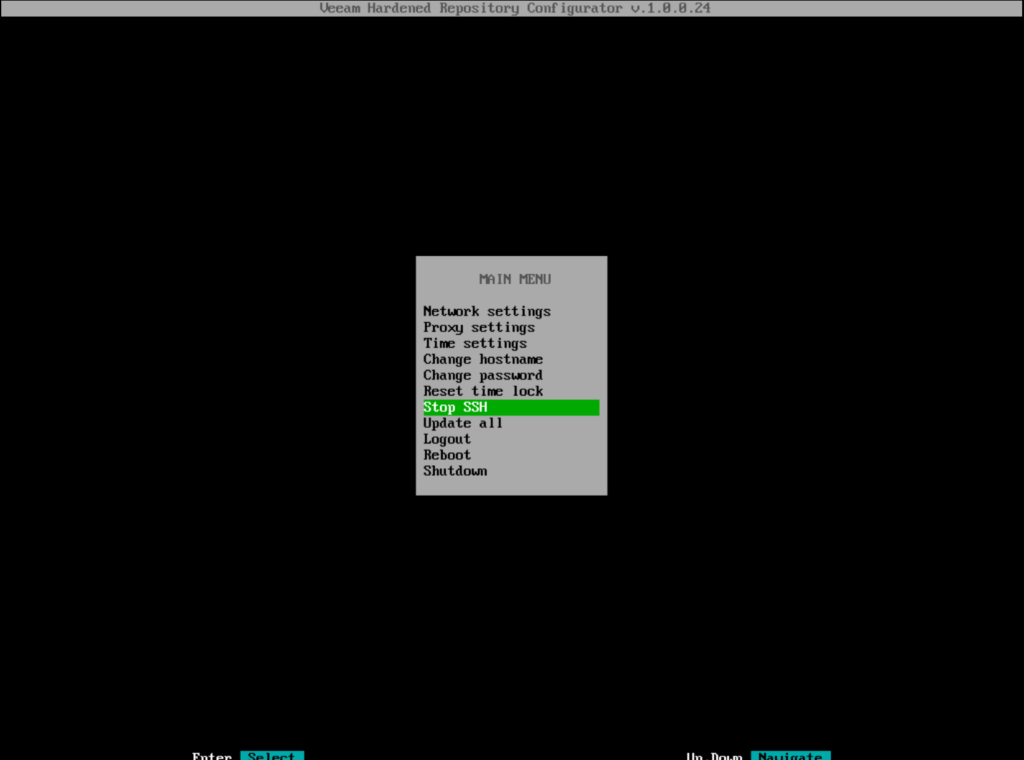
Your Hardened Repository system is now fully configured and ready for backup and restore testing.