One-Click Deployment Script: K3S+vSphere CSI
I’ve previously shared two articles about using K10 for instant recovery of Kubernetes applications. This feature has specific requirements for Kubernetes environments. Back then, I walked you through the manual deployment process in detail. Today, I’m excited to bring you a one-click deployment script that makes everything incredibly simple.
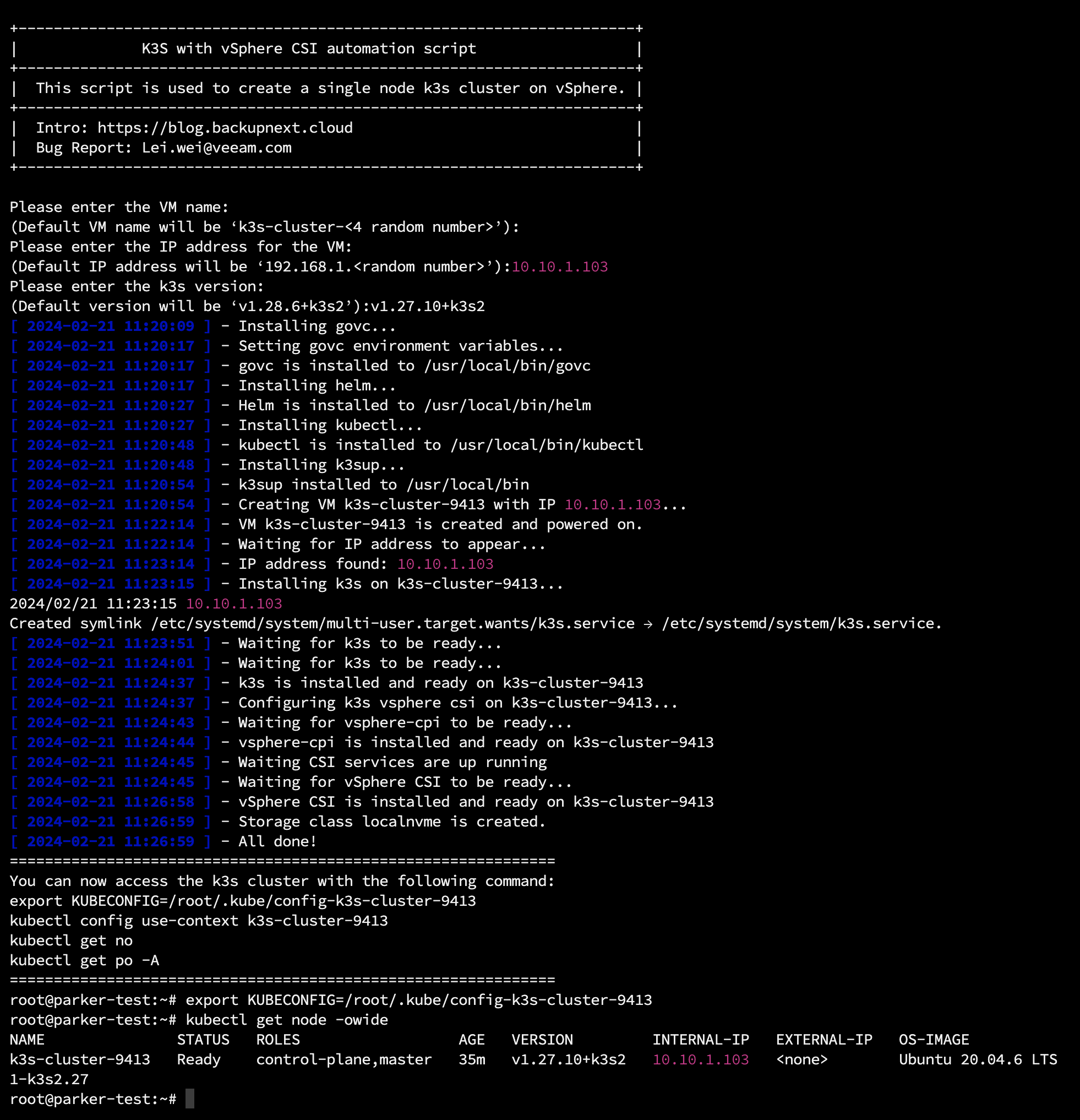
If you have a basic VMware environment and can connect to GitHub/k8s.io networks, this script will be a game-changer. Just run the script, wait about 10 minutes, and you’ll have a ready-to-use single-node K3s environment.
Script repository:
https://github.com/Coku2015/k3s_vsphere
Prerequisites
Before using this script, you’ll need to prepare a VM template and customization specification for automated deployment. The script will automatically call these resources to deploy your K3s environment.
VM Template
I recommend using Ubuntu 20.04 LTS as the base environment for running K3s, and suggest creating your VM template based on this version.
For the template VM, modest hardware specifications are sufficient: 1 vCPU, 2GB RAM, and 50GB disk space.
There are several ways to create a VM template. The most straightforward approach is performing a minimal installation from an ISO. After installation completes, you’ll need to make some adjustments to enable fully automated remote configuration. First, enable key-based authentication for remote login:
# Create SSH key pair for remote connection on your Linux machine
$ ssh-keygen
# After creation, you'll get two files: id_rsa (private key) and id_rsa.pub (public key)
# Copy the public key to the template machine, assuming ubuntu is the username
$ ssh-copy-id ubuntu@ubuntu_template_vm
# Test the connection - it should still prompt for password
$ ssh ubuntu@ubuntu_template_vm
Next, SSH into this Ubuntu machine, switch to root with sudo -i, and run the following commands for further configuration:
# Disable password authentication for SSH key-based login
$ sed -i 's/#\?PasswordAuthentication yes/PasswordAuthentication no/' /etc/ssh/sshd_config
# Restart SSH service
$ systemctl restart sshd
# Enable passwordless sudo (modify if username is not ubuntu)
$ echo 'ubuntu ALL=(ALL) NOPASSWD:ALL' >> /etc/sudoers
# Fix VMware customization issues - see VMware KB56409 for details
$ sed -i '/^\[Unit\]/a After=dbus.service' /lib/systemd/system/open-vm-tools.service
$ awk 'NR==11 {$0="#D /tmp 1777 root root -"} 1' /usr/lib/tmpfiles.d/tmp.conf | tee /usr/lib/tmpfiles.d/tmp.conf
# Disable Cloud Init
$ touch /etc/cloud/cloud-init.disabled
# Update system packages
$ apt clean
$ apt update -y
$ apt upgrade -y
# Remove machine-id to avoid conflicts after template deployment
$ rm /etc/machine-id
$ touch /etc/machine-id
Once you’ve completed these configurations, exit SSH and test the connection again. Verify that password authentication is no longer required and that sudo -i works without a password prompt. If everything works as expected, congratulations - your template is ready! Simply shut down this virtual machine and convert it to a template.
VM Customization Specification
Besides creating the template, we also need to configure a VM customization specification.
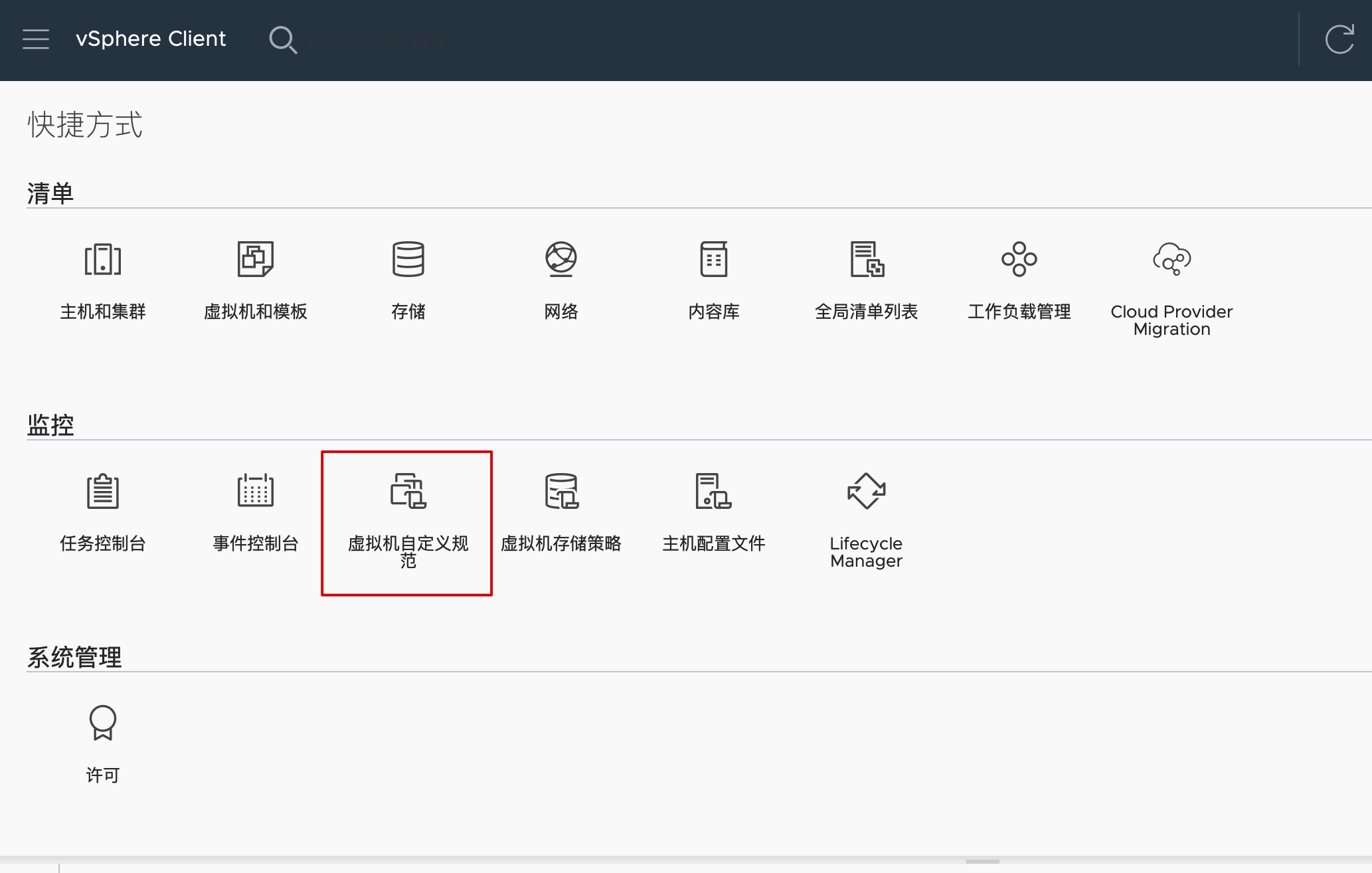
- In vSphere Client, find the “VM Customization Specifications” button in the shortcuts and click to enter.
-
Click the “Create” button to open the creation wizard.
-
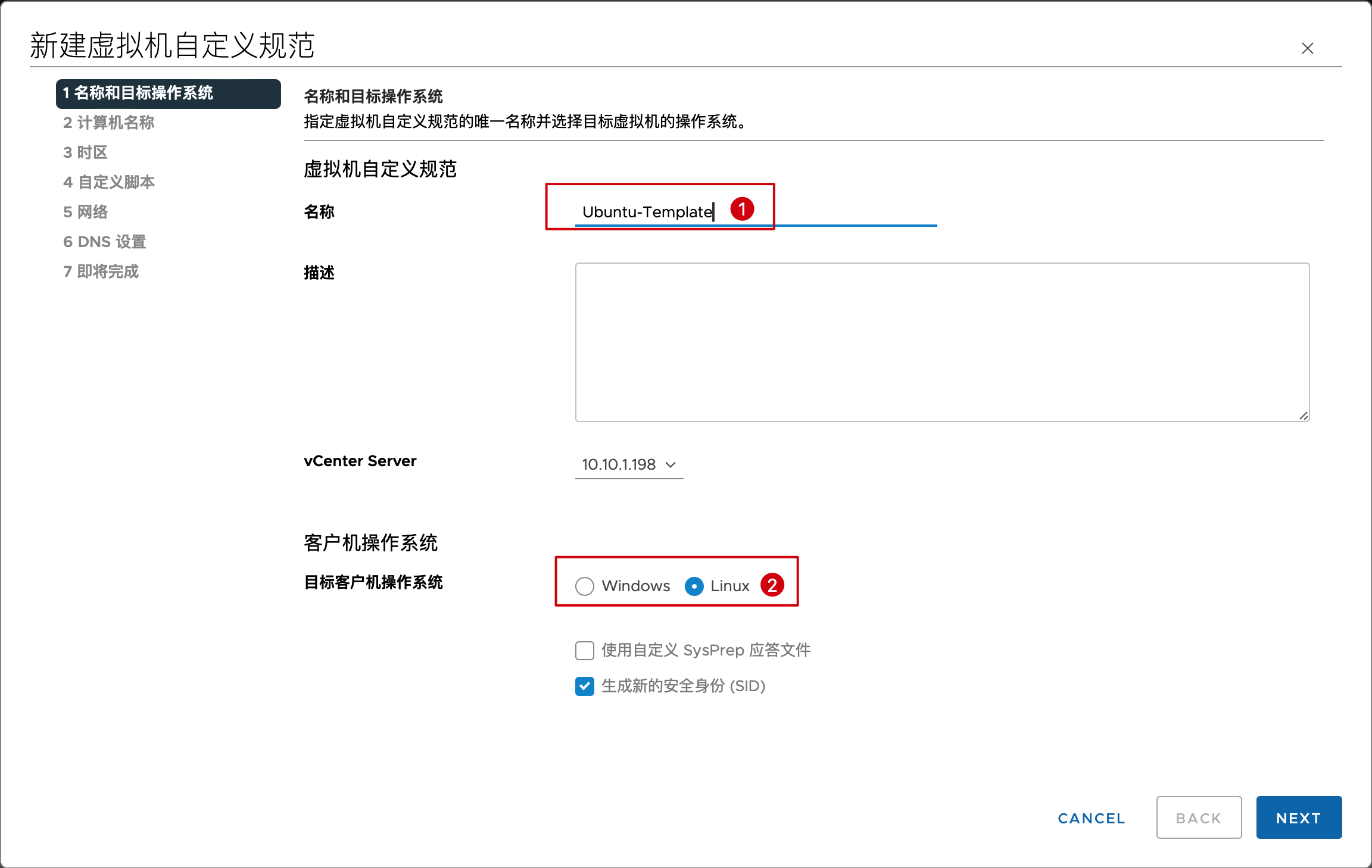
Set a name and select Linux as the operating system. This name will be used in the subsequent script.
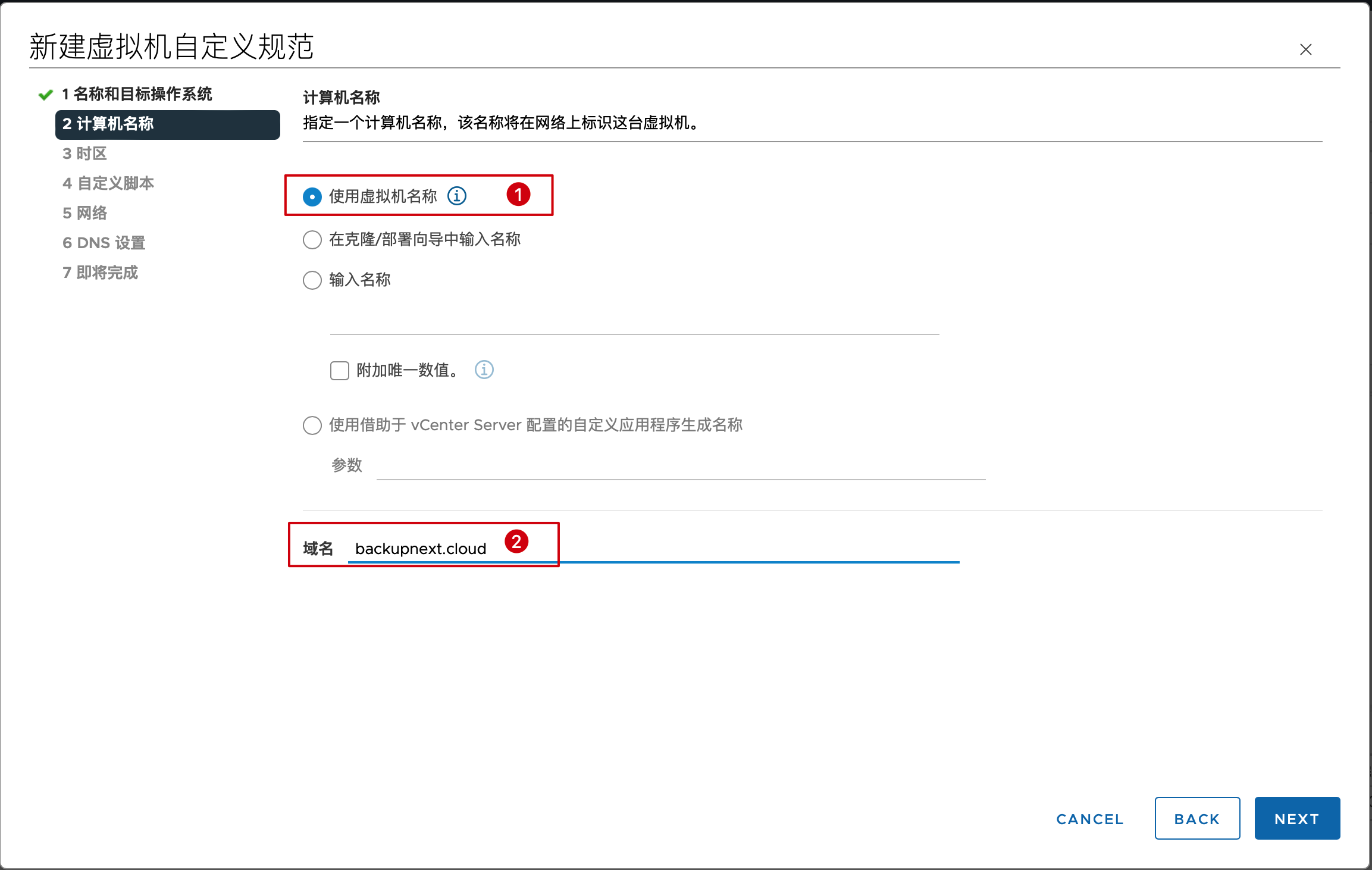
- Configure the computer name. Select “Use the virtual machine name” to make it match the VM name, then enter any appropriate domain name in the field below. This step cannot be skipped - you must enter some text.
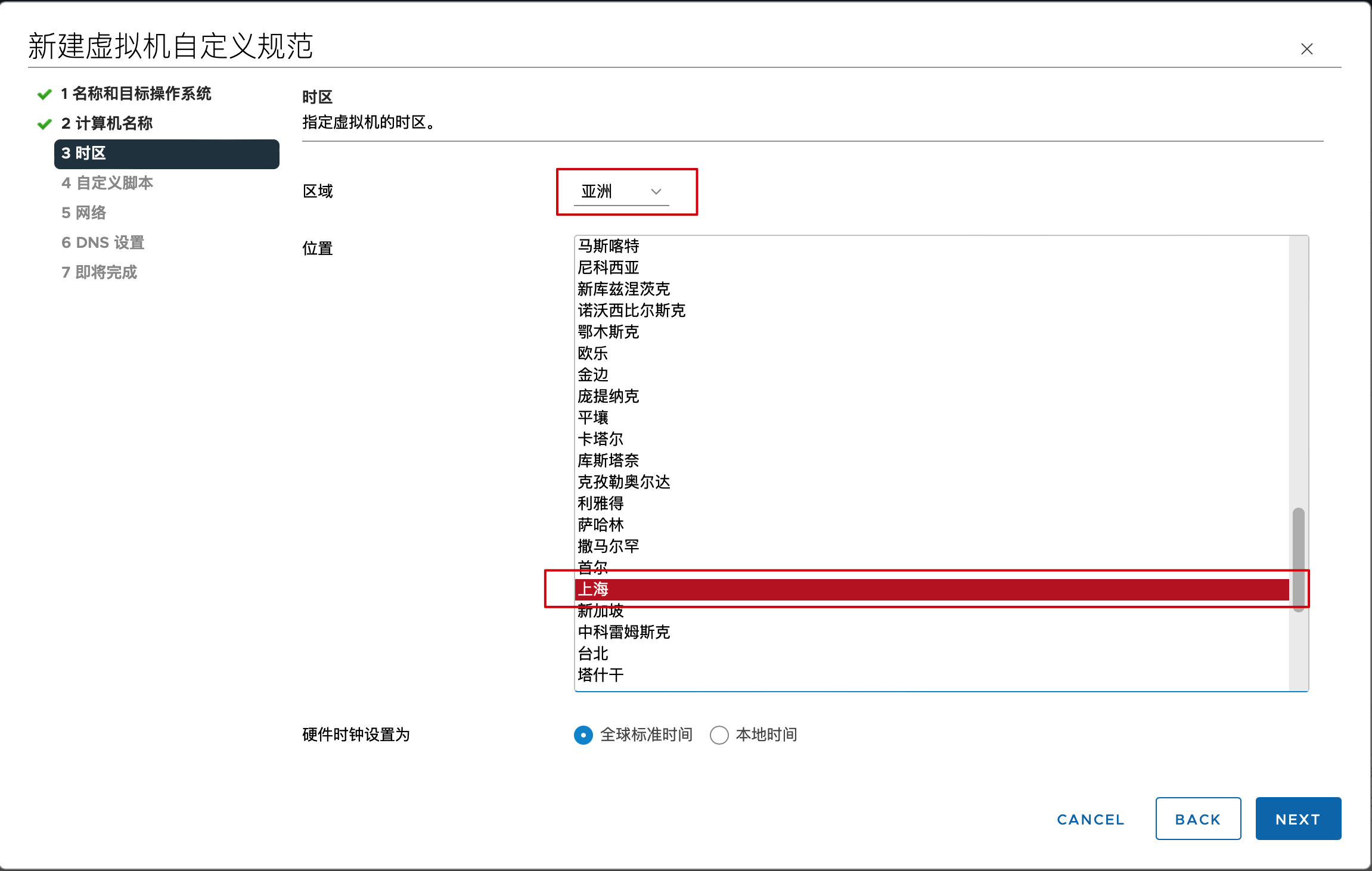
- Select the timezone. I’m choosing Asia/Shanghai for my location.
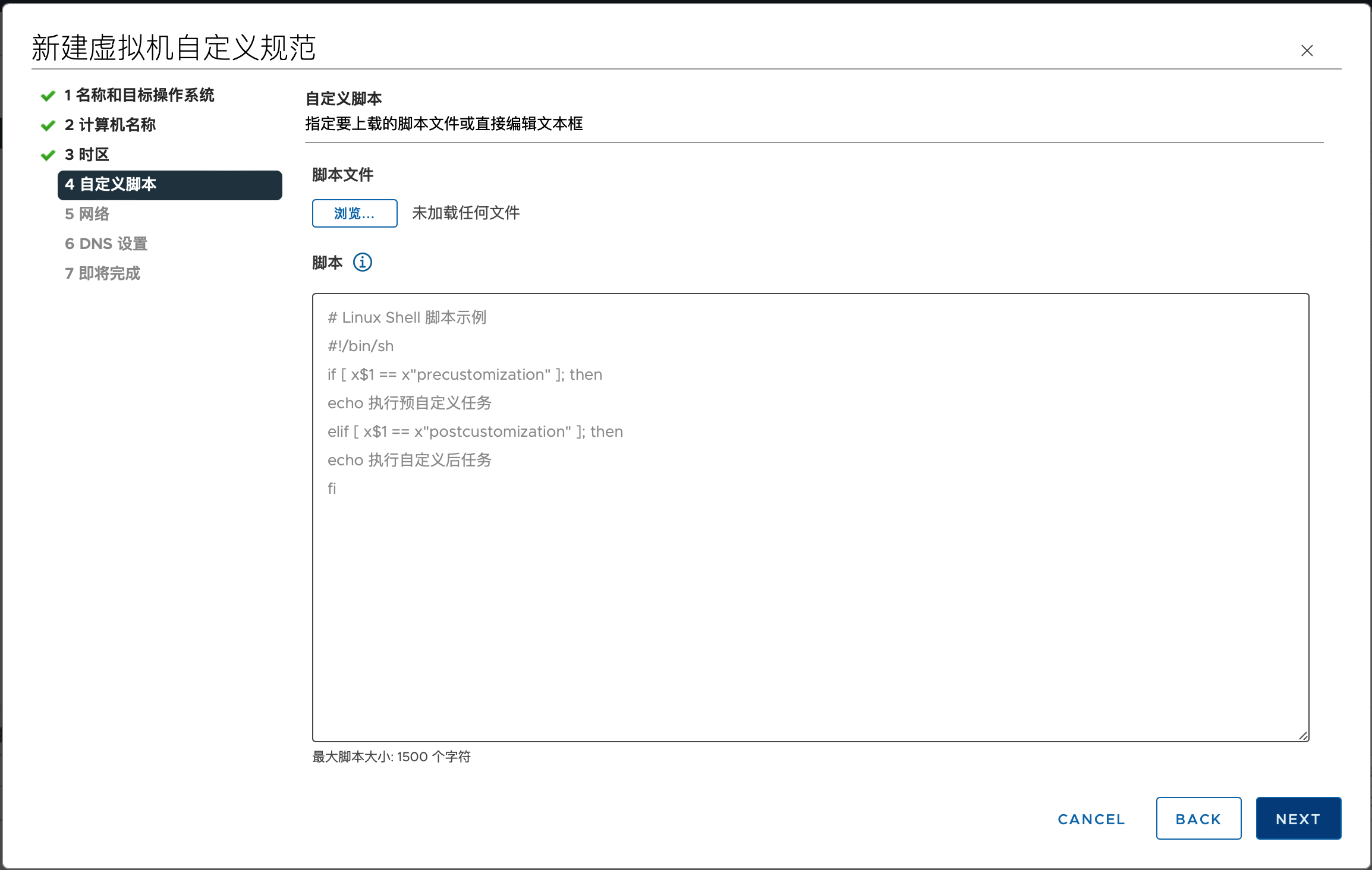
- No configuration needed for the custom script section - simply click Next.
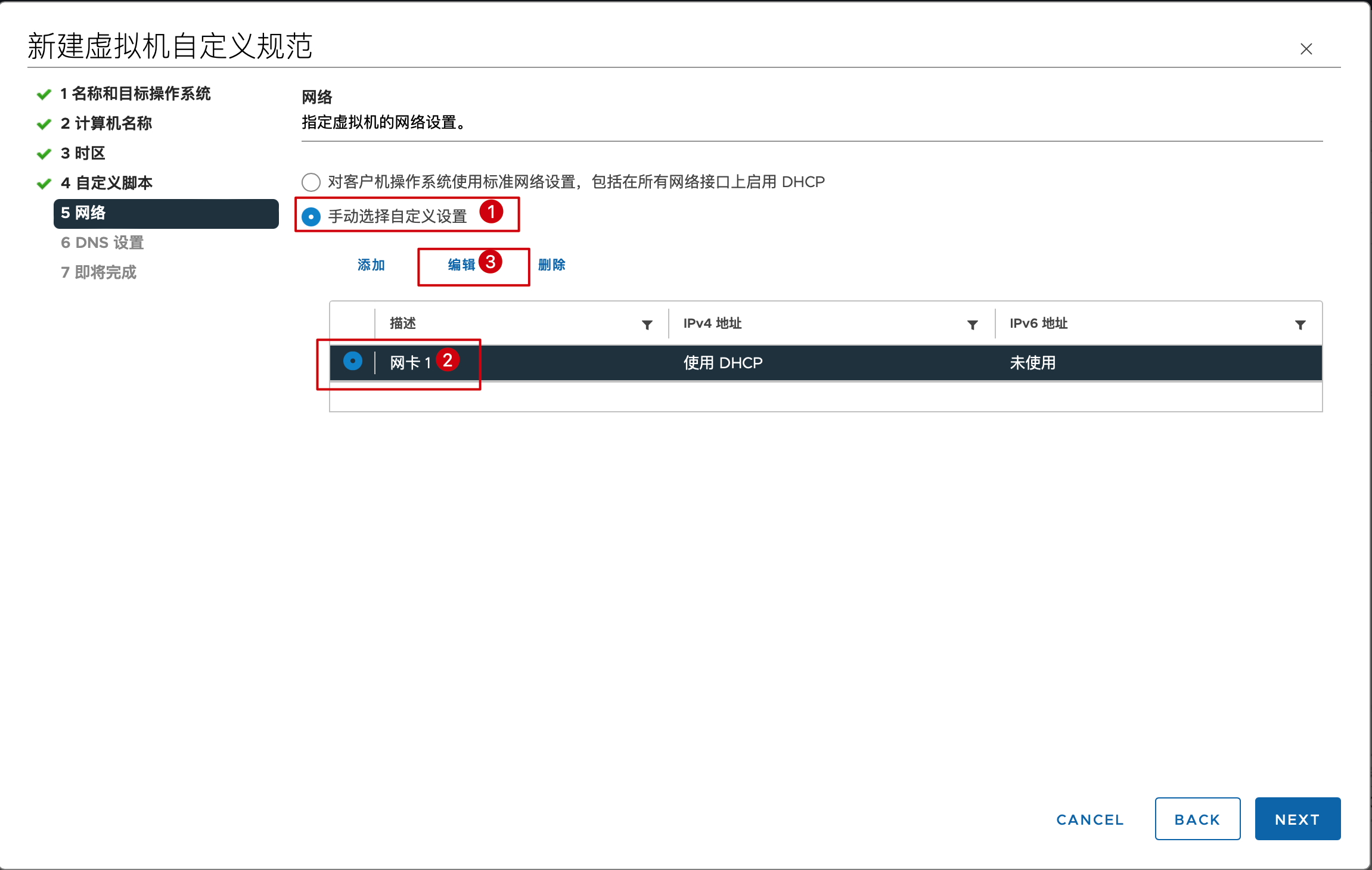
- Configure network settings. Select “Manually select custom settings”, then select Network adapter 1 below and click Edit for further configuration.
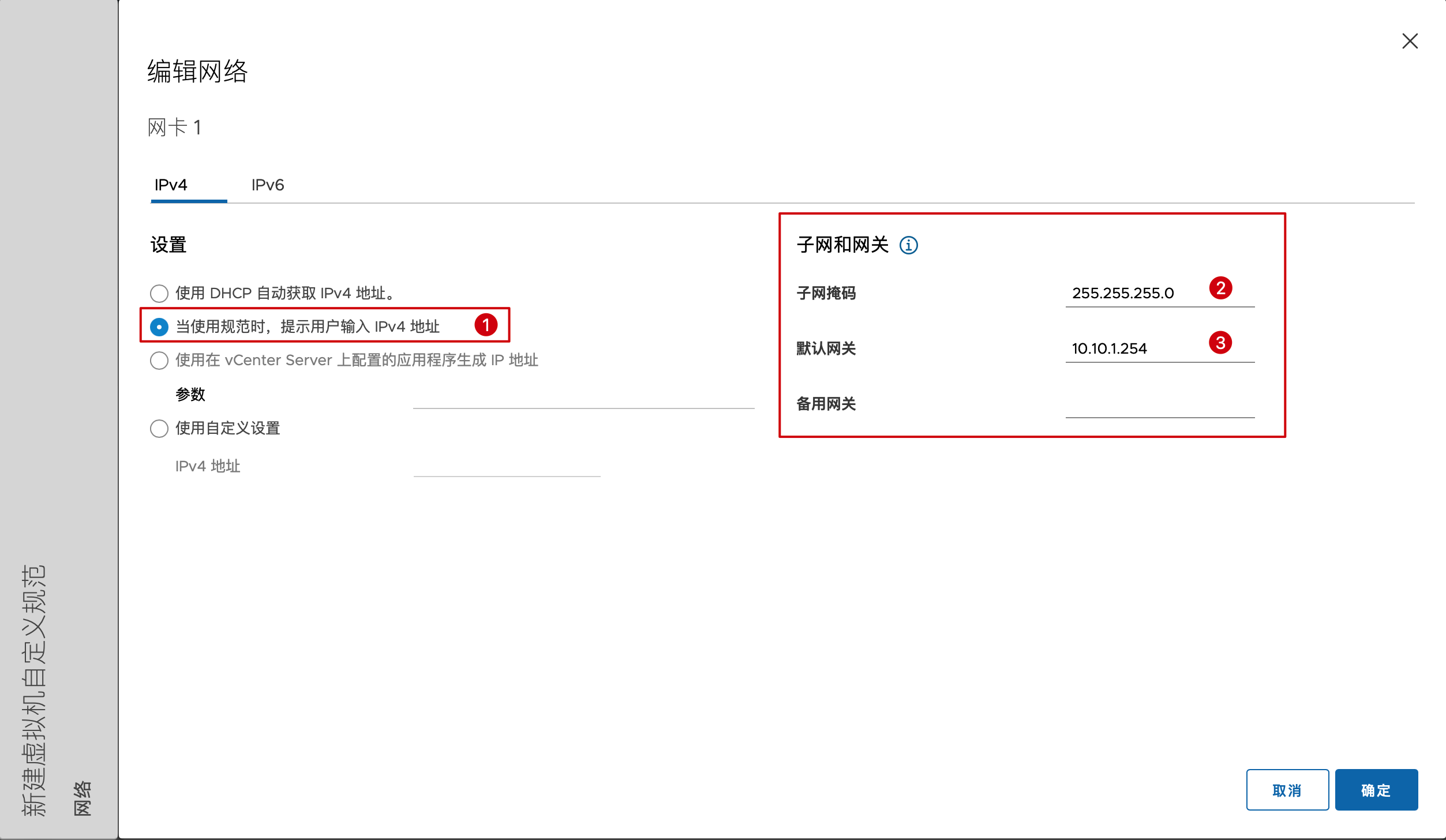
- In the network settings dialog, under IPv4, select “Prompt the user for an IPv4 address when a specification is used” on the left, and fill in your environment’s subnet mask and gateway on the right. Leave IPv6 unconfigured by default, then click OK to save.
- Set up DNS by entering your environment’s default DNS server addresses that can access the internet.
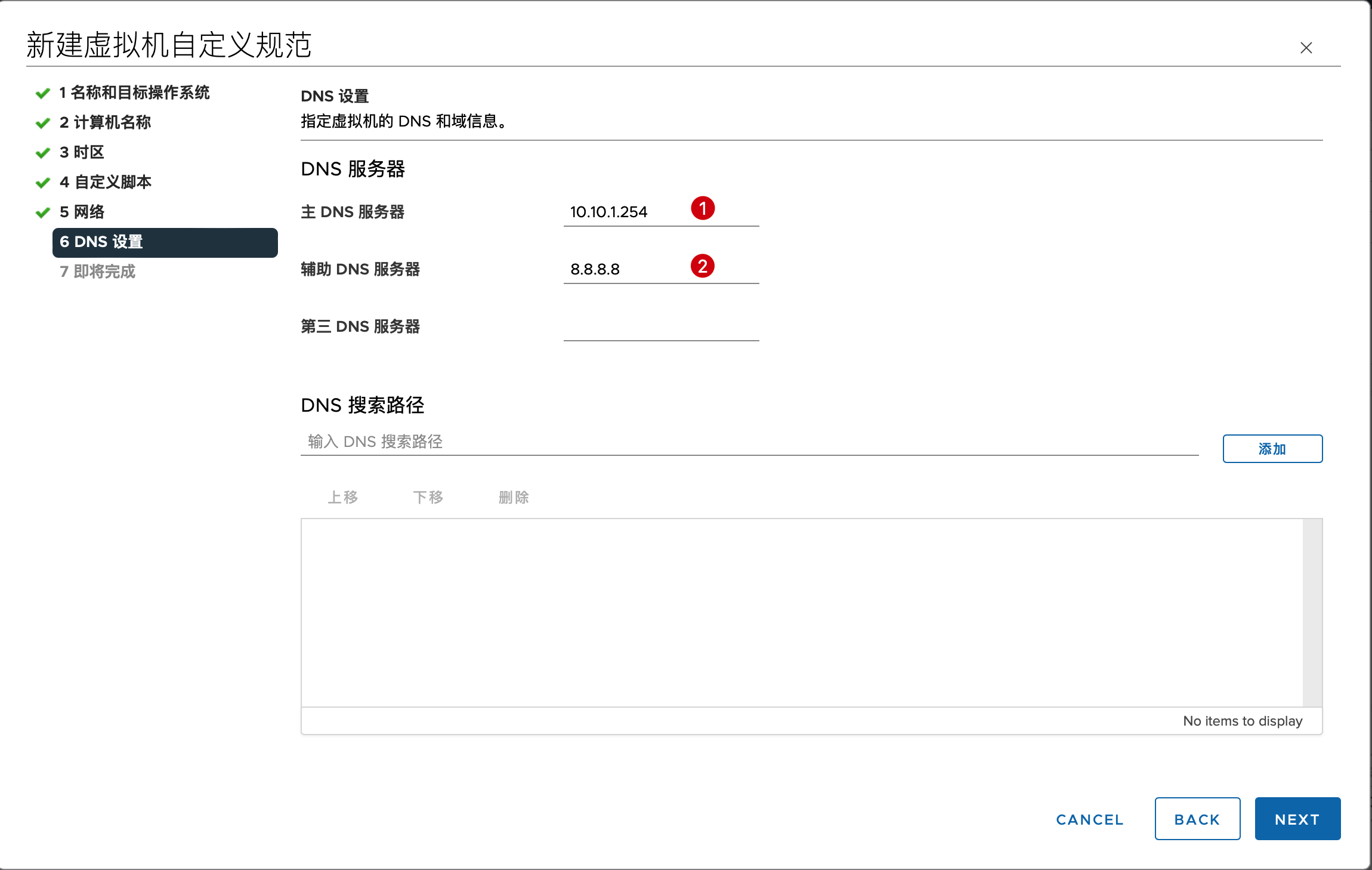
- Click Finish to save the settings.
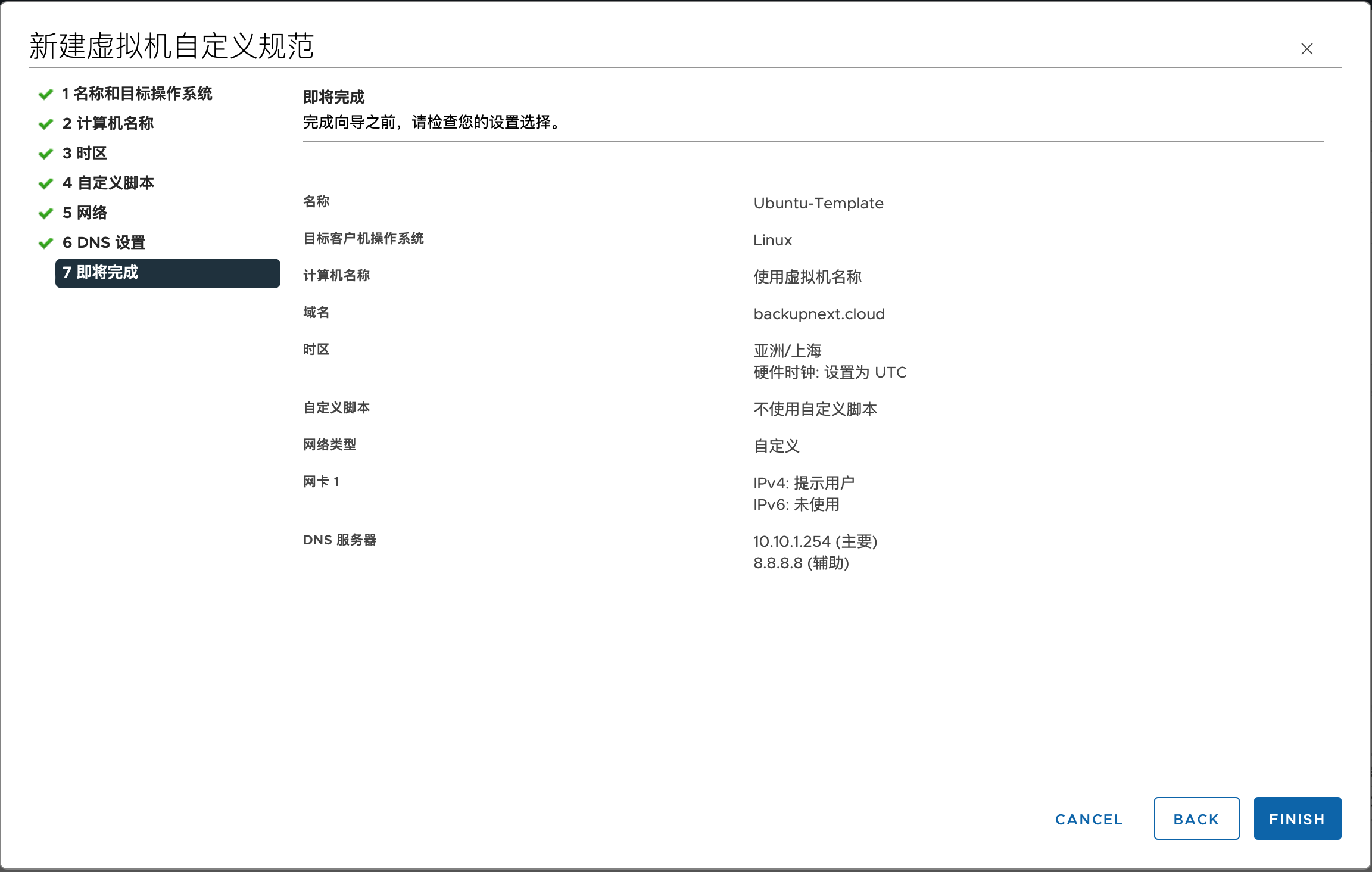
Your customization specification is now configured and ready to be used in the script by referencing the name you set in step 3.
Script Usage Guide
Environment Topology Overview:
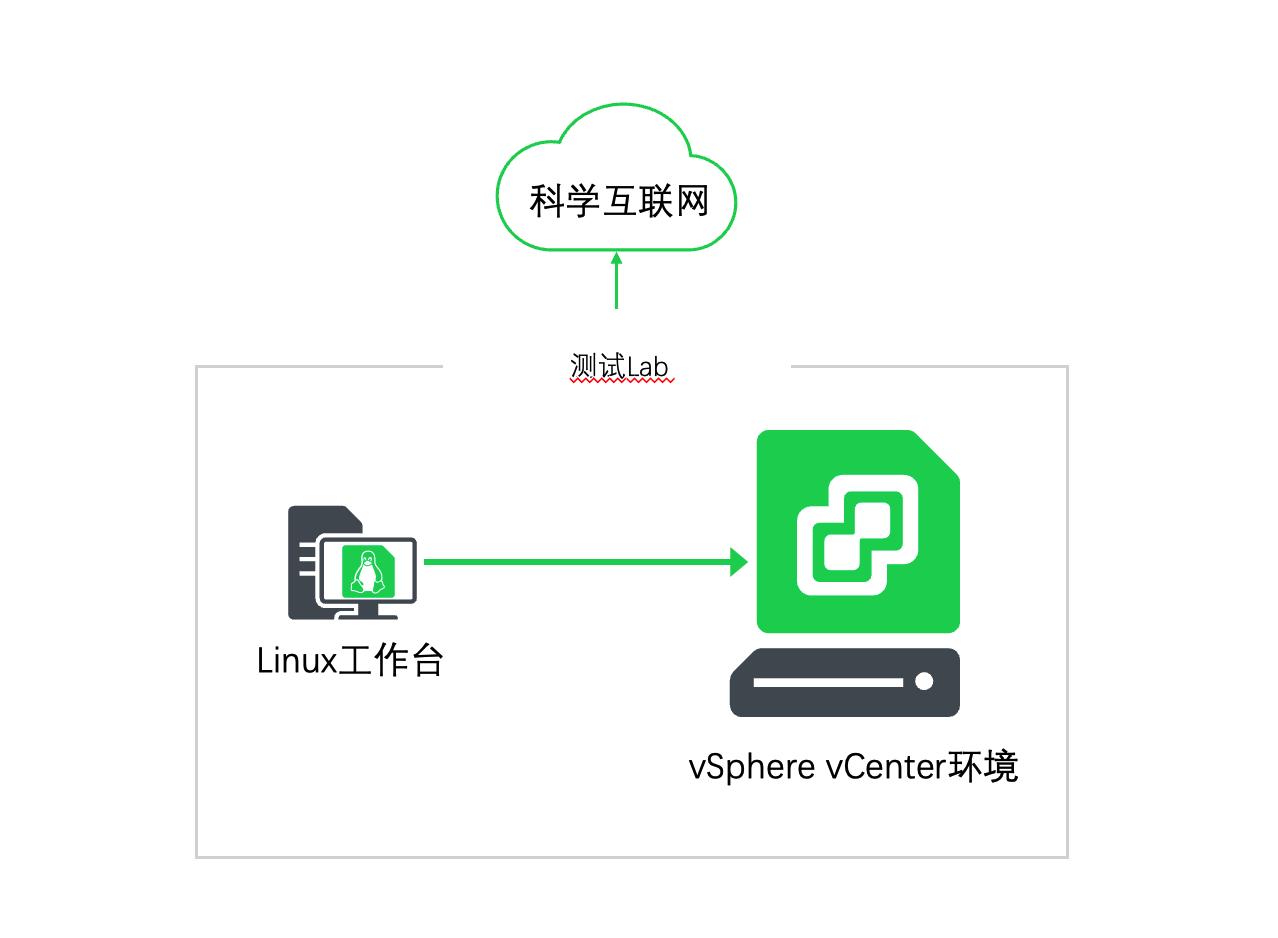
On your Linux control machine, use git clone to download the script repository:
$ git clone https://github.com/Coku2015/k3s_vsphere.gitNavigate to the script directory after downloading:
$ cd k3s_vsphereOpen the script with vi editor and find the environment variables section at the beginning. Modify the parameters to match your environment:
#######################  Environment Variables Section  ######################
###  Modify the following environment variables to match your environment  ###
MY_SSH_USER="ubuntu"
MY_VSPHERE_SERVER="172.16.0.100"
MY_VSPHERE_USERNAME="administrator@vsphere.local"
MY_VSPHERE_PASSWORD="VMware123!"
MY_DATACENTER="MyDatacenter"
MY_VM_TEMPLATE="Ubuntu20.04LTS"
MY_DATASTORE="localdatastore"
#######################  Environment Section End   ###########################
The first variable, MY_SSH_USER, is the username for your Ubuntu template. The other information consists of standard vSphere access details - fill them in according to your actual environment.
After saving and exiting, you’re ready to run the script. Note that the script requires root privileges to install necessary software.
Execute the script with the following command:
$ bash deploy_k3s_with_vspherecsi.shThe script will prompt you for three configuration parameters for this deployment:
- VM name prefix (the script will automatically add 4 random digits as a unique identifier)
- VM IP address (enter an available IP from your environment)
- K3s version (check k3s.io for available versions - theoretically any stable version should work):
+----------------------------------------------------------------------+
|              K3S with vSphere CSI automation script                  |
+----------------------------------------------------------------------+
|  This script is used to create a single node k3s cluster on vSphere. |
+----------------------------------------------------------------------+
|  Intro: https://blog.backupnext.cloud                                |
|  Bug Report: Lei.wei@veeam.com                                       |
+----------------------------------------------------------------------+

Please enter the VM name:
(Default VM name will be 'k3s-cluster-<4 random number>'):
Please enter the IP address for the VM:
(Default IP address will be '192.168.1.<random number>'):10.10.1.103
Please enter the k3s version:
(Default version will be 'v1.28.6+k3s2'):v1.27.10+k3s2
After entering these parameters, the script begins automated deployment. In about 10 minutes, you’ll have a ready-to-use K3s test environment just like I do!