MySQL Backup and Restore Best Practices with Veeam
In the Veeam data protection platform, application support is extremely comprehensive, ranging from automatic application-aware processing for image-level backups to specialized application plugin backups. Veeam covers almost all mainstream data sources in the market. However, many people often wonder why MySQL backup isn’t prominently featured in the Veeam data protection platform. Today, I’ll explain what’s going on and how you should approach MySQL backup and recovery using Veeam.
MySQL Data Storage Engines
Before discussing MySQL backup, we need to talk about MySQL’s data storage engines because different engines directly determine MySQL’s data backup and recovery capabilities. In MySQL, InnoDB is the most commonly used storage engine by default. Tables created with the Create Table command without specifying an Engine parameter will use the InnoDB engine by default, and Oracle officially recommends using the InnoDB engine for typical MySQL usage unless there are special requirements. Of course, besides this engine, MySQL also supports other engines for special cases, such as MyISAM, MEMORY, CSV, BLACKHOLE, and others. For more information about storage engines, you can refer to the official documentation.
The InnoDB engine has very strong self-recovery capabilities. Currently, all solutions for online physical hot backups of MySQL are designed around InnoDB engine’s recovery features, and Veeam also leverages this characteristic to implement MySQL data backup.
When a database using the InnoDB engine experiences an abnormal server shutdown, recovering the database only requires starting the MySQL service. At this point, InnoDB automatically checks the database’s Redo log and undo log, entering the crash recovery process. For details about this process, you can refer to the official InnoDB Recovery documentation. This characteristic is very suitable for Veeam’s snapshot backups, whether they’re agentless virtual machine snapshots or Veeamsnap snapshots from the Linux Agent. We know that snapshot states are crash-consistent, so when MySQL Server starts from this state, it can naturally enter the self-crash recovery process smoothly and complete service startup without any manual intervention.
After system recovery, this process can be verified through the /var/log/mysql/error.log file with the following information:
[System] [MY-013576] [InnoDB] InnoDB initialization has started.
[System] [MY-013577] [InnoDB] InnoDB initialization has ended.
[System] [MY-010229] [Server] Starting XA crash recovery...
[System] [MY-010232] [Server] XA crash recovery finished.
[System] [MY-010931] [Server] /usr/sbin/mysqld: ready for connections. Version: '8.0.35-0ubuntu0.20.04.1'  socket: '/var/run/mysqld/mysqld.sock'  port: 3306  (Ubuntu).
For the MyISAM engine, due to its storage format, it can also support backup through physical backup methods. The only difference is that MyISAM engine’s consistency handling isn’t as flexible as InnoDB’s, so before copying files for physical backup, you need to perform a table locking operation to ensure database consistency.
Veeam Data Protection Platform
MySQL Backup
Therefore, in Veeam software, backing up MySQL databases needs to be discussed separately:
-
InnoDB engine - The entire backup process can be done directly at the machine level. Normally perform disk or filesystem snapshots, and after backing up all files from the snapshot point, the database backup is complete simultaneously without any additional settings or steps.
-
MyISAM engine - It’s usually recommended to add the
FLUSH TABLES tbl_list WITH READ LOCK;command to perform table locking operations. After locking, MyISAM table files (*.MYD, *.MYI, *.SDI) only need to be backed up as files. When using agentless virtual machine snapshots, pre-freeze and post-unfreeze scripts are typically added to handle locking and unlocking operations. When using Veeam Agent backup, you just need to enable application-aware processing, and Veeam Agent can automatically determine the current MySQL storage engine and automatically execute the above locking and unlocking operations for MyISAM engine tables.
Database administrators might wonder at this point, what about incremental backups? Is the backup data compressed? You don’t need to worry about these at all. Veeam’s Change Block Tracking technology and deduplication compression technology are very well applied in full image backups, allowing backup administrators to easily handle data deduplication and compression.
Application of Veeam CDP Technology in MySQL Real-time Synchronization
If your MySQL runs on VMware vSphere, congratulations! Veeam CDP technology can be seamlessly applied to MySQL real-time synchronization replication disaster recovery scenarios. At this point, you don’t need to worry about MySQL consistency when using the InnoDB engine at all - all operations are handed over to the infrastructure administrator to be managed by Veeam and VMware. After using Veeam B&R 12.1, you can even roll back to any MySQL state every 2 seconds through file-level recovery, and for MySQL disaster recovery testing, SureReplica technology can also play a role in fully automated testing on CDP replicas, ensuring data recoverability.
MySQL Data Recovery
After backing up through Veeam, MySQL data recovery is also very convenient, with many available methods:
- Machine failure - Instant VM Recovery
- Data disk failure - Instant Disk Recovery
- Database failure - Instant Disk Recovery, Disk Publishing, File-level Recovery
- Data logical errors - Combining Data Labs and file-level recovery and other methods
MySQL Backup and Recovery in Practice with VBR
Next, let’s look at a practical example to see exactly how MySQL database backup and recovery work.
Environment Description
Virtualization platform: VMware vSphere 7.0
OS: Ubuntu 20.04
MySQL: 8.0.35
VBR: v12.1
Data Backup - InnoDB
To simulate hot database backup during continuous data writing, I prepared a Python script that inserts a row of time data every second. This table is very simple, as shown below:
mysql> SELECT * from time LIMIT 5;
+----+------------+----------+
| id | date       | time     |
+----+------------+----------+
|  5 | 2023-12-13 | 14:06:26 |
|  6 | 2023-12-13 | 14:07:04 |
|  7 | 2023-12-13 | 14:17:14 |
|  8 | 2023-12-13 | 14:17:15 |
|  9 | 2023-12-13 | 14:17:16 |
+----+------------+----------+
5 rows in set (0.00 sec)
The Python script is as follows:
#!/usr/bin/python3
import MySQLdb
import time

while True:
    db = MySQLdb.connect("localhost", "lei", "P@ssw0rd", "leitestdb")
    curs=db.cursor()
    try:
        curs.execute ("""INSERT INTO time
                values(0, CURRENT_DATE(), NOW())""")
        db.commit()
    except:
        db.rollback()
    db.close()
    time.sleep(1)
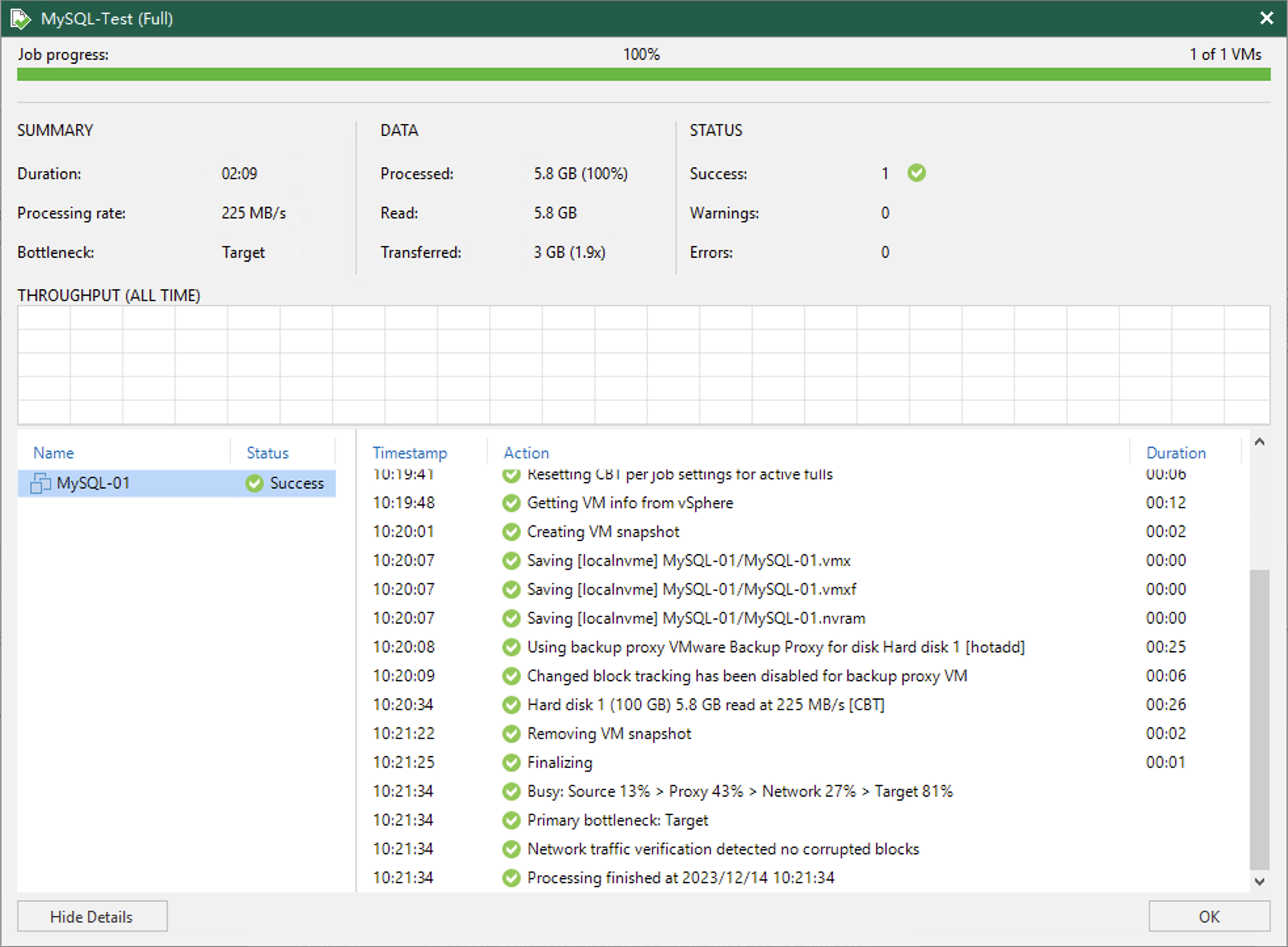
The backup job in VBR is nothing special - just a regular VMware virtual machine backup job. No need to enable application-aware processing, just backup directly.
Data Recovery Scenario 1: Machine Failure
When a system-level failure occurs, you can perform full machine instant recovery through VBR. Not only can the server be recovered, but the database can also be perfectly recovered. After starting instant VM recovery in the VBR console, MySQL can be back online within 2 minutes.
Let’s look at the recovered database. The database successfully recovered through InnoDB’s self-recovery mode using crash recovery.
lei@MySQL-01:~$ sudo cat /var/log/mysql/error.log
[sudo] password for lei:
2023-12-15T03:35:54.523723Z 0 [System] [MY-010116] [Server] /usr/sbin/mysqld (mysqld 8.0.35-0ubuntu0.20.04.1) starting as process 936
2023-12-15T03:35:54.603505Z 1 [System] [MY-013576] [InnoDB] InnoDB initialization has started.
2023-12-15T03:35:55.634428Z 1 [System] [MY-013577] [InnoDB] InnoDB initialization has ended.
2023-12-15T03:35:55.892988Z 0 [System] [MY-010229] [Server] Starting XA crash recovery...
2023-12-15T03:35:55.901965Z 0 [System] [MY-010232] [Server] XA crash recovery finished.
2023-12-15T03:35:55.971499Z 0 [Warning] [MY-010068] [Server] CA certificate ca.pem is self signed.
2023-12-15T03:35:55.971547Z 0 [System] [MY-013602] [Server] Channel mysql_main configured to support TLS. Encrypted connections are now supported for this channel.
2023-12-15T03:35:56.039984Z 0 [System] [MY-011323] [Server] X Plugin ready for connections. Bind-address: '127.0.0.1' port: 33060, socket: /var/run/mysqld/mysqlx.sock
2023-12-15T03:35:56.040153Z 0 [System] [MY-010931] [Server] /usr/sbin/mysqld: ready for connections. Version: '8.0.35-0ubuntu0.20.04.1'  socket: '/var/run/mysqld/mysqld.sock'  port: 3306  (Ubuntu).
Let’s check at what time point the backup data is located:
mysql> select * from time order by id desc LIMIT 10;
+-----+------------+----------+
| id  | date       | time     |
+-----+------------+----------+
| 361 | 2023-12-14 | 10:20:00 |
| 360 | 2023-12-14 | 10:19:59 |
| 359 | 2023-12-14 | 10:19:58 |
| 358 | 2023-12-14 | 10:19:57 |
| 357 | 2023-12-14 | 10:19:56 |
| 356 | 2023-12-14 | 10:19:55 |
| 355 | 2023-12-14 | 10:19:54 |
| 354 | 2023-12-14 | 10:19:53 |
| 353 | 2023-12-14 | 10:19:52 |
| 352 | 2023-12-14 | 10:19:51 |
+-----+------------+----------+
10 rows in set (0.00 sec)
As you can see, the last record in the backup data was written at 2023-12-14 10:20:00, and the virtual machine snapshot completion time during the earlier backup was exactly 10:20:21.
Data Recovery Scenario 2: MySQL Full Database Recovery
This scenario mostly occurs when the host environment is normal, but the database has problems. In this case, there are many operation methods to choose from in Veeam for recovery. Let’s first look at the most comfortable operation method from a backup administrator’s perspective: Veeam file-level recovery.
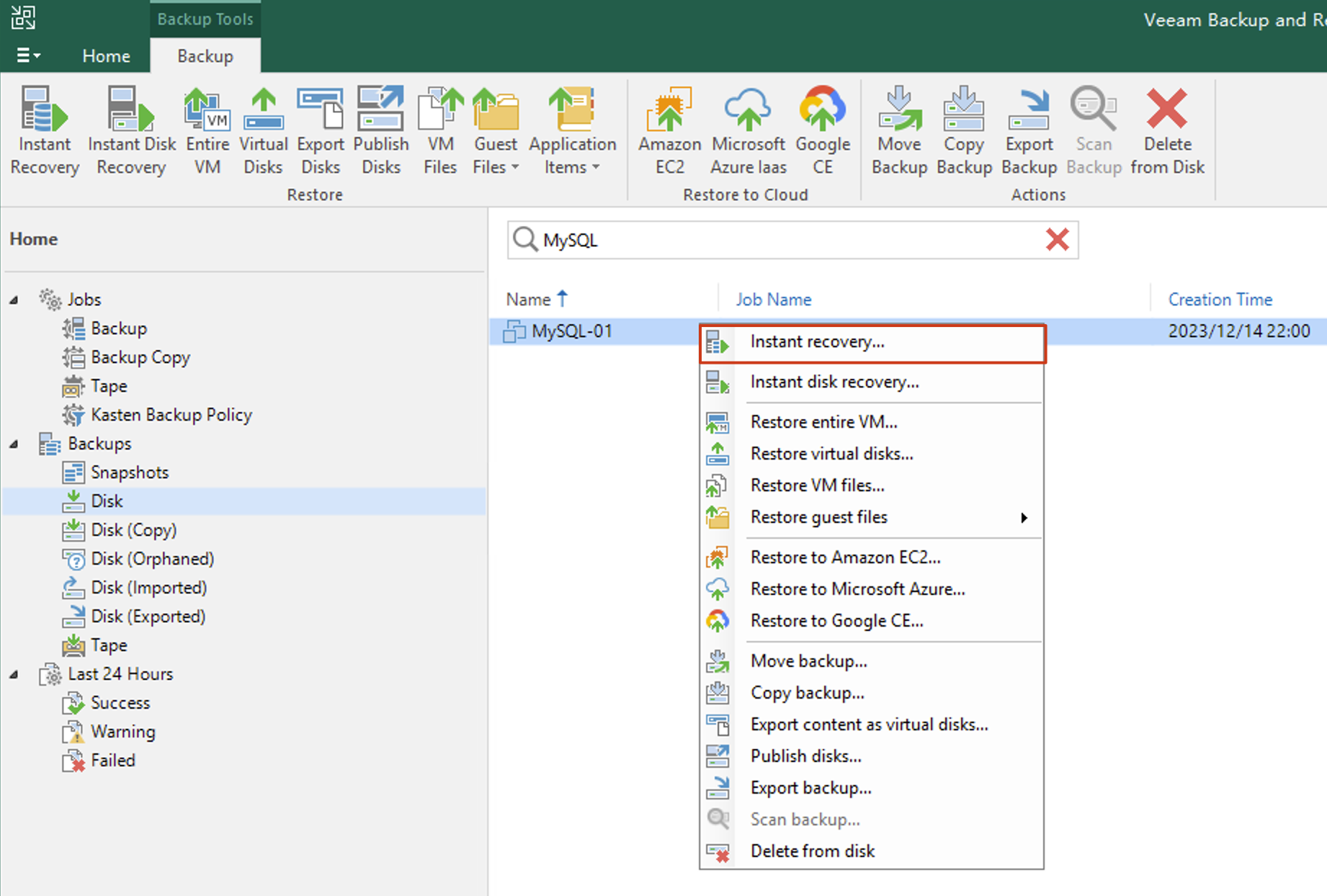
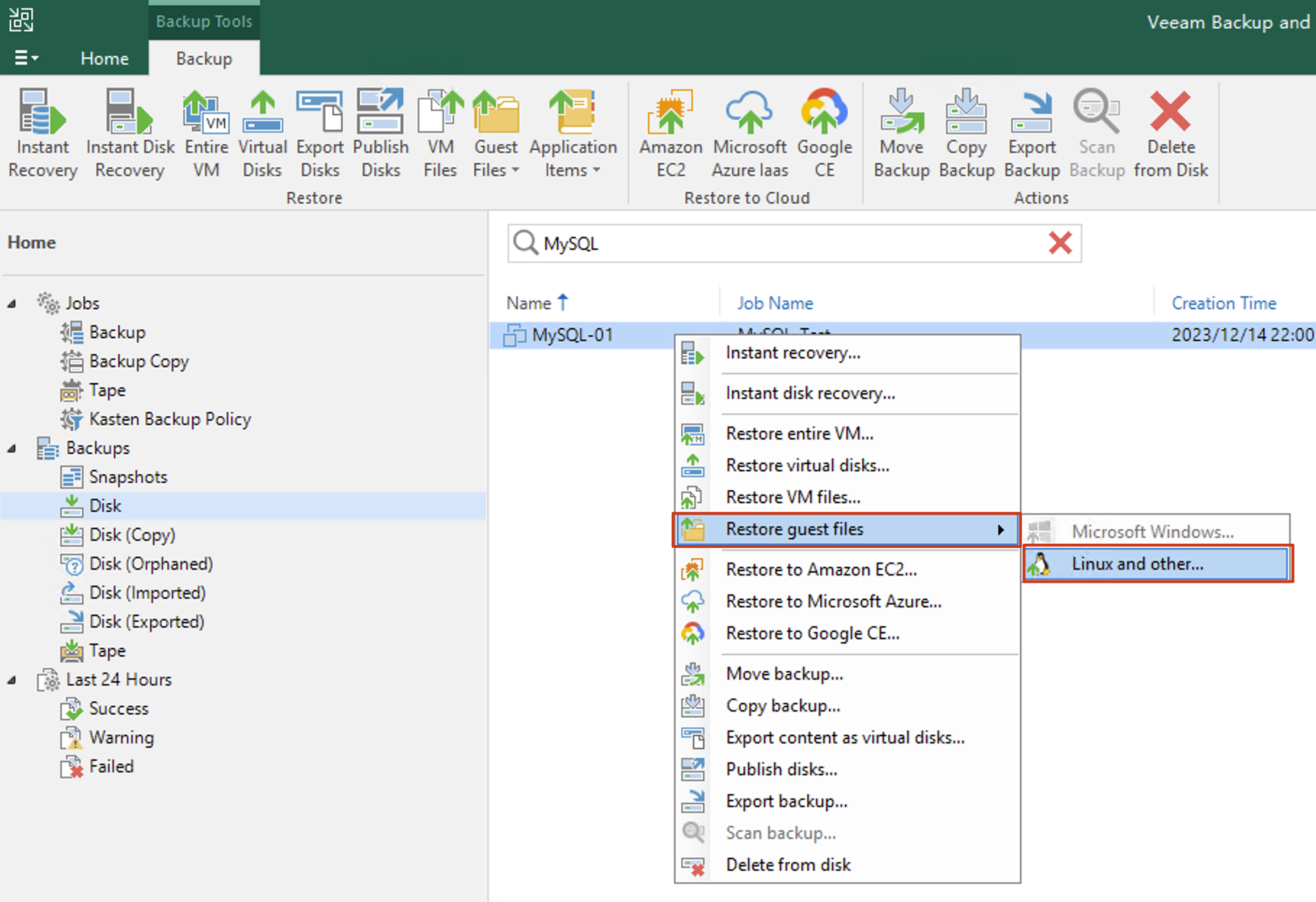
Find the MySQL archive in the VBR console, and in the right-click menu, select Restore guest files -> Linux and other... to open the MySQL file-level restore wizard.
After opening, in the graphical recovery interface, you can quickly find the /var/lib/mysql data directory and see detailed information about each file.
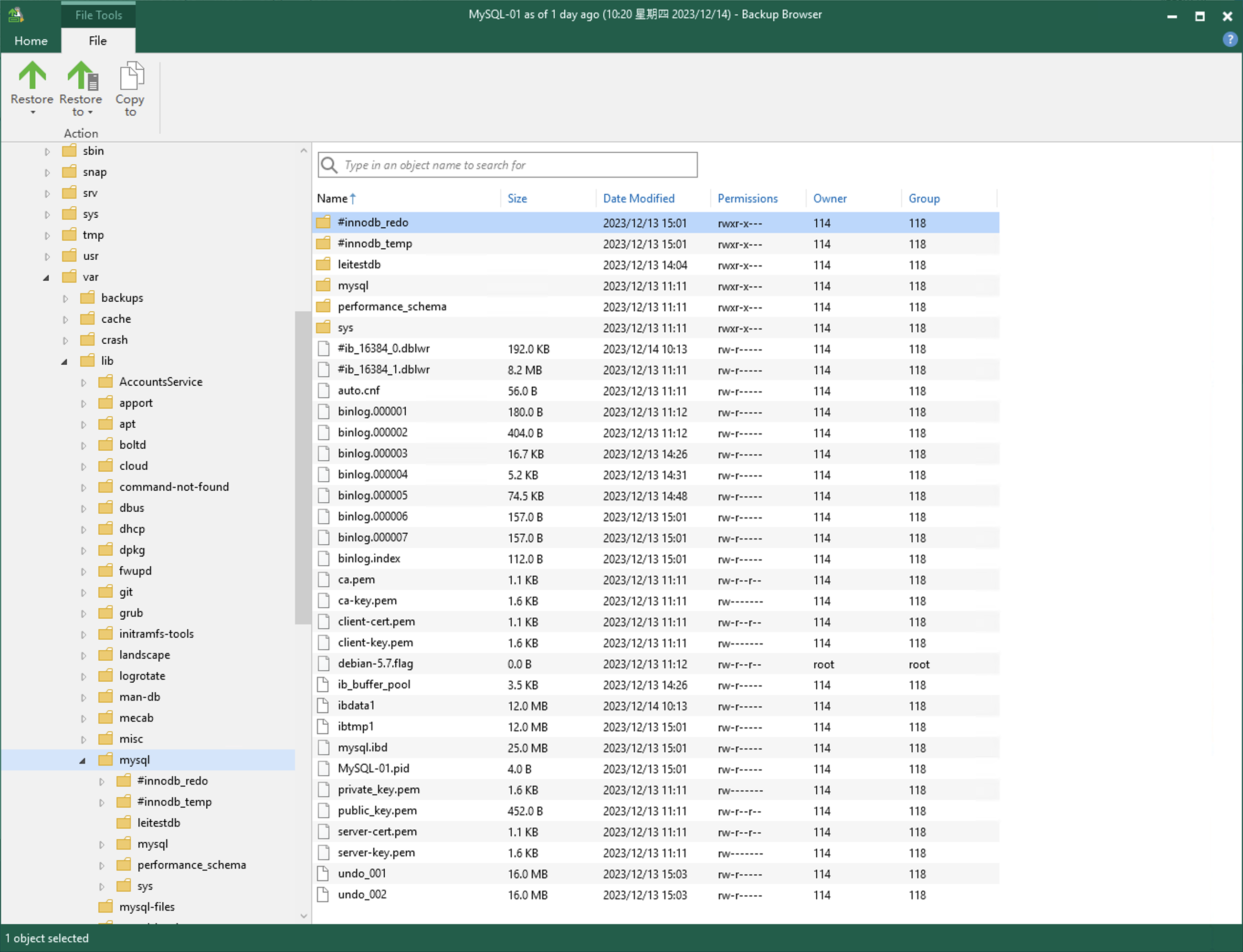
After selecting files or directories, restore the entire /var/lib/mysql directory back to the source machine or a new server to complete data restoration. After completing data restoration on the MySQL server, check the directory permissions. If the owner and group are incorrect, adjust the permissions with the following command, then start MySQL.
$ chown -R mysql:mysql /var/lib/mysqlData Recovery Scenario 3: Single Table Recovery
Single-table recovery in MySQL is a bit more complex, but using Veeam’s powerful features, we can easily achieve it. The specific principle is based on the MySQL official documentation for the InnoDB engine recovery
First, we need to use the Data Lab to generate metadata for the table to be recovered. For the Data Lab configuration, you can refer to my previous posts.
In the Data Lab, the MySQL machine can be started normally. We connect to the machine via SSH and then execute the MySQL command to generate metadata:
mysql> use leitestdb;
Reading table information for completion of table and column names
You can turn off this feature to get a quicker startup with -A

Database changed
mysql> FLUSH TABLES time FOR EXPORT;
Query OK, 0 rows affected (0.00 sec)
At this point, it’s important to note that you can’t exit the MySQL console yet. We need to copy the generated time.cfg file first and save it for backup. Because after exiting the MySQL console, this file is automatically deleted.
Next, we begin the formal single-table data recovery.
To recover a single MySQL table, we first need to create the table structure in the database. For example, my table is as follows:
mysql> CREATE TABLE `time` (
  `id` int(11) NOT NULL AUTO_INCREMENT,
  `date` date DEFAULT NULL,
  `time` time DEFAULT NULL,
  PRIMARY KEY (`id`)
) ENGINE=InnoDB AUTO_INCREMENT=5 DEFAULT CHARSET=utf8;
Then we use the discard command to discard this table’s tablespace:
mysql> ALTER TABLE time DISCARD TABLESPACE;
Query OK, 0 rows affected (0.00 sec)
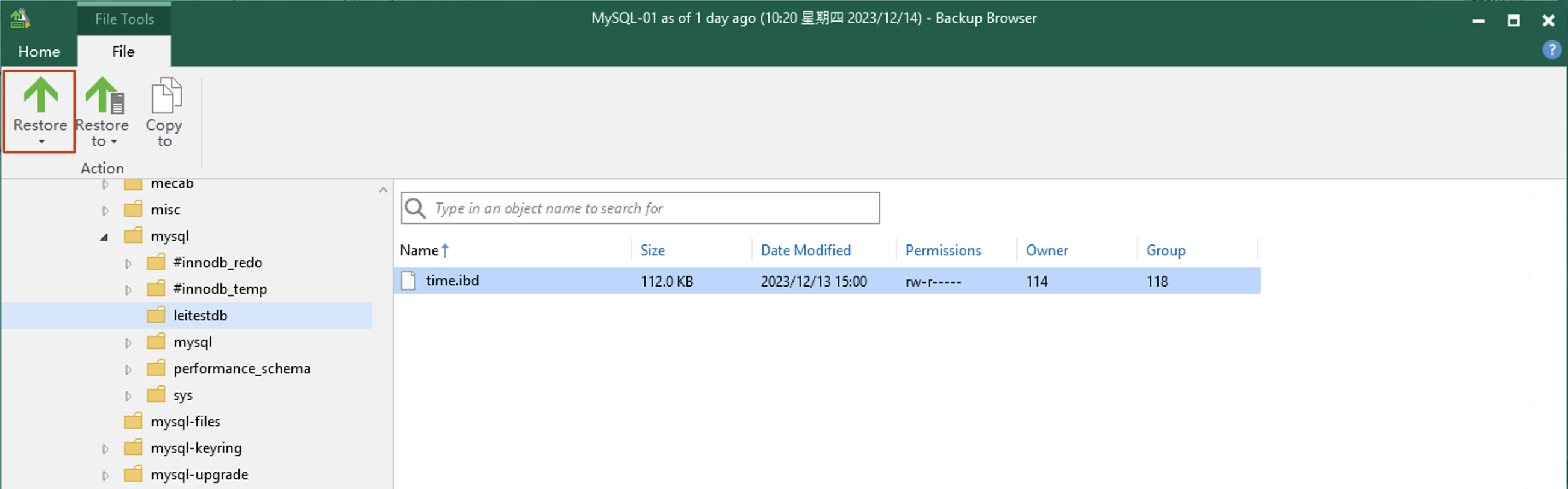
Next, we find the time.idb file in the backup data and perform a single-file file-level recovery as shown in the figure:
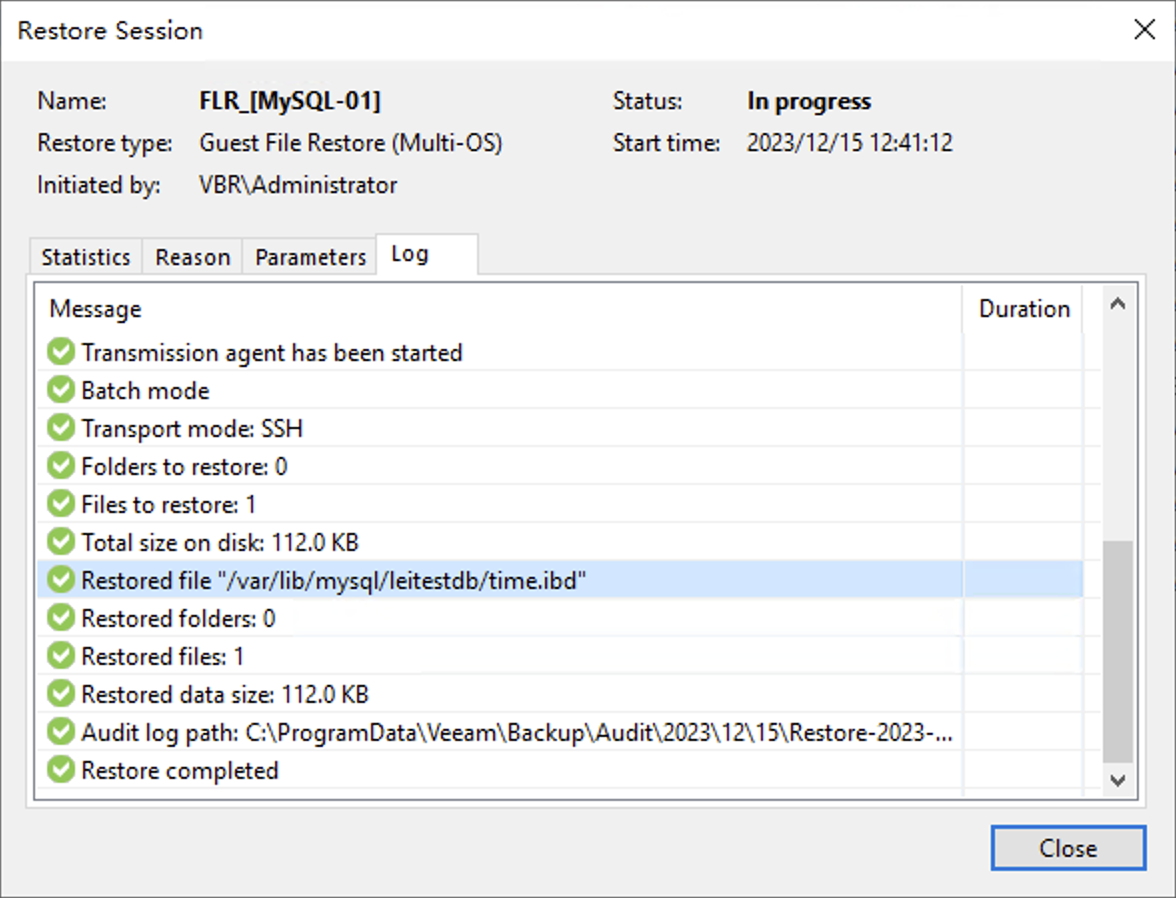
After restoring to the corresponding database directory, VBR can show recovery success information, as shown in the figure:
Then we need to restore the time.cfg file we just retrieved from the Data Lab to the /var/lib/mysql/leitestdb/ directory, ensuring the directory contents are as follows after restoration:
root@MySQL-01:~# ls -ahl /var/lib/mysql/leitestdb/
total 120K
drwxr-x--- 2 mysql mysql   38 Dec 15 14:07 .
drwx------ 8 mysql mysql 4.0K Dec 15 00:00 ..
-rw-r----- 1 mysql mysql  772 Dec 15 13:55 time.cfg
-rw-r----- 1 mysql mysql 112K Dec 13 15:00 time.ibd
Back in the MySQL console, we use the Import command to import the just-restored tablespace.
mysql> ALTER TABLE time IMPORT TABLESPACE;
Query OK, 0 rows affected (0.01 sec)
Let’s query the data to see:
mysql> SELECT * from time order by id desc LIMIT 5;
+-----+------------+----------+
| id  | date       | time     |
+-----+------------+----------+
| 341 | 2023-12-14 | 10:19:40 |
| 320 | 2023-12-13 | 14:48:22 |
| 319 | 2023-12-13 | 14:48:22 |
| 318 | 2023-12-13 | 14:48:22 |
| 317 | 2023-12-13 | 14:48:22 |
+-----+------------+----------+
5 rows in set (0.00 sec)
As you can see, this table has been recovered, which is slightly different from the previous full machine recovery because the image-level backup table data doesn’t include data in redo.log and undo.log, so this type of table recovery will lose some data that hasn’t been committed yet.
Data Recovery Scenario 4: Point-in-time Recovery
When backing up with VBR, we back up the entire machine, including MySQL’s entire data directory, so each image-level backup will also back up MySQL binlog together. Through file-level recovery or disk publishing commands, we can easily read the data in the backup.
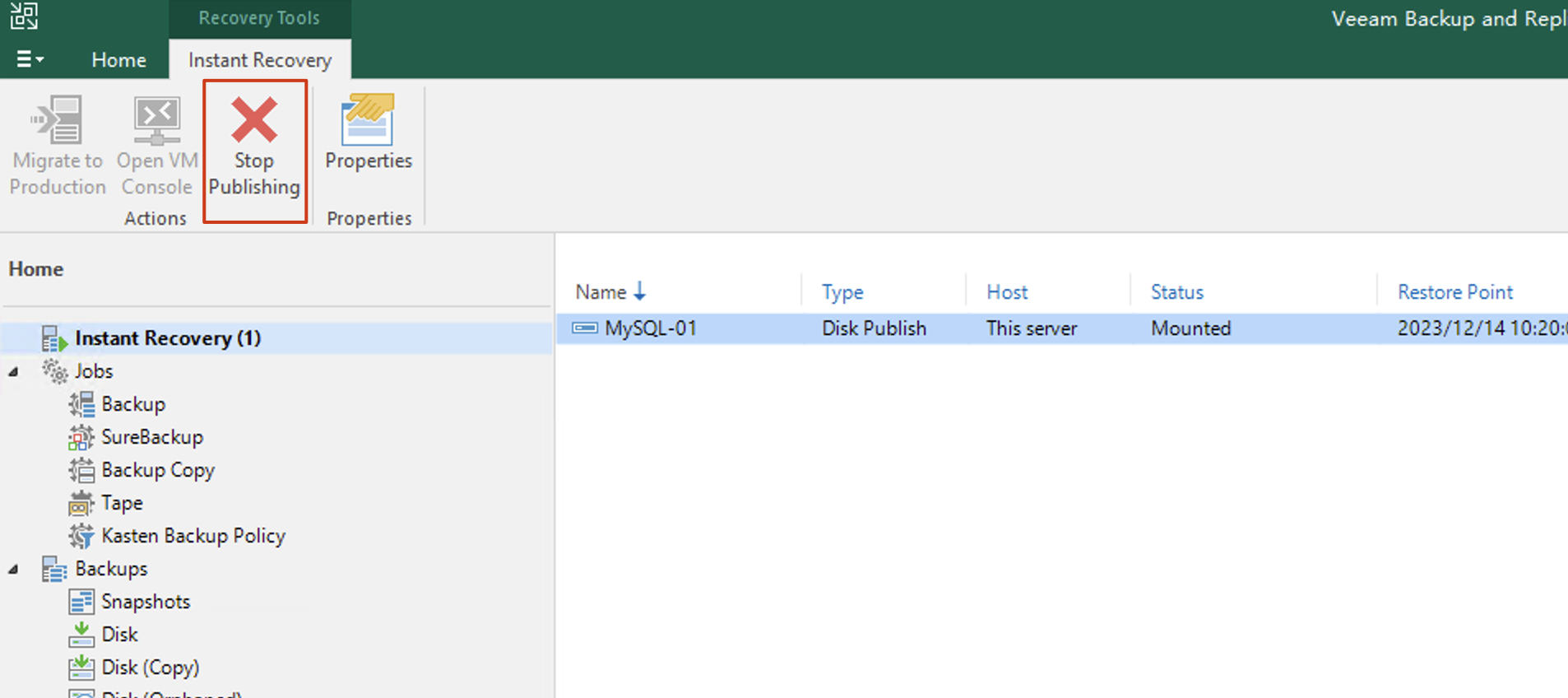
Next, let’s try the new feature in v12.1: Virtual Disk Publishing.
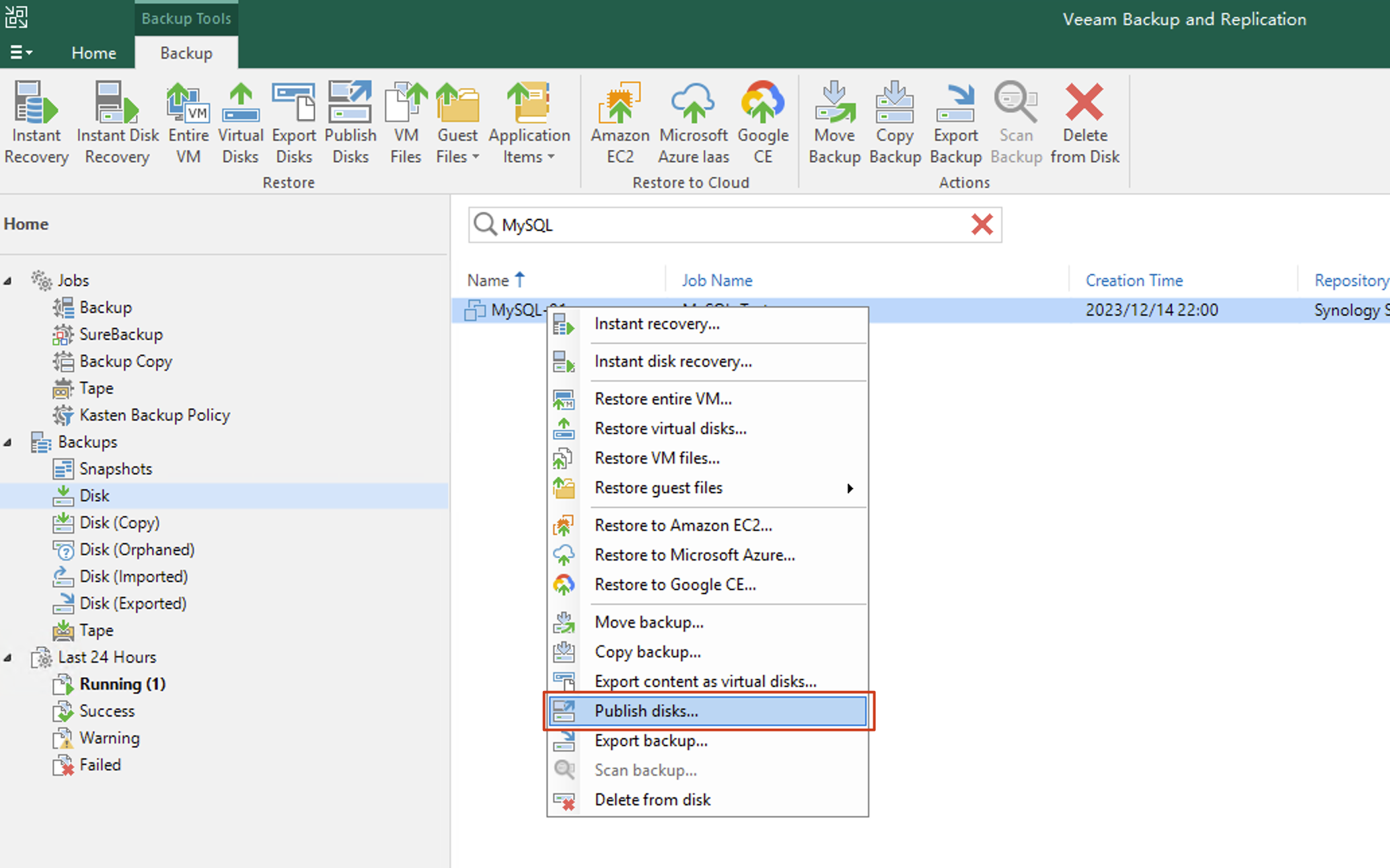
Find the MySQL archive in the VBR console, and in the right-click recovery menu, you can see the Publish Disks option.
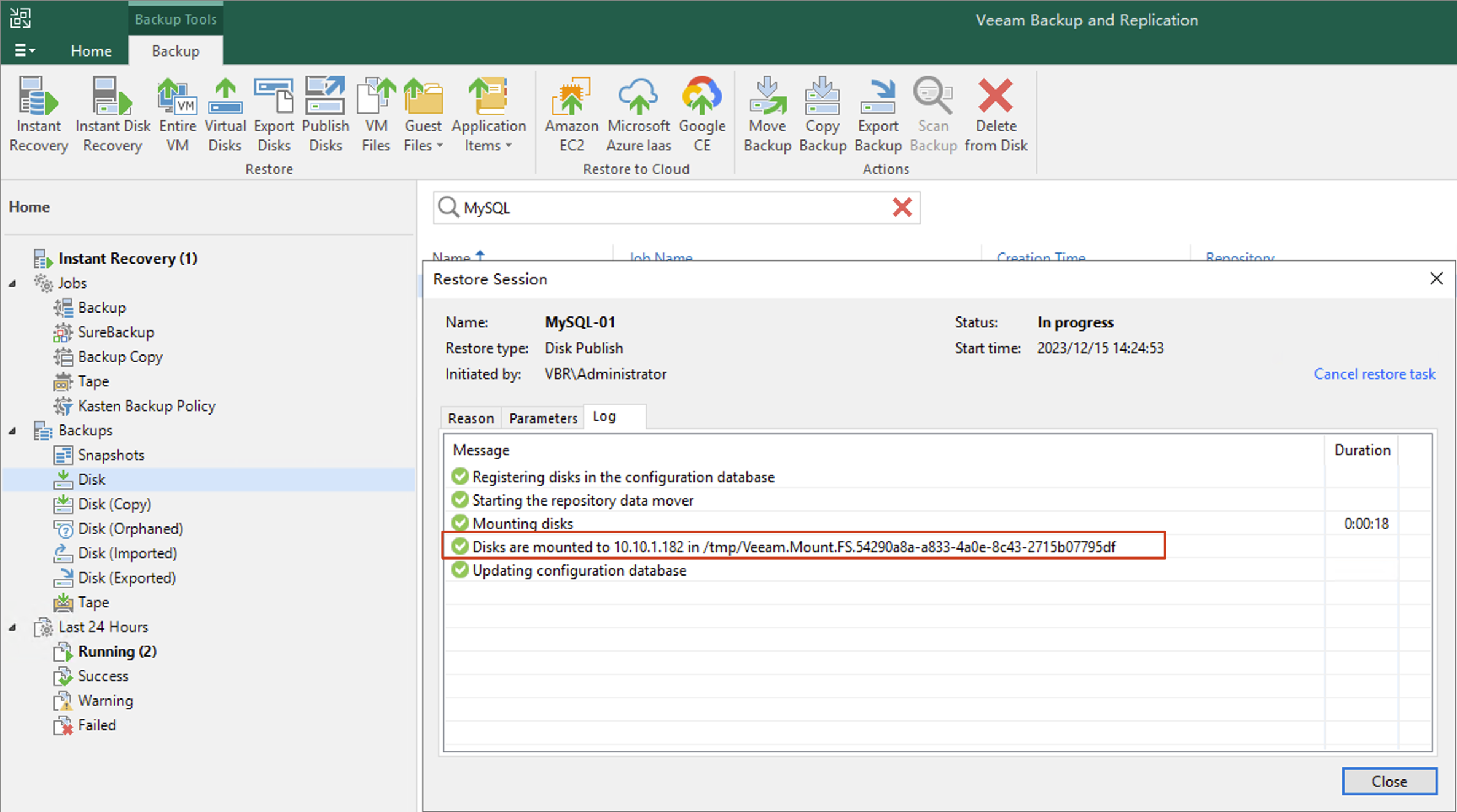
Simply follow the wizard, enter some target machine information, and the disk can be published and mounted to the corresponding Linux server’s /tmp directory.
Let’s go back to the MySQL server and look at this directory:
lei@MySQL-01:~$ ls -ahl /tmp/Veeam.Mount.FS.54290a8a-a833-4a0e-8c43-2715b07795df/
total 4.0K
drwxr-xr-x  3 root root   33 Dec 15 14:25 .
drwxrwxrwt 18 root root 4.0K Dec 15 14:25 ..
drwxr-xr-x 19 root root  292 Apr  4  2022 ubuntu-vg-ubuntu-lv
lei@MySQL-01:~$ cd /tmp/Veeam.Mount.FS.54290a8a-a833-4a0e-8c43-2715b07795df/
lei@MySQL-01:/tmp/Veeam.Mount.FS.54290a8a-a833-4a0e-8c43-2715b07795df$ cd ubuntu-vg-ubuntu-lv/
lei@MySQL-01:/tmp/Veeam.Mount.FS.54290a8a-a833-4a0e-8c43-2715b07795df/ubuntu-vg-ubuntu-lv$ ls
bin   cdrom  etc   lib    lib64   media  opt   root  sbin  srv       sys  usr
boot  dev    home  lib32  libx32  mnt    proc  run   snap  swap.img  tmp  var
lei@MySQL-01:/tmp/Veeam.Mount.FS.54290a8a-a833-4a0e-8c43-2715b07795df/ubuntu-vg-ubuntu-lv$ ls -ahl /var/lib/mysql/
ls: cannot open directory '/var/lib/mysql/': Permission denied
lei@MySQL-01:/tmp/Veeam.Mount.FS.54290a8a-a833-4a0e-8c43-2715b07795df/ubuntu-vg-ubuntu-lv$ sudo -i ls -ahl /var/lib/mysql/
[sudo] password for lei:
total 90M
drwx------  8 mysql mysql 4.0K Dec 15 00:00  .
drwxr-xr-x 48 root  root  4.0K Dec 15 10:57  ..
-rw-r-----  1 mysql mysql   56 Dec 13 11:11  auto.cnf
-rw-r-----  1 mysql mysql  180 Dec 13 11:12  binlog.000001
-rw-r-----  1 mysql mysql  404 Dec 13 11:12  binlog.000002
-rw-r-----  1 mysql mysql  17K Dec 13 14:26  binlog.000003
-rw-r-----  1 mysql mysql 5.2K Dec 13 14:31  binlog.000004
-rw-r-----  1 mysql mysql  75K Dec 13 14:48  binlog.000005
-rw-r-----  1 mysql mysql  157 Dec 13 15:01  binlog.000006
-rw-r-----  1 mysql mysql  26K Dec 15 00:00  binlog.000007
-rw-r-----  1 mysql mysql 2.1K Dec 15 14:07  binlog.000008
-rw-r-----  1 mysql mysql  128 Dec 15 00:00  binlog.index
-rw-------  1 mysql mysql 1.7K Dec 13 11:11  ca-key.pem
-rw-r--r--  1 mysql mysql 1.1K Dec 13 11:11  ca.pem
-rw-r--r--  1 mysql mysql 1.1K Dec 13 11:11  client-cert.pem
-rw-------  1 mysql mysql 1.7K Dec 13 11:11  client-key.pem
-rw-r--r--  1 root  root     0 Dec 13 11:12  debian-5.7.flag
-rw-r-----  1 mysql mysql 192K Dec 15 14:09 '#ib_16384_0.dblwr'
-rw-r-----  1 mysql mysql 8.2M Dec 15 14:07 '#ib_16384_1.dblwr'
-rw-r-----  1 mysql mysql 3.6K Dec 13 14:26  ib_buffer_pool
-rw-r-----  1 mysql mysql  12M Dec 15 14:07  ibdata1
-rw-r-----  1 mysql mysql  12M Dec 13 15:01  ibtmp1
drwxr-x---  2 mysql mysql 4.0K Dec 13 15:01 '#innodb_redo'
drwxr-x---  2 mysql mysql  187 Dec 13 15:01 '#innodb_temp'
drwxr-x---  2 mysql mysql   38 Dec 15 14:07  leitestdb
drwxr-x---  2 mysql mysql  143 Dec 13 11:11  mysql
-rw-r-----  1 mysql mysql    4 Dec 13 15:01  MySQL-01.pid
-rw-r-----  1 mysql mysql  25M Dec 15 14:07  mysql.ibd
drwxr-x---  2 mysql mysql 8.0K Dec 13 11:11  performance_schema
-rw-------  1 mysql mysql 1.7K Dec 13 11:11  private_key.pem
-rw-r--r--  1 mysql mysql  452 Dec 13 11:11  public_key.pem
-rw-r--r--  1 mysql mysql 1.1K Dec 13 11:11  server-cert.pem
-rw-------  1 mysql mysql 1.7K Dec 13 11:11  server-key.pem
drwxr-x---  2 mysql mysql   28 Dec 13 11:11  sys
-rw-r-----  1 mysql mysql  16M Dec 15 14:09  undo_001
-rw-r-----  1 mysql mysql  16M Dec 15 14:09  undo_002
lei@MySQL-01:/tmp/Veeam.Mount.FS.54290a8a-a833-4a0e-8c43-2715b07795df/ubuntu-vg-ubuntu-lv$
Here, we can see that all files have been mounted. Next, we just need to use the regular Linux cp command to extract the relevant binlog files for data recovery.
After recovery is complete, don’t forget to unpublish the disk in VBR.
Summary
When using Veeam for MySQL backup, if your environment only has the InnoDB engine, then you don’t need to consider any special handling operations during the backup process at all. You can directly use image-level snapshot backups to perfectly handle various MySQL backup and recovery scenarios. When your environment has the MyISAM engine, you have two options: one is to use Veeam Agent to let Veeam Agent handle locking and unlocking operations, and the other is to manually add locking and unlocking operations before and after snapshots through the script functionality in virtual machine backup application-aware processing. When your environment has other types of storage engines, I recommend that you最好 use a script to pause the database and perform cold backup. While this will bring minute-level brief downtime, it ensures data consistency.
The above are the best practices for Veeam backup and recovery of MySQL. Welcome to follow my blog to learn more about Veeam backup technologies.