Instant Recovery: Deep Dive into Kubernetes Container Instant Recovery Technology (Part 2) - Backup and Restore
In our previous article, we set up the basic Kubernetes environment. Now let’s dive deep into the backup and restore process.
K10 Installation and Configuration
First up is K10 installation - nothing particularly special here. Just follow the official installation guide from the website and use Helm for installation. The only thing to note is that for instant recovery support, K10 needs to be version 6.0.8 or higher, while VBR requires version 12 or above. Here are the K10 installation parameters I used for your reference:
# Update Helm repository
helm repo update && helm fetch kasten/k10
# Create Namespace
kubectl create ns kasten-io
# Install K10
helm install k10 kasten/k10 --namespace=kasten-io \
    --set global.airgapped.repository=ccr.ccs.tencentyun.com/kasten \
    --set metering.mode=airgap \
    --set auth.tokenAuth.enabled=true \
    --set externalGateway.create=true
After installation, you can access the K10 dashboard through the LoadBalancer for further configuration. For K10 web access, I configured token authentication. Since we’re using version 1.25, you need to follow these steps to get the token:
# Create temporary token
kubectl --namespace kasten-io create token k10-k10-token --duration=24h
# Use this token to create secret for k10-k10 account
desired_token_secret_name=k10-k10-token

kubectl apply --namespace=kasten-io --filename=- <<EOF
apiVersion: v1
kind: Secret
type: kubernetes.io/service-account-token
metadata:
  name: ${desired_token_secret_name}
  annotations:
    kubernetes.io/service-account.name: "k10-k10"
EOF

kubectl get secret ${desired_token_secret_name} --namespace kasten-io -ojsonpath="{.data.token}" | base64 --decode
In this demo, K10 will use vSphere virtual disk snapshots for data backup operations, while utilizing VBR’s Repository as the storage backend.
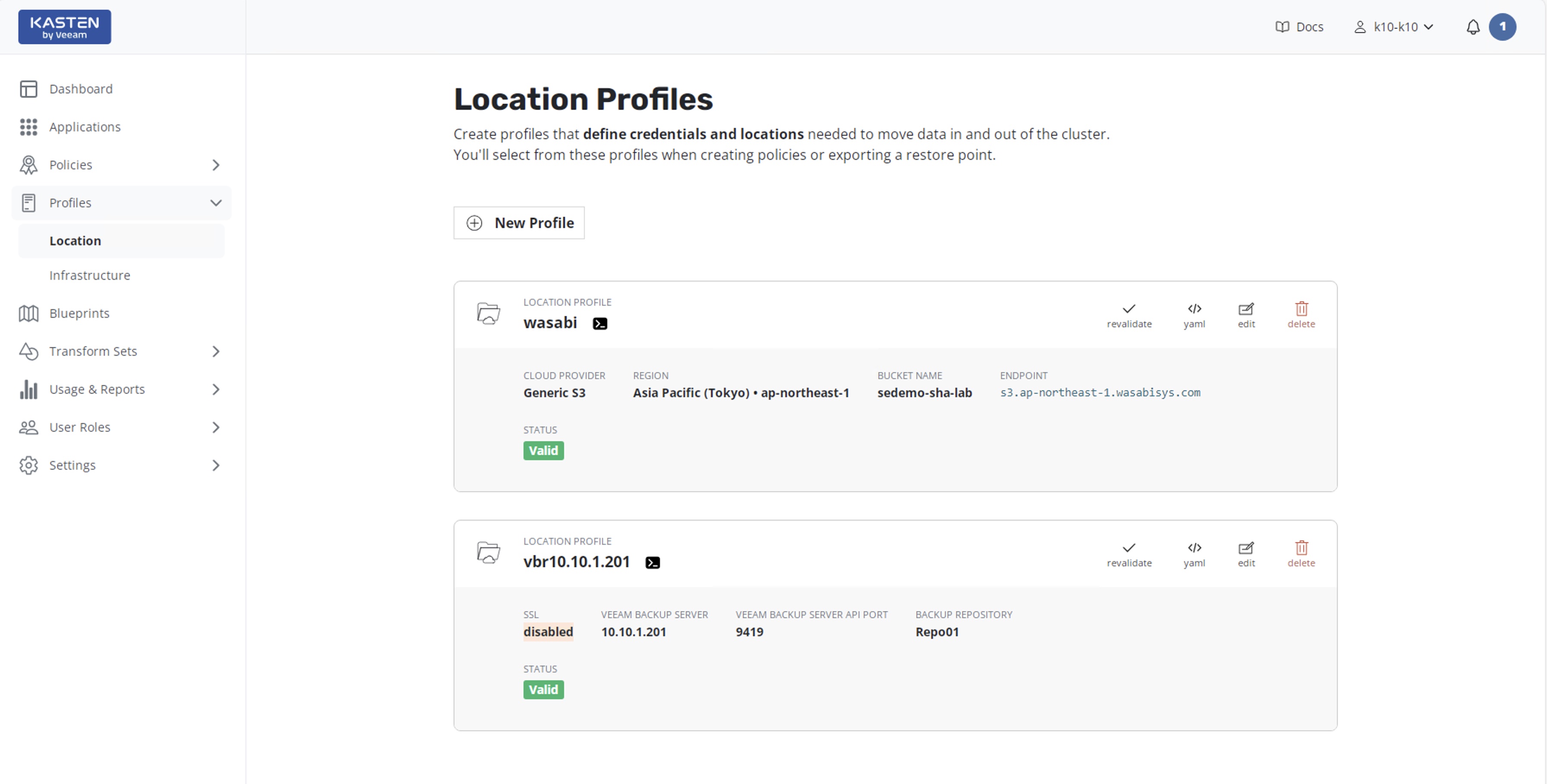
Once you’re on the K10 dashboard, find Location in the Profile section on the right side. We need to configure K10 with both an S3 object storage and a VBR Repository. The S3 object storage is used for storing metadata and YAML configurations, while the VBR repository stores vmdk data backup, which is essentially the PVC backup.
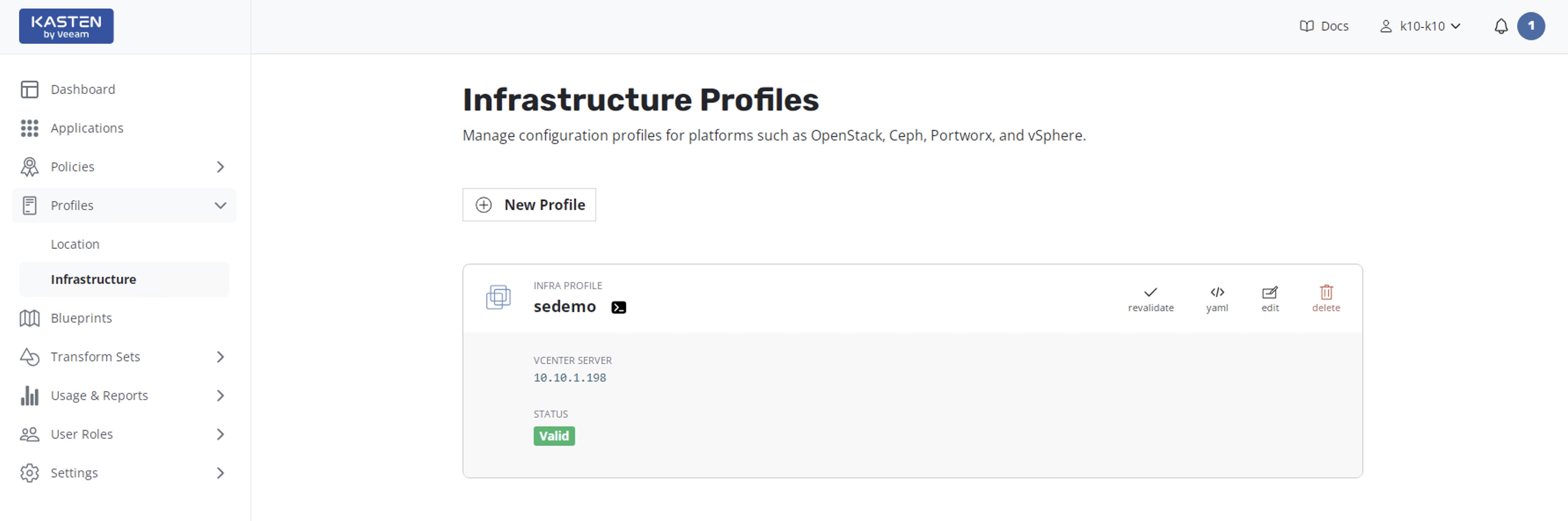
Under Profile, you’ll also find Infrastructure. Use the New Profile button to add a new vCenter connection. The configuration is very straightforward - almost identical to adding vCenter to any device. Just need the three essentials: IP address, username, and password.
Backup Configuration
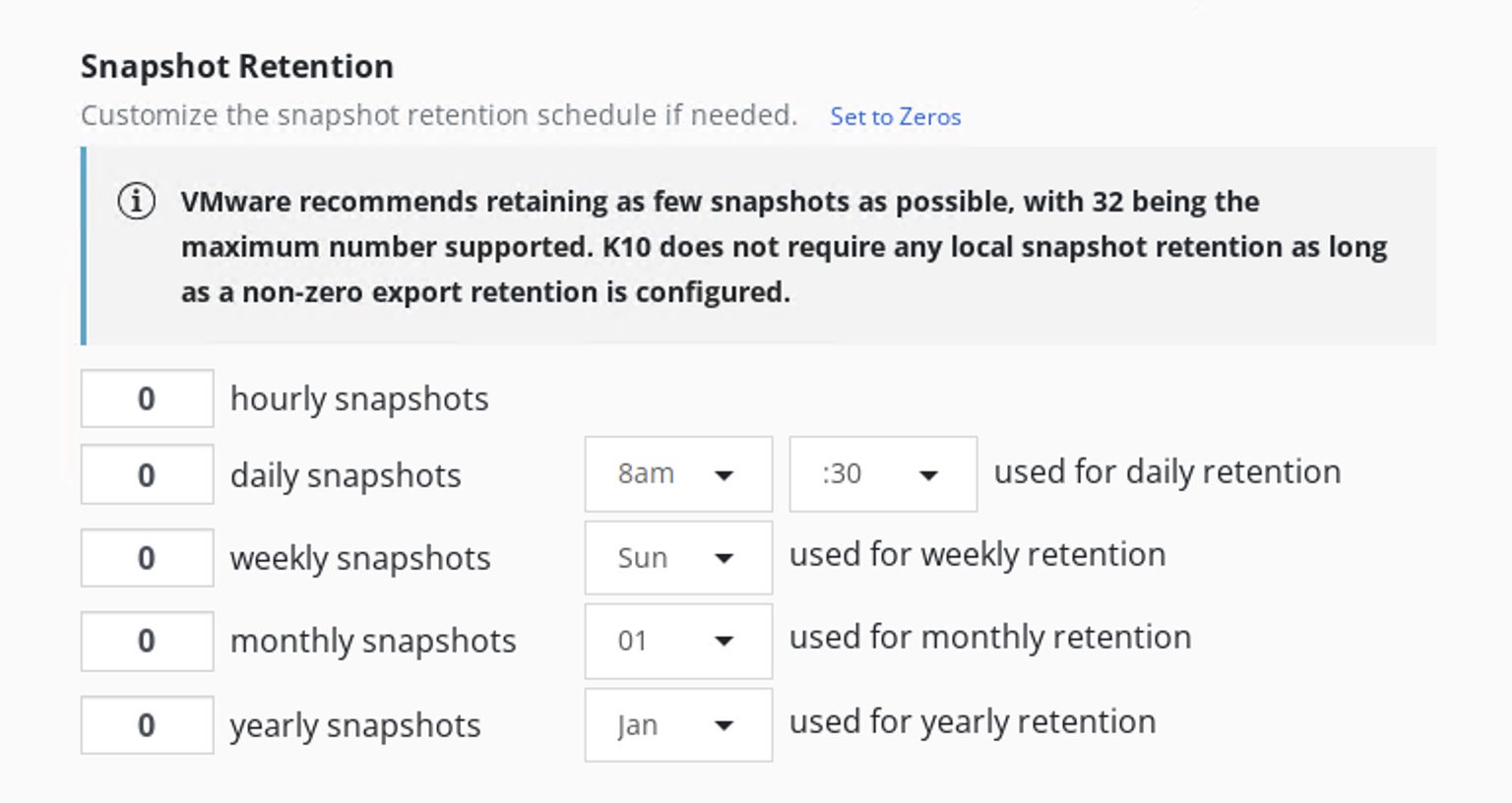
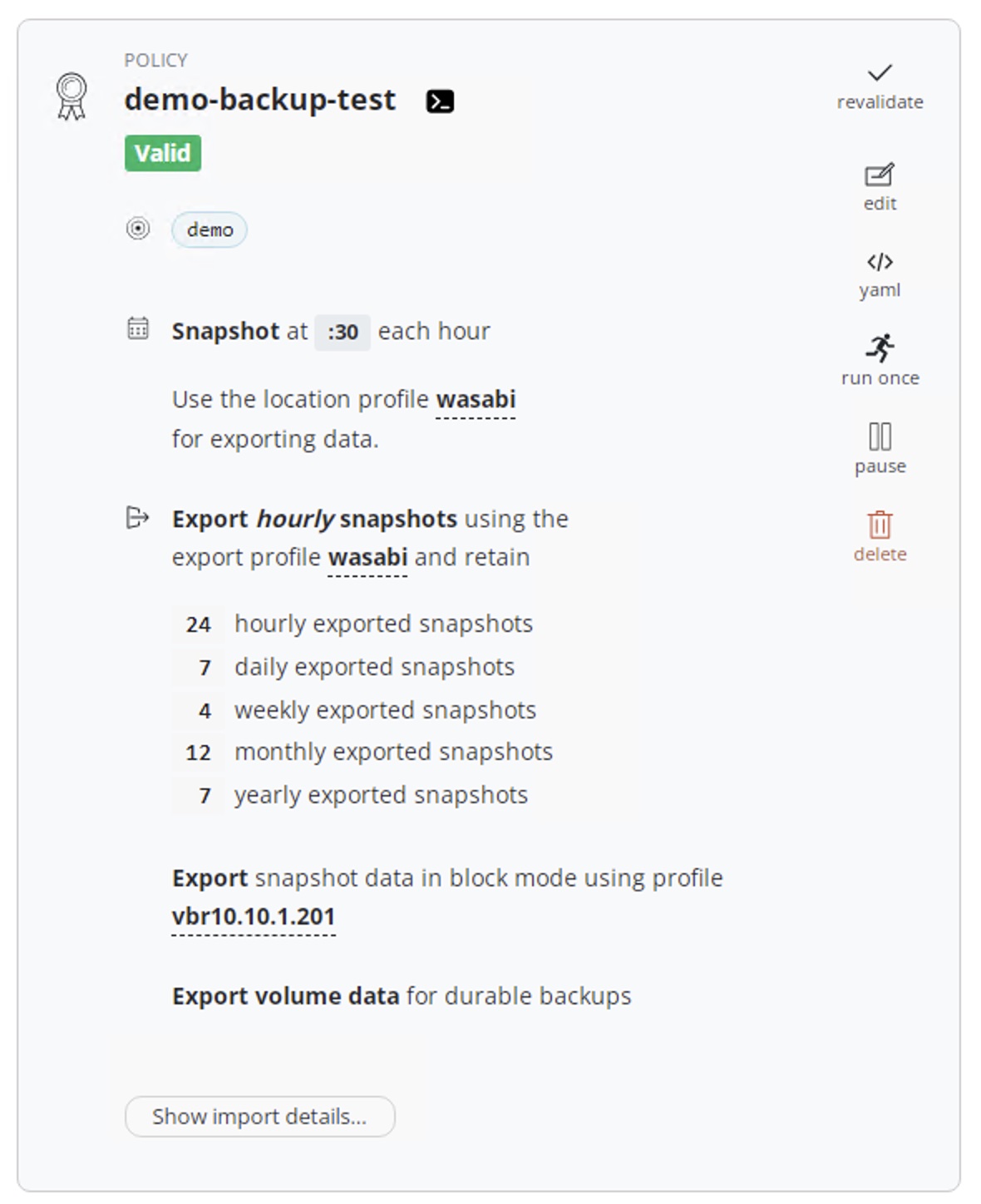
Next, let’s configure the backup policy. When using vSphere CSI, the backup policy is slightly different. In the Snapshot Retention section, you’ll notice that K10 automatically detects this is VMware CSI and provides VMware platform’s best practices for snapshot retention. It also indicates that K10 doesn’t need to retain local snapshots, so I set the Snapshot retention to 0.
In the Export Location Profile, you can select Wasabi S3 object storage as the primary backup Export target. Actually, the S3 doesn’t store vmdk data here - it only stores application metadata and YAML configurations. The VBR Location Profile is unavailable at this stage.
After enabling Enable Backups via Snapshot Exports, a new option appears: Export snapshot data in block mode. Check this option, and you can select the Veeam Backup Location Profile.
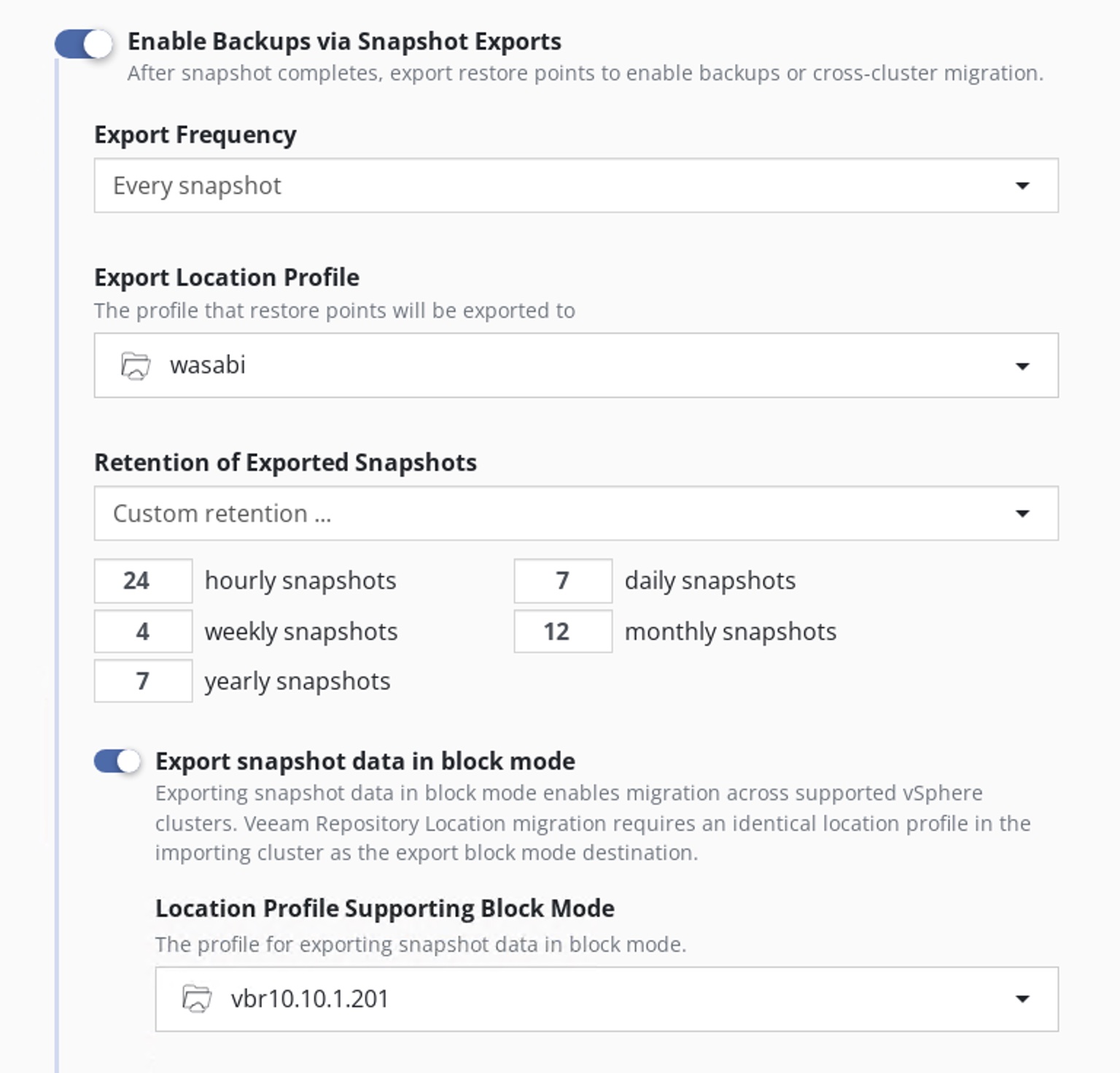
Other configurations are pretty standard. Here’s what the configured policy looks like:
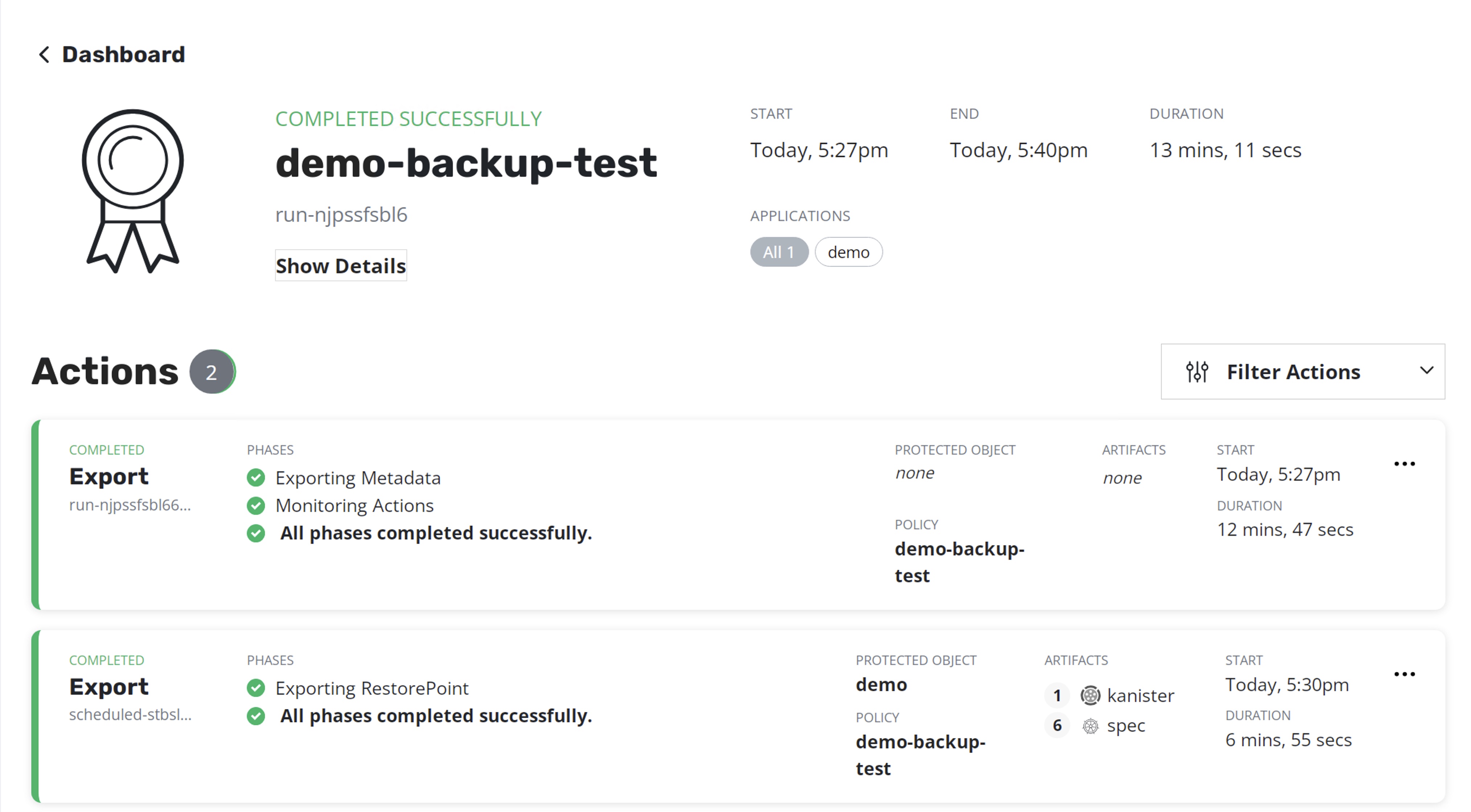
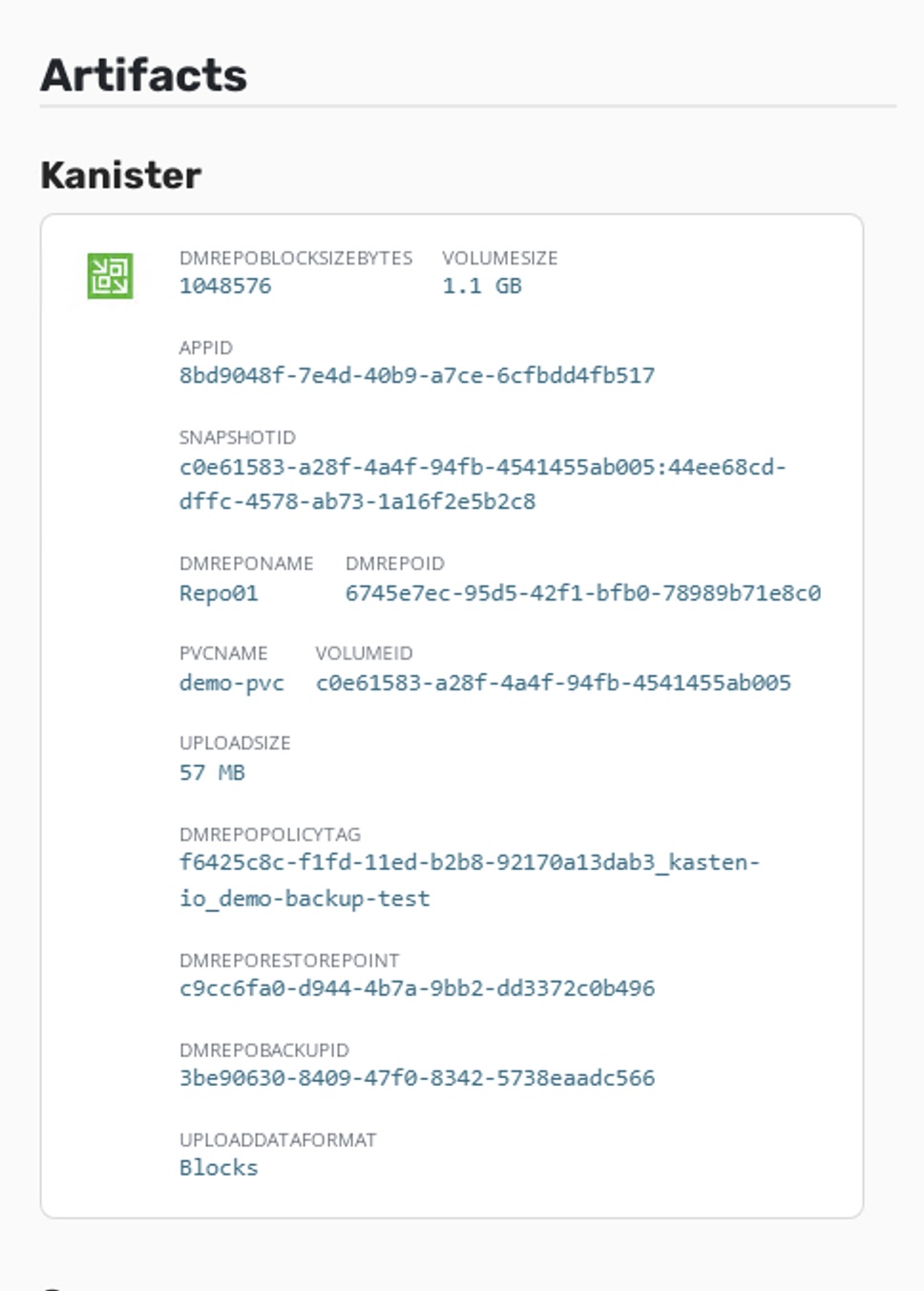
After the backup runs automatically, you can check the detailed backup Action information from the Dashboard. The VBR export part is handled by Kanister:
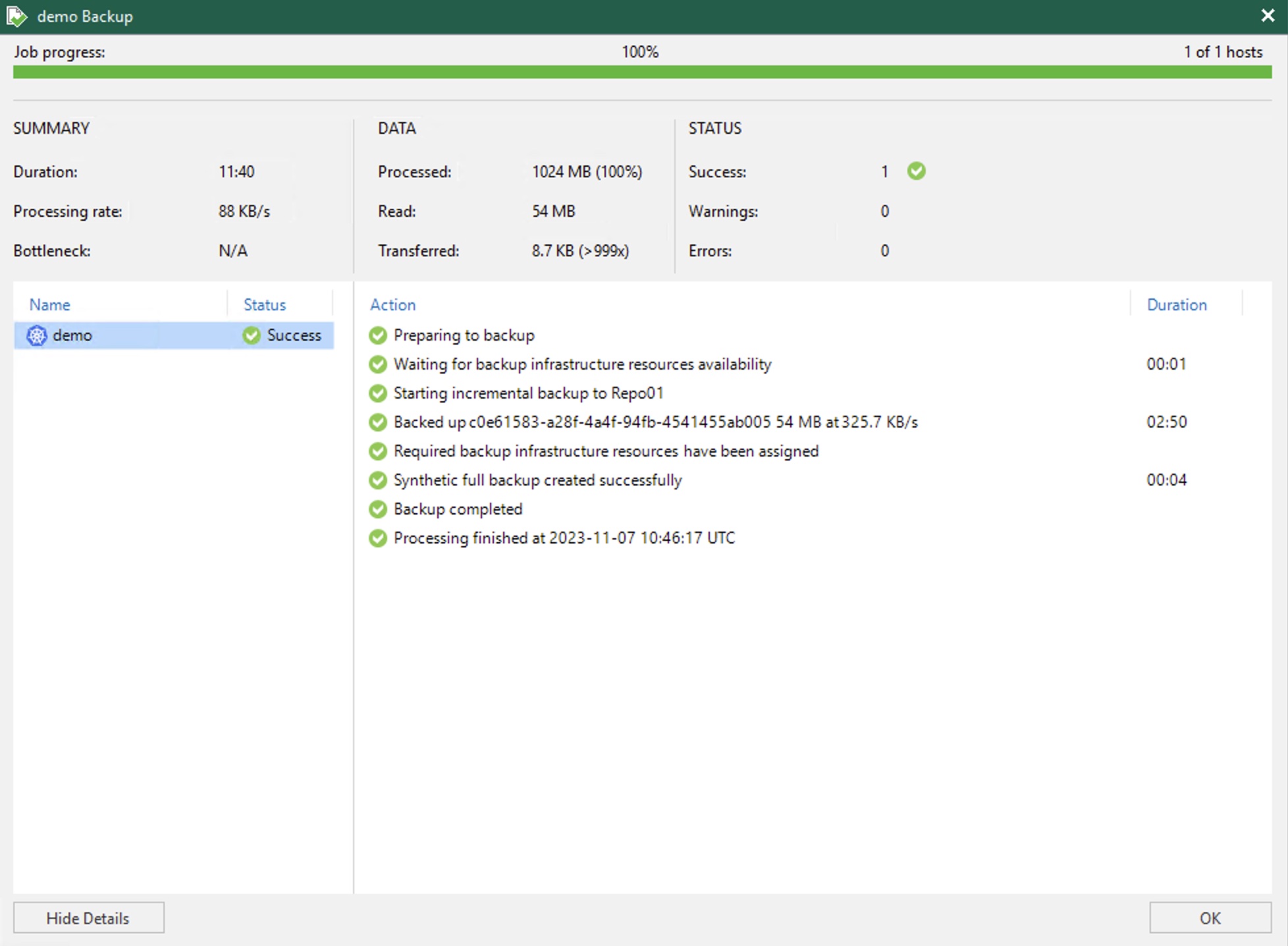
In VBR, you can see that K10’s Policy and K10’s backup archives have also appeared:
For more information about K10 operations in VBR, you can refer to the official Veeam documentation.
Instant Recovery
Alright, now we’re getting to the main event - using K10 for container instant recovery.
The instant recovery is performed in the K10 console. In K10’s graphical interface, find the backed-up archive and click the restore button. You’ll see the previously backed-up restore points. Just like other container restores, after selecting a restore point, a restore settings window will pop up. K10 can automatically detect vSphere CSI support, and you’ll see the Enable Instant Recovery option in the restore options. Simply select this option, and K10 will automatically use this capability during the restore process.
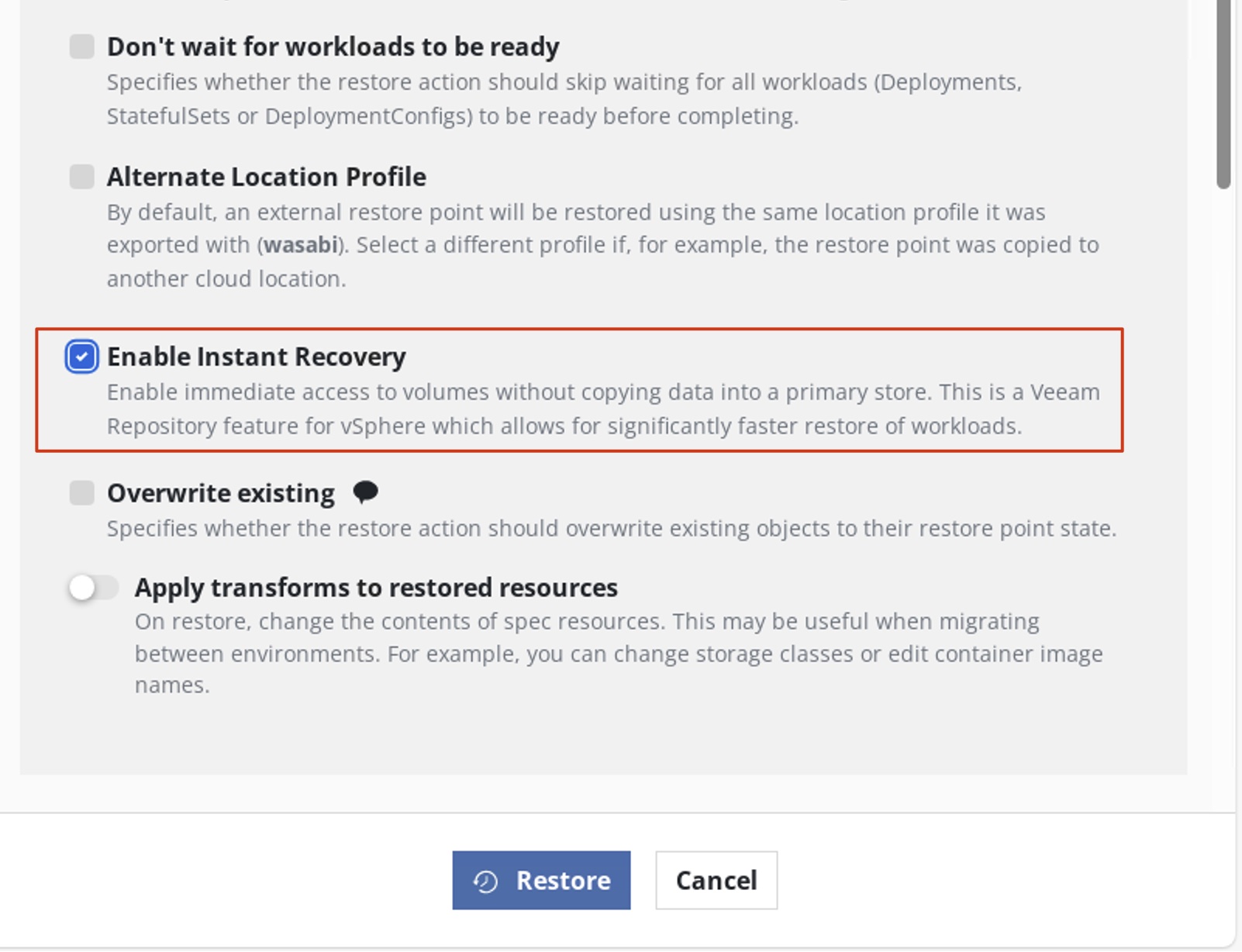
Let’s make some basic configurations, like changing the namespace name to create a new application, then click restore. The instant recovery task will begin.
After a short wait, you can see that the container has been restored. At this point, if you check VBR, you’ll see that a new FCD instant recovery task has started and completed. The data is still mounted to vSphere through Veeam’s classic vPower technology.
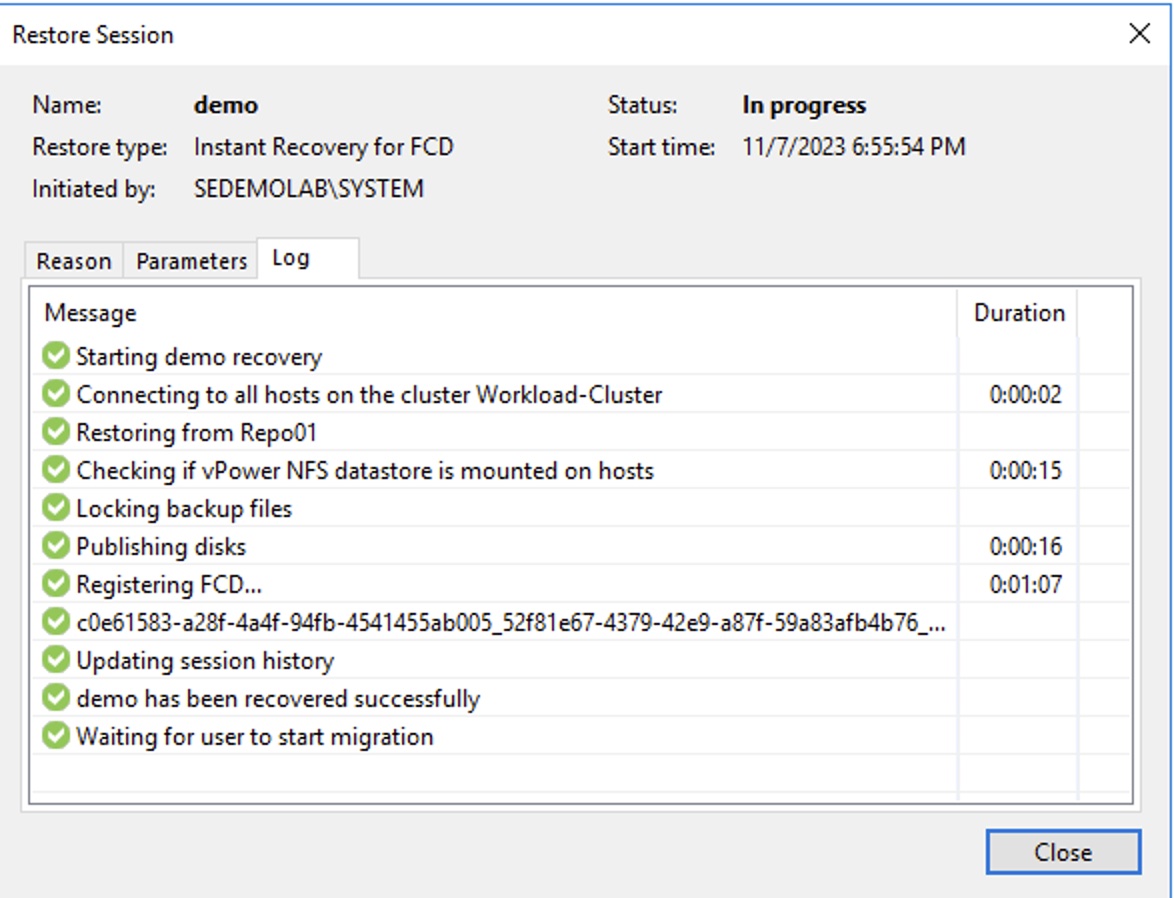
Let’s use kubectl get pv,pvc to check the current data volume status. From Kubernetes’ perspective, it’s completely unaware - a seamless restore.

Now, if you check the container volume situation in vSphere, you’ll find that the classic vPower technology-mounted NFS volume is already being used by the container’s PV and PVC.
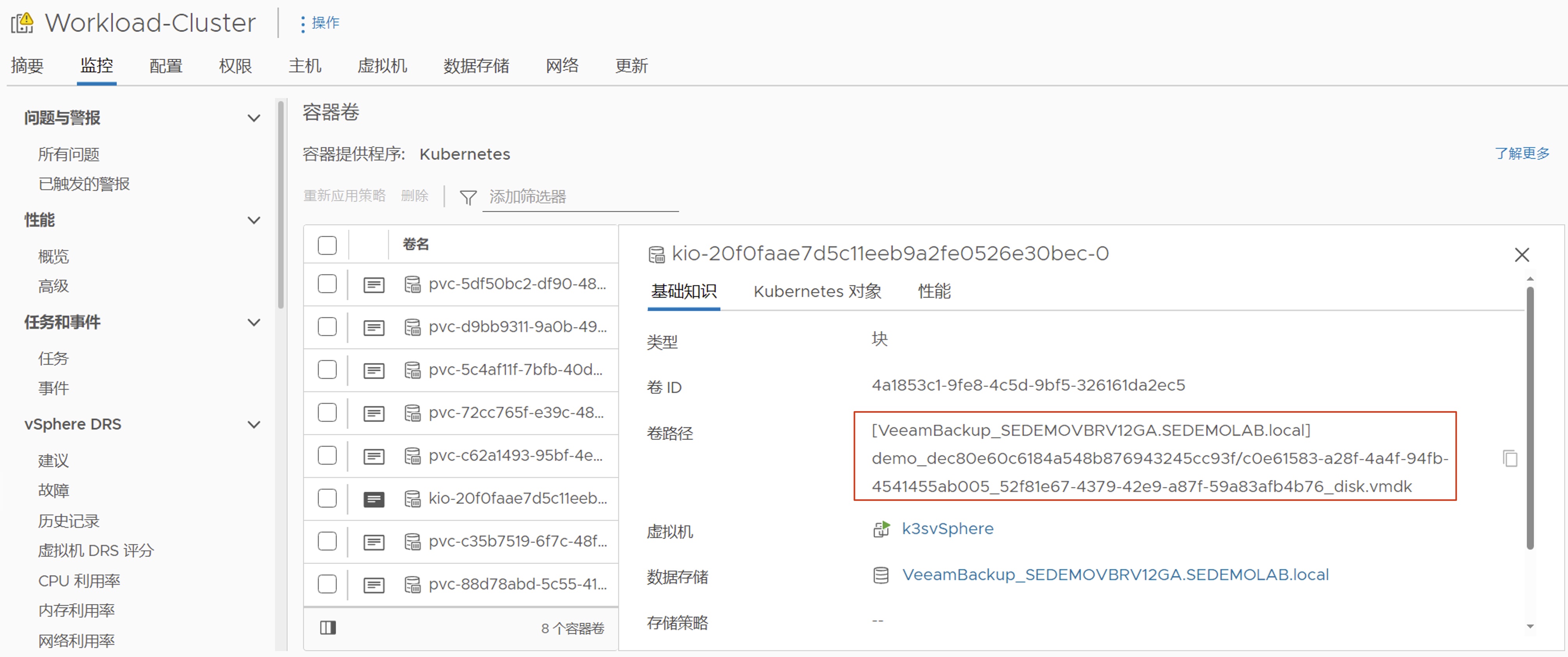
Next, we still need to use the Migrate to Production feature, leveraging either Storage vMotion or Veeam Quick Migration functionality, to migrate the virtual disk files to the virtualization platform.
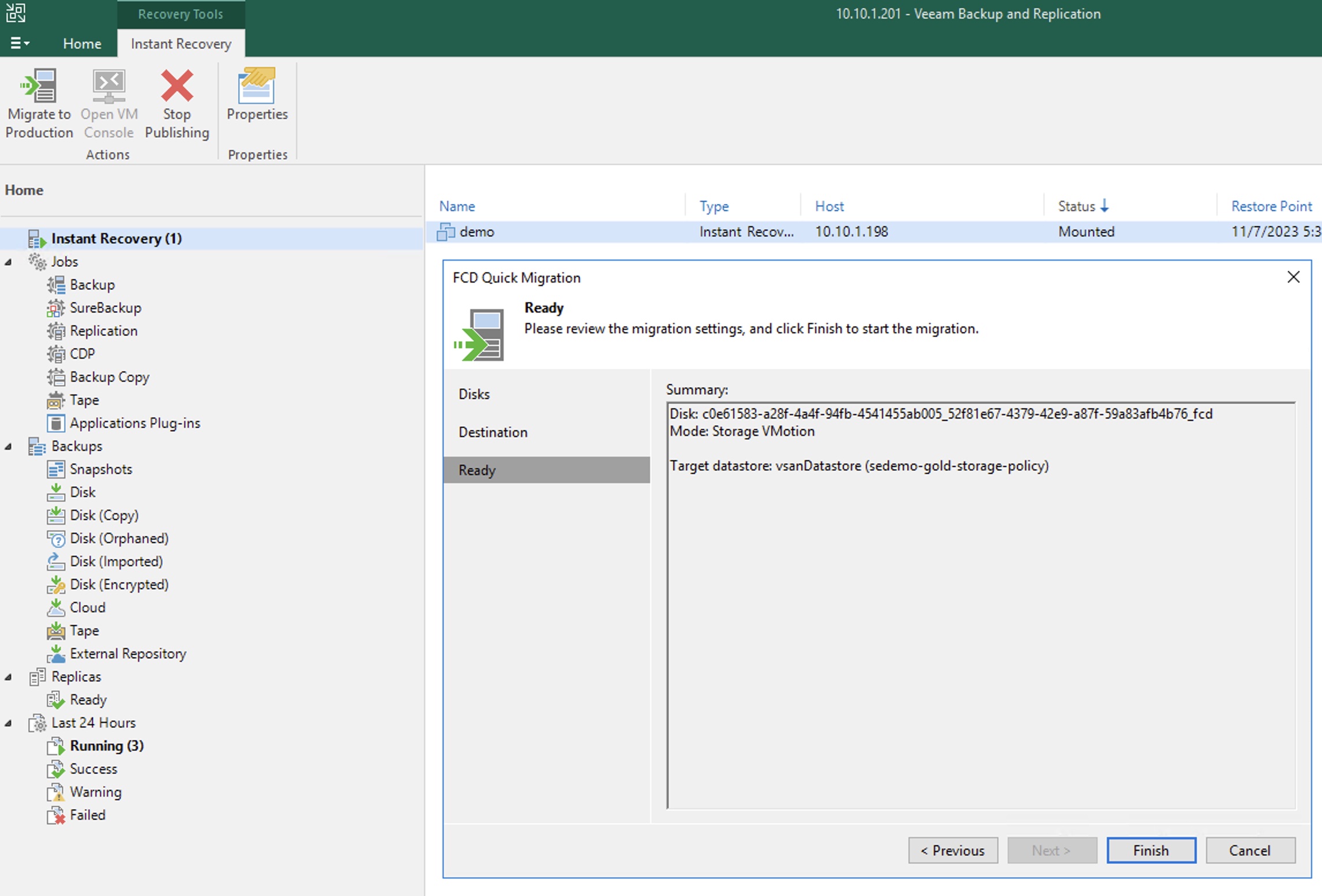
The system will automatically use storage vMotion or quick migration to complete the data migration. The entire migration process happens while the k8s application is online and running normally - completely transparent.
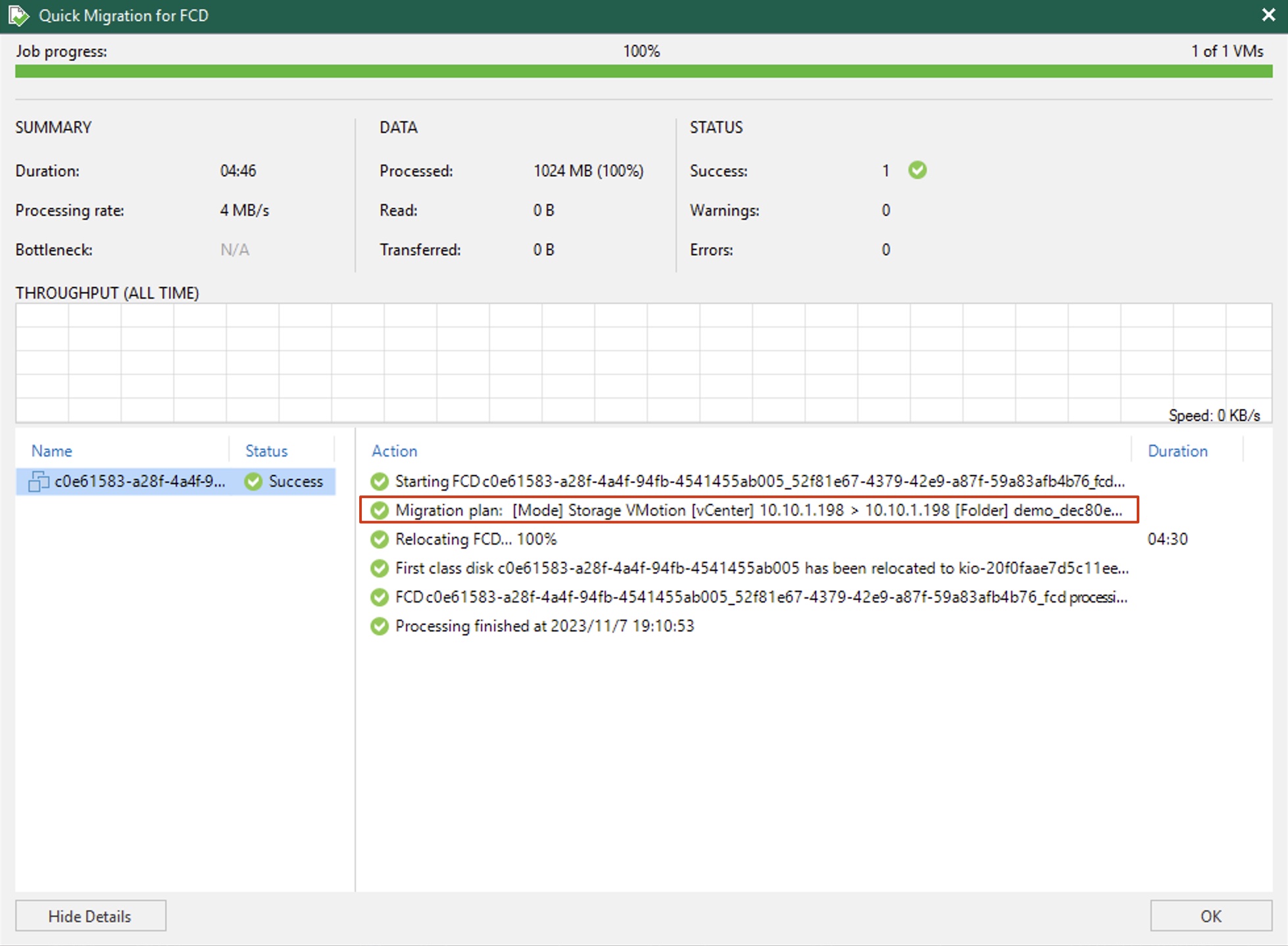
After migration is complete, you can see in the vSphere Client that the container volume is now running on vSAN.
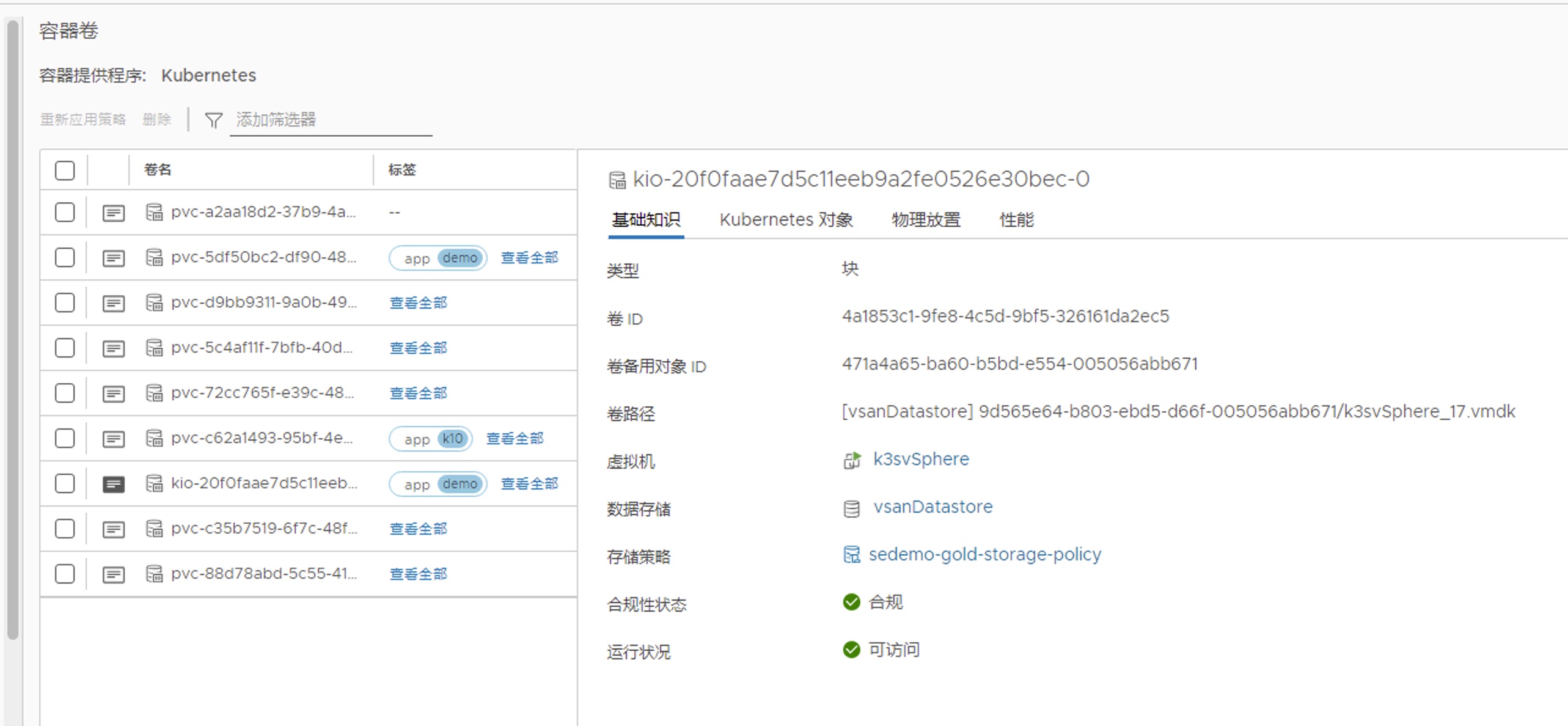
And that’s it for container instant recovery! For those who enjoyed this, go ahead and try it out yourself. And don’t forget to hit that like, follow, and share button!