Instant Recovery: A Deep Dive into Kubernetes Container Instant Recovery Technology (Part 1) - Building the Foundation Environment
Do you remember last year when I introduced VMware’s FCD disks and experimented with instant data recovery on K8s using VBR’s Instant Disk Recovery? This year, this feature has finally been officially released in the latest K10 in collaboration with VBR. Today, let me walk you through a demo to see how it works. My demo will be split into two parts: the first part will guide you through building a K3S cluster that can use vSphere Cloud Native Storage, and then in the second part, we’ll explore K10’s backup and recovery capabilities.
vSphere CSI Installation and Configuration
Using the Instant Recovery feature is inseparable from vSphere. The first prerequisite is that the Kubernetes Storage Class must use vSphere Cloud Native Storage (CNS).
For detailed vSphere CSI configuration, you can refer to the official VMware documentation
k3s Node/Cluster Installation and Configuration
For this demo, my experimental environment is deployed on a NUC11 Panther Canyon in my home lab. This NUC is configured with 64GB of memory and one NVME SSD hard drive, running vSphere 7u3.
In this environment, I’m using the lightweight K3S version 1.25s1 for Kubernetes, installed on Ubuntu 20.04, configured as a single-node experimental environment. By default, K3S deployment disables most Cloud Providers, so I need to adjust the K3S installation parameters and additionally install VMware Cloud Manager.
# Installation command
curl -sfL https://get.k3s.io | INSTALL_K3S_VERSION="v1.25.8+k3s1" INSTALL_K3S_EXEC="server --disable-cloud-controller --disable=servicelb --disable=traefik --disable-network-policy --disable=local-storage" sh -s -
After installation completes, don’t rush to start it yet. Actually, we’re still missing some parameters that need to be configured in the /etc/systemd/system/k3s.service file. Open the k3s.service file with a VI editor, find ExecStart in the [Service] section, and add two additional startup parameters: --kubelet-arg=cloud-provider=external and --kubelet-arg=provider-id=vsphere://$master_node_id. After adding them, the final part of the k3s.service file looks like this:
ExecStart=/usr/local/bin/k3s \
    server \
        '--disable-cloud-controller' \
        '--disable=servicelb' \
        '--disable=traefik' \
        '--disable-network-policy' \
        '--disable=local-storage' \
        '--kubelet-arg=cloud-provider=external' \
        '--kubelet-arg=provider-id=vsphere://$master_node_id' \
After modification, you can reload the k3s service and then restart it.
sudo systemctl daemon-reload
sudo service k3s restart
Afterward, you can access the cluster normally through the config file provided by k3s.
export KUBECONFIG=/etc/rancher/k3s/k3s.yaml
kubectl get pods --all-namespaces
vSphere CSI Installation
Next, we need to mount the vSphere datastore for k3s to use. This requires preparing some configuration files - a total of 4 files, where 1 is a conf file and 3 are yaml files. They are as follows:
vsphere-cloud-controller-manager.yaml
csi-vsphere.conf
vsphere-csi-driver.yaml
storageclass.yaml
vsphere-cloud-controller-manager.yaml File
This file can be obtained as a template from the official Kubernetes GitHub repository. Different k8s versions have different templates. I’m using version 1.25, so I downloaded the corresponding file for 1.25:
curl -O https://ghproxy/https://raw.githubusercontent.com/kubernetes/cloud-provider-vsphere/master/releases/v1.25/vsphere-cloud-controller-manager.yamlThis file cannot be used directly after download; you need to modify the vCenter address and permission information inside it.
The first part that needs modification is the stringData in the Secret, where you need to fill in the vCenter IP, username, and password according to the template example. Then the second part that needs modification is the content under data in the ConfigMap’s vsphere.conf, where you can see some information about vCenter.
Additionally, if you cannot access gcr.io, you also need to modify the container image addresses in the DaemonSet. In my Tencent personal image repository, I’ve already placed the 1.25.2 image at the following address: ccr.ccs.tencentyun.com/vsphere-csi/manager:v1.25.2
After modification, you can set this file aside for later use.
csi-vsphere.conf File
This file is used to create secret users under the vmware-system-csi namespace. The template can also be found on the official VMware website. Below is the content I modified for use in my demo:
[Global]

[VirtualCenter "<ipaddress or fqdn>"]
insecure-flag = "true"
user = "<account>"
password = "<password>"
port = "443"
datacenters = "<datacenter name>"
vsphere-csi-driver.yaml File
This file can also be obtained directly from VMware’s GitHub repository. The content inside doesn’t need modification after download and can be used directly.
curl -O https://ghproxy/https://raw.githubusercontent.com/kubernetes-sigs/vsphere-csi-driver/v3.0.0/manifests/vanilla/vsphere-csi-driver.yamlHowever, if like me you cannot access gcr.io, you still need to modify the image addresses used in this file. You can use these from my Tencent personal image repository:
ccr.ccs.tencentyun.com/vsphere-csi/csi-attacher:v4.2.0
ccr.ccs.tencentyun.com/vsphere-csi/csi-resizer:v1.7.0
ccr.ccs.tencentyun.com/vsphere-csi/driver:v3.0.0
ccr.ccs.tencentyun.com/vsphere-csi/livenessprobe:v2.9.0
ccr.ccs.tencentyun.com/vsphere-csi/syncer:v3.0.0
ccr.ccs.tencentyun.com/vsphere-csi/csi-provisioner:v3.4.0
ccr.ccs.tencentyun.com/vsphere-csi/csi-snapshotter:v6.2.1
ccr.ccs.tencentyun.com/vsphere-csi/csi-node-driver-registrar:v2.7.0
storageclass.yaml File
Finally, we need to prepare the yaml file for the storage class. This template can also be found on the official VMware website. In my demo, I made some modifications to the file.
kind: StorageClass
apiVersion: storage.k8s.io/v1
metadata:
  name: standard
  annotations:
    storageclass.kubernetes.io/is-default-class: "true"
provisioner: csi.vsphere.vmware.com
parameters:
  datastoreurl: ds:///vmfs/volumes/578a0d70-0be672b6-a3f7-34e6d7803208/
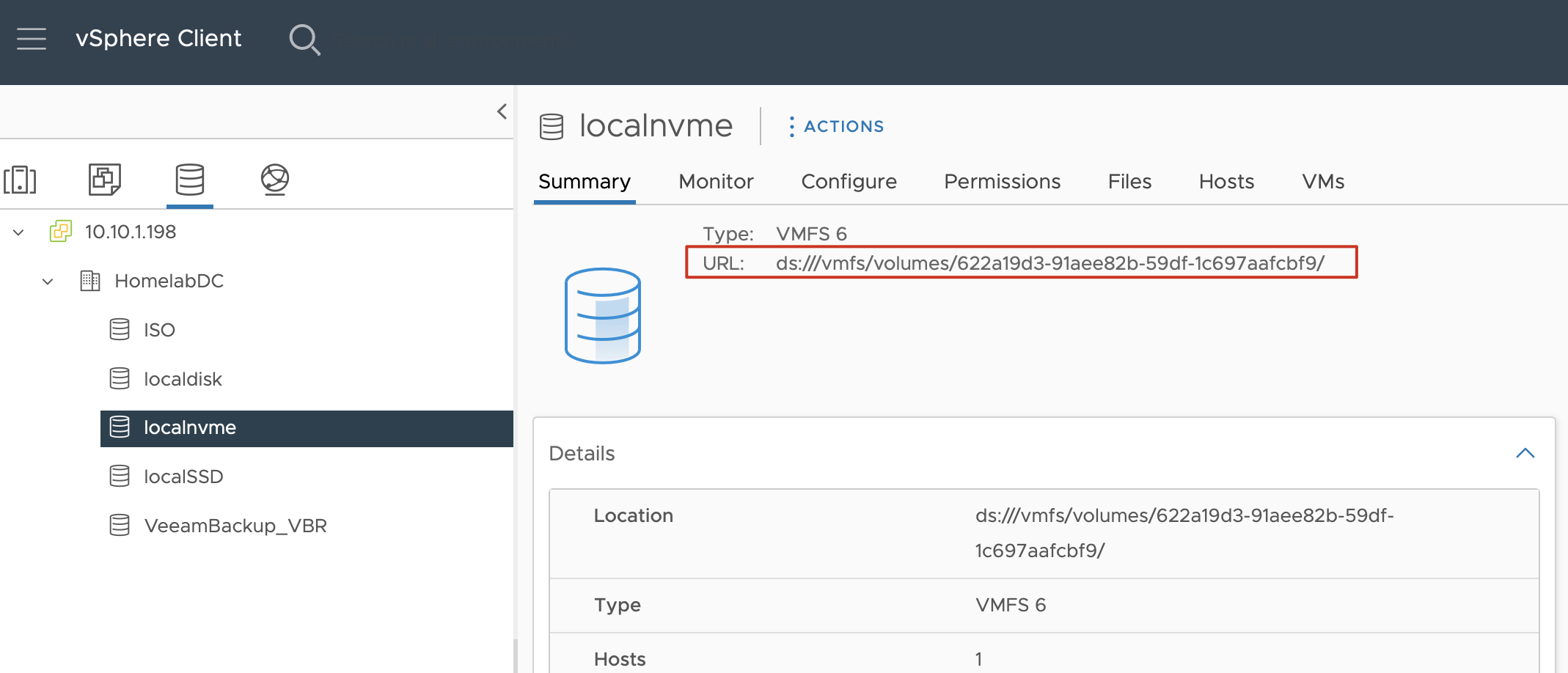
This template only has two parts that need modification. One is the name field under metadata, which you can name as needed. The other is datastoreurl, which requires going to vCenter, finding the corresponding datastore, and looking for this information in the summary interface, as shown in the image.
CSI Installation
Alright, after preparing the above files, we can begin the installation. The entire installation process is relatively simple, with commands as follows:
# Install ccm
kubectl apply -f vsphere-cloud-controller-manager.yaml
# Create csi management namespace
kubectl create namespace vmware-system-csi
# Disable scheduling
kubectl taint nodes $nodeid node-role.kubernetes.io/control-plane=:NoSchedule
# Confirm execution of previous command
kubectl describe nodes | egrep "Taints:|Name:"
# Create secret for connecting to vc with username and password
kubectl create secret generic vsphere-config-secret --from-file=/home/lei/csi-vsphere.conf --namespace=vmware-system-csi
# Create and start csi driver
kubectl apply -f vsphere-csi-driver-ccr-ccs.yaml
# After confirming all pods have started, re-enable container scheduling
kubectl taint nodes $nodeid node-role.kubernetes.io/control-plane=:NoSchedule-
# Create storage class
kubectl apply -f storageclass.yaml
After installation completes, if there are no errors, you can see that all CSI-related containers have started normally. Next, let’s deploy an application using this Storage Class to test it. The demo yaml is as follows.
apiVersion: v1
kind: PersistentVolumeClaim
metadata:
  name: demo-pvc
  labels:
    app: demo
    pvc: demo
spec:
  accessModes:
    - ReadWriteOnce
  resources:
    requests:
      storage: 1Gi
---
apiVersion: apps/v1
kind: Deployment
metadata:
  name: demo-app
  labels:
    app: demo
spec:
  replicas: 1
  selector:
    matchLabels:
      app: demo
  template:
    metadata:
      labels:
        app: demo
    spec:
      containers:
      - name: demo-container
        image: alpine:3.7
        resources:
            requests:
              memory: 256Mi
              cpu: 100m
        command: ["tail"]
        args: ["-f", "/dev/null"]
        volumeMounts:
        - name: data
          mountPath: /data
      volumes:
      - name: data
        persistentVolumeClaim:
          claimName: demo-pvc
Let’s deploy and see.
# Create namespace
kubectl create ns demo
# Deploy application
kubectl apply -f demo.yaml
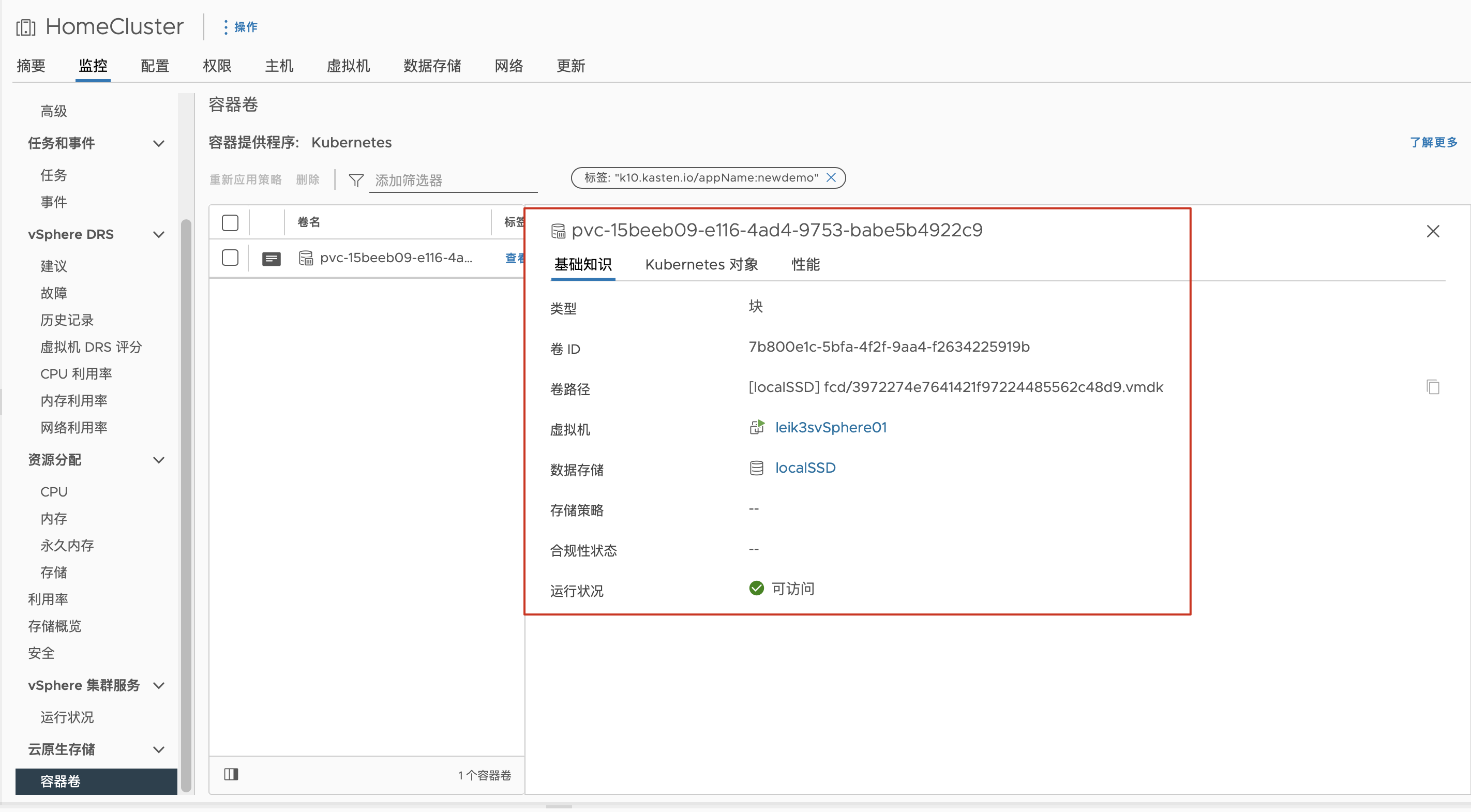
After deployment, you can see the corresponding vmdk in vCenter, and with this status, the VMware CSI configuration is complete.
Configure LoadBalancer
In my demo, I also configured an additional local LoadBalancer to assign IP addresses to my applications. Here, I chose MetalLB. The installation is also very simple. In my environment, I used version 0.13.9, downloaded the yaml file from the official website, and then modified the image repository.
curl -O https://ghproxy/https://raw.githubusercontent.com/metallb/metallb/v0.13.9/config/manifests/metallb-native.yamlThe modified images also have versions in my Tencent image repository:
ccr.ccs.tencentyun.com/vsphere-csi/metallb-controller:v0.13.9
ccr.ccs.tencentyun.com/vsphere-csi/metallb-speaker:v0.13.9
In addition to this standard LB application yaml, we also need an IP address configuration metallb-config.yaml. The template is also available on the official website, which I’ve slightly modified:
apiVersion: metallb.io/v1beta1
kind: IPAddressPool
metadata:
  name: first-pool
  namespace: metallb-system
spec:
  addresses:
  - 10.10.1.230-10.10.1.240

---
apiVersion: metallb.io/v1beta1
kind: L2Advertisement
metadata:
  name: l2-config
  namespace: metallb-system
spec:
  ipAddressPools:
  - first-pool
Deploy using the kubectl apply command:
# Deploy metallb
kubectl apply -f metallb-native.yaml
# Configure metallb
kubectl apply -f metallb-config.yaml
With this configuration complete, applications can be used directly. For K10, you only need to simply specify the externalGateway parameter as true, and metallb can automatically assign access addresses for K10, which is very convenient.
That’s all for the foundation environment setup. In the next installment, we’ll detail K10’s backup and instant recovery.