Automated Nested TKGs Lab Environment Script
After diving into vSphere with Tanzu for a while, I was blown away by how powerful the platform is. But let’s be honest—the cost of setting up a proper learning environment can be pretty steep.
After spending some time researching and experimenting with different approaches, I discovered a way to create a complete nested environment without breaking the bank. I’m excited to share this automation approach in this blog post, hoping it helps others who want to learn vSphere with Tanzu quickly and affordably.
First, here’s the GitHub repository for all the scripts mentioned in this post:
https://github.com/Coku2015/Nested-TKGs-automate-deployment
This script is adapted from William Lam’s excellent work. His original script automates the deployment of VMware’s complete Tanzu Kubernetes product suite and supports a wide range of scenarios. If you’re comfortable with advanced scripting, I highly recommend checking out his scripts for more customization options.
I’ve divided this guide into two parts: the first covers building the virtual infrastructure foundation, and the second focuses on creating Tanzu Kubernetes clusters. I’ll cover all the prerequisite requirements upfront to make sure you’re ready to go.
0. Prerequisites
This guide creates a nested vSphere environment where all VMs will be deployed on physical ESXi servers managed by vCenter. Here’s what you’ll need to reserve on your host system:
- vCPU: 9 cores
- Memory: 40.5GB
- Storage: 1421GB (allocated capacity)
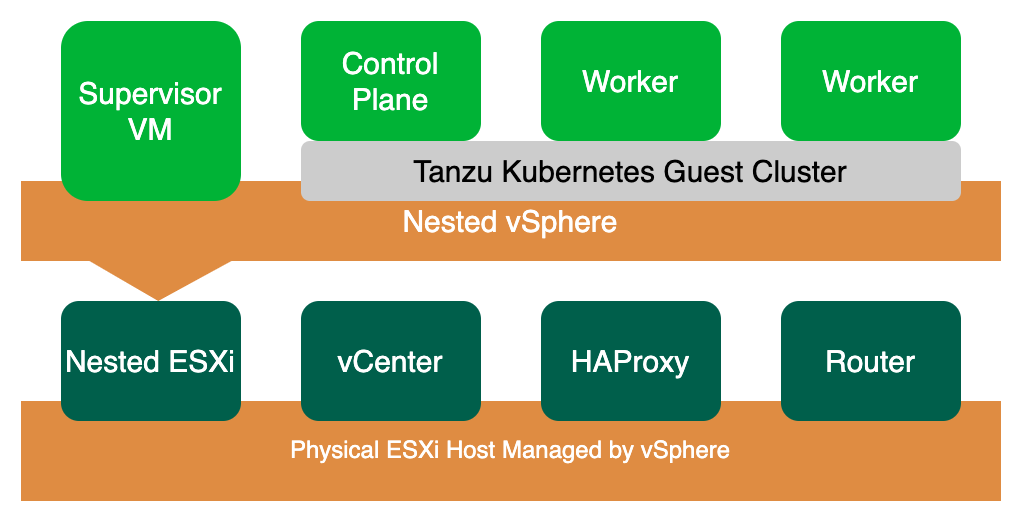
Once deployed, this environment will generate four virtual machines:
- Nested ESXi (basic config): 4 vCPU / 24GB RAM / 1TB disk / 3 network interfaces
- vCenter (basic config): 2 vCPU / 12GB RAM / 400GB disk
- HAProxy: 2 vCPU / 4GB RAM / 5GB disk
- OpenWrt router: 1 vCPU / 0.5GB RAM / 1GB disk
Within the nested ESXi environment, we’ll deploy the Tanzu Kubernetes components:
- 1 Supervisor VM: 2 vCPU / 8GB RAM
- 1 Kubernetes Control Plane: 2 vCPU / 4GB RAM
- 2 Kubernetes Worker Nodes: 2 vCPU / 4GB RAM each
Here’s what the completed environment topology looks like:
For the setup, you’ll need to download these images in advance:
In the second part of this guide, the system will automatically deploy additional VMs in the nested ESXi environment managed by vSphere with Tanzu. This requires access to VMware’s official Content Library subscription, though you can also manually download the Content Library content and create your own local Content Library.
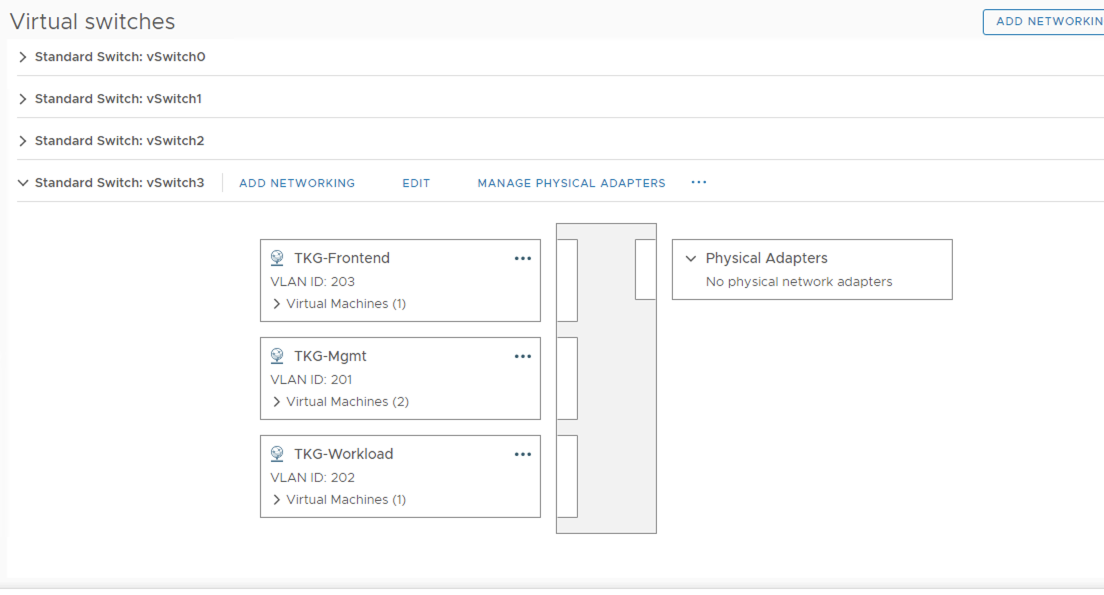
You’ll need to prepare one uplink IP address on your host system—this will serve as the external connection for our nested environment. In my setup, I use the SHLAB_NET1 port group for this uplink. All other network addresses in the environment will use internal addresses without uplink connections.
Therefore, you need to create a virtual switch with three port groups on your host ESXi, similar to what’s shown in the image below. The virtual switch hosting these three port groups also needs promiscuous mode enabled for the nested ESXi communication.
Finally, you’ll need a VM console that can access both the host vCenter and the Tanzu Lab internal network. We’ll run the automation scripts from this VM.
The full automation deployment uses VMware vSphere PowerCLI scripts, which requires PowerShell 7.
In PowerShell 7, you can quickly install the latest VMware PowerCLI with this command:
PS C:\> Install-Module VMware.PowerCLI -Scope CurrentUserFor more PowerCLI configuration and installation guidance, check out this resource:
Getting Started with VMware PowerCLI – A Beginner’s Guide
After completing the lab setup, the network connections look like this:

Part 1: Building vSphere with Tanzu Infrastructure
Once you’ve prepared all the prerequisites, you’ll need to configure some parameters in the script based on your environment:
# vCenter Server used to deploy vSphere with Tanzu Basic Lab
$VIServer = "172.19.226.20"
$VIUsername = "administrator@vsphere.local"
$VIPassword = "P@ssw0rd"
This configuration points to the vCenter managing the physical ESXi host where we’ll deploy this environment.
# Full Path to both the Nested ESXi 7.0 VA, Extracted VCSA 7.0 ISO & HA Proxy OVAs
$NestedESXiApplianceOVA = "C:\Temp\Nested_ESXi7.0u3c_Appliance_Template_v1.ova"
$VCSAInstallerPath = "E:\"
$HAProxyOVA = "C:\Temp\haproxy-v0.2.0.ova"
$tkgrouterOVA = "C:\Temp\tkgrouter.ova"
Here you need to configure the paths to all OVA images. For VCSA, mount the ISO and specify the mounted ISO path.
# TKG Content Library URL
$TKGContentLibraryName = "TKG-Content-Library"
$TKGContentLibraryURL = "https://wp-content.vmware.com/v2/latest/lib.json"
This creates a new Content Library for the TKG vCenter configuration, enabling fully automated K8S VM deployment.
#tkgrouter configuration
$tkgrouterdisplayname = "tkgopenwrt"
$WANNETWORK = "SHASELAB_NET01"
$WANIP = "172.19.226.149"
$WANGW = "172.19.226.1"
$WANDNS1 = "172.19.226.21"
$WANDNS2 = "172.19.192.10"
$WANNETMASK = "255.255.255.0"
$TKGMGMTNETWORK = "TKG-MGMT"
$TKGMGMTIP = "10.10.1.1"
$TKGWORKLOADNETWORK = "TKG-Workload"
$TKGWORKLOADIP = "10.10.2.1"
$TKGFRONTENDNETWORK = "TKG-Frontend"
$TKGFRONTENDIP = "10.10.3.1"
This section configures the OpenWrt router networking.
# Nested ESXi VMs to deploy
$NestedESXiHostnameToIPs = @{
    "tkgesxi1" = "10.10.1.100";
}
This sets the hostname and IP address for the Nested ESXi host. To deploy multiple ESXi hosts, simply add additional entries.
# Nested ESXi VM Resources
$NestedESXivCPU = "4"
$NestedESXivMEM = "24" #GB
$NestedESXiCapacityvDisk = "1000" #GB
These are the minimum resource configurations for ESXi, which you can adjust based on your actual needs.
# VCSA Deployment Configuration
$VCSADeploymentSize = "tiny"
$VCSADisplayName = "tkgsvc"
$VCSAIPAddress = "10.10.1.101"
$VCSAHostname = "10.10.1.101" #Change to IP if you don't have valid DNS
$VCSAPrefix = "24"
$VCSASSODomainName = "tkg.local"
$VCSASSOPassword = "P@ssw0rd"
$VCSARootPassword = "P@ssw0rd"
$VCSASSHEnable = "true"
VCSA configuration settings.
# HA Proxy Configuration
$HAProxyDisplayName = "tkghaproxy"
$HAProxyHostname = "haproxy.tkg.local"
$HAProxyDNS = "10.10.1.1"
$HAProxyManagementNetwork = "TKG-Mgmt"
$HAProxyManagementIPAddress = "10.10.1.102/24" # Format is IP Address/CIDR Prefix
$HAProxyManagementGateway = "10.10.1.1"
$HAProxyFrontendNetwork = "TKG-Frontend"
$HAProxyFrontendIPAddress = "10.10.3.2/24" # Format is IP Address/CIDR Prefix
$HAProxyFrontendGateway = "10.10.3.1"
$HAProxyWorkloadNetwork = "TKG-Workload"
$HAProxyWorkloadIPAddress = "10.10.2.2/24" # Format is IP Address/CIDR Prefix
$HAProxyWorkloadGateway = "10.10.2.1"
$HAProxyLoadBalanceIPRange = "10.10.3.64/26" # Format is Network CIDR Notation
$HAProxyOSPassword = "P@ssw0rd"
$HAProxyPort = "5556"
$HAProxyUsername = "wcp"
$HAProxyPassword = "P@ssw0rd"
This configures HAProxy with three network interfaces corresponding to three network segments, where 10.10.3.x is used for Load Balancing. This section is crucial as much of this information will be used in the manual configuration steps in Part 2.
# General Deployment Configuration for Nested ESXi, VCSA & HA Proxy VM
$VMDatacenter = "SHALABDC"
$VMCluster = "SHALAB"
$VMNetwork = "TKG-Mgmt"
$VMDatastore = "SHASEESX_DS_01"
$VMNetmask = "255.255.255.0"
$VMGateway = "10.10.1.1"
$VMDNS = "172.19.226.21"
$VMNTP = "172.19.226.21"
$VMPassword = "P@ssw0rd"
$VMDomain = "shlab.local"
$VMSyslog = "10.10.1.1"
$VMFolder = "Lab Infra"
# Applicable to Nested ESXi only
$VMSSH = "true"
$VMVMFS = "false"
General environment parameter settings. Pay special attention to ensuring your environment can access an NTP Server—whether internal or external—as vCenter service deployment will fail without it.
# Name of new vSphere Datacenter/Cluster when VCSA is deployed
$NewVCDatacenterName = "tkgs-dc"
$NewVCVSANClusterName = "tkgs-Cluster"
$NewVCVDSName = "tkgs-VDS"
$NewVCMgmtPortgroupName = "tkgs-mgmt"
$NewVCWorkloadPortgroupName = "tkgs-workload"
Network port group settings for the new vCenter.
# Tanzu Configuration
$StoragePolicyName = "tkgs-demo-storage-policy"
$StoragePolicyTagCategory = "tkgs-demo-tag-category"
$StoragePolicyTagName = "tkgs-demo-storage"
Tanzu storage policy configuration.
Once you’ve configured all these script parameters, you can run the script directly in PowerShell 7. When the script starts, it will display a summary of the environment about to be deployed and ask if you want to continue. Answer ‘Y’ to begin the fully automated deployment.
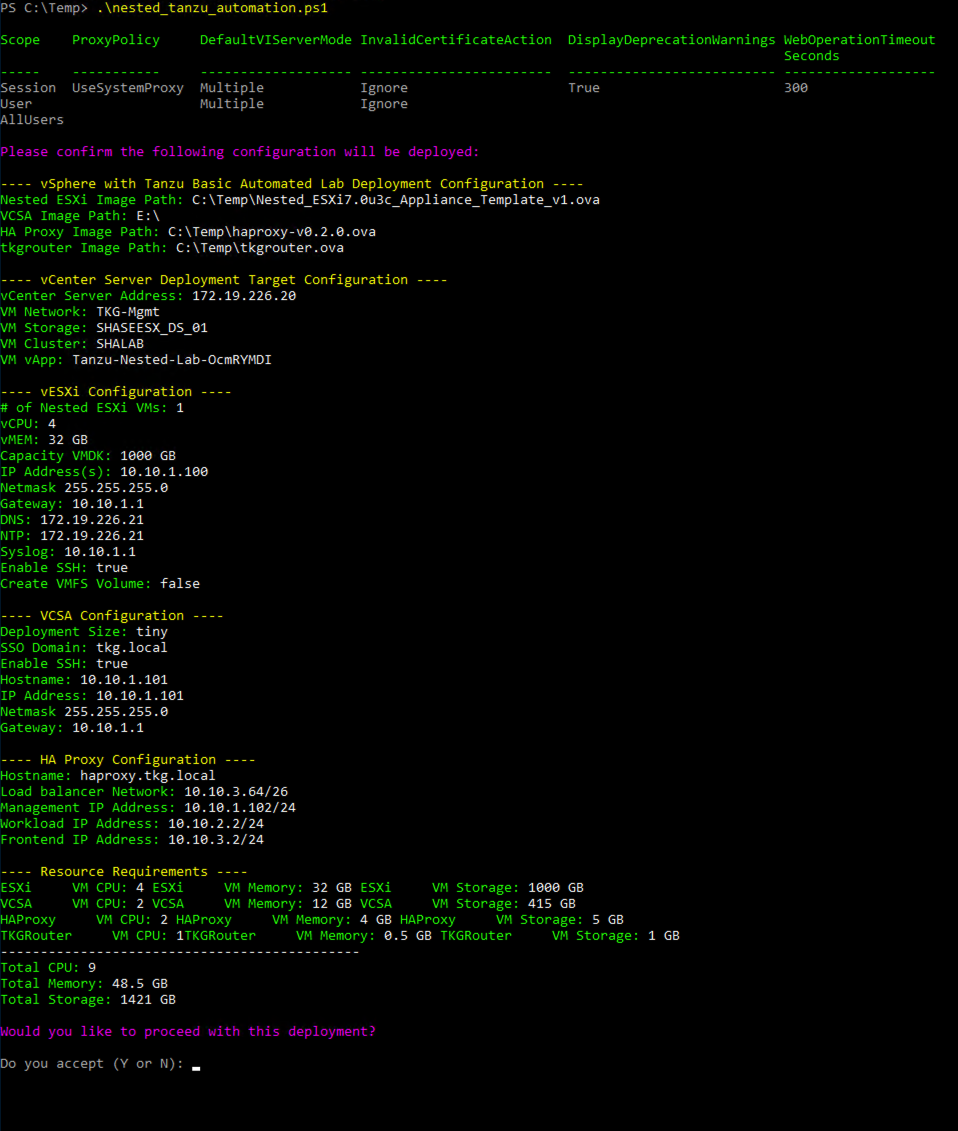
The deployment process typically takes 30-45 minutes depending on your hardware performance and resources. In my environment, the entire process took 40 minutes. You may see some yellow Warning messages during deployment—these can be safely ignored, as shown below:


After installation completes, you can access the vCenter Web Client through your browser to check the status of all deployed components.
Once the script installation is complete, you’ll need to SSH into the HAProxy virtual machine to make some adjustments. This can be done using the following script:
#!/bin/bash

touch /etc/sysctl.d/999-tanzu.conf
chmod +x /etc/sysctl.d/999-tanzu.conf

IFS=$'\n'
for i in $(sysctl -a | grep rp_filter | grep 1);
do
    SYSCTL_SETTING=$(echo ${i} | awk '{print $1}')
    # Update live system
    sysctl -w ${SYSCTL_SETTING}=0
    # Persist settings upon reboot
    echo "${SYSCTL_SETTING}=0" >> /etc/sysctl.d/999-tanzu.conf
done
Additionally, by default, Tanzu deploys 3 Supervisor VMs when enabling Supervisor Cluster, which can waste resources in a test environment. Starting from vSphere 7.0U3, you can make adjustments to reduce these resource requirements. We need to SSH into the vCenter Appliance before enabling Supervisor Cluster and make these changes:
- SSH into the vCenter Appliance and edit the file
/etc/vmware/wcp/wcpsvc.yaml - Find the
minmastersandmaxmastersvalues in the file (both default to 3) and change both to 1 - Find
controlplane_vm_disk_provisioning(default is “thick”) and change it to “thin” to save disk space - Save the changes and restart the wcp service with
service-control --restart wcp
At this point, all preparations for enabling Supervisor Cluster are complete.
Part 2: Enabling Tanzu Kubernetes Cluster
2.1 Enabling Supervisor Cluster
Log into vCenter and find Workload Management in the main navigation bar. This is where you’ll start managing Tanzu Kubernetes. Click “Get Started” on the right to begin creating a Supervisor Cluster. This process can also be completed entirely through PowerShell scripts, but that’s beyond the scope of this article. We’ll use the GUI interface to create the Supervisor Cluster.

Creating the Supervisor Cluster launches an 8-step wizard:
-
vCenter Server and Network step: Since our Lab doesn’t have NSX, we can only select VDS. Click Next to continue.

-
Cluster step: Select tkgs-Cluster, click Next to continue.
-
Storage step: Select Control Plane Storage Policy as
tkgs-demo-storage-policy. Click Next to continue. -
Load Balancer step: Here you need to enter HAProxy information. Name should be “tkghaproxy”, Load Balancer Type should be “HAProxy”, Management IP Address should be the address from Part 1 configuration (
$HAProxyManagementIPAddress = "10.10.1.102/24"), and you need to add the default HAProxy service port5556. Username iswcp, Password isP@ssw0rd, and Virtual IP Ranges should be10.10.3.64-10.10.3.127.For the HAProxy Management TLS Certificate content, you’ll need to SSH into HAProxy and get it from
/etc/haproxy/ca.crt. Click Next to continue. -
Management Network step: Select Network Mode as “Static”, Network as “TKGs-MGMT”, and configure a static IP for Supervisor. Click Next to continue.
-
Workload Network step: Select Network Mode as “DHCP”, Portgroup as “tkgs-workload”. Click Next to continue.
-
Tanzu Kubernetes Grid Service step: Select Content Library as “TKG-Content-Library”. Click Next to the final step.
-
Review and Confirm step: Change Control Plane Size from “Small” to “Tiny”. Here you need to go back to step 6 and click Next again to automatically update the Internal Network for Kubernetes Services from 10.96.0.0/23 to 10.96.0.0/24.
-
After clicking Finish, the Supervisor Cluster begins the automatic deployment process, and the Workload Management interface switches to look like this:


2.2 Deploying Tanzu Kubernetes Cluster
After about 30 minutes, you should see the Tanzu Supervisor Cluster enter the “Running” state, with the Control Plane Node getting the correct IP address.

-
Now you can switch to the Namespace tab to create a Namespace. Note that this Namespace is not a Kubernetes Namespace—it’s a vSphere Tanzu Namespace. Our Tanzu Kubernetes Cluster will be created under this Namespace.
-
After creating the Namespace, you’ll see the current Namespace’s config status. To proceed with configuration, we need to make 3 settings in Namespace management: Permissions, Storage, and VM Service. First, for Permissions, we add an administrator user through the “Add Permissions” button.
-
Use the “Add Storage” button to add storage space for the Namespace.
-
Use the “Add VM Class” button to add various VM specifications for the Namespace. Subsequent Kubernetes Nodes will automatically configure corresponding CPU and memory based on the selected specifications. I recommend selecting all 16 default specifications.
-
Use the “Add Content Library” button to associate the Tanzu Content Library again.
-
After completing all Namespace configurations, it should look like this. At this point, we’ve completed all preparation work for creating our Tanzu Kubernetes Cluster.
-
In the Status card at the bottom of the screen above, there’s a “Link to CLI Tools”. Click “Open” to open a new webpage where you can download the kubectl vsphere plugins. This command-line plugin will help us manage and use Tanzu Kubernetes Clusters.
-
Following the webpage instructions, after downloading and installing, go to the CLI console and use the CLI to log into our Supervisor Cluster. The server address should be the IP address seen in the Control Plane Node. If everything is correct, the command line will prompt for username and password—these should be the administrator user credentials from step 2. After login, you’ll see “Logged in successfully”.
c:\bin>kubectl-vsphere.exe login --server=10.10.3.65 --insecure-skip-tls-verify Username: administrator@tkg.local KUBECTL_VSPHERE_PASSWORD environment variable is not set. Please enter the password below Password: Logged in successfully. You have access to the following contexts: 10.10.3.65 tkgs If the context you wish to use is not in this list, you may need to try logging in again later, or contact your cluster administrator. To change context, use `kubectl config use-context <workload name>` c:\bin> -
At this point, we’ve successfully logged into the Supervisor Cluster. Next, we’ll use the following YAML configuration file to create a Tanzu Kubernetes Cluster.
apiVersion: run.tanzu.vmware.com/v1alpha1
kind: TanzuKubernetesCluster
metadata:
  name: sedemo-tkc-01
  namespace: tkgs
spec:
  distribution:
    version: v1.21
  topology:
    controlPlane:
      class: best-effort-xsmall
      count: 1
      storageClass: tkgs-demo-storage-policy
    workers:
      class: best-effort-small
      count: 2
      storageClass: tkgs-demo-storage-policy
  settings:
    storage:
      classes: ["tkgs-demo-storage-policy"]              #Named PVC storage classes
      defaultClass: tkgs-demo-storage-policy


The name under metadata is the name of the created cluster, and Namespace is the Namespace name we just created in vSphere. Under spec, distribution is the Kubernetes version to create. topology-controlplane-class and topology-workers-class correspond to the VM class types we set in step 14—here we choose “best-effort-xsmall” and “best-effort-small” respectively, with counts of 1 and 2.
Run the following command, and the Tanzu Kubernetes Cluster will be automatically created in vCenter:
```shell
c:\bin>kubectl apply -f tkc.yaml
tanzukubernetescluster.run.tanzu.vmware.com/sedemo-tkc-01 created
```
After a few minutes, you should see 3 VMs created in vCenter, as shown below.

-
Go back to the CLI console and run the following login command to access the Tanzu Kubernetes Guest Cluster.
c:\bin>kubectl vsphere login --server=10.10.3.65 --tanzu-kubernetes-cluster-name sedemo-tkc-01 --tanzu-kubernetes-cluster-namespace tkgs --vsphere-username administrator@tkg.local --insecure-skip-tls-verify

KUBECTL_VSPHERE_PASSWORD environment variable is not set. Please enter the password below
Password:
Logged in successfully.

You have access to the following contexts:
   10.10.3.65
   sedemo-tkc-01
   tkgs

If the context you wish to use is not in this list, you may need to try
logging in again later, or contact your cluster administrator.

To change context, use `kubectl config use-context <workload name>`
At this point, we can access our Kubernetes cluster normally and perform all management tasks using standard kubectl commands.
This automated approach makes it incredibly easy to get started with vSphere with Tanzu, giving you a complete environment to explore and learn without the usual complexity and cost barriers. Whether you’re just getting started with Kubernetes or exploring enterprise-grade container orchestration, this setup provides everything you need to dive deep into Tanzu’s capabilities.