Exploring Tanzu Community Edition in the Homelab
I recently refreshed my homelab setup and decided it was time to dive into Tanzu. When VMware open-sourced Tanzu Community Edition last year, I knew this was the perfect opportunity to set up a complete environment with Kasten K10 and Veeam Backup & Replication to really put it through its paces.
Hardware Setup
My environment consists of two machines - a Dell Precision M4800 that’s been serving me faithfully for over six years, and a newly added NUC11 Panther Canyon. The Dell laptop is really just playing a supporting role in this setup, while the Panther Canyon is the star of the show with these specifications:
- CPU: Intel(R) Core(TM) i5-1135G7 @ 2.40GHz
- Memory: ADATA 32GB×2 DDR4-3200 (64GB total)
- Storage: aigo NVMe SSD P2000 1TB
- Network: Intel Corporation Ethernet Controller I225-V
Software Stack
On the M4800, I’m using DellEMC’s custom ESXi image, which you can download from the DellEMC website. It includes all the necessary drivers for Dell hardware.
The biggest challenge with installing ESXi on the NUC11 was the network card driver. This is a 2.5GbE NIC that isn’t included in VMware’s official drivers, but as always, the community has a solution. You can find the community network driver right here.
Both hosts are running vSphere 7.0.3, with vCenter also at version 7.0.3.
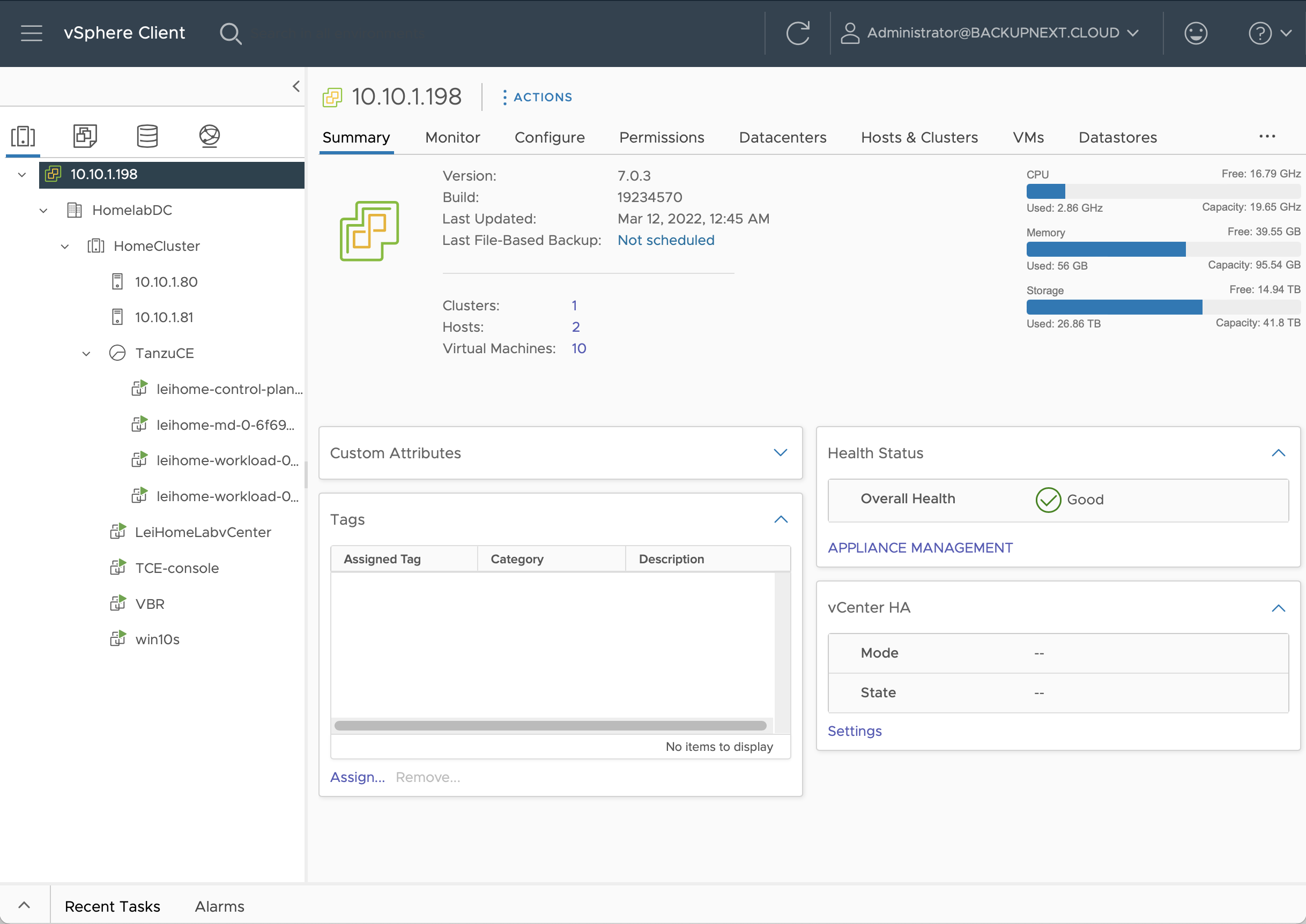
Getting Started with TCE Installation
Environment Preparation
First, I needed a console VM to install and operate TCE. The official TCE documentation provides installation instructions for macOS, Linux, and Windows. I chose to deploy an Ubuntu 20.04 LTS virtual machine in my environment to install the Tanzu CLI.
This Ubuntu VM isn’t just a minimal installation - it needs some additional preparation:
-
Install Docker and configure non-root user access. The configuration is straightforward. Just execute these commands as a non-root user after installing Docker:
## 1. Create the docker group k10@tceconsole:~$ sudo groupadd docker ## 2. Add current user to docker group k10@tceconsole:~$ sudo usermod -aG docker $USER ## 3. Either log out and log back in, or activate with this command $ newgrp docker ## 4. Test docker command to verify it works k10@tceconsole:~$ docker run hello-world -
Install kubectl - nothing special here, just follow the official documentation or other guides to install it.
With these prerequisites in place, I could follow the TCE official documentation to install the Tanzu CLI.
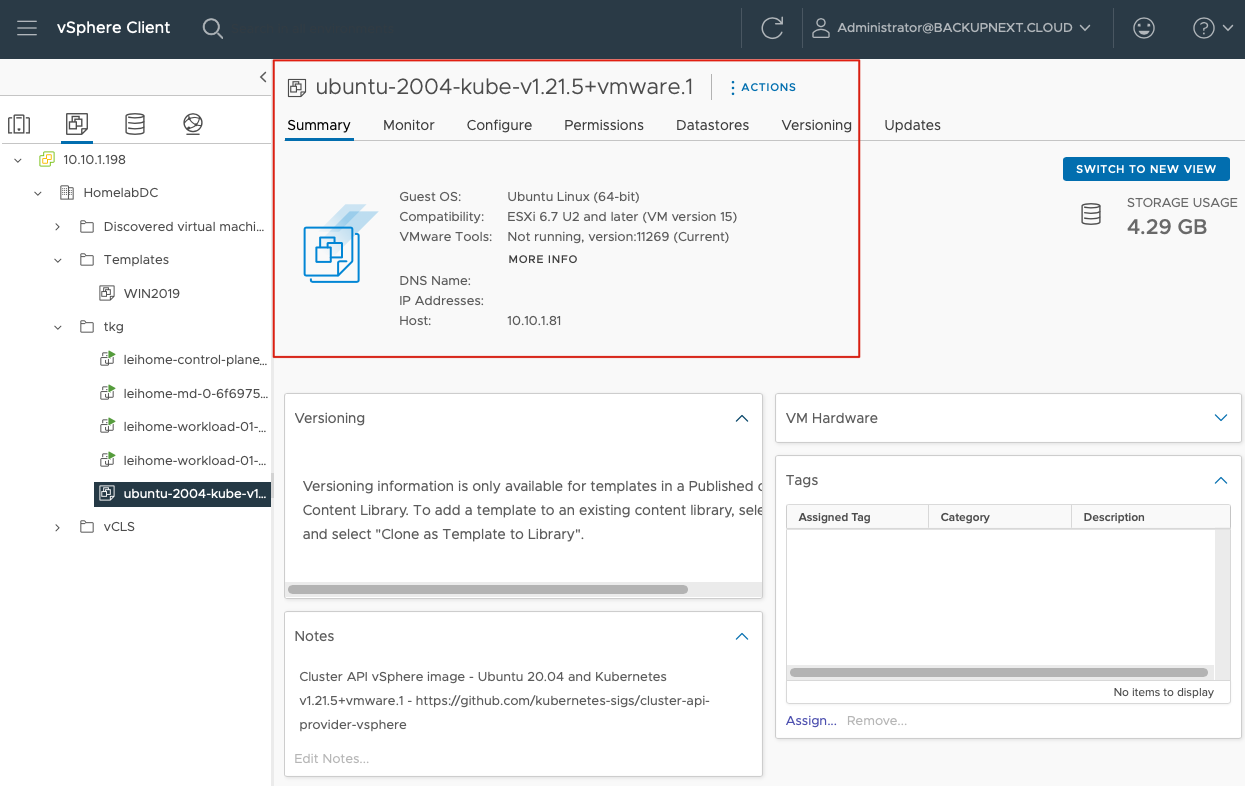
After installing the Tanzu CLI, I also needed to download the OVA image from VMware’s website. This image is used to deploy Kubernetes nodes in vSphere. I chose ubuntu-2004-kube-v1.21.5+vmware.1-tkg.1-12483545147728596280-tce-010.ova.
Once downloaded, I imported this OVA into vSphere and immediately converted it to a template. You should see something like this in vSphere:
Additionally, I needed to configure a DHCP server in my environment since TCE requires DHCP to complete the cluster deployment process.
Finally, I prepared an SSH public key for the graphical installation wizard:
## Create SSH key pair
k10@tceconsole:~$ ssh-keygen -t rsa -b 4096 -C "administrator@backupnext.cloud"
## Get the public key for later use
k10@tceconsole:~$ cat .ssh/id_rsa.pub
Deploying the Management Cluster
Like other Tanzu offerings, TCE consists of a Management Cluster and Workload Clusters. In my environment, I first needed to configure a management cluster. Starting the configuration is simple - just run this command:
k10@tceconsole:~$ tanzu management-cluster create --ui --bind 0.0.0.0:8080 --browser noneAfter running this command, I could open http://<ubuntu-ip>:8080/ in my local browser to access the Tanzu installation wizard.
The wizard walks you through several steps:
-
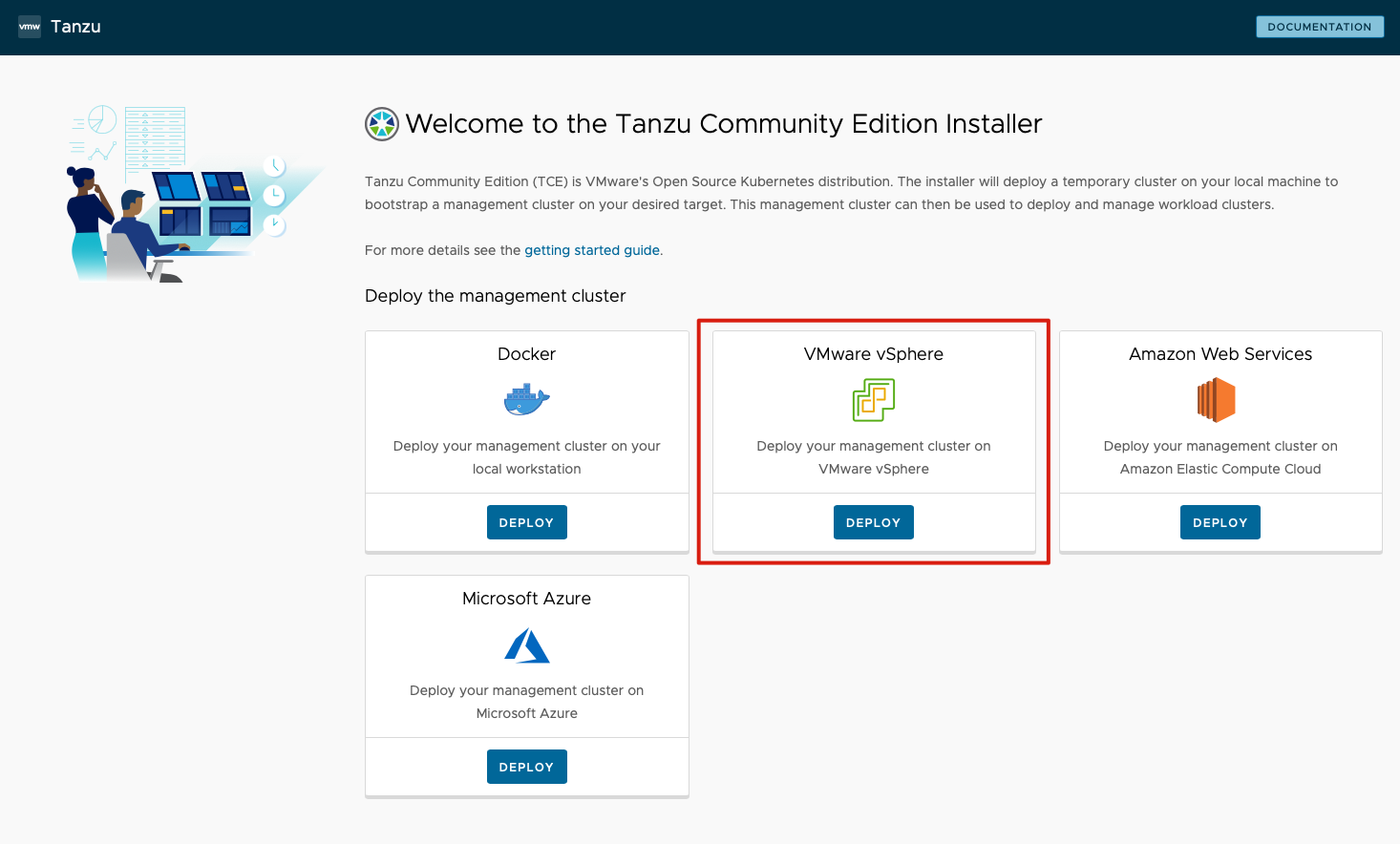
Select deployment platform - VMware vSphere

-
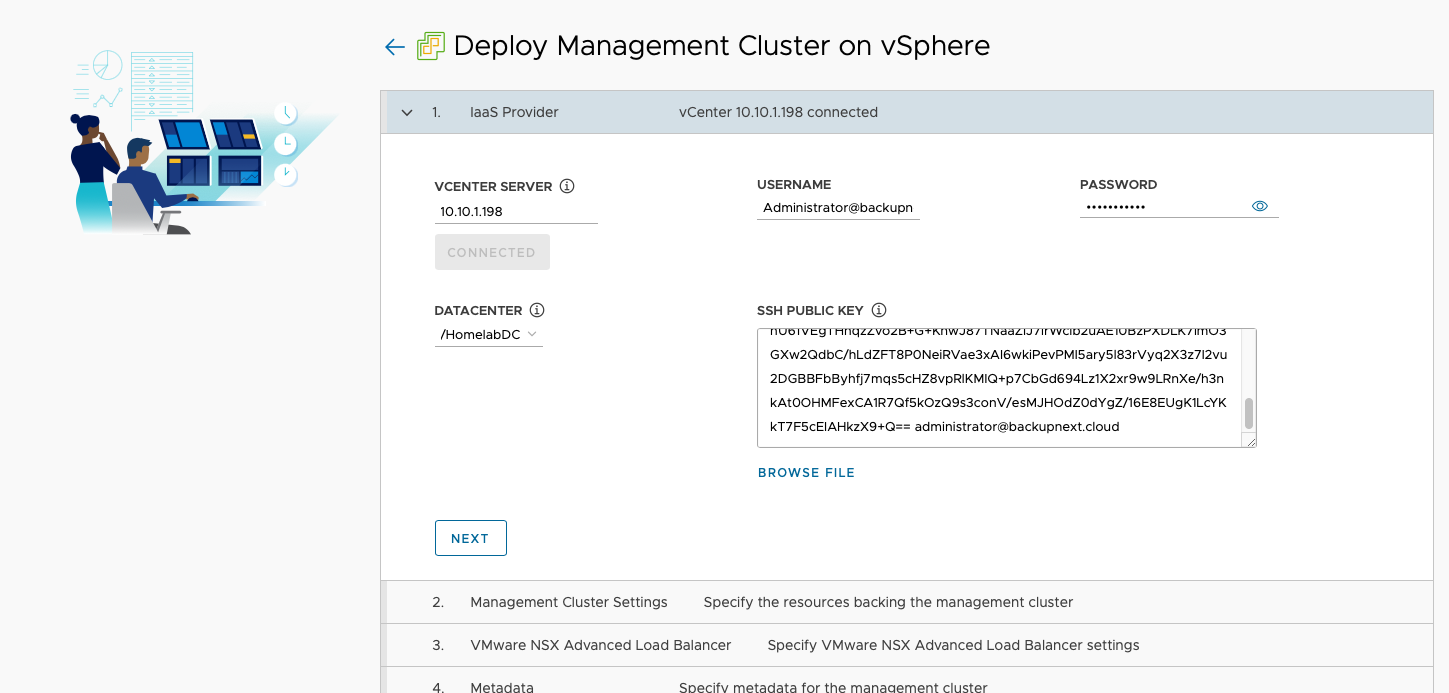
Enter vCenter information and connect - After connecting, you need to paste the SSH public key you prepared earlier into the SSH Public Key field.
-
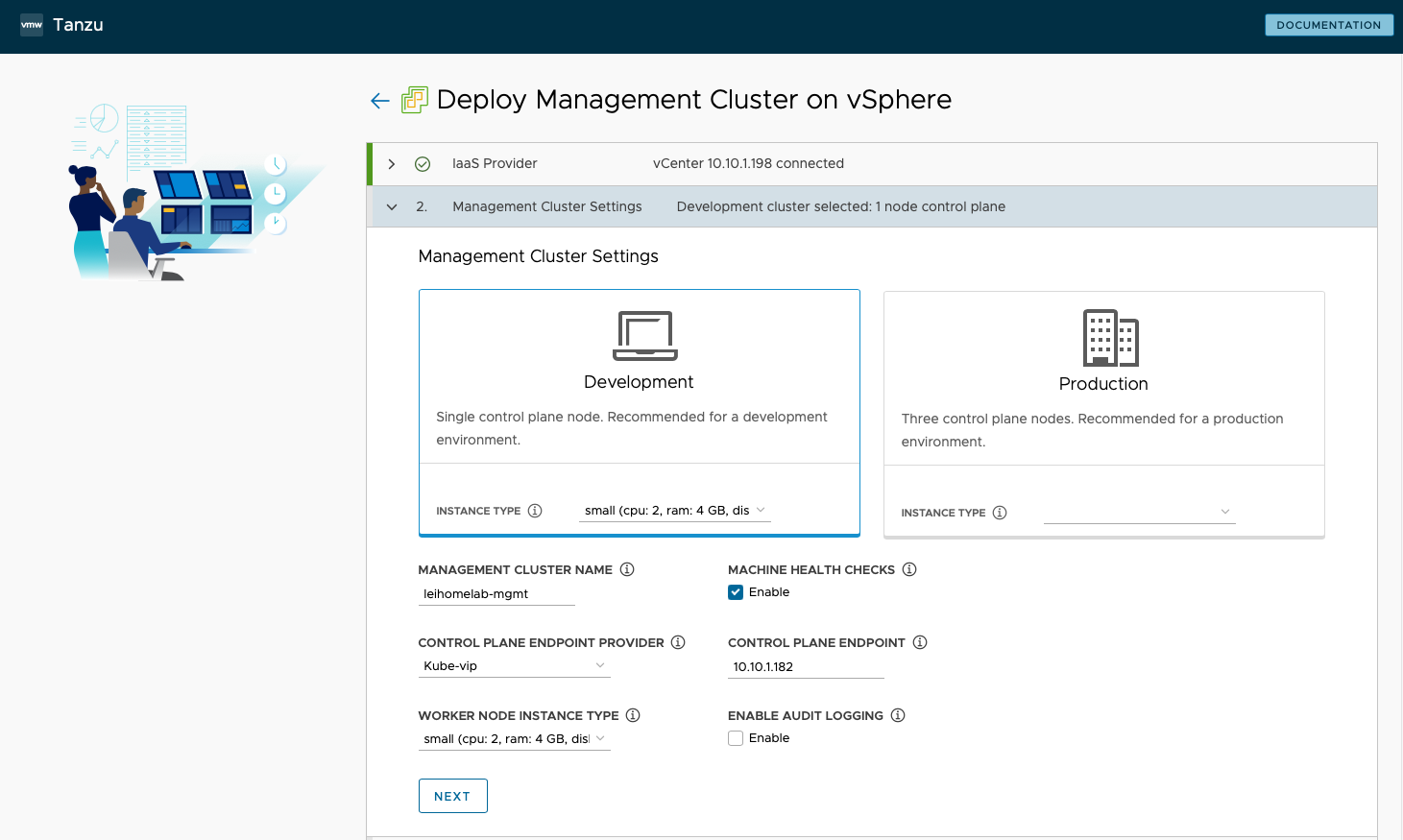
Configure management cluster settings - I chose Development mode since my small lab only needs one Control Plane node. I selected the Small instance type for minimum configuration, named my Management Cluster
leihome, enabled Machine Health Checks, chose Kube-vip as the Control Plane Endpoint Provider with endpoint address 10.10.1.182, set Worker Node Instance Type to Small, and disabled Audit Logging. -
VMware NSX Advanced Load Balancer and Metadata - I disabled both of these options.
-
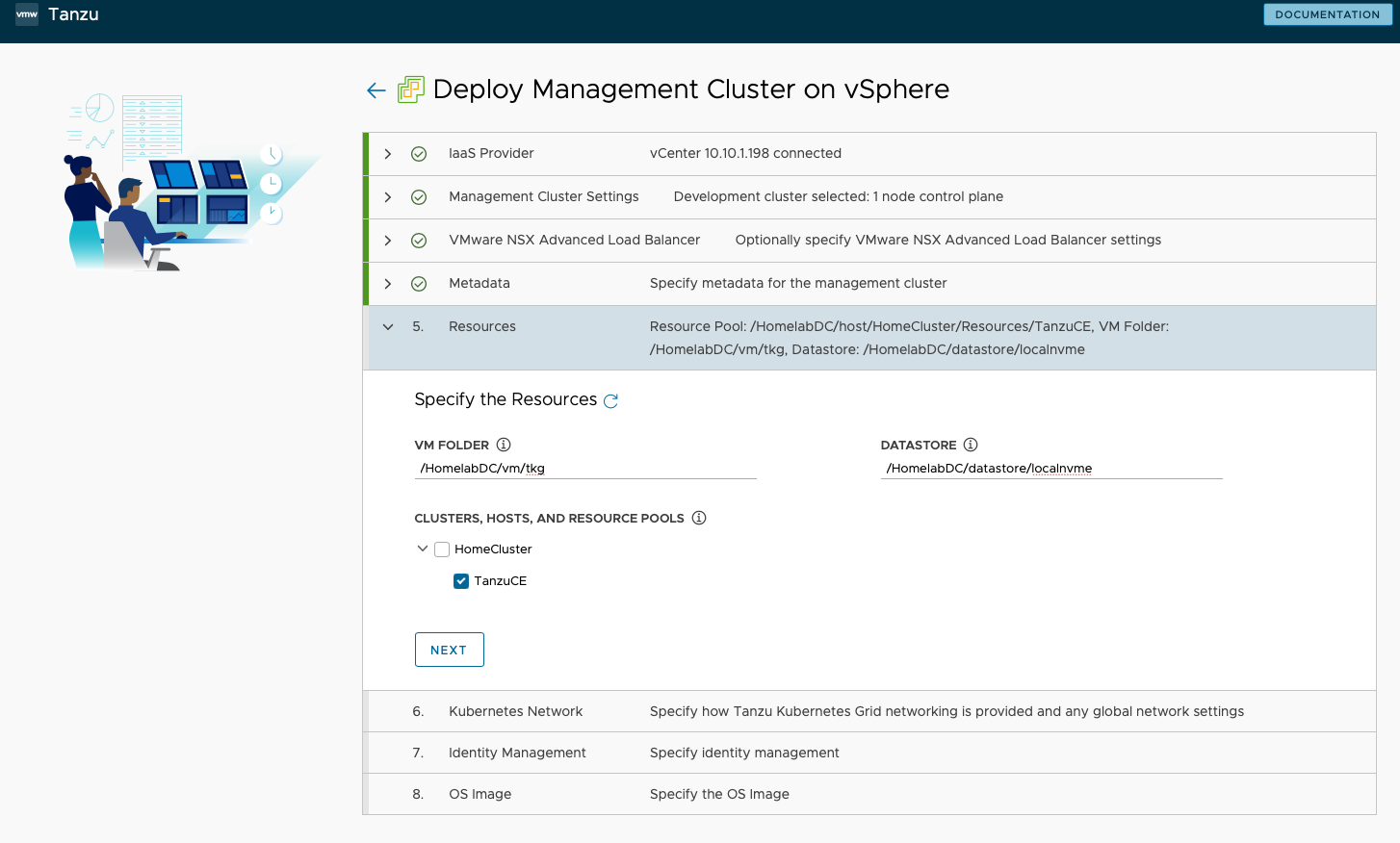
Resource configuration - I specified deployment to VM Folder
/HomelabDC/vm/tkg, Datastore/HomelabDC/datastore/localnvme, and selected theTanzuCEresource pool for Cluster, Hosts, and Resource Pools. -
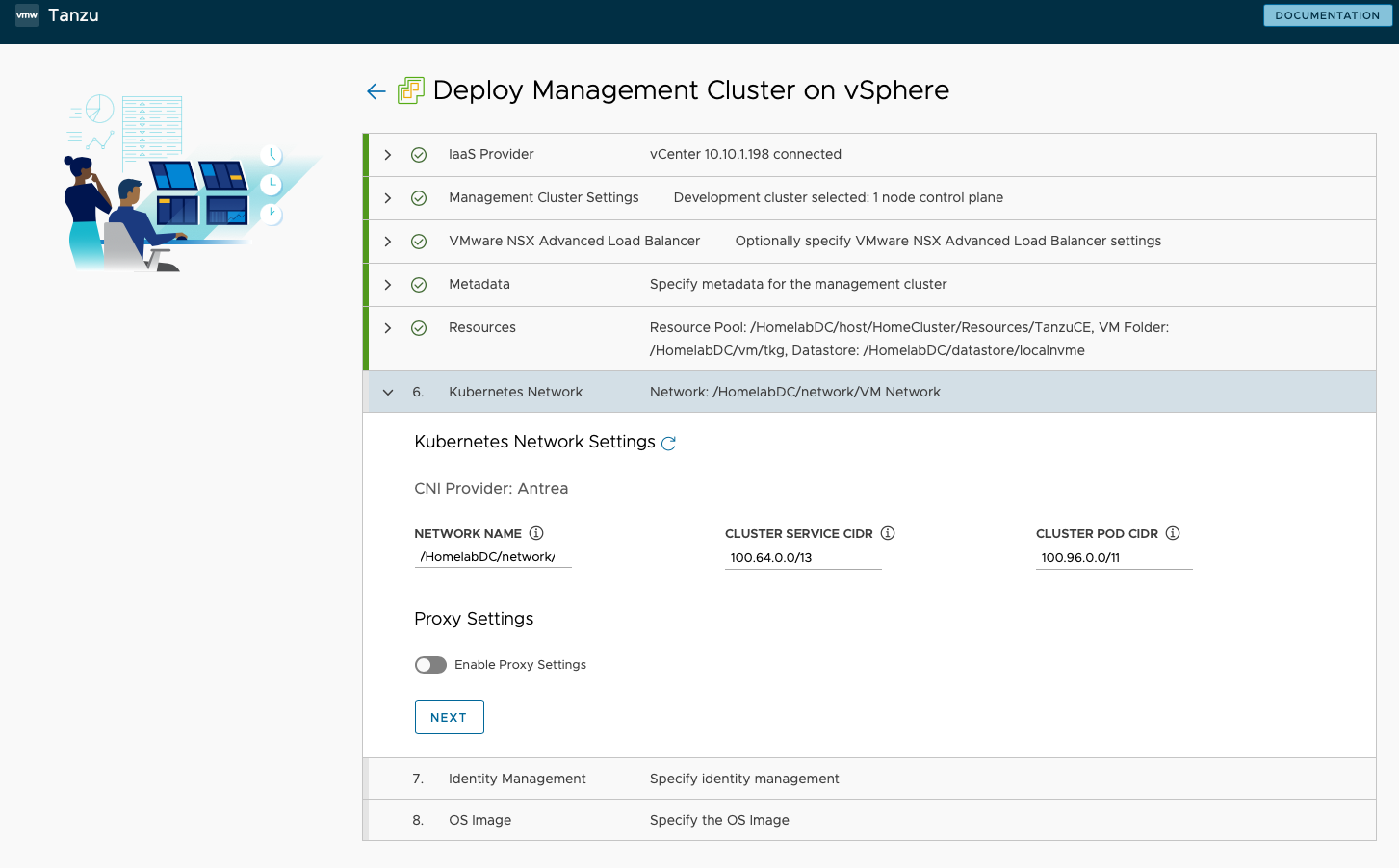
Kubernetes Network - I kept the default network configuration.
-
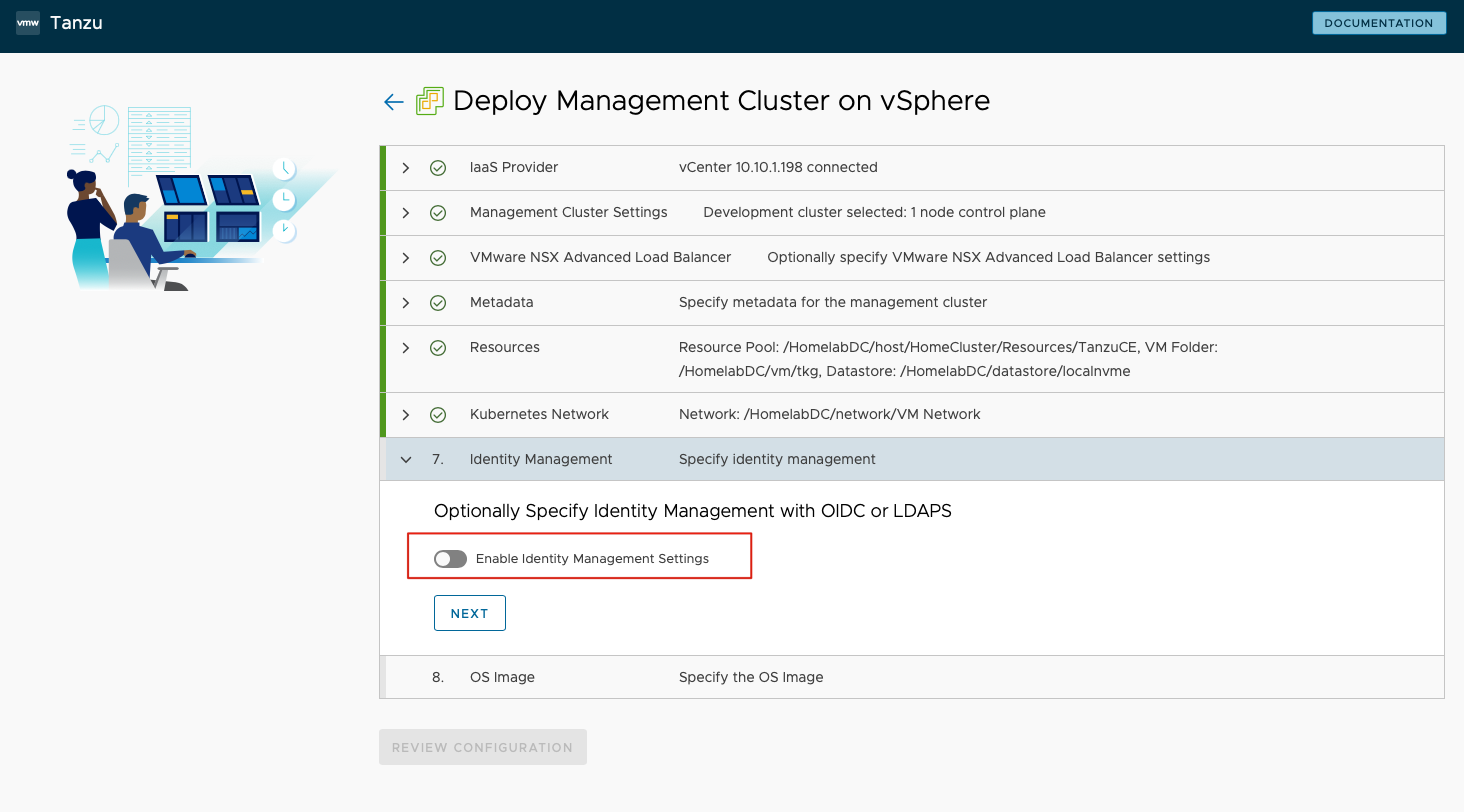
Identity Management - I disabled Identity Management Settings.
-
OS Image - I selected the node VM template that was imported during preparation.
-
After reviewing the configuration, the deployment begins automatically. About half an hour later, the management cluster was deployed and ready to use.
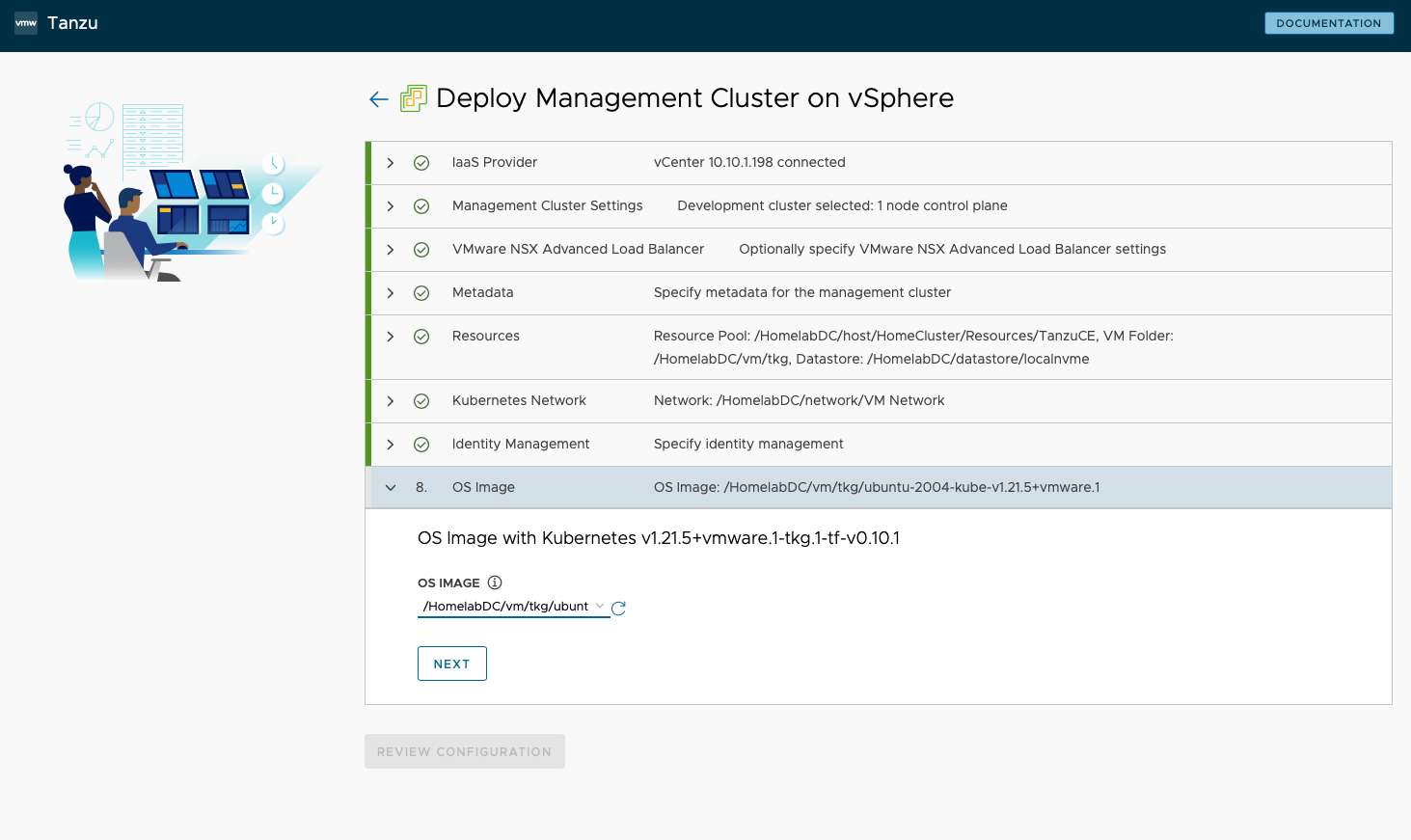
Once the management cluster deployment completed, I returned to my Ubuntu console and ran:
## Check the installed management cluster
k10@tceconsole:~$ tanzu management-cluster get
  NAME     NAMESPACE   STATUS   CONTROLPLANE  WORKERS  KUBERNETES        ROLES
  leihome  tkg-system  running  1/1           1/1      v1.21.5+vmware.1  management

Details:

NAME                                                        READY  SEVERITY  REASON  SINCE  MESSAGE
/leihome                                                    True                     8d
├─ClusterInfrastructure - VSphereCluster/leihome            True                     8d
├─ControlPlane - KubeadmControlPlane/leihome-control-plane  True                     8d
│ └─Machine/leihome-control-plane-2mz2v                     True                     8d
└─Workers
  └─MachineDeployment/leihome-md-0
    └─Machine/leihome-md-0-6f69758844-zpfsj                 True                     8d

Providers:

  NAMESPACE                          NAME                    TYPE                    PROVIDERNAME  VERSION  WATCHNAMESPACE
  capi-kubeadm-bootstrap-system      bootstrap-kubeadm       BootstrapProvider       kubeadm       v0.3.23
  capi-kubeadm-control-plane-system  control-plane-kubeadm   ControlPlaneProvider    kubeadm       v0.3.23
  capi-system                        cluster-api             CoreProvider            cluster-api   v0.3.23
  capv-system                        infrastructure-vsphere  InfrastructureProvider  vsphere       v0.7.10

## Get kubectl management permissions
k10@tceconsole:~$ tanzu management-cluster kubeconfig get leihome --admin
Credentials of cluster 'leihome' have been saved
You can now access the cluster by running 'kubectl config use-context leihome-admin@leihome'

## Test kubectl access
k10@tceconsole:~$ kubectl get node
NAME                            STATUS   ROLES                  AGE   VERSION
leihome-control-plane-2mz2v     Ready    control-plane,master   8d    v1.21.5+vmware.1
leihome-md-0-6f69758844-zpfsj   Ready    <none>                 8d    v1.21.5+vmware.1
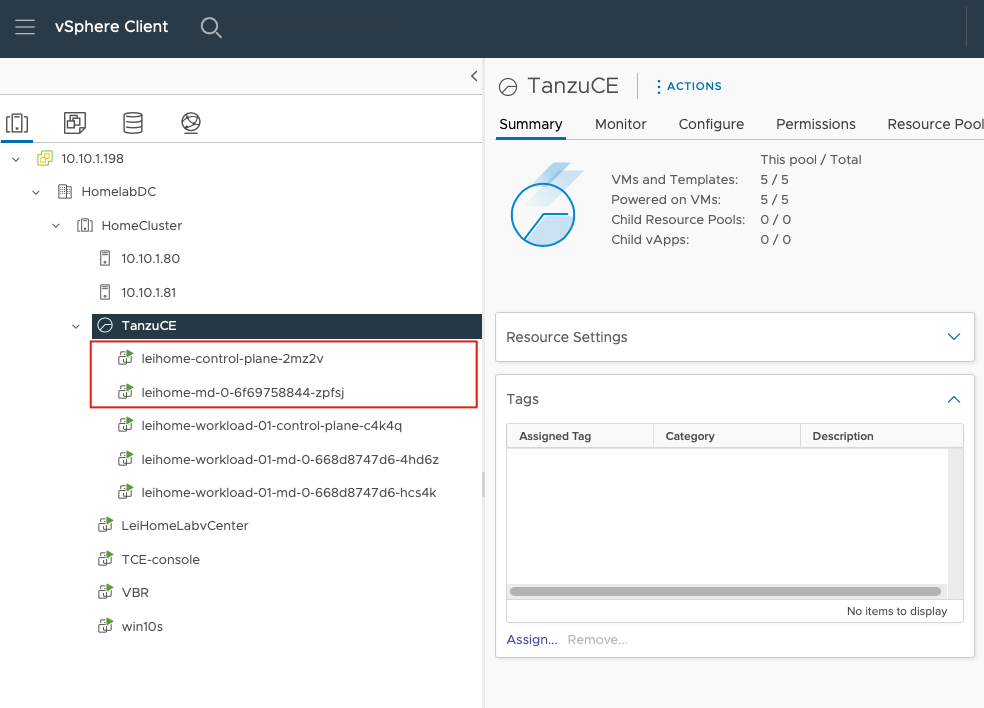
And with that, the management cluster setup was complete. Back in vCenter, I could see the two corresponding node virtual machines.
Deploying a Workload Cluster
After the management cluster deployment, the cluster configuration is automatically saved as a YAML file in the ~/.config/tanzu/tkg/clusterconfigs/ directory. Deploying a workload cluster is straightforward - just copy the auto-generated management cluster YAML file and make a few modifications.
I created and modified a YAML file for the workload cluster deployment:
k10@tceconsole:~$ cp  ~/.config/tanzu/tkg/clusterconfigs/pkwmre6kuu.yaml ~/.config/tanzu/tkg/clusterconfigs/workload1.yaml
k10@tceconsole:~$ vi ~/.config/tanzu/tkg/clusterconfigs/workload1.yaml
I modified these key fields:
CLUSTER_NAME: leihome-workload-01
VSPHERE_CONTROL_PLANE_ENDPOINT: 10.10.1.191
VSPHERE_WORKER_MEM_MIB: "8192"
CLUSTER_NAME is the workload cluster name - I used leihome-workload-01. VSPHERE_CONTROL_PLANE_ENDPOINT is the API server access address for this workload cluster - it’s best to set this to a fixed IP, so I used 10.10.1.191. VSPHERE_WORKER_MEM_MIB is the workload cluster memory - the default Small configuration of 4GB wasn’t sufficient for my environment, so I set it to 8192.
After making these changes, I ran this command to automatically deploy the workload cluster:
k10@tceconsole:~$ tanzu cluster create leihome-workload-01 --file ~/.config/tanzu/tkg/clusterconfigs/workload1.yamlAbout 10 minutes later, the workload cluster was deployed. Like the management cluster, it defaults to one Control Plane and one Worker node. Since I planned to run several applications, I used this command to add another Worker Node:
k10@tceconsole:~$ tanzu cluster scale leihome-workload-01 --worker-machine-count=2
Successfully updated worker node machine deployment replica count for cluster leihome-workload-01
Workload cluster 'leihome-workload-01' is being scaled
After the workload cluster deployment, I needed to get access credentials just like with the management cluster:
## Get current workload cluster list
k10@tceconsole:~$ tanzu cluster list
  NAME                 NAMESPACE  STATUS   CONTROLPLANE  WORKERS  KUBERNETES        ROLES   PLAN
  leihome-workload-01  default    running  1/1           2/2      v1.21.5+vmware.1  <none>  dev

## Get access credentials for leihome-workload-01 workload cluster
k10@tceconsole:~$ tanzu cluster kubeconfig get leihome-workload-01 --admin
Credentials of cluster 'leihome-workload-01' have been saved
You can now access the cluster by running 'kubectl config use-context leihome-workload-01-admin@leihome-workload-01'

## Check current context list with kubectl
k10@tceconsole:~$ kubectl config get-contexts
CURRENT   NAME                                            CLUSTER               AUTHINFO                    NAMESPACE
*         leihome-admin@leihome                           leihome               leihome-admin
          leihome-workload-01-admin@leihome-workload-01   leihome-workload-01   leihome-workload-01-admin

## Switch clusters with kubectl and start using the deployed cluster
k10@tceconsole:~$ kubectl config use-context leihome-workload-01-admin@leihome-workload-01
Switched to context "leihome-workload-01-admin@leihome-workload-01"

## Get node information
k10@tceconsole:~$ kubectl get node
NAME                                        STATUS   ROLES                  AGE     VERSION
leihome-workload-01-control-plane-c4k4q     Ready    control-plane,master   7d18h   v1.21.5+vmware.1
leihome-workload-01-md-0-668d8747d6-4hd6z   Ready    <none>                 7d18h   v1.21.5+vmware.1
leihome-workload-01-md-0-668d8747d6-hcs4k   Ready    <none>                 7d18h   v1.21.5+vmware.1
Back in vCenter, I could see the three Workload Node virtual machines were up and running.
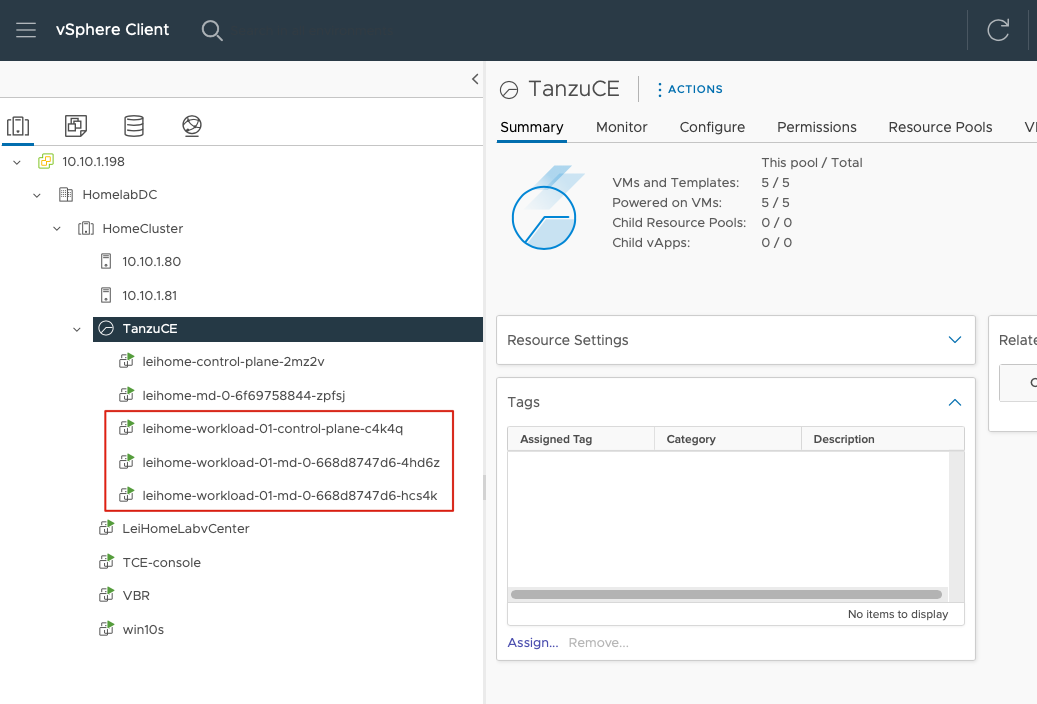
At this point, the Kubernetes cluster compute resources were fully configured.
Configuring Storage Resources
Tanzu clusters can use vSphere 7.0 datastores for persistent data through the vSphere CSI driver, but by default, datastores aren’t automatically associated with Tanzu clusters. I used this YAML file to grant the workload cluster access to the datastore:
kind: StorageClass
apiVersion: storage.k8s.io/v1
metadata:
  name: standard
  annotations:
    storageclass.kubernetes.io/is-default-class: "true"
provisioner: csi.vsphere.vmware.com
parameters:
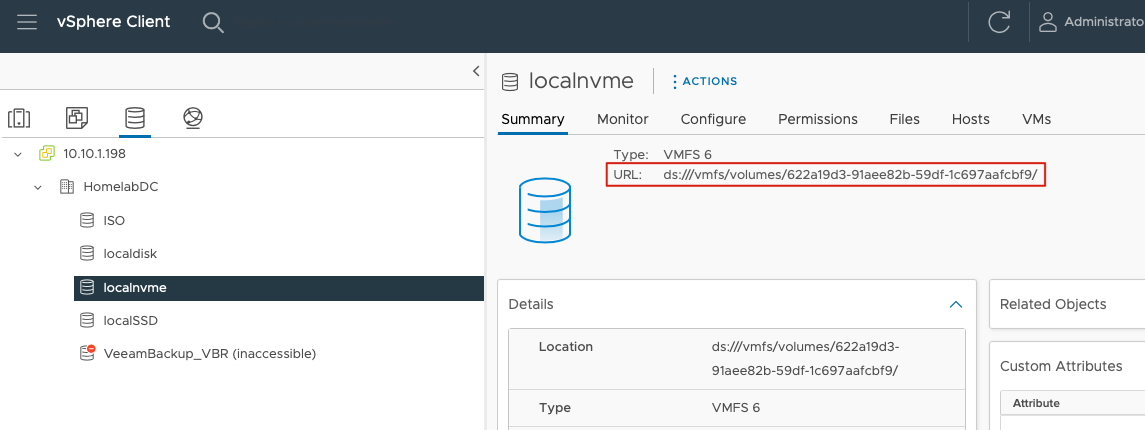
  datastoreurl: ds:///vmfs/volumes/622a19d3-91aee82b-59df-1c697aafcbf9/
The datastoreurl on the last line can be obtained from the datastore summary in vCenter, as shown here:
I applied this new StorageClass and removed the original default StorageClass:
## Add new Storage Class connecting to vSphere Datastore
k10@tceconsole:~$ kubectl apply -f ~/storage/localnvme.yaml

## Remove the original Hostpath default Storage Class (or you can delete the default storage class directly)
k10@tceconsole:~$ kubectl patch storageclass default -p '{"metadata": {"annotations":{"storageclass.kubernetes.io/is-default-class":"false"}}}'

## Check current StorageClass status with kubectl
k10@tceconsole:~$ kubectl get sc
NAME                 PROVISIONER              RECLAIMPOLICY   VOLUMEBINDINGMODE   ALLOWVOLUMEEXPANSION   AGE
default              csi.vsphere.vmware.com   Delete          Immediate           true                   7d19h
standard (default)   csi.vsphere.vmware.com   Delete          Immediate           false                  7d18h
Testing the Environment with a Demo Application
This little demo is simple - just an Alpine Linux container with a mounted data directory /data. This data directory actually maps to the vSphere datastore, creating a VMDK file. I’ll save the details about this VMDK file for a future post.
Here’s the demo YAML:
apiVersion: v1
kind: PersistentVolumeClaim
metadata:
  name: demo-pvc
  labels:
    app: demo
    pvc: demo
spec:
  accessModes:
    - ReadWriteOnce
  resources:
    requests:
      storage: 1Gi
---
apiVersion: apps/v1
kind: Deployment
metadata:
  name: demo-app
  labels:
    app: demo
spec:
  replicas: 1
  selector:
    matchLabels:
      app: demo
  template:
    metadata:
      labels:
        app: demo
    spec:
      containers:
      - name: demo-container
        image: alpine:3.7
        resources:
            requests:
              memory: 256Mi
              cpu: 100m
        command: ["tail"]
        args: ["-f", "/dev/null"]
        volumeMounts:
        - name: data
          mountPath: /data
      volumes:
      - name: data
        persistentVolumeClaim:
          claimName: demo-pvc
The creation process is simple - just these two commands. After creation, I copied a file into the persistent data volume to test:
k10@tceconsole:~$ kubectl create ns leihomedemo
k10@tceconsole:~$ kubectl apply -n leihomedemo -f ~/demo/demoapp.yaml
k10@tceconsole:~$ kubectl cp mytest leihomedemo/demo-app-696f676d47-dsbcr:/data/
k10@tceconsole:~$ kubectl exec --namespace=leihomedemo demo-app-696f676d47-dsbcr -- ls -l /data
total 24
drwx------    2 root     root         16384 Mar 12 14:01 lost+found
-rw-rw-r--    1 1000     117             13 Mar 12 14:33 mytest
Everything worked perfectly - the environment was running smoothly.
Installing and Configuring K10
Installing K10
Before installing K10, I prepared a VBR v11a Windows server and a Minio S3 object storage to store K10 backup data.
The K10 installation process is no different from regular deployments. Before installation, I ran the pre-flight script to check the environment:
k10@tceconsole:~$ curl https://docs.kasten.io/tools/k10_primer.sh | bash
  % Total    % Received % Xferd  Average Speed   Time    Time     Time  Current
                                 Dload  Upload   Total   Spent    Left  Speed
100  7045  100  7045    0     0    918      0  0:00:07  0:00:07 --:--:--  1757
Namespace option not provided, using default namespace
Checking for tools
 --> Found kubectl
 --> Found helm
Checking if the Kasten Helm repo is present
 --> The Kasten Helm repo was found
Checking for required Helm version (>= v3.0.0)
 --> No Tiller needed with Helm v3.4.1
K10Primer image
 --> Using Image (gcr.io/kasten-images/k10tools:4.5.11) to run test
Checking access to the Kubernetes context leihome-workload-01-admin@leihome-workload-01
 --> Able to access the default Kubernetes namespace
K10 Kanister tools image
 --> Using Kanister tools image (ghcr.io/kanisterio/kanister-tools:0.74.0) to run test

Running K10Primer Job in cluster with command-
     ./k10tools primer
serviceaccount/k10-primer created
clusterrolebinding.rbac.authorization.k8s.io/k10-primer created
job.batch/k10primer created
Waiting for pod k10primer-b5nf9 to be ready - ContainerCreating

Pod Ready!

I0319 05:28:41.931353       8 request.go:665] Waited for 1.043641473s due to client-side throttling, not priority and fairness, request: GET:https://100.64.0.1:443/apis/scheduling.k8s.io/v1beta1
Kubernetes Version Check:
  Valid kubernetes version (v1.21.5+vmware.1)  -  OK

RBAC Check:
  Kubernetes RBAC is enabled  -  OK

Aggregated Layer Check:
  The Kubernetes Aggregated Layer is enabled  -  OK

W0319 05:28:42.188135       8 warnings.go:70] storage.k8s.io/v1beta1 CSIDriver is deprecated in v1.19+, unavailable in v1.22+; use storage.k8s.io/v1 CSIDriver
CSI Capabilities Check:
  VolumeSnapshot CRD-based APIs are not installed  -  Error

Validating Provisioners:
csi.vsphere.vmware.com:
  Storage Classes:
    default
      K10 supports the vSphere CSI driver natively. Creation of a K10 infrastucture profile is required.
      Valid Storage Class  -  OK
    isonfs
      K10 supports the vSphere CSI driver natively. Creation of a K10 infrastucture profile is required.
      Valid Storage Class  -  OK
    standard
      K10 supports the vSphere CSI driver natively. Creation of a K10 infrastucture profile is required.
      Valid Storage Class  -  OK

Validate Generic Volume Snapshot:
  Pod Created successfully  -  OK
  GVS Backup command executed successfully  -  OK
  Pod deleted successfully  -  OK

serviceaccount "k10-primer" deleted
clusterrolebinding.rbac.authorization.k8s.io "k10-primer" deleted
job.batch "k10primer" deleted
You can see there’s an Error in the CSI Capabilities Check, but that’s fine. Since I’m using vSphere CSI, the snapshot functionality uses vSphere’s native VMDK snapshots, so I didn’t install VolumeSnapshotClass in the cluster.
Installing K10 followed the standard method from the official documentation, though I still used the ccr.ccs.tencentyun.com/kasten image registry:
k10@tceconsole:~$ helm repo add kasten https://charts.kasten.io/
k10@tceconsole:~$ helm repo update
k10@tceconsole:~$ helm install k10 kasten/k10 \
	--namespace=kasten-io \
	--set global.persistence.storageClass=standard \
	--set global.airgapped.repository=ccr.ccs.tencentyun.com/kasten \
	--set metering.mode=airgap

## Expose K10 UI via NodePort
k10@tceconsole:~$ kubectl expose -n kasten-io deployment gateway --type=NodePort --name=gateway-nodeport-svc --port=8000
After about 10 minutes, I could access K10 at http://10.10.1.14:32080/k10/#/.
Configuring K10 with vCenter and VBR
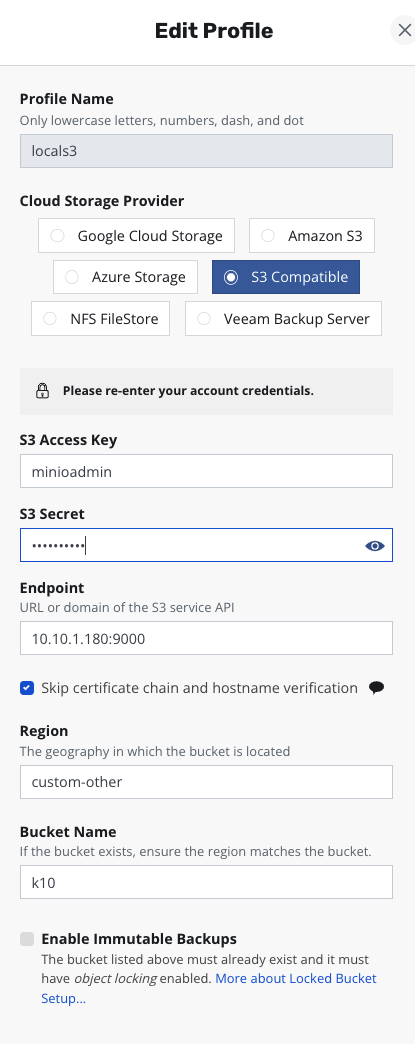
After logging into the K10 dashboard, I went to Settings and found Location Profile. First, I needed to add an S3 object storage as the primary backup storage - even though I have a VBR repository, this is still required. The configuration is very simple:
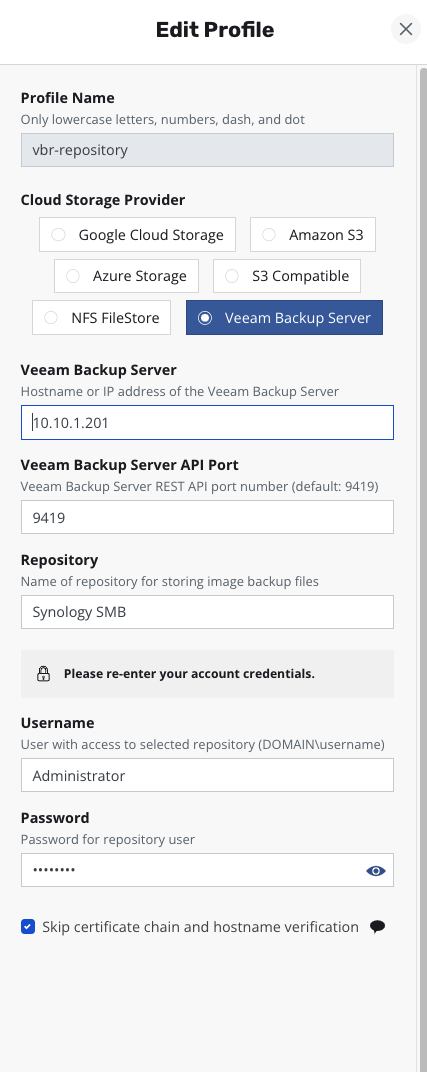
Next, I added a VBR Repository for VMDK data backup storage, which means PVC backups:
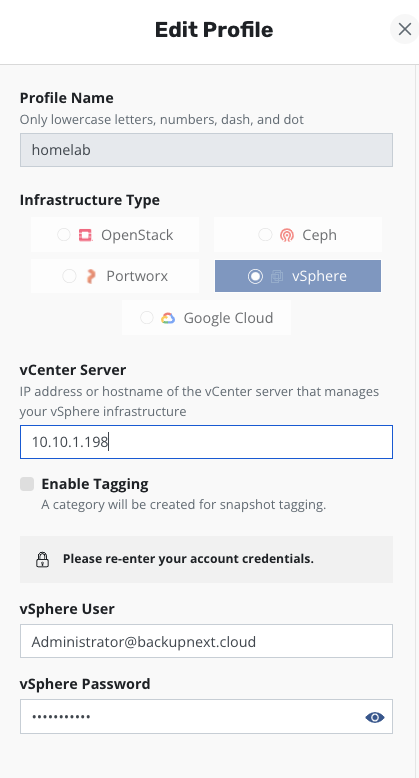
Under Location Profile, I found Infrastructure and used the New Profile button to add a vCenter connection. The configuration is very straightforward - just IP address, username, and password, the same as adding any device to vCenter.
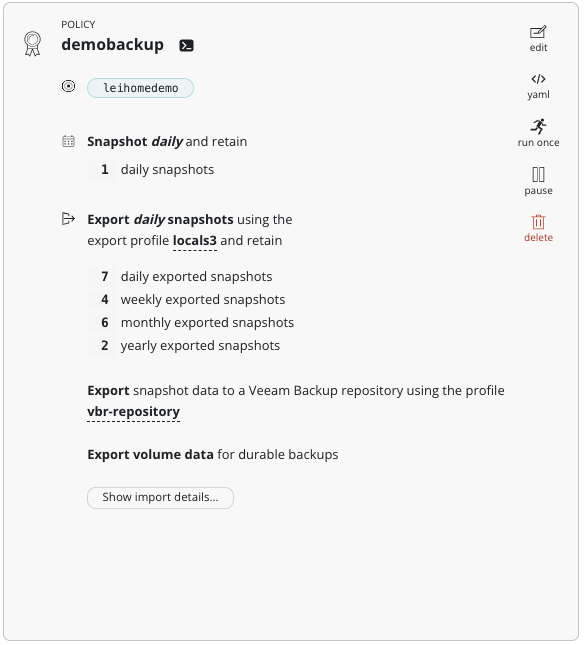
With that done, I could configure backup policies. The backup policies for Kubernetes platforms are slightly different. In Snapshot Retention, you can see that K10 automatically detected this is a VMware platform and provided VMware platform snapshot retention best practices, recommending no more than 3 snapshots. As shown below, I set Snapshot to 1. In Export Location Profile, I could select the Minio S3 object storage as the first-level backup export target - the VBR Location Profile wasn’t available here.
After checking Enable Backups via Snapshot Exports, a new option appeared: Export snapshot data to a Veeam Backup Server repository. After checking this option, I could select the Veeam Backup Location Profile.
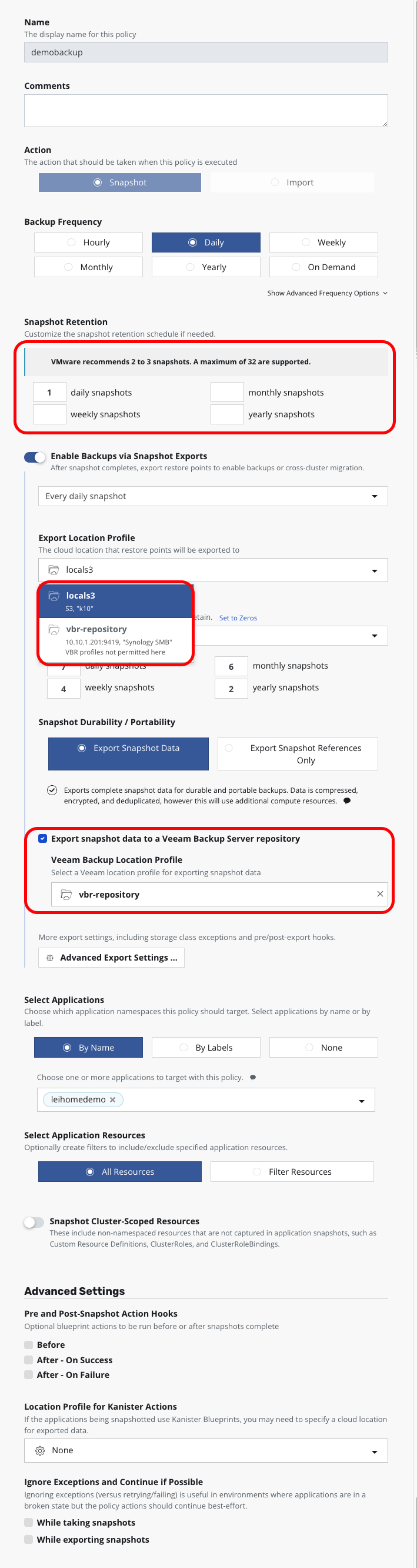
The other configurations were standard. Here’s the final policy:
When the backup runs automatically, you can see detailed backup action information from the Dashboard. The VBR export part is handled by Kanister:

In VBR, you can see the K10 Policy and K10 backup archives have appeared:
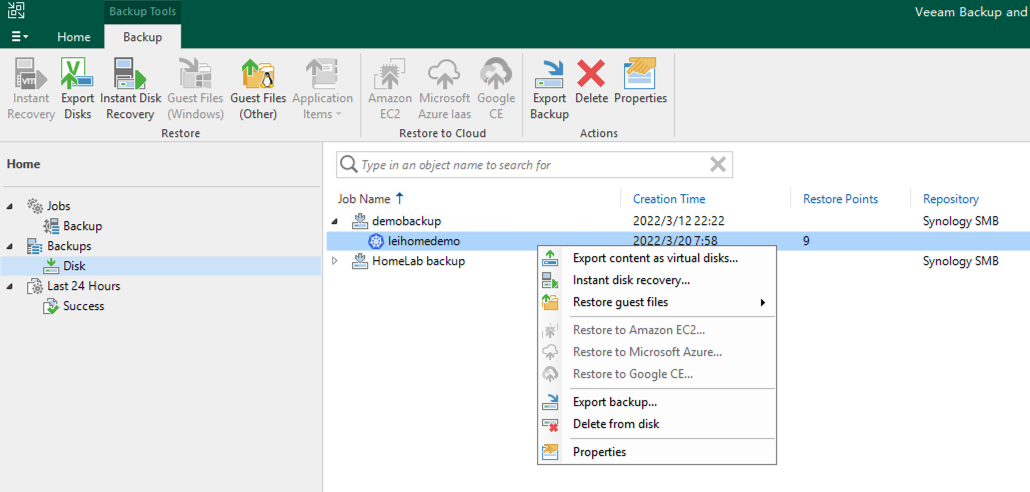
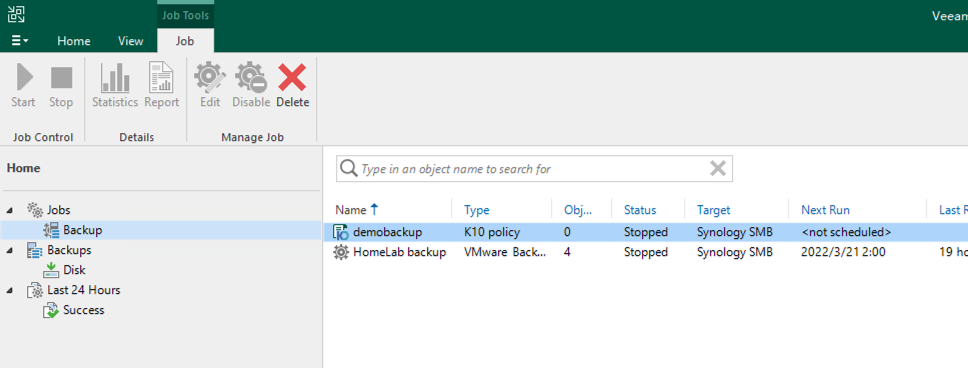
For more information about K10 operations in VBR, you can refer to the official Veeam documentation, which is now available on the website.
Resource Summary
At this point, the entire environment resource consumption looks like this:
| Virtual Machine | Purpose | CPU | Memory |
|---|---|---|---|
| vCenter | vCenter Server | 2vCPU | 12GB |
| TCEconsole | Tanzu Console | 2vCPU | 8GB |
| leihome-control-plane-2mz2v | TCE Management Cluster Control Node | 2vCPU | 4GB |
| leihome-md-0-6f69758844-zpfsj | TCE Management Cluster Worker Node | 2vCPU | 4GB |
| leihome-workload-01-control-plane-c4k4q | TCE Workload Cluster Control Node | 2vCPU | 4GB |
| leihome-workload-01-md-0-668d8747d6-4hd6z | TCE Workload Cluster Worker Node | 2vCPU | 8GB |
| leihome-workload-01-md-0-668d8747d6-hcs4k | TCE Workload Cluster Worker Node | 2vCPU | 8GB |
| VBR | Veeam Backup & Replication | 4vCPU | 8GB |
| Total | 18vCPU | 56GB |
This hasn’t exceeded my NUC11’s total memory - a single NUC11 handles this environment with ease!