First Class Disks (FCD) Explained
After Veeam released version 11, observant readers might have noticed this option when performing Instant Disk Recovery:
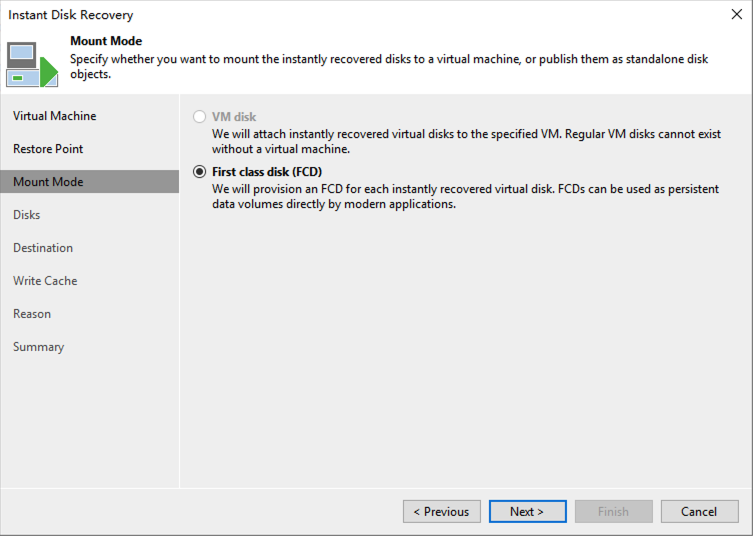
Starting with vSphere 6.5, VMware introduced a completely new disk format called “First Class Disks” (FCD). The name is certainly bold, and in fact, these virtual disks do have their own unique “privileges.” Today, I’d like to explain these FCDs in detail.
Background
Let me start with some background. In early vSphere versions, FCDs were originally called “Improved Virtual Disk” (IVD). So essentially, an FCD is just a VMware virtual disk: a VMDK. We know that in vSphere, each virtual machine has one or more virtual disks, and the daily management of these virtual disks is tightly coupled with their corresponding virtual machines.
Let’s draw a simple analogy between physical and virtual environments:
-
A physical server connects to multiple storage volumes on storage devices. If the storage device has snapshot functionality, it can perform snapshot operations on individual volumes.
-
A VMware virtual machine has multiple VMDKs, but snapshots can only be performed on the entire virtual machine, not on individual VMDKs.
FCDs were born in this context. FCD management is completely independent of the VM lifecycle—the VMDK becomes a separate storage object managed independently of any virtual machine. We can perform create, delete, snapshot, backup, restore, and other disk lifecycle management operations directly on the disk without worrying about its attachment status.
After FCDs emerged, they found use in many scenarios, such as VDI, OpenStack Cinder, and others. Today, I’ll discuss an important scenario I’ve been using in my Homelab recently: vSphere Cloud Native Storage (CNS) providing persistent storage for Kubernetes environments.
Kubernetes Using vSphere FCD
FCDs are stored in the fcd directory under each Datastore, as shown here:
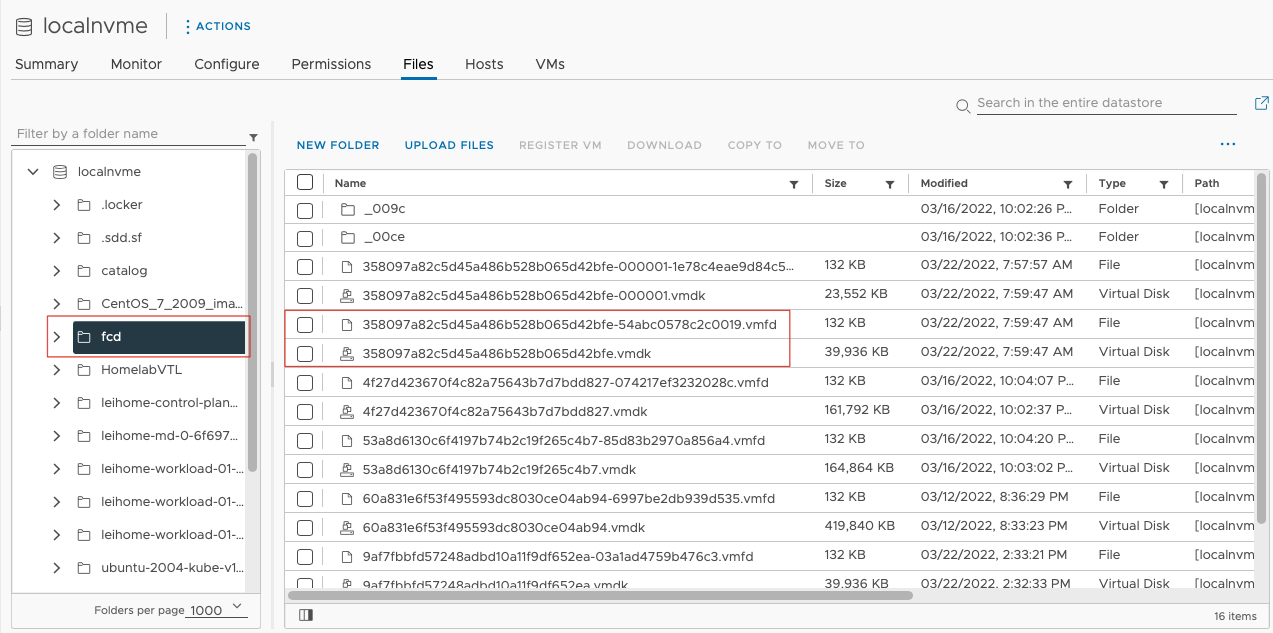
Each FCD consists of a VMDK file and a VMFD file, meaning it has one additional VMFD file compared to regular VMDKs.
FCDs are not visible in the vSphere Client. In fact, all FCD management operations are performed through APIs. A convenient entry point is management through vSphere Mob:
https://
In this Mob manager, you can perform various operations on FCDs such as create, mount, clone, snapshot management, and delete.
However, the Mob manager isn’t quite sufficient for all operations. PowerCLI can provide additional capabilities, such as querying all registered FCD disks in the current vCenter using PowerCLI.
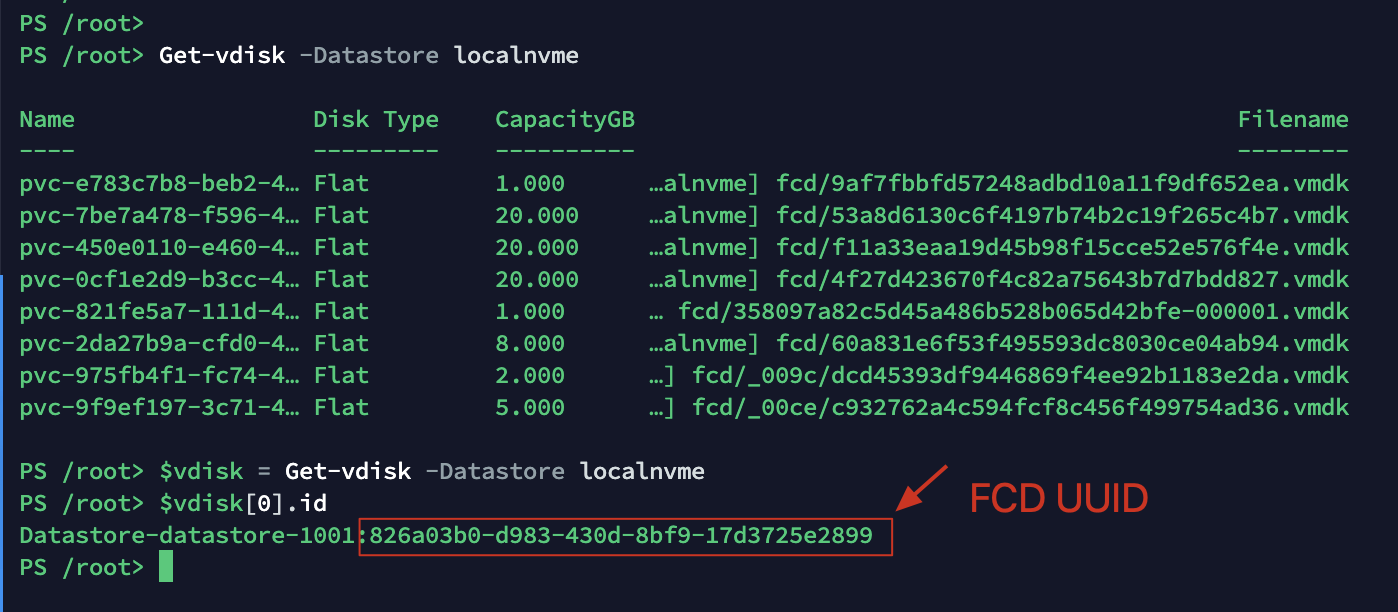
Each FCD has a unique identifier UUID for recognition. This UUID is stored in vCenter’s catalog, so whether using vSphere Mob or PowerCLI, you need this ID to operate on these FCDs.
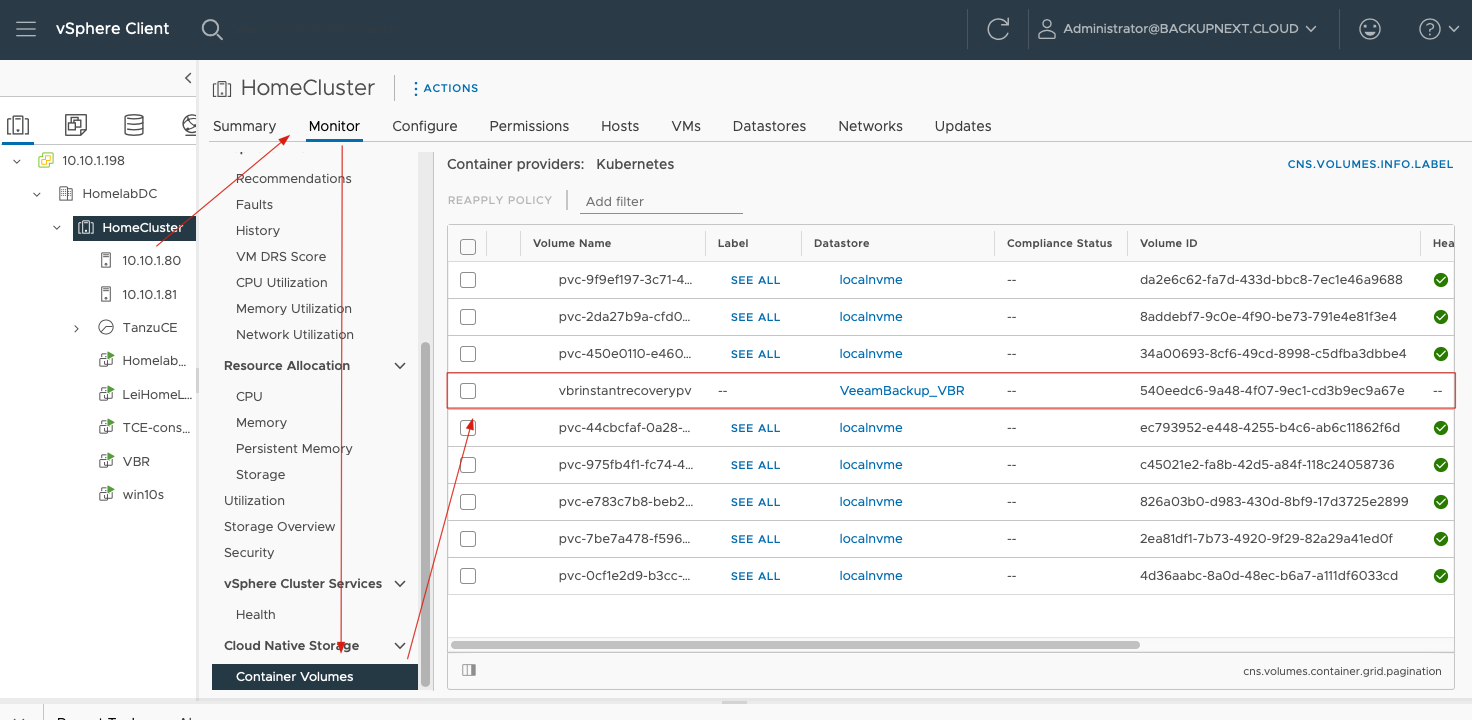
When these FCDs are associated with PVCs in Kubernetes, you can see them in vSphere Client under each Datastore’s Monitor → Cloud Native Storage → Container Volumes.
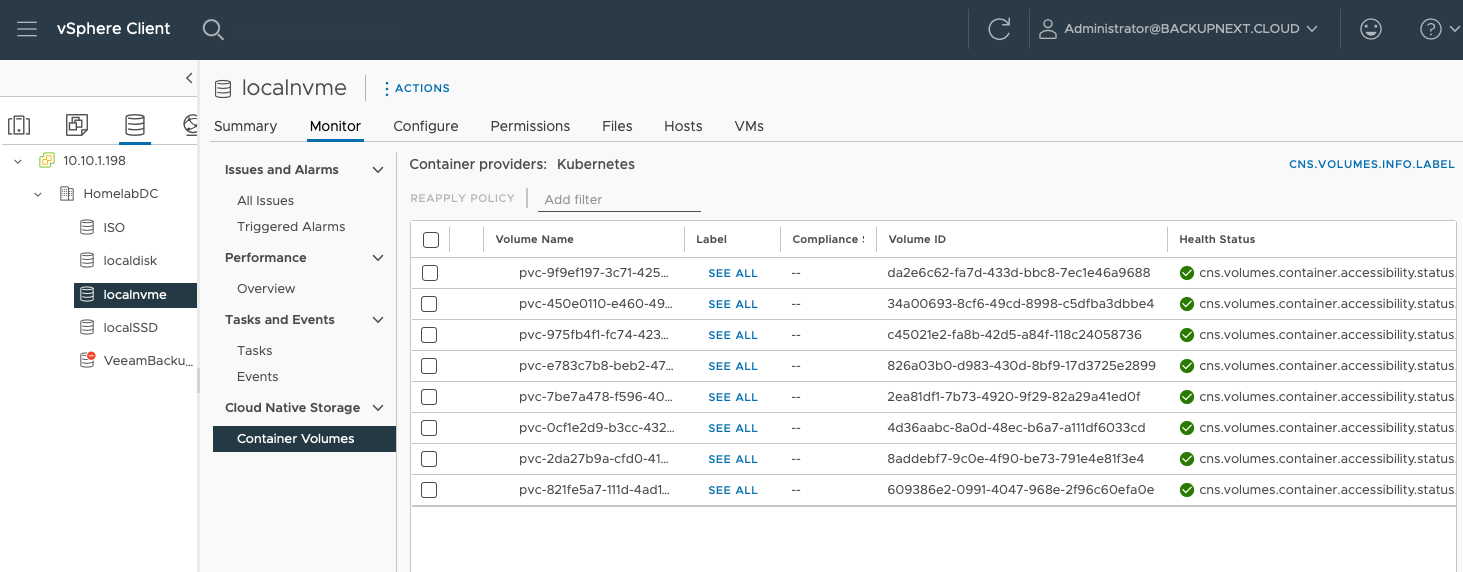
Here, Volume Name corresponds to the PVC Name in Kubernetes, while Volume ID is the FCD’s UUID in vSphere.
When vSphere provides PVC storage for Kubernetes Worker Nodes, these FCDs are actually attached to each Worker Node’s virtual machine. For example, this Worker Node of mine:
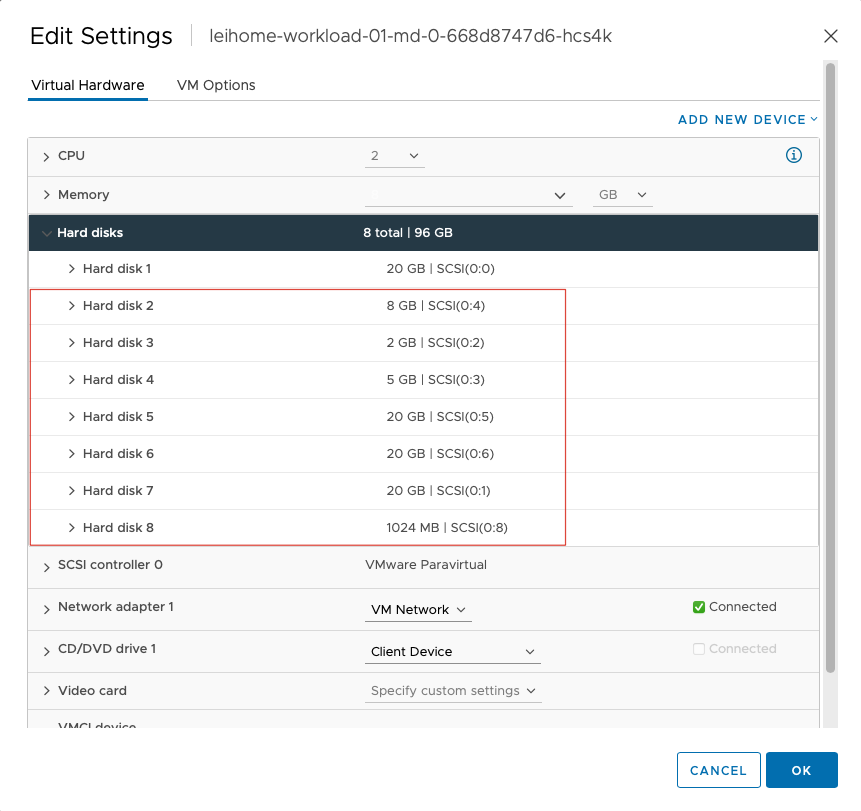
This makes it easy to understand how applications in Kubernetes write data to their persistent PVCs. During operation, these Worker Node virtual machines are actually writing data to these VMDKs.
K10 Backups
When K10 uses vSphere Integration to back up applications on Kubernetes, K10 no longer needs VolumeSnapshot CRDs to complete PVC volume snapshots. Instead, it uses vSphere FCD Snapshots. As we mentioned at the beginning of this article, FCD lifecycle management is completely independent of virtual machines. When we initiate a backup task, K10 doesn’t need to snapshot the entire Worker Node; instead, it snapshots individual FCDs, achieving PVC snapshots on the Kubernetes platform.
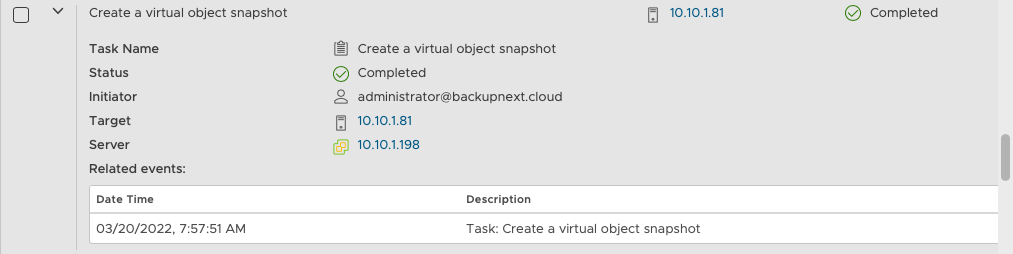
FCD snapshots have exactly the same structure as regular VMDK snapshots, consisting of parent and child disks in a delta disk mode. The file composition and filename structure are also identical. Therefore, the issues that have plagued VMDKs for years still exist with FCDs, but isn’t that also an advantage?
For this reason, during K10 backups, we recommend keeping no more than 3 snapshots. For performance and capacity considerations, I suggest 1 snapshot is sufficient—move other data to the Repository.
Some of the data backed up by K10 can be exported to VBR. This data is essentially the FCD snapshot images. After VBR receives this data, it can use its powerful recovery capabilities to restore FCDs.
In fact, in VBR, VBR can convert any data volume into FCDs on VMware using the VBR Instant Disk Recovery feature.
Instant PVC Recovery Experiment
In my Lab, I conducted a small experiment using VBR’s Instant Disk Recovery for PVC recovery, trying to combine these powerful technologies to create some sparks.
Scenario
In my Tanzu cluster, I have an app called leihomedemo3. This app is very simple—it’s just an Alpine Linux container. Currently, this Alpine doesn’t have any data volumes mounted. I want to use instant FCD recovery technology to restore a previously backed up FCD and mount it to this Alpine Linux’s /data directory.
Steps
-
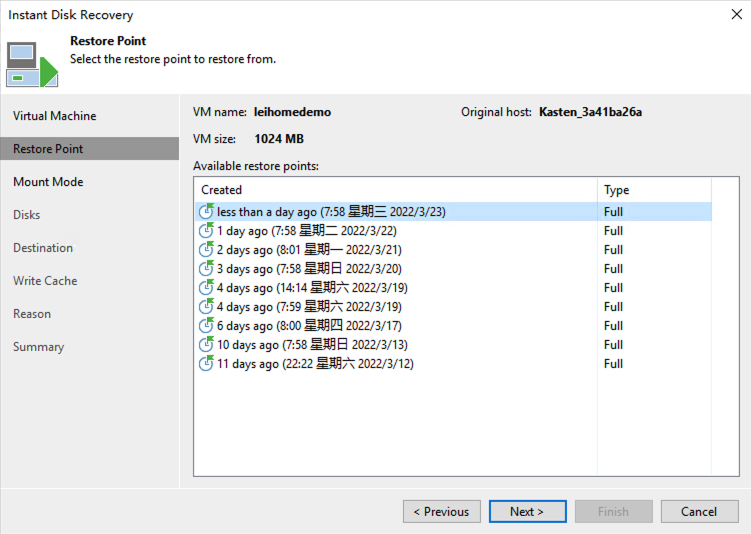
In VBR, find the K10 backup archive, use the Instant Disk Recovery button to open the recovery wizard, and select the latest restore point.

-
In Mount Mode, select First class disk (FCD).
-
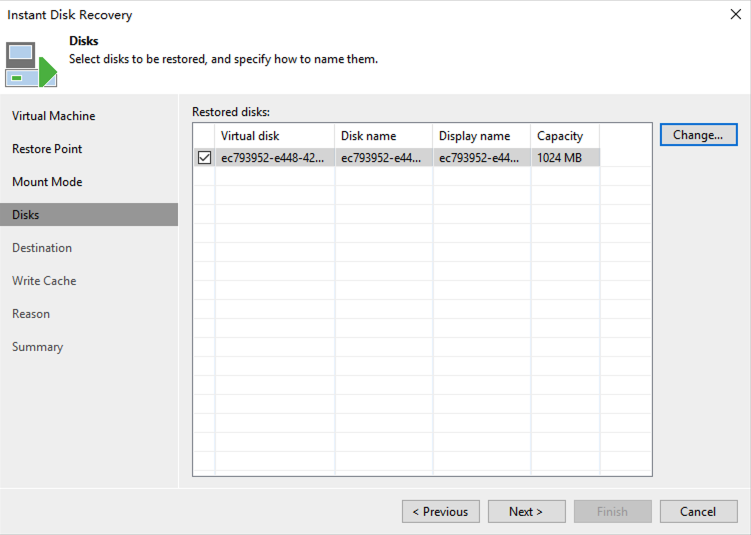
In Disks, you can see some information about the disk to be recovered. I’ll keep the defaults here without any modifications.
-
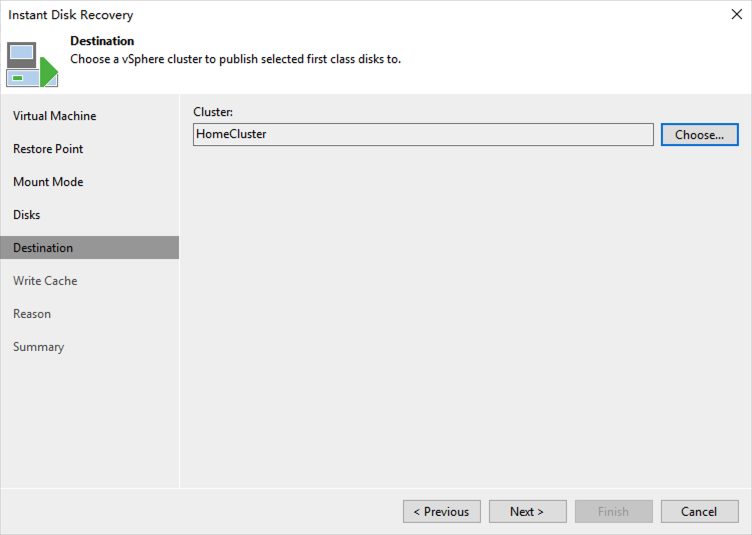
In Destination, select the Tanzu Cluster running in my environment.
-
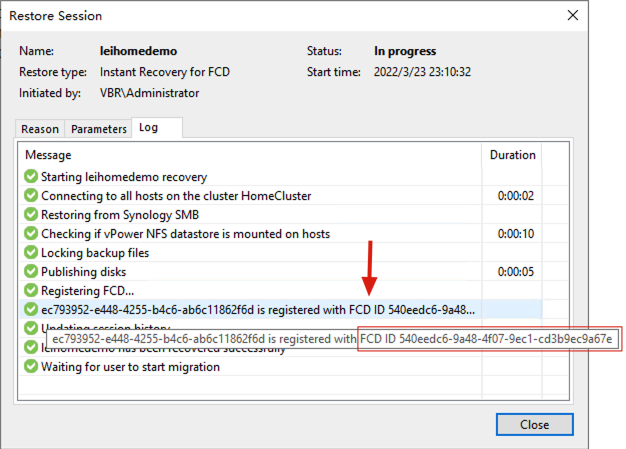
After Write Cache, I don’t modify any subsequent steps until reaching Finish, which starts the instant disk recovery. After about tens of seconds, this FCD is successfully mounted. In the instant recovery session, you can see this disk is registered as an FCD with ID
540eedc6-9a48-4f07-9ec1-cd3b9ec9a67e. -
With this FCD ID, I come to the Tanzu cluster and bind this FCD as a PVC using the following YAML file:
kind: StorageClass
apiVersion: storage.k8s.io/v1
metadata:
  name: vbrinstant
  annotations:
    storageclass.kubernetes.io/is-default-class: "false"
provisioner: csi.vsphere.vmware.com
parameters:
  datastoreurl: ds:///vmfs/volumes/ae2b924e-83e53e07/
---
apiVersion: v1
kind: PersistentVolume
metadata:
  name: vbrinstantrecoverypv
  annotations:
    pv.kubernetes.io/provisioned-by: csi.vsphere.vmware.com
spec:
  storageClassName: vbrinstant
  capacity:
    storage: 1Gi
  accessModes:
    - ReadWriteOnce
  persistentVolumeReclaimPolicy: Delete
  csi:
    driver: "csi.vsphere.vmware.com"
    volumeAttributes:
      type: "vSphere CNS Block Volume"
    volumeHandle: "540eedc6-9a48-4f07-9ec1-cd3b9ec9a67e"
---
kind: PersistentVolumeClaim
apiVersion: v1
metadata:
  name: vbrinstantrecoverypvc
  namespace: leihomedemo3
spec:
  accessModes:
    - ReadWriteOnce
  resources:
    requests:
      storage: 1Gi
  storageClassName: vbrinstant
Execute the command on the Tanzu console:
k10@tceconsole:~/demo$ kubectl apply -f vbrdemopvc.yaml
storageclass.storage.k8s.io/vbrinstant unchanged
persistentvolume/vbrinstantrecoverypv created
persistentvolumeclaim/vbrinstantrecoverypvc created
k10@tceconsole:~/demo$ kubectl get pvc -n leihomedemo3
NAME                    STATUS   VOLUME                 CAPACITY   ACCESS MODES   STORAGECLASS   AGE
vbrinstantrecoverypvc   Bound    vbrinstantrecoverypv   1Gi        RWO            vbrinstant     28s
The binding is successful, and the FCD is officially converted into a Container Volume. At this point, you can also see the bound PV volume in vSphere Client.
-
Modify the deployment to add the mount volume. After modification, the deployment restarts, and within a few seconds, the restart is complete. At this point, you can see the data inside the pod.
k10@tceconsole:~/demo$ kubectl edit deploy -n leihomedemo3 demo-app ## Add mount volume in container section containers: - name: demo-container volumeMounts: - name: data mountPath: /data ## Add PVC volume name in template spec spec: volumes: - name: data persistentVolumeClaim: claimName: vbrinstantrecoverypvc deployment.apps/demo-app edited k10@tceconsole:~/demo$ kubectl exec --namespace=leihomedemo3 demo-app-7758b547ff-gf4n8 -- ls -l /data/ total 24 -rw-rw-r-- 1 1000 117 811 Mar 15 05:49 depoly-pvc.yaml drwx------ 2 root root 16384 Mar 12 14:01 lost+found -rw-rw-r-- 1 1000 117 13 Mar 12 14:33 mytest -
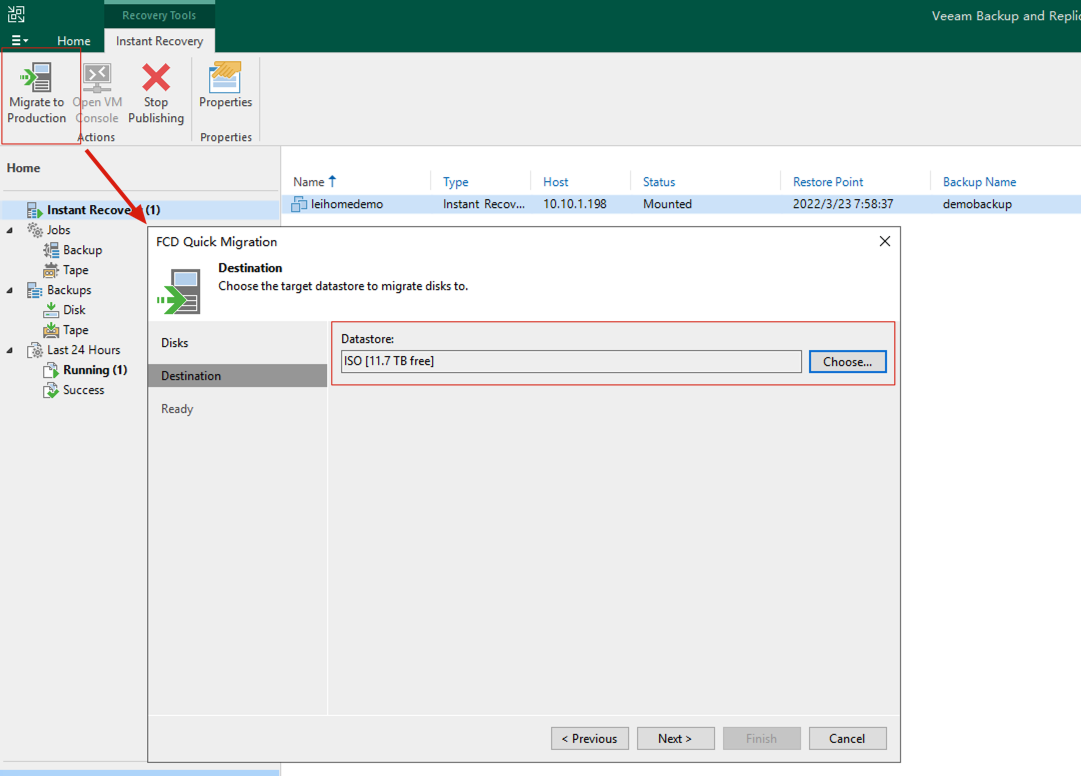
In VBR, you can still use the traditional method, Migration to Production, to migrate the PVC from VBR’s cache to the production system’s Datastore.
-
Throughout the entire migration process, the system experienced no interruption. After migration completion, no modifications are needed in Tanzu—the system continues to function normally. The only minor issue is that when querying the PVC through
kubectl get pvc -n leihomedemo3, you’ll see it’s still located on the VBR-mounted StorageClass. The fix isn’t complicated, and not fixing it doesn’t affect usage:k10@tceconsole:~/demo$ kubectl delete -n leihomedemo3 pvc vbrinstantrecoverypvc persistentvolumeclaim "vbrinstantrecoverypvc" deleted ## The system will get stuck at this step, just end the command with ctrl+c, then run the following command to force removal k10@tceconsole:~/demo$ kubectl patch pvc -n leihomedemo3 vbrinstantrecoverypvc -p '{"metadata":{"finalizers":null}}' ## In the binding YAML used in step 6, change storageClassName: vbrinstant in the PV and PVC sections to storageClassName:isonfs, then reapply this YAML. k10@tceconsole:~/demo$ kubectl apply -f vbrdemopvc.yaml storageclass.storage.k8s.io/vbrinstant unchanged persistentvolume/vbrinstantrecoverypv configured persistentvolumeclaim/vbrinstantrecoverypvc created
That concludes my sharing about FCD, these entirely new First Class Disks. Welcome to follow my updates for more content.