vCenter Converter Retired – How to Handle P2V Now
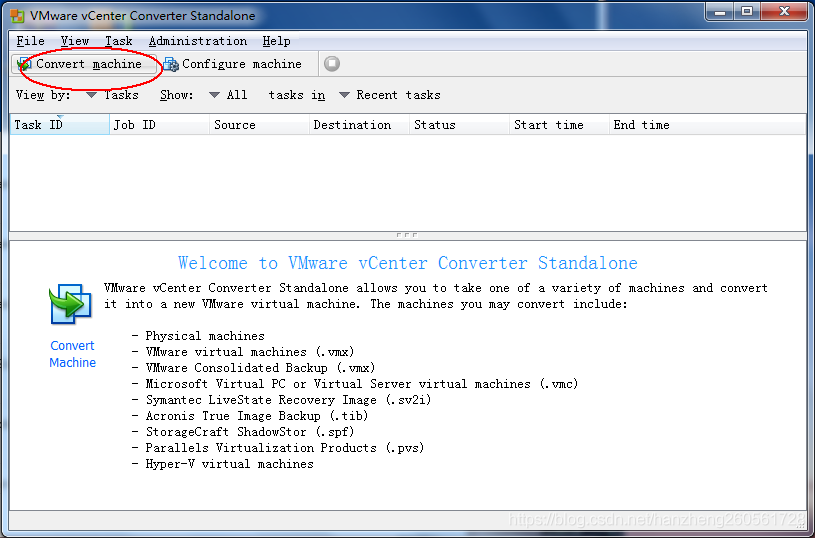
Earlier this month VMware announced that they’re removing vCenter Converter from their product download list. That means we’ll no longer be able to download this product from VMware’s official website. VMware’s official stance is that vCenter Converter hasn’t been updated for years, has some security vulnerabilities, and isn’t very stable. In my view, VMware has taken down their most powerful weapon.
What Could This Tool Do?
Many readers may never have encountered this tool, but for VMware administrators, it was essentially their best partner. The installation rate of this tool was incredibly high - among VMware’s entire product lineup, it was second only to vCenter. In most environments, administrators would install vCenter Converter immediately after installing vCenter.
This tool was an important contributor to VMware’s early success. As far back as the VI3.0 era, it was widely used by administrators. At that time, its basic functionality was simple, and its goal was very clear: help administrators convert physical machines into VMware virtual machines. This was a huge help for administrators - automatically completing physical-to-virtual conversion, turning workloads into VMs running on the VMware platform.
Early Converter tools were limited to Windows conversions, but later versions became increasingly powerful, supporting both Windows and Linux systems, and even supporting conversions from other virtualization platforms to VMware vSphere VMs.
How It Worked
vCenter Converter typically had two implementation methods: hot migration and cold migration. Hot migration has relatively higher system requirements. If everything goes smoothly, the entire process involves minimal business interruption, but data consistency isn’t very high because business operations continue running. Cold migration has lower system requirements and broad applicability, and because the system is shut down during the process, data is completely consistent before and after migration.
Both of these migration and conversion methods involve relatively long conversion times, which basically depend on the source system’s disk capacity.
Alternative Solution
Let me introduce Veeam’s amazing capability: Instant Recovery!
This technology has continuously evolved since v10 and has been completely transformed in the current v11 version. Originally this was just an instant mount and quick recovery feature, but Veeam users with unlimited imagination and creativity proposed the concept of instantly recovering physical machine backup archives on virtualization platforms. Veeam’s R&D team turned this concept into a concrete feature and further extended and expanded it:
- Instantly recover backup archives of Hyper-V VMs to VMware vSphere
- Instantly recover backup archives of Veeam Agent for Microsoft Windows or Linux to VMware vSphere
- Instantly recover backup archives of Nutanix AHV VMs to VMware vSphere
- Instantly recover backup archives of Amazon EC2 VMs to VMware vSphere
- Instantly recover backup archives of Microsoft Azure VMs to VMware vSphere
- Instantly recover backup archives of Google Compute Engine VMs to VMware vSphere
- Instantly recover backup archives of RHV VMs to VMware vSphere
Therefore, any migration only needs to be backed up through Veeam, then Instant Recovery, and finally Migration of the recovered VM to the target virtualization system.
Technical Tips and Operational Recommendations
Finally, let me highlight the key points. The functionality is very powerful, but you must pay attention to the following issues when using it:
-
Hot migration data deviation issues: It’s highly recommended to perform a final incremental backup before doing Instant Recovery, and ensure this incremental backup completes within minutes. If the incremental backup takes a long time, you can immediately perform another incremental backup after this one completes. After the final incremental backup completes, immediately shut down the source machine, then use this latest incremental restore point for the next step of instant recovery. This approach can achieve migration completion with less than 10 minutes of downtime.
-
When doing Instant Recovery, the success rate for Windows systems is almost 100%, but for Linux systems, there might be various issues. It’s recommended to check the Linux system before backing up to ensure
dracutandmkinitrdare correctly installed - this can greatly improve recovery success rates. -
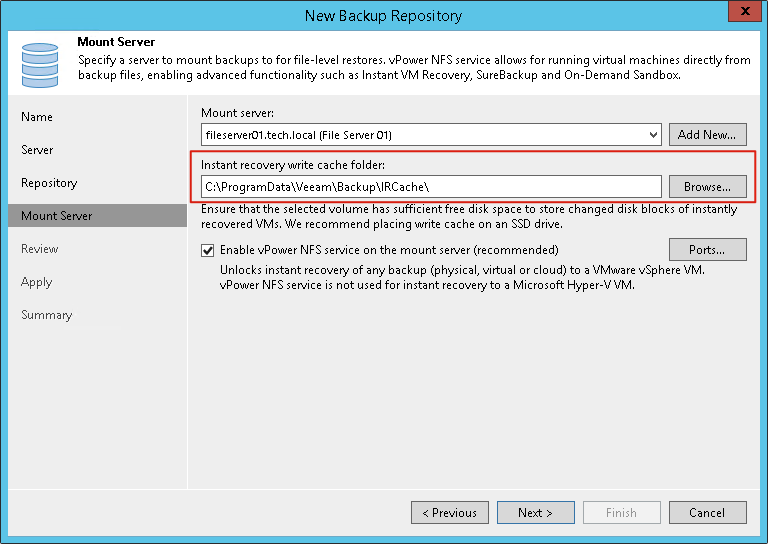
Pay attention to IRcache directory space: In recent years, many physical machines have particularly large memory capacities, such as servers configured with 256GB/512GB RAM, which is quite common. For Instant Recovery of these machines, the IRcache capacity must be reserved to be larger than the memory.
- Migration methods can use Storage vMotion or Veeam Quick Migration. Each has its pros and cons - you can refer to my previous posts for specifics.
That’s all for today’s content. I hope VMware’s vCenter Converter retirement won’t cause too much trouble for everyone’s daily work.