Kasten K10 Getting Started Series 03 - K10 Backup and Restore
Kasten K10 Getting Started Series Table of Contents
Kasten K10 Getting Started Series 01 - Quickly Build K8S Single-Node Test Environment
Kasten K10 Getting Started Series 02 - K10 Installation
Main Content
Previously I introduced the installation of K10. The entire installation process is actually just one helm install command. After installation is complete, subsequent operations can be performed by opening K10’s dashboard in a browser to configure the K10 backup system, manage K10 backup policies, and perform data recovery.
Like all backup systems, before starting backup operations, you need to configure a data storage location for K10 to store backup data. Currently, K10 supports storing data in object storage and has not yet added VBR Repository support. In K10’s Settings, you can find the Locations setting, which is K10’s backup repository. In this Locations section, you can use the New Profiles button as shown in the figure.
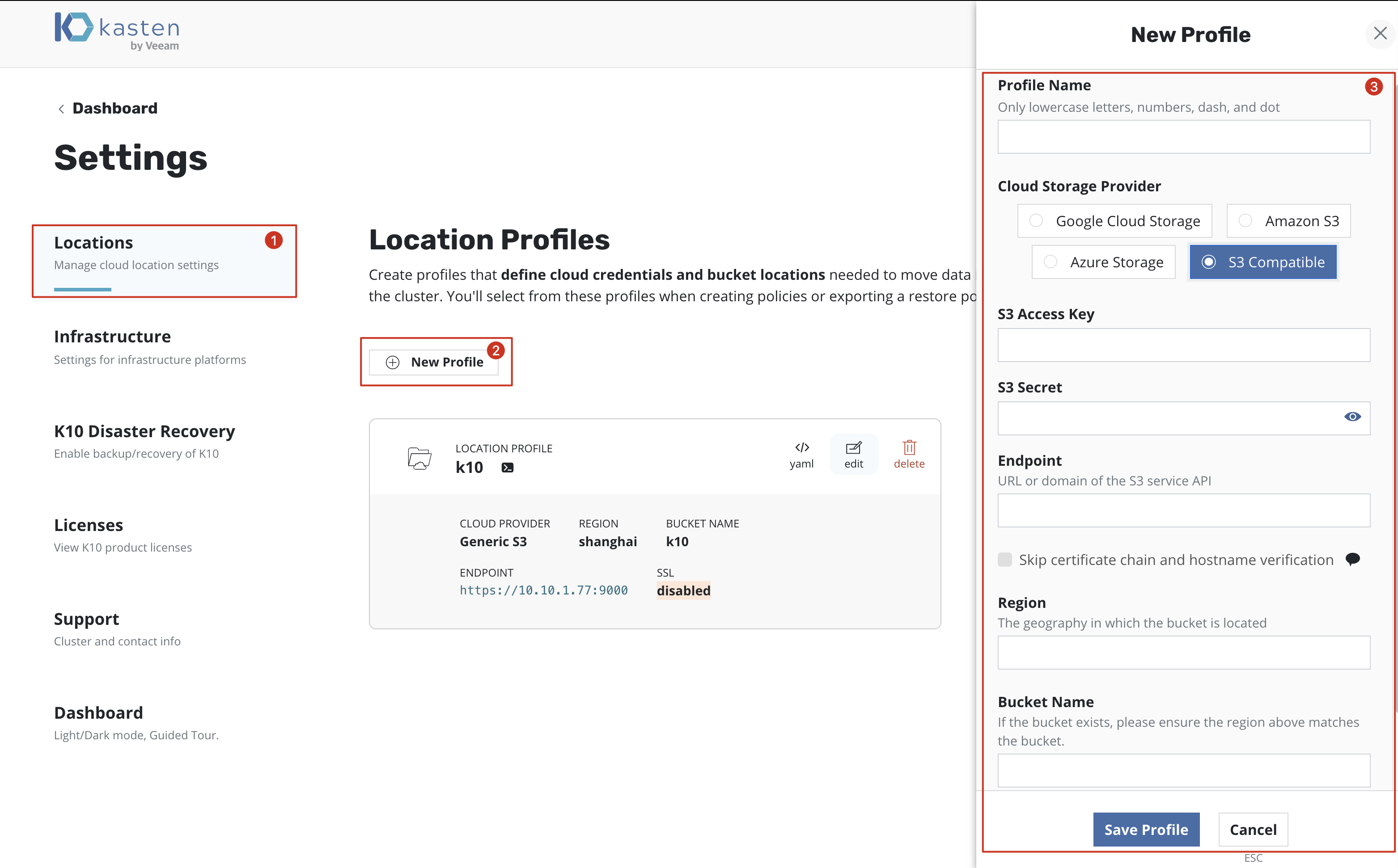
When creating a new one, you need to provide the S3 access address, access key, and secret key to complete the Locations Profile configuration. After configuration is complete, subsequent backup policy settings can direct backup data to be Exported to this backup repository.
In K10, you don’t need to add backup objects. K10 can automatically discover all Applications in the Kubernetes Cluster where the current K10 instance is running. This is very different from previous backup software.
In addition to setting up Locations for initial configuration, you also need to enable K10 Disaster Recovery. Only after enabling this operation can K10 recover our previously backed up data when any failure occurs in the current Kubernetes Cluster. This Disaster Recovery stores K10’s backup catalog database in the current cluster to object storage. When any problems occur with the cluster, you can recover the backed up catalog in a new cluster and extract data for recovery.
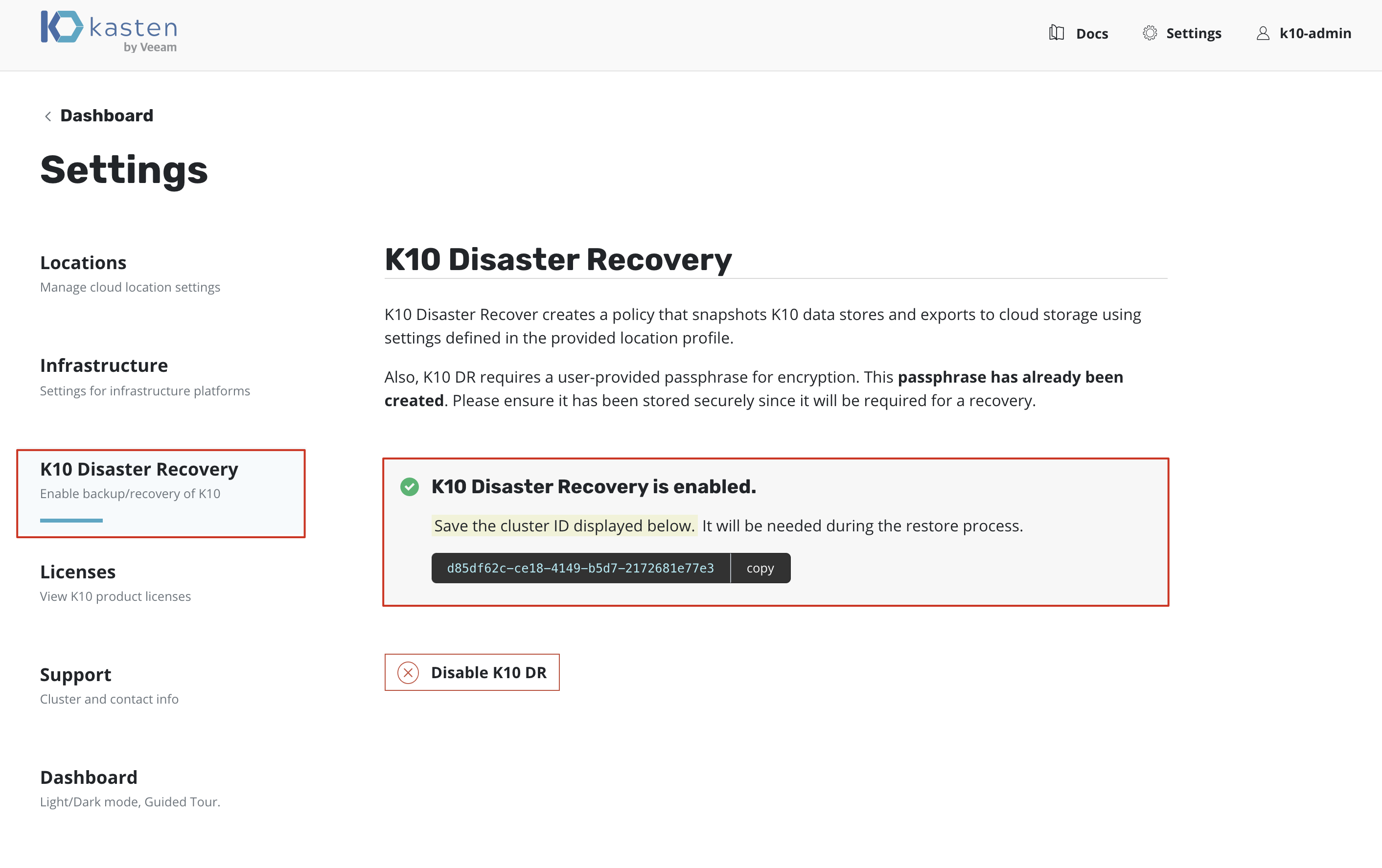
When configuring K10 DR, administrators need to record the Cluster ID displayed on the screen after enabling K10 DR and keep it safe for subsequent K10 catalog recovery. Additionally, when enabling K10 DR, the system will prompt you to enter a “passphrase” which is used to create dr-secret during recovery. Therefore, this passphrase also needs to be kept safe along with the Cluster ID.

Backup
All K10 backups are initiated through Policy. In the center of the dashboard is Policy-related content, including displaying the current total number of Policies and creating new Policies.
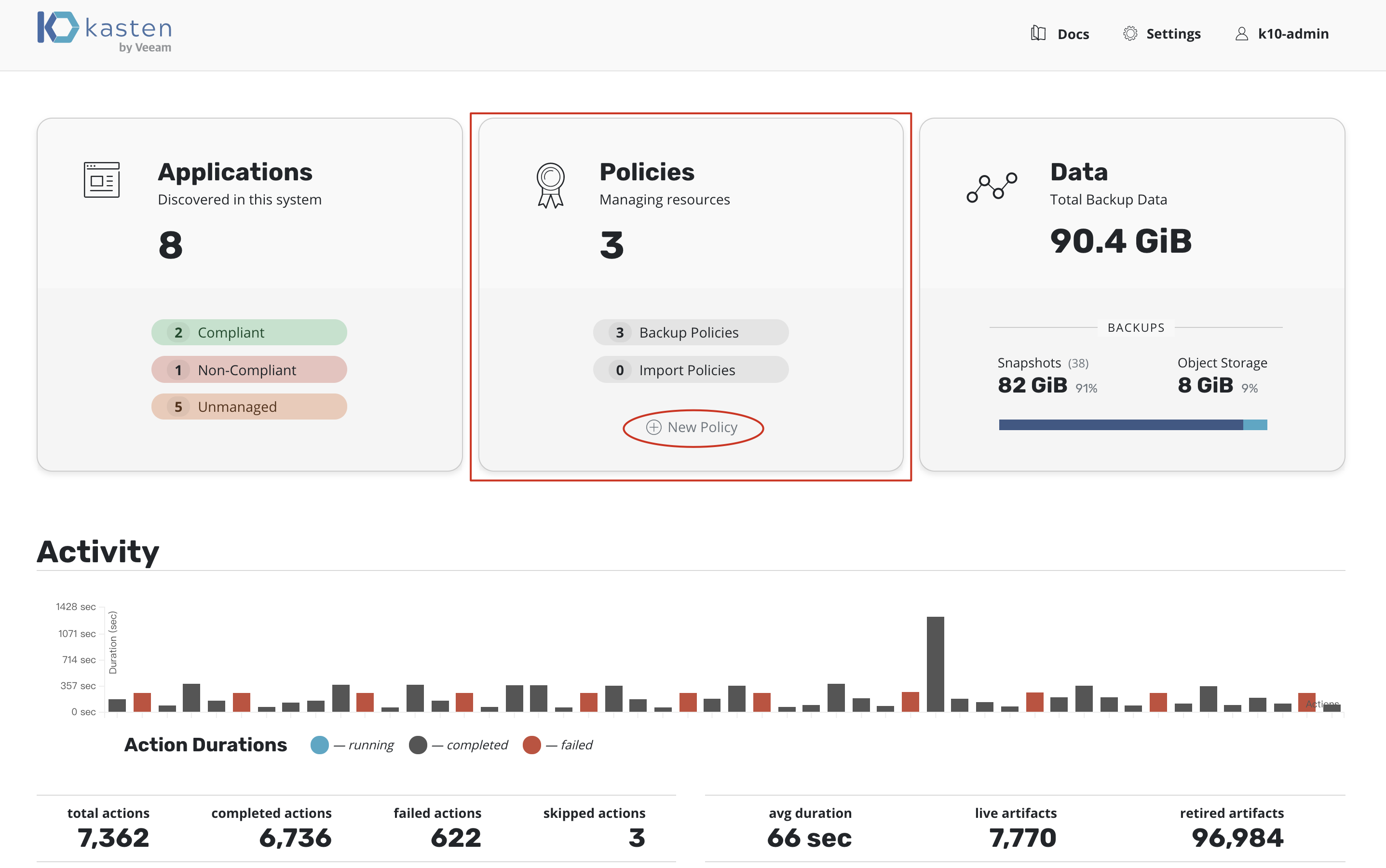
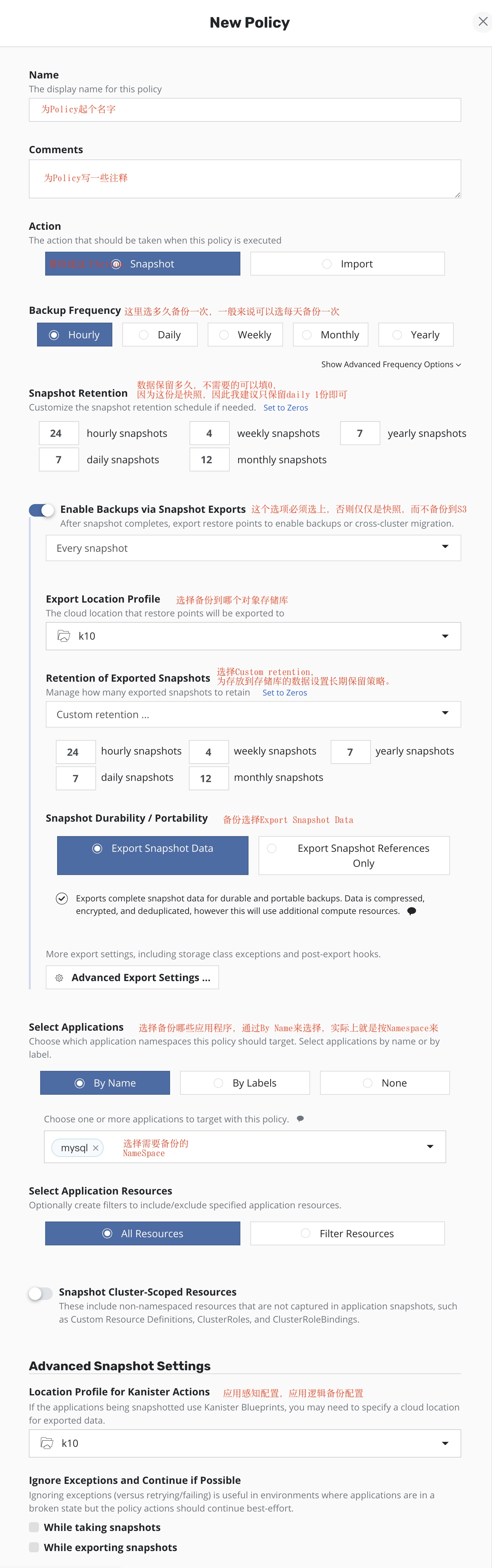
To protect an Application, administrators need to open the Policy configuration page through new policy. As shown in the figure below, you need to fill in some relevant information on this configuration page to complete the creation of the backup policy.
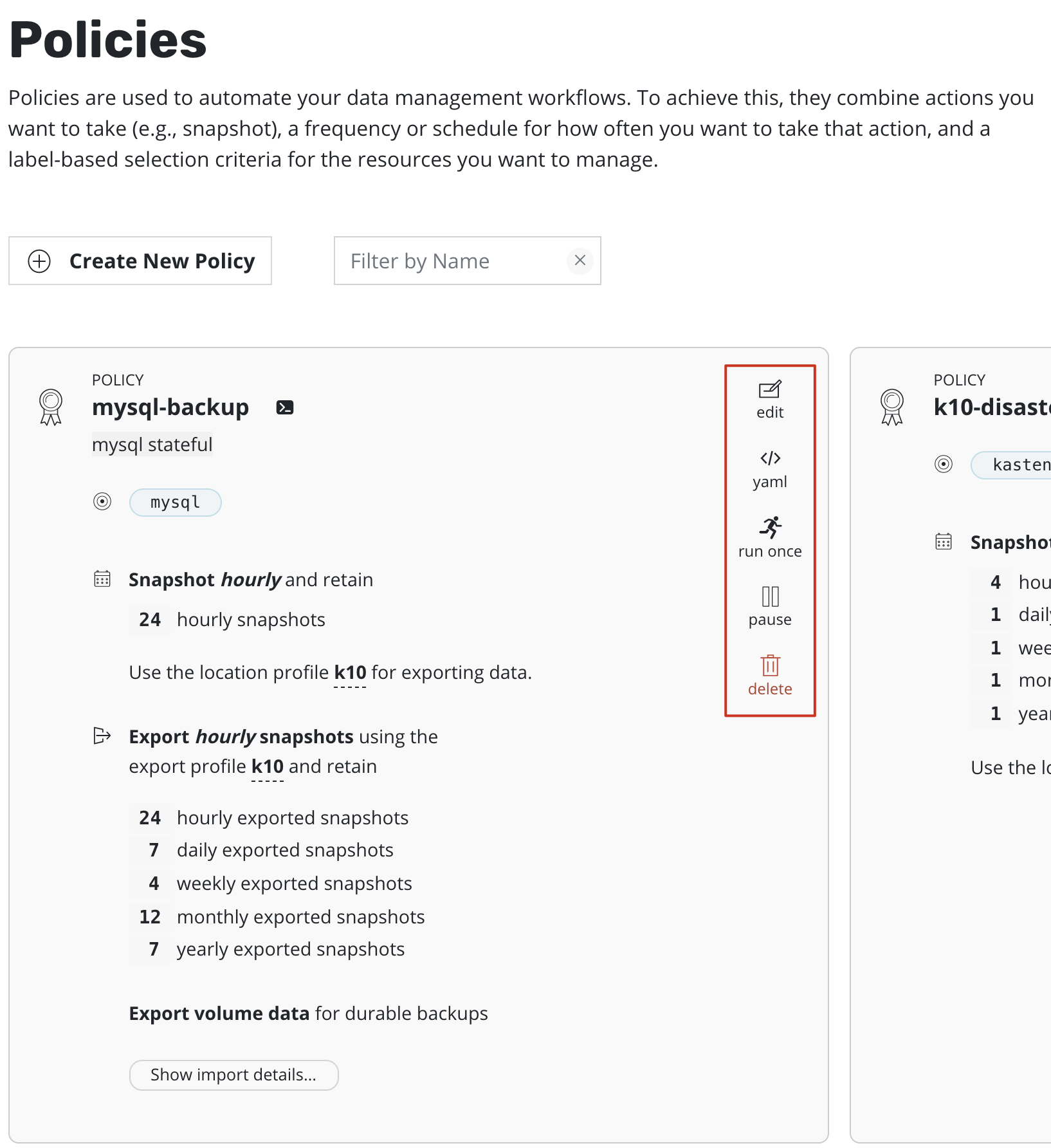
After creation is complete, you can view this Policy in Policies, and you can use run once to initiate and run a single backup job. Under normal circumstances, Policy will automatically run at the set time according to the scheduled task settings.
Restore
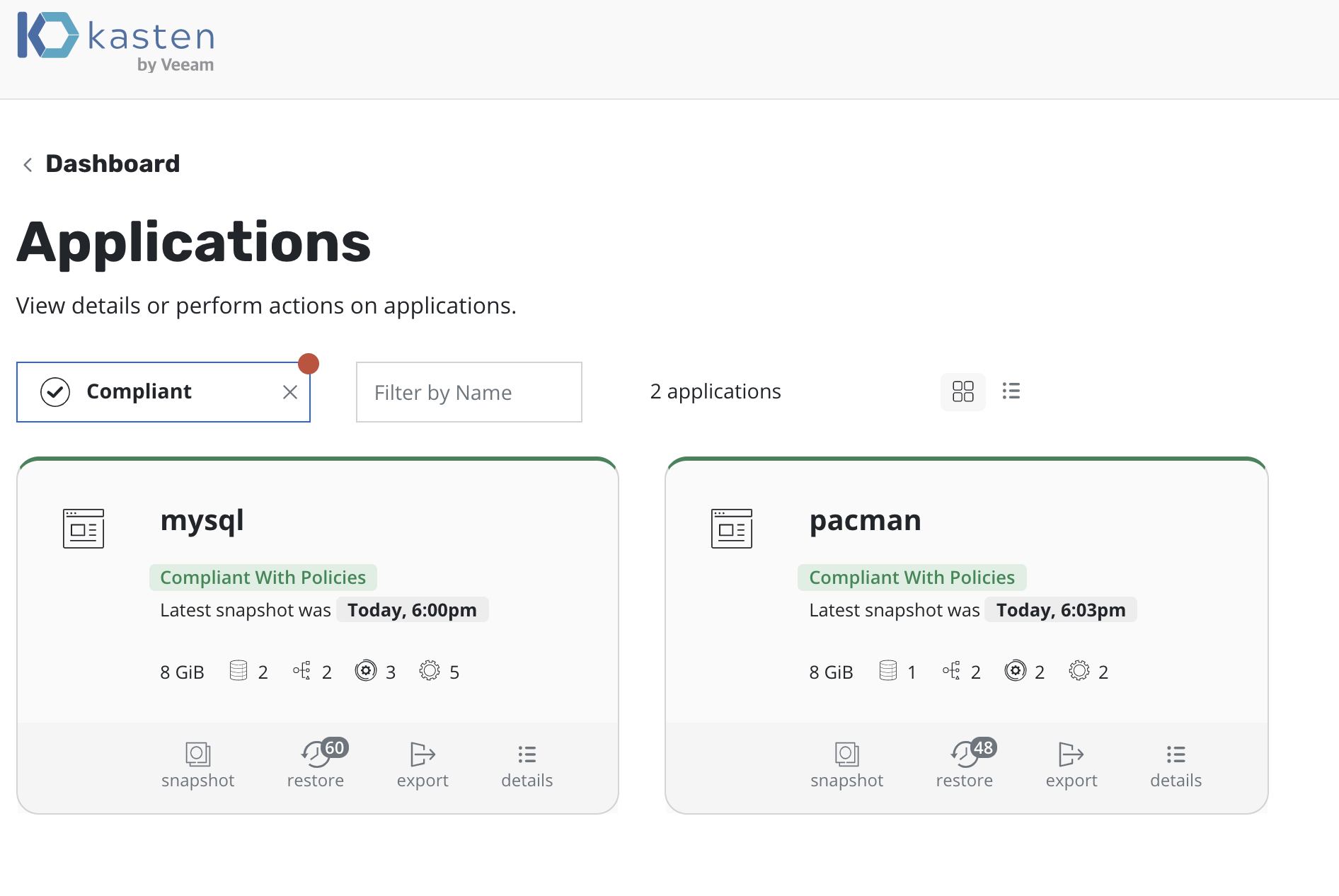
After data backup is complete, you can see that the application status has become Compliant in Applications
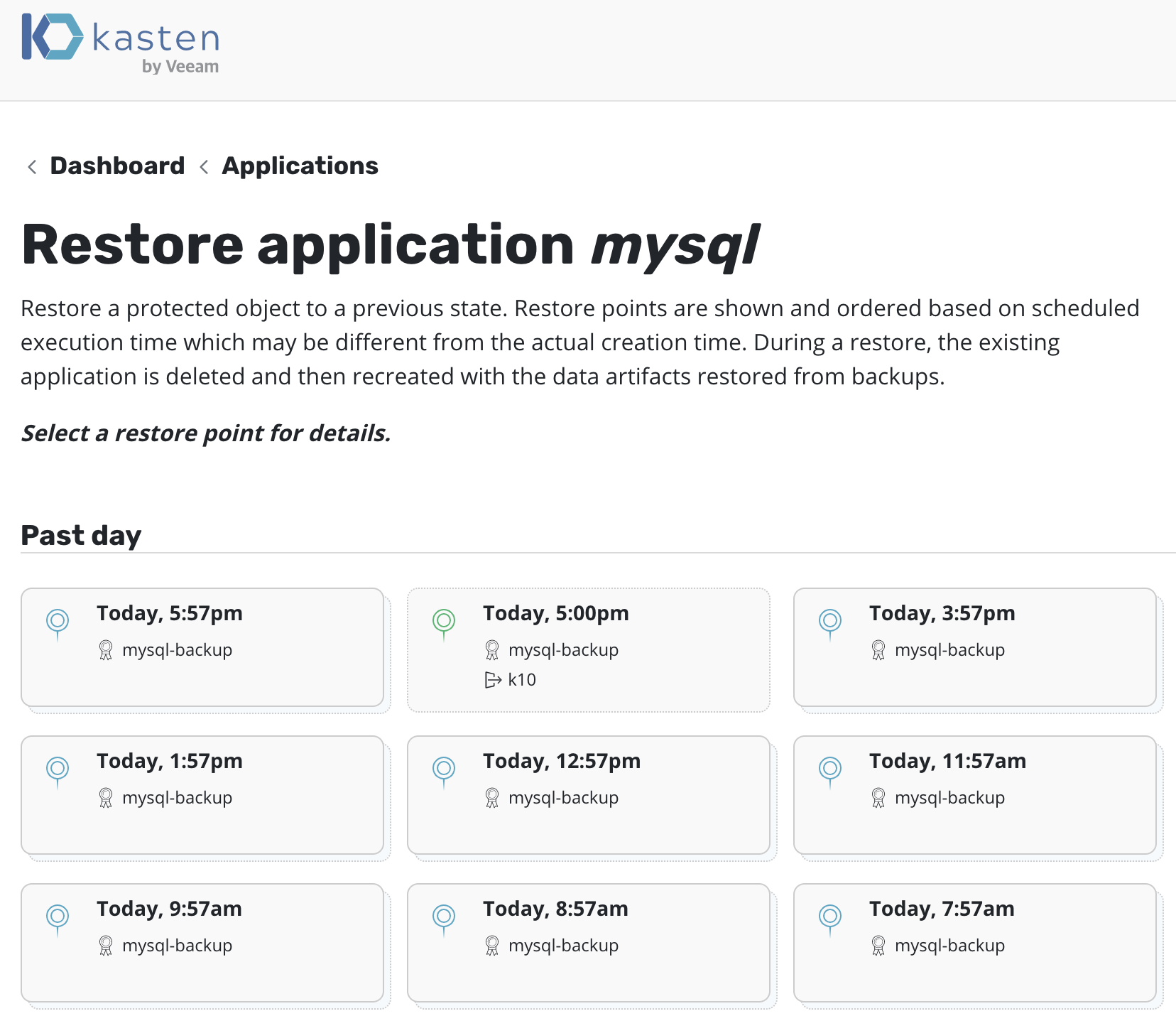
And you can see different restore points in Restore Points.
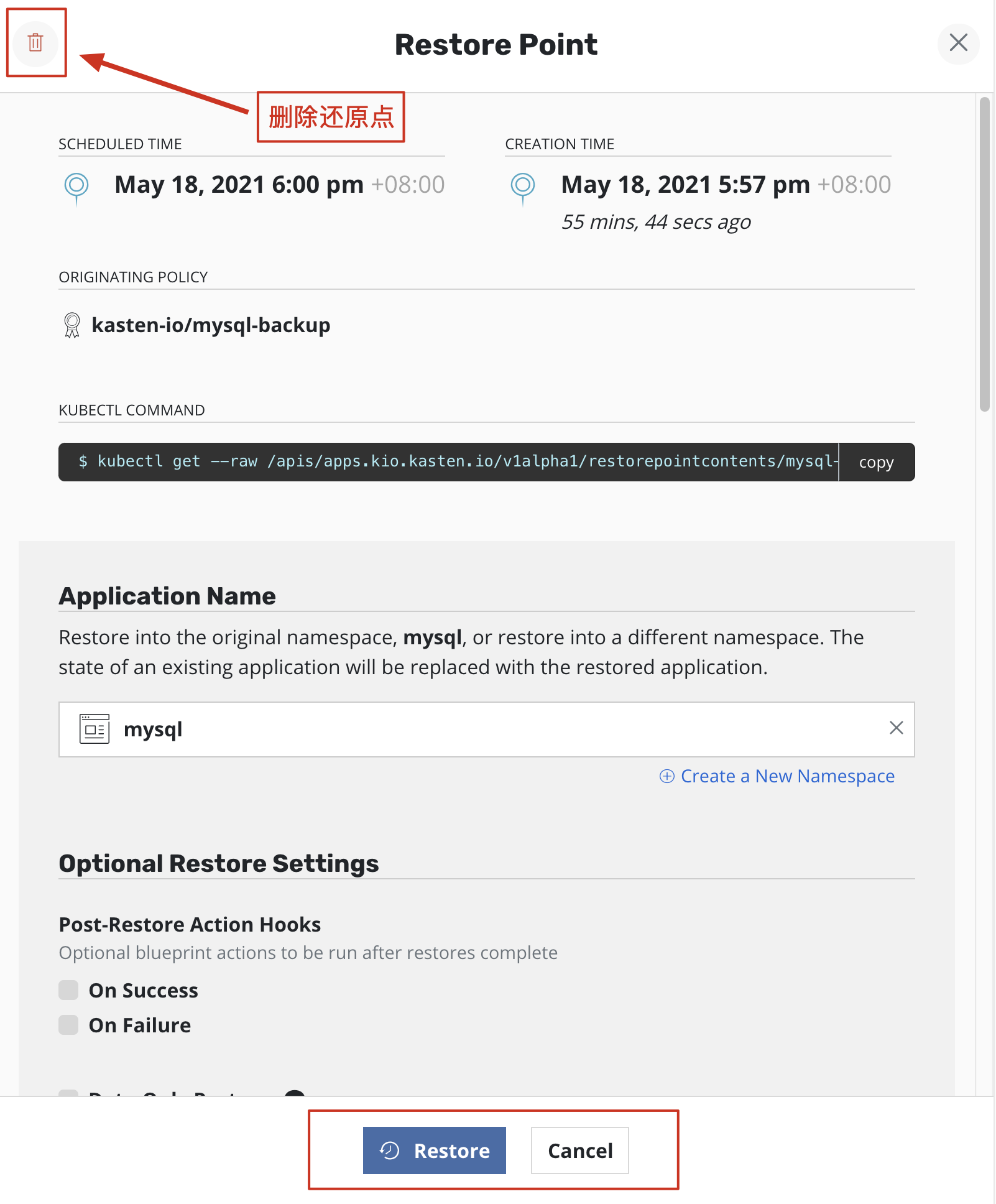
After selecting a restore point, you can restore the entire application or delete the restore point.
The above is the basic backup and restore content of K10 in this section. It has a completely graphical interface and is very simple to use. For more content, please follow the subsequent updates of this series.