Veeam Agent for Mac Standalone Guide
Veeam Agent for Mac arrived with v11. I assumed it required central management by VBR, but the User Guide reveals a standalone mode. Here’s how to install, configure, and back up without a VBR server.
You can grab the installer by running Create Protection Group in VBR—or download the extracted .pkg from my mirror: https://cloud.189.cn/t/eEZVvifyqIrm
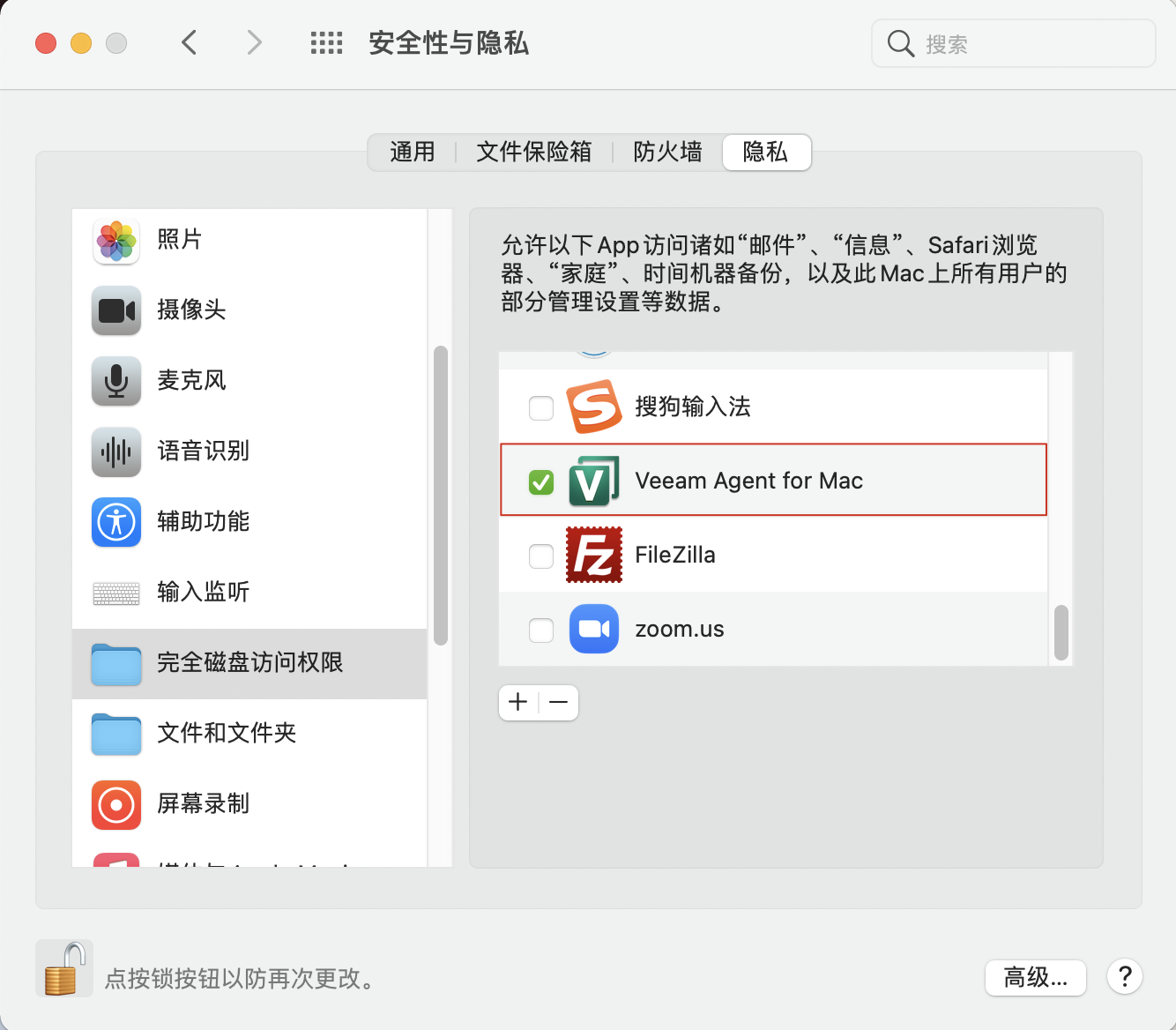
Install the package like any macOS app (double-click, Next, Next). Afterward, enable full disk access via System Preferences → Security & Privacy → Privacy so the agent can read files:
The agent follows Veeam’s minimal design:
veeamconfigCLI handles job configuration.- A Control Panel applet handles restores.
Once you set a job, you rarely need the CLI again—restores happen via the GUI.
Command-Line Configuration
Launch the CLI with:
veeamconfigStep 1: Add a Repository
Backups can target:
- A local folder
- An external drive
- An SMB share (NAS)
Example (SMB):
veeamconfig repository create \
  --name macbackup \
  --type smb \
  --location //<ip-or-host>/share/ \
  --username adminuser \
  --password
Key parameters:
--name: Friendly repo name (remember it for jobs).--type smb: Optional unless using SMB.--location: Path (UNC or local).--username/--password: SMB credentials (password prompted when omitted).
Step 2: Create a Backup Job
Simple example:
veeamconfig job create filelevel \
  --name VeeamBigSur \
  --reponame macbackup \
  --includedirs /Users \
  --daily --at 22:00
This creates a file-level job named VeeamBigSur that backs up /Users to macbackup every day at 22:00. Check the User Guide for more job parameters.
Control Panel (GUI)
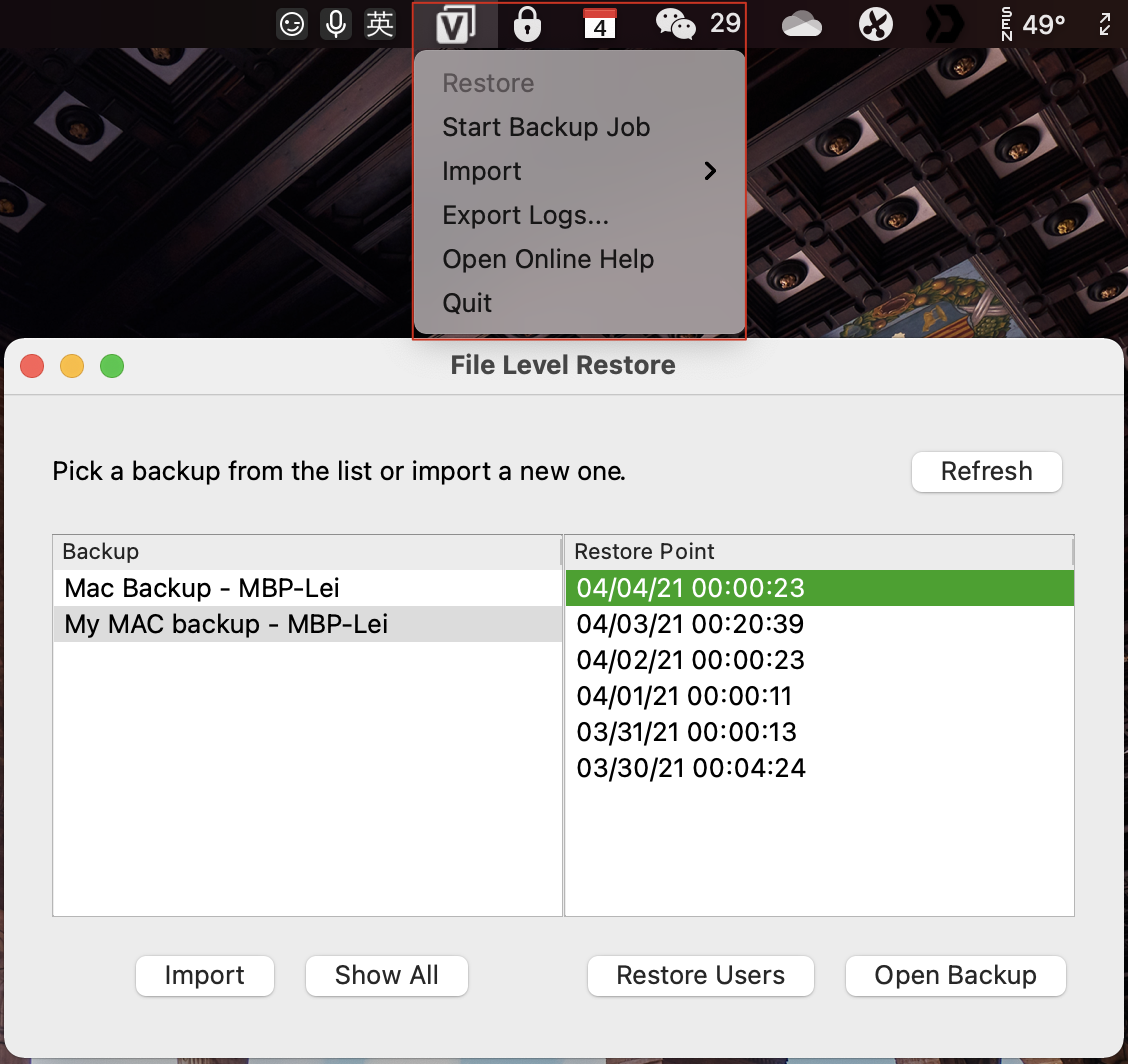
The app lives in /Applications but mainly serves as a restore console. Use Restore for file-level recovery (Standalone mode doesn’t support “Restore Users”).
Licensing & Modes
Veeam Agent for Mac has three editions: Server, Workstation, and Free. Standalone mode uses the Free edition—no license required, basic features only. When the agent connects to VBR, licenses are consumed, unlocking advanced capabilities.
How does it compare to macOS Time Machine? Try both—they coexist peacefully, and each has pros/cons.
That’s the standalone workflow. For more tips, visit my blog!