Veeam Backup Server Upgrade Guide (v11 Edition)
Introduction
On February 25, Veeam released the all-new v11 version. Last year, I published a post about upgrading to v10. Actually, this v11 upgrade process isn’t much different from the previous v10 upgrade. Today’s content will make some v11-specific adjustments to the previous post I mentioned—consider it a small update.
Before You Upgrade
Please follow the flowchart below to check your current environment and ensure all other components are properly upgraded before upgrading VBR.
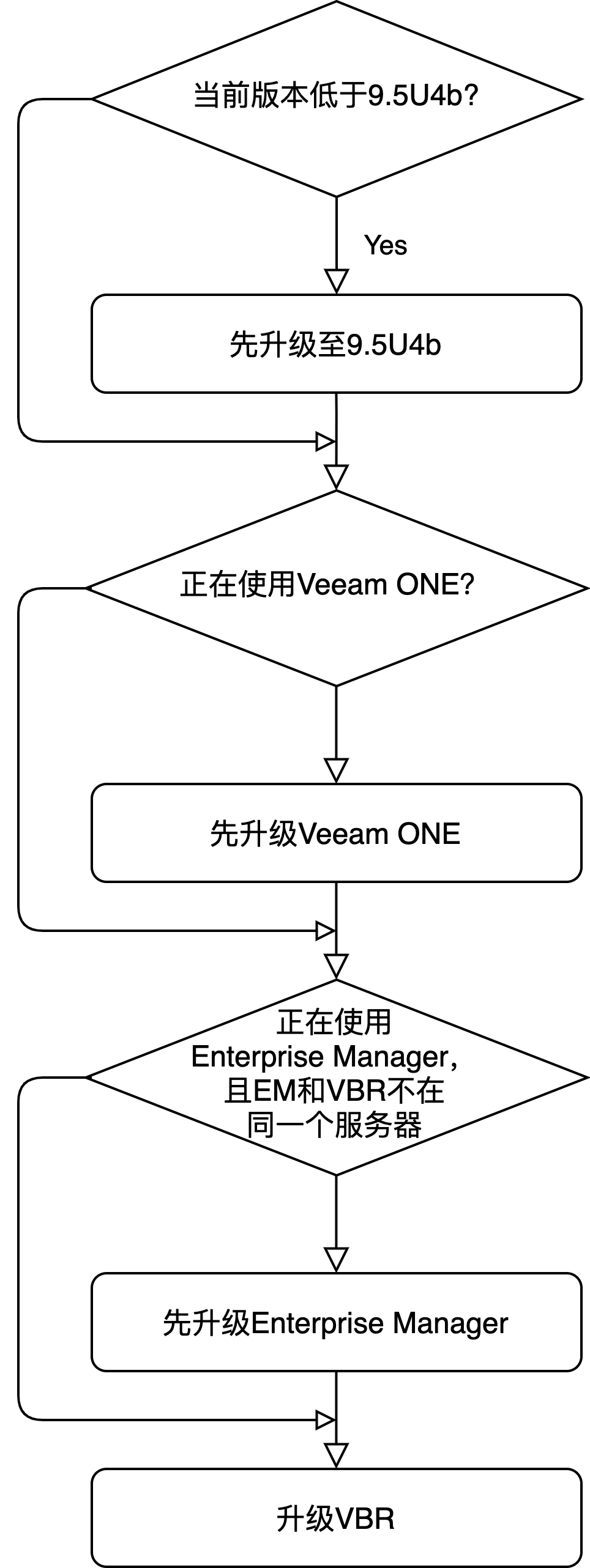
v11 is fully compatible with the previous v10 VUL licenses, so if you’re already using VUL licenses, you don’t need to prepare or import any license files at all.
Upgrade Methods
There are two upgrade methods available, not much difference between them.
- In-place upgrade on the original VBR server
- Fresh install a new VBR server, then restore the Configuration Backup File to this newly installed VBR
Since the second method is almost identical to a fresh installation, this article won’t elaborate on it in detail and will only discuss the first in-place upgrade method.
Upgrade Preparation
Prepare the Veeam upgrade media. Veeam products are very simple—the upgrade media and fresh installation use the same media package. Just mount the product package on the VBR server. Before executing the Upgrade, you need to do a series of preparation work:
- Carefully read the Release Notes and check your environment to see if there are any unsupported systems:
   - VMware vSphere 5.1 and earlier versions
   - Windows 2003 and XP
- Microsoft SQL Server 2005-
Use Veeam Configuration Backup functionality to create a backup of the VBR configuration. Make sure this backup is done in Encrypted mode, so all usernames and passwords used in VBR will be properly saved in the .bco file.
-
Check all backup jobs on VBR to ensure no jobs are currently running. Pay special attention to the following jobs, which need to be manually stopped by clicking Disable:
    - Backup Copy Jobs
- SQL and Oracle log backup jobs- Check if any Instant VM Recovery sessions are running
- Check if any Veeam Explorers are open and performing recovery operations
- Check if any SureBackup/Virtual Lab jobs are running
Ultimately, when all tasks are stopped, the console should look like this:

Upgrade Process
The entire upgrade process is very simple. Just click through the wizard with a few mouse clicks, then wait quietly for about 30 minutes, and the software upgrade will be complete. Therefore, I won’t go through this process step-by-step in detail here.
Possible Issues You Might Encounter
-
During the upgrade process, the upgrade package will first stop all VBR services. You might encounter service stop timeouts or failures, causing the upgrade process to be interrupted. If you encounter failures, it’s recommended to first check whether all services starting with “veeam” in Services.msc have been properly stopped.
-
After all services are properly stopped, if the in-place upgrade still reports errors, it’s recommended to restart the VBR server and then try the upgrade again. Pay special attention here: after the VBR restarts, you need to re-check all VBR jobs to ensure no jobs are running automatically.
-
If you try multiple times and still cannot perform a normal upgrade, it’s recommended to use method 2 mentioned above: fresh install a new VBR server, then import the Configuration backup file.
-
If all the above methods fail, please contact the Veeam Support team in a timely manner. Our engineers will promptly provide you with upgrade support.
The above are some tips for the upgrade. Thanks for reading!