Use This Method and Your Backup Data Will Never Fear Ransomware Again
Ever since the massive outbreak on May 12, 2017, ransomware has continuously evolved over the past four years, generating various variants and learning different attack methods—even learning to bribe the security guard at the gate…

But no matter what, the security guard is our most trusted ally, our final line of defense. Today I want to discuss with you how to build a secure backup data environment based on this final line of defense.
Implementation Effects
Let me first describe the implementation effects:
- For the data storage device, we’ll choose a rack server with large-capacity disks, fully configured with SATA hard drives, achieving maximum capacity density in the rack while minimizing cost per TB. This part is very easy to implement—just consult major server manufacturers to purchase such a server.
- Once this rack server goes live to provide services, disable remote login for all accounts. The only access method is restricted to using an external monitor, keyboard, and mouse on the server to access the console. After installation, lock the rack cabinet and control the cabinet keys.
- On the network switch and firewall, no modifications or settings for this server’s access are needed. Due to the port and service limitations themselves, this server only opens ports 2500-3300 used by Veeam services for data transmission. This data transmission link is limited to Veeam Datamover component access only.
- For Veeam services, only allow data to be written to this storage device and read from this device, while preventing modification and deletion of this written data.
In simple terms, this device only leaves a single channel for data to enter this server from Veeam. Once entered, it’s sealed up, only allowing external reading and use of data through Veeam’s transparent data containment boundary.
Implementation Tools
Very simple—you only need Linux and Veeam v11. Any Veeam version has this capability, including the Community Edition. In the new product features of v11, it’s called Hardened Linux Repository. It consists of two parts:
-
Single-use credentials for hardened repository
This feature is used to complete the initial configuration of the data storage device. During initial configuration, a single-use account for configuration purposes is used. This account is not memorized or stored in any Veeam service, and after the initial configuration is complete, you can disable this account’s remote access and sudo permissions.
-
Immutable flag
This feature is used to establish a transparent data containment boundary, allowing Veeam to write and read data, but not allowing Veeam to delete and modify written data. Of course, to balance capacity, immutable is designed as a time period. Only short-term data within the specified period enters the containment boundary, while data exceeding this period automatically exits the boundary, allowing it to be deleted after expiration to free up space.
Configuration Method
The following configuration method includes Linux server configuration and Veeam repository configuration. Linux uses Ubuntu 20.04 LTS as an example—please modify accordingly for other distributions.
Ubuntu Repository Pre-configuration
- Create a user for one-time login configuration.
admin@hardenedrepo:~$ sudo useradd -m veeamrepo
admin@hardenedrepo:~$ sudo passwd veeamrepo- Prepare the corresponding backup space, complete formatting, and mount it to a directory in Ubuntu, such as /backupdata. Please verify the mount result with the following command.
admin@hardenedrepo:~$ df -h | grep /backupdata- Grant veeamrepo permission to manage the backup space.
admin@hardenedrepo:~$ sudo chown -R veeamrepo:veeamrepo /backupdata- Modify the sudoers configuration file to temporarily grant veeamrepo user sudo permissions.
admin@hardenedrepo:~$ sudo vi /etc/sudoersAdd the following information to the sudoers file, then save.
veeamrepo ALL=(ALL:ALL) ALLWith this, the Ubuntu configuration is complete, and you can proceed to configure the Hardened Repository in Veeam.
VBR Configuration
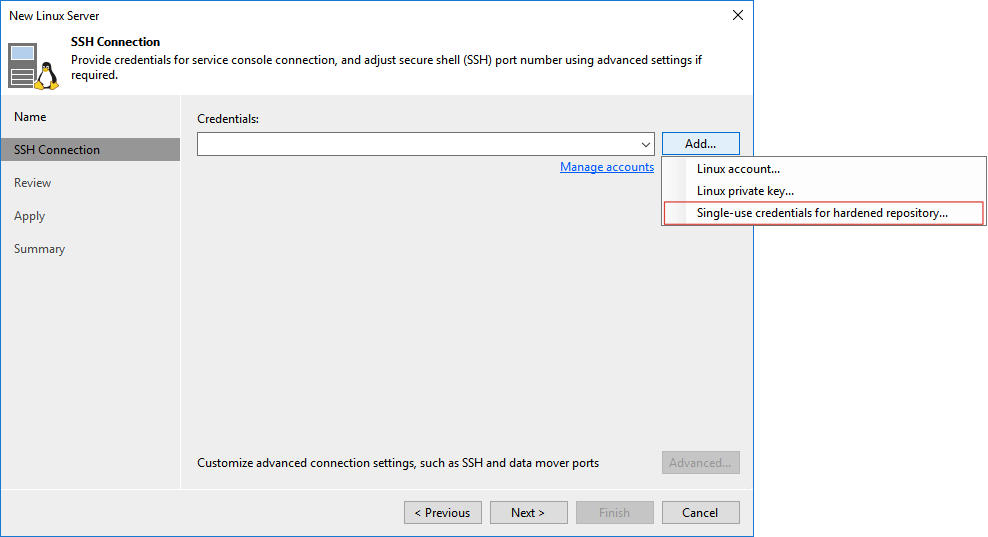
- Select to configure Repository, with configuration type as Direct attached Storage -> Linux. The entire process is no different from previous ordinary Linux Repository configurations, except that when configuring New Linux Server’s SSH Connection, choose to use “Single-use credentials for hardened repository…” as the Credentials option, as shown below:
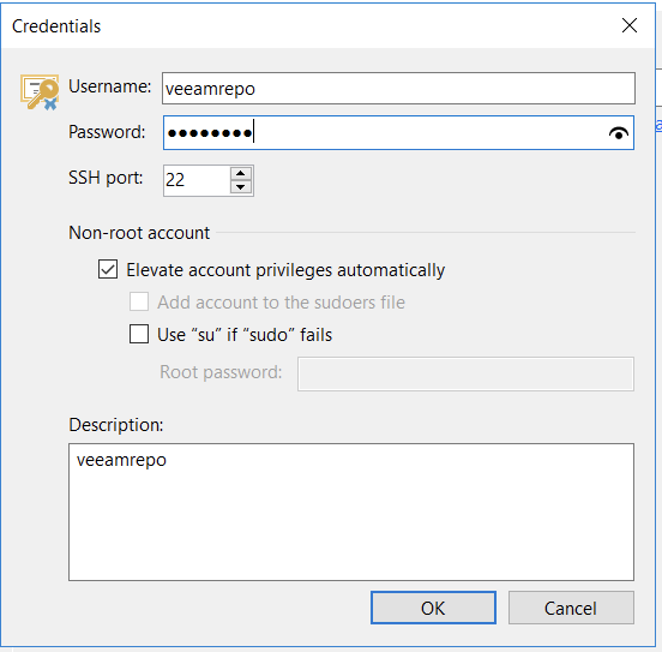
- Fill in the veeamrepo account and password, and allow automatic privilege escalation using sudo. The subsequent steps are completely identical to adding an ordinary Linux repository.
- In the Repository step of creating the repository wizard, check the “Mark recent backups immutable for: xx days” checkbox and fill in the specific number of days in the blank space, as shown below:

With this, the Repository in VBR is also configured. We need to return to Ubuntu to perform some subsequent further security hardening to ensure data security.
Ubuntu Hardening Configuration
- Modify the /etc/sudoers file again to remove sudo permissions for the veeamrepo user, revoking administrator privileges. The modification method is very simple—just add a # comment before the previously added content.
- Disable the ssh service to prohibit any user from logging in via ssh.
admin@hardenedrepo:~$ sudo systemctl disable ssh
admin@hardenedrepo:~$ sudo systemctl stop ssh- Close other related network services, not allowing any other non-Veeam application access.
At this point, all configuration is complete. The remaining work is to use this repository just like any other ordinary storage. All Veeam functions, whether backup, instant recovery, granular object recovery, backup verification, and data lab, are not affected in any way.
That’s all for today’s content. For more detailed configuration processes, please refer to the official website user manual.