Kasten K10 Starter Series 01 – Build a Single-Node K8s Lab Quickly
Release Notes: v1.2
2021/06/04 - Added a local registry with built-in K10 v4.0.3 images. You can use --set global.airgapped.repository=localhost:5000 during K10 installation to directly call the local docker image repository.
Virtual appliance updated to v1.2, corresponding file in cloud drive: UbuntuK10-v1.2.ova
Release Notes: v1.1
2021/05/03 - Tested Stateful MySQL deployment, changed the built-in Demo application in the appliance to Helm-installed MySQL. This allows quick demo and testing of backup and restore for stateful applications through this vApp.
Virtual appliance updated to v1.1, corresponding file in cloud drive: UbuntuK10-v1.1.ova
Since Veeam acquired Kasten, I’ve been working with Kubernetes a lot more. The biggest takeaway has been dealing with the overwhelming number of commands and the heavy reliance on internet connectivity. When you can’t connect to the internet—especially when foreign container image sites are blocked—the typical situation is being completely stuck, unable to do anything. Of course, for the Kubernetes and container experts out there, this isn’t really a problem. But for the vast majority of system administrators and system engineers who aren’t specialized in software development, the challenge is quite significant.
To build a Kasten K10 Lab environment, the fundamental requirement is a Kubernetes cluster. Kasten K10 is a native cloud application—both the environment it runs on and the objects it backs up and restores are Kubernetes. Therefore, the challenge we face is to quickly and easily build a K8s environment and deploy a simple stateful application. Without internet connectivity, this is extremely difficult. However, where there’s a will, there’s a way, right? These small obstacles can’t stop a virtualization administrator who’s skilled in using virtualization technology. After doing some research, I drew inspiration from the quick deployment scripts shared by my Veeam Japan colleagues and used the unique OVF (Open Virtualization Format) approach in virtualization to package this process into a virtual appliance. This greatly simplifies the demo lab setup process, enabling the creation of a single-node cluster without any network downloads, complete with a WordPress application that includes a MySQL database.
First, here’s the download link for this virtual appliance:
https://cloud.189.cn/t/mAnyMrA36vam (access code: wd69)
Please note that this virtual appliance is for personal testing and research purposes only and must not be used for any commercial purposes. I make no guarantees about the security, reliability, or stability of this appliance—users should judge for themselves.
Virtual Appliance Usage Instructions:
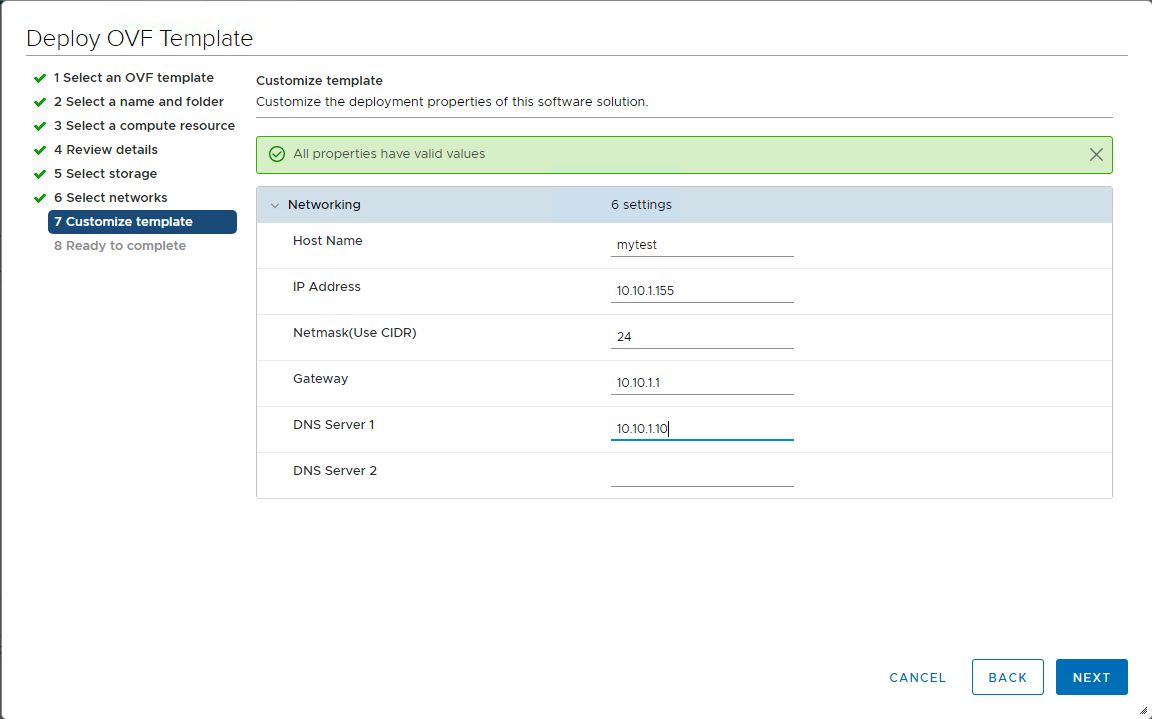
Administrators skilled in VMware virtualization can import this OVA file into VMware vSphere or VMware Workstation. During the import process, the import wizard will prompt you to configure network and IP address information as shown in the image below. Pay special attention that the Netmask needs to be in CIDR format:
After the import is complete, during the first boot of the virtual appliance, the device’s IP address will be automatically configured. Once the configuration is complete, you can use SSH to log into the system for basic K8s environment configuration. The initial username and password for access are:
username: k10
Password: P@ssw0rd
After entering the system, use the sudo -i command to switch to the root user.
K8s cluster initialization requires executing 5 script files in the /root/ directory in order:
0-minio.sh
1-createk8s.sh
2-loadimage.sh
3-storage.sh
4-wordpress.sh
All relevant files needed during script execution have been placed in the /root/ directory, and the scripts will automatically call these files.
What Do These Scripts Do?
0-minio.sh
This script uses MinIO (https://minio.io), the leading name in open-source object storage, to create a local object storage system. After the command is executed, the object storage will be running and accessible via the web interface at https://
username: minioadmin
Password: minioadmin
1-createk8s.sh
This script uses Kind technology (K8S in Docker) to run K8S nodes in containers to quickly deploy a K8S cluster. The container images used by K8S have been pre-built into this appliance, so there’s no need to download the ~1.3GB K8S docker images from the internet. Before running the script, you can confirm that the K8S docker images are in place with the following command:
docker images list | grep kindAfter the script finishes running, you can normally use kubectl commands to view all K8S resources. At this point, all kubectl commands should work normally. For example, you can try this:
kubectl get nodes2-loadimage.sh
There’s nothing particularly secret about this script—it’s purely preparation for the fourth and fifth scripts. It pushes local docker images to the localhost:5000 local image repository and loads some docker images built into the local Ubuntu into Kind for Kind to use.
3-storage.sh
This script creates a local CSI Hostpath driver for the K8S cluster. The scripts it uses can be found at (https://github.com/kubernetes-csi/csi-driver-host-path). I’ve modified the internet download links used by this script to use all yaml files from the local /root/ folder, and I’ve also pre-pulled all docker images used by this script from the internet and loaded them into Kind in the previous step.
Before running the script, you can query the pre-deployment storage class with the following command:
kubectl get scAfter the script finishes running, you can run this command again to see the newly configured storage class.
Additionally, this step will deploy multiple pods to the default namespace. Another useful command to check the deployment status of this step is:
kubectl get pod4-wordpress.sh
This script’s purpose is also simple—it deploys a WordPress application with a built-in Stateful MySQL database. After deployment is complete, you need to run the following command for port forwarding, then use a browser to access the following address for subsequent configuration at http://
$ kubectl port-forward --address 0.0.0.0 svc/wordpress 80:80 -n wordpressThat concludes the brief usage instructions for this virtual k8s appliance. After deploying this environment, you can use the documentation at (https://docs.kasten.io) to proceed with normal installation and configuration of Kasten.