Create a Minimal vSphere Role for Veeam via PowerCLI
Hardening a Veeam deployment starts with a least-privilege vSphere account. As VBR adds features, the list of required rights keeps growing—check the full fine-grained permission matrix. Manually clicking through every checkbox is tedious, so here’s a slick PowerCLI script I recently found that builds the role automatically.
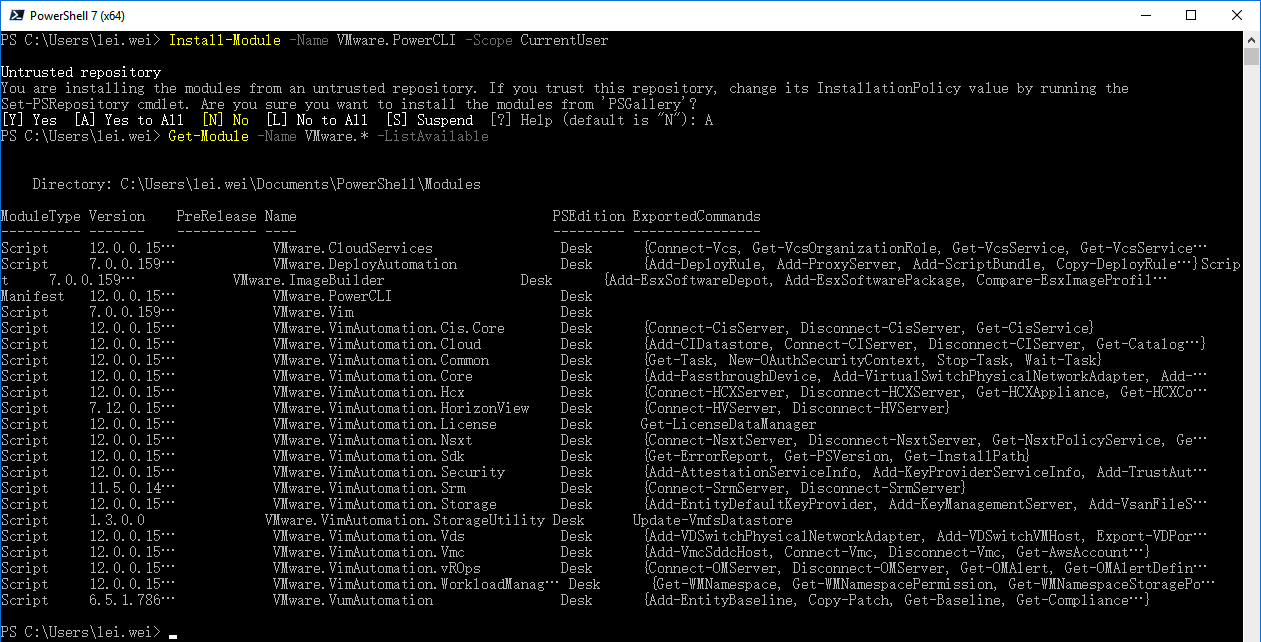
Prerequisite: install VMware PowerCLI. VMware’s official blog post explains the process in detail; below is the short version.
-
Install PowerShell Core 7. It’s required for PowerCLI and works on Windows, macOS, and Linux. On Windows, just run the MSI installer.
-
Launch the PowerShell 7 shortcut and install PowerCLI:
Install-Module -Name VMware.PowerCLI -Scope CurrentUserVerify the modules with:
Get-Module -Name VMware.* -ListAvailable
-
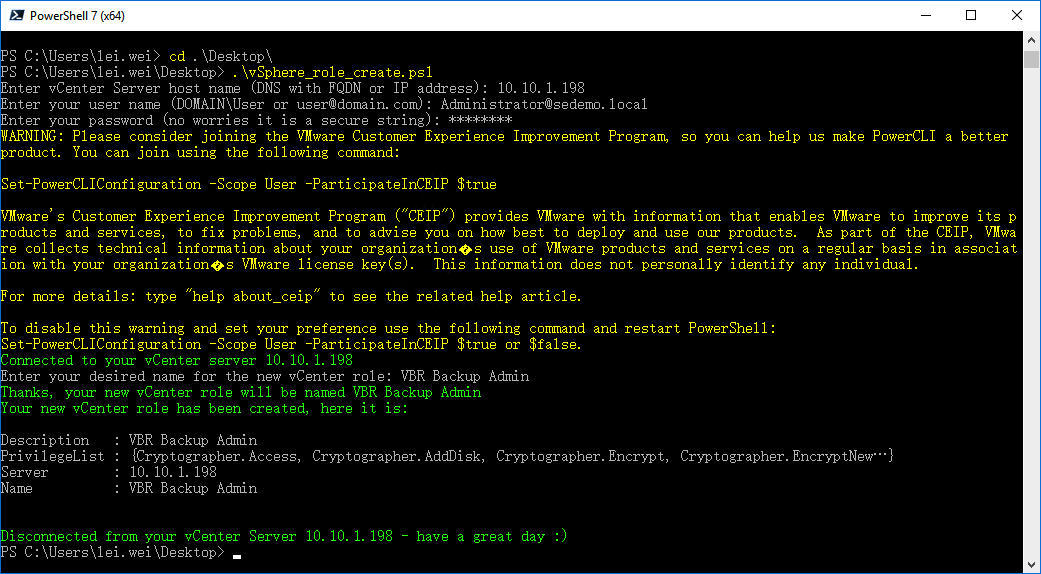
Run the PowerCLI script (also mirrored on GitHub). It prompts for the vCenter address, credentials, and desired role name; supply values that fit your environment.
-
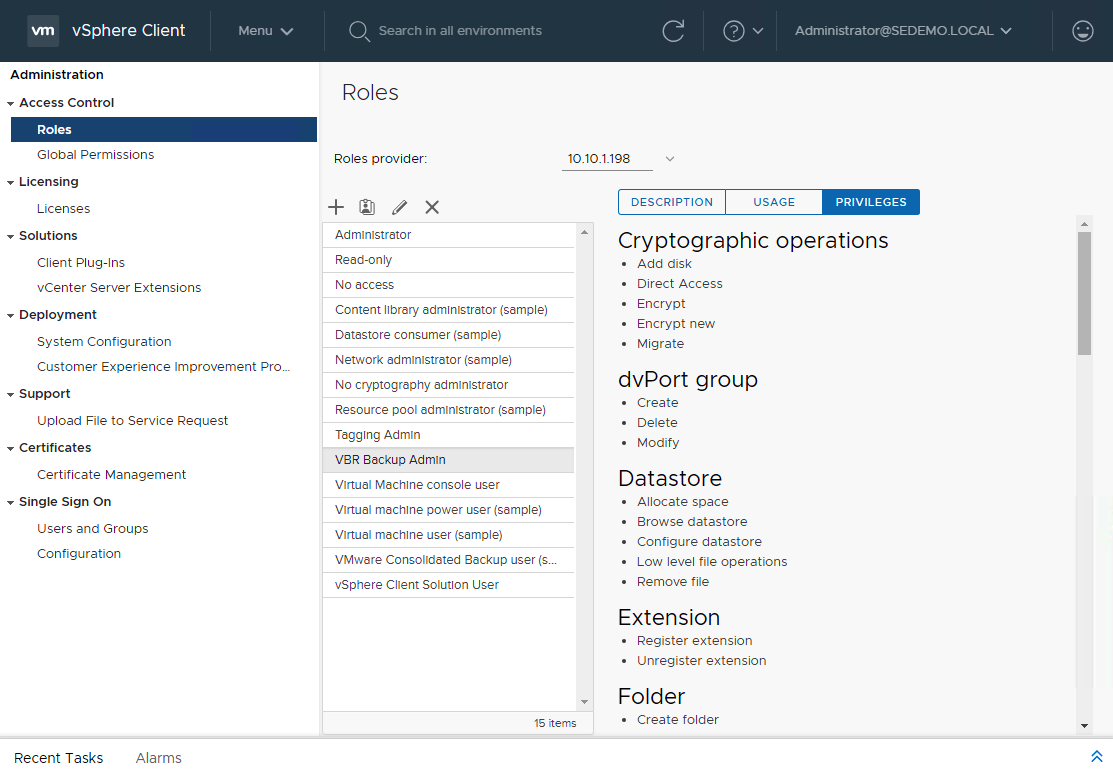
Back in the vSphere Client, open Administration → Access Control → Roles and you’ll see the newly created VBR Backup Admin role.
-
Under Single Sign On → Users and Groups, switch to the appropriate domain and create a dedicated user.
-
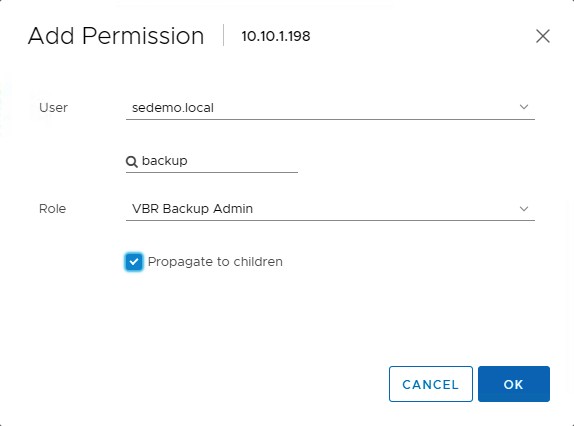
Assign that user to the vCenter with the VBR Backup Admin role:
That’s it—fast, repeatable, and aligned with least-privilege best practices. Script link for reference: https://github.com/falkobanaszak/vCenter-role-for-Veeam/blob/master/New_vCenterRole_Veeam.ps1.